
Download Assets
description
Learn how to transform your photos with realistic textures and lighting effects in Photoshop. This tutorial covers blending modes, non-destructive color adjustments, and beautiful color grading using ACR.
Go PRO:
Dive deeper into the world of Photoshop with our in-depth PRO Photoshop Learning Path . Across 11 courses and 53 hours of engaging content, you’ll learn Photoshop’s ins and outs, master pro-level tools, and tackle fun and challenging projects..
Image Source
- Alina Chernovolova
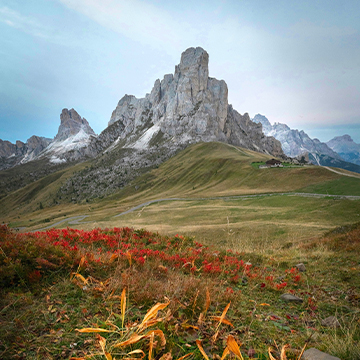
- Thomas Lefebvre
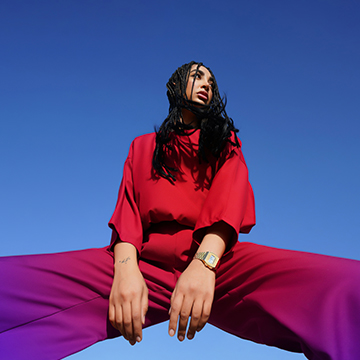
- Kiwihug
- Heli Dima
Images sourced from Unsplash.
Share
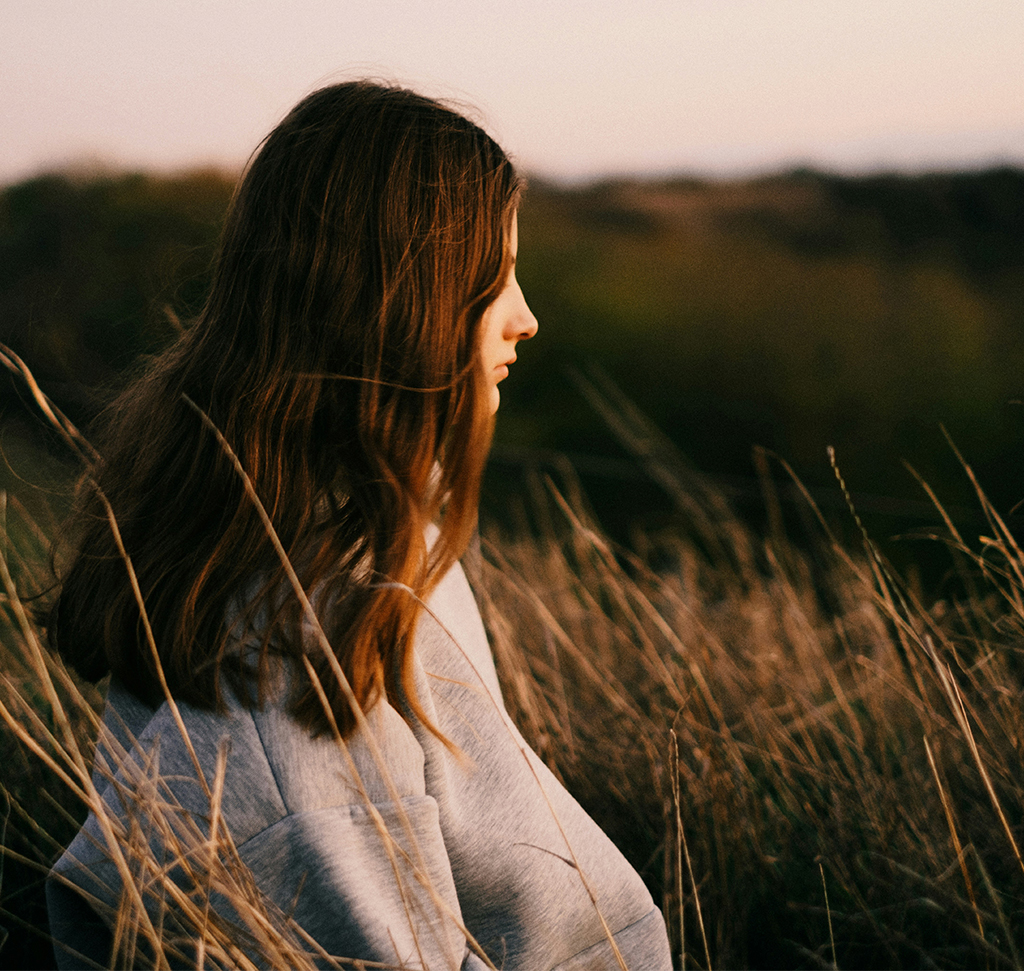
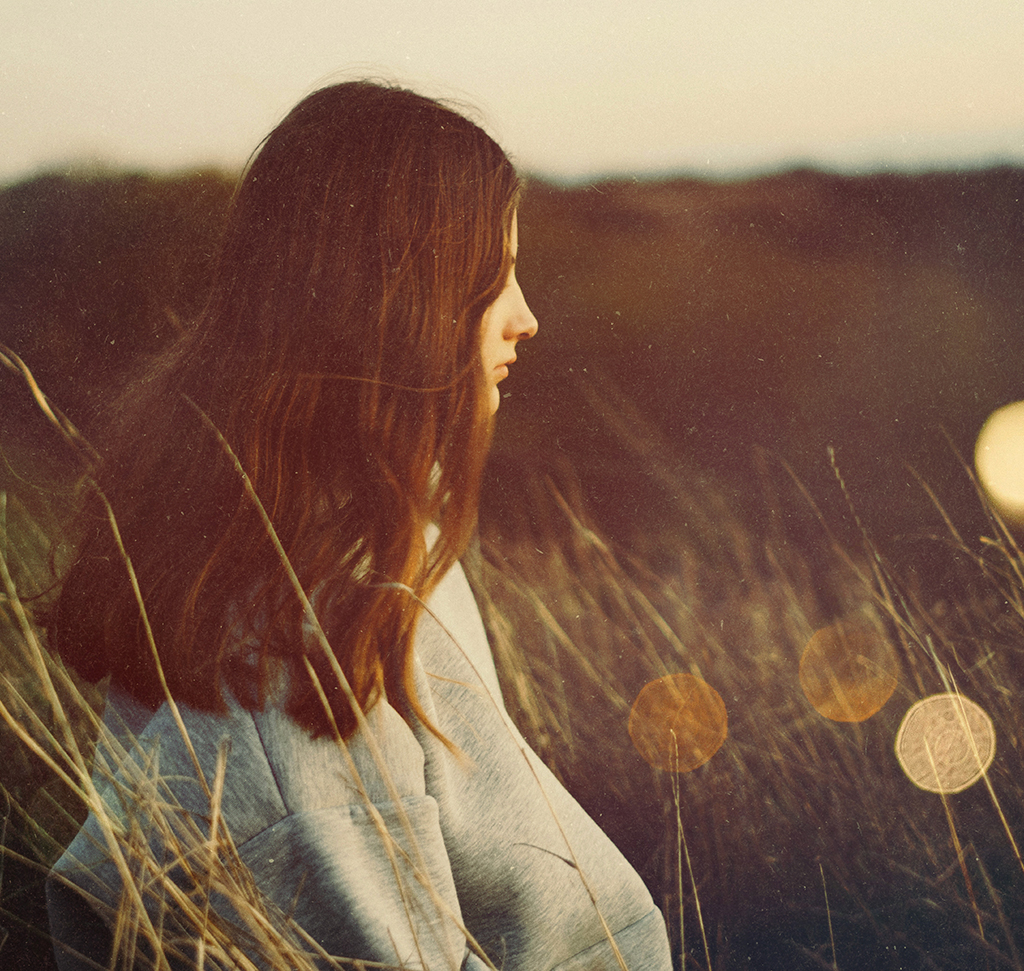
AFTER
BEFORE
Texture Made Easy
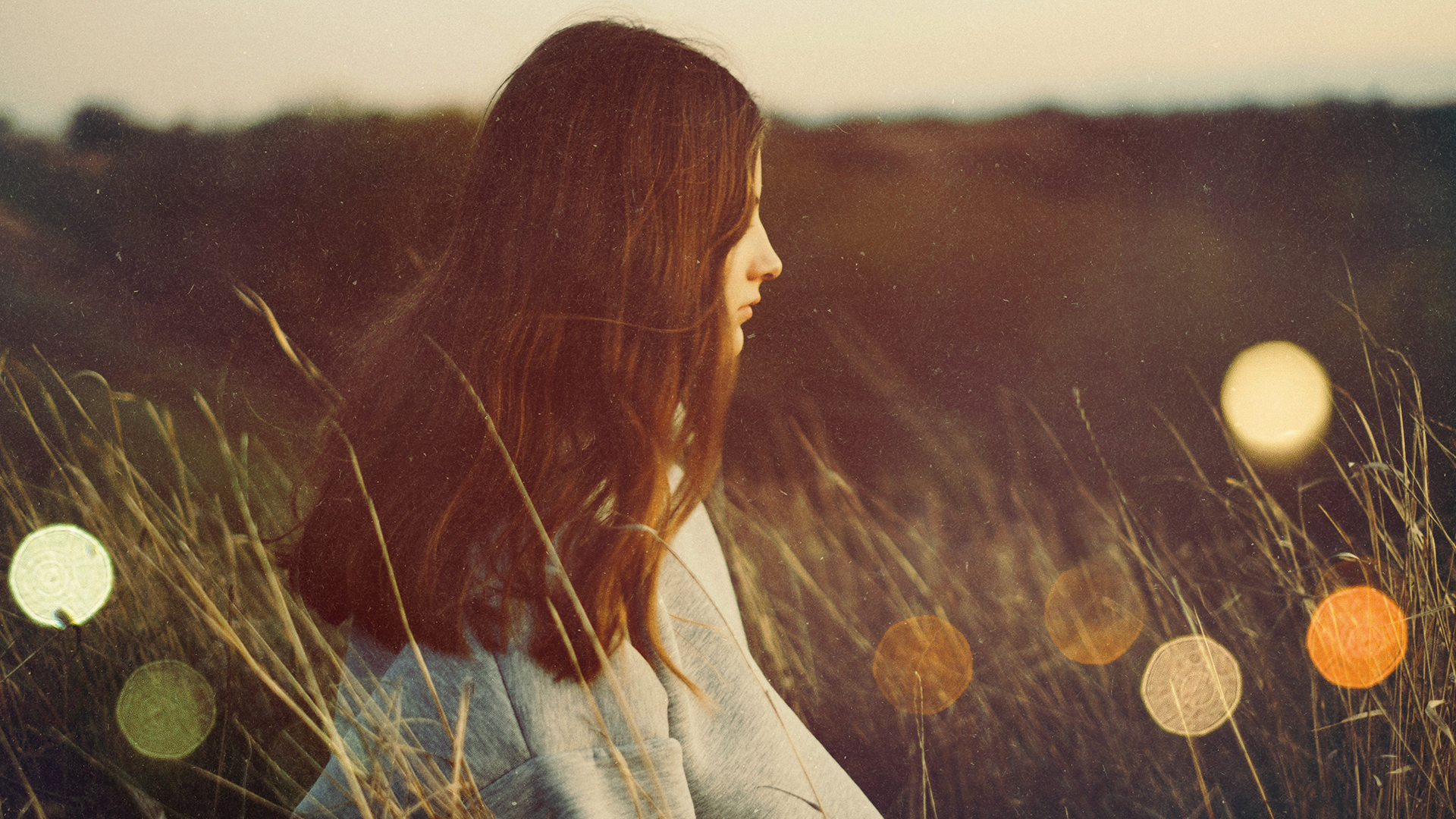
Adding texture gives your work a tactile, organic quality that feels lived-in and professional. This technique is the absolute best because it’s 100% non-destructive. By using smart objects, blending modes, and layer masks, you get total creative control without ever damaging a single original pixel.
Using Blending Modes
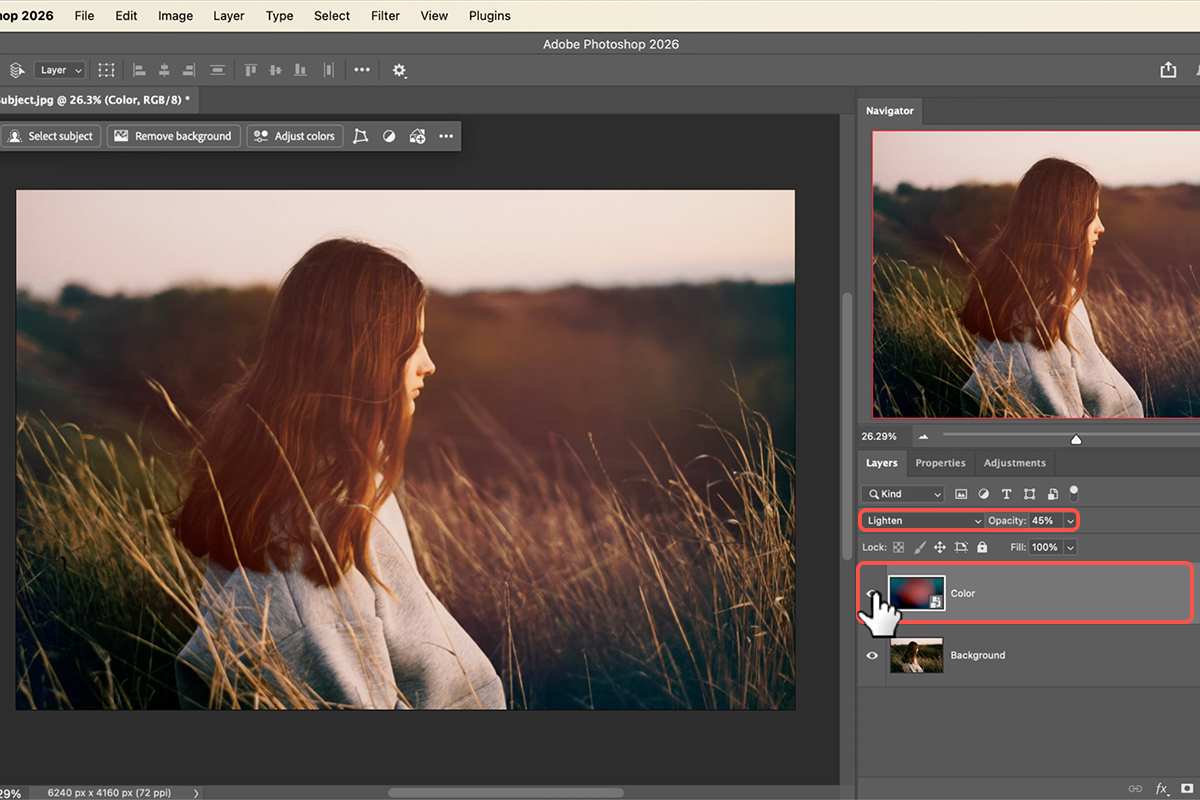
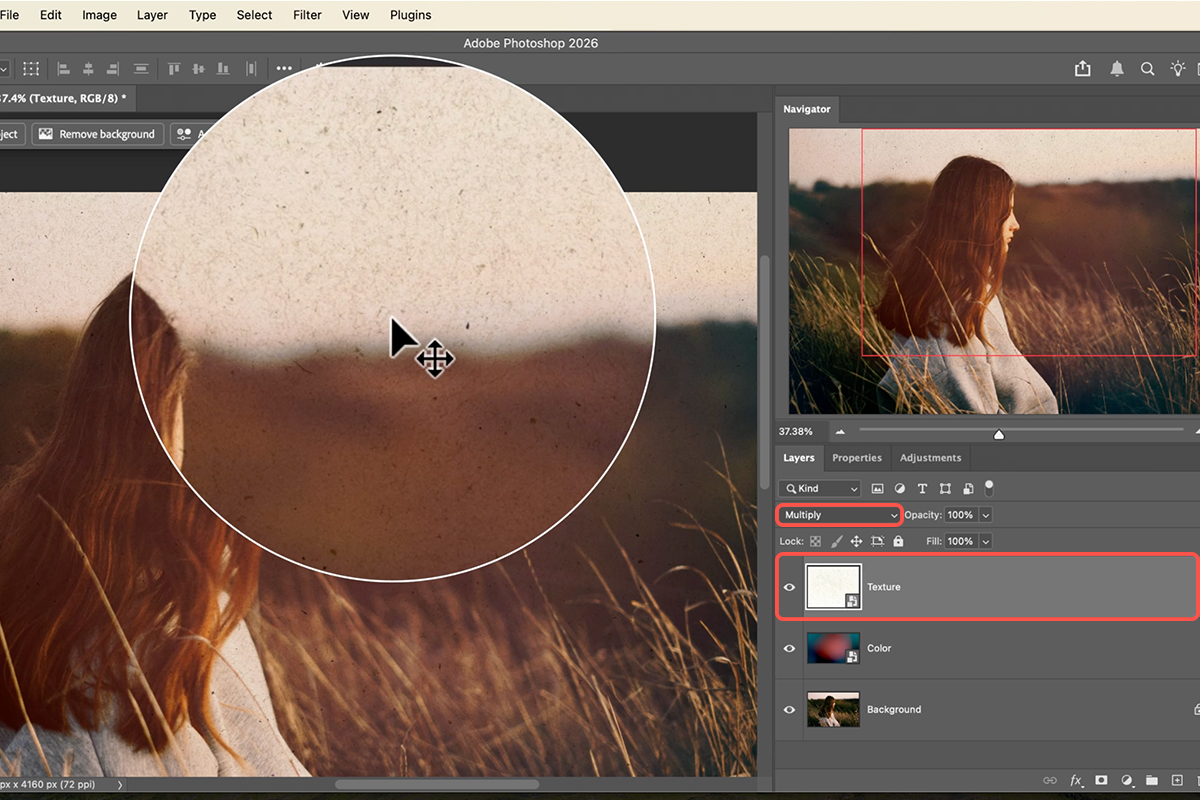
1. Your first step is to drag your texture JPEG directly into Photoshop and scale it to fit (Keyboard Shortcut “Ctrl/Cmd + T”).
2. To make the texture interact with your photo, swap the Blending Mode from Normal to Linear Dodge or Lighten.
3. If the effect feels like a bit much, simply click and drag the Opacity slider to the left for a more subtle, integrated look. This allows the colors of the texture to dance with the highlights of your subject.
Invert for Impact
Sometimes a texture has dark elements on a light background, but you want the opposite.
4. Hit Ctrl/Cmd + I to Invert the layer, turning those dark spots into light ones.
5. Once inverted, change your Blending Mode to Screen to let only the light texture show through.
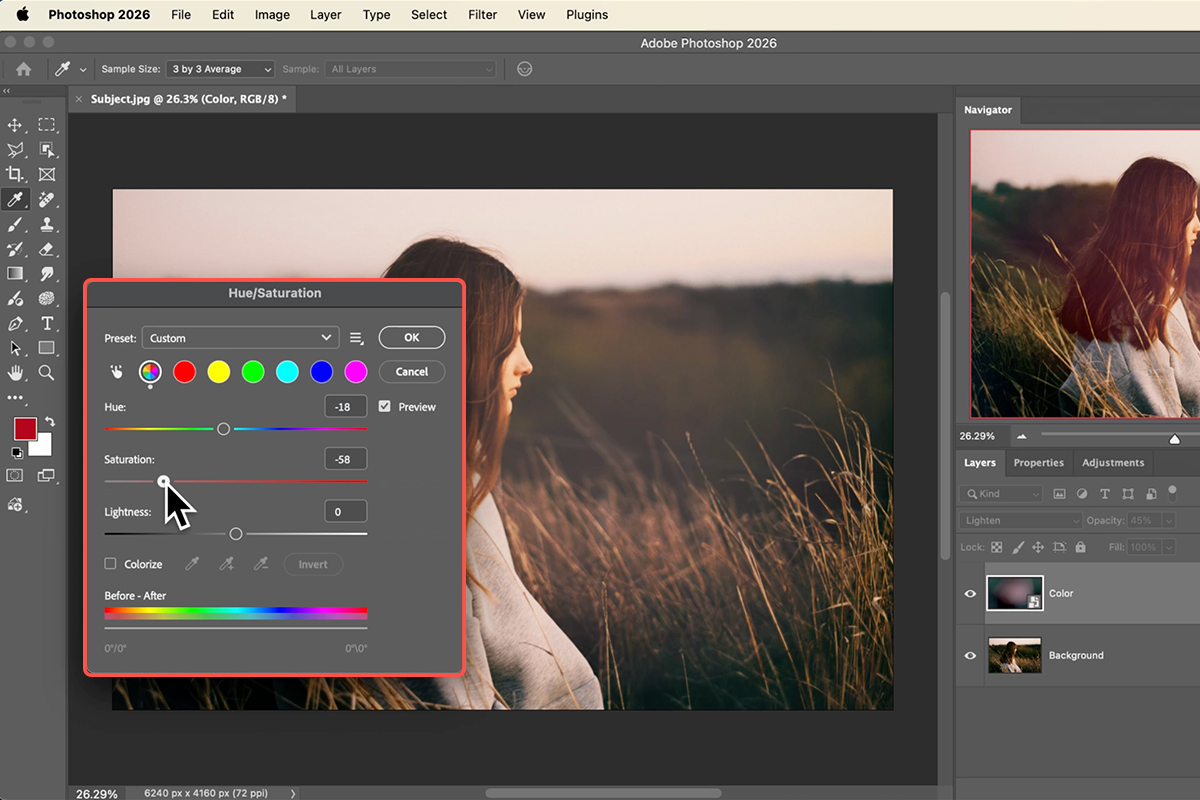
6. If the color doesn’t match your vibe, hit Ctrl/Cmd + U for Hue/Saturation, click Colorize, and slide the Hue until it perfectly complements your image’s palette.
Localized Light Control
7. To add environmental depth, drag in a lighting texture and set it to Screen.
8. If the light is covering something important—like your subject’s face—don’t delete it! Instead, click the Layer Mask icon in the Layers panel. Grab your Brush Tool (Keyboard Shortcut “B”), set your foreground color to Black, and paint over the areas you want to hide. This gives you the power to place light exactly where it tells the best story.
Final Touches
9. To pull all your layers together into one cohesive image, create a “stamp visible” layer by going to Image > Apply Image on a new blank layer.
10. Convert this for Smart Filters and head into the Camera Raw Filter (Keyboard Shortcut “Shift + Ctrl/Cmd + A”).
11. Use the Color Grading tab to tweak your shadows, midtones, and highlights. This final step acts as the “glue” that makes your textures and original photo feel like they were captured in the same frame.