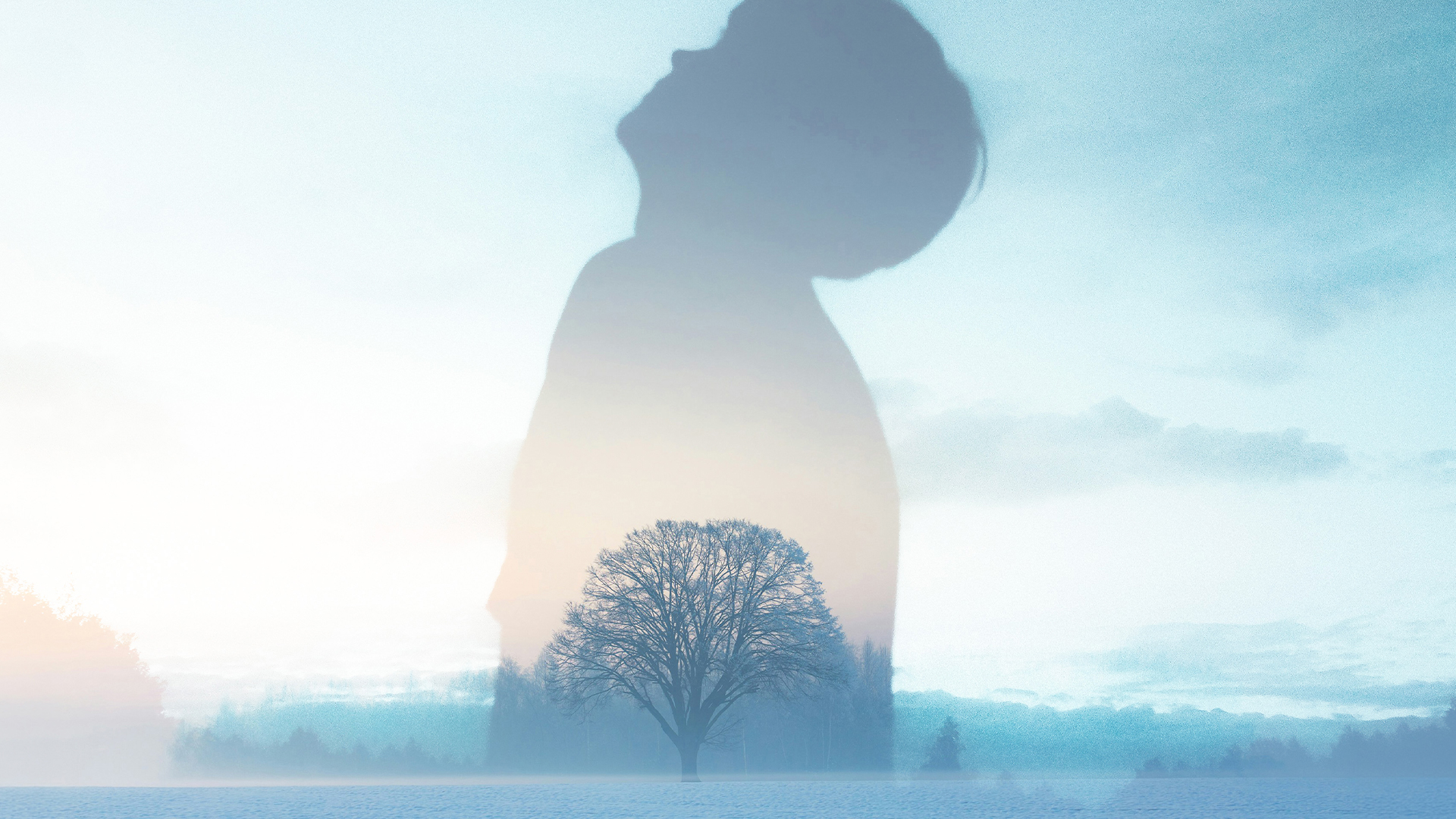

Download Assets
This tutorial includes 3 sample images, 1 sample PSD and 1 PDF guide. Downloads are free with a PHLEARN account.
- Download the sample images and PSDs from every free tutorial on PHLEARN
- New free tutorials published every week
- One free account — sign up once, then download anything
Free PDF Guide · 3 Pages
This Tutorial as a Step-by-Step PDF
Every step from the video in order: choosing high-contrast images, placing them as Smart Objects, the Screen blend mode, transforming, and Generative Expand inside the Smart Object so the tree fills the frame. Keep it next to your keyboard.
description
Create a double exposure effect in Photoshop using the Screen blend mode and a high-contrast silhouette, then fit the second image with Generative Expand.
Enjoying This Free Tutorial?
We publish a new free tutorial every week, each one with sample images and PSDs you can download and follow along with. Sign up and they land straight in your inbox, along with early word on sales, events and subscriber-only offers.
Image Source
Photos by Max Ovcharenko, Mavi Atlas and Dawid Zawia via Unsplash

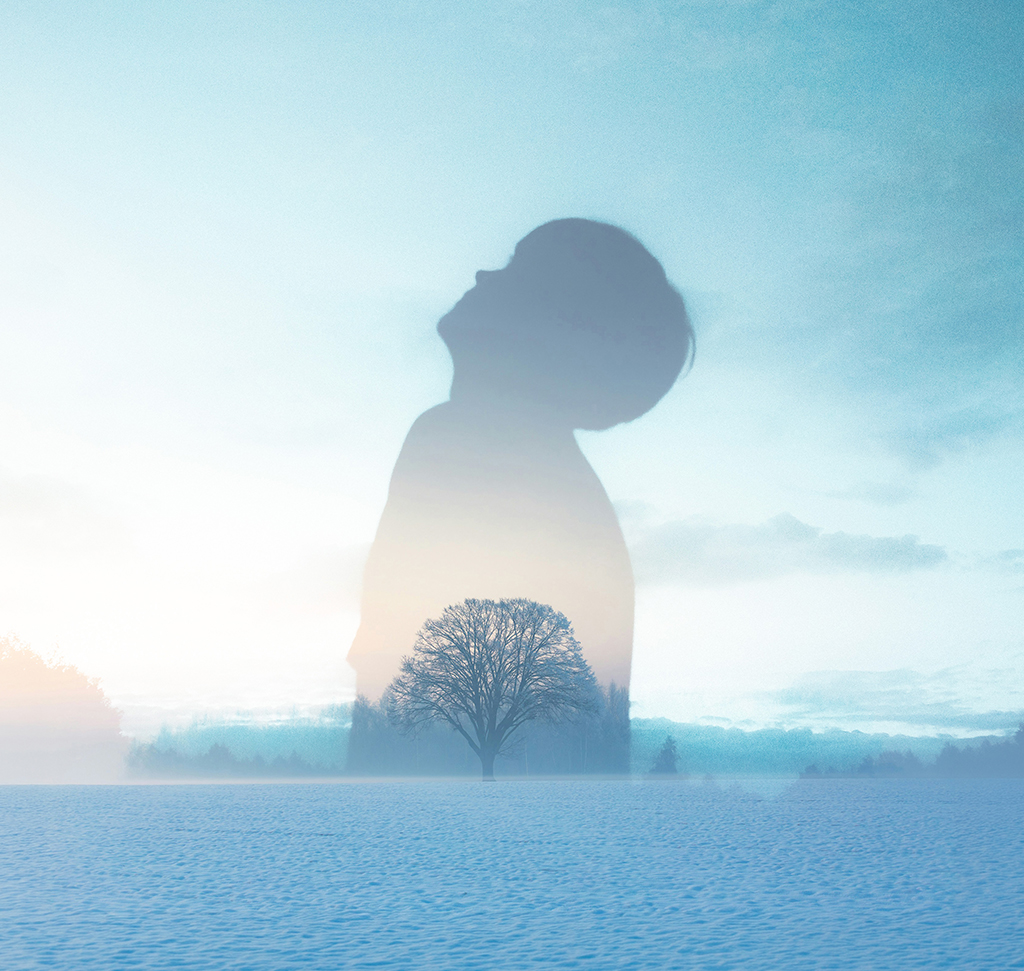
Build a Double Exposure Effect From Contrast, Not Opacity
The double exposure effect started as an accident — film advanced twice, two frames landed on one piece of emulsion. What made the good ones good was never the overlap itself but where the second image was allowed to appear: in the shadows, and nowhere else.
That is exactly what the Screen blend mode does. It keeps light pixels and discards dark ones, so a second photograph shows up only inside the dark parts of the first. No masks, no opacity fading, no erasing. Which means the entire result is decided before you touch Photoshop, by which two images you pick.
The Images Do Most of the Work
The Base Needs a Clean Silhouette
A subject in shadow against a bright background is the ideal base — a dark shape with a hard edge and a blown-out surround. The dark region is the canvas your second image will fill; a flat, evenly lit photo gives it nowhere to go.
The Second Image Needs Strong Highlights
Trees against sky, a city at night, water catching light. Screen keeps the bright parts, so an image whose interesting content is dark will simply vanish.
Muddy Results Are a Choosing Problem
If the effect looks like grey soup, no amount of transforming will fix it. Both images are too mid-tone. Go back and pick something with cleaner separation rather than fighting the blend.
Blend the Two Images
-
Open Your High-Contrast Base Image
Silhouette, backlit portrait, anything with a definite dark shape. This one stays on the bottom.
-
Place the Second Image on Top
Drag it in above the base. It will completely cover the first image, which is expected — that’s about to change with one setting.
-
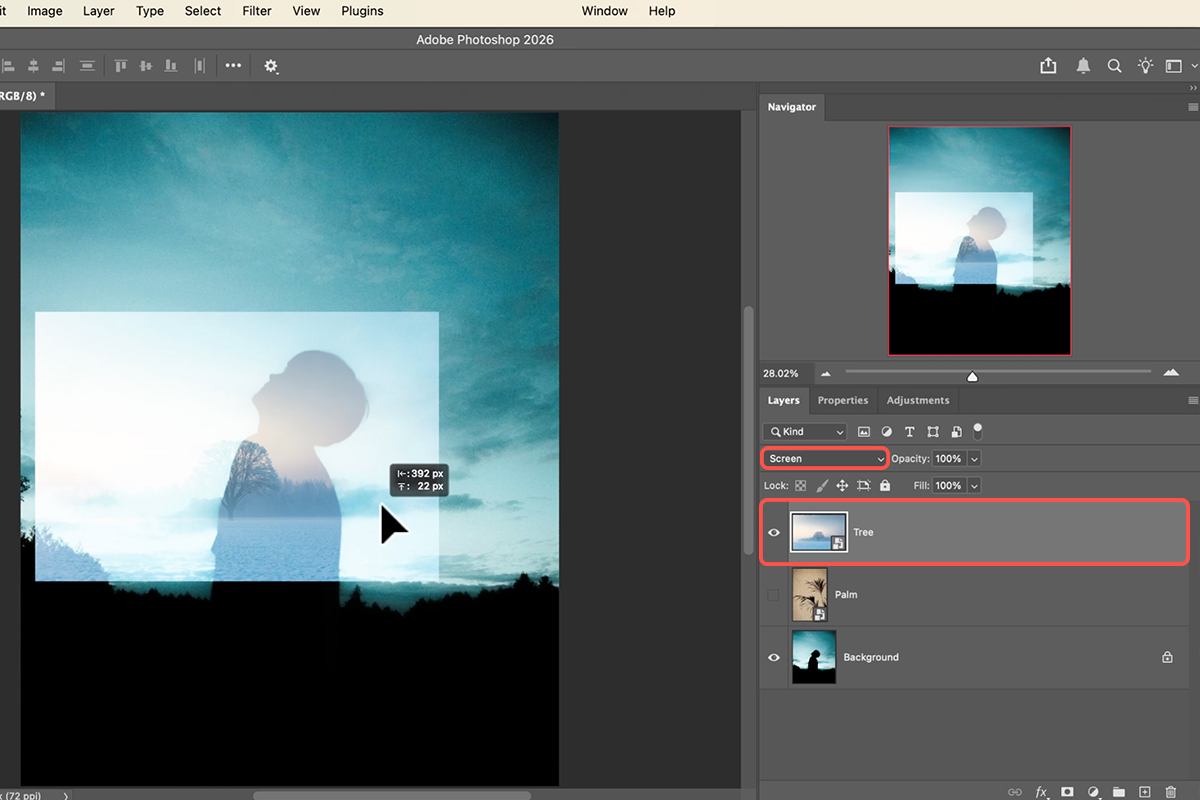
Set the Top Layer to Screen
The dark areas of the top image drop out instantly and it appears only where the base image is dark. This single step is the whole effect. Everything after it is refinement.
-
Transform It Into Position
Press Cmd/Ctrl + T to scale and rotate. Move it around and watch how radically the read changes — branches through a face, a skyline through a shoulder. This is where you actually compose the picture, so give it more than a few seconds.
When the Top Image Doesn’t Reach
Almost every time, the second photo is the wrong aspect ratio and scaling it up enough to cover means losing the part you wanted. Generative Expand fixes this without a crop compromise.
-
Double-Click the Smart Object to Open It
It opens in its own window. Anything you do here flows back into the main document automatically, which is what makes this non-destructive.
-
Crop Tool With the Fill Set to Generative Expand
Press C, change the fill setting to Generative Expand, and drag the crop boundary outward to match your main document’s proportions. You’re extending the canvas, not cutting into the photo.
-
Generate, Pick a Variation, Merge
Photoshop returns three options. Choose the one whose extension is most consistent with the existing content, then merge with Cmd/Ctrl + E. Since only the highlights will survive the Screen blend, small imperfections in the generated area usually never show.
-
Save and Close the Smart Object Window
Cmd/Ctrl + S, then close. The main document updates on its own with the expanded version already in place and still on Screen.

Tune the Composition
-
Reposition Freely Now That It Fits
With the expanded image you can slide it anywhere inside the silhouette without running out of frame. Try several positions before settling — the difference between a good and a great double exposure is usually a few dozen pixels of placement.
-
Commit With Enter
Once the alignment reads the way you want. Everything stays editable because the top layer is still a Smart Object on a blend mode.
If you want to push it further, a colour grade over the top unifies the two source images the way it does with added textures — same principle, two things photographed separately sharing one palette.
Why It Fails
A Base Without Real Shadows
Screen only reveals the second image where the first is dark. An evenly exposed base gives the effect nowhere to live.
Reaching for Opacity Instead
Lowering opacity on Normal fades both images uniformly, which is a superimposition, not a double exposure. The point is selectivity.
Scaling the Top Image to Death
Enlarging past the point of fitting throws away the composition inside it. Expand the canvas instead of scaling the content.
Committing Too Early
The first placement is rarely the best one. It costs nothing to keep moving it while the layer is still a Smart Object.
What Screen Actually Teaches You
Once you have made one of these, blend modes stop being a dropdown you scroll through hoping for something nice. Screen keeps light. Multiply keeps dark. Overlay and Soft Light do both depending on the tone underneath. Each one is a rule about which pixels survive.
Knowing that turns the question around. Instead of applying modes until one looks acceptable, you decide which part of an image you want to keep and go straight to the mode that keeps it. Every blend-mode technique — light leaks, textures, glows, this — is the same idea wearing different clothes.
Make One of Your Own
High-contrast base, second image on top, Screen, Free Transform to place it, Generative Expand inside the Smart Object if it doesn’t reach, then reposition and commit. Download the free sample images and PSD and build the exact version — then shoot or find a silhouette of your own, because choosing the pair well is most of this technique. To go deeper across Photoshop as a whole, our PRO Photoshop Learning Path runs to 7 courses and 31+ hours.
Quick Reference: Keys, Menus and Settings
- Place the second imageDrag it onto the canvas (it lands as a Smart Object), click the checkmark
- The effectBlend mode Normal > Screen
- Fit itCmd/Ctrl + T; drag W or H, or Option/Alt-drag a corner to scale from the center; Enter
- Make the top image biggerDouble-click the Smart Object thumbnail to open it, C for Crop, Fill set to Generative Expand, drag the edges out (Option/Alt for both sides), Generate
- CreditsFirefly Fill and Expand, three variations, three credits
- Send it backShift-click both layers, Cmd/Ctrl + E to merge, Cmd/Ctrl + S, close; the main file updates
- Final cropC, set the aspect ratio, Enter
Mac first, then Windows where they differ.

Free Downloads
Follow Along on the Same Photos
Get all 3 sample images (the silhouette, the palm and the tree), the layered PSD and the PDF guide. Free with a PHLEARN account.
Double Exposure: Common Questions
How do I make a double exposure in Photoshop?
Drag a second photo onto the first and set its blend mode to Screen. That’s the whole effect; everything after that is scaling and positioning.
Which photos work?
High contrast between light and dark: a silhouette on a light background, or a dark tree on a light sky. Screen hides dark areas and shows light ones, so with a silhouette the second image appears inside the figure and the light background stays clean. Medium-contrast, scattered lighting doesn’t define anything.
Why Screen?
Screen makes the dark parts of a layer invisible and keeps the light parts. The light background of the base photo wins everywhere except inside the dark subject, which is where the tree shows through.
The second image doesn’t cover the subject. What then?
Scale it with Cmd/Ctrl+T first. If it still can’t reach (a horizontal tree on a vertical portrait), expand it: double-click the Smart Object thumbnail to open the tree on its own, use the Crop tool with Fill set to Generative Expand, drag the edges out and generate.
Does Generative Expand use credits?
Yes. It uses the Firefly Fill and Expand model and gives three variations, which was three credits in the video. Nothing else in the tutorial uses AI.
How does the expanded tree get back into my composite?
In the Smart Object window, Shift-click both layers, press Cmd/Ctrl+E to merge, save with Cmd/Ctrl+S and close. The tree layer in the main document updates on its own, now much larger, and you can position it inside the subject.
Why do the images come in as Smart Objects?
Dragging a file onto an open canvas places it as a Smart Object automatically. That’s what makes the expand trick possible, and it means you can scale the image without losing quality.
Are the sample files free?
Yes, with a free PHLEARN account. You get all 3 sample images, the layered PSD and the PDF guide.
Master Photoshop, Lightroom and Photography
Join PHLEARN PRO for $12.99 a month or $99.99 a year. Cancel anytime, with a 100% money-back guarantee.