
Download Assets
description
Learn the fastest method to create a non-destructive circle crop in Photoshop using the Frame Tool. You’ll learn to precisely position and scale the subject within the circle, customize it with a colored stroke, replace the image inside the frame, and use Quick Export as PNG to save the final transparent result.
Go PRO:
Dive deeper into the world of Photoshop with our in-depth PRO Photoshop Learning Path . Across 11 courses and 53 hours of engaging content, you’ll learn Photoshop’s ins and outs, master pro-level tools, and tackle fun and challenging projects..
Image Source
- Ante Emmanuel
- Mert Coskun
Images sourced from Pexels.
Share


AFTER
BEFORE
Circle Crop in Seconds
Learning the art of cropping, particularly into a dynamic shape like a circle, instantly boosts your design flexibility! We’ll show you how to swiftly transform and adapt any photograph for high-impact use, whether it’s crafting stand-out social media profiles, building sleek, modern website components, or producing eye-catching print materials.
Getting Started
1. Start by preparing your image layer. Double-click the locked background layer (which has a lock icon) to convert it into a regular layer, which can be named Layer Zero.
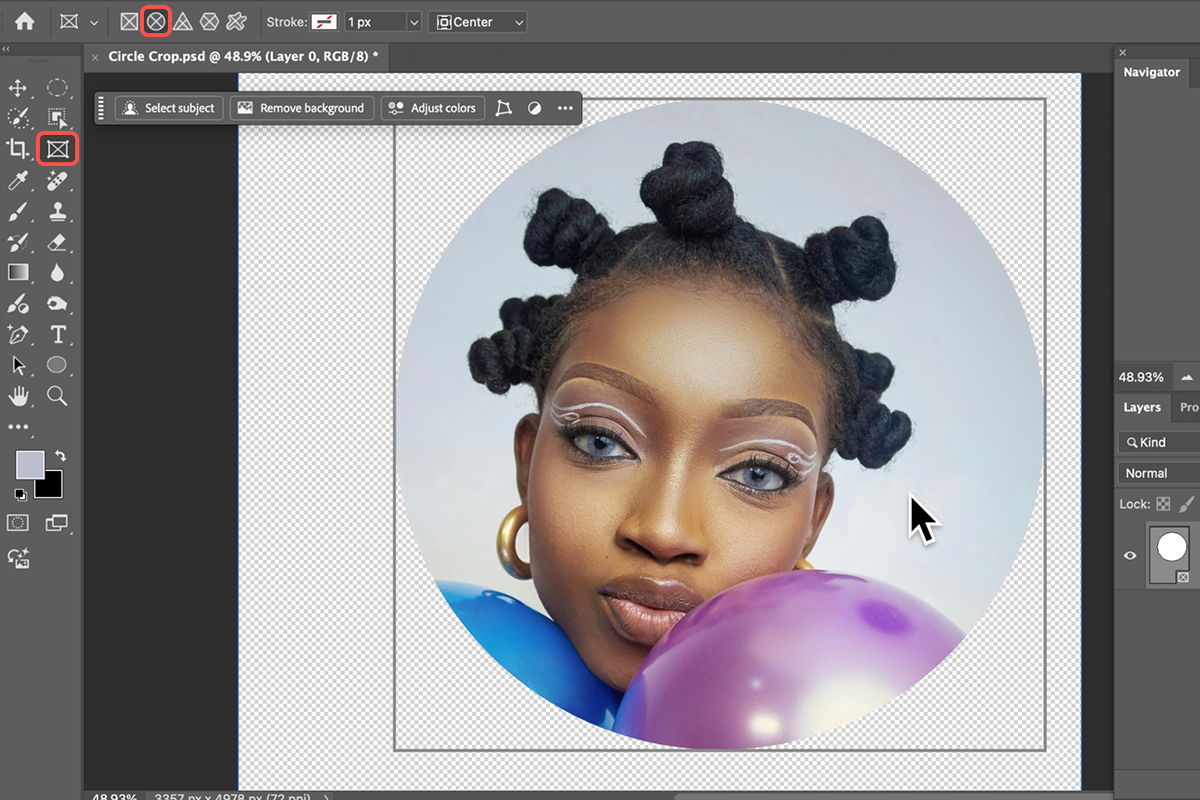
2. Next, select the Frame Tool (Keyboard Shortcut “K”). Ensure the circle shape is selected in the options bar.
3. To create a perfect circle, zoom out slightly, hold down the Shift key, and click and drag the frame onto your image.
Adjust & Customize
Once the circular frame is created, you can manipulate both the subject and the frame.
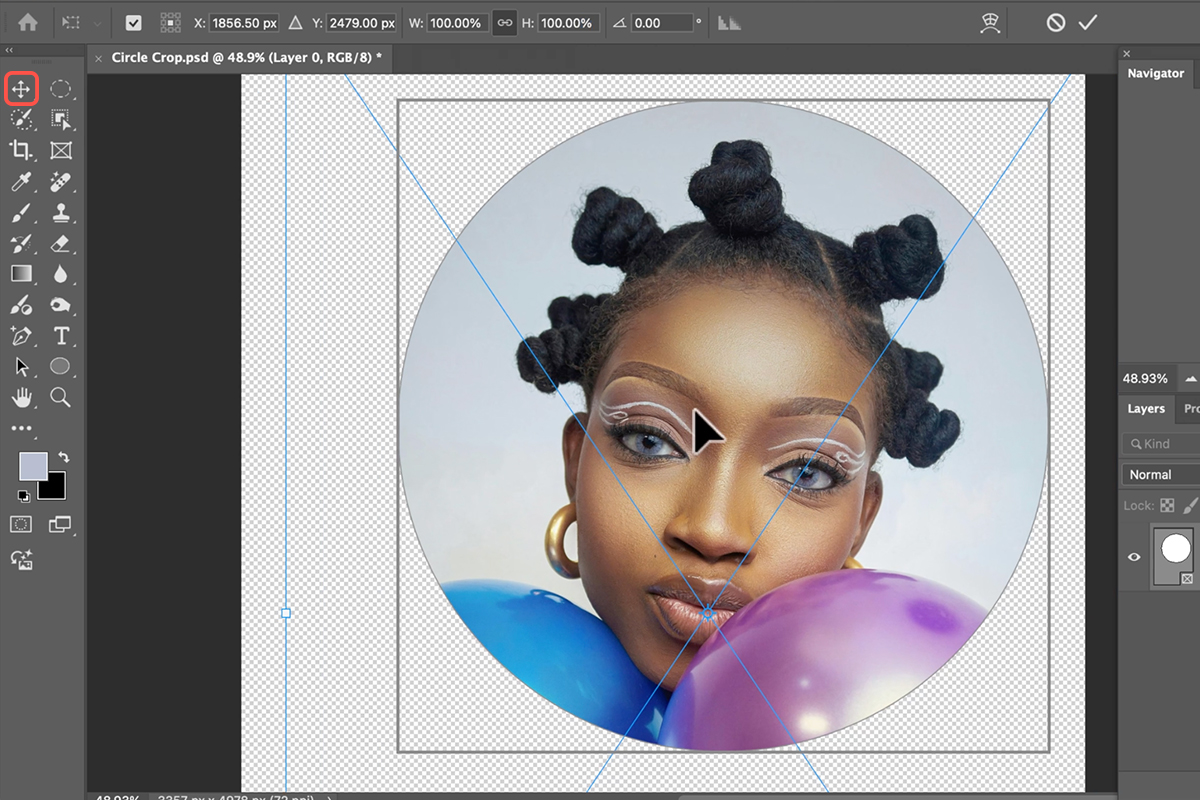
4. Use the Move Tool (Keyboard Shortcut “V”) to move your subject within the circle, or hit Ctrl/Command + T for Transform to resize or reposition the image inside the crop.
5. Use the Contextual Taskbar (or enable it via Window > Contextual Taskbar) to add a custom stroke around the circle. You can change the stroke’s color, size, and position (inside, center, or outside). You can also use the taskbar to Replace the Image inside the frame at any time.
Export The Final
6. To export your final image with a transparent background, ensure the frame is selected (it will have a white border around the frame itself, not the image).
7. Right-click directly on the layer in the Layers panel and select Quick Export as PNG. Choose your desired export folder, give the file a name, and hit save. This saves the image with the transparency needed for web or graphic use.