
Download Assets
description
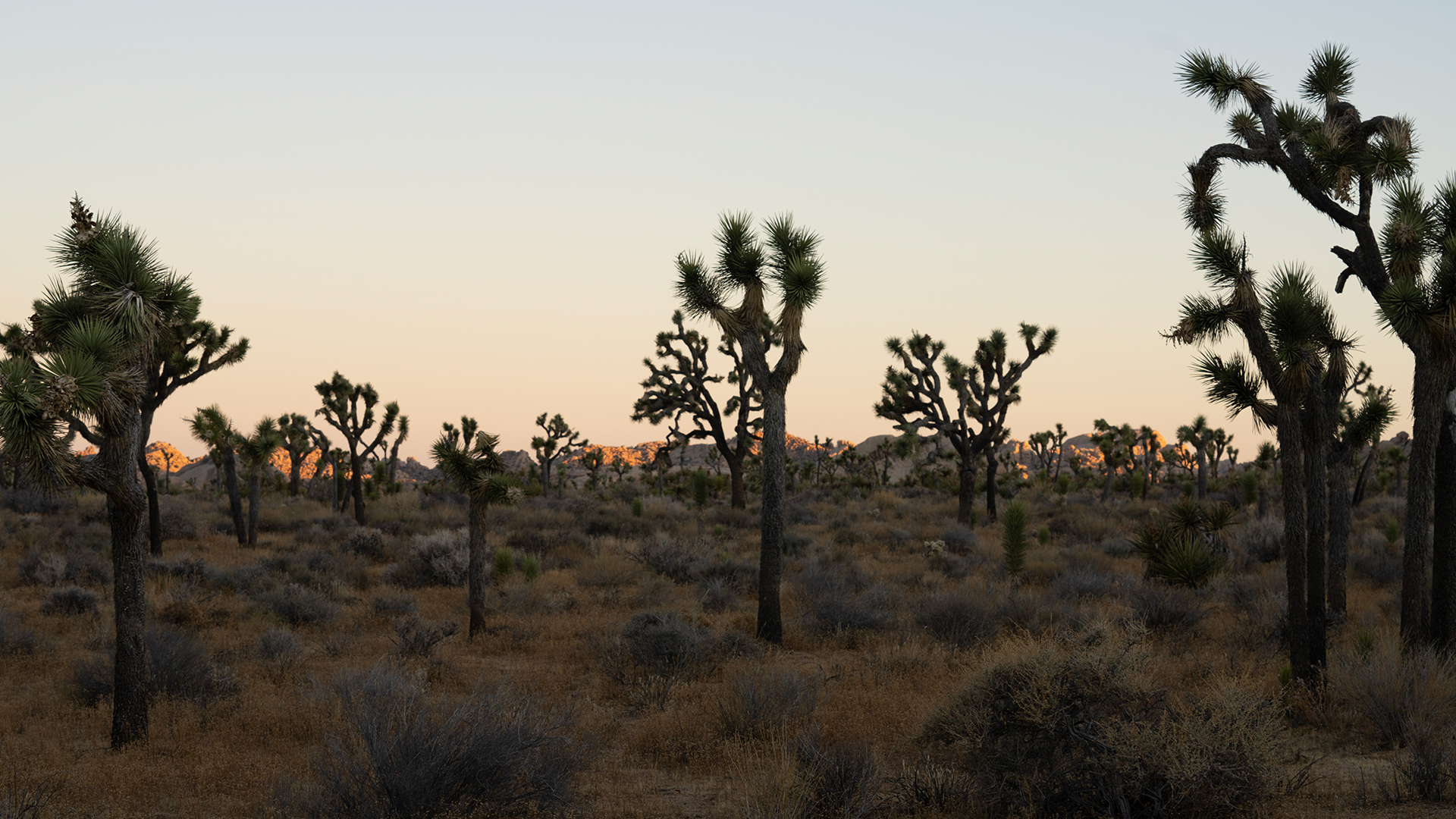
Learn how to use the new “Dust” feature in the Object Removal tool for Lightroom Classic and Photoshop. See how to apply it instantly to single images and efficiently batch-sync dust removal across multiple photographs. This tutorial includes 3 RAW files, so you can follow along!.
Go PRO:
Dive deeper into the world of Photoshop with our in-depth PRO Photoshop Learning Path . Across 11 courses and 53 hours of engaging content, you’ll learn Photoshop’s ins and outs, master pro-level tools, and tackle fun and challenging projects..
Share
One Click, Zero Dust.
The new AI Dust Removal feature automatically finds and removes dust spots from your images. It works on both Raw and JPEG files, allowing you to clean up photos quickly and maintain a professional look without needing to remove each spot manually.
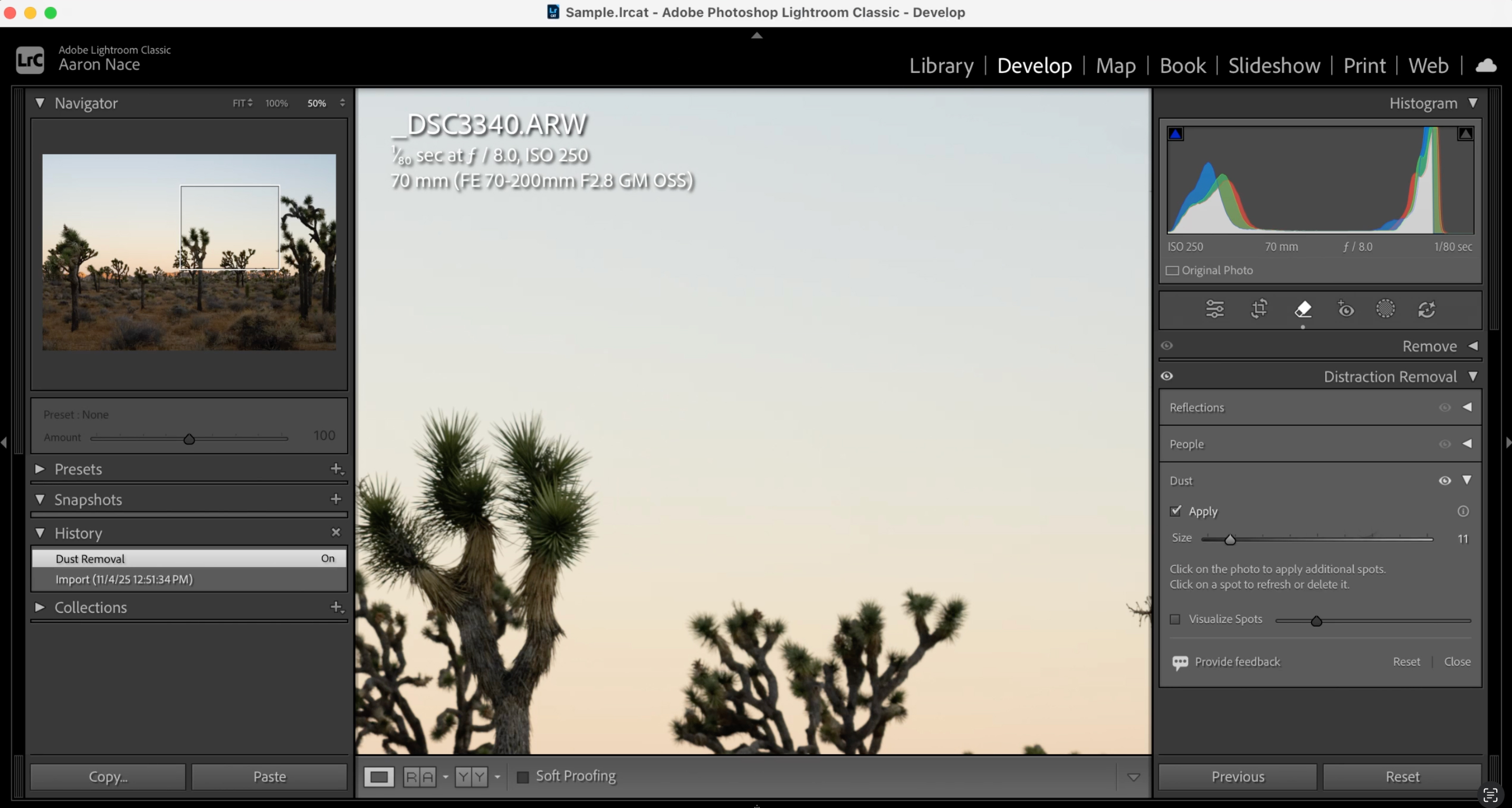
Apply Dust Removal
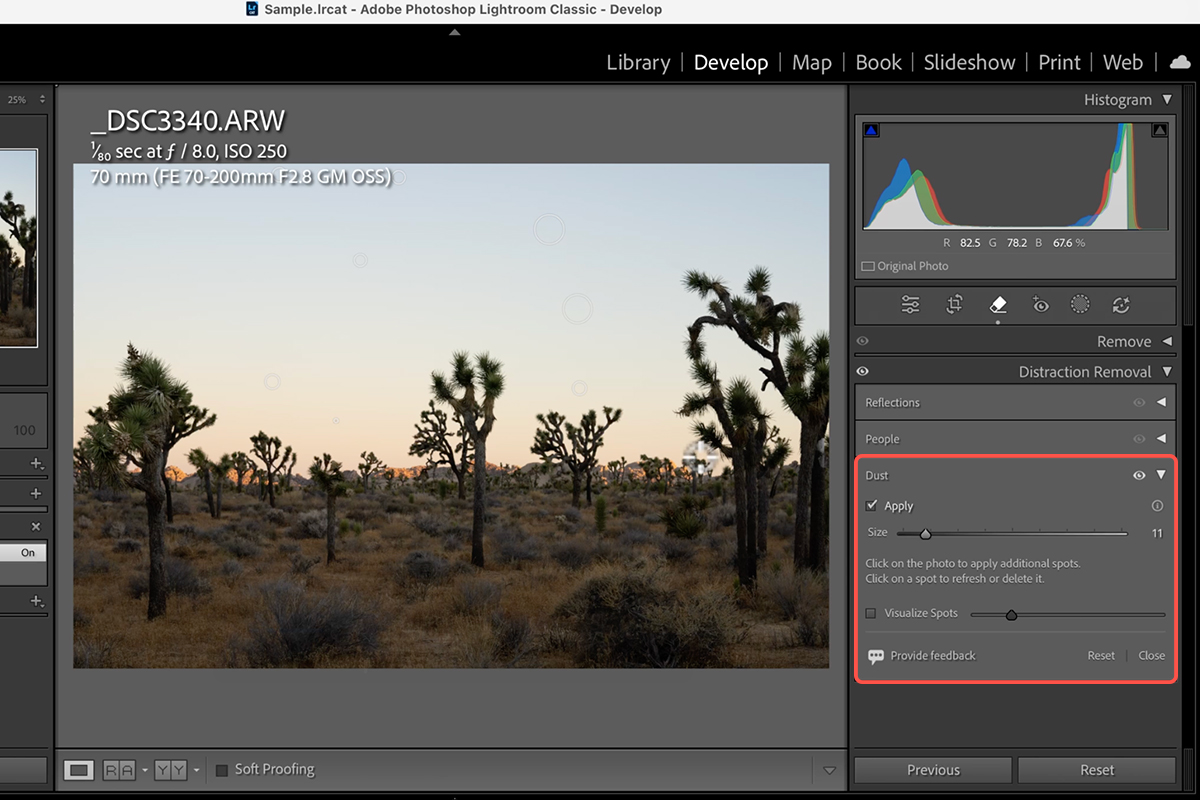
1. Open the image in the Develop Module of Lightroom Classic or the Edit panel of Lightroom.
2. Select the Remove tool (the spot healing icon).
3. In the Distraction Removal panel, find the option for Dust.
4. Click on Apply. The AI will automatically scan the entire image, detect all visible dust spots, and instantly remove them.
You can zoom in to see the areas that were removed (the removed spots are highlighted). Toggling the tool on and off allows you to verify the results.
Batch Sync Edits
The most efficient way to clean an entire photo series is by batch-applying the dust removal setting in Lightroom Classic:
1. Navigate back to the Library Module (or Grid View).
2. Select the master image (the one with the dust removal applied).
3. Hold Ctrl/Command and click on the other photos in the series that need dust removal.
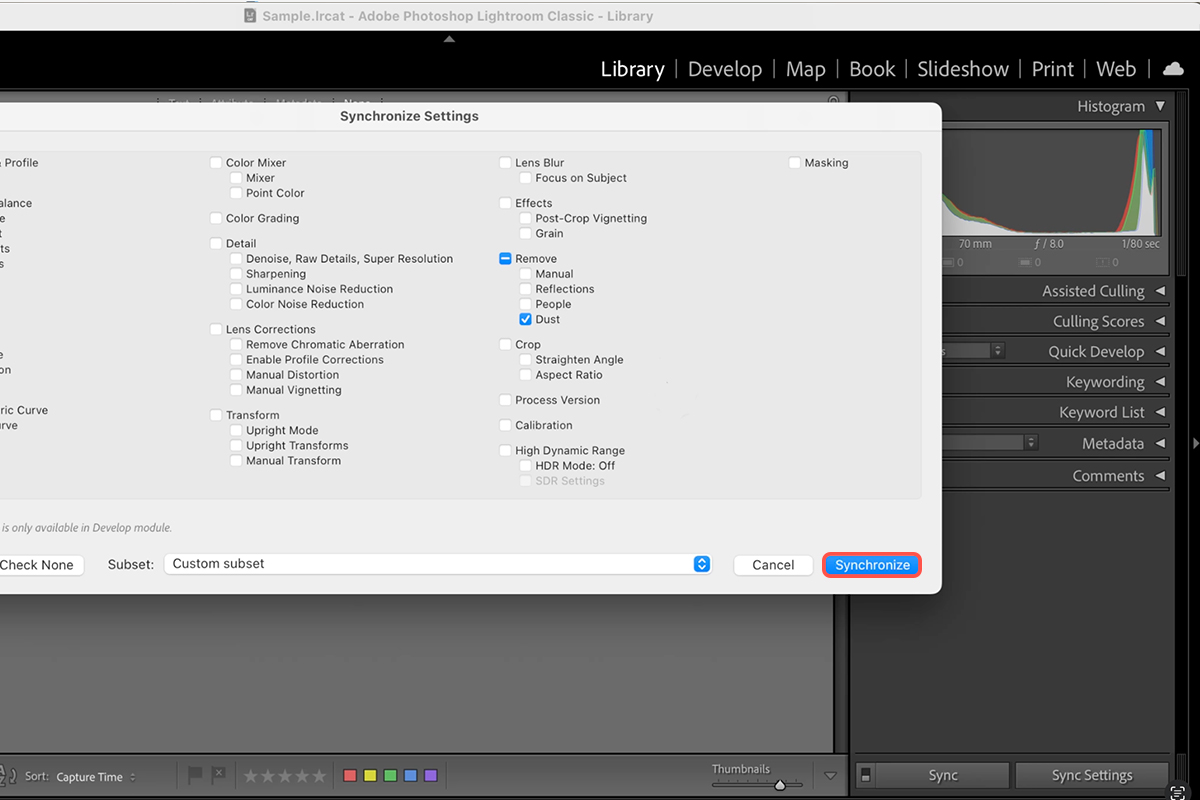
4. Click the Sync Settings button.
5. In the Sync Settings dialog box, click Check None.
6. Scroll to the Remove section and check only the Dust box.
7. Click Synchronize. The AI will run on each selected image, removing only the unique dust spots for that specific photo.
Dust Removal in PS
For Photoshop users, the AI dust removal is accessible through the Adobe Camera Raw (ACR) interface:
1. Drag your Raw files (or JPEGs) directly into Photoshop 2026 (or newer). This will automatically open them in the Camera Raw editor.
2. Select one of the images in the filmstrip.
3. Navigate to the Remove tool (the spot healing icon) on the right side.
4. Under the Distraction Removal section, select Apply next to Dust.
5. To apply this setting to the rest of the images, Right-Click the edited image’s thumbnail in the ACR filmstrip and select Copy Edit Settings.
6. Select the other images, Right-Click, and choose Paste Edit Settings.