

Download Assets
This tutorial includes 1 PDF guide. Downloads are free with a PHLEARN account.
- Download the sample files from every free tutorial on PHLEARN
- New free tutorials published every week
- One free account: sign up once, then download anything
Free PDF Guide · 3 Pages
This Tutorial as a Step-by-Step PDF
This guide walks through styling hair in three stages: Ctrl/Command+J, Filter > Liquify with the Forward Warp Tool at Pressure and Density about 25, Clone Stamp cleanup of flyaways on new layers, a Darken blend mode for light strands, and filling blank areas. Keep it next to your keyboard.
description
Hair is one of the hardest things to get exactly right on a shoot, but Liquify and the Clone Stamp tool together can reshape it, clean it up, and even fill in what isn’t there. This tutorial covers pushing hair into shape with Liquify’s Forward Warp tool at low pressure and density, removing flyaways and toning down distracting light strands with the Clone Stamp tool, and filling bald or thin areas by cloning hair onto a new layer with an unlinked mask.
Enjoying This Free Tutorial?
We publish a new free tutorial every week, each one with sample images and PSDs you can download and follow along with. Sign up and they land straight in your inbox, along with early word on sales, events and subscriber-only offers.
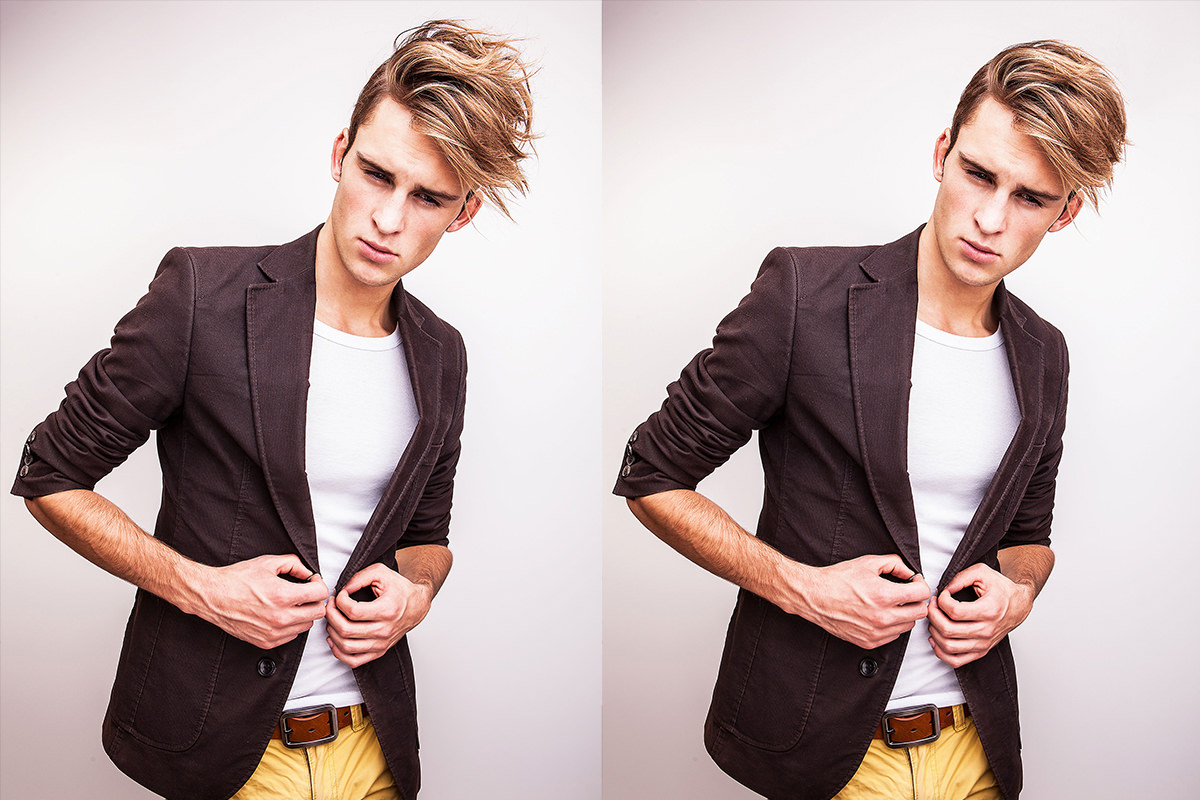
Hair can be one of the trickiest things to get exactly right on a photo shoot, but Liquify and the Clone Stamp tool together can reshape, clean up, and even fill in missing hair after the fact. This tutorial covers pushing hair into shape with Liquify’s Forward Warp tool, removing flyaway hairs and distracting light spots with the Clone Stamp tool, and filling in bald or thin areas by cloning hair onto a new layer with an unlinked layer mask.
Preparing a Duplicate Layer for the Liquify Tool
Working on a duplicated layer keeps Liquify’s pixel-pushing changes separate from the original background, so the untouched version stays available if needed.
-
Duplicate the Background Layer
Press Cmd/Ctrl+J to duplicate the background layer before applying Liquify.
-
Open the Liquify Filter
Go to Filter > Liquify to open the Liquify dialog on the duplicated layer.
Shaping Hair With the Forward Warp Tool’s Low Pressure and Density
The Forward Warp tool, Liquify’s main tool for this kind of work, pushes and pulls hair in whatever direction it’s dragged, and a lower pressure and density setting keeps that push gentle and controlled.
-
Select the Forward Warp Tool
Click the Forward Warp tool in the top-left of the Liquify dialog.
-
Switch to Advanced Mode for More Controls
Enable Advanced Mode to access Size, Pressure, and Density settings.
-
Lower the Pressure and Density
Set both Pressure and Density to a low value, such as around 25, so the tool affects hair gently rather than dramatically.
-
Push the Hair Into Shape With Small Clicks and Drags
Click and drag repeatedly in small movements, working from the top down, to gradually push the hair into a more cohesive shape.
Why Low Pressure and Density Settings Matter for Liquify
A high pressure and density setting pushes a large amount of hair with a single drag, making it easy to overcorrect and distort the shape in one motion. Lower settings instead require several smaller, repeated adjustments to achieve the same shift, giving much finer control over exactly how the hair ends up looking.
Cleaning Up Flyaway Hairs With the Clone Stamp Tool
Sampling from just outside the hair and painting directly over a stray flyaway is often all it takes to remove it cleanly, especially against a plain background.
-
Select the Clone Stamp Tool
Create a new layer, press S for the Clone Stamp tool and confirm it’s sampling Current & Below, so the cleanup stays on its own layer. Start at the top of the head, where Liquify pulled the edge of the image down, and clone the white background back over it.
-
Use a Hard-Edge Brush
Right-click to adjust brush hardness, raising it to around 85% for a cleaner, less fuzzy clone stamp result.
-
Sample and Paint Over Flyaway Hairs
Hold Alt/Option to sample an area just outside the hair, then paint directly over any flyaway hairs to remove them.
Why a Hard-Edge Brush Works Best for Clone Stamping Hair
A soft-edged brush blurs the transition between the sampled area and the area being painted over, which can leave a fuzzy, obviously retouched patch behind. A hard-edge brush instead creates a much cleaner, more precise clone stamp result, which matters when removing something as fine and detailed as an individual strand of hair.
Darkening Distracting Light Hairs With a Darken Blend Mode
Clone stamping onto a new layer set to Darken targets only the lighter, distracting strands of hair without affecting anything that’s already darker.
-
Clone Stamp Hair Over the Light Areas on a New Layer
On a new layer, sample nearby hair and paint over the specific light, distracting hairs that need to be toned down.
-
Change the Blend Mode to Darken
Change that layer’s blend mode from Normal to Darken so it only affects areas lighter than what’s beneath it, leaving darker hair untouched.
Filling a Bald Spot by Cloning Hair Onto a New Layer
Cloning an entire area of hair from elsewhere in the photo onto its own new layer provides raw material that can later be positioned exactly over a gap or bald spot.
-
Clone Stamp a Full Area of Hair
On a new layer, sample a full section of existing hair, such as from the top of the head, and paint it onto the new layer.
-
Add a Black Layer Mask
Hold Alt/Option and click the layer mask button to add a fully black mask, hiding the cloned hair entirely.
-
Paint White to Reveal It Over the Gap
Paint white on the mask directly over the area where hair detail is missing, revealing the cloned hair just there.
Unlinking the Layer and Mask to Position Cloned Hair Freely
Unlinking a layer from its mask makes it possible to move the cloned hair itself into exactly the right spot without dragging the carefully painted reveal area along with it.
-
Unlink the Layer and Its Mask
Click the chain icon between the layer and mask thumbnails to unlink them.
-
Move and Transform the Layer Independently
Use the Move tool to reposition the cloned hair layer, or press Cmd/Ctrl+T to rotate or scale it, while the mask stays exactly where it was painted.
Why Unlinking the Layer and Mask Makes Cloned Hair Easy to Position
With the layer and mask still linked, moving the cloned hair to fit better would also move the mask, undoing the careful work of defining exactly where the gap needed filling. Unlinking them means the mask stays fixed over the gap while the hair underneath can be freely repositioned, rotated, or scaled until it fits the surrounding hairstyle convincingly.
Filling Additional Gaps With Lighten and Darken Blend Modes
Switching a cloned hair layer’s blend mode between Lighten and Darken adds either highlights or shadow detail, depending on which is missing from a particular gap.
-
Clone Stamp Hair Onto Another New Layer
Sample and paint another section of hair onto a fresh new layer over a remaining gap.
-
Choose Darken for Shadow Detail or Lighten for Highlights
Change the layer’s blend mode to Darken to add shadow detail, or to Lighten to add highlights, depending on what the gap needs.
-
Mask the Layer to Just the Gap Area
Add a black layer mask and paint white only over the specific area that needs the added detail.
Why This Approach Works
Using low pressure and density settings in Liquify is what turns a potentially destructive push-and-pull tool into one capable of fine, controlled adjustments to something as delicate as hair. Cloning hair onto its own layer with a mask, rather than painting directly onto the background, keeps every gap-filling adjustment fully reversible and repositionable. Unlinking the layer from its mask is the specific technique that separates where a fix should appear from what that fix actually looks like, letting each be adjusted independently until they work together.
Final Thoughts
Between Liquify’s Forward Warp for overall shape, the Clone Stamp tool for cleanup and detail, and layer masks for precise control, hair that looked messy or incomplete straight out of camera can end up looking natural and polished. The same combination of tools applies to any portrait with hair that needs reshaping, cleaning up, or filling in, not just this one photo.
Quick Reference: Keys, Menus and Settings
- Duplicate firstCmd/Ctrl + J
- Shape the hairFilter > Liquify, Forward Warp, Advanced Mode; Pressure 25, Density 25
- Remove flyawaysNew layer, S, Sample: Current & Below; Alt/Option-click to sample; Hardness about 85%
- Tame light strandsClone onto a new layer, blend mode Darken
- Fill a gapClone hair onto a new layer, Alt/Option-click the layer mask icon, paint white
- Position the hairClick the chain icon to unlink; Move tool or Cmd/Ctrl + T
- Add shadow or shineBlend mode Darken for shadows, Lighten for highlights
No AI, no generative credits.

Free Downloads
Take the Guide With You
Get the PDF guide to shaping hair with Liquify, clone stamping flyaways and filling gaps with cloned hair on an unlinked mask. Free with a PHLEARN account.
Styling Hair in Photoshop: Common Questions
How do I reshape hair in Photoshop?
Duplicate the background with Cmd/Ctrl + J, open Filter > Liquify and use the Forward Warp tool. Push the hair with small clicks and drags, working from the top down.
What Liquify settings work best for hair?
Turn on Advanced Mode and set Pressure and Density to about 25. Use a brush a little larger than you think you need, so each drag moves the hair gently.
Why can’t I find Density in Liquify?
If you only see Size and Pressure, check Advanced Mode. Density and Rate then show up next to them.
How do I remove flyaway hairs?
On a new layer, press S for the Clone Stamp with Current & Below sampling. Alt/Option-click the background just outside the hair, then paint over the stray hairs.
Why does my clone stamping look fuzzy?
A soft brush blurs the cloned edge. Right-click and raise the Hardness to around 85% for a cleaner result.
How do I hide light, distracting strands inside the hair?
Clone stamp nearby hair over them on a new layer and set that layer’s blend mode to Darken. Only the lighter strands get covered.
How do I fill a spot with no hair detail?
Clone a large area of hair onto a new layer, Alt/Option-click the layer mask icon for a black mask, and paint white over the gap.
How do I move the cloned hair without moving the mask?
Click the chain icon between the layer and its mask to unlink them. Then move the hair with the Move tool or rotate and scale it with Cmd/Ctrl + T while the mask stays over the gap.
Should I use Lighten or Darken for cloned hair?
Darken adds only shadow detail and Lighten adds only highlights. Pick whichever the gap is missing, then mask the layer to just that area.
Is there a free download?
Yes, with a free PHLEARN account. You get 1 PDF guide with the steps for Liquify, the Clone Stamp cleanup and filling gaps in the hair.
Master Photoshop, Lightroom and Photography
Join PHLEARN PRO for $12.99 a month or $99.99 a year. Cancel anytime, with a 100% money-back guarantee.





