

Download Assets
This tutorial includes 3 sample images and 1 PDF guide. Downloads are free with a PHLEARN account.
- Download the sample images and PSDs from every free tutorial on PHLEARN
- New free tutorials published every week
- One free account — sign up once, then download anything
Free PDF Guide · 2 Pages
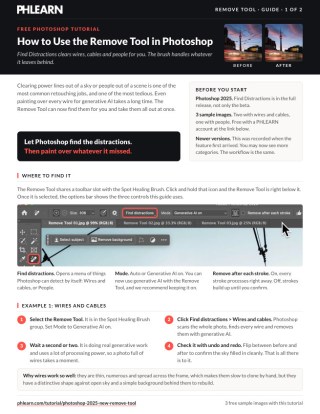
This Tutorial as a Step-by-Step PDF
The guide walks through finding the Remove Tool in the Spot Healing Brush group, setting Mode to Generative AI on, Find distractions > Wires and cables and People, unchecking Remove after each stroke to paint over what it missed, and checking for leftover shadows, reflections and faint traces. Keep it next to your keyboard.
description
How to use the Remove Tool in Photoshop: Find Distractions clears cables, wires and people in one pass, and the brush handles whatever it leaves behind. Keep Generative AI enabled and it fills far more convincingly.
Enjoying This Free Tutorial?
We publish a new free tutorial every week, each one with sample images and PSDs you can download and follow along with. Sign up and they land straight in your inbox, along with early word on sales, events and subscriber-only offers.
Image Source


How to Use the Remove Tool in Photoshop
Clearing power lines out of a landscape or people out of a street scene is one of the most common retouching jobs there is, and one of the most tedious. The Remove Tool turns it into something close to a single click — and it can now find the distractions for you rather than waiting to be told where they are.
That last part is the genuinely new idea. Instead of you hunting for every wire in a sky, Photoshop scans the image, identifies them, and offers to take them all out at once.
A note on versions: this was recorded when Find Distractions first arrived in the Remove Tool. Adobe has continued adding to it since, so you may see more detection categories than the two described here. The workflow is unchanged.
Where to Find It
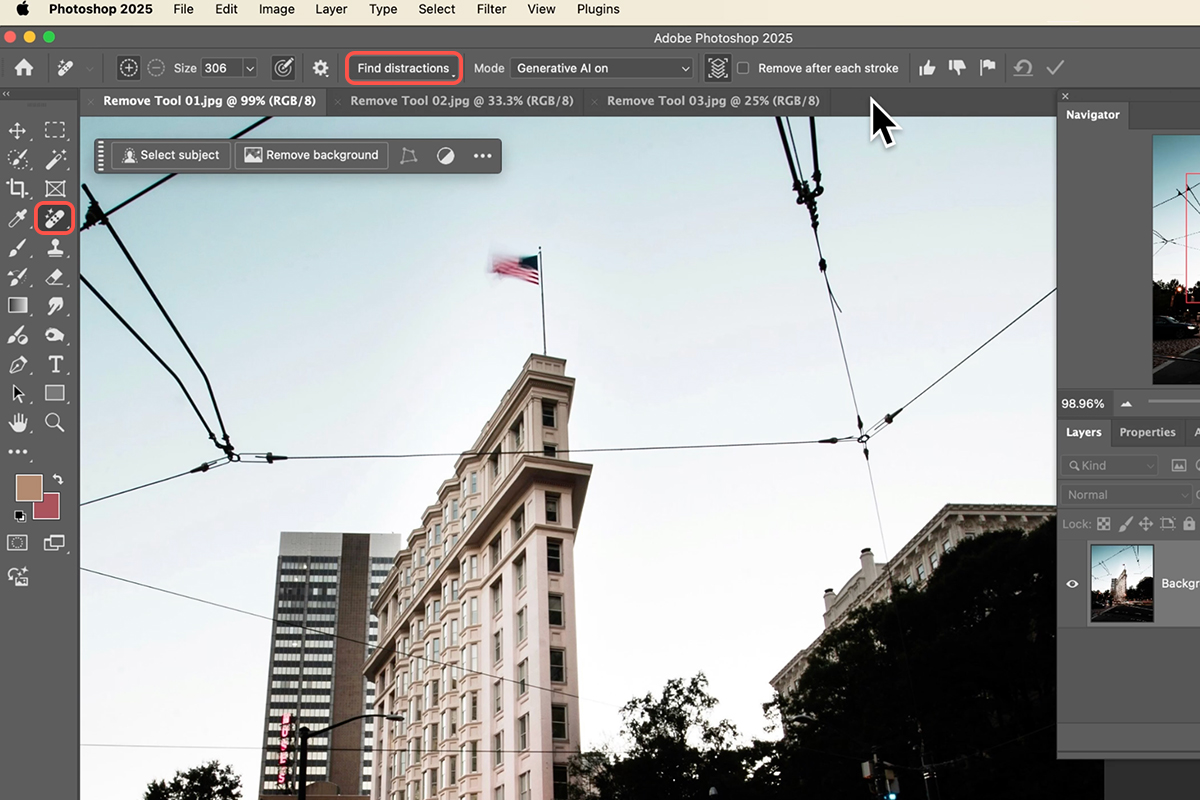
The Remove Tool sits in the same toolbar slot as the Spot Healing Brush — click and hold on that icon to reveal the group, and the Remove Tool is directly below it.
Once selected, the options bar changes to show the Remove Tool’s own controls, including the Find Distractions button and the settings covered below.
Using Find Distractions
-
Select the Remove Tool
Confirm the Generative AI option is enabled in the options bar.
-
Click Find Distractions
A menu appears offering detection categories.
-
Choose a category
Wires and cables, or people. Photoshop scans the image and highlights everything it has found in that category.
-
Review what it selected
Check the highlighted areas before committing. It is good, not infallible.
-
Apply the removal
Photoshop generates replacements for every detected element at once.
Wires and cables
This is the category that impresses most. Power lines crossing a sky are thin, numerous, and spread across the frame — exactly the sort of thing that takes ten minutes of careful cloning and is genuinely difficult to do well. Detection is reliable because wires have a distinctive shape against open sky, and removal is clean for the same reason: there is simple, consistent background behind them to reconstruct.
People
Removing people from a scene works, with more variability. It is at its best on small background figures — tourists in the distance, someone walking through the far end of a street. Larger figures, or people overlapping complicated structures, are a harder job and worth checking carefully.
Using It as a Brush
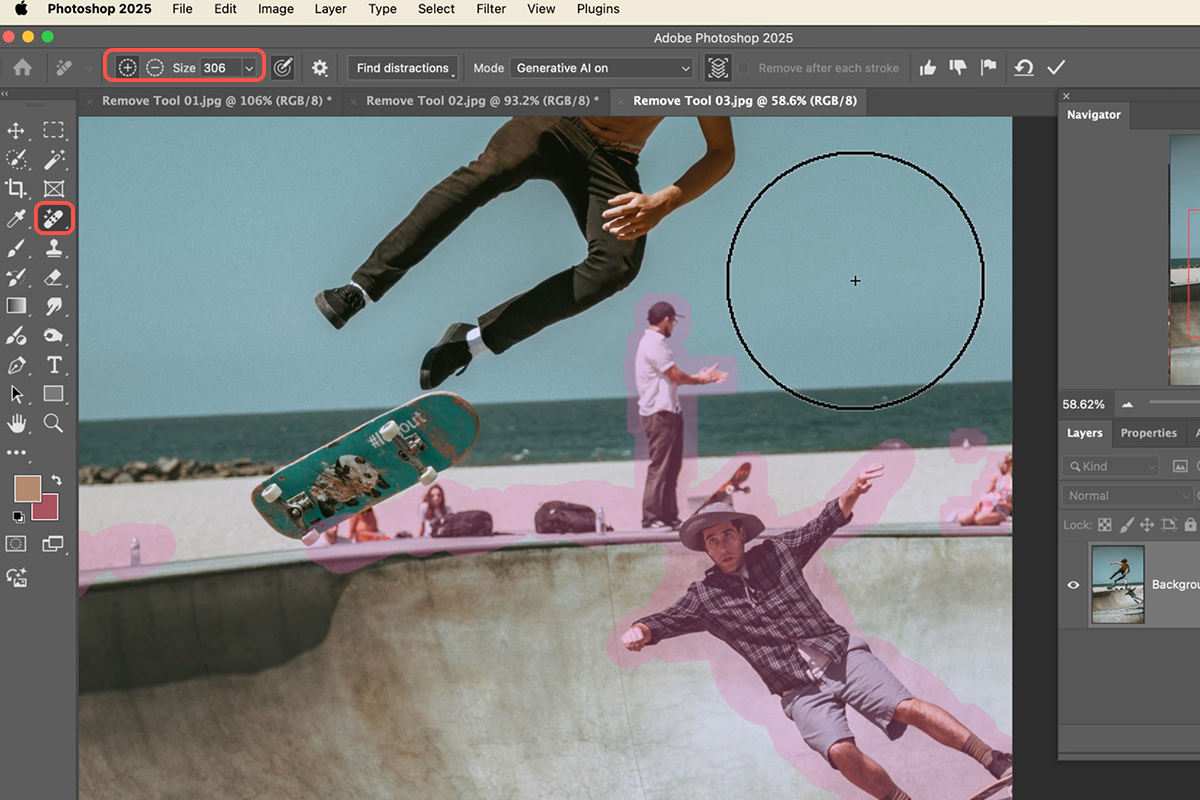
Find Distractions will not catch everything, and it only knows the categories it offers. For anything else, the Remove Tool works as an ordinary brush: paint over what you want gone and it goes.
The two approaches combine well. Run Find Distractions to clear the bulk of the wires, then brush over the two it missed and anything else in the frame that does not belong. Use the square bracket keys to resize the brush as you work.
Remove After Stroke
There is a checkbox in the options bar called Remove After Stroke, and understanding it is what makes the tool comfortable to use.
Left on — every brush stroke processes the moment you release the mouse. Fast, and ideal for working through a series of small separate distractions.
Switched off — your strokes accumulate as a mask without processing. You paint over everything you want gone, refine the coverage, and then trigger the removal once for all of it.
Turning it off is the better choice for anything complicated. It lets you build up coverage on an awkwardly shaped object across several strokes, and check it before committing — rather than watching Photoshop process a partial selection and having to undo.
Keep Generative AI Enabled
The options bar offers a choice between Auto and the generative setting. Auto is faster and uses simpler content-aware fill logic; the generative option produces noticeably better results on anything but the simplest background.
Leave it on the generative setting unless you have a specific reason not to. The difference is most obvious where a removed object crossed multiple textures — a wire passing from sky into trees, for instance — where content-aware fill tends to smear and the generative version reconstructs properly.
What It Misses
Shadows
This is the most important limitation to know. Find Distractions identifies objects, not the shadows they cast. Remove a person from a sunlit street and their shadow can remain, which is far more conspicuous than the person was.
Always check the ground after removing anything. If a shadow survived, paint over it manually with the brush — the tool handles it fine once you tell it where to look.
Reflections
The same problem in a different form. Anything removed from a scene containing water, glass or a polished floor may still be visible in the reflection. Detection will not catch it, so it needs a manual pass.
Partial removals
Occasionally a removal leaves a faint trace rather than clearing completely. Running a second pass over what remains usually finishes the job, and is quicker than undoing and starting again.
Performance
Each removal takes a second or two, since it is doing real generative work rather than a simple fill. On an image with a lot of detected distractions, expect a short wait while it processes them all.
That is worth setting against the alternative. Cloning out a skyful of power lines by hand is a genuinely slow job, and a few seconds of processing is not a meaningful cost by comparison.
Remove Tool or Generative Fill?
Both remove things, and it is worth knowing which to reach for.
The Remove Tool is a brush. It is faster for small objects, better for anything thin and irregular like wires or a stray hair, and Find Distractions gives it an automatic mode nothing else has. Use it for cleanup passes.
Generative Fill with an empty prompt gives you three variations to choose between and works on a defined selection rather than brush strokes. Use it for larger objects, or when you want options rather than a single result.
In practice most retouching uses both — Generative Fill for the one big thing that has to be right, and the Remove Tool for the dozen small things that just need to be gone.
Quick Reference: Keys, Menus and Settings
- Find the toolClick and hold the Spot Healing Brush icon; the Remove Tool is right below it
- Set the modeOptions bar > Mode: Generative AI on
- One-click removalFind distractions > Wires and cables, or People
- Paint the restUncheck Remove after each stroke, paint over it, then click the checkmark in the options bar
- Brush size[ and ]
- CompareCmd/Ctrl + Z to undo, Shift + Cmd/Ctrl + Z to redo
Free Downloads
Follow Along on the Same Photos
Get the three photos from the video, two with wires and cables and one with people to remove, plus the 2-page PDF guide. Free with a PHLEARN account.
The Remove Tool: Common Questions
Where is the Remove Tool in Photoshop?
It shares a toolbar slot with the Spot Healing Brush. Click and hold that icon and the Remove Tool is right below it.
What does Find Distractions do?
With the Remove Tool selected, click Find distractions in the options bar and choose Wires and cables or People. Photoshop finds them in the photo and removes them in one click.
Do I need the Photoshop beta for Find Distractions?
No. The video shows it in the full release of Photoshop 2025. It was recorded when the feature first arrived, so newer versions may show more categories, but the workflow is the same.
What if it doesn’t find every person or object?
You are still holding the Remove Tool, and it works like a brush. Paint over anything it missed, like the extra people and water bottles in the video.
What does Remove after each stroke do?
Checked, each stroke is removed as soon as you release. Unchecked, your strokes build up so you can cover everything first, then click the checkmark at the top of the options bar to remove it all at once.
Should I use Auto or Generative AI?
Aaron recommends keeping Generative AI on. Auto is faster, but the generative setting rebuilds the background better on anything but the simplest areas.
Why does each removal take a second or two?
It is doing real generative work, which takes a lot of processing power. On a photo full of wires, expect a short wait.
Why is there still a shadow after I removed someone?
Find Distractions finds objects, not the shadows they cast. Paint over a leftover shadow with the brush, and check reflections in water or glass the same way.
Should I use the Remove Tool or Generative Fill?
The Remove Tool is a brush, faster for small or thin things like wires, and the only one that finds distractions for you. Generative Fill works on a selection and gives three variations, which suits one large object.
Are the sample files free?
Yes, with a free PHLEARN account. You get 3 sample images and 1 PDF guide: two photos with wires and cables, one with people, and a 2-page guide.
Master Photoshop, Lightroom and Photography
Join PHLEARN PRO for $12.99 a month or $99.99 a year. Cancel anytime, with a 100% money-back guarantee.





