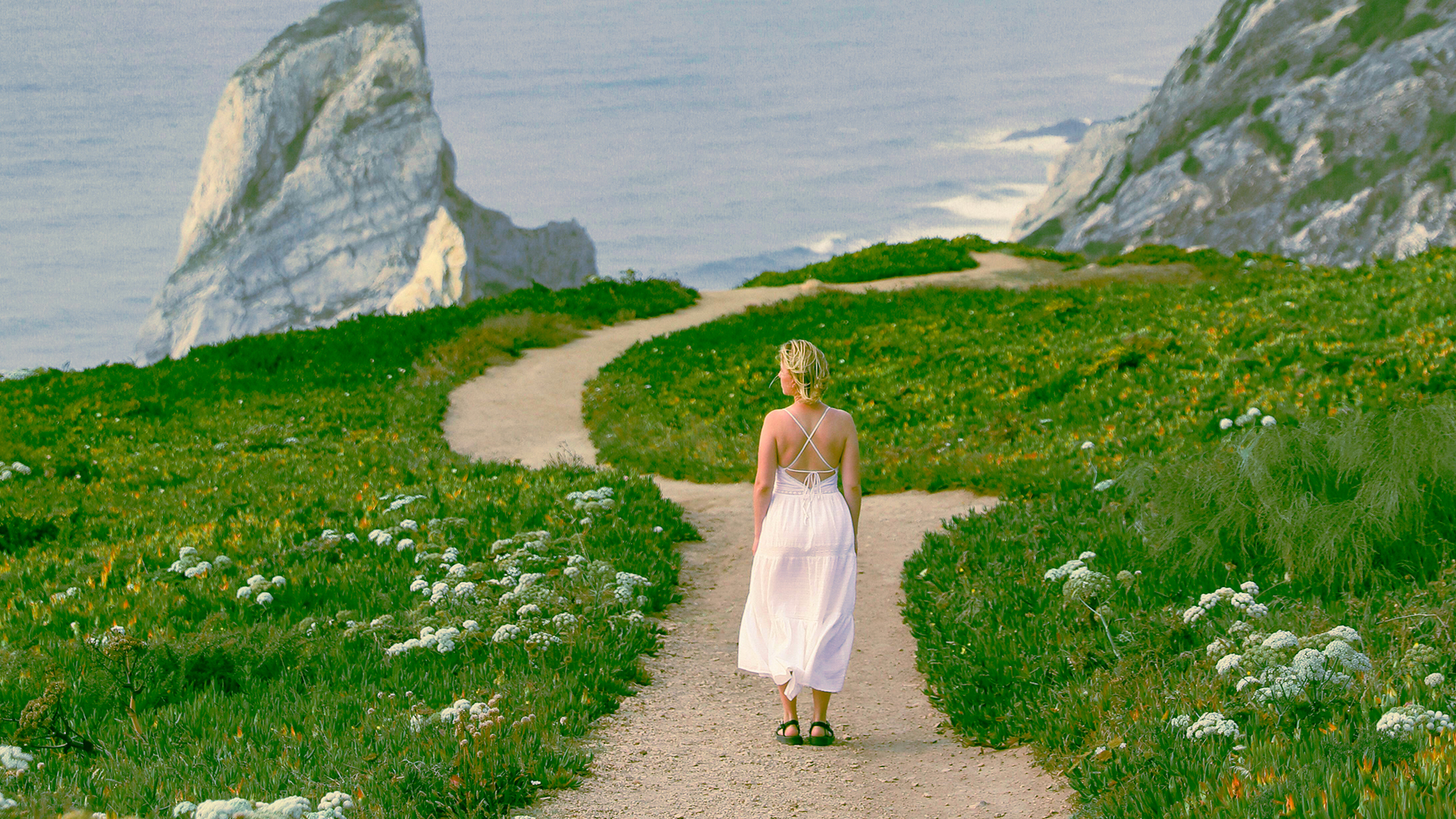

Download Assets
This tutorial includes 3 sample images, 3 sample PSDs and 1 PDF guide. Downloads are free with a PHLEARN account.
- Download the sample images and PSDs from every free tutorial on PHLEARN
- New free tutorials published every week
- One free account — sign up once, then download anything
Free PDF Guide · 3 Pages
This Tutorial as a Step-by-Step PDF
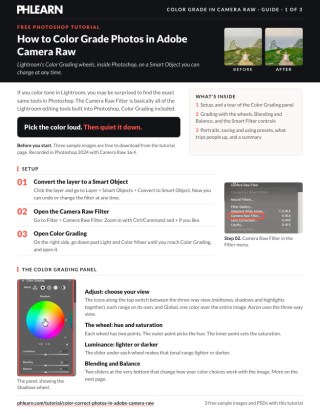
The guide walks through Layer > Smart Objects > Convert to Smart Object, then Filter > Camera Raw Filter > Color Grading: dragging each wheel to the edge to pick a hue, midtones, shadows and highlights, Blending and Balance, a Color Grading-only preset, built-in presets and the Smart Filter controls. Keep it next to your keyboard.
description
Color grading in Camera Raw means tinting the shadows, midtones and highlights separately, on a Smart Object, so the whole grade stays editable. Discover how to use the Camera Raw Filter to add warmth, coolness, or drama to your images. Create stunning presets and achieve professional-level results without ever leaving Photoshop.
Enjoying This Free Tutorial?
We publish a new free tutorial every week, each one with sample images and PSDs you can download and follow along with. Sign up and they land straight in your inbox, along with early word on sales, events and subscriber-only offers.
Image Source
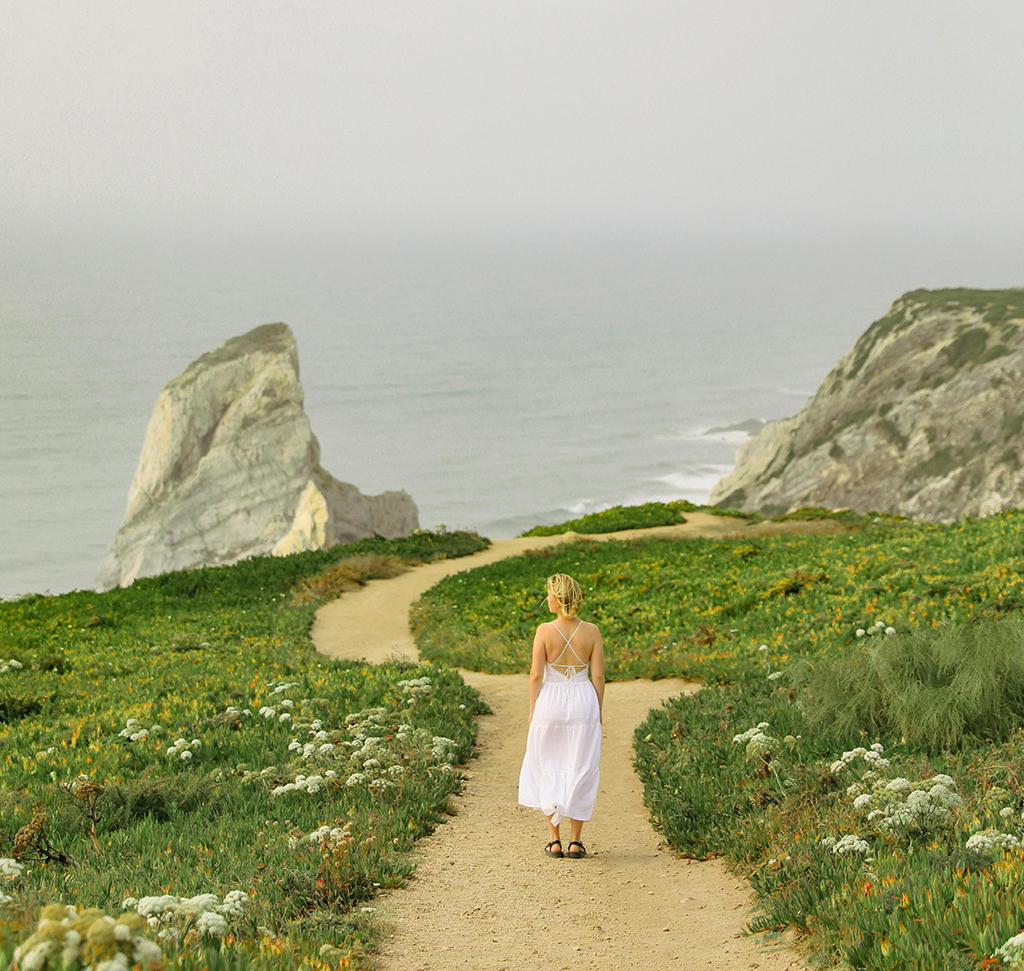
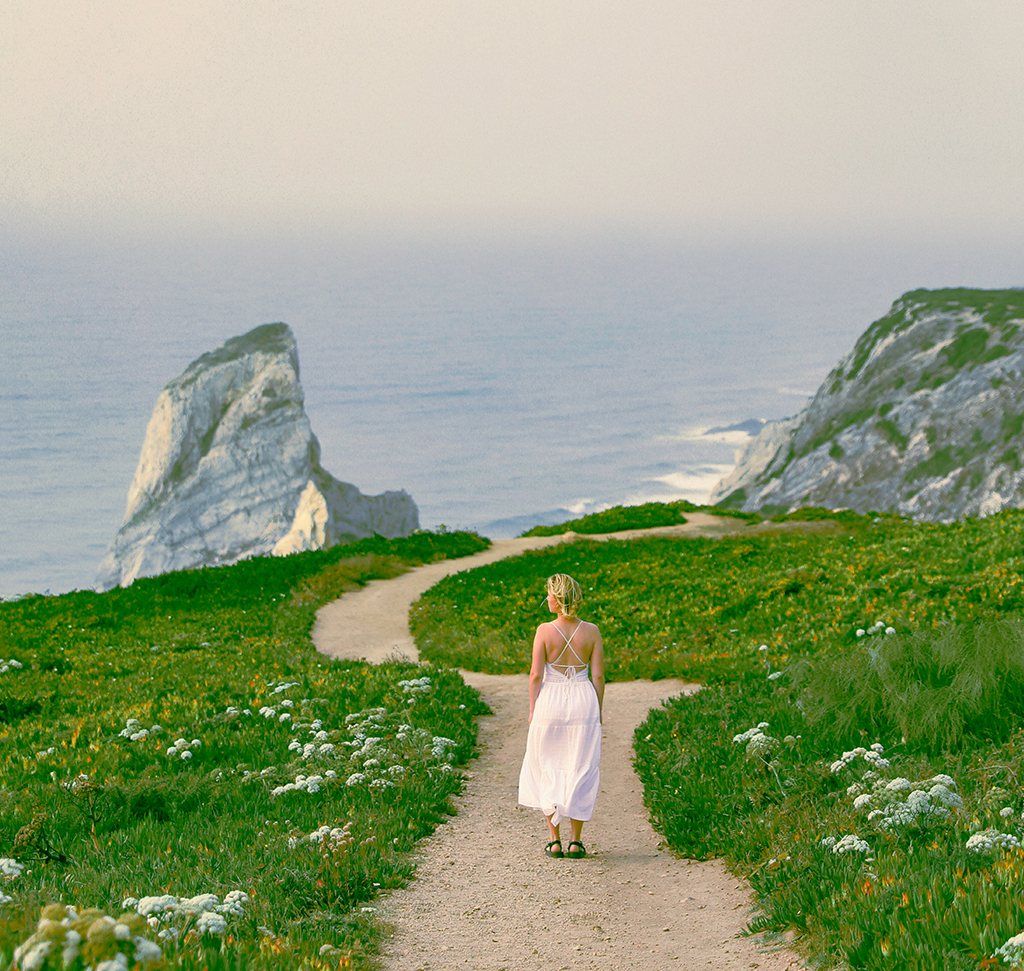
How to Color Grade Photos in Adobe Camera Raw
If you color grade in Lightroom, there is something worth knowing: the same panel is inside Photoshop. The Camera Raw Filter carries the full Lightroom editing interface — the identical Color Grading wheels, the identical presets — so there is no need to round-trip an image out to Lightroom to tone it.
This tutorial covers the three-way color wheels, the two sliders most people ignore, saving your own presets, and the two layers of non-destructive control that make the whole thing revisable months later.
Convert to a Smart Object First
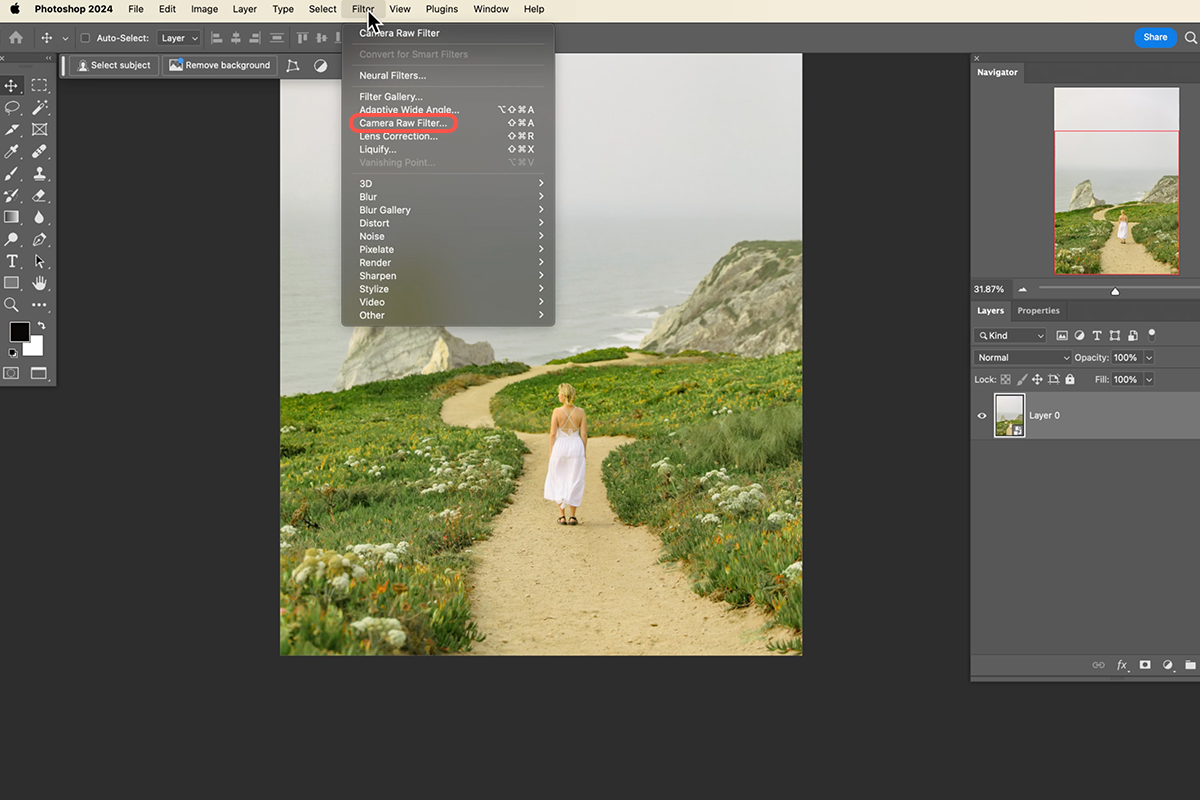
Before applying any filter in Photoshop, do this. Go to Layer → Smart Objects → Convert to Smart Object, and check for the badge on the layer thumbnail.
A filter applied to a normal layer bakes into the pixels. Applied to a Smart Object it becomes a Smart Filter — toggleable, re-editable, and openable again with every setting exactly where you left it. For color grading, where you will almost certainly want to revisit your choices, this is not optional.
Then go to Filter → Camera Raw Filter.
Where to Find Color Grading in Camera Raw
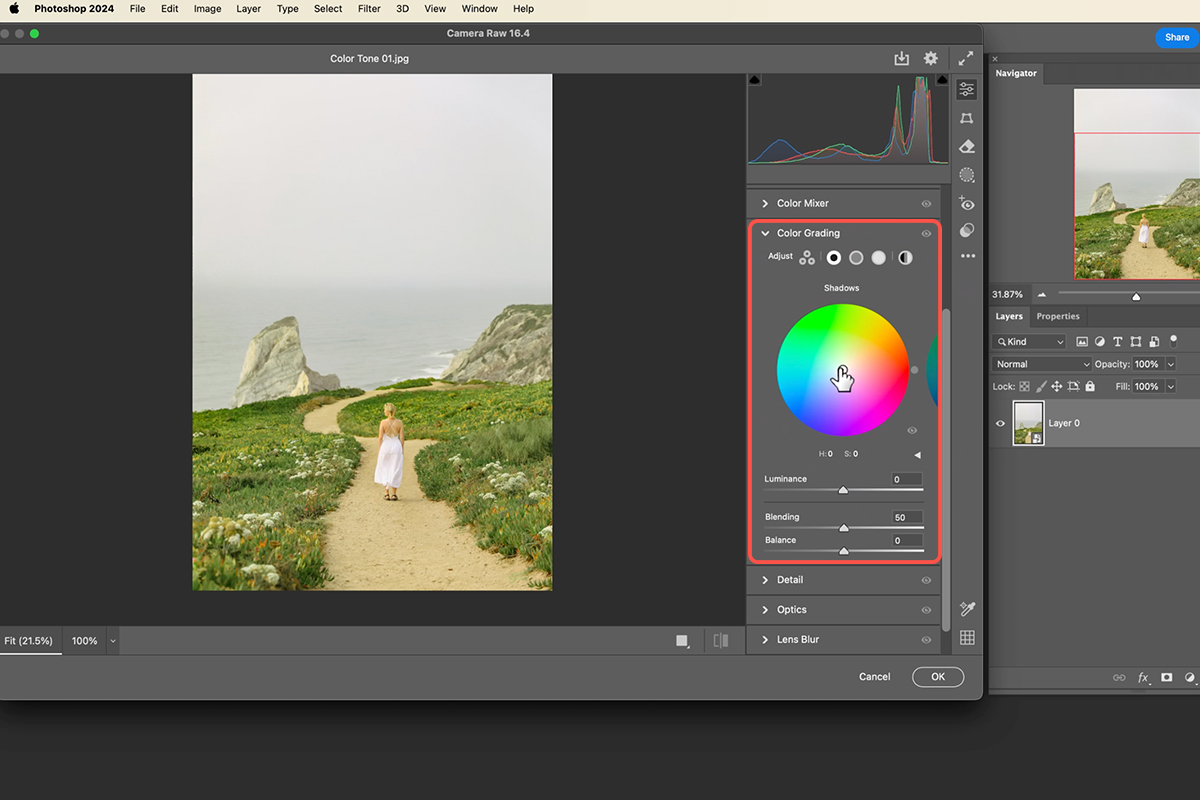
The panel down the right side will look familiar to any Lightroom user. Scroll past Basic, Curve, and Color Mixer to reach Color Grading.
You get a three-way view showing shadows, midtones, and highlights together, plus buttons to isolate any one of them and a Global option that applies a single color across the whole image. The three-way view is the one to work in — grading is about the relationship between the tonal ranges, and you want to see them together.
How to Actually Use the Wheels
There is a technique here that makes the difference between fumbling and choosing.
-
Click the center of a wheel and drag straight to the outer edge
This gives you maximum saturation — deliberately far too much.
-
Travel around the wheel at that extreme
At full saturation each hue is unmistakable. You can see what a green shadow does versus a blue one instantly, where at subtle settings every option looks much the same.
-
Pick the hue, then pull the saturation back
Once you have committed to a direction, drag inward until it is as gentle as you want.
Choose loud, then quiet it down. Trying to select a hue at realistic strength means comparing four near-identical options, which is why grading often feels like guesswork.
The Two Control Points
Each wheel has an outer point and an inner one. The outer point sets hue — move around the circle. The inner point sets saturation — move toward or away from the center. Below each wheel, a separate slider controls luminance, brightening or darkening that tonal range.
Double-click any control to reset it.
Start With Midtones
Midtones carry most of the image, so set them first and let shadows and highlights respond to that choice. Then work shadows, then highlights.
Expect to be surprised. A color you were sure you wanted in the shadows often looks wrong once it is there, and something you would not have chosen turns out to be right. There is no correct answer to find — try things, and change your mind freely.
Blending and Balance
These two sliders sit under the wheels and are routinely ignored. They are where a grade goes from applied to integrated.
Blending controls how much the highlight grade and the shadow grade bleed into each other. Toward one end your highlight color dominates; toward the other, your shadow color does. It is the mixing ratio between the two ends of your grade.
Balance shifts where the boundary between shadows and highlights actually falls, which decides how much of the image each grade governs.
Once your colors are chosen, spend real time on these two. They do more for how natural a grade feels than any further fiddling with the wheels.
Check the Before and After Constantly
There is an eye icon beside the Color Grading heading. Click and hold it for a straight before/after.
Use it often. Your eye adapts to a color cast within seconds, and what looked bold when you set it will look normal five minutes later. Toggling is the only reliable way to see what you have actually done.
Watch the Skin Tones
Landscapes tolerate aggressive grading. Portraits do not.
The midtone wheel is where faces live, so it is the one to be careful with — a strong midtone push that looks wonderful on a mountain will turn a face green or orange. Grade the shadows and highlights harder and keep the midtones restrained, and you can get a strong overall look while skin stays believable.
Save It as a Preset
When a grade works, keep it.
-
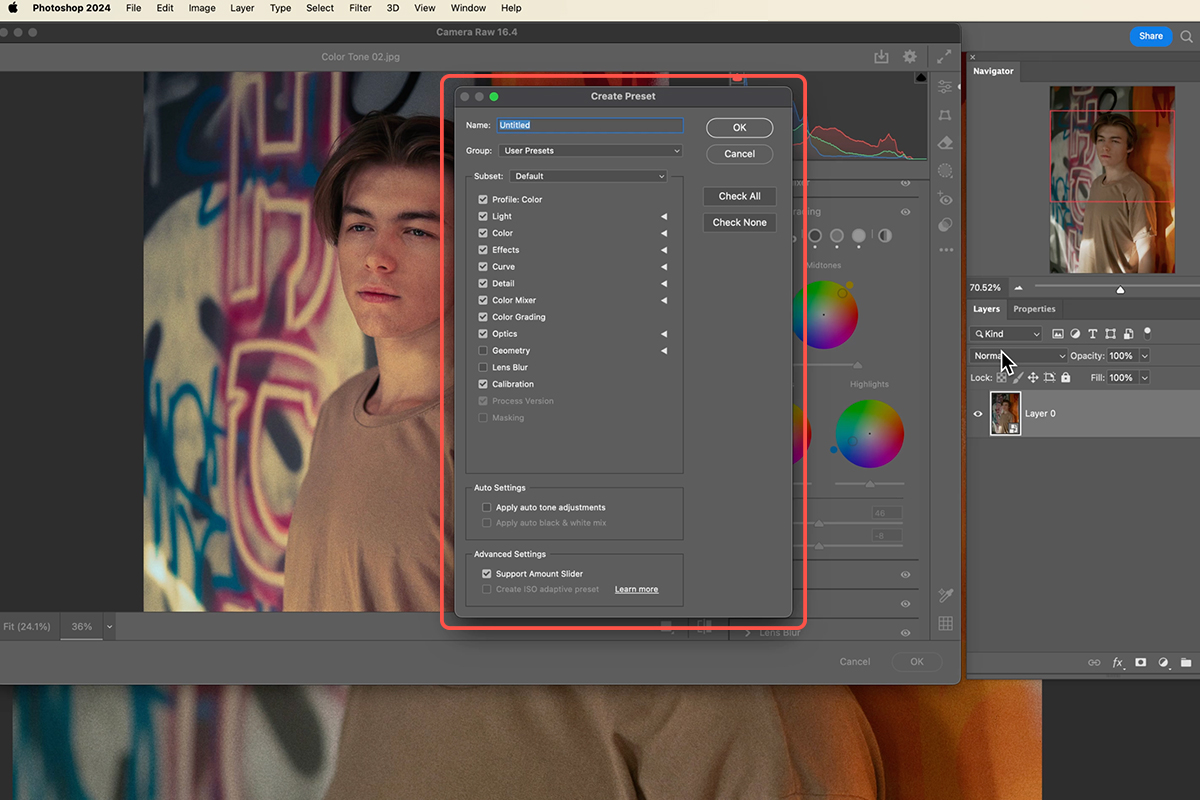
Click the three dots at the top of the panel
Choose Create Preset.
-
Uncheck everything except Color Grading
This matters. By default the preset saves every adjustment in the dialog — exposure, contrast, everything — and applying it to a different image would overwrite corrections specific to that photo. Limiting it to Color Grading means the preset carries only the look.
-
Name it and save
It appears under User Presets, and you can create groups to organize them.
The Built-In Presets Are Worth Browsing
Click the Presets icon to see what ships with Camera Raw — including adaptive presets carried over from recent Lightroom updates that detect a subject and apply changes only to them, or blur a background automatically.
Every preset has an Amount slider at the top. Most look heavy-handed at full strength; at 30 or 40 percent many become genuinely useful.
The most productive way to use them is as a starting point rather than a finish. Apply one, then open Color Grading and look at where it put the wheels. You can then adjust from a considered starting position instead of a neutral one — and your own saved presets sit right there too, so you can always get back to a look you built.
Two Layers of Non-Destructive Control
Because you converted to a Smart Object, the filter appears as a Smart Filter beneath the layer, and you get two independent controls after the fact.
Re-open it. Double-click Camera Raw Filter in the Layers panel and the dialog opens with every setting intact. Change the shadow hue, click OK, and the image updates.
Fade it. Double-click the small sliders icon to the right of the Smart Filter name to open blending options, and drop the opacity. This scales the entire grade down without touching any of your settings — the fastest way to answer “is this too much?”
Between the two, a grade you applied today is still fully adjustable next month, on a file you have since done other work to.
The Workflow
Convert to a Smart Object. Open the Camera Raw Filter. Go to Color Grading. Push each wheel to the edge to choose a hue, then pull the saturation back. Set midtones first, then shadows, then highlights. Spend time on Blending and Balance. Check before and after constantly. Save what works as a Color Grading-only preset. And use the Smart Filter opacity to dial the whole thing back if it turns out to be heavier than you thought.
Quick Reference: Keys, Menus and Settings
- Make it editableLayer > Smart Objects > Convert to Smart Object
- Open the panelFilter > Camera Raw Filter > Color Grading; Cmd/Ctrl + + to zoom in
- Pick a colorDrag from the center to the edge, go around, then pull saturation back with the inner point; Luminance slider below
- OrderMidtones, shadows, highlights, then Blending and Balance
- Before and afterPress and hold the eye next to Color Grading; double-click a point or slider to reset it
- Save the lookThree dots > Create Preset, only Color Grading checked
- Change it laterDouble-click Camera Raw Filter in the Layers panel; double-click the icon beside it for Opacity
Free Downloads
Follow Along on the Same Photos
Get the three photos graded in the video, three sample PSDs to compare your grade against and the 3-page PDF guide. Free with a PHLEARN account.
Color Grading in Camera Raw: Common Questions
Can I use Lightroom’s Color Grading wheels in Photoshop?
Yes. Filter > Camera Raw Filter has the same editing tools as Lightroom. Scroll down the right side past Light and Color Mixer to reach Color Grading.
Why convert to a Smart Object before the Camera Raw Filter?
So the filter becomes a Smart Filter. You can switch it off, double-click to reopen it with every setting intact, or lower its opacity. Use Layer > Smart Objects > Convert to Smart Object.
How do I choose a color on the wheel?
Click the center and drag all the way to the edge, then go around the wheel. The very saturated color makes it easy to see what you like. Once you pick a hue, pull the saturation back.
What do the two points on each wheel do?
The outer point picks the hue and the inner point sets the saturation. The Luminance slider under the wheel makes that range lighter or darker. Double-click any point or slider to reset it.
Which wheel should I start with?
Start with the midtones, then the shadows, then the highlights. On a portrait, keep the midtones gentle so the skin tones stay natural.
What do Blending and Balance do?
Blending sets how much your highlight and shadow colors mix; one way the highlight color takes over, the other way the shadow color does. Balance changes how the grade blends in with the photo. Try both on every image.
How do I see the before and after?
Press and hold the eye icon next to the Color Grading heading. After you click OK, the eye next to the Smart Filter in the Layers panel turns the whole grade off and on.
How do I save my grade as a preset?
Click the three dots at the top of Camera Raw and choose Create Preset. Uncheck everything except Color Grading, name it and save it to User Presets or a new group.
How do I tone the grade down after I click OK?
Double-click the icon to the right of Camera Raw Filter in the Layers panel and drag Opacity down. Built-in presets also have a slider at the top to make them less or more strong.
Are the sample files free?
Yes, with a free PHLEARN account. You get 3 sample images, 3 sample PSDs and 1 PDF guide: the three photos graded in the video, the matching PSDs and a 3-page step-by-step guide.
Master Photoshop, Lightroom and Photography
Join PHLEARN PRO for $12.99 a month or $99.99 a year. Cancel anytime, with a 100% money-back guarantee.





