
Download Assets
description
In this tutorial we’re diving into Point Color in Adobe Camera Raw to show you how to target and transform any color with total precision. Learn to use Smart Objects for a non-destructive workflow that keeps your edits flexible and your images looking absolutely stunning.
Go PRO:
Dive deeper into the world of Photoshop with our in-depth PRO Photoshop Learning Path . Across 11 courses and 53 hours of engaging content, you’ll learn Photoshop’s ins and outs, master pro-level tools, and tackle fun and challenging projects..
Share
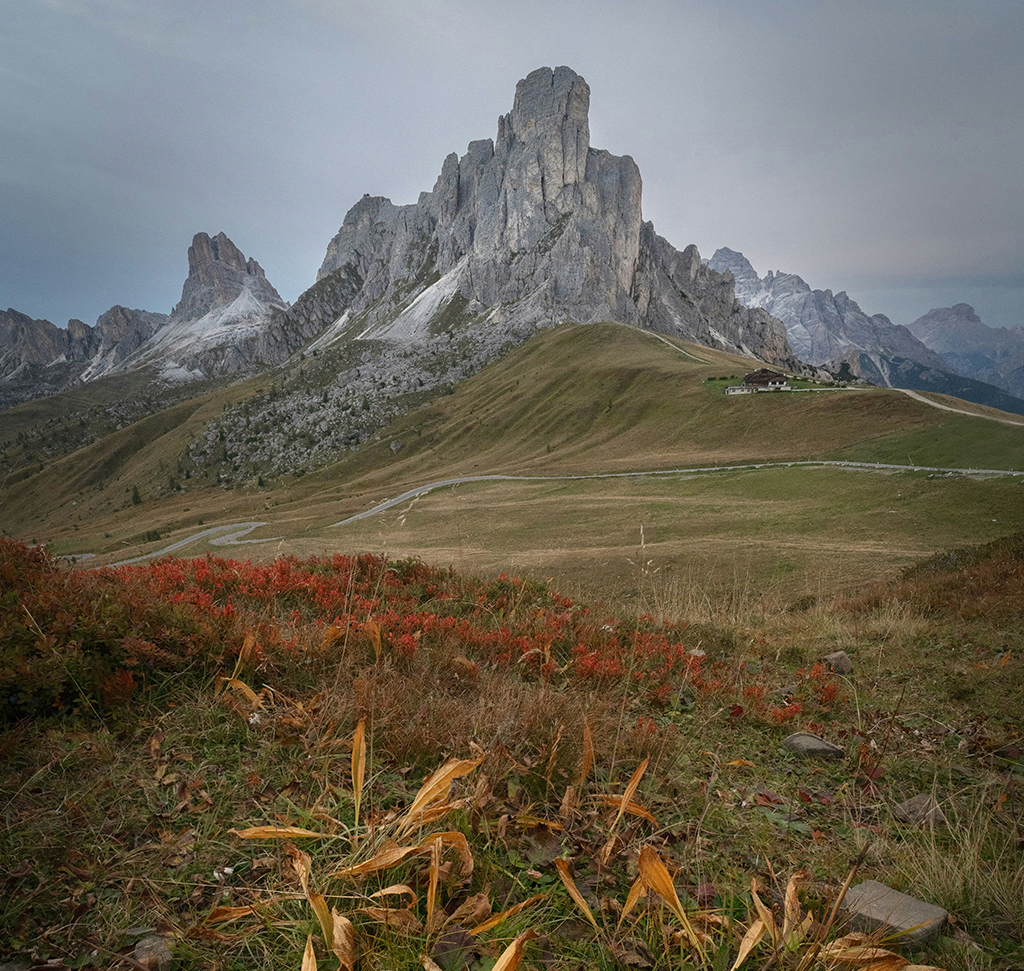
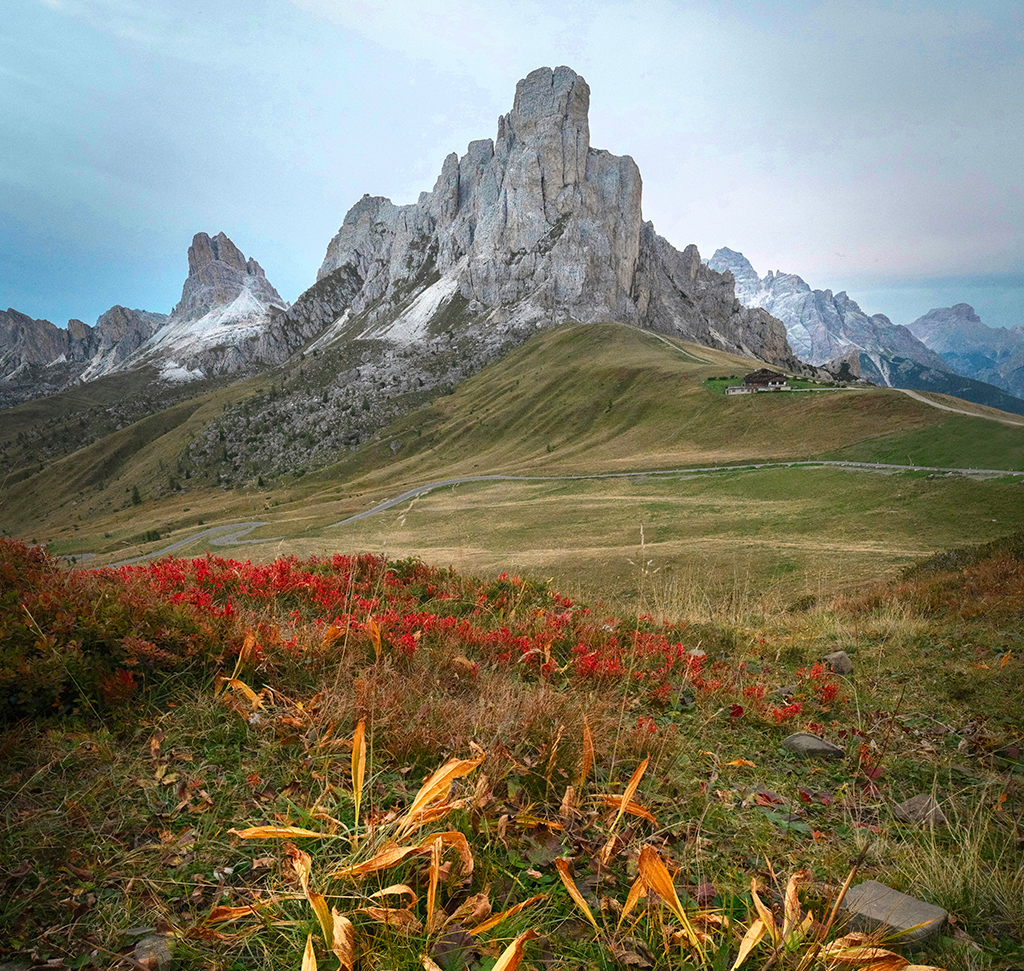
AFTER
BEFORE
Target Any Color, Anywhere.
Color is one of the most powerful tools in your creative arsenal, but standard adjustments can often feel like using a sledgehammer when you really need a scalpel. The Point Color allows you to isolate and transform specific hues without affecting the rest of your shot. Whether you’re making a landscape pop or refining skin tones, this workflow ensures your edits look natural, professional, and—best of all—completely flexible thanks to the power of non-destructive editing.
Prepare Your Workspace
Before touching any colors, you need to set up a non-destructive workflow.
1. Start by selecting your background layer and converting it into a Smart Object. You can do this by going to Layer > Smart Objects > Convert to Smart Object or via Filter > Convert for Smart Filters. This ensures that any changes you make in the next steps can be edited or removed later without damaging your original image.

Access Camera RAW
2. With your Smart Object ready, go to Filter > Camera Raw Filter to open the editing suite.
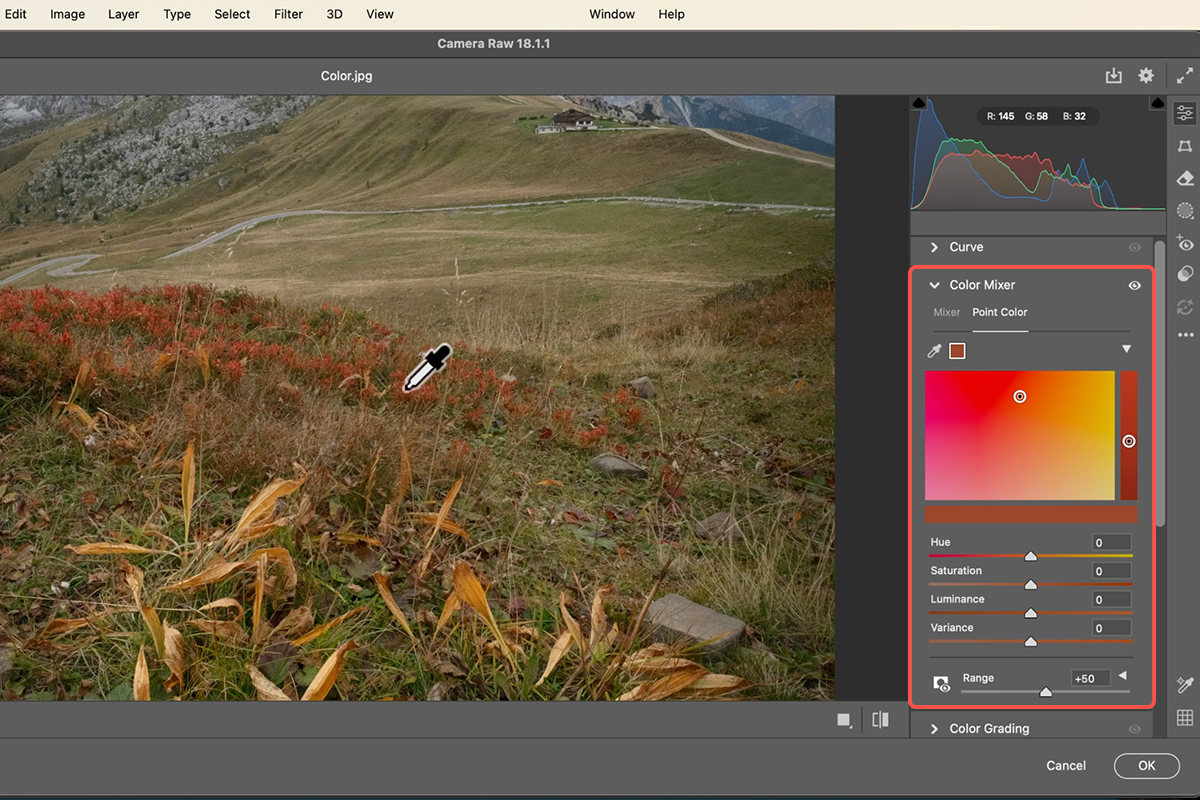
3. Once inside, navigate to the Color Mixer panel on the right and select the Point Color tab.
4. To see your work better, use Cmd/Ctrl + or – to zoom in and out of the specific areas you want to adjust.
Target Specific Colors
5. Select the eyedropper tool within the Point Color panel and click directly on a color in your image, such as a specific orange or green.
6. Use the Hue, Saturation, and Luminance sliders to shift that color’s look. A professional tip is to increase the Variance slider to the right; this introduces subtle color diversity, preventing the adjustment from looking flat and ensuring the result feels natural and realistic.
Refine the Range
7. If your adjustments are affecting too much of the image, open the Range section to fine-tune exactly which pixels are targeted. You can manipulate the hue, saturation, and luminance ranges to isolate your subject further.
8. Once you are satisfied, click OK to return to Photoshop. Because you used a Smart Object, you can simply double-click the Camera Raw Filter in your layers panel at any time to tweak your settings.