
Download Assets
description
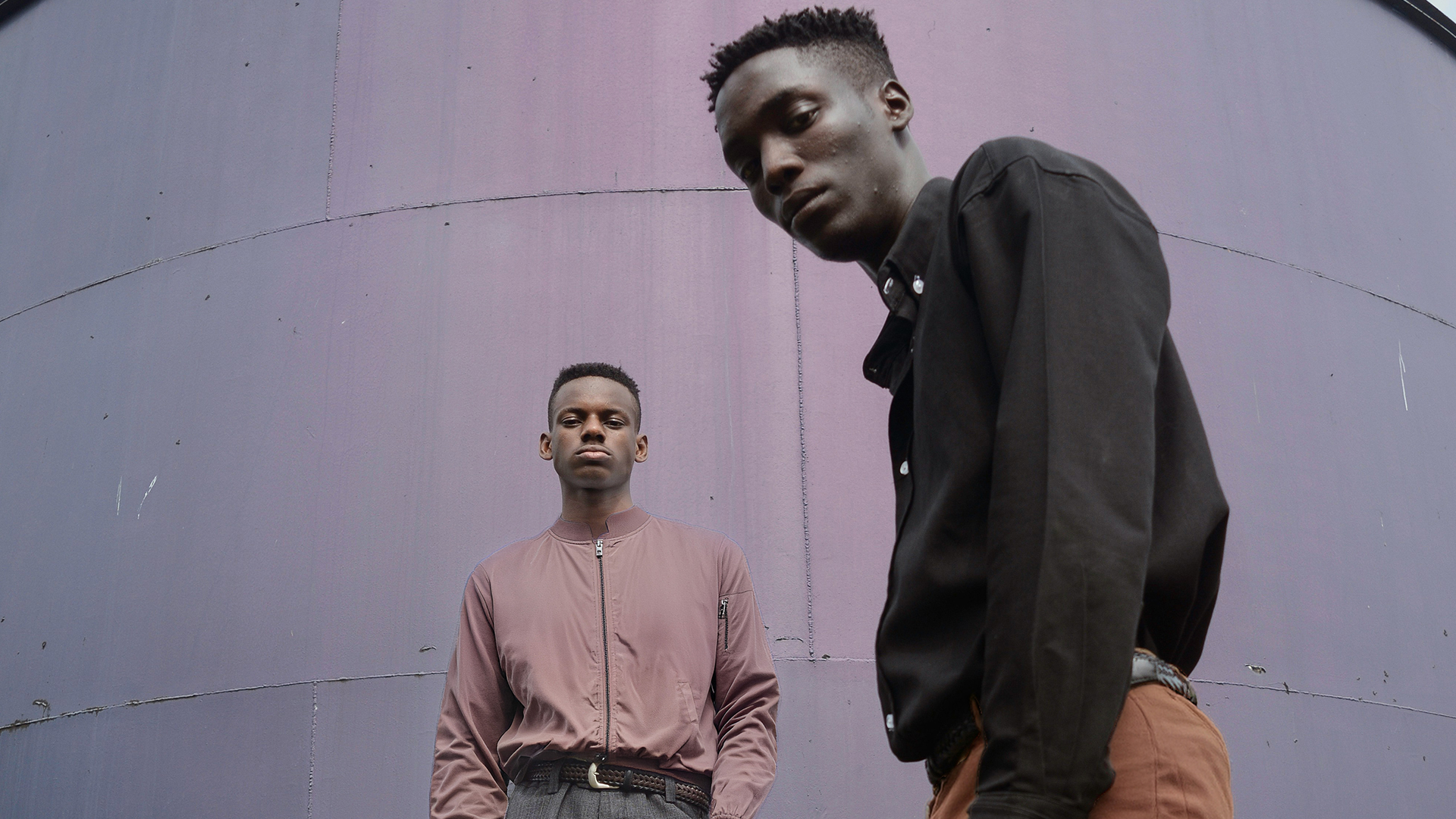
Learn how to use Photoshop 2026’s new Generative Fill with Reference Image feature. This tutorial demonstrates how to swap clothing, like jackets and pants, by uploading specific photos. Discover tips for refining selections, using “Enhance Detail” for high-resolution results, and troubleshooting object placement for seamless, realistic edits.
Go PRO:
Dive deeper into the world of Photoshop with our in-depth PRO Photoshop Learning Path . Across 11 courses and 53 hours of engaging content, you’ll learn Photoshop’s ins and outs, master pro-level tools, and tackle fun and challenging projects..
Share
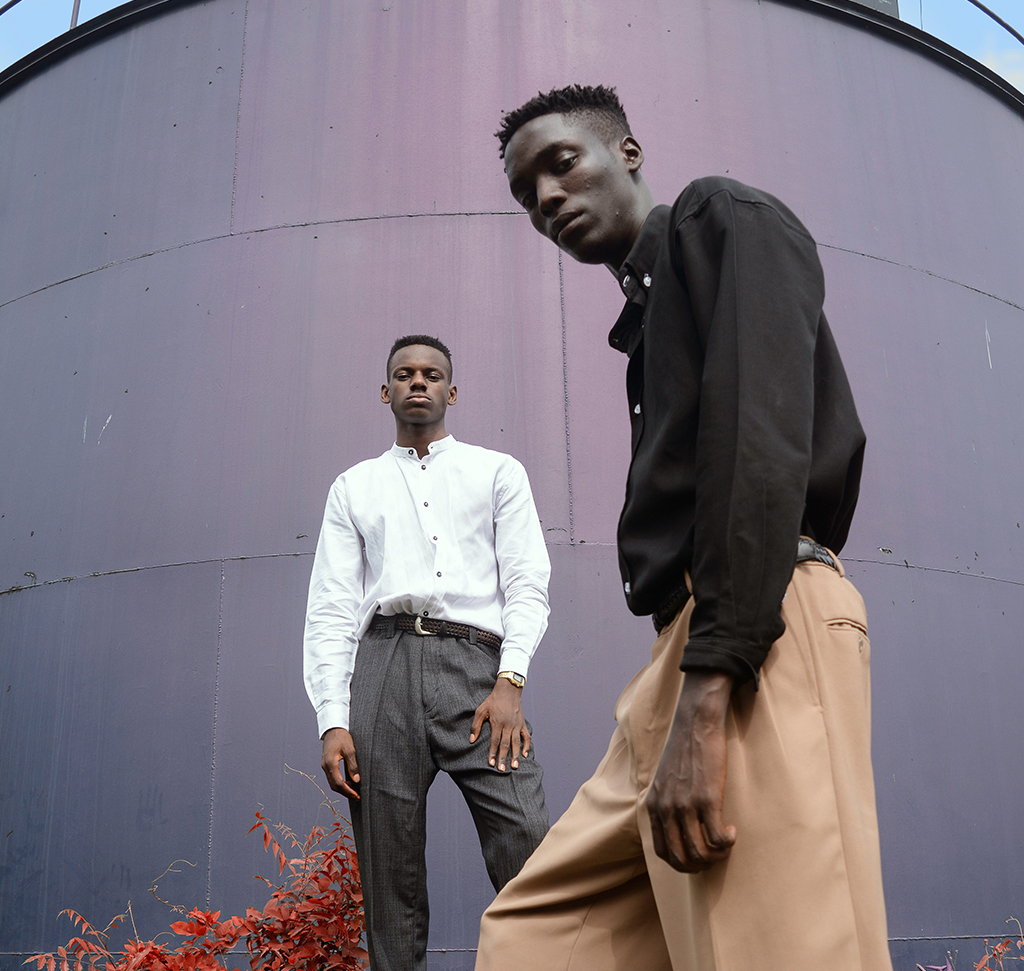

AFTER
BEFORE
Swap Anything Instantly.
While we usually emphasize mastering manual selection and masking techniques for maximum control, AI-driven tools have become impressively capable. Learning these generative workflows is a great asset when you are in a rush or need to iterate quickly. This tutorial walks you through using the Reference Image tool to swap objects, like clothing and accessories, to get accurate results.
Selecting Your Subject
1. To begin, open your image in the Photoshop.
2. Use the Object Selection Tool (Keyboard Shortcut “W”) to hover over the item you wish to replace. With the new “Select People” feature, you can even isolate specific items of clothing like a coat or hat.
3. If the initial selection isn’t perfect, grab the Selection Brush Tool to paint over any missed areas. To ensure a clean replacement, you can hold Shift while clicking to add to your selection or Alt/Option to subtract from it.
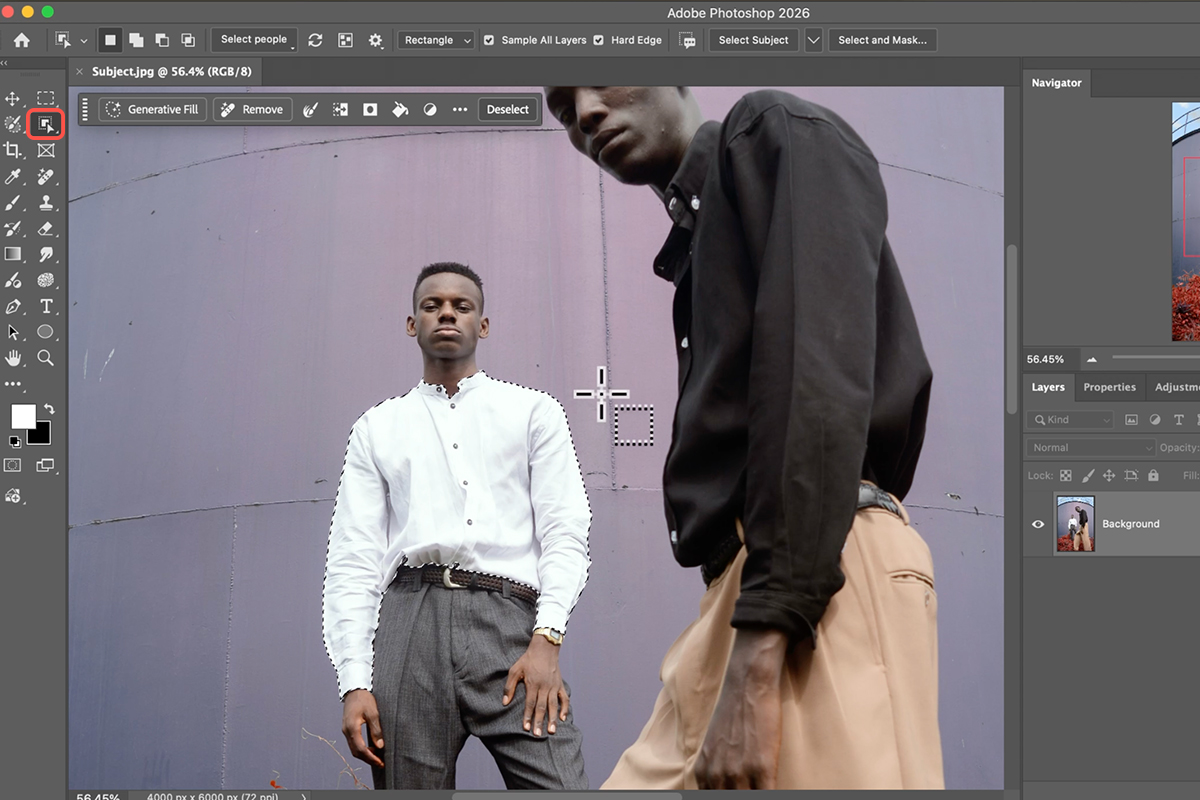
Swapping with a Reference Image
4. Once your object is selected, the Contextual Task Bar will appear.
5. Click on Generative Fill and look for the Reference Image icon. From here, you can click and drag your chosen reference photo into the prompt box. The AI will analyze the object within that reference photo and automatically swap the selected area of your original image to match.
6. When you are ready, click Generate to see the transformation.
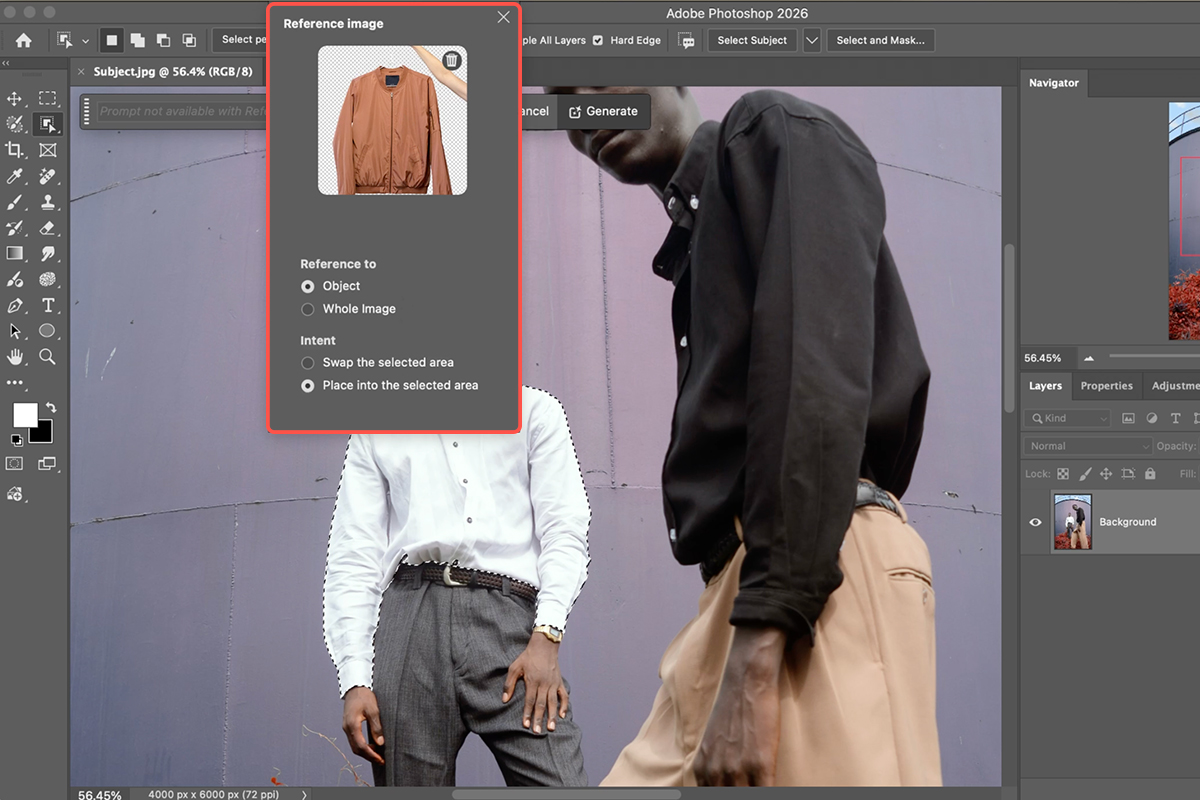
Refining the Results
7. After generating, the Properties Panel will display multiple variations of the replacement. It is important to toggle through these to find the one that best matches the lighting and perspective of your original shot.
8. If you need to make minor adjustments to the blend, you can use the layer mask created by the generative layer. Remember that you can always hit Cmd/Ctrl+Z to undo and try a different reference image if the first attempt doesn’t align with your vision.