

THIS COURSE INCLUDES
- 3 Lessonsfollow-along
- 1hof captioned HD video
- Beginnerno experience needed
- 213 Sample Imagesto follow along
Join PHLEARN PRO for instant access to this course and every tutorial on PHLEARN.
- Stream in up to 4K on any device
- Closed captions and chapters on every course
- Download all sample images and PSDs
- New PRO tutorials every month
- Cancel anytime
Description
After a photoshoot you might find yourself with hundreds, sometimes thousands, of photos to review. In this tutorial, we’ll break down the PHLEARN culling workflow in Lightroom Classic, which will help you quickly and thoroughly find the best photos to edit and deliver to your clients. Follow along with the included RAW Photos.
What You’ll Learn
- Quickly cull hundreds of photos to find the best shots
- Use picks, labels, and colors to sort images
- Cull on the go with Lightroom Mobile
Course Downloads
Spend Less Time Sorting and More Time Editing

A Culling Workflow in Lightroom Classic
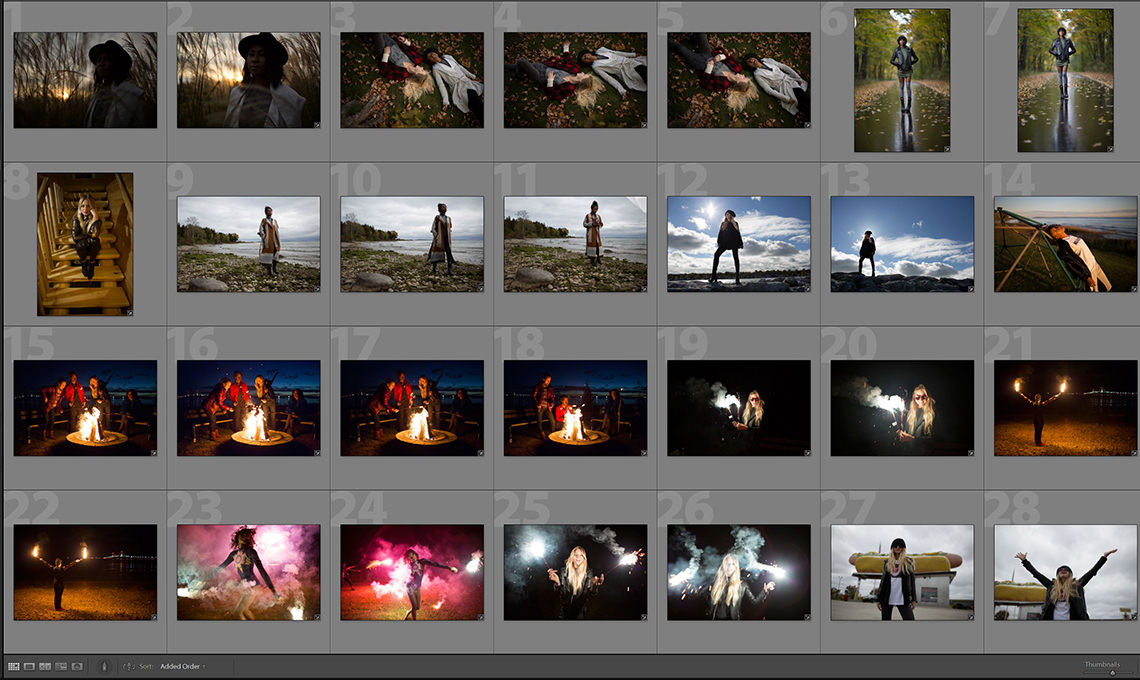
Sitting in front of Lightroom after you’ve just imported hundreds of new photos can be overwhelming without a culling workflow. To get you started, we walk you through all of the tools and techniques that will make the culling process easier.
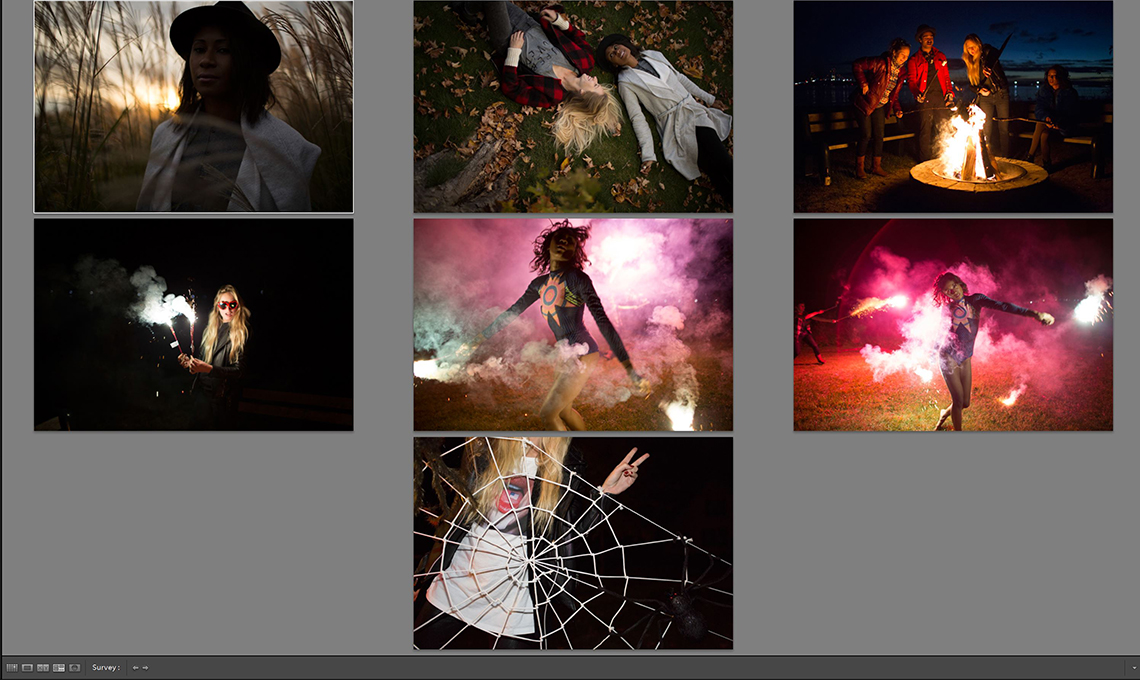
We’ll show you the different views Lightroom offers to view and compare your photos. Then we’ll take you through a culling workflow of multiple rounds of culling where we’ll assign flags, star ratings, and color ratings to the pictures we like most.
Once finished, you’ll have a repeatable culling workflow and be confident in your ability to quickly identify and organize your best work, preparing you for the rest of the post-production process.
The PHLEARN Workflow
Throughout this series, we’ll take you through everything from creating your first Lightroom catalog, to sending photographs over to Photoshop for external editing. We’ve developed our process over the years to help you work faster, stay organized, and never have to worry about losing or misplacing any files.

Lightroom Mobile
Lightroom Mobile is an extremely powerful tool for a culling workflow, especially for the photographer on the go. We’ll walk you through the process of syncing your Lightroom catalog to Mobile. Then we’ll demonstrate some of our favorite features that the app offers.
You might be surprised to learn that a lot of the Lightroom Mobile features mirror the PC/Mac-based software. Organize and cull your images, take advantage of the powerful editing tools, and have a handheld portfolio to show potential clients!
Import and Organize
Never lose a file again! A culling workflow starts with organization, and Lightroom offers powerful organizational tools, all you need is the right workflow to make finding your images simple. Learn the PHLEARN Method of file organization and storage to save time and create a more cohesive file structure.
Professional Culling
Learn the tools and techniques to quickly find the best images from a photoshoot. Sort, organize, rate, and more!

Export and Deliver
After your culling workflow and editing bring images to perfection, it’s time to export them and deliver to a client or upload them to the web. Learn exporting workflow to make sure your images display properly no matter where they end up.
Local Editing, Global Editing, and External Editing
Editing comes in a lot a varieties. Sometimes you’ll need to perform quick global edits to your photos to help you with the culling process. Sometimes more detailed edits are required when you’re working with clients. We’ll show you how to build the editing process into multiple steps of your workflow.

Class Instructor
Aaron Nace
PHLEARN Founder & Lead Instructor
Aaron Nace is a photographer, digital artist, and the founder of PHLEARN. He has been teaching Photoshop, Lightroom, and photography since 2011, and has taught at Adobe MAX for more than eight years.
Aaron publishes a free tutorial every week and a new in-depth PRO course every month.
- 2M+YouTube subscribers
- 160M+video views
- 1,000+tutorials published
- 15years teaching Photoshop
Reviews
Master Photoshop, Lightroom and Photography
Join PHLEARN PRO for $12.99 a month or $99.99 a year. Cancel anytime, with a 100% money-back guarantee.






From someone whose used LR for 10 years this is chock full of tips and helpful tools. Good reminders of how to be more efficient. Regarding using Text for metadata search. I have over 60K photos in LR cataloged and have years of family pictures, entering keywords of names and occasions such as a child’s name or Christmas ? In the metadata Text I can enter the name of the person I want to look at and all the photos of that person will be displayed. I can narrow that search by year for that person. I can enter the occasion such as Christmas and all the Christmas pics will be displayed. I can select all the 5 star Christmas pics. I’m mainly interested in composite artistic photography. I use the Text metadata search all the time to find dogs, sun sets, mountains, etc …. to include I composites. I have photos from many years and in seconds I can isolate and locate pics I’m interested in using.
Thanks Aaron and team. I have been using Lightroom for about three years and some of the tips and tricks I have implemented over the years from your Free Tutorials, but the information in this course helped make things go faster and smoother. Great Job.