
description
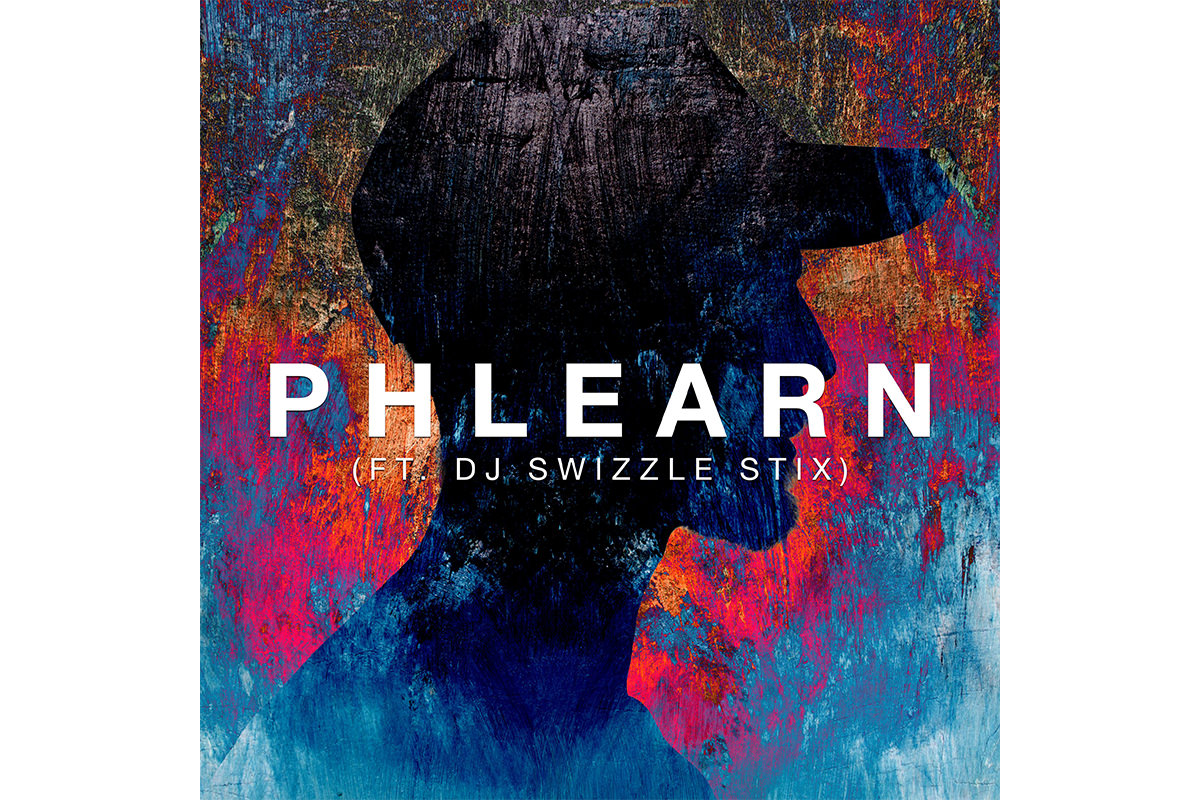
This tutorial builds an abstract, silhouette-style album cover from a side-profile portrait, an added hat, and a painted texture background. It covers cutting out the subject and hat with the Magic Wand and Refine Edge, merging them into a single silhouette mask, building an abstract effect with inverted layers and blend modes, and finishing with precisely centered, styled type.
Enjoying This Free Tutorial?
We publish a new free tutorial every week, each one with sample images and PSDs you can download and follow along with. Sign up and they land straight in your inbox, along with early word on sales, events and subscriber-only offers.

This tutorial recreates an abstract, silhouette-style album cover look using a side-profile portrait, an added hat, and a painted texture background. It covers cutting out the subject and hat, merging them into a single silhouette mask, building an abstract effect with inverted layers and blend modes, and finishing with centered, styled type to complete the cover.
Cutting Out the Hat and Subject With the Magic Wand Tool
The Magic Wand tool quickly isolates both the hat and the subject from their simple backgrounds, ready to be combined onto the texture.
-
Select the Hat’s Background
Press W for the Magic Wand tool and click the area around the hat.
-
Load and Invert the Hat’s Mask
Load the selection as a layer mask, then press Cmd/Ctrl+I to invert it so the hat itself, not the background, is visible.
-
Select the Subject’s Background
Use the Magic Wand tool on the portrait, holding Shift to click multiple areas until the whole background is selected.
Refining the Subject’s Selection Around Hair
The Refine Edge tool’s radius brush cleans up the soft, detailed edges around hair that the Magic Wand alone can’t capture accurately.
-
Open Refine Edge
With the subject’s background selected, click Refine Edge and switch the preview to black and white for clarity.
-
Paint With the Refine Radius Tool
Use the Refine Radius tool to paint over any area with fine detail, such as hair or lips, to separate it more accurately from the background.
-
Load and Invert the Subject’s Mask
Click OK, load the refined selection as a layer mask, and press Cmd/Ctrl+I to invert it so the subject, not the background, is visible.
Combining the Subject and Hat, Then Sizing the Hat to Fit
Dragging both cutouts onto the background and adjusting the hat’s opacity while resizing makes it possible to fit it convincingly onto the subject’s head.
-
Drag the Subject and Hat Onto the Background
Hold Shift and drag both the subject and hat layers into the background document.
-
Flip Both Layers to Match Orientation
Select both layers, press Cmd/Ctrl+T, right-click, and choose Flip Horizontal if they need to face the opposite direction.
-
Lower the Hat’s Opacity While Resizing
Reduce the hat layer’s opacity so the subject underneath is visible, then use Cmd/Ctrl+T to scale the hat to the correct size on the head.
-
Restore Opacity and Clean Up Stray Hair
Bring the hat’s opacity back to 100%, then use the Lasso tool and a black fill on the subject’s layer mask to hide any stray hair still showing above the hat.
Merging and Grouping the Portrait Layers
Duplicating the subject and hat layers before merging them keeps an untouched backup available in case further adjustments are needed later.
-
Duplicate Both Layers
Select both the subject and hat layers and drag them onto the New Layer icon to duplicate them.
-
Merge the Duplicates Together
Select the two duplicated layers and press Cmd/Ctrl+E to merge them into a single flattened layer.
-
Group the Original Layers for Safekeeping
Group the original, unmerged subject and hat layers together and label the group Original.
Why Duplicating Before Merging Matters
Merging layers together permanently flattens their masks and positioning, which makes later changes, like repositioning the hat, much more difficult without a backup. Keeping a duplicate, unmerged copy grouped safely aside means any later adjustment can start from that original, editable version instead of starting the whole cutout over from scratch.
Cropping the Background to a Square
A one-to-one square crop matches the standard album cover format, applied without permanently deleting the pixels outside the frame.
-
Select the Crop Tool
Press C for the Crop tool.
-
Choose a 1:1 Square Ratio
Select the 1:1 square ratio option in the options bar.
-
Leave Delete Cropped Pixels Unchecked
Make sure Delete Cropped Pixels is unchecked so the background can still be repositioned later, then press Enter to apply the crop.
Turning the Subject Into a Layer Mask on the Background
Loading the merged subject as a selection, then applying it as a mask on a duplicated background layer, is what creates the signature silhouette cutout.
-
Load the Subject as a Selection
Hold Cmd/Ctrl and click the merged subject layer’s thumbnail to turn it into a selection.
-
Duplicate the Background Layer
Duplicate the background texture layer, then add a layer mask using the active subject selection.
-
Hide the Subject Layer
Turn off the subject layer’s visibility, since it was only needed to define the mask’s shape.
Creating Abstract Effects With Inverted Layers and Blend Modes
Flipping, inverting, and cycling through blend modes on duplicated background layers turns a simple silhouette into a more abstract, art-print effect.
-
Duplicate the Background Texture Again
Duplicate the background texture layer once more to work with independently.
-
Flip the Duplicate Horizontally
Unlink the layer from its mask and flip the duplicated texture horizontally so it stands out from the layer beneath it.
-
Invert the Layer’s Colors
Press Cmd/Ctrl+I to invert the layer’s colors.
-
Cycle Through Blend Modes
Press V for the Move tool, then hold Shift and press the plus or minus key repeatedly to cycle through blend modes until one looks compelling, such as Subtract.
-
Duplicate and Try Additional Blend Modes on the Background
Duplicate the layer again, invert its mask so it affects the background instead of the subject, and try another blend mode such as Difference.
Repositioning Layers for a Balanced Composition
Scaling and moving each blended layer independently changes how it interacts with the subject, so the composition can be adjusted until the portrait remains recognizable within the abstract effect.
-
Unlink Each Layer From Its Mask
Click the chain icon on each blended layer to unlink it from its mask before repositioning.
-
Scale and Reposition Each Layer
Use Cmd/Ctrl+T to scale each layer larger or smaller, moving it until it interacts with the subject in an interesting way.
-
Balance Abstraction With Recognizability
Keep adjusting positions until the image reads as abstract art while the subject is still visible within it.
Why Unlinking Each Layer From Its Mask Matters Here
Without unlinking, resizing or moving one of these blended layers would drag its mask along with it, which would just move the silhouette shape instead of changing how the texture interacts with it. Unlinking keeps the mask’s silhouette fixed in place while the texture underneath shifts and scales freely, which is what actually changes the abstract effect.
Adding, Centering, and Styling Album Text
A filled black layer behind the type makes it possible to center text precisely using Photoshop’s alignment tools, and the Character panel controls the exact look of the finished lettering.
-
Group the Background and Portrait Layers
Group the background effect layers together and label them Background, then group the portrait layers and label them Portrait.
-
Add the Main Title Text
Press T for the Type tool and click to add the main title text, such as an artist or album name.
-
Create a Full-Canvas Layer for Centering
Create a new layer and fill it entirely with any color to use as a reference the same size as the full canvas.
-
Center the Text Using Alignment Tools
Select both the filled layer and the text layer, choose the Move tool, and click the horizontal and vertical center alignment buttons, then delete the filled layer.
-
Adjust the Font Weight and Tracking
Open Window > Character to set the font weight, such as Bold, and increase Tracking rather than horizontal scale to add space between letters.
-
Add a Second Line of Text
Duplicate the text layer, hold Shift while dragging to constrain its new position, and adjust its size and weight for a secondary line, such as a featured artist credit.
-
Add a Drop Shadow to the Type
Double-click the text layer, enable Drop Shadow, and copy the same layer style to the other text layer by holding Alt/Option and dragging the FX icon between layers.
Why a Filled Layer Beats Guessing at the Center
Trying to eyeball the exact center of a canvas by dragging text around invites small inaccuracies that are easy to overlook until the final image is viewed as a whole. Filling a temporary layer with the full canvas size and using it alongside the text with Photoshop’s built-in alignment tools guarantees the text lands exactly centered, without any guesswork.
Why This Approach Works
Building the silhouette from a duplicated, masked background layer rather than editing the texture directly keeps the original texture intact and endlessly reusable for further experiments. Unlinking each blended layer from its mask is what allows the texture to be moved and scaled independently, since the mask’s silhouette needs to stay fixed while everything underneath it changes. Centering text with a full-canvas reference layer and Photoshop’s own alignment tools removes any guesswork from what would otherwise be a fiddly manual placement.
Final Thoughts
From a simple side portrait and a painted texture, this workflow builds up to a genuinely abstract album cover through masking, inverted blend modes, and careful repositioning, finished off with precisely centered type. The same silhouette-and-blend-mode approach works with any portrait and any interesting background texture, not just this one.
Quick Reference: Keys, Menus and Settings
- Cut outW for the Magic Wand, Shift-click to add; layer mask, then Cmd/Ctrl + I on the mask to invert
- Clean up hairRefine Edge, View: Black & White, paint with the Refine Radius tool
- Flip and fitCmd/Ctrl + T, right-click > Flip Horizontal; lower the hat’s opacity while sizing
- Merge the copiesDuplicate both layers, Cmd/Ctrl + E; group the originals
- Square cropC, ratio 1:1 (Square), Delete Cropped Pixels unchecked
- Blend modesV, then Shift + + or -; Subtract and Difference
- TypeWindow > Character: Bold, Tracking 300; Alt/Option-drag the fx icon to copy the Drop Shadow
No AI, no generative credits.
Making an Album Cover: Common Questions
What kind of portrait works for this album cover?
A side profile, so the face’s features show in the outline. It doesn’t need fancy lighting, because the portrait is cut out and used only as a layer mask on the paint texture.
The Magic Wand selection looks rough around the hair. How do I fix it?
With the selection active, click Refine Edge, set the view to Black & White and paint over the hair and lips with the Refine Radius tool. Click OK, add the layer mask and press Cmd/Ctrl + I on the mask to invert it.
How do I make a hat fit on someone’s head?
Lower the hat layer’s opacity so you can see the head through it, then press Cmd/Ctrl + T and drag the corners until it fits. Set the opacity back to 100 and hide any hair poking through by filling a Lasso selection with black on the subject’s mask.
What crop should an album cover use?
A square. Press C for the Crop tool, choose 1:1 (Square) in the ratio menu and leave Delete Cropped Pixels unchecked so you can still move the background later.
How do I turn the subject into a silhouette on the texture?
Hold Cmd/Ctrl and click the merged subject layer’s thumbnail to load it as a selection, duplicate the texture layer and click the layer mask icon. Then hide the subject layer; it was only needed for the outline.
Is there a fast way to try every blend mode?
Press V for the Move tool, hold Shift and press the plus or minus key to step through the blend modes. The video settles on Subtract for one layer and Difference for its copy with the mask inverted.
Why does the silhouette move when I transform the texture?
The layer and its mask are linked. Click the chain icon between them so the mask stays put while you scale and move the texture with Cmd/Ctrl + T.
How do I center text exactly on the cover?
Make a new layer filled with any color, select it and the type layer, choose the Move tool and click the vertical and horizontal center align buttons in the options bar. Then delete the filled layer.
How do I spread the letters out without stretching them?
Raise Tracking in Window > Character; the video uses 300. Don’t use Horizontal Scale, which stretches the letters themselves.
Master Photoshop, Lightroom and Photography
Join PHLEARN PRO for $12.99 a month or $99.99 a year. Cancel anytime, with a 100% money-back guarantee.





