

Description
Start 2026 the right way by mastering every new AI feature these apps have to offer. We cover everything from Harmonize and Generative Fill to AI Assisted Culling. You’ll also get 29 practice images, including 3 RAW files, so you can follow along and perfect your editing workflow for the new year!
Note:
Some images in this tutorial are sourced from Adobe Stock. While copyright restrictions prevent us from sharing the files directly, you’ll find a PDF in the Sample Images folder with direct links to download them for FREE.
THIS COURSE INCLUDES
- 26 Sample Image (JPEG Files)
- 3 Sample Images (RAW Files)
- 8 Sample PSDs
- 2 Sample Videos
Share
Table of Contents
-
01 - Harmonize Tool20:22m
-
02 - Upscaling Tools7:24m
-
03 - Nano Banana & Flux Kontext Pro6:10m
-
04 - From Still to Video9:25m
-
05 - Combining Tools11:42m
Course Downloads
All The Updates in One Tutorial

Lead the Change
Knowing what’s coming is the best way to stay ahead in your creative work. Editing technology is moving fast, and these 2026 updates change how we approach every project. This tutorial breaks down every new shift in Photoshop and Lightroom, giving you a clear path to master these tools confidently.
Non-Destructive Editing
No matter how much technology evolves, we always prioritize teaching a completely non-destructive workflow. By using tools like Smart Objects and Layer Masks, we ensure your original pixels remain untouched. We do this so you can change your mind, refine your masks, or swap AI generations at any time, giving you total creative freedom without ever losing quality.
Improved Harmonize Tool
Building on our previous tutorials, we’re diving deeper into the latest evolution of the Harmonize tool. Since its debut, the AI has seen massive under-the-hood improvements in color accuracy and shadow placement. We’ll show you how to master these updates to blend subjects seamlessly, ensuring every composite looks like a single, perfectly lit photograph with zero manual effort.



AFTER
BEFORE
Upscaling Images
Mastering Generative Upscale allows you to transform low-resolution photos into high-quality masterpieces directly in Photoshop. By comparing Adobe’s Firefly Upscaler with partner models like Topaz Gigapixel, you’ll learn the best ways to recover facial details and reconstruct textures. This tutorial ensures you know exactly which model to choose for portraits versus landscapes, delivering professional resolution boosts every time.
AI Partners
Selecting the right AI partner is crucial for a professional workflow. We’ll show you why Firefly is perfect for expanding backgrounds, while Gemini 2.5 Nano Banana excels at adding complex objects. By using our “Single Prompt” strategy, you’ll learn to communicate your entire vision at once, resulting in more cohesive compositions and reliable styling compared to step-by-step editing.
Generative Credits Usage
To keep your work flowing smoothly, it’s helpful to know how Photoshop manages these new tools. Standard features like Firefly use a basic amount of generative credits (typically one credit per generation), while premium partner models like Gemini 2.5 or Flux require more power and consume credits at a different rate (typically 10 credits per generation). Understanding this balance helps you choose the best tool for each task while managing your monthly allotment effectively.
Control Every Detail

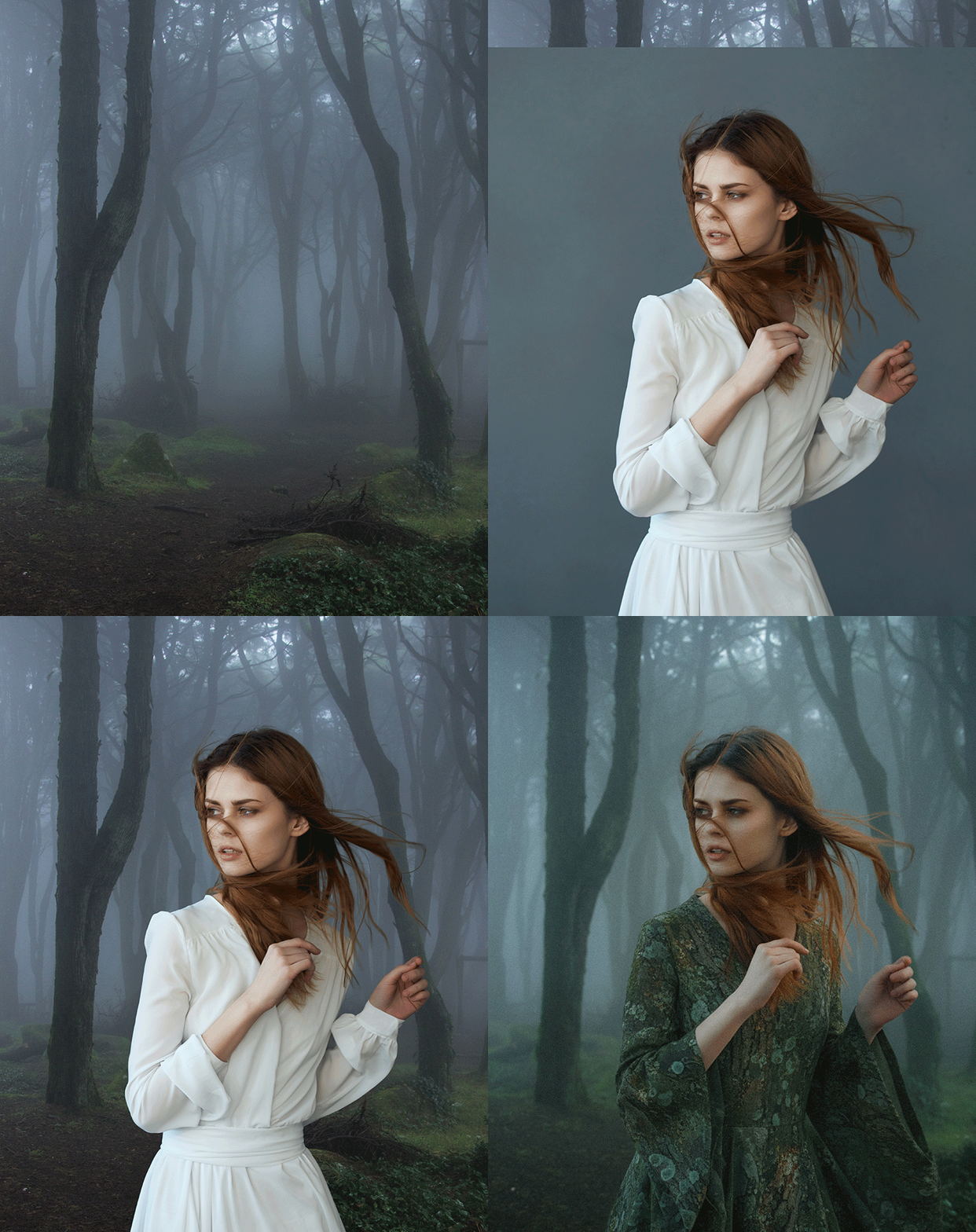
Craft New Scenes
With Gemini 2.5 Nano Banana, you can transform clothing and backgrounds. Learn to use the right prompts to change styles while perfectly preserving your subject’s original pose.
Perfect Workflow
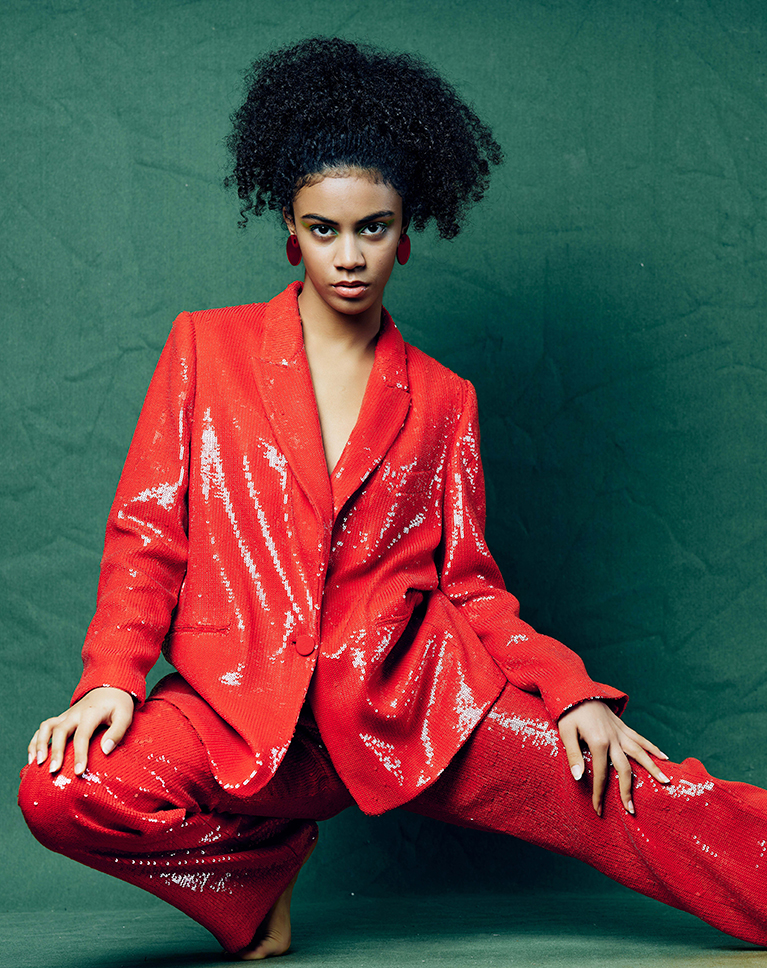
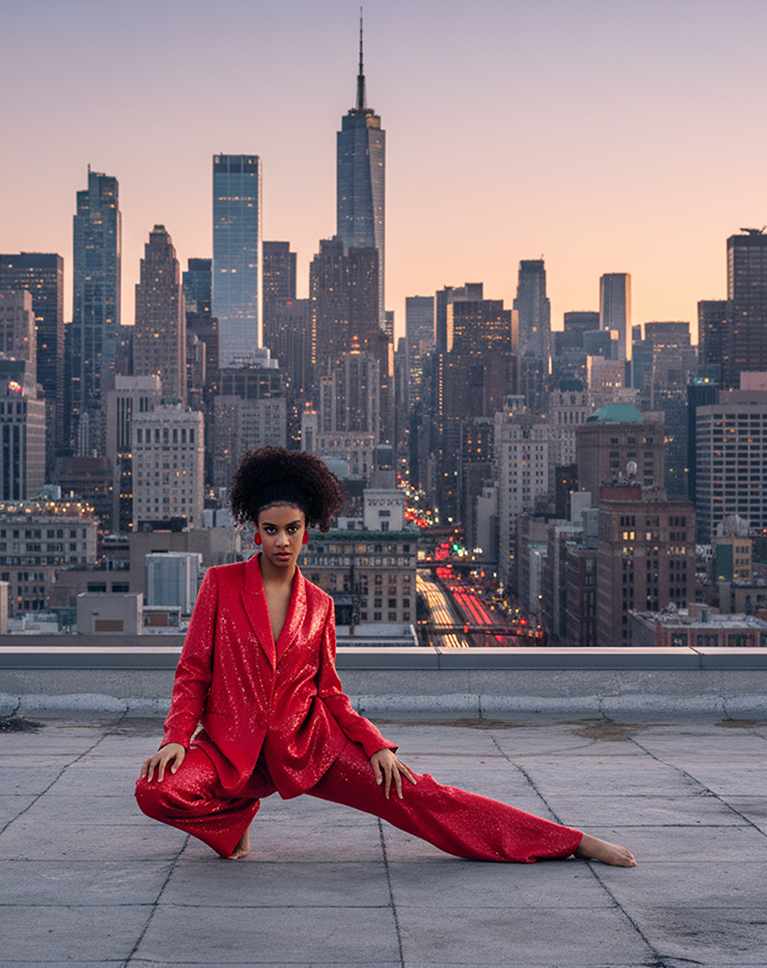
In this tutorial, you will learn the most effective order for using these new tools. By following a specific workflow, from initial background selection to final color grading, you can ensure your edits look natural. This structured approach helps you combine different AI features efficiently to create a professional, polished result.
Firefly Boards
Learn how to transform static images into cinematic transitions using Firefly Boards. By exporting your layers and setting them as start and end frames, you can generate high-quality video clips. You’ll also compare different video models to see which provides the smoothest motion and audio.
Lightroom Updates
Beyond Photoshop, we dive deep into the Lightroom 2026 ecosystem. You will master cutting-edge AI features across Classic, Desktop, and Mobile, including Assisted Culling for rapid sorting, Snow Masking for landscape precision, and Reflection Removal. We ensure your workflow stays seamless, from the initial import to final professional export.
AFTER
BEFORE
AI Culling
We’ll show you how AI Assisted Culling—Lightroom’s latest addition—works to streamline your workflow. You will learn to use AI to automatically flag out-of-focus shots and closed eyes. By letting the tool handle the tedious sorting, you can save hours and focus on your best images.
AI Masking
Learn how AI Masking works to give you total control over your images. You will learn to use the brand-new Snow Masking tool to isolate winter textures, alongside specialized masks for Sky, Vegetation, Architecture, and People, ensuring every element of your photo is perfectly balanced.
Remove Distractions & More
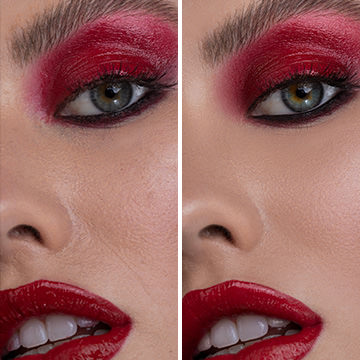
Learn how to use AI Removal and Repair to clean up your photographs instantly. You will master the new Distraction Removal tools to automatically eliminate people and reflections, alongside AI Denoise, which strips away heavy noise from low-light shots while preserving stunning, professional-grade detail for a flawless finish.

Aaron Nace
PHLEARN Founder – Class Instructor
Aaron Nace is a photographer, Photoshop artist and founder of PHLEARN. He is the #1 Photoshop instructor in the world with millions of YouTube subscribers.
Reviews
New & Popular Tutorials








Training Site in
the World
Tutorials!
Ratings
and Counting
Subscribers


Master Photoshop, Lightroom, and Photography.
From $8.50/month

Unlimited access to a vast library of Photoshop, Lightroom, and photography tutorials
Exclusive downloadable resources, including Lightroom Presets and sample files
Instant streaming on all devices, anytime, anywhere
Flexible monthly and annual plans to suit your needs and budget
100% Money Back Guarantee
Aaron Nace’s Photoshop 2026 tutorial explains things that Adobe’s menus have been hiding from me forever. Clear, fast, funny. Highly recommended
Thank you Aaron, very helpful. I used noise reduction with night shots and it was perfect. The deleting of reflections is a must, when you like to photograph in the zoo. It works fine.
A comprehensive coverage of whats new, plus helpful tips
Amazing
A really good presentation which is the norm for Aaron and Phlearn. Found this particularly helpful since I have somewhat of a disdain for AI approaches in most cases. This really helps my awareness on what Adobe has done with the new features and get somewhat of a perspective on how they might fit into my own work.
Once again an enlightening learning experience so well presented. Thank you.
Thank you!
Thanks as always, Aaron, for your inimitable teaching style and candid reviews on the newest Adobe features. In the past, Generative Fill could only output perfectly blended 1024 X 1024 pixel areas. Do the newer AI Generative engines like Nano Banana fill in large areas seamlessly?
Hey there! The resolution is still on the lower end. if you’re working with RAW files, the content generated will be lower quality.
It’s now January 6 and my Photoshop does not look anything like your Photoshop 26. No option for Project. When might my Photoshop have all the features presented in this section?
Our team has reached out via email to help you get things sorted out!
Aaron, Can you please check the down loads? I am unable to find the sample files for your video, Harmonise Tool. The files listed give the completed process. Cheers James
Hey there! For some of the images, you will need to use the direct links included in the PDF guide. Our team has reached out to you directly via email to help you with this.
I didn’t even know about Firefly Boards! Hope Aaron can do another tutorial on this as it appears very powerful .. meantime, I wish Adobe would give us a few more generative credits to experiment with 🙂
I found the Firefly boards tutorial really interesting; as i’ve never even considered using them before. Hope Aaron explores this feature more in the future.
The downloaded sample images contains 3 RAW files and only 15 jpeg files (not 27). There is a pdf file with links to the missing files on Adobe Free Stock Images. However, none of the links are working. I get “page not found” on Adobe Stock Images website. Hopefully, this can be rectified.
Hey there! The download folder includes 29 images, 12 of which are links inside the PDF guide. We tested them and they seem to be working, so our team has reached out via email to you to help you get things sorted out!
2026
i loved this seeing the new AI features. just wish Adobe didn’t use AI credits, its a limiting factor for some of us non prousers. look forward to seeing more from Arron.