
Download Assets
description
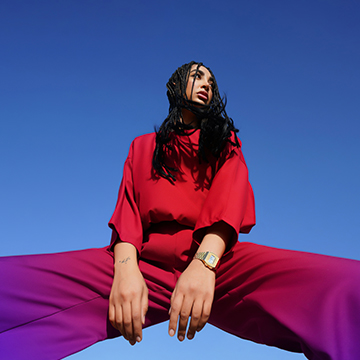
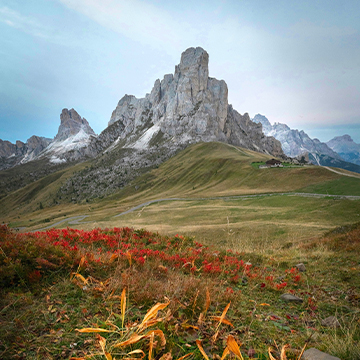
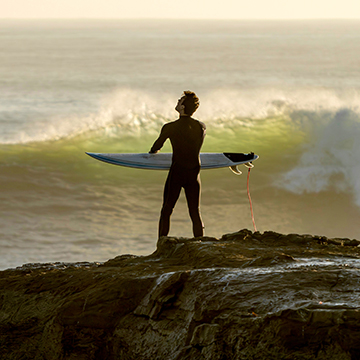
Photoshop’s newest update brings Color & Vibrance, Clarity & Dehaze, and Grain adjustment layers directly into your workflow! In this tutorial, we show you how to use these Lightroom-inspired tools to non-destructively enhance color, pop mid-tone contrast, and add beautiful vintage textures—all while using layer masks for total precision.
Go PRO:
Dive deeper into the world of Photoshop with our in-depth PRO Photoshop Learning Path . Across 11 courses and 53 hours of engaging content, you’ll learn Photoshop’s ins and outs, master pro-level tools, and tackle fun and challenging projects..
Share


AFTER
BEFORE
Edit Smarter, Not Harder.
For a long time, Photoshop users had to rely on Camera Raw or Lightroom to access specific tonal and texture controls, often disrupting a fluid editing session. The addition of Color & Vibrance, Clarity & Dehaze, and Grain as dedicated adjustment layers streamlines this process significantly. These tools provide a sophisticated, nondestructive way to manage global and local adjustments. Because they function as layers rather than fixed filters, you maintain total creative flexibility, allowing you to refine your color grading and contrast at any stage of the post-production process
Update & Access
To utilize these features, ensure your software is updated to version 27.31 via the Creative Cloud desktop app.
1. Access the new layers by clicking the Adjustment Layer icon at the base of the Layers panel or navigating to Layer > New Adjustment Layer.
2. Once selected, the layer appears with a built-in mask, enabling immediate control over the effect’s placement and intensity.

Pro Color Control
The Color and Vibrance layer provides an efficient solution for neutralizing color casts. By selecting the Eyedropper tool and clicking a neutral gray point in your image, you can instantly correct the white balance. For professional portraiture, the Vibrance slider is preferable to Saturation, as it intelligently boosts muted tones while preserving natural skin color. To reset any parameter to its default state, simply Double-Click the slider handle.

Punch Up Contrast
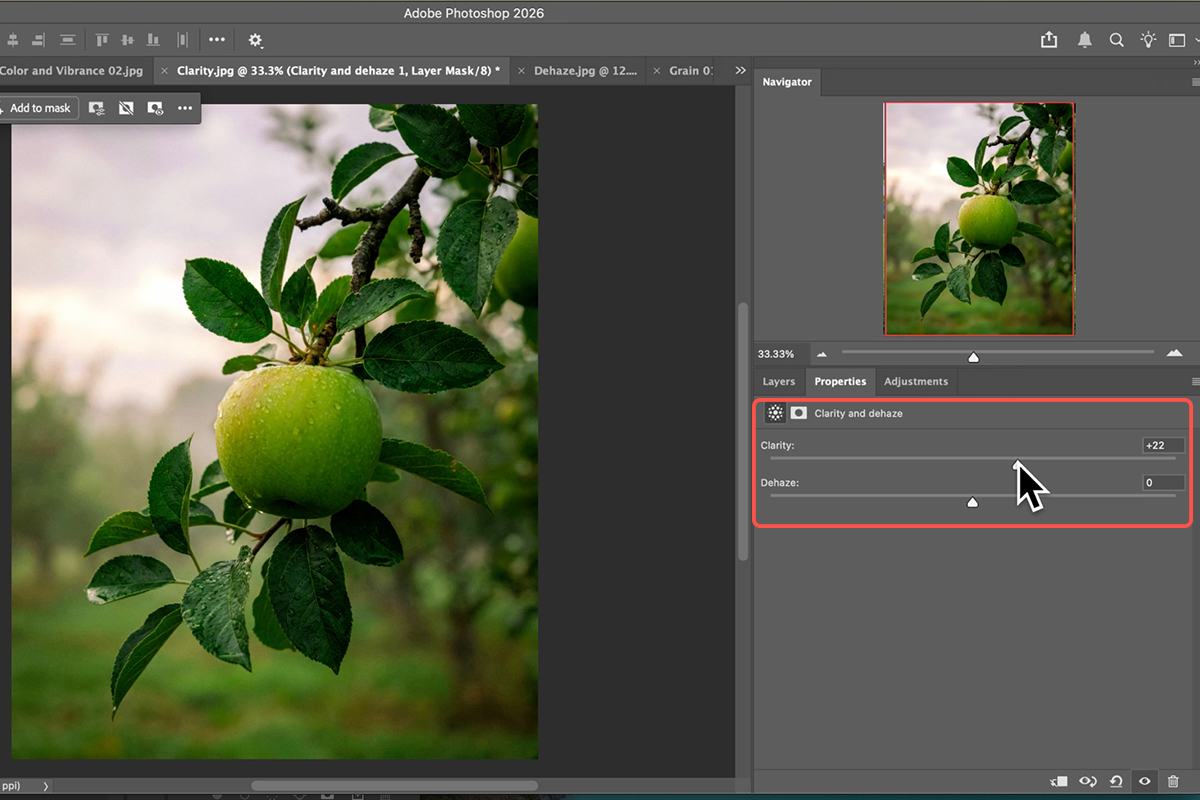
The Clarity and Dehaze layer is engineered to restore depth to “flat” or low-contrast images. Dehaze is highly effective at removing atmospheric interference, while Clarity enhances mid-tone definition. For selective application, select the layer mask and use Ctrl/Cmd + I to invert it to black. Then, select the Brush tool (Keyboard Shortcut “B”) and paint with white to reveal the adjustment specifically on your subject, creating a more dynamic focal point.
Fine-Tune Texture
The Grain adjustment layer replaces the traditional, multi-step process of adding texture with a single, streamlined control. Within the Properties panel, you can calibrate the Amount, Size, and Roughness to achieve a specific cinematic or filmic aesthetic. This tool is particularly useful in compositing to unify disparate elements. If the effect requires further integration, simply adjust the Layer Opacity to reach the desired level of subtlety.