
THIS COURSE INCLUDES
- 7 Lessonsfollow-along
- 5h 12mof captioned HD video
- Advancedfor experienced editors
- 7 Sample Images+ 2 RAW images and 2 graphics
Join PHLEARN PRO for instant access to this course and every tutorial on PHLEARN.
- Stream in up to 4K on any device
- Closed captions and chapters on every course
- Download all sample images and PSDs
- New PRO tutorials every month
- Cancel anytime
description
It’s time to experiment with design and typography, discover the awesome potential of 3D, and see how smart objects and layers can make your editing life easier.
Follow along with Photoshop 301 and take the final step to Photoshop mastery!
* This tutorial is part of the Photoshop 101-301 Bundle
What You’ll Learn
- Design typography with the Type Tool and Adobe TypeKit
- Warp and scale images with Puppet Warp and Liquify
- Master the Pen Tool for perfect paths and selections
Table of Contents
Course Downloads
Learn Advanced Photoshop Techniques
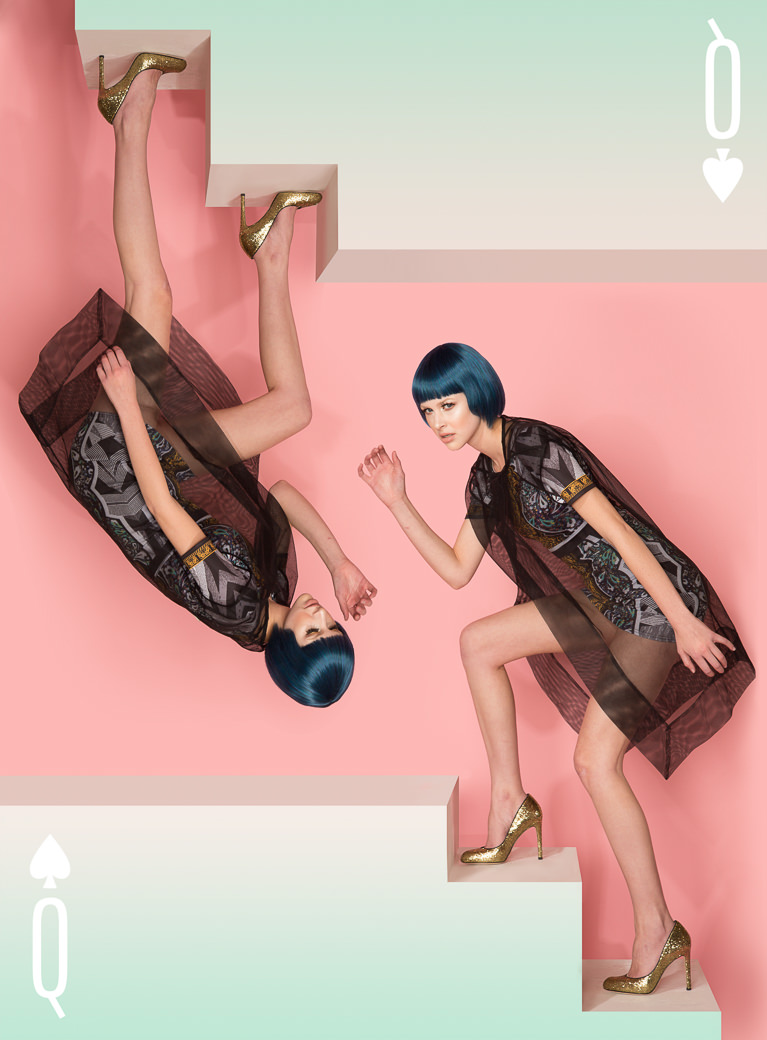
Learn 3D in Photoshop 301
3D is becoming a standard part of modern image and film production. Movies like The Jungle Book and Avatar show how far 3D animation has come. In Photoshop 301, we will teach you the basics of 3D in Photoshop!
3D Printing in Photoshop
Photoshop has 3D Printing capabilities built in. Whether you have your own 3D printer or you would like to outsource your 3D model, Photoshop has you covered. Photoshop 301 shows you how to set up a 3D model to be printed and even how to order a 3D print delivered to your door.
Lights, Camera, Render
One of the benefits of working in 3D is the ability to control the 3D environment. For instance, if you want to make a 3D object look like it is in a photo, you can add lighting similar to the original image, and even cast realistic shadows!
Your Own Logo in 3D
Learn how simple it is to create a logo in 3D. Render it out to create a stunning image, or have it 3D printed for signs. The possibilities in Photoshop 301 are endless!
Warping and Scaling in Photoshop 301
Transforming a layer can be done in a variety of ways. Learn the right tool for moving your image in the way you need to make it work with your vision. See how to warp and scale your images including the content-aware and liquify tool.
Puppet Warp
Ever wish you could pose a person after the photo shoot using Photoshop? The puppet warp tool can move a person in a realistic manner, you just need to know how to place points accurately. Photoshop 301 teaches the best practices for the puppet warp tool.
Content Aware
Have you ever needed to stretch an image without making it look like it has been stretched out? Photoshop 301 shows you how to save time without sacrificing image quality by using the Content-Aware Scale to give a more natural appearance to scaled images.
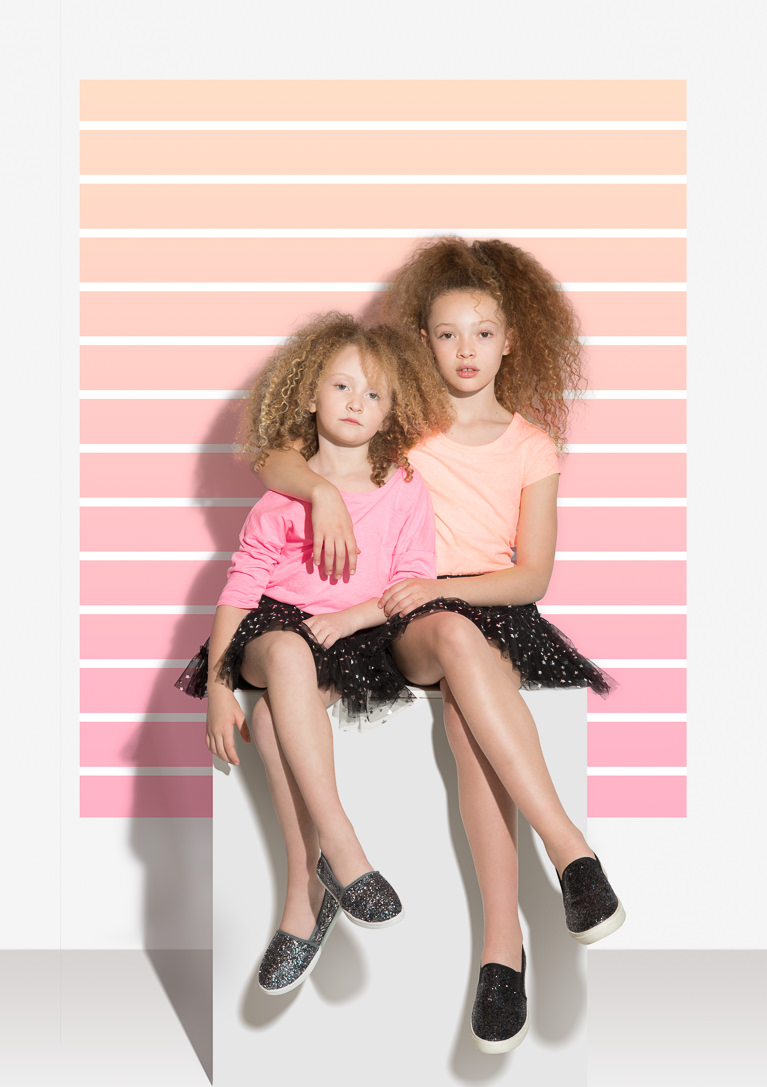
Pen Tool and Paths in Photoshop 301
The pen tool is one of the most powerful and complex tools in Photoshop. Learn the details of working with anchor points and how easy it can be to make adjustments to every point and curve. These paths will give you more editing power than ever before.
Make Perfect Cutouts
Follow along as we explain the correct tools and techniques to cut out any subject. Learn how to use the Pen Tool to create paths and turn the paths into selections. Create incredible selections and speed up your background cleanup.
Create Precise Selections
Pen paths can be easily turned into selections and edited over and over again. If you are not happy with the first selection, simply edit the path, and then convert it into a selection again. This process allows you to be incredibly precise when creating selections from paths.
Vector Masks
Vector masks allow you to control the visibility of a layer based on a pen path. The advantage of using a vector mask is that they automatically update when you update a path. Discover greater flexibility with your masks in Photoshop 301.
2 Practice Exercises
Take the knowledge you have learned from Photoshop 101-301 and bring it all together to create stunning images. Follow along during two start-to-finish Photoshop 301 edits and work with the included image files.
Create Perfect Shadows
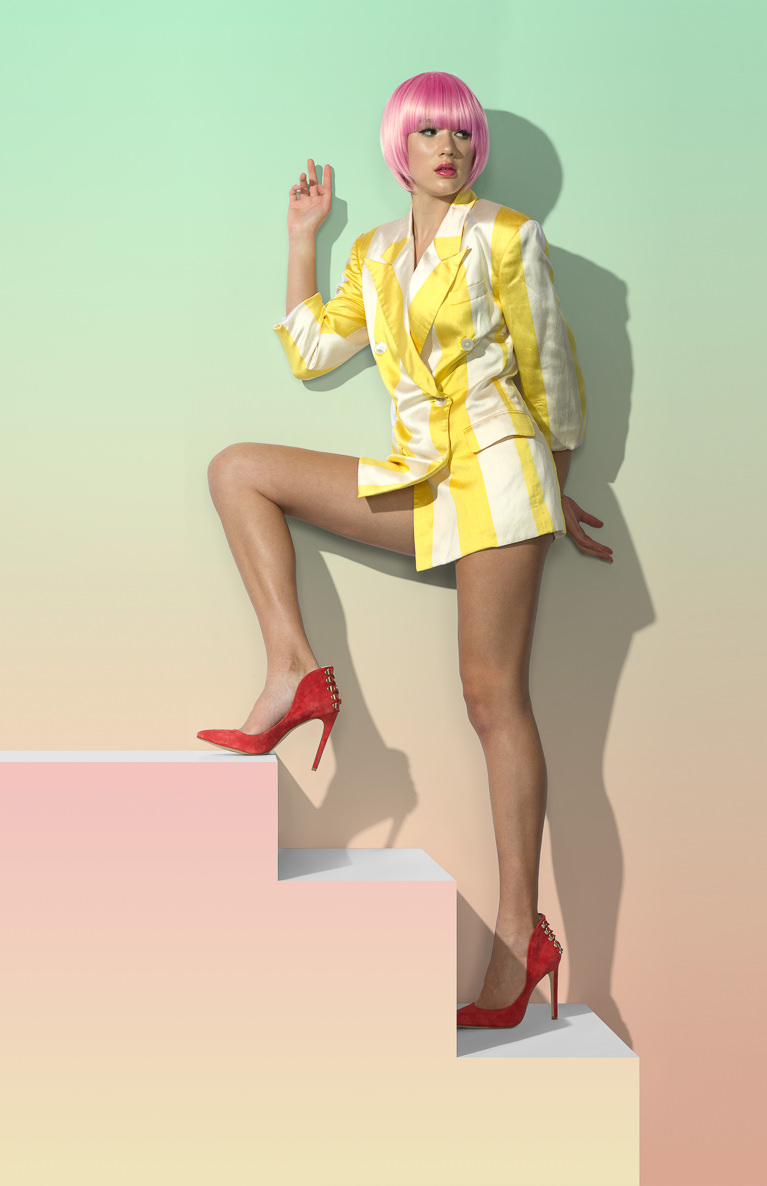
Learn how to create shadows from scratch in Photoshop. Use what you learn to accurately composite a person from one image to another. Knowing how to properly build shadows with the right amount of color, a Photoshop 301 essential, will give you more believable images.
Never Lose Image Quality
Learn how to transform an image smaller and larger without ever losing image quality. This allows you rapidly test ideas without having to go back through your history and erase what you’ve already done.
Advanced Tools
In Photoshop 301, we leave no stone unturned. See every advanced tool and technique in action as we create some amazing images.

Cut Out Curly Hair
Some objects are easier to cut out than others. Hair—and especially curly hair—tends to be one of the most difficult. Learn advanced techniques for cutting curly hair and other detailed objects out of their backgrounds.
Use Smart Objects
When it comes to editing in Photoshop, the ultimate goal is to be non-destructive. This means that anything you do can be undone and doesn’t destroy the image. Smart objects allow you to make and undo changes to your image at any time.
Change Filters at Any Time
When you convert an image to a smart object you have the ability to use smart filters. Smart filters can be changed at any time, making them much more versatile and non-destructive than regular filters.

Create a Custom Logo
Learn how to convert type into a custom logo using pen paths and custom shapes. Manipulating type is just as easy as any other layer you’re familiar working with. We’ll show you the best practices to get you started.
Create Image Variations
Linked smart objects allow you to use external files as references in your image. Simply make changes to the external file and it will automatically update in your image. This can be very helpful when trying out different logos or designs on images for marketing and advertising.
Add Fonts using Adobe Typekit
With the addition of Creative Cloud subscriptions, Adobe added thousands of fonts available for subscribers. Learn how to browse, add and use fonts from Adobe Typekit in Photoshop to create more interesting and custom images.
Advanced Type Controls
Learn how to use all the advanced type tools in Photoshop to create better type layout, design and logos. The character and paragraph palettes have a ton of options that when used properly will make your typography much better.

Class Instructor
Aaron Nace
PHLEARN Founder & Lead Instructor
Aaron Nace is a photographer, digital artist, and the founder of PHLEARN. He has been teaching Photoshop, Lightroom, and photography since 2011, and has taught at Adobe MAX for more than eight years.
Aaron publishes a free tutorial every week and a new in-depth PRO course every month.
- 2M+YouTube subscribers
- 160M+video views
- 1,000+tutorials published
- 15years teaching Photoshop
Reviews


Unlock This Course & Every PRO Tutorial.
200+ courses. 1,000+ practice files. One membership.

Unlimited access to every PRO course
New PRO courses every month
Layered PSDs and RAW files to follow along
100+ Lightroom Presets, LUTs, Actions and Brushes
Stream in up to 4K, with captions and chapters
Watch on any device: desktop, tablet or phone
4.93 average from 3,900+ reviews · 2M+ students
This is great, thanks to everybody involved in these videos.
Aaron Nace A good teacher is like a candle, it consumes itself to light the way for other.THANK YOU SO MUCH 🙂
This video tutorial has been of extreme value to me. I am only half way through so far, and already I’ve learned a ton! I have been photoshopping on and off for about 6 years now, even receiving certification in CS5; and still, the tricks and tips Aaron is including in these tutorials are priceless. Absolutely satisfied and excited to check out the others! Thank you so much.