
Download Assets
This tutorial includes 2 RAW sample images and 1 PDF guide. Downloads are free with a PHLEARN account.
- Download the sample images and PSDs from every free tutorial on PHLEARN
- New free tutorials published every week
- One free account — sign up once, then download anything
Free PDF Guide · 4 Pages
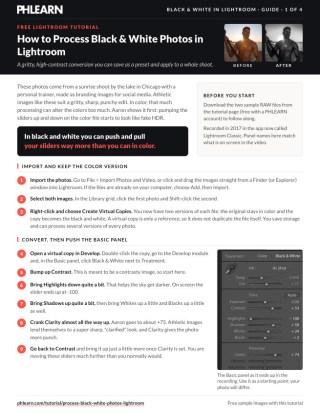
This Tutorial as a Step-by-Step PDF
The 4-page guide walks through the gritty black and white workflow in Lightroom: Create Virtual Copies, Treatment: Black & White, Contrast up, Highlights down, Clarity about +75, the Black & White Mix, Radius all the way up and Amount about halfway, Grain, a saved preset, a Graduated Filter on the sky and Survey view. Keep it next to your keyboard.
description
Black and white tolerates an aggressive edit in a way color never does — there is no color balance left to throw off, so contrast, highlights, shadows, clarity and sharpening can all be pushed far past where they would start reading as fake HDR. Work on virtual copies so the color version survives, use the B&W Mix to set each original color’s brightness, then save the look as a preset.
Enjoying This Free Tutorial?
We publish a new free tutorial every week, each one with sample images and PSDs you can download and follow along with. Sign up and they land straight in your inbox, along with early word on sales, events and subscriber-only offers.
How to Process Black & White Photos in Lightroom
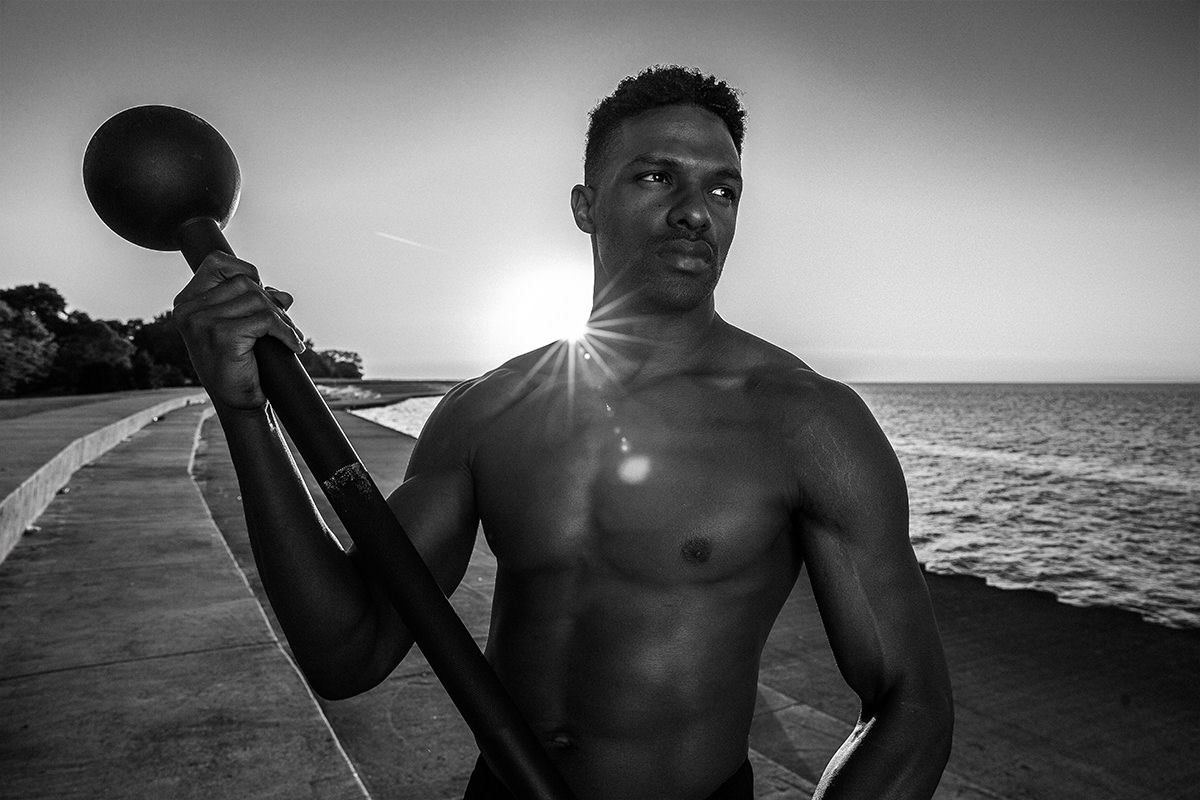
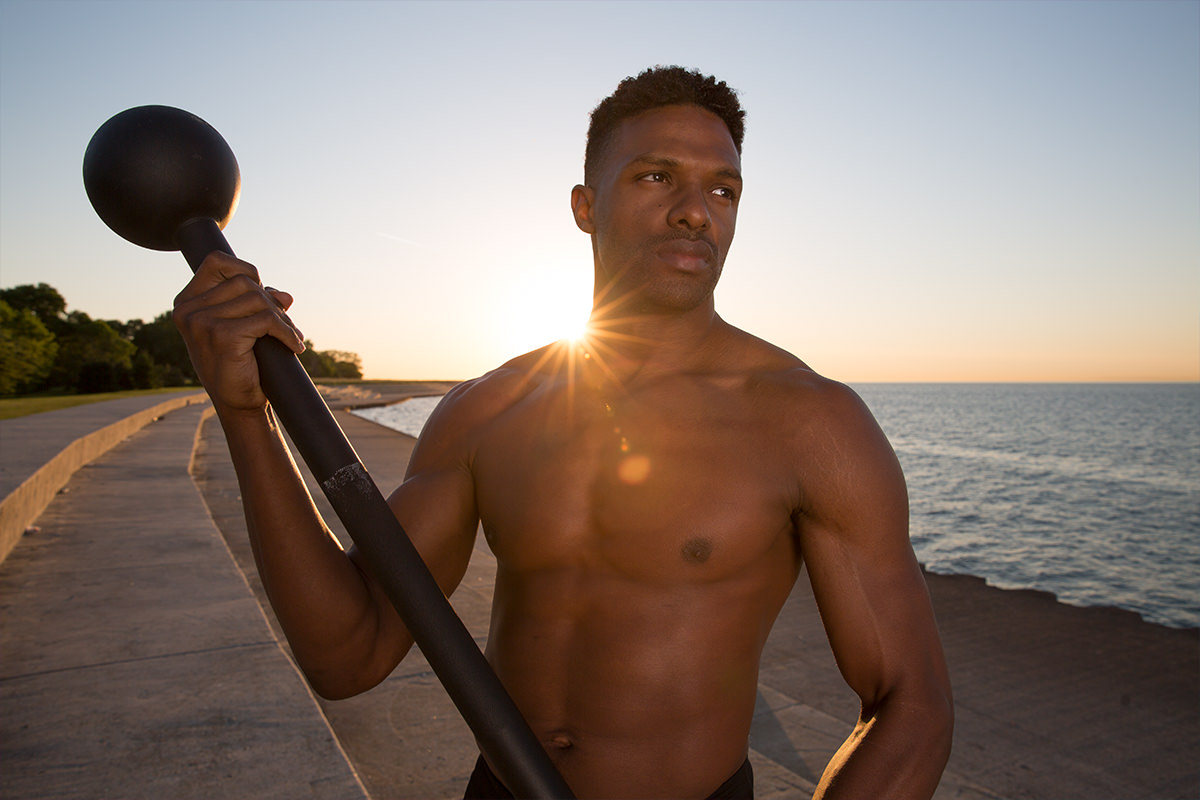
Some photo shoots just call for black and white — a gritty, athletic sunrise session, for instance, where a heavy, contrasty edit could easily push color images into an unnatural, over-processed look. Converting to (black and white images) first and then pushing the sliders hard is often the better path to that gritty feel, since black and white can tolerate a much more aggressive edit than color ever can.
Creating Virtual Copies to Preserve the Originals
Before converting anything, it’s worth keeping the original color version of each photo alongside the black and white edit. Import the photos first (the two RAW sample files are in this tutorial’s free download): go to File > Import Photos and Video, or drag them in from Finder or Explorer, then choose Add and click Import. Shift-click to select the images you want to work on, right-click, and choose Create Virtual Copies. A virtual copy doesn’t duplicate the actual file on disk — it’s just a reference pointing back to the original — so you end up with two editable versions of each photo without doubling your storage. (Learn More about virtual copies.)
Converting to Black and White and Pushing Contrast
With a virtual copy open in the Develop module, click the Black & White treatment option near the top. One of the biggest advantages of converting to black and white before doing heavy editing is that you can push and pull the Basic panel sliders much harder than you could in color — the kind of aggressive contrast, highlight, and shadow adjustments that start looking like fake HDR in a color image often read as intentional, gritty style once the color is removed.
Adjusting Highlights, Shadows, Whites, and Blacks
Start by bumping up overall contrast for a punchy, high-contrast look. Bring Highlights down significantly to darken bright areas like a sky, and bring Shadows up to open up the darker parts of the image. Push Whites up and pull Blacks up as well — the exact amounts depend on the image, but the point is to feel free to move these sliders much further than you normally would in a color edit, since black and white is far more forgiving of that kind of aggressive push and pull.
Adding Punch with Clarity
For an athletic or gritty subject, the Clarity slider adds a sharp, punchy quality that suits that kind of image well. Cranking Clarity almost all the way up, to about +75, gives the photo noticeably more bite, and it’s worth going back afterward to nudge overall contrast up a little further once Clarity is dialed in, since the two interact with each other.
Using the Black and White Mix to Control Tonal Values
The Black and White Mix panel lets you control how bright or dark specific colors from the original photo become in the black and white conversion. Skin tones are made up mostly of reds, oranges, and yellows, so adjusting those channels shifts how skin renders in the final image. A color like yellow, corresponding to sunlight in a sunrise shot, can be pushed brighter to enhance that glow, while blue — often present in a sky — can be pulled way down to deepen it into a dramatic, vignette-like darkness. Each color channel affects only the tones that were originally that color, so this gives fine control over the black and white result well beyond what a simple grayscale conversion would offer.
Split Toning is optional. A lot of people like to tone a black and white: in the Split Toning panel, raise Saturation a little and choose a Hue for the highlights or the shadows for a sepia or cooler look. For this image, Saturation goes back down to zero for a strict black and white.
Sharpening for a Gritty, Analog Look
In the Detail panel, click directly on a sharp focal point like a subject’s eye to get an accurate zoomed-in preview of your sharpening. For a gritty, sports-style image, the goal is to push sharpening as far as possible without it looking damaged — start by raising the Radius slider significantly, then bring the Amount up to add real bite to the details. Watch skin closely as you do this, since over-sharpened skin can start looking rough or artificial; Radius all the way up with Amount about halfway strikes a good balance here.
Adding Grain for an Analog Feel
In the Effects panel, adding a bit of grain gives a black and white conversion a more analog, film-like feel. Even though a low ISO capture avoids noise in-camera, deliberately adding grain back in during a black and white edit like this often enhances the mood rather than detracting from image quality, giving the photo a texture that feels less digitally clean and more like it was shot on film.
Saving and Applying a Preset to Match Multiple Photos
Once an edit is dialed in the way you like it, save it as a preset so the same look can be applied to other photos from the same shoot. In the Presets panel, click the plus icon, create a new folder named for the shoot or subject, check all the settings you want included, and give the preset a clear name. Applying that saved preset to another virtual copy from the same session — found in the filmstrip at the bottom of the screen — instantly matches the same black and white treatment across every photo, saving significant time compared to editing each one from scratch.
Adding a Graduated Filter to Darken the Sky
As a finishing touch, a Graduated Filter dragged down from the top of the frame with Shift held can darken a sky further, using a lowered exposure setting within the filter itself. Set the filter’s Contrast and Highlights back to zero so only Exposure is working. Stop the filter before it reaches your subject’s face, so the added darkness stays confined to the sky.
Masking the Filter Away from Your Subject’s Face
If the graduated filter’s effect does spill onto your subject’s face or other areas it shouldn’t touch, click Mask within the filter panel, select the Brush option, and hold Alt or Option to paint the effect away from those areas. This keeps the darker sky contained exactly where you want it while leaving your subject’s exposure untouched.
To review the set, go to the Library, press G for the grid, press Shift+Tab to hide the panels, select all the images and press N for Survey view. Each original sits next to its black and white version, and because you made virtual copies, you can deliver both to a friend or client.
Why This Approach Works
Black and white tolerates aggressive editing in a way color simply can’t, because there’s no color balance to throw off when you push contrast, highlights, and shadows hard — the same moves that would look garish and oversaturated in color read as intentional grit once color is removed. The Black and White Mix panel adds a level of control a plain grayscale conversion doesn’t have, letting specific tones from the original photo be pushed brighter or darker independently. And working from virtual copies rather than converting the originals outright means you always keep both a color and black and white version of every photo, giving clients or your own portfolio more to choose from without any extra shooting or duplicate files taking up space.
Final Thoughts
Processing a photo into gritty black and white in Lightroom comes down to embracing sliders you’d normally use conservatively in color — contrast, highlights, shadows, clarity, and sharpening can all be pushed much further once color is out of the picture. Saving the final look as a preset makes it easy to apply the same treatment consistently across an entire shoot, and keeping virtual copies alongside the originals means you never have to choose between color and black and white before delivering your work.
Quick Reference: Keys, Menus and Settings
- Keep the color versionShift-click the photos, right-click > Create Virtual Copies
- ConvertDevelop > Basic > Treatment: Black & White; Contrast up, Highlights way down, Shadows up, Clarity about +75
- Black and White MixYellow up for the sunrise, Blue way down for the sky; red, orange and yellow control skin
- Sharpen and grainDetail: click the eye for the preview, Radius all the way up, Amount about halfway; Effects: a little Grain
- Darken the skyGraduated Filter, Shift-drag from the top, Exposure down; Brush with Alt/Option to paint it off the subject
- ReviewLibrary: G for the grid, Shift + Tab to hide the panels, select all, N for Survey view
No AI, no generative credits.
Free Downloads
Follow Along on the Same RAW Files
Get the two RAW photos from the sunrise shoot by the lake and the 4-page PDF guide to the whole black and white workflow. Free with a PHLEARN account.
Black and White in Lightroom: Common Questions
Why convert to black and white before a heavy edit?
In black and white you can push and pull your sliders much further than in color. The same moves on the color file start to look like fake HDR.
How do I keep the color version too?
Select the photos, right-click and choose Create Virtual Copies, then convert the copies. A virtual copy is only a reference, so it does not duplicate the file on disk.
Where is the black and white button in Lightroom?
In the Develop module, in the Basic panel, click Black & White next to Treatment.
How much Clarity should I add?
For a gritty athletic image like this one, crank it almost all the way up, to about +75. Then go back and bring Contrast up a little more.
What does the Black and White Mix do?
It makes colors that were in the original photo lighter or darker in the conversion. Skin is mostly red, orange and yellow; here Yellow goes up for the sunrise and Blue goes way down to darken the sky.
Can I add a sepia tone?
Yes, with Split Toning. Raise Saturation a little and choose a Hue for the highlights or shadows, for a sepia or cooler look. This edit sets it back to zero for a strict black and white.
How do I sharpen without ruining the skin?
In the Detail panel, raise Radius first, all the way up here, then bring Amount up to about halfway. Zoom in on the skin and back Amount off if it starts to look rough.
Why add grain to a clean, low ISO photo?
In a black and white conversion, a little Grain from the Effects panel gives the photo a more analog, film-like feel.
How do I give the other photos the same look?
Click the plus sign on the Presets panel, make a folder, click Check All, name the preset and click Create. Then pick the other virtual copy in the filmstrip and click the preset.
Are the sample files free?
Yes, with a free PHLEARN account. You get 2 RAW sample images and 1 PDF guide: the two photos from the sunrise shoot and a 4-page step-by-step guide.
Master Photoshop, Lightroom and Photography
Join PHLEARN PRO for $12.99 a month, or $99.99 a year (save 36%). Cancel anytime, with a 100% money-back guarantee.





