

THIS COURSE INCLUDES
- 6 Lessonsin 2 sections
- 1h 44mof 4K video
- Intermediatesome Photoshop basics
- 9 Sample Imagesto follow along
- 2 Layered PSDs+ Frequency Separation action
- Captionsand chapters on every lesson
Join PHLEARN PRO for instant access to this course and every tutorial on PHLEARN.
- Stream in up to 4K on any device
- Closed captions and chapters on every course
- Download all sample images and PSDs
- New PRO tutorials every month
- Cancel anytime
Description
Learn how to master object removal in Photoshop. In 6 lessons we’ll cover a range of techniques, from AI-powered tools to traditional manual methods, and we’ll show you how to choose the best approach for each situation. Whether you’re dealing with a minor imperfection or a major removal, this course has the solution. Clearing distractions keeps the eye on your subject, and doing it by hand means you can finish the job when AI falls short, or keep AI out of an image you don’t want flagged as AI-generated.
You’ll learn when to reach for the Spot Healing Brush, Healing Brush, Clone Stamp and Patch Tool, and when the Remove Tool and Generative Fill will do the job faster: wires, cables and people in the background, blemishes and stray hairs, cars and signs behind a couple. We show you how to combine the two when AI gets close but reshapes part of a person, how to rebuild a busy background completely by hand, and how to remove wrinkles from clothing with Frequency Separation while keeping every bit of texture. And to save you time, we’ve included a handy Photoshop Action, so you can use Frequency Separation on any image moving forward.
What You’ll Learn
- Choose the right tool for any removal AI or manual
- Remove objects with AI-powered fill in seconds
- Handle tricky manual removals with traditional techniques
Table of Contents
Course Downloads
Remove All Distractions!
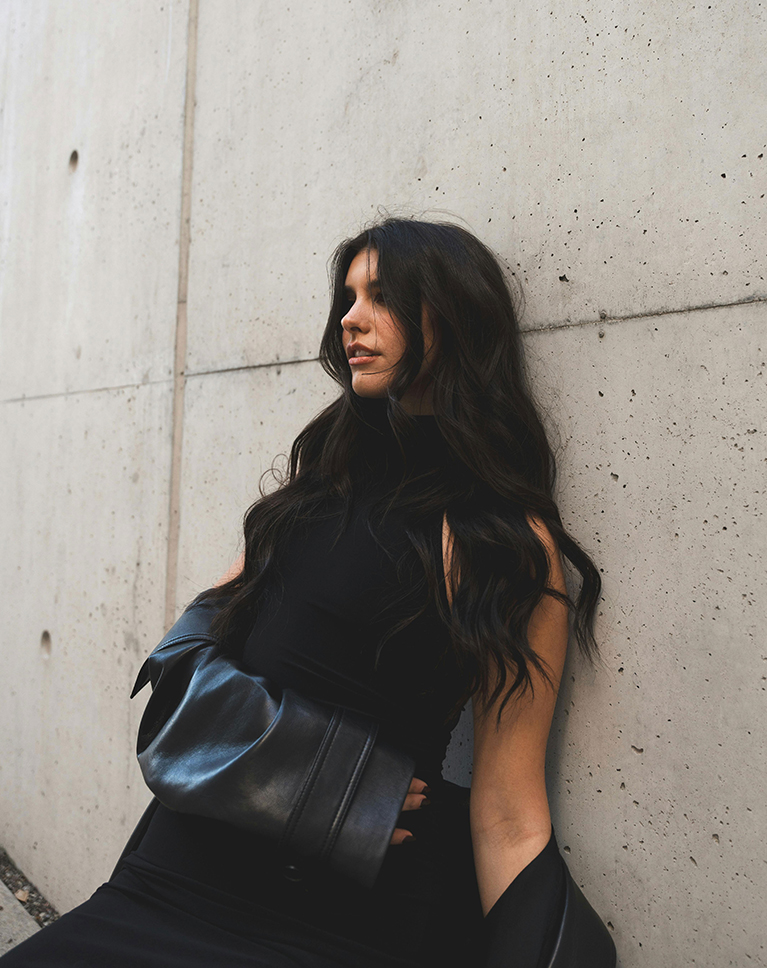
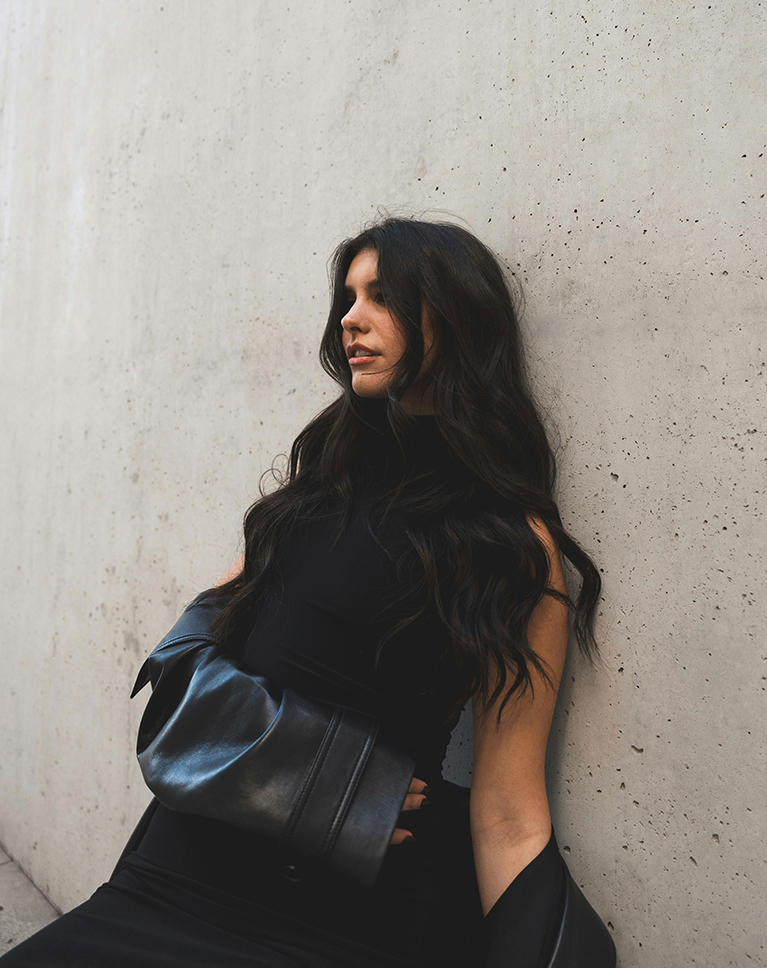
Object Removal in Photoshop: Reclaim the Focus
Object removal in Photoshop can significantly enhance your images by focusing the viewer’s attention on your intended subject. In this tutorial, you’ll learn essential Photoshop techniques to seamlessly remove unwanted objects, master strategic selection for precise editing, and even explore creative ways to enhance existing details.
Skills for Any Photographer
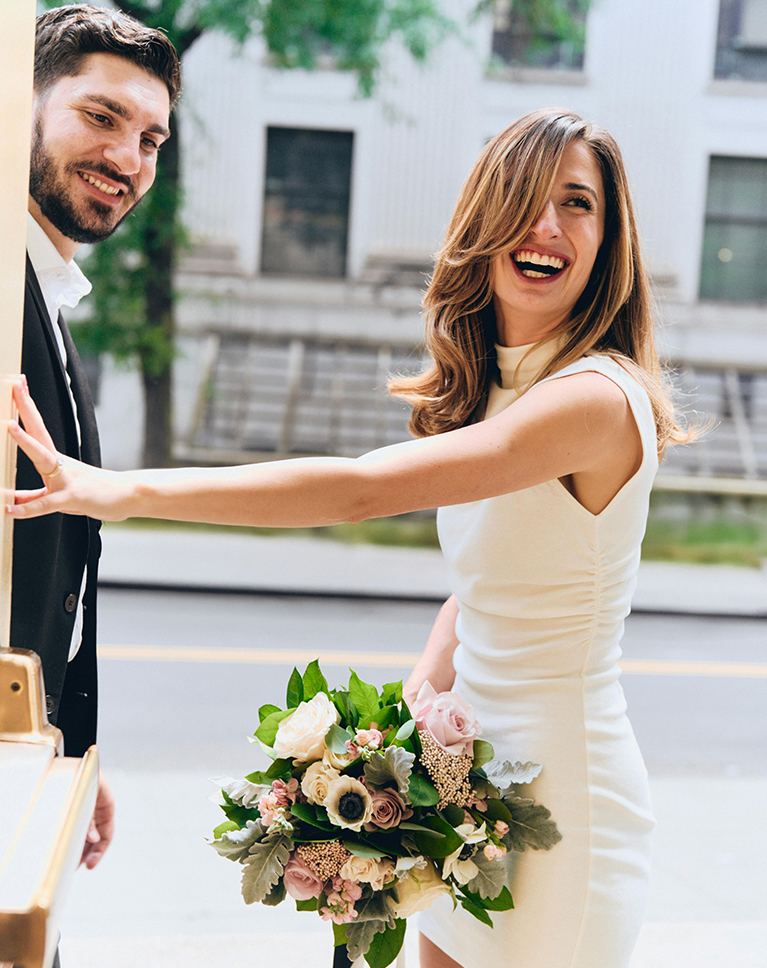
No matter what sort of photos you work with, object removal is a key skill for any editor. Need to remove small blemishes or distractions from a subject’s skin? We’ve got you covered. Eliminate multiple cars from a wedding shot? You’ll be able to do all this and more!
Tackle Small Distractions
Learn how to quickly remove distractions in Photoshop with the Healing Brush Tool! This easy-to-use tool can save you valuable AI credits for more complex editing tasks.


Making Manual Selections
Making precise selections is an essential part of object removal. While AI tools can automate many tasks, understanding manual techniques like using the Lasso Tool remains crucial. In this tutorial, you’ll learn how to create custom selections to accurately target the areas you want to edit.
Combining Tools
Combining AI tools with manual tools offers a powerful approach to object removal in Photoshop and image editing. We’ll explore how to leverage AI to handle the heavy lifting of removing large objects and complex backgrounds. Then, we’ll use manual tools like the Clone Stamp and Healing Brush to refine details and achieve a natural, polished look.
Remove People & Wires
We’ll introduce you to the new Remove Tool in Photoshop 2025! This innovative tool leverages generative AI to quickly and efficiently remove unwanted wires, cables, or even people, making your photo editing process faster and more precise.

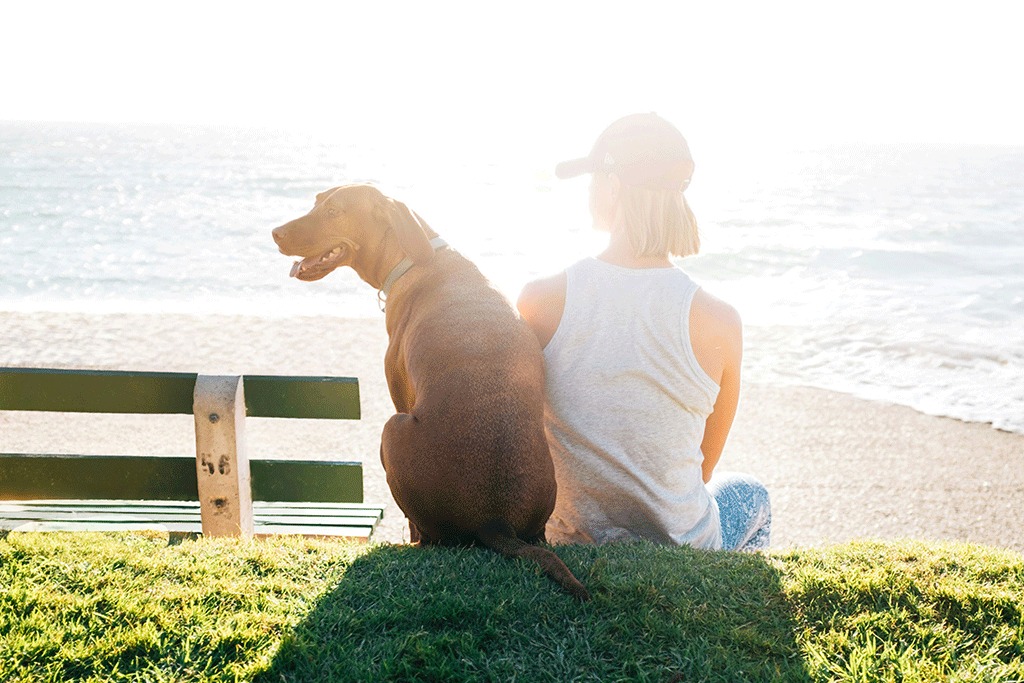
The Power of Combining Tools
Combining AI with manual tools can help you effortlessly remove objects and distractions, saving time and achieving stunning, realistic results.
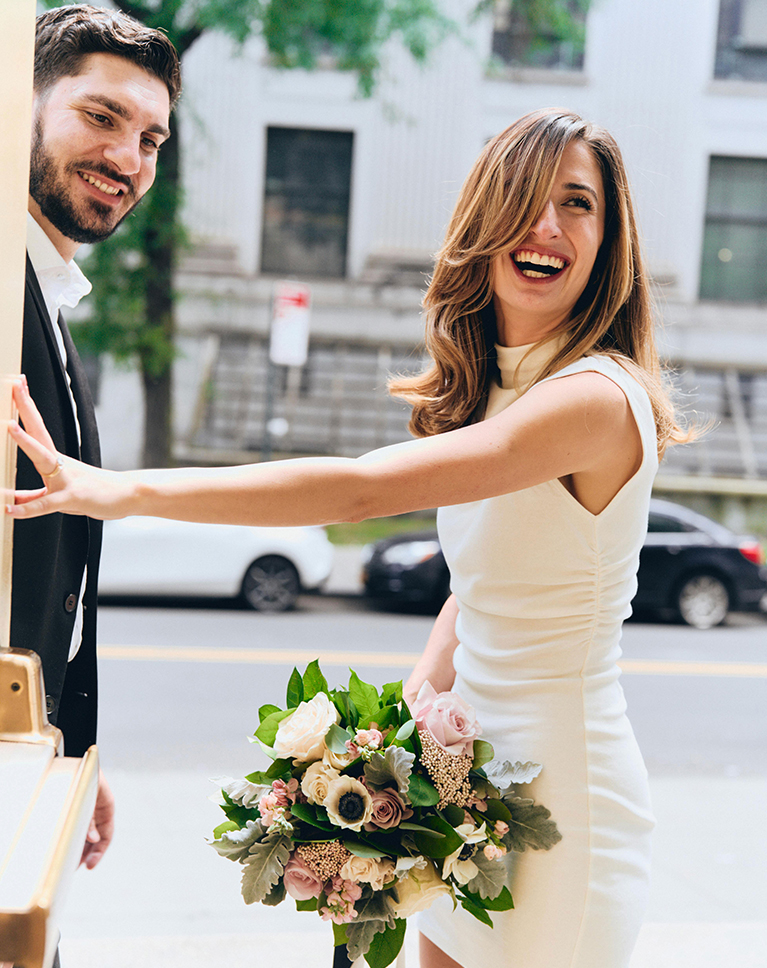
From Simple to Complex
While we try to keep object removal in Photoshop relatively simple in this course, it’s good to get your feet wet by removing objects within busy backgrounds. We start off with the basics before moving on to removing a variety of different objects in more complex environments.
Seamless Results
Whether you just want to remove distractions in Photoshop from a few portraits, or you need a subject or product to stand out for a client, we show you how to achieve seamless, professional results in your images.
Recreate Textures
Sloppy object removal in Photoshop often reveals itself through blurry details and uneven edges. We’ll show you how to edit photos without sacrificing quality, recreating important details and maintaining textures and structure.
Work Non-Destructively
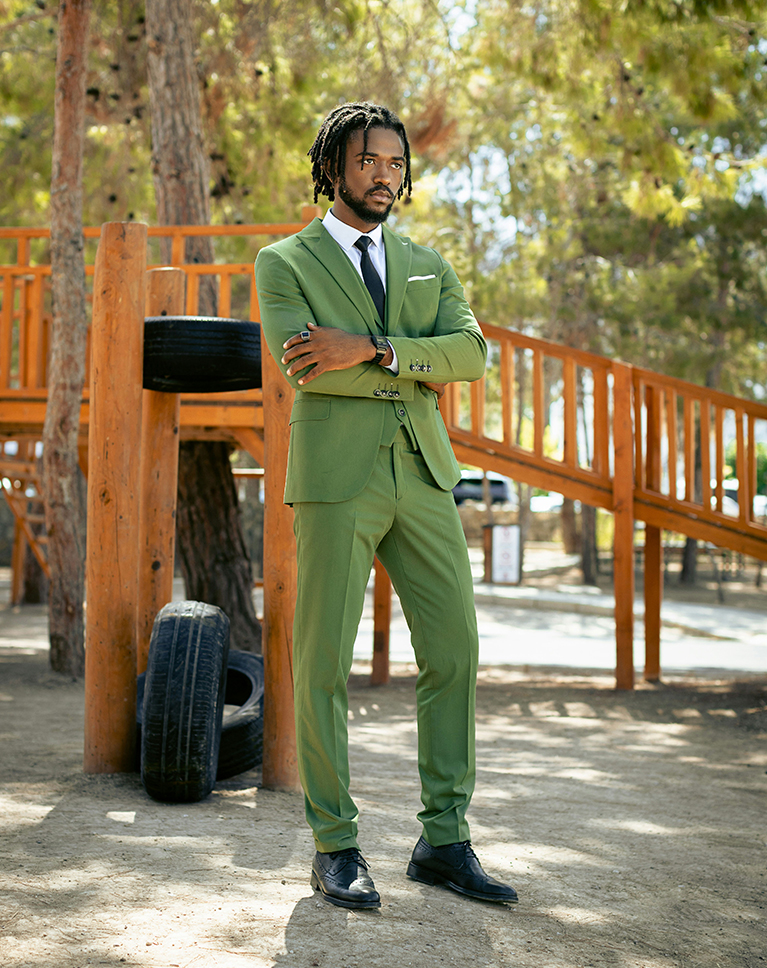
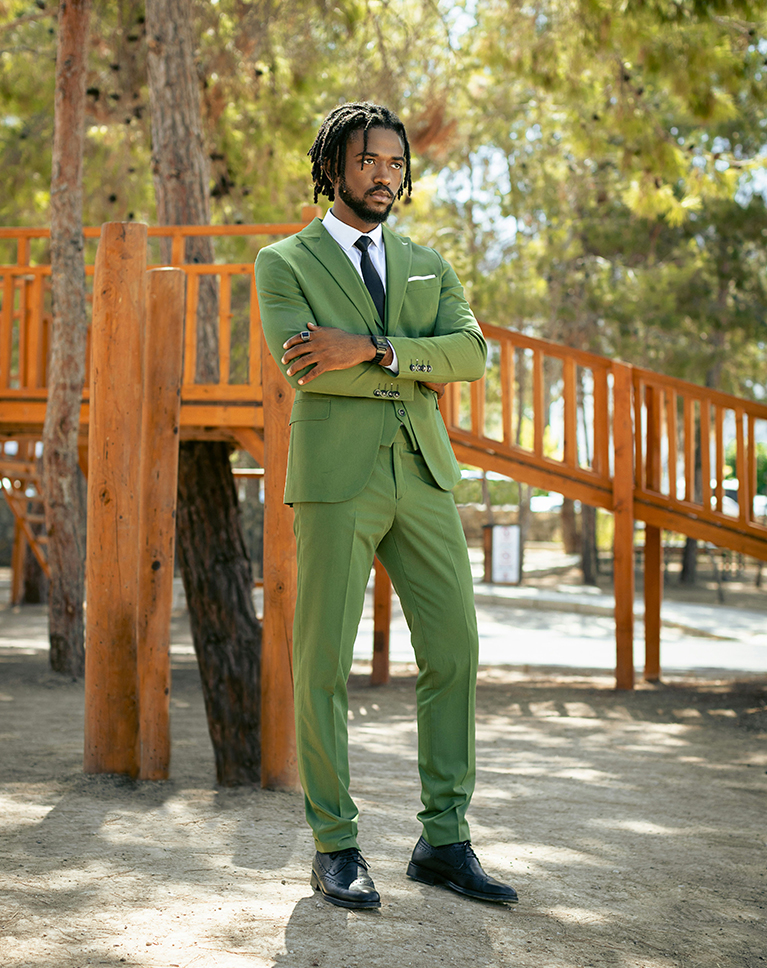
One of the most important aspects of object removal in Photoshop is making sure to not destroy information from the original image. Learn how to work using layers and non-destructive tools so that you can always undo or hide changes, or start over from the beginning.
Frequency Separation
Learn how to separate the high and low frequencies of any image from scratch to remove wrinkles, a technique that also makes object removal in Photoshop cleaner. Once you’ve mastered all of the steps for Frequency Separation, load up our custom action to save valuable time with impressive results!
More on Manual Object Removal
Explore more manual object removal techniques with our 3-part series Simple, Intermediate & Advanced Object Removal. These tutorials guide you from beginner to pro, covering essential manual tools and techniques used by professionals to refine images and highlight subjects.

Class Instructor
Aaron Nace
PHLEARN Founder & Lead Instructor
Aaron Nace is a photographer, digital artist, and the founder of PHLEARN. He has been teaching Photoshop, Lightroom, and photography since 2011, and has taught at Adobe MAX for more than eight years.
Aaron publishes a free tutorial every week and a new in-depth PRO course every month.
- 2M+YouTube subscribers
- 160M+video views
- 1,000+tutorials published
- 15years teaching Photoshop
Special thanks to Ben Iwara, Kateryna Tsurik, Berna, Consuelo Borroni, Efe Ersoy, Jean-Daniel Francoeur, Olena Bohovyk, and Alvin. Images for this PRO course were sourced from Pexels and Unsplash.
Reviews





Unlock This Course & Every PRO Tutorial.
200+ courses. 1,000+ practice files. One membership.

Unlimited access to every PRO course
New PRO courses every month
Layered PSDs and RAW files to follow along
100+ Lightroom Presets, LUTs, Actions and Brushes
Stream in up to 4K, with captions and chapters
Watch on any device: desktop, tablet or phone
4.93 average from 3,900+ reviews · 2M+ students
Simple part
Wonderful tutorial. A good refresher for me on the manual techniques, and it is great to fill in some gaps in my growing knowledge of Photoshop’s AI capabilities for object removal. How do I feel about all this? I am not super happy with the way AI seems to becoming so dominant in a lot of our workflows. However, I mainly take photos of social dancers dancing salsa, and I try to make creative, aesthetically pleasing images. I often would like to remove distractions from the background, someone wearing a bright colored shirt for example, or a blurry arm or other body part from another dancing couple which came into my photo frame as I clicked the shutter. To do this manually is indeed time consuming, perhaps not even possible. In the past, I would not be able to use a photo if a blurry arm or leg from another dancer nearby covers up parts of the dancers I was photographing. The AI generative fill, however, lets me save a good many of these photos, by recreating what supposedly was behind that blurry arm or leg quite well. In one case, I needed to select also the outstretched arm of my dancing subject to be able to remove the distraction behind, and Photoshop managed to recreate the entire arm in a very close manner as the original arm. If I wish to remove a distraction partically covered up by the wildly flowing hair of my main subject, I can, by letting Photoshop recreate the part of the hair that is in front of the distraction. So, I am happy to know how to use manual techniques and use them often, but the AI does help me with images that I otherwise would have to just delete.
I started with Phlearn in 2016. He has always been a great instructor. He is easy to follow and he is always very thorough. If you want to learn Photoshop he is the one to follow. I hope he will start the same for Illustrator and After Effects.
Ive been with Aaron for years, His teaching has elevated my skill of Photoshop from zero to semi pro… Thanks a bunch !!!!
Aaron does the best tutorials .. easy to follow and crammed with information, short cuts, best practice etc.
Thanks Aaron, while some of the tutorial was covered in previous ‘object removal’, it was good to be reminded of the ‘non-AI’ methodology. AI seems to be all encompassing – the go to – it is therefore important (in my opinion) to distinguish the ‘artist’ and the ‘photographer’. Although AI seems to blur these boundaries. Again, thanks Aaron for the clarity and sequential steps as expressed in your tutorials.
Fantastic tutorial! Clearly differentiated between manual & AI tools; great examples of using both of them, in proper sequence, for professional results. Also, the demonstrations of proper use of the Clone Stamp tool are much appreciated. I have struggled so much with this tool over the years; so avoided it. Not anymore. Thx, Peter
Been away from photoshop for a while. Great tutorial! Easy to understand and a good combination of what is new and refresh the prior to AI tools.