


Download Assets
This tutorial includes 2 sample images, 1 sample PSD and 1 PDF guide. Downloads are free with a PHLEARN account.
- Download the sample images and PSDs from every free tutorial on PHLEARN
- New free tutorials published every week
- One free account — sign up once, then download anything
Free PDF Guide · 3 Pages
This Tutorial as a Step-by-Step PDF
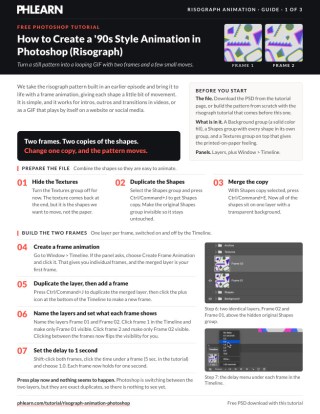
Walks through the whole animation: merging a copy of the Shapes group, Window > Timeline > Create Frame Animation, naming Frame 01 and Frame 02, a 1-second delay, moving and rotating shapes on Frame 02 with the Lasso, V and Free Transform, two ways to bring the texture back, and a looping GIF from Save for Web. Keep it next to your keyboard.
description
Turning a still risograph-style design into a looping animation takes just a two-frame setup and a handful of small nudges and rotations — no keyframe animation or motion graphics software required. Learn how to merge your shapes onto one layer, build a frame animation in Photoshop’s Timeline, move individual shapes on the second frame, bring the paper texture back on top, and export the whole thing as a looping GIF for an intro, outro or video transition.
The design animated here was built in this earlier episode.
Enjoying This Free Tutorial?
We publish a new free tutorial every week, each one with sample images and PSDs you can download and follow along with. Sign up and they land straight in your inbox, along with early word on sales, events and subscriber-only offers.

How to Create a ’90s Style Risograph Animation in Photoshop
Turning a still risograph-style pattern into a looping animation takes just a two-frame setup and a handful of small rotations and nudges applied to individual shapes — no keyframe animation or motion graphics software required. Built on the shapes and paper texture from a still risograph design in this episode, the whole thing exports as a looping GIF ready for an intro, outro, or video transition.
Getting Started: Preparing the Layered File
Before any animation happens, the shapes and texture layers from the original design need to be organized into a simpler structure to work with.
-
Open the Existing Layered File
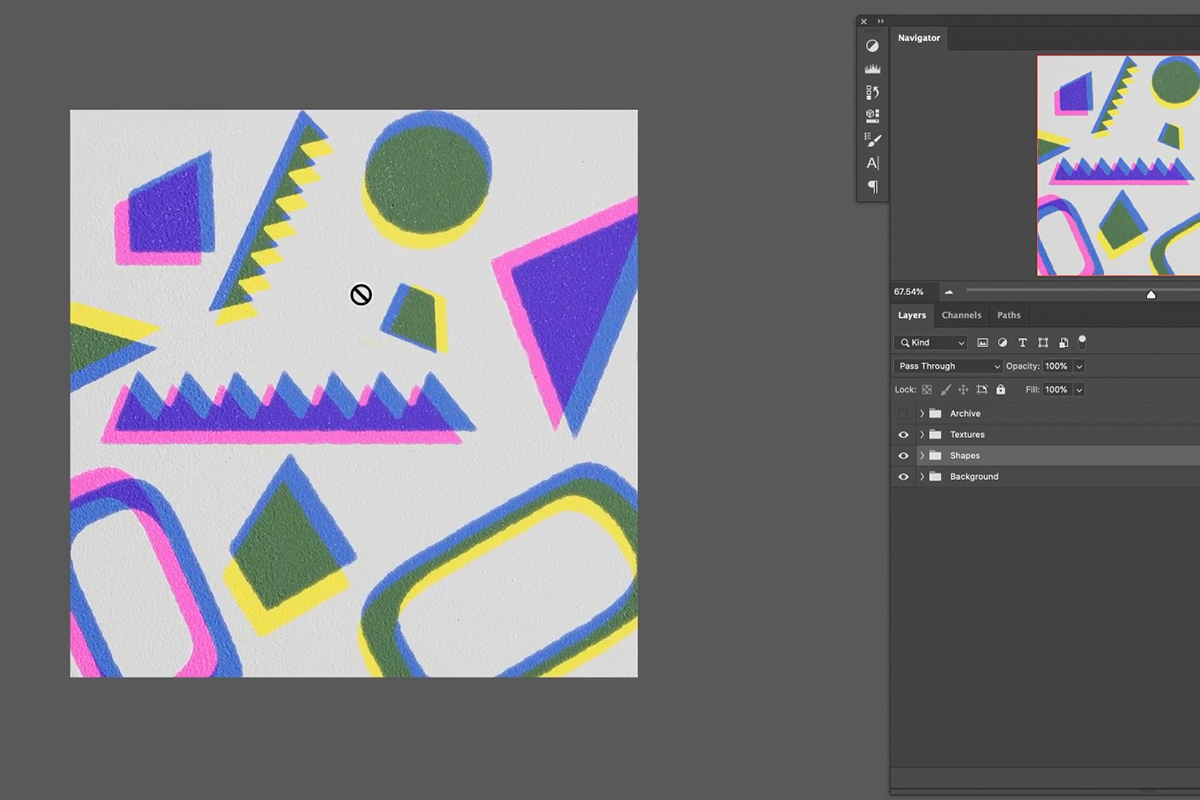
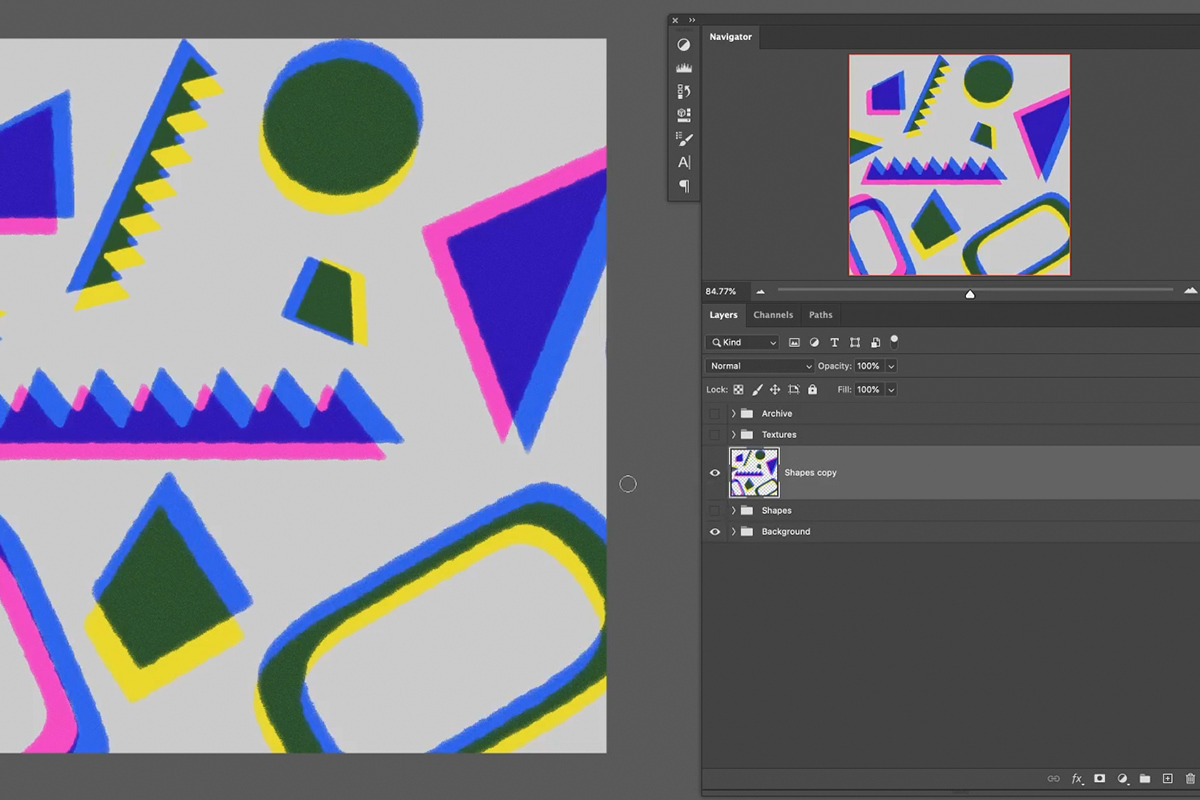
Open the PSD containing the background, shapes, and paper texture groups built in the original still design. Turn the texture layers off temporarily — they should stay in place in the final animation while the shapes underneath do the actual moving.
-
Merge the Shapes into One Layer
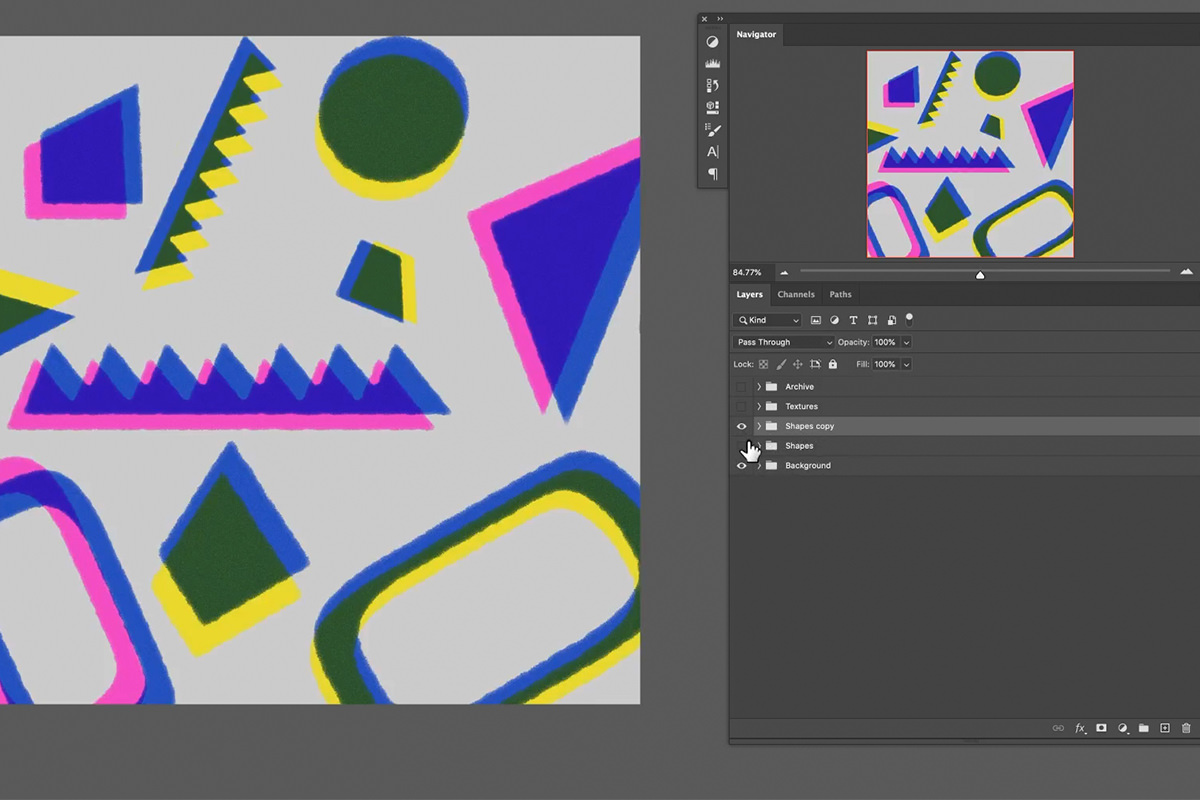
Duplicate the shapes group with Ctrl/Cmd + J, hide the original, and merge the duplicate down to a single layer with Ctrl/Cmd + E. Working from one merged layer makes selecting and moving individual shapes much simpler than juggling dozens of separate groups.
Keeping the Original Layers as a Safety Net
Hiding the original, un-merged shapes group rather than deleting it means the fully editable version — with every shape still on its own layer and mask — is still there if the flattened version needs to be rebuilt or adjusted differently later.
Setting Up a Two-Frame Animation
The simplest possible animation is just two frames toggling back and forth, which is exactly what this effect needs.
-
Create a Frame Animation
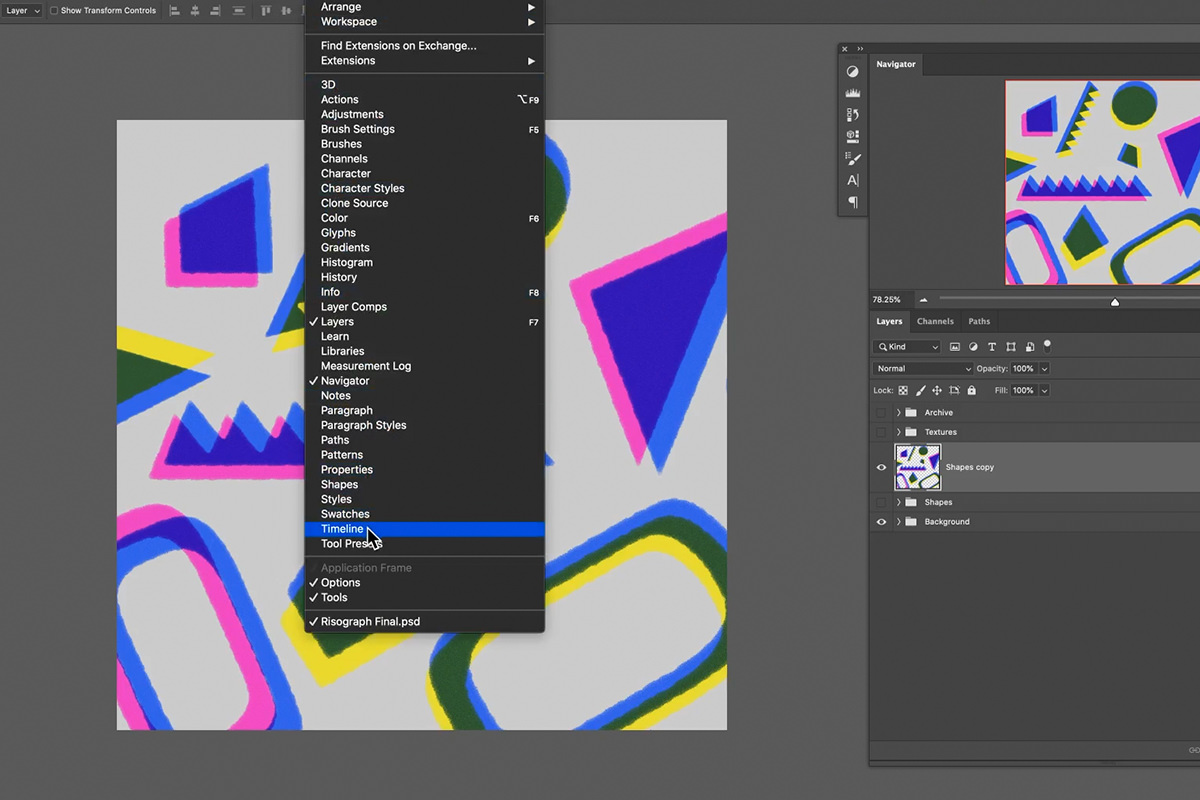
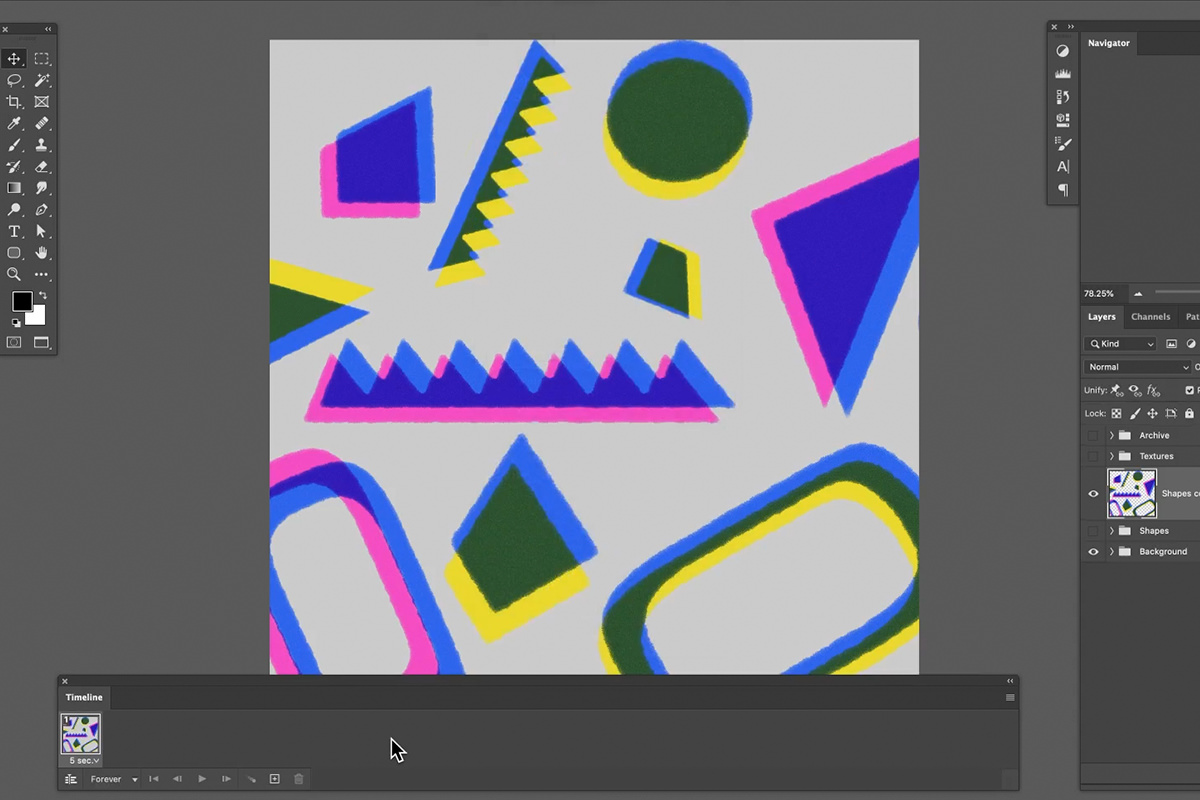
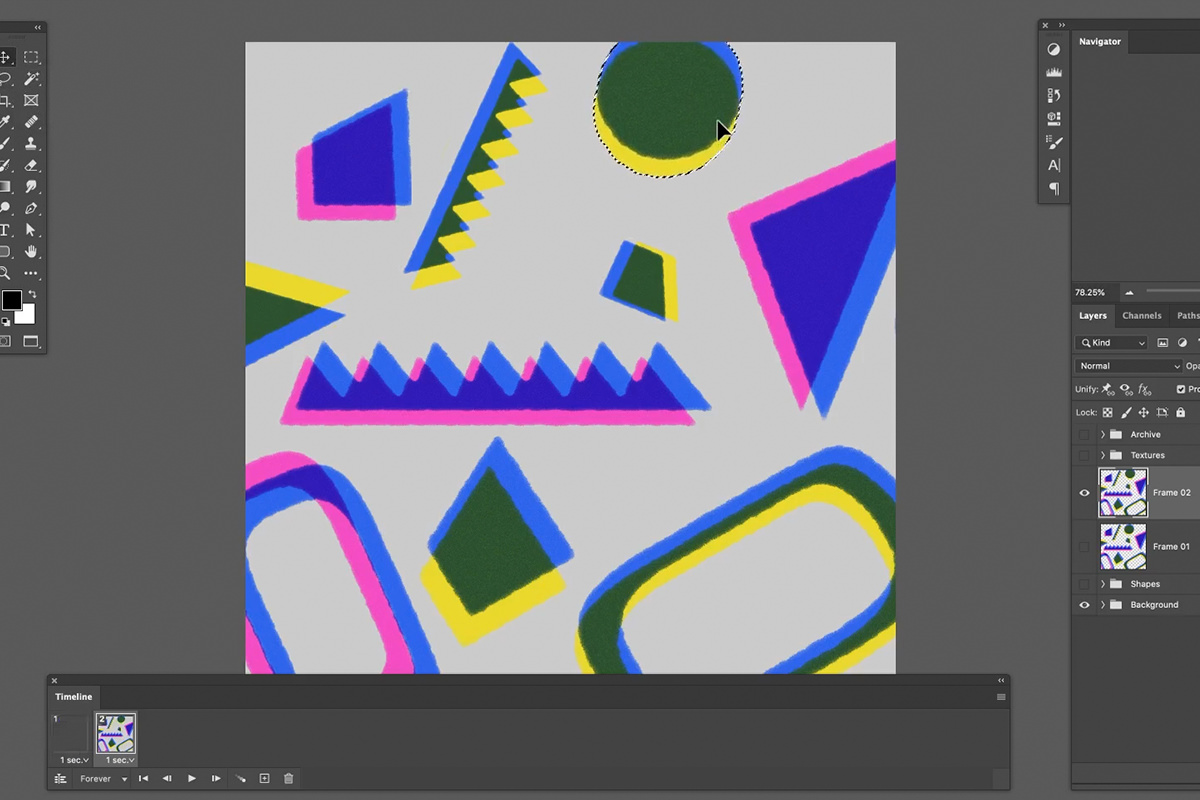
Go to Window > Timeline and choose Create Frame Animation. Duplicate the merged shapes layer, then click the plus icon to add a second frame. Name the layers Frame 01 and Frame 02. Click frame 1 in the Timeline and make only Frame 01 visible, then click frame 2 and make only Frame 02 visible; clicking between the frames now flips the visibility for you.
-
Set the Frame Delay
Hold Shift, select both frames, and set the delay to around one second — a slower, more subtle timing tends to look more polished than a fast, jumpy switch between frames.
Testing Different Delay Speeds
Trying a few different delay values — half a second, two-tenths of a second — before settling on one makes the difference obvious: too fast and the motion reads as jittery or glitchy, while a full second usually strikes a calmer, more deliberate balance for this kind of subtle shape animation.
Moving and Rotating Individual Shapes on the Second Frame
With two identical frames in place, the actual animation comes from changing just one of them.
-
Select and Nudge Each Shape
On the second frame’s layer, use the Lasso tool to select one shape at a time, press V for the Move tool, and click and drag it to a new position. Every move happens on the Frame 02 layer. Deselect with Ctrl/Cmd + D and move on to the next shape.
-
Add Rotation for Variety
For some shapes, use Ctrl/Cmd + T to add a slight rotation instead of, or in addition to, repositioning — a mix of small moves and small rotations across different shapes keeps the animation from feeling mechanically uniform.
Why Small Movements Work Better Than Large Ones
Because each shape was already cut out with its own irregular, hand-made edge, even a small shift or rotation reads clearly against the shapes around it. Subtle movement keeps the animation feeling calm and intentional, while large, dramatic repositioning tends to look more like a glitch than a deliberate design choice.
Bringing the Paper Texture Back on Top
The paper texture is what made the still version look printed, and it needs to come back into the animation without disrupting the shape movement underneath.
-
Enable the Texture on Both Frames
Turn the texture group’s visibility on for both frame one and frame two. Because the texture layer itself isn’t changing between frames, it appears to stay perfectly still while the shapes underneath animate.
Animating the Texture Too, for a Different Effect
Duplicating the Textures group with Ctrl/Cmd + J, scaling the copy up and rotating it slightly, naming the groups Texture Frame 01 and Texture Frame 02, then showing Texture Frame 01 on frame one and Texture Frame 02 on frame two makes the texture shift subtly along with the shapes instead of staying static — producing a slightly more dynamic version that reads like a different print on each frame. This is the version Aaron prefers, and it is the one in the exported GIF.
Bonus: hit play in the Timeline, then press F for full screen. It is a big image, so the loop works as an animated title screen in a video.
Exporting the Animation as a GIF
With the two-frame animation complete, exporting it as a shareable, auto-looping file takes just a couple of settings.
-
Open Save for Web
Go to File > Export > Save for Web. Set the format to GIF. The document is 2000 by 2000 pixels, which is pretty big for a GIF, so under Image Size change it to 800 by 800 to keep the file manageable for web and social use.
-
Set Looping and Preview
Set the looping option to Forever so the animation repeats automatically once uploaded anywhere. Use the Preview button to check exactly how it plays in an actual web browser before saving the final file.
Why This Approach Works
The reason this animation works with just two frames is that Frame Animation only needs to show a difference between states, not calculate any motion in between — the illusion of movement comes entirely from the eye’s own perception of change, aided by a calm one-second delay between the frames and a genuinely irregular, hand-cut set of source shapes. That’s a much lower bar than a smoothly interpolated animation would require, and it’s exactly why a still composite built with clean layer separation, the same underlying skill covered in How to Change & Remove Backgrounds in Photoshop, translates so easily into animation once each element already lives on its own layer.
Final Thoughts
The real takeaway here is that any still composite built from cleanly separated layers is already most of the way to being animatable — the risograph shapes only needed a duplicate frame and a few small nudges to come alive. For anyone who wants to take a Photoshop-built animation even further, this two-part series on creating text and a gradient in Photoshop and then using After Effects to add a beautiful animation shows how the same layer-based thinking extends into a full motion graphics pipeline beyond what Photoshop’s Frame Animation alone can do.
Quick Reference: Keys, Menus and Settings
- Prepare the shapesTextures off; Cmd/Ctrl + J on the Shapes group, hide the original, Cmd/Ctrl + E to merge the copy
- Two framesWindow > Timeline > Create Frame Animation; Cmd/Ctrl + J, then the plus icon; Frame 01 and Frame 02, one visible per frame
- Frame delayShift-click both frames, set the time to 1.0 sec
- Move a shapeLasso around it, V and drag, Cmd/Ctrl + D to deselect
- Rotate a shapeCmd/Ctrl + T, a little rotation
- Play full screenPlay in the Timeline, then F
- Export the GIFFile > Export > Save for Web: GIF, 800 by 800, Looping Options: Forever, Preview
No AI, no generative credits.
Free Downloads
Follow Along with the Same Files
Get the two sample images, the layered risograph pattern PSD used in the video and the 3-page PDF guide. Free with a PHLEARN account.
Risograph Pattern Animation: Common Questions
Do I have to build the risograph pattern first?
No. Download the PSD used in the video and follow along, or build the pattern from scratch with the risograph tutorial that comes before this one. The file has a Background group, a Shapes group and a Textures group on top.
Why merge the shapes into one layer?
One layer is much easier to animate. Press Cmd/Ctrl + J on the Shapes group, hide the original, then press Cmd/Ctrl + E on the copy so every shape sits on one layer with a transparent background.
How do I make a frame animation in Photoshop?
Go to Window > Timeline and choose Create Frame Animation. Duplicate the merged layer with Cmd/Ctrl + J, then click the plus icon at the bottom of the Timeline to add a second frame.
Why does nothing happen when I press play?
The two layers are still exact duplicates. Name them Frame 01 and Frame 02, show only Frame 01 on frame 1 and only Frame 02 on frame 2, then make your changes on Frame 02.
How do I move one shape without the others?
Draw a loose Lasso selection around it, press V and drag it, then press Cmd/Ctrl + D to deselect. For a little rotation, press Cmd/Ctrl + T instead. It does not need to be precise because the shapes sit on transparency.
What frame delay should I use?
Aaron leaves it at 1 second. He tries 0.5 and 0.2 seconds and finds 0.2 too fast; this kind of animation looks better when it’s subtle. Shift-click both frames and click the time under a frame to change it.
Should the paper texture move too?
Either works. Turn the Textures group on for both frames and it stays still, or duplicate it, scale and rotate the copy and show Texture Frame 02 only on frame 2. Aaron prefers the moving texture, and that is the version in the final GIF.
How do I export the animation as a looping GIF?
Go to File > Export > Save for Web, set the format to GIF and change the 2000 by 2000 size to 800 by 800. Set Looping Options to Forever, check it with the Preview button, then Save.
Can I use the loop as a title screen?
Yes. Hit play in the Timeline, then press F for full screen. The file is large, so it works as an animated title screen, intro, outro or transition in a video.
Are the sample files free?
Yes, with a free PHLEARN account. You get 2 sample images, 1 sample PSD and 1 PDF guide, including the layered risograph pattern used in the video and a 3-page step-by-step guide.
Master Photoshop, Lightroom and Photography
Join PHLEARN PRO for $12.99 a month, or $99.99 a year (save 36%). Cancel anytime, with a 100% money-back guarantee.





