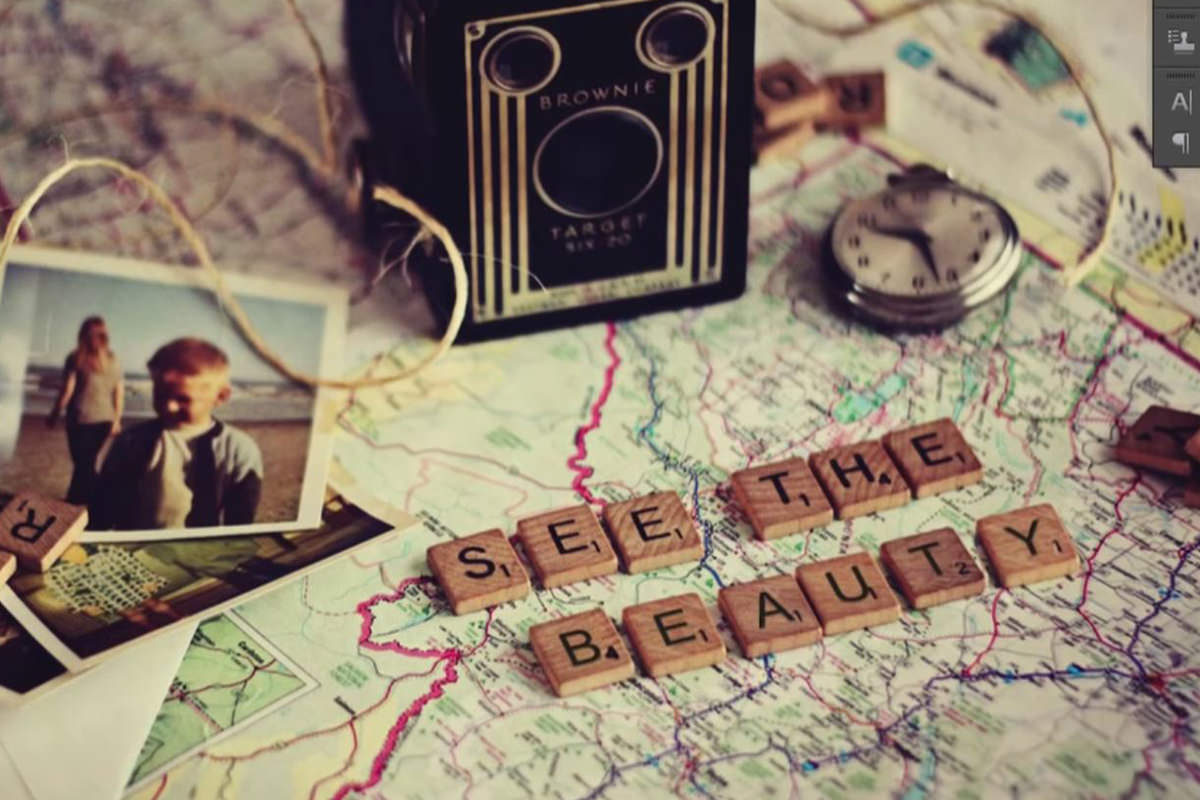

Clone Stamp struggles to remove lettering when there is barely any surrounding texture to borrow from. This free Photoshop tutorial brings in a separate wood-grain photo instead and uses the Healing Brush set to Current & Below to paint it over each letter, then builds new letters inside colored reference squares so every one can be perspective-warped to its own tile.
We publish a new free tutorial every week, each one with sample images and PSDs you can download and follow along with. Sign up and they land straight in your inbox, along with early word on sales, events and subscriber-only offers.

How to Change Letters and Words in a Photo Using Photoshop
Signs, tiles, labels, and lettering show up in photos more often than you’d think, and sometimes the words on them just aren’t the words you want. Using a photo of wooden letter tiles spelling “See the World” as the example, this technique replaces the original letters entirely — wood texture and all — to spell out something new, using a healing brush trick for the texture and Free Transform’s perspective warp to make brand-new letters sit convincingly on each tile.
Why Clone Stamping Doesn’t Work Well Here
The obvious first instinct for removing the existing letters would be to Clone Stamp in wood texture from the sides of each tile, but with very little texture variation to sample from on either side of the letters, clone stamping tends to look messy and repetitive, and takes a lot longer than it should.
Bringing in a Clean Texture to Cover the Original Letters
Instead of borrowing texture from the tile itself, bring in a whole separate photo to sample from.
-
Find a Clean Texture Sample
Search for a wood grain texture photo that resembles the tiles in your image — a plain, unmarked piece of wood grain works well as a source to paint from.
-
Drag the Texture Into Your Document
Hold Shift and click-and-drag the texture image directly into your working document so it sits as its own layer, ready to sample from.
Using the Healing Brush to Paint Texture Over a Letter
The Healing Brush matches color and lighting automatically, which is exactly what makes borrowed texture work here.
-
Rotate the Texture to Roughly Match the Tile
Press Cmd/Ctrl + T and rotate the texture layer so its grain direction roughly matches the tile you’re about to cover.
-
Create a New Layer and Select the Healing Brush
Create a new blank layer, select the Healing Brush tool, and set its Sample option to Current & Below.
-
Sample the Texture and Paint Over the Letter
Hold Option/Alt and click on the wood texture to sample it, then paint directly over the letter on the tile. The Healing Brush automatically blends the sampled texture’s color and lighting into the area you paint over.
Why Sample Current Layer and Below
Setting the Healing Brush to sample the current layer and everything below it means the tool can pull texture from the separate wood-texture layer while painting onto its own new layer, keeping the added texture non-destructive and easy to undo or adjust without touching the original photo underneath.
Matching Grain Direction and Blurring for a Seamless Blend
Two small adjustments stop the borrowed texture from standing out.
-
Add a Slight Gaussian Blur
If the healed-in texture looks too sharply defined compared to the rest of the tile, delete the layer, add a small amount of Filter > Blur > Gaussian Blur (around 0.2 pixels) to the sampled texture, then repeat the healing brush step — the slight softness usually matches much better.
-
Rotate and Squeeze the Texture for Each Tile
For tiles where the grain runs in a different direction, rotate the texture layer again with Free Transform to match. If the grain pattern needs to look tighter or looser, use Free Transform to squeeze or stretch the texture before sampling from it, then repeat the same healing brush process on each remaining letter.
This same approach works for any repeating material, not just wood grain — brick, fabric, or any other textured surface can be sampled from a separate reference photo and healed into place the same way.
Cloning a Blank Tile for an Extra Letter
If the new word is longer than the old one, the photo needs an extra tile.
-
Clone Stamp an Additional Tile
If the new word needs more letters than the original, hold Option/Alt to sample the Clone Stamp tool from an existing blank tile, then stamp a duplicate tile into the empty space needed for the extra letter.
-
Fix Any Mismatched Background Details
For any small background element that doesn’t line up after cloning, sample a nearby matching color with the Brush tool and paint over the mismatch directly.
Building a Reference Square to Size and Position New Letters
A colored square riding along with each letter is what makes the perspective warp easy to judge.
-
Type Your New Letter
Select the Type tool, type a single capital letter, scale it to roughly the right size for a tile, and set its color to a dark gray rather than pure black.
-
Draw a Reference Square Around It
Draw a square roughly the size of one tile, filled with any bright, easy-to-see color, then center the letter and the square together using the Move tool’s horizontal and vertical alignment options.
-
Group the Letter and Its Reference Square
Select both layers and press Cmd/Ctrl + G to group them together, giving you one unit that can be warped as a single shape.
Warping Each Letter Into the Tile’s Perspective
No two tiles sit at the same angle, so each letter is transformed on its own.
-
Duplicate the Group for Each Letter
Press Cmd/Ctrl + J to duplicate the letter-and-square group once for each letter needed, so every letter gets its own independent copy to transform.
-
Apply a Perspective Warp to Each Copy
On each duplicated group, press Cmd/Ctrl + T, then hold Cmd/Ctrl and drag individual corner handles to line the square up with the perspective and rotation of its target tile.
Why Each Letter Needs Its Own Separate Transform
Every tile in the photo sits at a slightly different angle and rotation, so a single perspective warp applied once and copied across every letter would look obviously wrong on tiles angled differently from the first. Duplicating the group before transforming, and transforming each copy on its own, is also important for a technical reason: transforming a shape and then duplicating it (rather than duplicating first) can cause the next transform to rotate the whole redefined shape instead of adjusting its individual corners.
Isolating and Blending the New Letters to Match the Tiles
With every letter in position, the reference squares come off and the letters get softened to match the photo.
-
Hide Each Reference Square Once Positioned
Open each group, change the letter to the one that tile needs (the new word here is Beauty), confirm it is correctly warped using its reference square as a guide, then turn the visibility of the colored square off, leaving just the warped letter behind.
-
Group and Flatten the Letters Together
Group all of the individual letter layers together, then duplicate the group and merge it down to a single flattened layer with Cmd/Ctrl + E.
-
Add a Slight Blur to Match the Rest of the Image
Apply a small amount of Gaussian Blur to the flattened letters layer, since nothing else in the photo is perfectly crisp and a touch of softness helps the new letters sit naturally among the rest of the details.
Adding Bevel, Emboss, and Outer Glow for a Carved Look
Two layer styles turn flat type into lettering stamped into wood.
-
Apply Bevel and Emboss
Double-click the letters layer to open layer styles, add Bevel and Emboss, bring the size down to a small value like 1, and set the highlight color to a light wood tone instead of white so it reads as an inset carving rather than a raised sticker.
-
Add an Outer Glow Set to Multiply
Add an Outer Glow effect, change its blend mode from Normal to Multiply, choose a darker color, and reduce both size and opacity until it reads as a subtle burned-in edge around each letter.
Why Outer Glow Set to Multiply Sells the Carved Look
A Multiply blend mode only darkens what’s underneath it rather than adding a visible glow effect, which is what makes the outer edge of each letter look like it was actually burned or stamped into the wood instead of looking like a decorative halo sitting on top. Combined with a subtle Bevel and Emboss for the inset shape, the two effects together are what sell the illusion that the letters were physically part of the original tile all along.
Why This Approach Works
The whole technique breaks down into two separate problems solved with two very different tools. Removing the original letters is a texture problem, and the Healing Brush set to sample the current layer and below is what makes it possible to paint in texture pulled from an entirely different photo while automatically matching the color and lighting of the surface underneath — something Clone Stamp alone struggles with when there isn’t enough surrounding texture to borrow from. Adding the new letters is a perspective problem, and building each letter inside a reference square lets you warp that square (and the letter riding along with it) to match the exact rotation and angle of its target tile, one letter at a time, since no two tiles in a real photo sit at quite the same angle. Layer styles finish the illusion: a small Bevel and Emboss gives the letters a sense of physical depth, and an Outer Glow set to Multiply darkens their edges rather than glowing outward, which is what makes them read as carved into the wood instead of pasted on top of it.
Final Thoughts
None of the pieces here are complicated on their own — the Healing Brush, Free Transform’s perspective warp, and a couple of layer styles are all standard Photoshop tools — but combining them this way solves a genuinely tricky problem: making brand-new content look like it was physically part of an object all along. The same combination of techniques works for changing the wording on a hand-lettered sign, a product mockup, or any other textured surface where the lettering needs to say something different.
Quick Reference: Keys, Menus and Settings
- Bring in textureShift-drag the wood photo in; Cmd/Ctrl + T to rotate it to the grain
- Heal it inNew layer, Healing Brush, Sample: Current & Below; Alt/Option-click the texture, paint over the letter
- Soften the textureFilter > Blur > Gaussian Blur, about 0.2 pixels
- New letterT, capital letter in dark gray (Window > Character); tile-size square behind it
- Center and groupMove tool align centers; Cmd/Ctrl + G; Cmd/Ctrl + J per letter before transforming
- Warp to the tileCmd/Ctrl + T, Cmd/Ctrl-drag each corner
- Carve it inMerge with Cmd/Ctrl + E, slight Gaussian Blur; Bevel and Emboss size 1; Outer Glow in Multiply
No AI, no generative credits.
Changing Words in a Photo: Common Questions
Why not just Clone Stamp the old letters away?
There is very little texture on either side of the letters to sample, so cloning gets messy and takes a while. Bringing in a separate wood grain photo gives you a clean slate to paint from.
Can the Healing Brush sample from a different photo?
Yes. Shift-drag the texture photo into your document, make a new layer and set the Healing Brush’s Sample option to Current & Below. Alt/Option-click the texture, then paint over the letter.
Why does the borrowed wood match the tile’s color?
When you let go, the Healing Brush matches the colors of the area you painted over. You bring the texture; it handles the color.
The healed texture looks too sharp. What do I do?
Delete that layer, give the texture a small Filter > Blur > Gaussian Blur (about 0.2 pixels) and heal again.
How do I match the direction of the wood grain?
Press Cmd/Ctrl + T on the texture layer and rotate it to run the same way as the tile. To make the grain tighter, squeeze the texture with the same transform before sampling.
What if the new word needs more letters?
On a new layer, Clone Stamp a blank tile into the empty space. Fix anything that doesn’t line up behind it, like the map’s road, by Alt/Option-sampling the color with the Brush tool and painting over it.
Why put each letter in a colored square?
The square is roughly tile size, so you can line its corners up with the tile when you warp. Center the letter and square with the Move tool’s align options, group them with Cmd/Ctrl + G, and hide the square when you are done.
Why does Free Transform rotate my duplicated letter instead of moving its corners?
It was duplicated after being transformed. Duplicate the group with Cmd/Ctrl + J for every letter first, then press Cmd/Ctrl + T on each and Cmd/Ctrl-drag the corners one at a time.
How do I make new letters look stamped into wood?
Merge and blur the letters slightly, then add Bevel and Emboss at size 1 with a light wood highlight color. Add an Outer Glow set to Multiply with a dark color, small size and low opacity.
Master Photoshop, Lightroom and Photography
Join PHLEARN PRO for $12.99 a month, or $99.99 a year (save 36%). Cancel anytime, with a 100% money-back guarantee.





