

THIS COURSE INCLUDES
- 17 Lessonsin 5 sections
- 3h 52mof captioned HD video
- Beginnerno experience needed
- 50 Sample Images+ 20 Lightroom presets and 30 LUTs
Join PHLEARN PRO for instant access to this course and every tutorial on PHLEARN.
- Stream in up to 4K on any device
- Closed captions and chapters on every course
- Download all sample images and PSDs
- New PRO tutorials every month
- Cancel anytime
Description
Start editing on your computer, pick it up on your tablet, and then finish it on your phone–all using full RAW images and professional level tools. Lightroom for desktop and mobile is the next generation of photo editing software for the modern photographer.
Learn how to use Lightroom for desktop and mobile to upload your images to the cloud, organize them, apply edits, and share them with the world. Follow along with the included 50 RAW images as we show you how Lightroom can help you work faster, smarter, and from any device!
Note: This tutorial is for Lightroom Desktop & Mobile. We also have tutorials for Lightroom Classic.
What You’ll Learn
- Edit seamlessly across desktop, tablet, and phone
- Upload photos to the cloud and organize them
- Know when to use Lightroom or Lightroom Classic
Table of Contents
-
01 - Importing & Migrating from Lightroom Classic8:30m
-
02 - Getting Around Lightroom18:33m
-
03 - Folders & Organization18:30m
-
01 - Exposure & Color22:31m
-
02 - Effects, Detail, Optics & Geometry19:29m
-
03 - Crop & Straighten7:02m
-
04 - Removing Objects10:43m
-
05 - Linear Gradient, Radial Gradient & Adjustment Brush17:00m
-
06 - Copy & Paste Settings7:59m
-
07 - External Editing in Photoshop19:02m
-
08 - Presets and Profiles12:31m
-
09 - Sharing and Exporting Images5:38m
-
01 - Importing & Organization6:53m
-
02 - Editing in Lightroom for Tablets23:31m
A Workflow that Flows
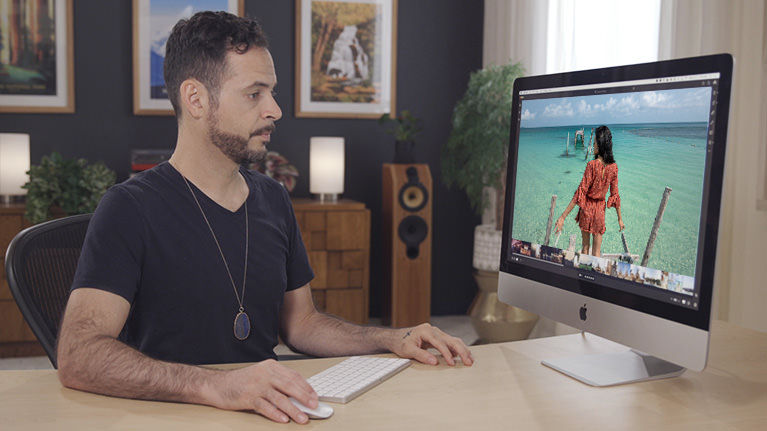
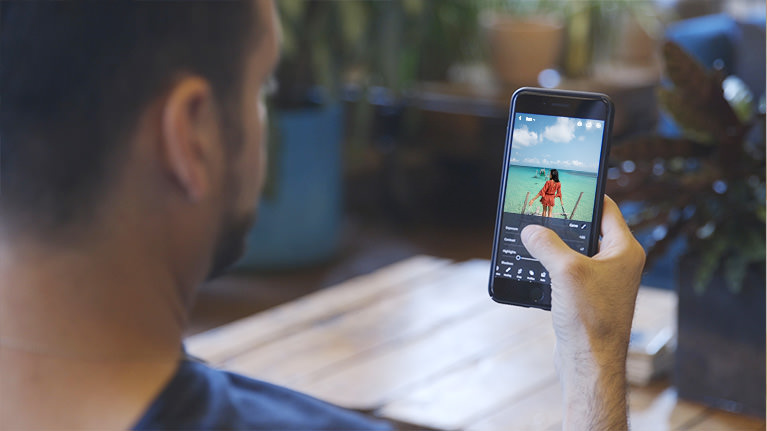
Lightroom for Desktop and Mobile vs. Lightroom Classic
We were surprised at just how much Lightroom takes the best parts of Lightroom Classic and repackages them in a fast, intuitive, and streamlined program. Learn everything that Lightroom for desktop and mobile can do, from detailed edits to your RAW images to fast and easy sharing of photos with friends and clients.
Work from the Cloud
Take thousands of photos with you and edit them from anywhere in the world. Lightroom’s cloud-based storage allows you to save, access, and share all of your 16-bit RAW photos. That means professional editing power, wherever you go.
50 RAW Images Included
RAW editing and organization are both still at the heart of Lightroom. That’s why we’re including 50 professionally photographed RAW images. Follow along and learn how Lightroom can fit into a real-world workflow.


For Professionals and Enthusiasts
Lightroom Classic can be intimidating–even for the software savvy. Lightroom for desktop and mobile is the opposite. Clean, intuitive, and easy-to-use, professional photo editing has never been more accessible.
Computer, Tablet and Phone
Gone are the days of being locked down to a high-end computer to do your editing. Now you can start an edit on your desktop, pick it up on your tablet, and finish it on your phone–all without missing a beat.
Streamlined Workflow
No wires. No hard drives. No headaches. Lightroom eliminates a lot of the hassle that we’ve come to expect from top-level photo editing software. Learn how Lightroom offers the quality of editing you’ve come to expect in a new fast and agile app.


Portraits and Landscapes
No matter what kind of photos you take, Lightroom for desktop and mobile can help you organize, cull, edit, and share them. Learn how to import the images from a photoshoot, add smart tags, take them through the edit, and more!
Photoshop and Back Again
It wouldn’t be a PHLEARN tutorial without a little taste of Photoshop. Learn how to send an image over to Photoshop for more complex edits and then take it back into Lightroom for organization and sharing.
Tools for Every Photographer
Whether you shoot weddings, landscapes, fashion, or street photography, Lightroom is designed to fit seamlessly into your workflow. The next generation of photo editing tools are here, and we’ll help you learn how to use them.


50 RAW Images Included
See just how powerful Lightroom is as you follow along with the 50 RAW images included with this tutorial. Upload, edit, and share RAW photos from any device!


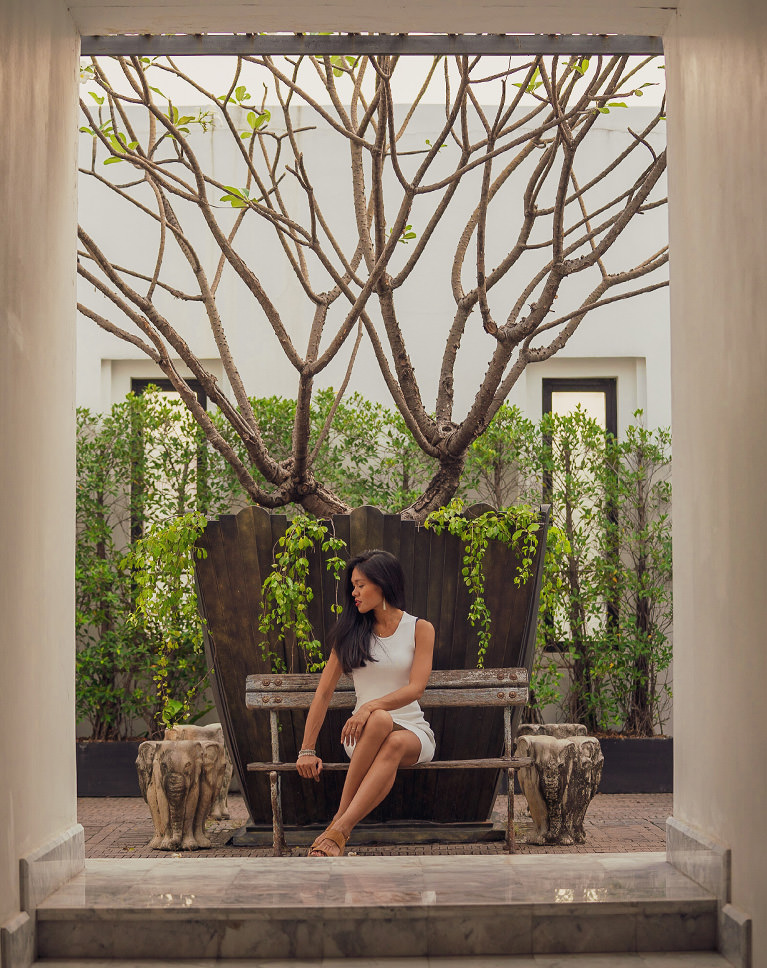
Smart Tools
Lightroom is loaded with tools that can help you achieve high quality results in a fraction of the time. From powerful automatic adjustments to accurate healing and object removal tools, Lightroom can help get you from import to export faster than ever.
Easy Sharing
Lightroom makes the process of sharing hundreds–even thousands–of photos a breeze. Learn how to share images with clients and friends using links that can be opened in any internet browser.
RAW Editing
16-bit RAW editing in the palm of your hand? It might sound crazy, but Lightroom makes it possible. Learn how to store and edit all of your images in the cloud, at full-quality and accessible from any device.


Exposure & Light
It wouldn’t be Lightroom without the tools and options we’re used to from Adobe Camera RAW. Make powerful adjustments to exposure and color, helping your images look their very best.
Object Removal
Whether there’s a distracting sign in the background of a portrait or someone photo-bombed your vacation photos, learn how to remove objects and distractions from any photo with Lightroom.
Presets & Profiles
Lightroom for Desktop and Mobile is compatible with all of your favorite Lightroom Presets, profiles, and LUTs! That also means our library of PHLEARN Presets and LUTs can help you add beautiful color to your images wherever you go. We’ve even included a brand new pack in this tutorial.


Easy Organization
Lightroom has tools to help you organize your images in seconds. Learn how to use albums, folders, smart tags, and facial recognition to make storing and finding your images easier than ever before.
Work Anywhere
Start an edit at the studio, take it to your favorite cafe, and then finish it up at home. If you’re a working photographer, chances are that you’re often on-the-go. Lightroom can help make sure that no matter where you are, your work goes with you.
Next Gen Workflow
It’s a mobile world and Lightroom knows it. If you’re a working photographer that’s always on-the-go, Lightroom is the perfect complement to your busy lifestyle.

Class Instructor
Aaron Nace
PHLEARN Founder & Lead Instructor
Aaron Nace is a photographer, digital artist, and the founder of PHLEARN. He has been teaching Photoshop, Lightroom, and photography since 2011, and has taught at Adobe MAX for more than eight years.
Aaron publishes a free tutorial every week and a new in-depth PRO course every month.
- 2M+YouTube subscribers
- 160M+video views
- 1,000+tutorials published
- 15years teaching Photoshop
This tutorial includes 50 RAW images by travel photographer Pierre Lambert. Special thanks to Pierre for providing the images used in this tutorial.
Reviews
Master Photoshop, Lightroom and Photography
Join PHLEARN PRO for $12.99 a month or $99.99 a year. Cancel anytime, with a 100% money-back guarantee.






Great course, clear and concise. Thanks
Great job with this tutorial! I’m just getting started with using Lightroom and this really set me up to understand how to use it.
I loved the tutorial, taking pictures on my Iphone and edit on my Ipad.
I love Lightroom mobile as it is alway quick and I am finding my iMac 2103 can no longer keep up. With the mobile version installed on all my devices I am able to edit with ease. The only issue I have which I wood love a response is printing and why they can’t get the print module added to the application. I think if I had that I would never use classic again.
I have been using Lightroom Classic for a long time. Since I bought an iPad Pro, I want to work in Lightroom Mobile when I am traveling, but with over 60k photos I don’t want to use a huge cloud storage capacity when I migrate. Actually, I would like to minimize my cloud storage. This Lightroom instruction is very good in showing the content of Lightroom Mobile/Desktop, but I am still very confused regarding file management and (external) storage. Importing photos on my iPad into LR Mobile is a two-step process, first into Photos, from there into LR Mobile. I guess that after importing into LR, I can delete the files in Photos. Then follows the desktop process with its file management. How do I manage all the files in order to 1) avoid huge cloud capacity, 2) keep my iPad capacity manageable, 3) avoid duplicates of files all over the place, and 4) avoid deleting photos on my iPad that I want to keep on my desktop. I am sure that Aaron is able to solve my headache and present an understandable workflow. I would highly appreciate such extension with the Ultimate Guide to LR File Management for Desktop, Mobile AND Classic.
Thanks, Aaron! Instantly switched from Classic after this tut. Love having access at home and out in the field too my images! Hate the fact that Adobe has not added a print module yet, so lean on Classic for my printing (wonk wonk…)
Finally a Lightroom Tutorial that made real sense!! Aaron is very enthusiastic and goes through everything in a way that you’ll understand. The visual aids are great and very easy to follow. Thank You Very Much!!!
This tutorial makes a great job showcasing how good this application is on all three screen families (computer, tablet and phone). Adobe should use it to revert the perceived image that Lightroom is a dumber version of the now called Classic Lightroom. Great job Aaron! The only suggestion I have is that when you refer to the Adobe 1TB storage plan please mention this is only if you are in USA. Here in Canada we only get 20GB… 🙁
This is a great package. Direction is the cloud….. keep them coming!!!
YouTube tutorial after YouTube tutorial without structure really taught me different parts of the process but never fully covered it all. $10 and 5 hours (I re-watched some parts) later I am now significantly more confident when I open lightroom to edit photos. The simplicity in the explanation helped me not feel pressured to follow exact numbers or presets to a science. It actually prompted more exploration and experimentation. Thank you so much for this platform and all who make this possible.
I have been heavily editing on Lightroom mobile, but was hesitant to switch from Classic to CC on Desktop. This tutorial opened my eyes that I was missing out on the smart cross platform functions. I enjoyed watching the whole tutorial from start to end. Even the sections that covered what I already knew well, I kept watching due to the very well structured workflow that Nace presents throughout the course. So there’s actually much more to learn from. Great value, five stars from me, thanks for creating this!
Exciting and scary at the same time for the future of pro photographers – Loved the tutorial and find it SO exciting how things you could only dream of are happening! Great tutorial for getting full functionality out of your LR possibilities. Thanks!
Hello Aaron Thanks so much for the great tutorials you always provide 🙂 , you transferred my level in photography to another levels. I have a request please. Can you provide us with tutorials shows how to advanced color grading and color toning of photos. I am always fan with that dreamy/painting feeling of an image. like the works of the Russian photographer “Dan Hecho” (http://danhecho.com/) Thanks again for the information and your lovely spirit.
Awesome tutorials Aaron. Well explained and demonstrated. Thanks for all your help. You make everything look so easy. Watching your videos has made the tasks so much easier for me now, especially all the editing ideas which have helped me a great deal.
When this course was announced I hesitated to watch it. I am not going to edit on my iPad or iPhone, I thought. But after viewing the course I totally came around and I am surely going to use the iPad to edit my photos when I am on the road. It is so much fun to do! And at home I can finish the edits with Lightroom for the desktop or Lightroom Classic Great fun! Many possibilities, Great course Phlearn Team!