

THIS COURSE INCLUDES
- 5 Lessonsfollow-along
- 3h 51mof 4K video
- Intermediatesome Photoshop basics
- 20 Sample Images+ 8 layered PSDs
- 2 PDF Guidescourse outline + cheat sheet
- Captionsand chapters on every lesson
Part of a Learning Path
Join PHLEARN PRO for instant access to this course and every tutorial on PHLEARN.
- Stream in up to 4K on any device
- Closed captions and chapters on every course
- Download all sample images and PSDs
- New PRO tutorials every month
- Cancel anytime
Description
Smart objects in Photoshop are the key to a truly non-destructive workflow, and this tutorial teaches them the way you will actually use them: by building a complete brand campaign from scratch. Across five sections you will design a vector logo and word mark, mock them up on a real sign and a New York City billboard, lay out an 8K ad campaign, and package everything for a client, with every asset linked so a single change ripples through the whole project.
Along the way you will learn the difference between linked, embedded, and nested smart objects, how to transform them into perspective, how to make smart objects in Photoshop look real in a composite with smart filters, layer effects, and the Grain adjustment layer, and how to escape the JPEG trap that breaks so many smart-object workflows. Two downloadable PDF guides (a step-by-step outline and a shortcut cheat sheet) plus 20 sample images and 8 layered PSDs keep you on track from start to finish.
What You’ll Learn
- Turn pixel logos and text into vectors that scale to any size
- Place branding on real signs and billboards in perspective
- Link, embed and nest smart objects so one edit updates all
Work Smarter Not Harder
Smart Objects in Photoshop: A File Within a File
Everything in this course comes back to one idea: smart objects in Photoshop are documents living inside other documents. Place a file as a linked smart object and any edit you save to the original updates everywhere it appears. Nest one inside another and the change ripples all the way down the chain. Once that clicks, resizing, warping, filtering, and swapping assets all become reversible.
Build Vector Logos from Scratch
Starting from nothing but a flat JPEG, you will turn a shape into a clean selection with Select and Mask, convert it to a work path, fill it as a vector shape layer, then cut it out of a circle with Merge Shapes. You will also set a word mark in a rounded typeface from Adobe Fonts or Google Fonts, align everything perfectly to the canvas, and combine the pieces into a master brand file that scales to any size.
Mockups in Perspective
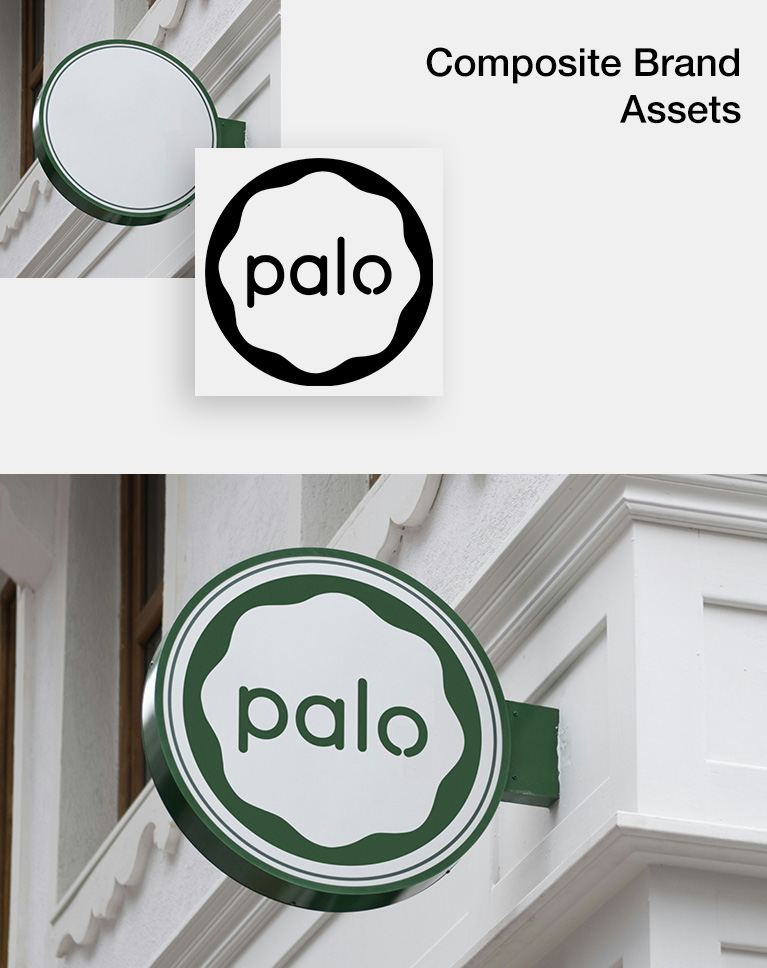
A circle inside a square becomes one of the most useful smart objects in Photoshop: a layer you can pull into perspective with the Transform tool, so the flat artwork you design inside it lands on the sign exactly right. Then you will make it believable with a Color Overlay sampled from the photo, a Gaussian Blur smart filter to match the focus, and a Grain adjustment layer, including the group trick that lets grain clip properly over a layer effect.
Scale Without Losing Quality
A quick side-by-side shows why this matters: shrink a rasterized layer and blow it back up and the detail is gone for good, while a smart object returns to 100% untouched. That is why smart objects in Photoshop should hold every photo, logo, and layout element, placed first and transformed second.
Composite a Billboard
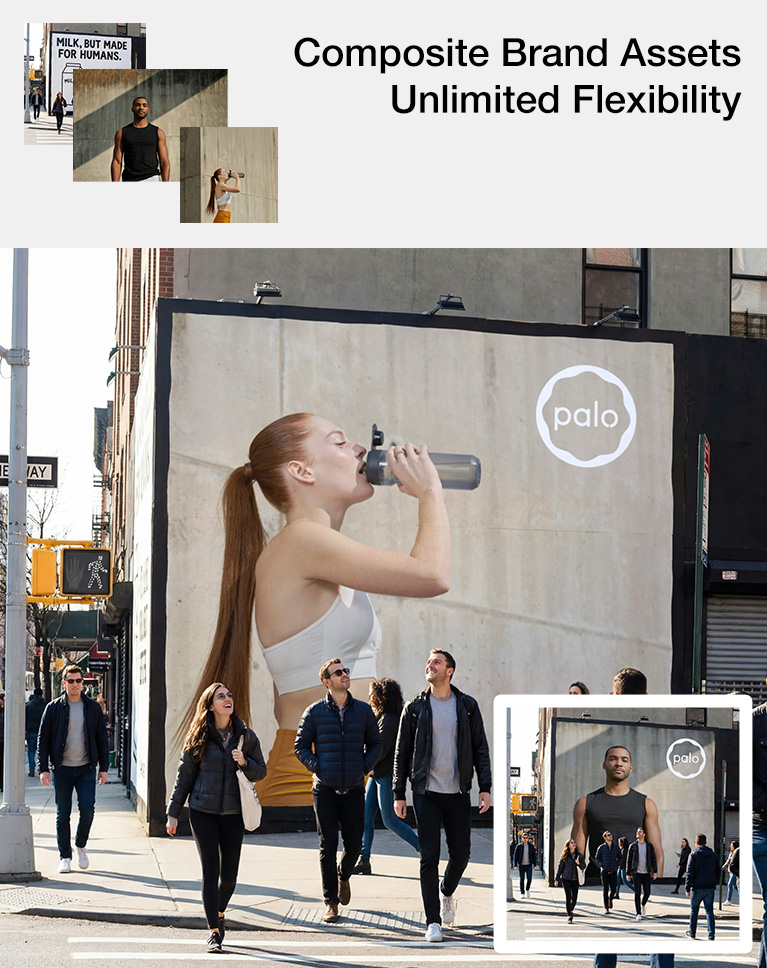
Working from a real street photo, you will clear the existing ad with the Remove Tool, select the billboard with the Magic Wand, and mask a group so anything you drop inside stays within the frame. The ad itself is a smart object warped into perspective, then blended in with Levels, a touch of blur, and grain. For the most realistic result you will pull the billboard’s own shadows and highlights back over the artwork with Apply Image and the Multiply and Screen blend modes.
The JPEG Trap (and How to Escape It)
Drag a JPEG into a document and it becomes one of the weakest smart objects in Photoshop, a container that can only ever hold a flat file, so Generative Expand and new layers refuse to save back. The fix is to convert the smart object into a smart object again, giving you a layered container that updates automatically. You will also use New Smart Object via Copy to build client variations that do not affect each other, and learn when to place linked versus embedded.
Design Once, Update Everywhere
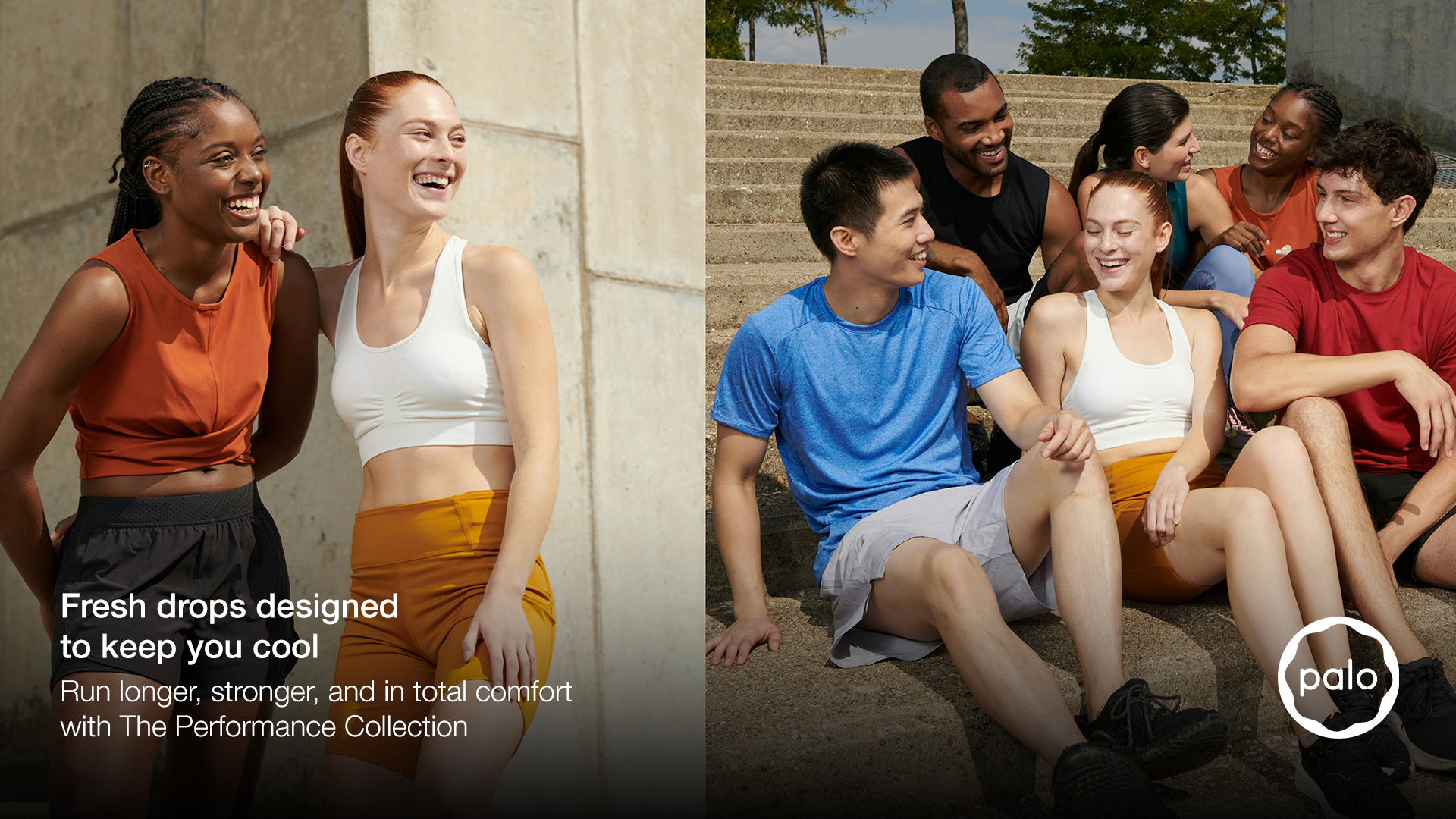
The payoff of smart objects in Photoshop is a layout that never has to be rebuilt. In Section 4 you will draw an 8K campaign layout with vector rectangles, align and distribute them with mathematical precision, convert each one to a smart object, and then simply drop photos in. Swap an image, resize the logo, or change the tagline and the composition stays perfect, ready for the next campaign.
Templates from Vector Shapes
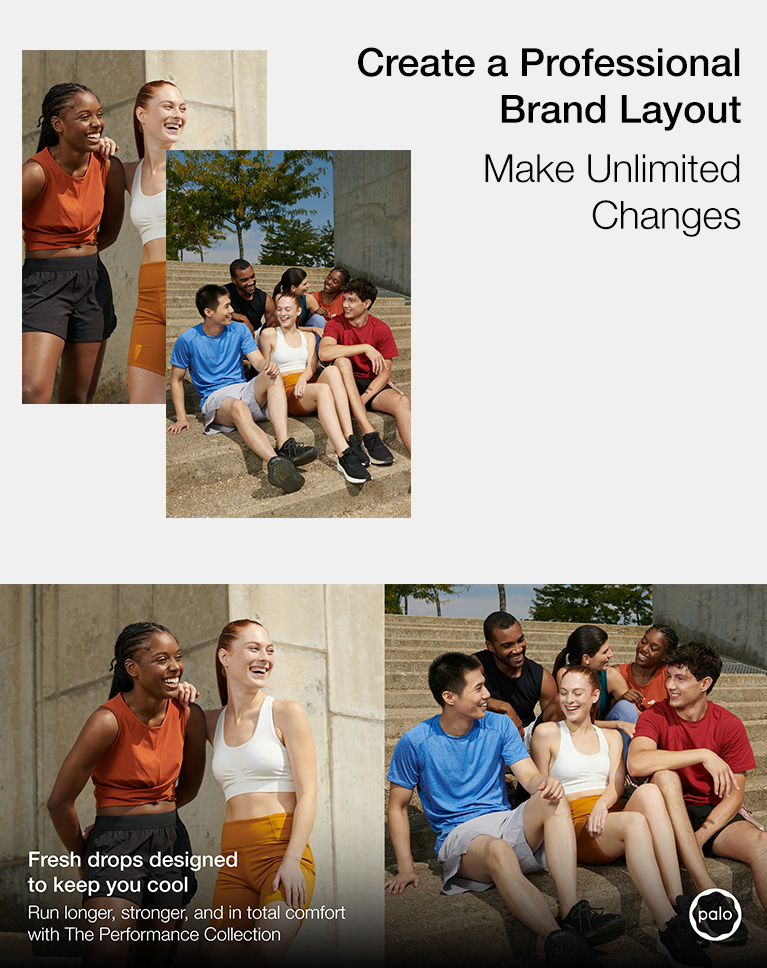
Rather than dragging photos onto a blank canvas, you will block out the layout first with rectangle shapes, group them, and resize the whole arrangement at once. Convert each rectangle to a smart object and it becomes a frame. This is smart objects in Photoshop at their most practical: double-click, drag in any image, scale it up to 100%, save, and the layout updates. Lock positions when you hand the template off so nothing slides out of place.
Perfect Alignment & Distribution
Photoshop’s hidden alignment menu is a natural partner to smart objects in Photoshop: it lets you align to a selection of layers or to the canvas and distribute spacing evenly, so four uneven boxes snap into a precise grid in seconds. You will use the same tools to lock text to the left edge of a photo and pin the logo to the baseline of the tagline.
The 50/50 Split, by the Numbers
For the second layout you will fill the canvas, transform it to exactly 50% width from a fixed reference point, duplicate it, and move the copy exactly 4,000 pixels, giving you a perfect two-image split with no guesswork. Finish with a foreground-to-transparent gradient so white text stays readable, Shift+arrow nudges for identical margins, and a logo colored with a Color Overlay sampled from the image.
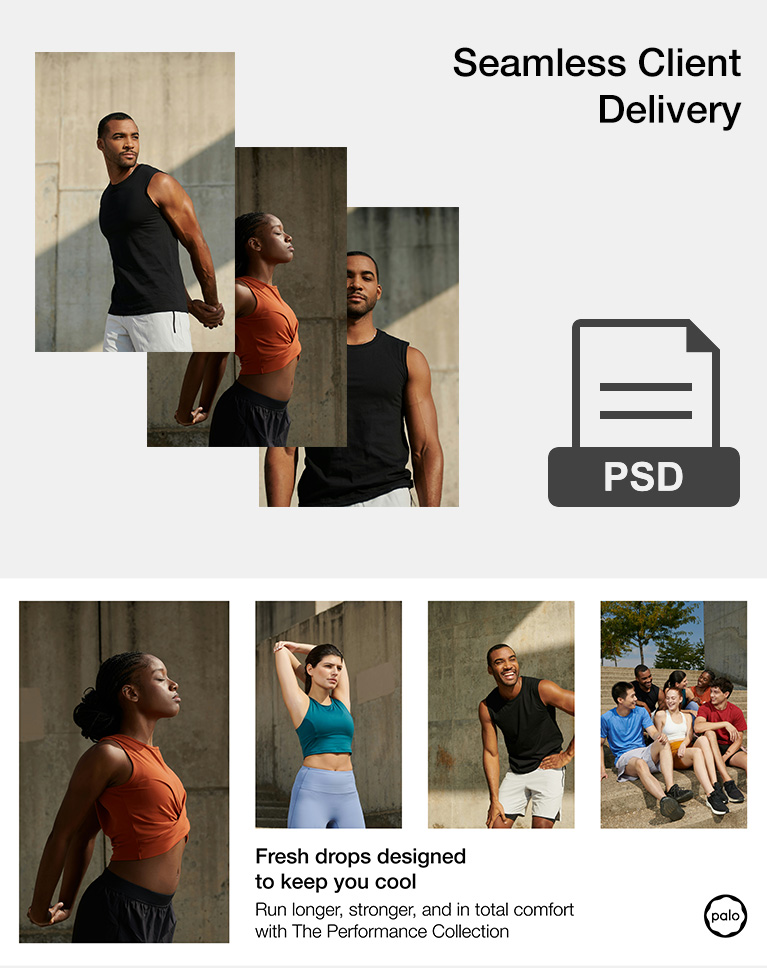
Package for Delivery
Linked smart objects in Photoshop are only as reliable as the folder structure around them, so before anything leaves your machine you will use File > Package to gather a fresh copy of the PSD and every linked smart object into one self-contained folder, with all the links rerouted automatically.
Embed Linked Smart Objects
For a single-file handoff you will save a copy and run Embed All Linked, which pulls every asset inside the PSD while keeping it fully editable. You will see what happens when the original files move, how to relink them, and why you should keep your own linked working file so a future logo tweak still updates the entire campaign.
Your Course Guides & Downloads
This guide to smart objects in Photoshop includes 20 sample images, 8 layered PSDs, and two PDFs: a step-by-step outline you can follow without rewinding, and a cheat sheet of shortcuts and definitions. When you are ready to keep going, continue with our Photoshop Learning Path: 7 courses and 31+ hours of training from the fundamentals to advanced techniques.

Class Instructor
Aaron Nace
PHLEARN Founder & Lead Instructor
Aaron Nace is a photographer, digital artist, and the founder of PHLEARN. Since 2011 he has taught millions of people to edit with confidence in Photoshop and Lightroom, on YouTube and in PHLEARN PRO, and he has been a featured speaker at Adobe MAX for more than eight years.
Every PRO course comes with the sample images and PSDs to follow along step by step, and Aaron adds new courses and free tutorials all year.
- 2M+YouTube subscribers
- 160M+video views
- 1,000+tutorials published
- 15years teaching Photoshop
Special thanks to Declan Sun, Acme Studio, Eric Human, and Leire Cavia. Images for this PRO course were sourced from Unsplash.
Reviews
Smart Objects in Photoshop: Common Questions
About This Course
Is this course good for beginners?
Yes. Lesson 1 starts from Photoshop’s default workspace and builds the brand’s assets from scratch. The ideas get more advanced as the course goes on, and Aaron explains each one as it comes up.
What is a smart object in Photoshop?
A smart object is a container that holds a whole file inside your document, so you can resize, filter and transform it without changing the original. Lesson 1 introduces the idea, and every lesson after builds on it.
What’s the difference between a linked and an embedded smart object?
A linked smart object points to a separate file, so editing that file updates every project it’s placed in. An embedded one carries its own copy. Lesson 3 explains the difference, and Lesson 5 covers which to deliver.
Why won’t my smart object keep my edits?
When a smart object holds a JPEG, Photoshop can’t save the new layers you add inside it, such as a Generative Expand. Lesson 3 shows why it happens and how to get around it.
How do I make a mockup in Photoshop?
A good mockup keeps the design flat and editable while it appears in perspective in the scene. Lesson 2 puts the logo on a sign, and Lesson 3 builds a New York City billboard composite.
Can you make a vector logo in Photoshop?
Yes. Lesson 1 turns a flat JPEG into a clean vector logo mark and pairs it with a matching word mark, all in Photoshop, so both scale to any size without losing quality.
Which version of Photoshop do I need?
Aaron teaches in Photoshop 2026. A few features he uses need a recent version, including the new Grain adjustment layer in Lessons 2 and 3 and the generative tools, so a current version is best.
Does this course use generative AI or credits?
A few steps do. Lesson 3 uses Generative Expand and Lesson 4 shows Generative Fill as one option, and those draw on generative credits. The smart object techniques themselves never need them.
About PHLEARN PRO
What do I get with PHLEARN PRO?
Every PRO course on PHLEARN, plus all the downloads that go with them: sample images, RAW files, layered PSDs, Photoshop Actions, Lightroom Presets, LUTs, and Brushes. Stream everything in up to 4K with closed captions and chapters, on any device.
How much does PHLEARN PRO cost?
PRO is $12.99 a month, or $99.99 a year, which saves 36%. Both plans include every course, all the practice files, and the full library of presets, LUTs, actions, and brushes. There are no tiers and nothing is held back.
What’s the difference between the free tutorials and PRO?
Free tutorials teach a single technique end to end. PRO courses are longer, go deeper into workflow and decision-making, and include the sample images and finished PSDs, so you can practice on the same files as the lesson.
Do I need to own Photoshop?
Yes. Photoshop is Adobe software, sold as a subscription, and it is not included with PHLEARN PRO. The Adobe Photography plan, which bundles Photoshop and Lightroom, is the most common way our students get both.
Can I cancel?
Yes, anytime, from your account page in a couple of clicks. There are no cancellation fees, and you keep access until the end of the period you have already paid for.
What is the money-back guarantee?
If PHLEARN PRO is not the right fit for you, contact our support team and we will make it right, including a full refund.
Master Photoshop, Lightroom and Photography
Join PHLEARN PRO for $12.99 a month, or $99.99 a year (save 36%). Cancel anytime, with a 100% money-back guarantee.






great content! 🙂
We’re glad you enjoyed the tutorial. Thanks for watching!
Awesome tutorial! I really like your simple and straightforward presentation style, which makes the learning experience very engaging. The topic on Smart Objects in Photoshop was especially useful and helped me understand how to use them effectively in real-world design projects. Thank you for sharing such practical and easy-to-follow content!
Thank you! So glad to hear our straightforward style made Smart Objects easy and practical to learn.
wonderful tutu oral as always. I don’t know if I will ever use it but you never know
Thanks Wendy, glad you enjoyed it. Smart Objects have a funny way of becoming useful right when you least expect it, so keep it in your back pocket.
My favorite so far. I learned a lot about smart objects and more!
Really glad to hear this one landed, Arthur — Smart Objects are one of those things that quietly change how you work once they click. Thanks for letting me know, and happy editing!
Great tutorial. Thanks for putting time stamps on each individual lesson.. That is very helpful. Joe Ligammari
Glad the timestamps came in handy, Joe—I know jumping straight to what you need beats scrubbing through a whole video. Thanks for taking the time to leave this, appreciate you.
The “ultimate guide to Smart objects in Photoshop” contained a great deal of useful information, but it is geared towards graphic design more than to photography. As a long time Lightroom and Photoshop user and also a long time, Phlearn subscriber, I have numerous questions about Smart objects that were not included in this tutorial. I wonder if you could complement this tutorial with a part two, which is more focused on the nuances of using smart objects in Photoshop photography workflow. Such a review might clarify which tools and filters can be used with a smart object? To avoid too large a file size, specifically when should we be using smart objects in Photoshop, and which sequence of modifications will minimize the need for creating multiple smart objects? For individual Photoshop users, should we ever be utilizing linked, smart objects? Currently, I use them in a somewhat haphazard way and end up with huge file sizes. If others have similar questions, perhaps you could create a tutorial that is an ultimate guide to smart objects in photography workflow. I appreciate your consideration.
Really appreciate the thoughtful breakdown, Nathan, and a part two focused purely on photography workflow is a great idea, I’m noting it down. Quick tip in the meantime: converting to Smart Object early and stacking your edits inside it (rather than creating a new Smart Object for every step) is usually what keeps file sizes sane, and linked Smart Objects mostly pay off when you’re sharing assets across multiple files, not so much for a single project workflow.
Hi Arron, I’m an enthusiast, not a professional, and I’ve been using smart objects quite a bit. Now, I’m starting to realise just how much I don’t know. I’ve always loved your presentation style, and with this offering and learning ‘through doing’ a structured campaign, I think I’ve found a way to use what you’re showing. Yes, it was complex, but very understandable. Great work, thank you.
Barry, this made my day—enthusiast or not, you clearly get it, and “learning through doing” is exactly how I want people to use these tutorials. Smart Objects have a way of feeling simple until you realize how deep they go, so I’m glad the complexity landed instead of overwhelming you. Thanks for sticking with it and for the kind words.
Great course. This was my favorite. Loved the way you presented it.
Thanks so much, almarson — smart objects are one of my favorite topics to teach, so I’m glad that came through. Appreciate you taking the time to say so.
I have been watching the Pro tutorials for many years and I think this one is my favorite. A great mix of technical and artistic/creative information combined with workflow and asset management tips. Fun to watch and I am about to open Photoshop to use this information for a project I have been meaning to start for some time. And despite Aaron’s self-doubt, the explanations of smart object interactions are very clear and easy to understand. I have only ever used smart objects to hold smart filters, not realizing how much more powerful they are! Great job – I am looking forward to the next one already.
Hans, thank you so much!—smart objects are one of those topics I always worry gets a little dry, so hearing it landed as fun AND clear means a lot. Go have fun with that project, and I can’t wait to hear how it turns out.
I especially appreciated this one because of its focus on process. Retouching is fun, but the real nuts and bolts of professional design are building files that are organized, editable, and easy to hand off. That kind of practical workflow knowledge is incredibly valuable. I’d love to see more tutorials like this!
Ryan, this made my day—you nailed exactly why I wanted to make this one. Retouching gets all the glory, but that organized, editable, hand-off-ready workflow is what actually makes you look like a pro when someone else opens your file. More process-focused tutorials are definitely on my list, so stay tuned.
Great job!!!
Благодаря ти, Пламен! Радвам се, че уроко ти хареса.
Aaron, In regards JPEGs. To paraphrase George Orwell’sAnimal Farm. “All smart objects are created equal. but some smart objects are more equal than others.”
Wow, learned a lot and superbly presented. Thanks! Found the camera operator’s work to be unsettling. Asked AI and it said: What you are describing is often called “yo-yo zooming” or “trombone zooming,” and you are entirely right to find it distracting. In professional video production, the golden rule of camera movement is that every movement must be motivated. When a camera zooms constantly without a narrative reason, it draws the viewer’s attention to the camera itself rather than the information being presented. Here are the professional best practices for changing framing during a tutorial or presentation …
Wow, this tutorial is fantastic! Smart Objects are incredibly powerful. Amazing!