Artistic Effects Learning Path
Six tutorials on turning a photo into artwork, in order. Pop art, sketch, graphic photography, double exposure, glitch and watercolor, each with the included actions, brushes and textures.
Free tutorials
Keep practicing, free
Four short free tutorials with more ways to turn a photo into art. Watch them any time, no membership needed.
Free tutorial · 5 min
Free tutorial · 14 min
Free tutorial · 9 min
Free tutorial · 8 min
What You’ll Learn
Some edits are not about making a photo better; they are about making it something else. The Artistic Effects Learning Path is six tutorials, each building a recognizable effect from a photo and showing the Photoshop underneath, so you can adjust it and combine it with the others. It starts with the two most graphic effects, pop art and sketch, then graphic photography, which mixes illustration with photos, moves through double exposure and glitch, and finishes with watercolor, the one that takes the most hand work. Every tutorial includes the actions, brushes and textures used.
- 1. Create a pop art effect Warhol and Lichtenstein styles, with included actions, brushes and patterns, and the halftone and color steps behind them.
- 2. Create a sketch effect Photos into pencil sketches, in black and white and in color, with an included action and custom brushes.
- 3. Mix graphics with photos Six start-to-finish projects blending illustrations, sketches, halftones and textures with portraits, from a dreamy double exposure to a screen-printed poster.
- 4. Build a double exposure Double, triple and quadruple exposure portraits with blend modes, masks and texture.
- 5. Create a glitch effect A glitch effect from scratch with custom brushes and textures, then animated as a GIF.
- 6. Paint a watercolor effect The most involved one: photo to watercolor painting with included actions and brush work by hand.
Who This Path Is For
Designers and illustrators who start from photographs, photographers who want portfolio and social pieces that stand out, and anyone who has bought a Photoshop action and wants to know what is inside it.
You should be comfortable with layers, masks and blend modes. Each effect is built step by step.
What You Need
- Photoshop Any recent version. The included actions are tested in current Photoshop.
- Sample files Included: the photos, actions, brushes, patterns and textures for every effect.
- Layers, masks and blend modes Assumed knowledge. If not, start with the Getting Started in Photoshop & Lightroom.
- A tablet Helpful for the watercolor brush work.
For light, glow and cinematic effects on photos that stay photographs, see the Special Effects Learning Path.
How Long It Takes
Six tutorials and 45 lessons, about 18 hours of video. Watercolor is the longest at almost five hours; the others run one and a half to four. At a few hours a week, plan on four to five weeks.
Run each effect on one of your own photos the same day. The actions do the first pass; the tutorials teach you to make it fit the picture.
Frequently Asked Questions
Do I need a PHLEARN PRO membership?
Yes. This is a PRO Learning Path, so all six tutorials and their sample files, actions and brushes are included with a membership.
Artistic Effects or Special Effects?
Special Effects adds light, glow and cinematic treatments to a photo that stays a photo. Artistic Effects turns the photo into a different medium: a print, a sketch, a painting. Many people take both.
Can I just run the actions?
You can, and they are included. The tutorials show how each action is built so you can fix it when it does not suit a photo, which is most of the time.
Do I have to follow the order?
The first four stand alone. Steps five and six assume you are comfortable with custom brushes and masks from the earlier effects.
Are the older tutorials still accurate?
Yes. These effects are built with blend modes, masks, brushes and filters that have not changed.
Where to Go Next
Start the Path
Start with the pop art effect. It is the most graphic, and it teaches the halftone and color steps the others build on.
PHLEARN PRO
Every tutorial in this path, with sample files, plus the full PRO library.
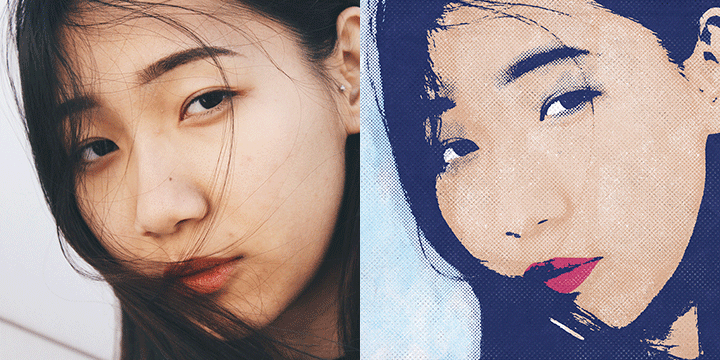
Tap into your inner Warhol by creating pop art in Photoshop! Learn how to transform any photo with bright and vibrant colors and comic book halftone effects to create your own stunning works of art.
Photoshop | Photo Effects | Easy | 3.75 hours
6 Sample Images | 14 Custom Textures | 15 Photoshop Brushes | 1 Photoshop Action | 1 Photoshop Pattern

Follow along as we show you how to transform any photo into a realistic pencil sketch in Photoshop! Learn how to recreate the natural highlights and shadows in a photo using our custom pencil stroke brushes and real paper textures.
Photoshop | Photo Effects | Medium | 3.25 hours
8 Sample Images | 2 Photoshop Actions | 22 Photoshop Brushes | 13 Custom Textures
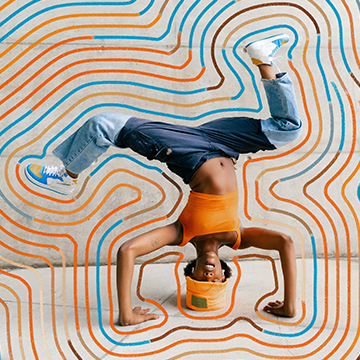
Discover the power of graphics in Photoshop! Blend photography, illustrations, and textures across six unique projects using advanced masking, 3D compositing, and the newest editing tools.
Photoshop | Photo Effects | Medium | 3 hours
25 Sample Images | 7 Sample PSDs
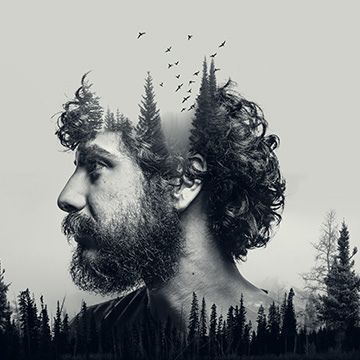
Learn how to use Blending Modes, Smart Objects, Layer Masks, and Adjustment Layers to seamlessly blend multiple exposures. Work through six different examples, combining two, three, and four exposures together.
Photoshop | Photo Effects | Medium | 1.5 hours
21 Sample Images
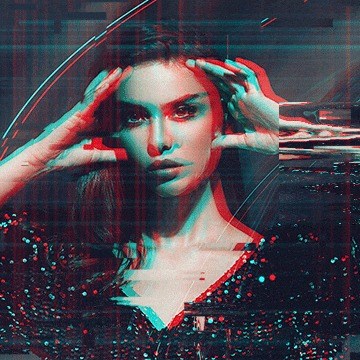
Digital distortion. VHS vibes. Learn how to create your own custom glitch effects in Photoshop with the included brushes, textures, and action!
Photoshop | Photo Effects | Medium | 2 hours
8 Sample Images | 15 Photoshop Brushes | 1 Photoshop Action | 7 Custom Textures
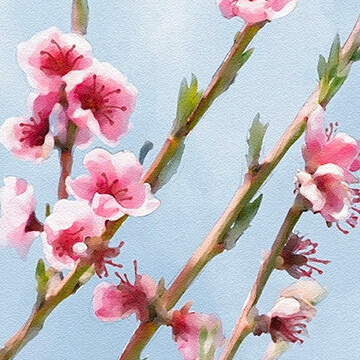
Turn any photo into a realistic watercolor painting in Photoshop. Hand-paint in color and detail using the included custom Photoshop Brushes and then apply realistic paper textures made from scratch.
Photoshop | Photo Effects | Advanced | 5 hours
5 Sample Images | 1 Sample PSD | 3 Photoshop Brushes | 1 Photoshop Action | 1 PDF Help Guide