
Download Assets
This tutorial includes 1 sample image and 1 PDF guide. Downloads are free with a PHLEARN account.
- Download the sample images and PSDs from every free tutorial on PHLEARN
- New free tutorials published every week
- One free account — sign up once, then download anything
Free PDF Guide · 3 Pages
This Tutorial as a Step-by-Step PDF
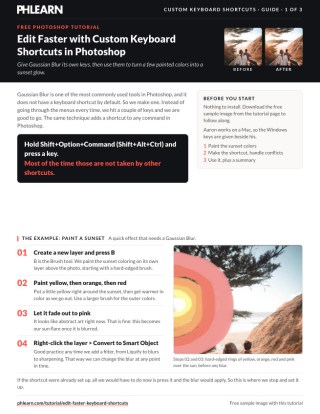
The guide paints yellow, orange, red and pink on a new layer, converts it to a Smart Object, then builds a Shift+Option+Command+G shortcut for Gaussian Blur in Edit > Keyboard Shortcuts. It covers conflicts (Accept and Go to Conflict or Undo Changes), the Overlay blend mode and raising the blur. Keep it next to your keyboard.
description
Gaussian Blur is one of the most-used commands in Photoshop and has no default shortcut. This builds a custom one for it, and shows how the same method works for any command in the program. The practical example running alongside is a quick sunset color effect — painting the color base, converting to a Smart Object first so the blur stays editable, then setting up and refining the shortcut on the job it was needed for.
Enjoying This Free Tutorial?
We publish a new free tutorial every week, each one with sample images and PSDs you can download and follow along with. Sign up and they land straight in your inbox, along with early word on sales, events and subscriber-only offers.
Edit Faster with Custom Keyboard Shortcuts in Photoshop
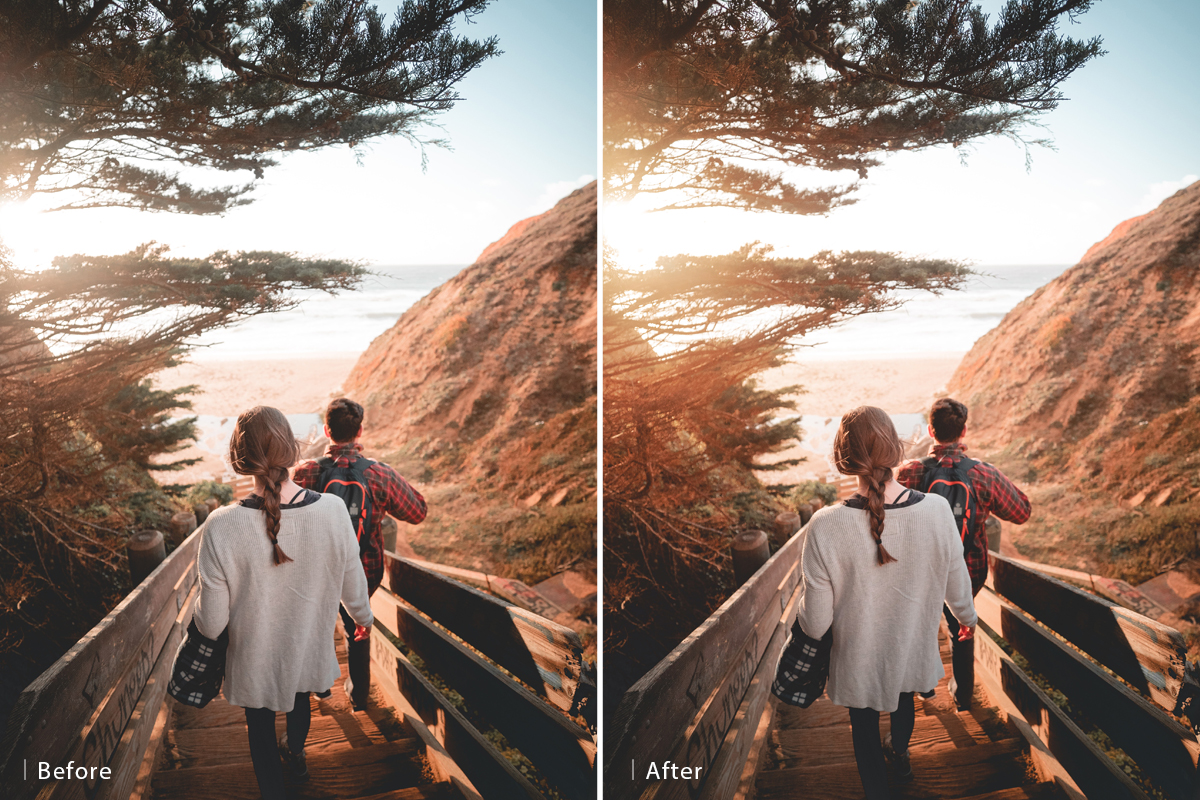
This tutorial shows how to build a custom keyboard shortcut in Photoshop for any command, using Gaussian Blur, one of the most commonly used tools in Photoshop that has no default shortcut, as the working example. Along the way, it also builds a quick sunset color effect on a sample image, which is the practical task that ends up needing that new shortcut. The sample image is available as a free download on PHLEARN.com.
Why Custom Keyboard Shortcuts Are Worth Setting Up
Reaching for a menu every time a frequently used tool or filter is needed adds up over the course of an editing session. A custom keyboard shortcut skips that navigation entirely, and the same shortcut-creation process shown here for Gaussian Blur works identically for assigning a key combination to any command in Photoshop’s menus.
Painting a Sunset Color Base
Create a new layer and press B for the Brush tool, using a hard-edged brush to paint directly onto the sunset image. Start with a warm yellow near the center of the sunset, then work outward toward orange and red, increasing brush size as needed for the larger outer strokes.
Building the Color Gradient Outward
Continue the color progression by fading the outermost strokes into pink, building a rough abstract color base directly on the canvas that will become a soft sunset glow once it’s blurred. The exact colors and placement matter less than the general progression, yellow to orange to red, fading to pink, radiating outward from the center of the light source.
Converting to a Smart Object First
Before applying any filter, right-click the painted layer and choose Convert to Smart Object. This is good practice any time a filter like Liquify, a blur, or a sharpen is about to be applied, since it keeps that filter fully editable afterward rather than baking it into the pixels permanently.
Setting Up the Keyboard Shortcut
Go to Edit, then Keyboard Shortcuts, which opens a menu tree that mirrors Photoshop’s actual top menu bar. Since Gaussian Blur lives under Filter, then Blur, then Gaussian Blur, navigate that same path inside the Keyboard Shortcuts dialog to find it, noting that it has no shortcut assigned by default. Click in the empty field to the right of the command, then simply press the key combination to assign, hit Accept once the new shortcut is recognized, then click OK to close the dialog. A useful tip: a plain combination like Control+A is usually already taken by another command, but holding Shift, Option, and Command together (or Shift, Alt, and Control on a PC) before pressing a letter is much more likely to be free, which is how Gaussian Blur ends up assigned to Shift+Option/Alt+Command/Control+G here, chosen because the G stands for Gaussian.
Avoiding Shortcut Conflicts
Assigning a shortcut that’s already in use elsewhere, such as Command/Ctrl+M, which is already assigned to Curves under Image, Adjustments, brings up a warning that accepting the new assignment will remove it from its previous command. From there, either hit Accept and Go to Conflict to move the shortcut over, which then jumps to the Curves row so that command can be given new keys, or hit Undo Changes to back out and try a different, unused key combination instead if the original command’s shortcut is still needed more.
Using and Refining the Shortcut
With the shortcut accepted, pressing Shift+Option/Alt+Command/Control+G immediately applies Gaussian Blur to the painted sunset colors, softening the hard brush strokes into something closer to a natural glow. Because the layer was converted to a Smart Object earlier, double-clicking the Smart Filter entry at any time reopens the Gaussian Blur settings to adjust the amount further, and the higher the blur goes, the more subtle the effect becomes.
Blending the Effect with Layer Modes
To help the softened color blend more naturally into the underlying photo, change the layer’s blend mode from Normal to Overlay, then reduce the layer’s opacity afterward if the effect still needs to be dialed back to a more subtle level.
Applying This to Any Command
The exact same process, opening Edit, then Keyboard Shortcuts, navigating the menu tree to the desired command, clicking the shortcut field, and pressing a new key combination, works for assigning a shortcut to literally any menu item in Photoshop, not just Gaussian Blur. Anyone looking to build out a broader shortcut vocabulary can also check out PHLEARN’s companion article, The 20 Photoshop Keyboard Shortcuts You Need to Memorize, for a list of the built-in shortcuts worth learning first.
Why a Few Custom Shortcuts Go a Long Way
A handful of well-chosen custom shortcuts for the tools used most often in a typical editing session, whatever those happen to be for a given workflow, can meaningfully cut down on time spent digging through menus. The setup only takes a minute per shortcut, and it never needs to be repeated once a combination is assigned.
Final Thoughts
Custom keyboard shortcuts in Photoshop come down to one simple dialog, Edit, then Keyboard Shortcuts, and a bit of care to avoid overwriting a combination already in active use elsewhere. Once a shortcut like Gaussian Blur is set up, it stays available permanently, turning a multi-click menu trip into a single quick key combination for as long as that workflow keeps getting used.
Quick Reference: Keys, Menus and Settings
- Paint the colorsNew layer, B for the Brush, hard edge: yellow, orange, red, fading to pink
- Keep the blur editableRight-click the layer > Convert to Smart Object
- Open the editorEdit > Keyboard Shortcuts, then Filter > Blur > Gaussian Blur
- Assign the keysClick the row under Shortcut, press Shift + Option/Alt + Cmd/Ctrl + G, Accept, then OK
- Keys already takenAccept and Go to Conflict, or Undo Changes (Cmd/Ctrl + M is Curves)
- Blend the glowBlend mode: Overlay; double-click Gaussian Blur to raise it; lower opacity if needed
No AI, no generative credits.
Free Downloads
Follow Along on the Same Photo
Get the sunset sample image from the video and the 3-page PDF guide with every step and every shortcut used. Free with a PHLEARN account.
Custom Keyboard Shortcuts: Common Questions
How do I make a custom keyboard shortcut in Photoshop?
Go to Edit > Keyboard Shortcuts and open the same menu as the top of Photoshop, for example Filter > Blur > Gaussian Blur. Click the command’s row under Shortcut, press your keys, click Accept, then OK.
Does Gaussian Blur have a keyboard shortcut?
Not by default. In the video Aaron gives it Shift + Option + Command + G on a Mac (Shift + Alt + Ctrl + G on Windows), with G for Gaussian.
Which keys are least likely to be taken already?
Something simple like Cmd/Ctrl + A usually belongs to another command. Hold Shift, Option and Command on a Mac, or Shift, Alt and Ctrl on a PC, and press a key; most of the time those combinations are free.
Where do I click to type the new shortcut?
There is no obvious box. Click anywhere on the command’s row under the word Shortcut, then press the keys and the row shows them.
What happens if the keys are already in use?
Photoshop warns you. Cmd/Ctrl + M, for example, belongs to Image > Adjustments > Curves. Accept and Go to Conflict gives the keys to the new command and takes you to Curves to assign it new ones; Undo Changes leaves Curves alone so you can try different keys.
Why convert the layer to a Smart Object before blurring?
Right-click the layer and choose Convert to Smart Object before any filter, from Liquify to blurs to sharpening. The blur stays editable: double-click Gaussian Blur under the layer to change it at any time.
How is the sunset glow made?
Create a new layer, press B for the Brush and paint with a hard-edged brush: yellow around the sun, then orange, then red, fading out to pink. Gaussian Blur turns the rings into a glow, and the Overlay blend mode blends it with the photo.
How do I make the sunset color more subtle?
Double-click the Gaussian Blur and raise it; the higher it goes, the more subtle the effect. You can also lower the layer’s opacity.
Can I add a shortcut to other commands the same way?
Yes. The same steps in Edit > Keyboard Shortcuts work for any command in Photoshop, not just Gaussian Blur.
Is the sample file free?
Yes, with a free PHLEARN account. You get 1 sample image and 1 PDF guide: the sunset photo from the video and a 3-page guide with every step and shortcut.
Master Photoshop, Lightroom and Photography
Join PHLEARN PRO for $12.99 a month, or $99.99 a year (save 36%). Cancel anytime, with a 100% money-back guarantee.





