


Download Assets
This tutorial includes 1 PDF guide. Downloads are free with a PHLEARN account.
- Download the sample files from every free tutorial on PHLEARN
- New free tutorials published every week
- One free account: sign up once, then download anything
Free PDF Guide · 3 Pages
This Tutorial as a Step-by-Step PDF
This guide walks through a dark film look built from Levels layers: input and output black sliders to crush and lift the blacks, per channel output levels to tint shadows, a gradient mask for the sky, a vignette, then Apply Image, a 0.7 pixel Gaussian Blur and Add Noise. Use it on your own photos.
description
A dark film look is built by throwing detail away on purpose. This tutorial shows how to crush the blacks with the input and output sliders in Levels at the same time, tint shadows and sky through individual color channels on gradient-masked layers, order those layers so the darkening does not eat the color, and finish with a vignette, a hint of blur, and grain.
Enjoying This Free Tutorial?
We publish a new free tutorial every week, each one with sample images and PSDs you can download and follow along with. Sign up and they land straight in your inbox, along with early word on sales, events and subscriber-only offers.
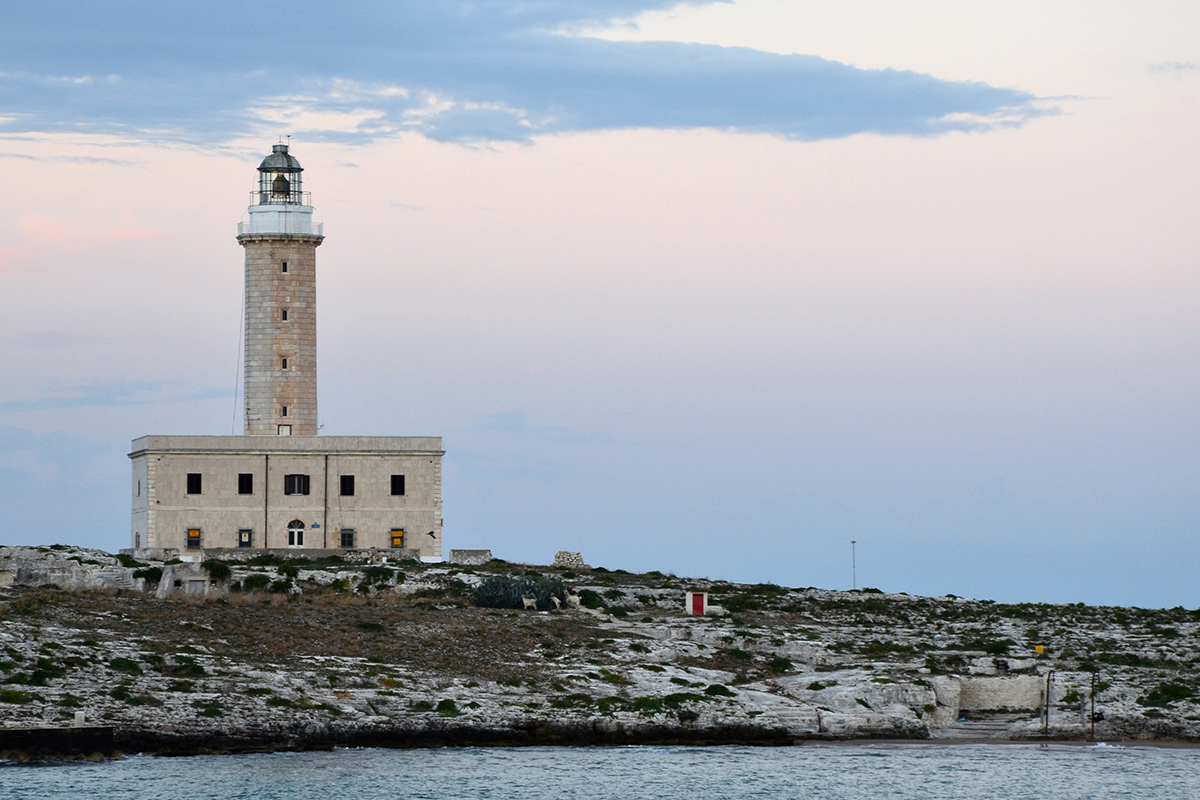
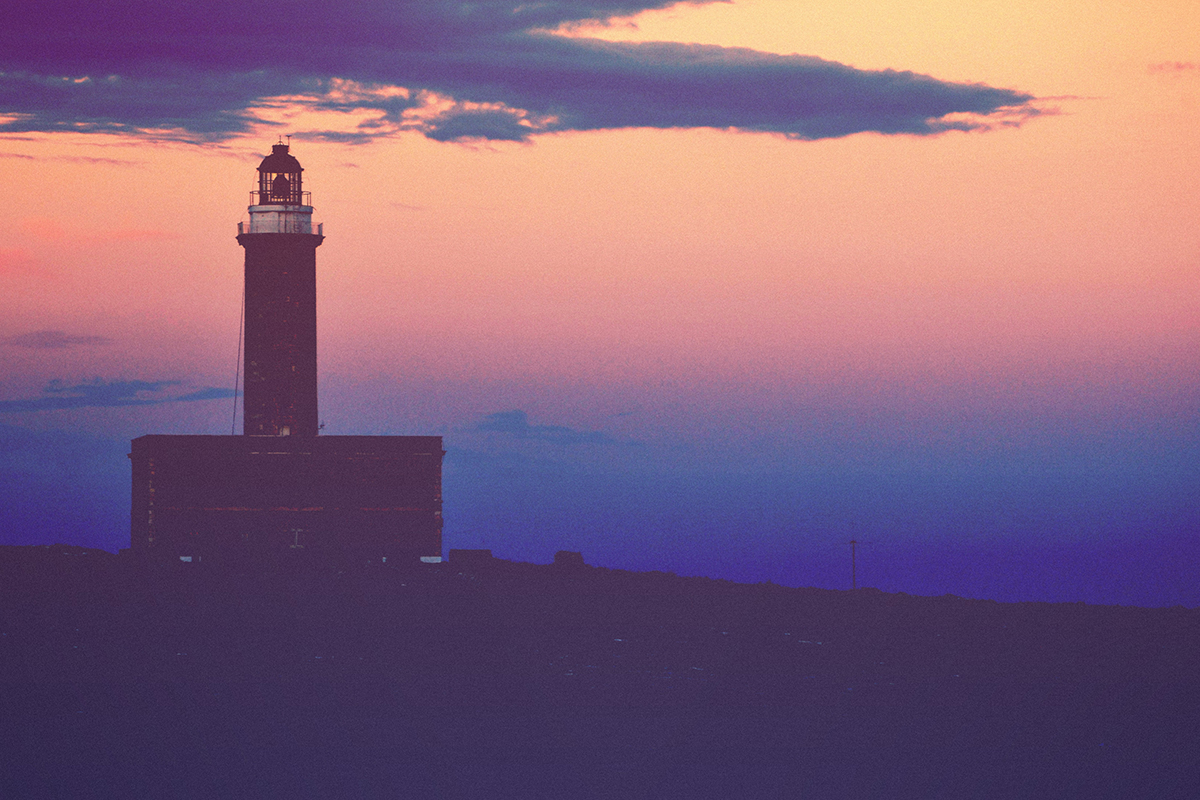
A dark, artistic film look comes from deliberately crushing detail with Levels adjustments and then pushing unusual color into the shadows, sky, and bottom of the frame rather than trying to preserve a natural, accurate image. This tutorial covers using the input and output sliders in Levels together, coloring shadows and sky through separate color-channel adjustments, layer order tricks with gradient masks, and finishing with blur, noise, and a vignette for a film-like texture.
Crushing Detail With Input and Output Levels Together
Combining the black point sliders on both the Input and Output sides of Levels deliberately removes detail from the darks while keeping them from turning completely black.
-
Add a Levels Adjustment Layer
Add a Levels adjustment layer set to RGB.
-
Bring the Input Black Point Slider Right
Drag the input black point slider from the left toward the right, pushing more of the image’s darker tones to pure black.
-
Raise the Output Black Point
Drag the output black point slider from black toward a mid-gray value, such as around 84, so the crushed blacks come back up to a lighter tone instead of staying pure black.
Why Input and Output Sliders Work Differently
The input black point slider decides which original tones in the photo get pushed all the way to black, discarding detail below that point. The output black point slider instead decides what value that resulting black actually displays as, so combining both is what allows detail to be intentionally lost while still keeping the final shadows at a lighter, more stylized tone instead of pure black.
Adding Color to the Shadows With a Second Levels Layer
Adjusting the output levels of the individual red, green, and blue channels on a separate Levels layer tints the shadows with color instead of leaving them neutral gray.
-
Add Another Levels Adjustment Layer
Add a second Levels adjustment layer above the first.
-
Adjust the Red Channel’s Output Levels
Switch to the Red channel and move the output black point slider to introduce red into the shadows.
-
Adjust the Green and Blue Channels
Switch to the Green and Blue channels and adjust their output levels to bring in additional color, such as a dark blue tone.
Coloring the Sky With a Gradient-Masked Levels Layer
A linear gradient painted on a layer mask restricts a third Levels adjustment to just the top of the image, making it possible to color the sky separately from the rest of the photo.
-
Add a Levels Layer for the Sky
Add another Levels adjustment layer to color the sky.
-
Paint a Linear Gradient on the Mask
Click the layer mask, select the Gradient tool set to linear with foreground-to-transparent, set the foreground color to black, and drag from the bottom of the image to the top.
-
Adjust Color Channels to Affect Only the Sky
Switch between the Red, Green, and Blue channels and adjust their input and output levels, seeing the effect apply only to the masked-in top portion of the image.
Darkening the Bottom of the Frame Without Losing Color
Moving a darkening Levels layer beneath the color layers, instead of above them, keeps the added shadow color intact while still darkening everything visually beneath it.
-
Add a Levels Layer to Darken
Add a new Levels adjustment layer and darken it significantly overall.
-
Mask It to the Bottom With an Inverted Gradient
Paint the same linear gradient on its mask, then press Cmd/Ctrl+I to invert it so the darkening effect applies to the bottom of the image instead of the top.
-
Move the Layer to the Bottom of the Stack
Drag the darkening Levels layer down below the color adjustment layers so it darkens the image without erasing their added shadow color.
Why Layer Order Changes the Result Here
A Levels layer placed above the color adjustment layers would darken the colors those layers just added, undoing some of the shadow tinting work. Moving that same darkening layer to the very bottom of the stack means it darkens only what’s beneath it in the original image, leaving the color adjustments above it fully intact.
Adding a Soft Circular Vignette
A large, blurred elliptical selection loaded as an inverted layer mask on a darkening Levels layer creates a soft vignette around the edges of the frame.
-
Add a Levels Layer for the Vignette
Add another Levels adjustment layer with a small darkening adjustment.
-
Draw a Large Elliptical Selection
Use the Elliptical Marquee tool to draw a large round selection covering most of the frame.
-
Invert and Blur the Mask
Load the selection as a mask, press Cmd/Ctrl+I to invert it, then apply Filter > Blur > Gaussian Blur to soften the vignette’s edge.
Finishing With Blur and Film Grain
A merged copy of the whole image, given a small blur and a touch of noise, mimics the softer, grainier look of an older film camera rather than a crisp digital capture.
-
Merge a Copy of the Image
Create a new layer, go to Image > Apply Image, and set it to merge RGB at Multiply to stamp a flattened copy of everything visible onto the new layer.
-
Apply a Small Gaussian Blur
Go to Filter > Blur > Gaussian Blur and apply a very small amount, such as under one pixel, to mimic a lower-quality lens.
-
Add a Small Amount of Noise
Go to Filter > Noise > Add Noise, start the amount at zero, and raise it gradually until a light amount of grain becomes visible, adjusting for the photo’s actual size.
Why a Small Amount of Blur and Grain Sells the Film Look
A perfectly sharp, noise-free digital image reads as obviously modern no matter how much color grading is applied to it. A small amount of blur and grain, even though Photoshop’s noise filter isn’t a perfect match for real film grain, adds just enough texture and softness to suggest the image came from an older camera rather than a clean digital sensor.
Why This Approach Works
Deliberately crushing detail with combined input and output Levels sliders is what gives this effect its stylized, artistic quality, since a technically clean, detail-preserving edit would look nothing like a dark film photo. Coloring shadows, sky, and the bottom of the frame through separate masked Levels layers, rather than one global adjustment, is what allows each area to carry its own distinct tone. Paying attention to layer order, specifically keeping the darkening layer beneath the color layers, is what keeps the added color from being undone by the very adjustment meant to darken the image.
Final Thoughts
This look leans entirely on Levels adjustment layers, used in combinations most people never try, along with a final pass of blur and grain to finish the film-like texture. The same layered approach, crushed blacks, colored shadows, a masked sky, and a soft vignette, works on nearly any image, though it suits moody or atmospheric subjects far better than a bright, straightforward portrait.
Quick Reference: Keys, Menus and Settings
- Crush the blacksLevels (RGB): input black slider right, output black to about 84
- Tint the shadowsSecond Levels: output black slider in the Red, Green and Blue channels
- Color the skyLevels mask, Gradient tool on Linear, foreground to transparent in black, drag bottom to top
- Darken the bottomDarker Levels, same gradient, Cmd/Ctrl + I to invert, drag the layer below the color layers
- VignetteLevels, Elliptical Marquee, mask, Cmd/Ctrl + I, Filter > Blur > Gaussian Blur
- Merged copyNew layer, Image > Apply Image: Merged, RGB, Multiply
- Film textureFilter > Blur > Gaussian Blur 0.7 px; Filter > Noise > Add Noise about 5
Free Downloads
Take the Guide With You
Get the PDF guide with every Levels layer, gradient mask, vignette and film grain step for the dark film look in Photoshop. Free with a PHLEARN account.
Dark Film Look in Photoshop: Common Questions
What is the difference between the input and output sliders in Levels?
The top input black slider decides which tones turn completely black. The bottom output black slider decides what black actually is: move it right, to about 84 in the video, and black becomes a mid gray.
How do I get faded, crushed blacks?
On an RGB Levels layer, drag the input black slider right until a lot of the dark detail goes black, then drag the output black slider right so those blacks come back up lighter. You lose detail on purpose; that is the look.
How do I put color into the shadows?
Add a second Levels layer and work with the output black slider in the Red, Green and Blue channels one at a time. The video adds dark blues and some green. If all three channels match, the shadows go back to gray.
How do I color only the sky?
Add another Levels layer, click its mask and drag a black, foreground to transparent gradient from the bottom to the top. Make sure the Gradient tool is on Linear, not Radial. Channel changes on that layer now show only at the top.
How do I darken just the bottom of the photo?
Add a much darker Levels layer, paint the same gradient on its mask and press Cmd/Ctrl + I to invert it so it affects the bottom. Cmd/Ctrl + T lets you move the transition up or down.
Why drag the darkening layer to the bottom of the stack?
A Levels layer darkens everything underneath it. Above the color layers it would darken the blue shadows too; below them the image gets darker and the color layers still tint the result.
How do I add the vignette?
Add a Levels layer with a small darkening change, draw a big round selection with the Elliptical Marquee tool and click the mask, press Cmd/Ctrl + I to invert it, then soften it with Filter > Blur > Gaussian Blur.
How do I blur and add grain to the whole edit?
Create a new layer and go to Image > Apply Image with Merged, RGB and Multiply. That puts a copy of everything you see on one layer, ready for filters.
How much blur and grain should I add?
Very little. Gaussian Blur at under one pixel (0.7 in the video) and Filter > Noise > Add Noise raised from 0 with the up arrow; 9 was too much and 5 looked right here. The right amount depends on the size of your photo.
Is there a free download?
Yes, with a free PHLEARN account. You get 1 PDF guide with the Levels, gradient mask, vignette and film grain steps from this tutorial.
From the Magazine View all
Stories, interviews and guides for photographers, new every week.
 BusinessHow to Compete With AI: Give Your Clients MoreEveryone has the same tools now, and your clients know it. The way to compete is to give them more.
 EditingLightCraft vs Lightroom: Is the Free Clone Any Good?The free clone on the same RAW files: what matches, what breaks and who should switch.
 EditingHow to Tell If a Photo Is AI, and Prove Yours Is RealThe tells that still work in 2026, why detectors disagree, and how to prove your own photos.
Master Photoshop, Lightroom and Photography
Join PHLEARN PRO for $12.99 a month, or $99.99 a year (save 36%). Cancel anytime, with a 100% money-back guarantee.





