


THIS COURSE INCLUDES
- 8 Lessonsfollow-along
- 7h 49mof captioned HD video
- Intermediatesome Photoshop basics
- 7 Sample Images+ 3 RAW images and an action
Join PHLEARN PRO for instant access to this course and every tutorial on PHLEARN.
- Stream in up to 4K on any device
- Closed captions and chapters on every course
- Download all sample images and PSDs
- New PRO tutorials every month
- Cancel anytime
description
Photoshop 201 prepares you to tackle some of Photoshop’s most powerful tools! We guarantee you’ll never look at layers and adjustments the same way again. Discover best practices that any photographer and retoucher can use and take the next step on your Photoshop journey with Photoshop 201.
* This tutorial is part of the Photoshop 101-301 Bundle
What You’ll Learn
- Master Adobe Camera Raw before moving to Photoshop
- Build your own custom brushes with the Brush Tool
- Apply Layer Styles like glows and drop shadows
-
01 - Adobe Camera RAW35:02m
-
02 - The Brush Tool54:09m
-
03 - Layer Styles39:04m
-
04 - How to Load, Use, and Create Actions in Photoshop45:52m
-
05 - How to Use Photoshop Filters1:29h
-
06 - How to Use Adjustment Layers in Photoshop1:32h
-
07 - Exercise 1: How to Put Someone on a Graphic Background Realistically Using Blending Modes59:05m
-
08 - Exercise 2: How to Retouch Hair and Skin in Photoshop54:59m
Photo Editing, Made Simple.
Photoshop 201 Starts with Adobe Camera RAW (ACR)
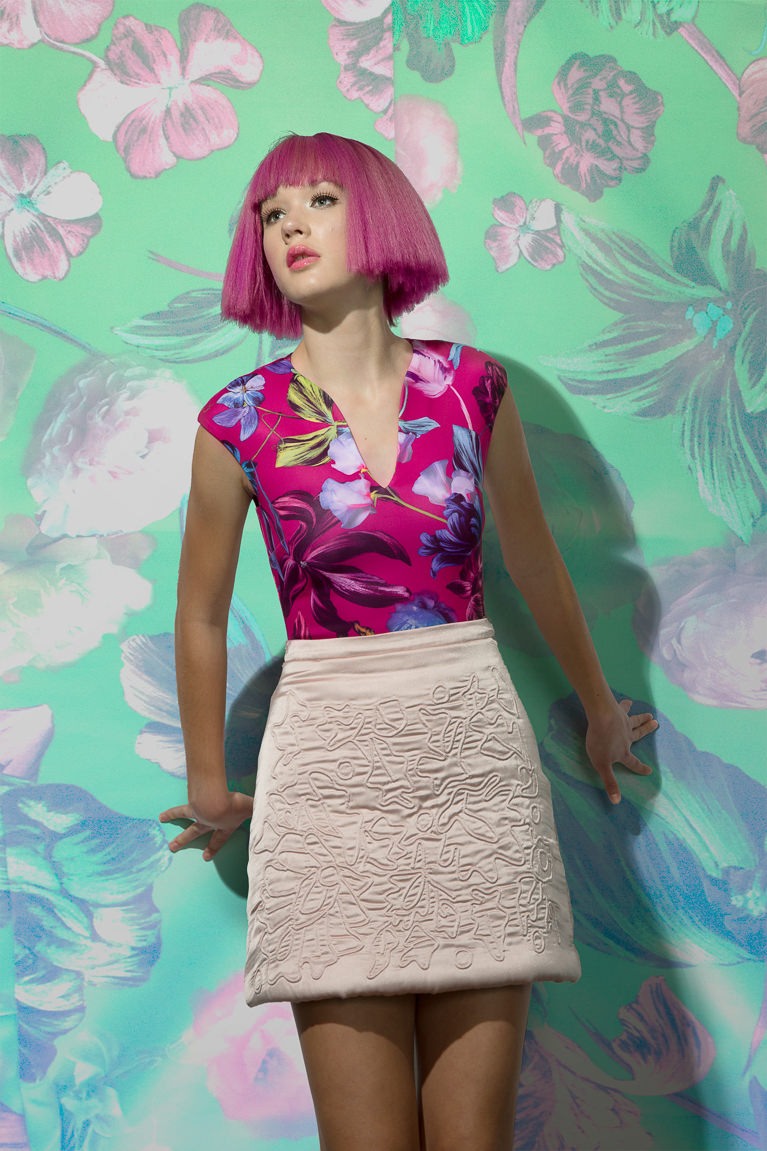
It is highly recommended to shoot with your camera in RAW mode allowing you to capture 16-bit images. 16-bit images allow for much more flexibility when editing. In order to open a 16-bit RAW image in Photoshop, you have to use Adobe Camera RAW (ACR). Photoshop 201 provides an entire section teaching how to use ACR.
Correct White Balance and Exposure
Learn the best methods for color and exposure correction while working in Adobe Camera RAW with a 16-bit image. Reveal the hidden potential that’s waiting for you within your images.
Lens Correction
When light travels through glass it bends and changes direction causing image distortion. These effects are especially noticeable when shooting with a wide angle lens. Learn how to correct lens distortion (barrel distortion) and vignetting to achieve a more realistic image, another core skill in Photoshop 201.

Create Presets to Save Time
Stop wasting time making the same image adjustments over and over. Photoshop 201 shows you how to create presets to save time by applying the same adjustments to any image or group of images instantly.
Learn Every Adjustment Layer
Adjustment layers allow you to change color, exposure and more. Plus, they are non-destructive which allows you to easily go back and change their effects. There are countless adjustment layers to choose from which is why Photoshop 201 has an entire section teaching adjustment layers.
Create and Script Patterns
Learn how to create patterns from scratch in Photoshop using any shape. Once you create a pattern, learn how to fill your image with different variations of the pattern. You will be amazed at what you can do with patterns in Photoshop.
Aaron’s Favorite Tool!
Learn just how powerful some Photoshop tools can be–including Aaron’s personal favorite, the Brush Tool.
Save Time with Actions
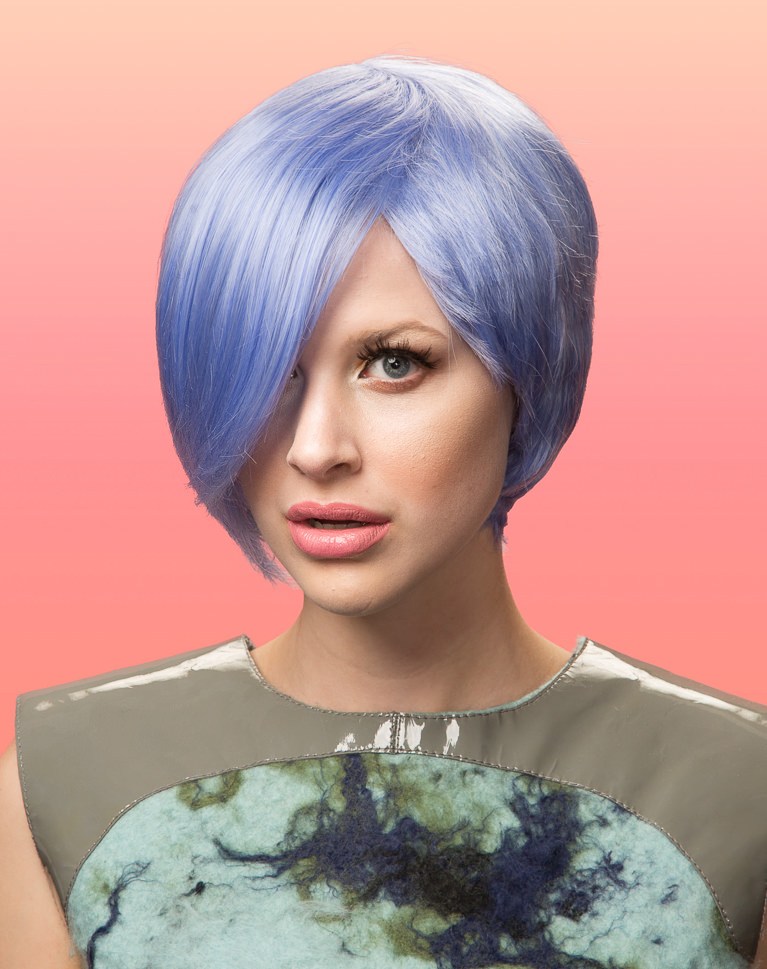
Actions allow you to save time by recording your steps in Photoshop. Once you record a sequence of steps, you can apply the exact same sequence to any image. Creating actions can be tricky because they need to work on different images. Learn the best way to create and use actions in Photoshop 201.
Retouch Quick and Simple in Photoshop 201
Learn simple retouching techniques that you can use on any portrait. We focus on making a big difference in a short amount of time. Work on what matters without wasting time on what doesn’t.
Add Filters
Photoshop offers hundreds of filters to enhance your images. Some of them are made to give your images an artistic spin, others are used for photo enhancement. Photoshop 201 shows you how to use the complete library of Photoshop filters to reach new heights with your images.

Blur and Sharpen
When it comes to enhancing your photos, blurring and sharpening are the most commonly used filters. Each method offers many options and tools. Learn the theory behind using blur and sharpen to create more stunning effects in your images.
Use Smart Filters
Smart filters offer an advantage over regular filters because they can be edited at any time. Imagine never being stuck with your original choice! You will also learn how to create smart objects in addition to the best practices for using smart filters.
Enhance with Liquify
Liquify is an extremely powerful image transformation filter. With this tool you can push and pull pixels and reshape photos. Photoshop 201 teaches you to properly harness the power of the liquify tool to keep your images looking their best.
Create Custom Brushes
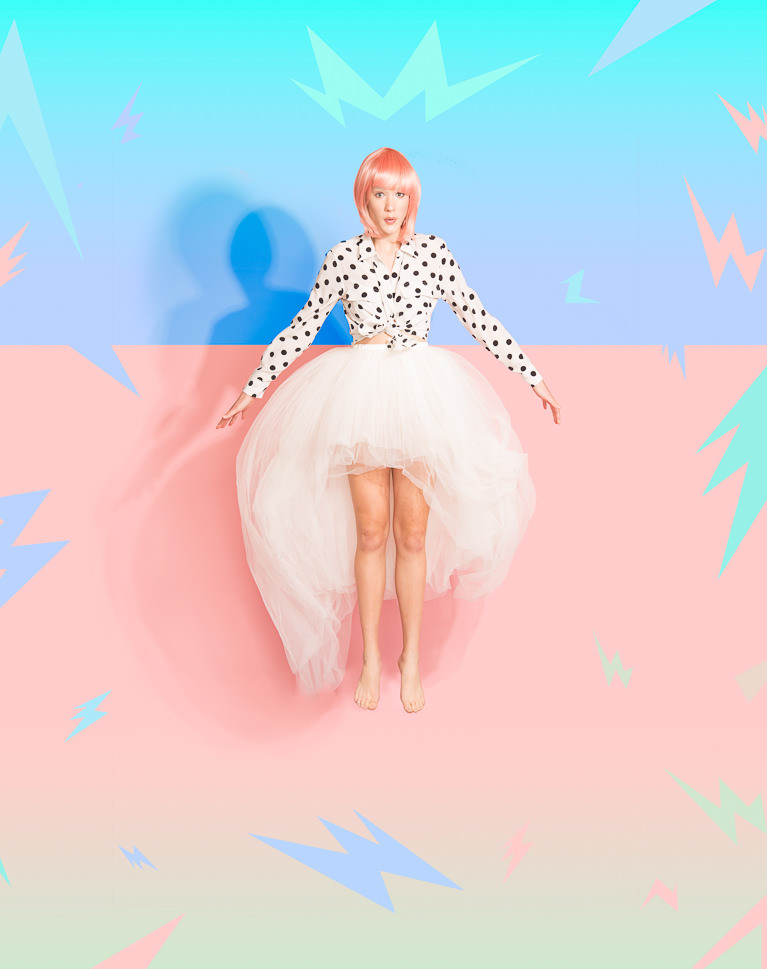
The brush tool is among most powerful tools in Photoshop. Learn how to use advanced brush options and how to create your own custom brushes. Custom brushes, covered in Photoshop 201, are excellent for advanced retouching and adding special effects to your images.
Use Flow and Opacity
Most Photoshop users are familiar with opacity which controls the transparency of your brush stroke or layer. Flow works in a similar manner, but operates more like a natural brush would. Learn the differences and how to use both flow and opacity together to gain more control.
Advanced Brush Options
Dive deep into advanced brush options and be amazed at what you can accomplish with the brush tool. There are thousands of different brush combinations and we show you how to harness the power of them all.

Dodge and Burn
Learn advanced dodging and burning techniques to make your subjects really stand out. Go in-depth with the included portrait example to learn which areas should be lightened and darkened for maximum impact.
Layer FX
The Layer FX dialog is as powerful as it is complex. There are many options to consider when adding Layer FX to a layer that we dedicate a section to learning them. Give your images that little, or big, something extra that will be sure to set them apart.
Learn All Blending Modes
Blending modes are an essential part of photo and graphics manipulation in Photoshop. For instance, if you have a black and white image you can make all the black areas disappear instantly just by changing the blend mode to Screen. Discover how each of these modes will change your images so you never have to guess again.

Class Instructor
Aaron Nace
PHLEARN Founder & Lead Instructor
Aaron Nace is a photographer, digital artist, and the founder of PHLEARN. He has been teaching Photoshop, Lightroom, and photography since 2011, and has taught at Adobe MAX for more than eight years.
Aaron publishes a free tutorial every week and a new in-depth PRO course every month.
- 2M+YouTube subscribers
- 160M+video views
- 1,000+tutorials published
- 15years teaching Photoshop
Reviews
Master Photoshop, Lightroom and Photography
Join PHLEARN PRO for $12.99 a month, or $99.99 a year (save 36%). Cancel anytime, with a 100% money-back guarantee.






Hi Aaron, A great overview of Camera Raw. Learnt a lot. However, some of the procedures covered has been superseded as 15.5 Camera Raw. Is it possible to update the overview?
Like Bas relief is pronounced as Bah.
I have been using Photoshop on and off for two years. But over the last month I have completed several courses on PHLearn, including PS 201. I have learnt so much that I feel very confident to make PS my main photo editing program. Dodging and burning and the Paint sampling method are not longer foreign. Aaron Nace, if you were Australian they would make you a member of the Order of Australia for services to photo editing education
Amazing tutorial.
Her Layers said Luminosity But her eyes said Illuminati 10/10