

Download Assets
This tutorial includes 2 sample images, 2 sample PSDs and 1 PDF guide. Downloads are free with a PHLEARN account.
- Download the sample images and PSDs from every free tutorial on PHLEARN
- New free tutorials published every week
- One free account — sign up once, then download anything
Free PDF Guide · 4 Pages
This Tutorial as a Step-by-Step PDF
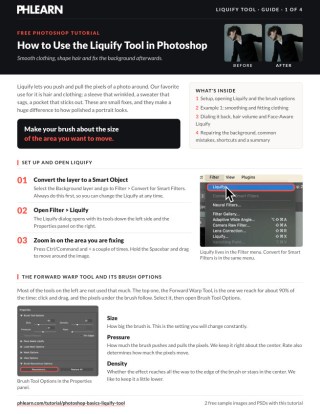
Every step from the video in order: Convert for Smart Filters, Filter > Liquify, the Forward Warp brush settings, bracket keys for size, the Brush Reconstruct tool and the Reconstruct slider, the Face-Aware sliders and how to zero them, and Generative Fill for a warped background. Keep it next to your keyboard.
description
The Liquify tool has a reputation problem. It’s known as the slimming tool, which is both the least interesting thing it does and the thing it does worst — the moment a viewer notices it, the photograph is finished.
What it is genuinely excellent at is the small stuff no amount of styling on the day prevents: a shirt that creased between frames, a collar sitting oddly, a gap in the hair where the wind got in, a jacket bunched at the shoulder. Run it on a Smart Object so it stays editable, resize the brush constantly, and repair any warped background lines with Generative Fill.
Enjoying This Free Tutorial?
We publish a new free tutorial every week, each one with sample images and PSDs you can download and follow along with. Sign up and they land straight in your inbox, along with early word on sales, events and subscriber-only offers.
Image Source


The Liquify Tool Is for Fixing Clothes and Hair, Not Reshaping People
Liquify has a reputation problem. It’s known as the slimming tool, which is both the least interesting thing it does and the thing it does worst, because the moment a viewer notices it the photograph is finished.
What it is actually excellent at is the small stuff that no amount of styling on the day prevents: a shirt that creased between frames, a collar sitting oddly, a gap in the hair where the wind got in, a jacket that bunched at the shoulder. Those are corrections nobody will ever spot, and they’re what separates a professional-looking portrait from a good one.
Protect the File Before You Push a Pixel
Liquify Is Destructive by Default
Applied straight to a layer, the warping is permanent the moment you click OK. There’s no slider to dial it back tomorrow.
A Smart Object Changes That Completely
Filter > Convert for Smart Filters first, and Liquify becomes a Smart Filter you can double-click back into with every push you made still editable.
It Matters More Here Than Almost Anywhere
Retouching judgement drifts. What looks subtle at 11pm often looks heavy-handed in the morning, and being able to reopen and soften is the difference between fixing it and starting over.
Set Up and Start Warping
-
Convert to a Smart Object, Then Open Filter > Liquify
In that order, always.
-
Zoom In With Cmd/Ctrl + Plus
Work at the scale of the thing you’re fixing, not the whole frame.
-
Use the Forward Warp Tool to Push Pixels
The top tool, and the one you’ll spend nearly all your time with. Short, gentle strokes — it pushes pixels in the direction you drag, and long strokes smear rather than shape.
-
Change Brush Size Constantly With the Bracket Keys
This is the whole technique, honestly. A small brush for a collar edge, a large one for the outline of the hair. People who find Liquify unwieldy are almost always using one brush size for everything.
-
Push Straight In Near a Background Line
Tightening a loose pocket against a straight wall? Push perpendicular to the edge. Dragging sideways bends the architecture behind the subject, which is the giveaway everybody misses.
Undo Without Starting Over
-
Paint It Back With the Reconstruct Tool
Second icon down the left-hand toolbar. Painting with it returns those pixels towards their original position — a local undo, which is far more useful than Cmd+Z when only one part went too far.
-
Or Pull the Reconstruct Slider
In the Brush Reconstruct Options panel on the right. It blends your entire Liquify result back towards the original by degrees, so you can do the work boldly and then dial the whole thing down to taste. Doing exactly this at the end is a good habit.
Face-Aware Liquify, Handled Carefully
What It Does
The Face-Aware Liquify panel detects features and gives you sliders for eyes, nose, mouth and face shape. It’s genuinely impressive engineering.
Why Restraint Matters
Because sliders invite movement. The panel makes it trivially easy to alter someone’s face past the point of being them, and the results look uncanny long before they look obviously edited.
A Reasonable Use
Evening out an expression caught mid-blink, or a smile that landed asymmetrically in one frame of a set. Not redesigning a face.
Repair a Warped Background Afterwards
-
Click OK to Apply the Filter
Come out of the Liquify workspace with the damage still there.
-
Lasso the Bent Area of Background
A rough selection around the door frame, skirting board or wall line that curved.
-
Run Generative Fill With an Empty Prompt
It rebuilds the straight line. This is a genuinely new answer to an old Liquify problem — it used to mean masking your warp back, or living with it.
Where It Goes Wrong
One Brush Size for Everything
The single biggest cause of lumpy results. Resize constantly.
Long Dragging Strokes
They smear texture. Lots of small pushes beat one big pull.
Working Without a Smart Object
You will want to reduce it later. Everyone does.
Ignoring the Background
Check every straight line near your subject before you click OK. Warped architecture is what people actually notice.
Reshaping the Person
Fix the clothing and the hair. The moment the subject stops looking like themselves you’ve gone past the point of the exercise.
The Skill Is Knowing When to Stop
Every technique in this tutorial takes about a minute to learn. The part that takes years is deciding how far to go, and that decision has moved as the tools have got better — when reshaping someone was difficult, difficulty did the restraining for you.
A workable test: would the subject recognise the change if you showed them both versions? Fixing a creased shirt passes easily — most people would thank you. Narrowing a jaw usually doesn’t. That question is more reliable than any rule about slider percentages, and it keeps the tool doing what it’s genuinely good at.
Retouch One Portrait With It Today
Convert to a Smart Object, open Filter > Liquify, and use the Forward Warp Tool on a creased sleeve and a gap in the hair — resizing the brush with the bracket keys between every few strokes. Download the two free sample images and two PSDs and go all the way through: overdo it deliberately, then pull the Reconstruct slider back to find the right amount, and if a background line bends, lasso it and run Generative Fill. For portrait retouching taught in order, our PRO Retouching Learning Path is where to go next.
Quick Reference: Keys, Menus and Settings
- Protect the fileFilter > Convert for Smart Filters, then Filter > Liquify
- The tool that mattersForward Warp (top of the toolbar): Pressure mid, Density a little lower
- Brush size[ and ]; match the brush to the size of the wrinkle or fold
- Zoom and panCmd/Ctrl + +, hold Space to drag
- Undo a spotBrush Reconstruct tool, paint over it
- Dial the whole thing backBrush Reconstruct Options > Reconstruct, drag the slider between before and after
- Face-Aware LiquifyOpen the panel, pick the face, lock the eye sliders together; type 0 in any field to reset it
- Warped backgroundPush in the direction of the background lines; if it still bends, Selection Brush or L around it, then Generative Fill
- RevisitDouble-click Liquify under Smart Filters; the eye icon toggles it
Clothing and hair first; faces and bodies only with the subject’s say-so.
Free Downloads
Follow Along on the Same Photos
Get both portraits from the video, the two PSDs with the Liquify smart filters, and the PDF guide. Free with a PHLEARN account.
Liquify: Common Questions
What is Liquify best for?
Clothing and hair. Smoothing bunched fabric, tidying the line of a sweater, giving hair a little more volume. Aaron doesn’t use it to change bodies or faces, and says that’s a conversation to have with your subject before you touch it.
Why convert to a Smart Object first?
So Liquify becomes a smart filter. You can switch it off to compare, or double-click it to go back in and adjust, instead of starting over on flattened pixels.
Which tool should I use?
Forward Warp, at the top of the toolbar. Aaron uses it about 90% of the time. Pressure around the middle, density a little lower, and change the brush size constantly with the bracket keys.
What size brush?
The size of the thing you’re moving. Small brush for small wrinkles, bigger brush for the overall line of the clothing. That one habit is most of the skill.
I pushed too far. How do I undo part of it?
Paint over it with the Brush Reconstruct tool. For the whole image, open Brush Reconstruct Options, click Reconstruct and drag the slider to anywhere between the original and your edit.
The background bends when I push the clothing. What do I do?
Push in the direction the background lines run, with a smaller brush, so they stay straight. If it still warps, select the area afterwards and run Generative Fill (or Content-Aware Fill) to rebuild it.
What is Face-Aware Liquify?
A panel of sliders for eyes, nose, mouth and face shape that Photoshop maps to each detected face. The video shows every slider and how to zero them. Aaron’s stance: a slight smile can look natural; the rest he leaves alone unless the subject asks.
Does Liquify use AI or credits?
Liquify itself doesn’t. Only the optional Generative Fill fix for a warped background spends credits.
Are the sample files free?
Yes, with a free PHLEARN account. You get both portraits, the two PSDs with the Liquify smart filters and the PDF guide.
Master Photoshop, Lightroom and Photography
Join PHLEARN PRO for $12.99 a month, or $99.99 a year (save 36%). Cancel anytime, with a 100% money-back guarantee.





