

Download Assets
This tutorial includes 1 sample image, 1 sample PSD and 1 PDF guide. Downloads are free with a PHLEARN account.
- Download the sample images and PSDs from every free tutorial on PHLEARN
- New free tutorials published every week
- One free account — sign up once, then download anything
Free PDF Guide · 4 Pages
This Tutorial as a Step-by-Step PDF
The 4-page guide walks through Select > Select and Mask: Select Subject, the Onion Skin view, the four tools, Refine Hair, Edge Detection Radius, Global Refinements, Decontaminate Colors, Output To Layer Mask, a second pass and cleaning the mask with a black brush in Overlay mode. Keep it next to your keyboard.
description
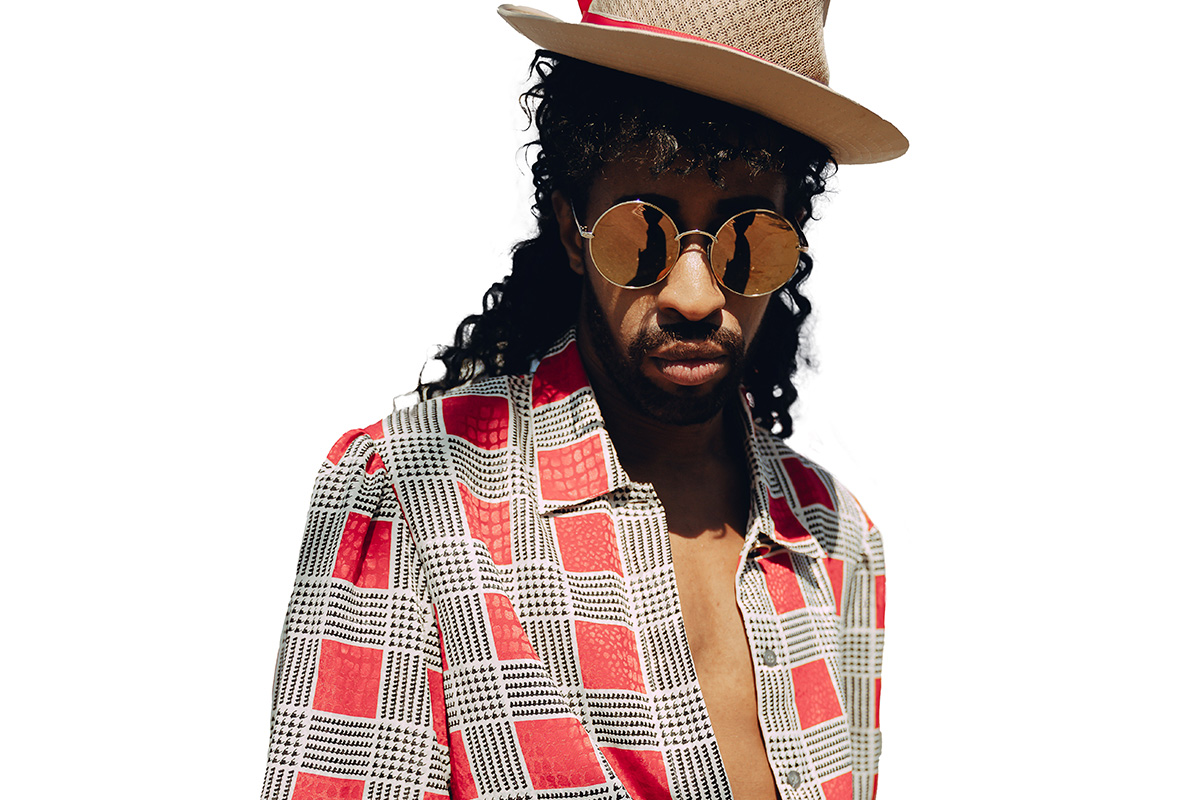
Learn how to use the Select and Mask workspace in Photoshop to cut out a subject and clean up tricky edges like hair in one place. This tutorial starts with Select Subject, then works through the Quick Selection add and subtract tools, the manual brush, the Lasso tool for precise edges, the Refine Edge Brush for hair, and Decontaminate Colors for fringing, before outputting to a new layer with a layer mask and tidying the mask with an Overlay-mode brush.
And if you’re looking for a more advanced look at cutting things out in Photoshop, check out How to Cut Out Hair in Photoshop and Photoshop Compositing: Masking and Cutting Out Subjects!
Enjoying This Free Tutorial?
We publish a new free tutorial every week, each one with sample images and PSDs you can download and follow along with. Sign up and they land straight in your inbox, along with early word on sales, events and subscriber-only offers.
Image Source
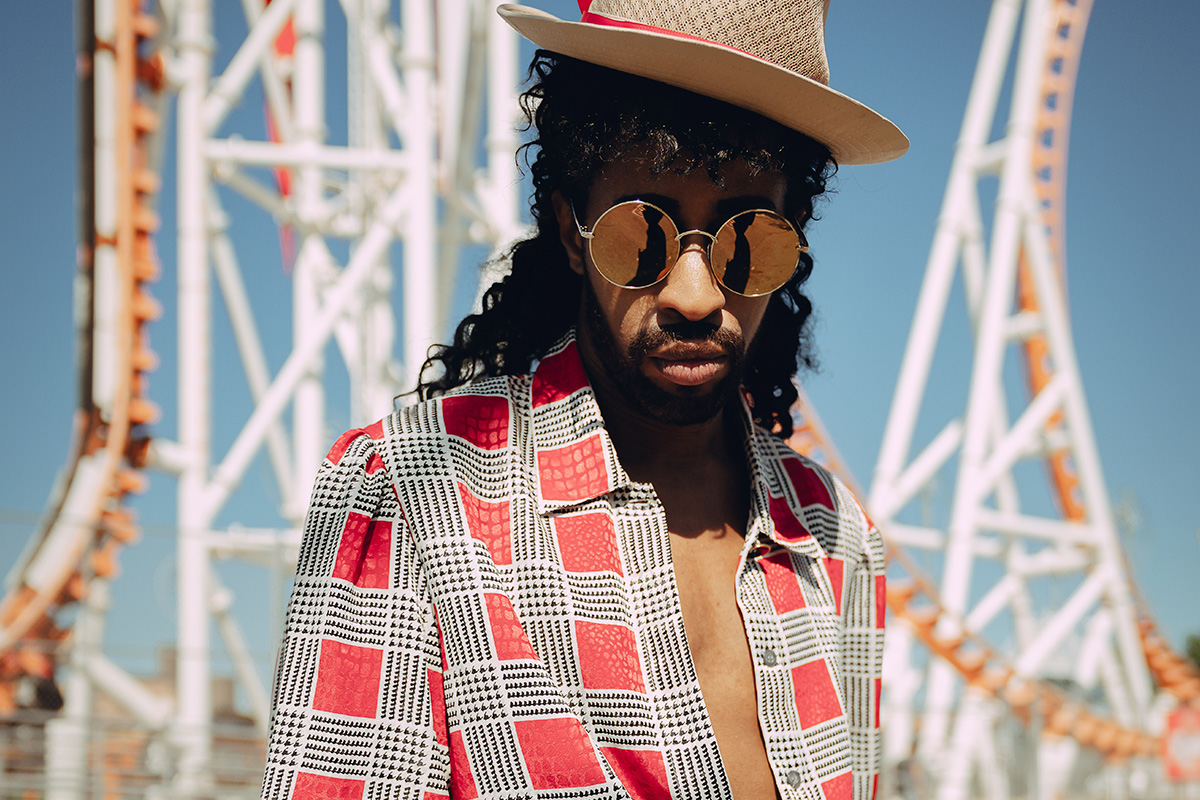
Photo by Horacio Rojas via Pexels
How to Use the Select and Mask Workspace in Photoshop
Select and Mask combines subject selection and edge refinement into a single dialog, so cutting out a subject and cleaning up tricky edges — hair especially — can all happen in one place instead of bouncing between separate tools. It’s non-destructive too: you can come back into it as many times as you need to keep improving a cutout.
Opening Select and Mask and Using Select Subject
Select and Mask starts from an automatic subject detection that usually gets you most of the way there before any manual work begins.
-
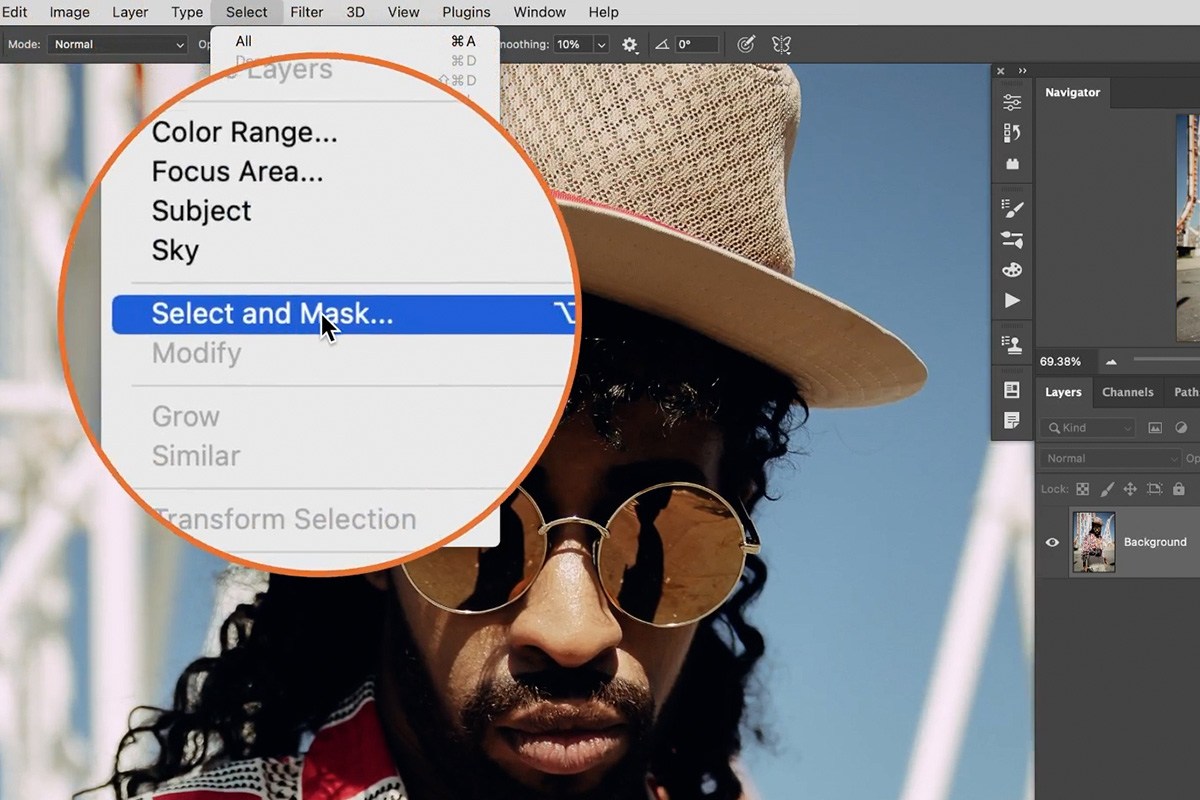
Open Select and Mask
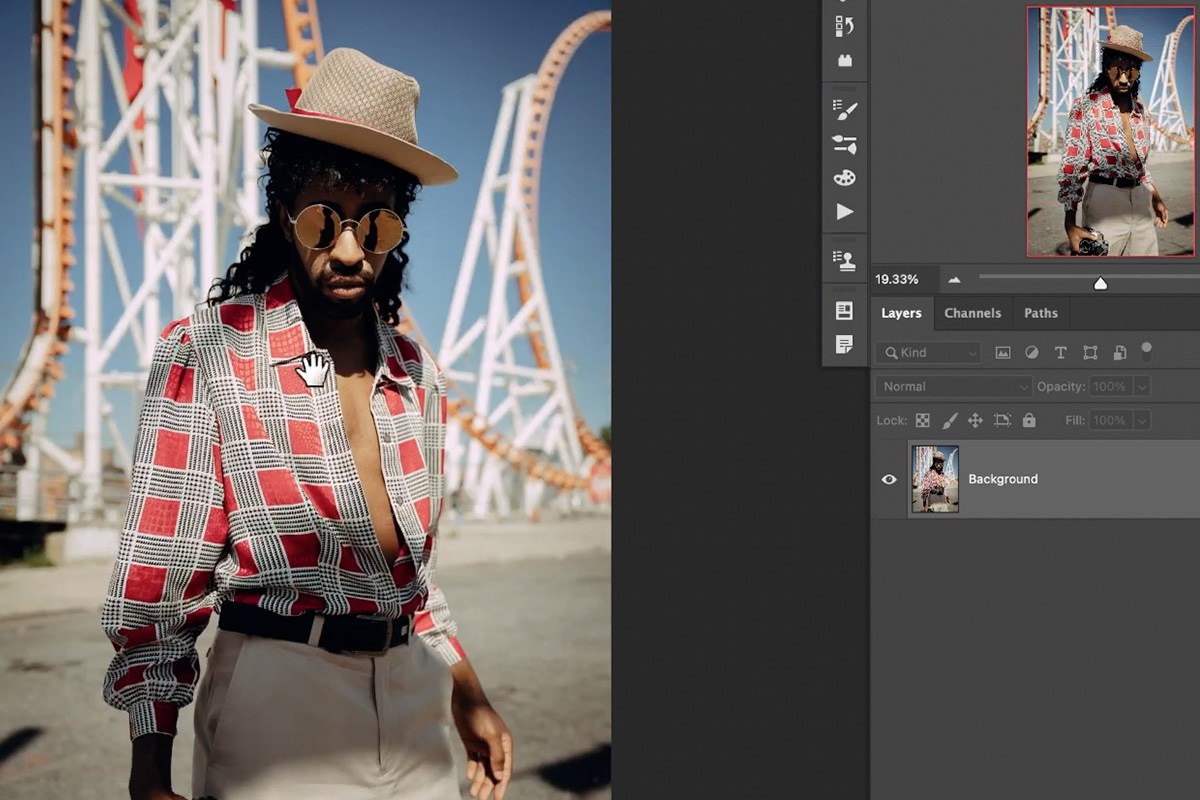
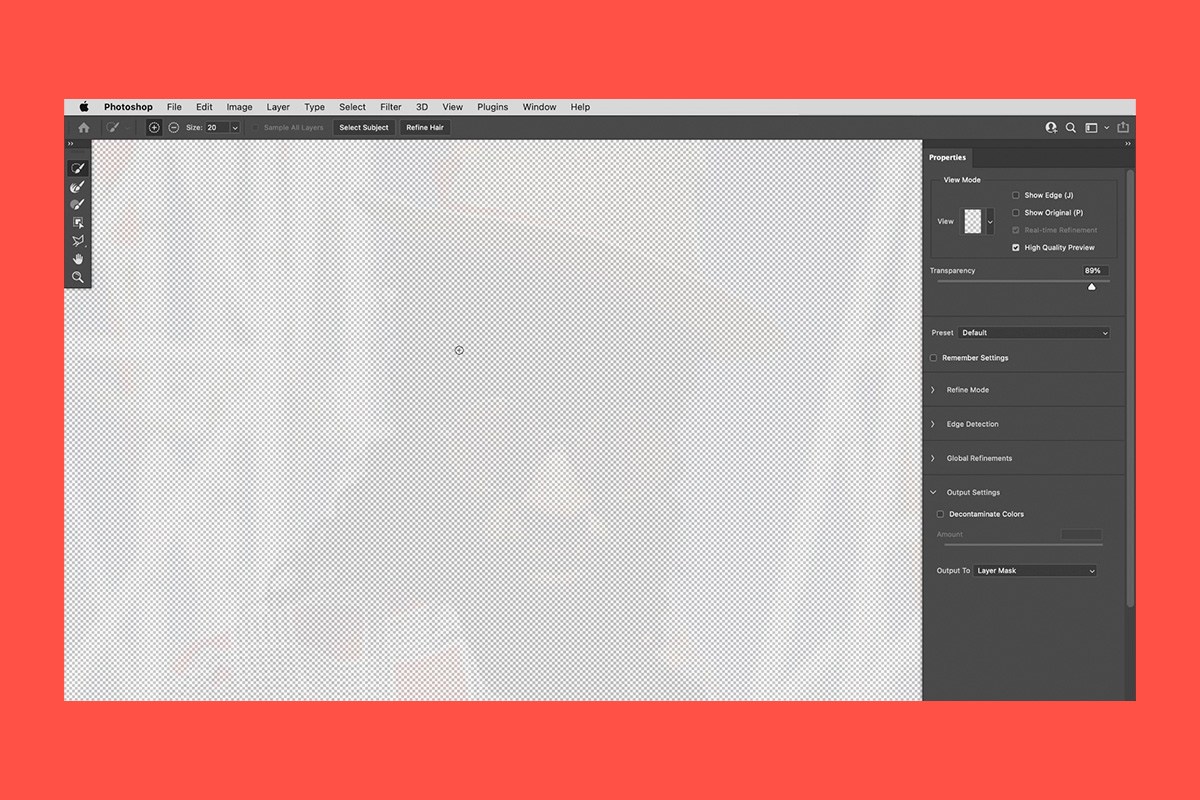
Click your background layer, then go to Select > Select and Mask.
-
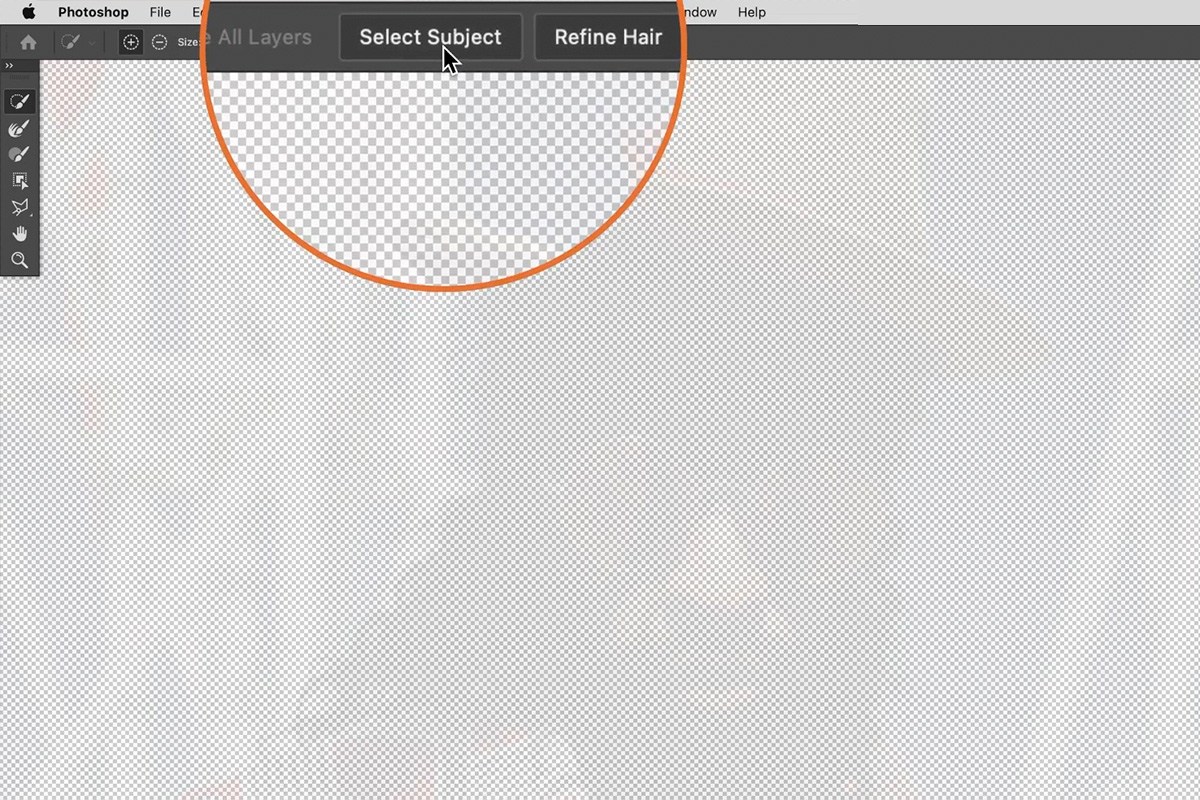
Click Select Subject
Click the Select Subject button at the top of the dialog to generate an automatic starting selection.
Choosing a View Mode
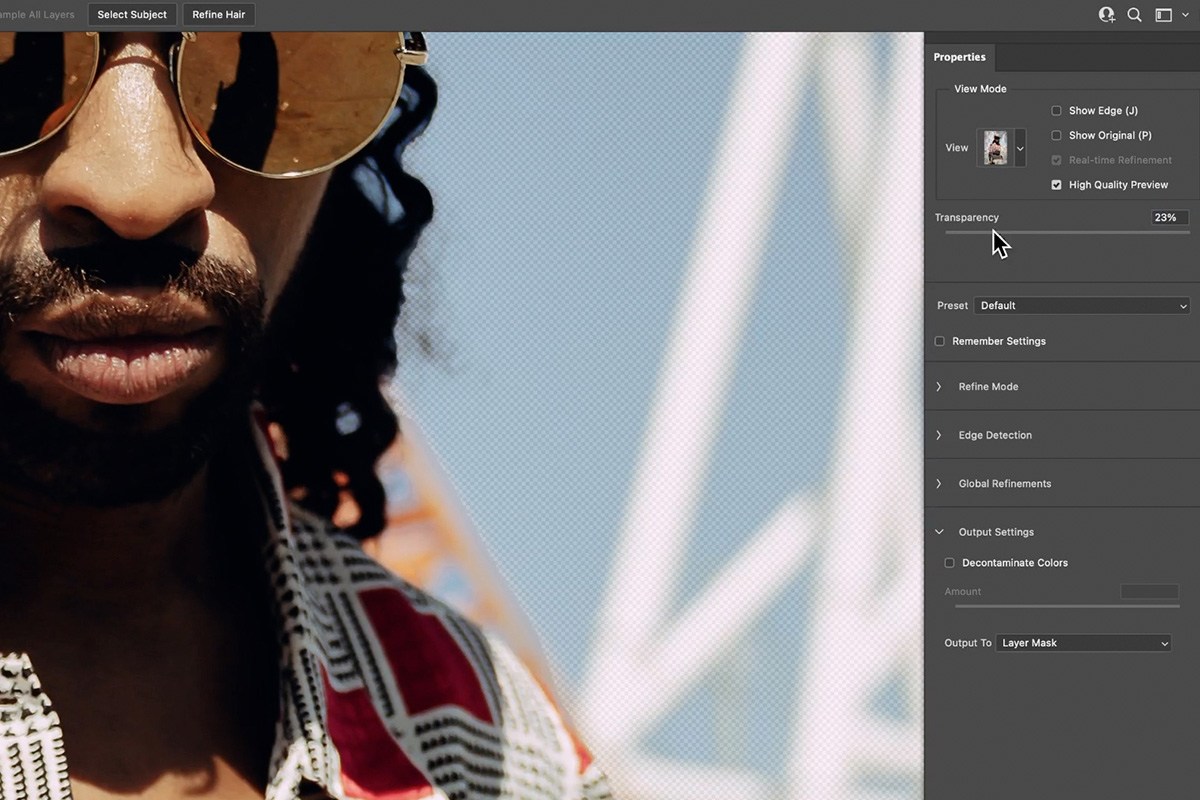
The View options in the top right — Onion Skin, Marching Ants, On Black, On White, and others — only change how the selection is displayed, not the selection itself. Onion Skin, with its adjustable transparency slider, is especially useful for previewing exactly what will and won’t be visible once the background is removed, without committing to any one background color.
Adding and Subtracting with the Quick Selection Tool
The first tool in the toolbar is smart about edges — it doesn’t just paint where you click, it analyzes nearby color and detail to figure out what you actually mean to add or remove.
-
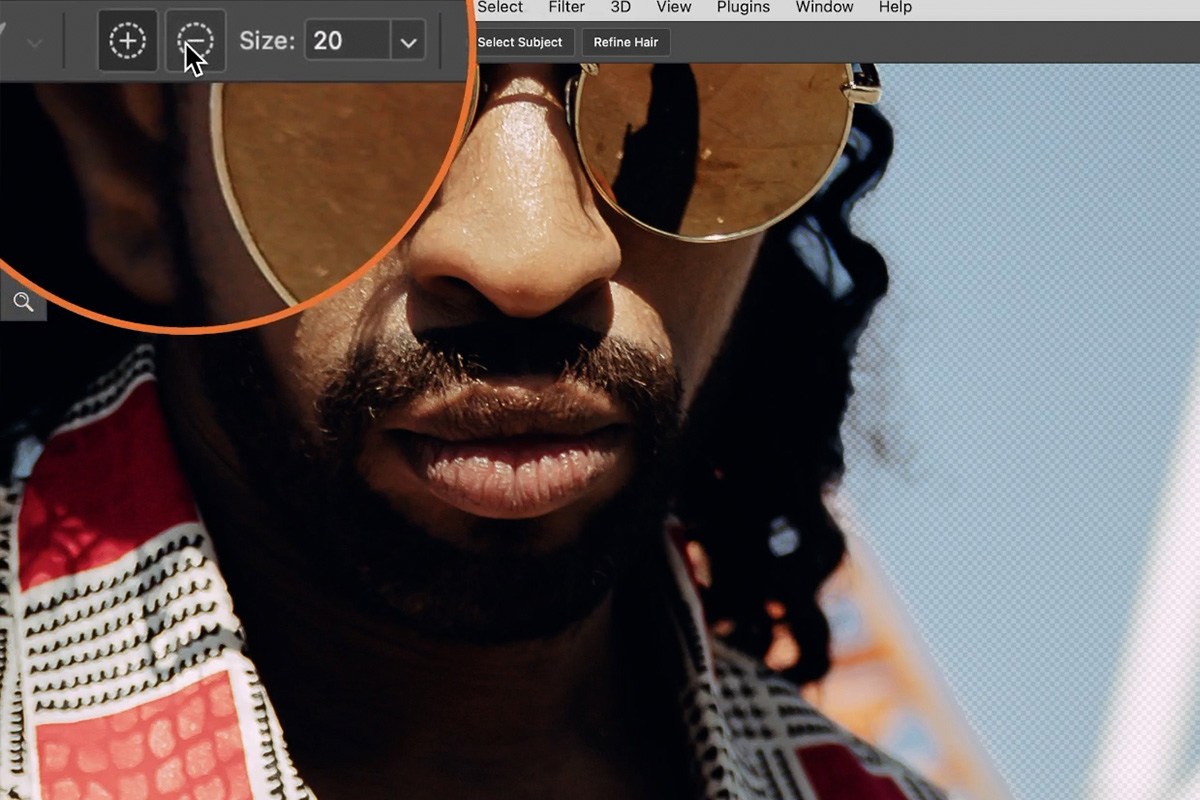
Subtract Unwanted Areas
Select the top tool, click the subtract icon, and paint over an area that shouldn’t be included — a patch of background color, for example. The tool intelligently extends the removal to similar nearby colors.
-
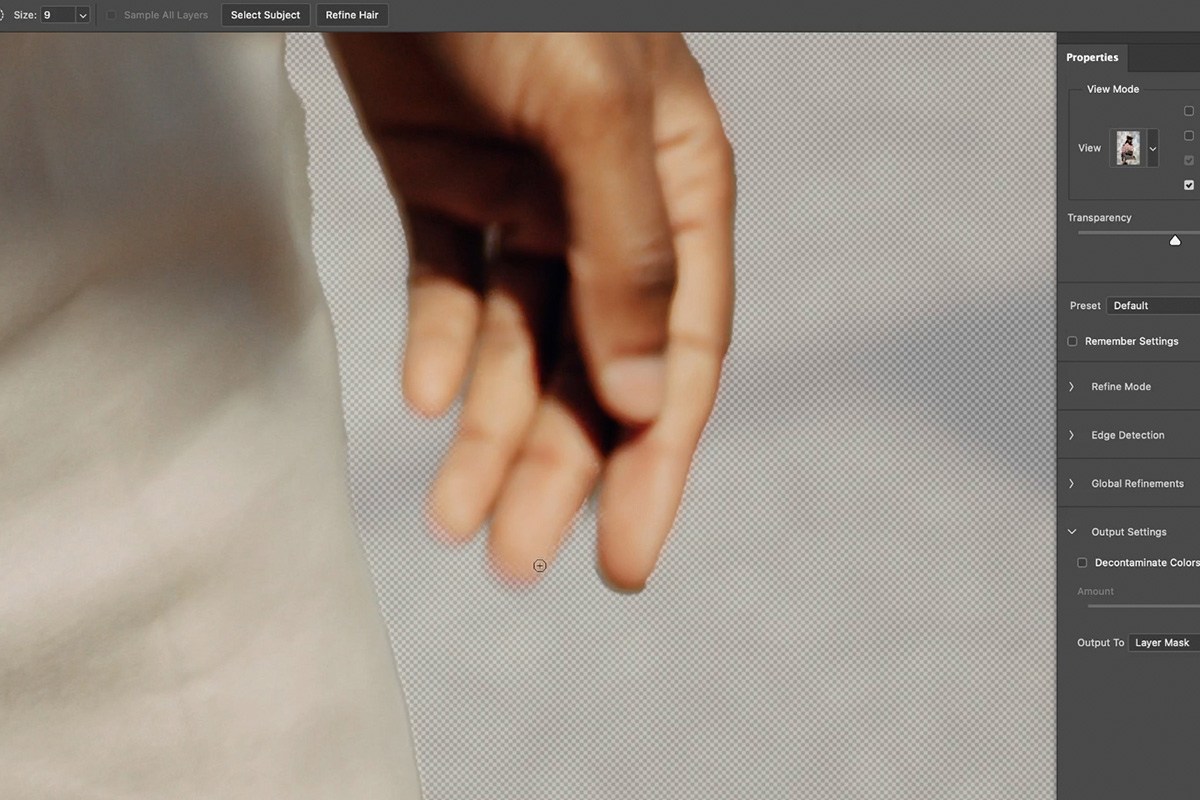
Add Back Missed Areas
Click the add icon and paint over any part of your subject that got excluded, such as fingers that were accidentally cut from the selection — the tool recognizes the detail and restores it.


Manually Painting Your Selection
When the smart edge-detecting tool guesses wrong in a specific spot, a fully manual brush is available as a fallback.
-
Switch to the Manual Brush Tool
Select the third tool down in the toolbar, which paints exactly where you tell it to, without any automatic edge detection or smart extension.
-
Paint to Add or Remove
Paint directly to add or remove areas from your selection, holding Alt on PC (Option on Mac) to temporarily switch between adding and subtracting.


Refining Edges with the Lasso Tool
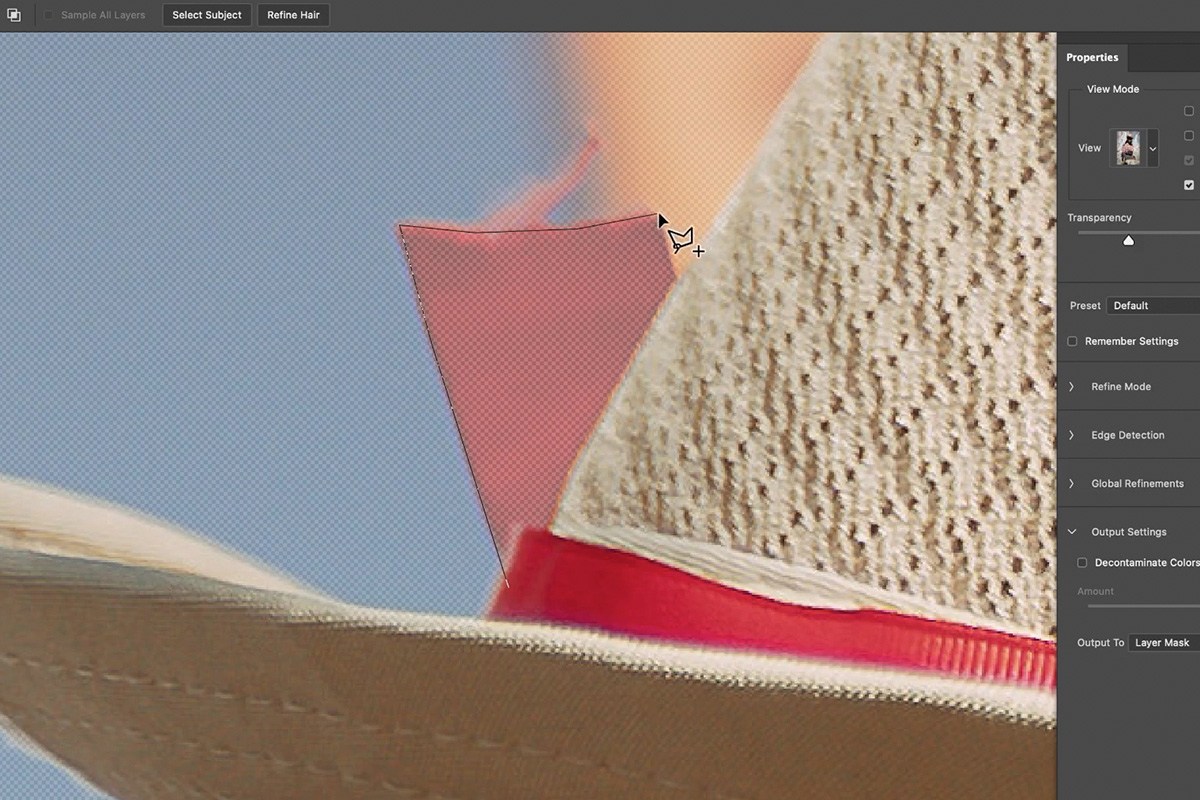
For a clean, straight, or precisely angular edge, the Lasso tool available within Select and Mask can add or remove exact shapes.
-
Select the Lasso Tool
Choose the Lasso tool from the toolbar, and use its plus or minus setting (or hold Alt/Option to switch) depending on whether you’re adding or removing.
-
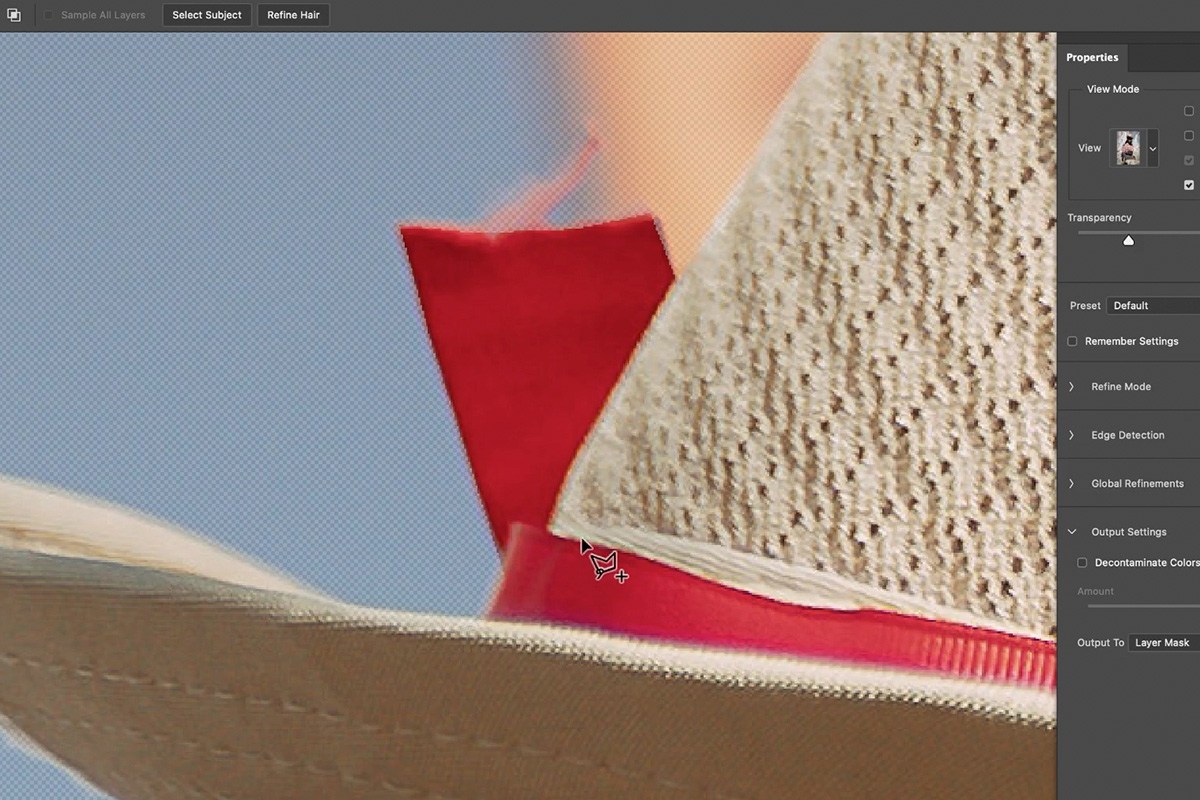
Trace Precise Edges
Trace an exact shape around an area to add or remove — the Polygonal Lasso option is especially useful for clicking clean, straight-edged corrections, like tidying up the edge of a hat or a shirt collar.



Cleaning Up Edges with the Refine Edge Brush
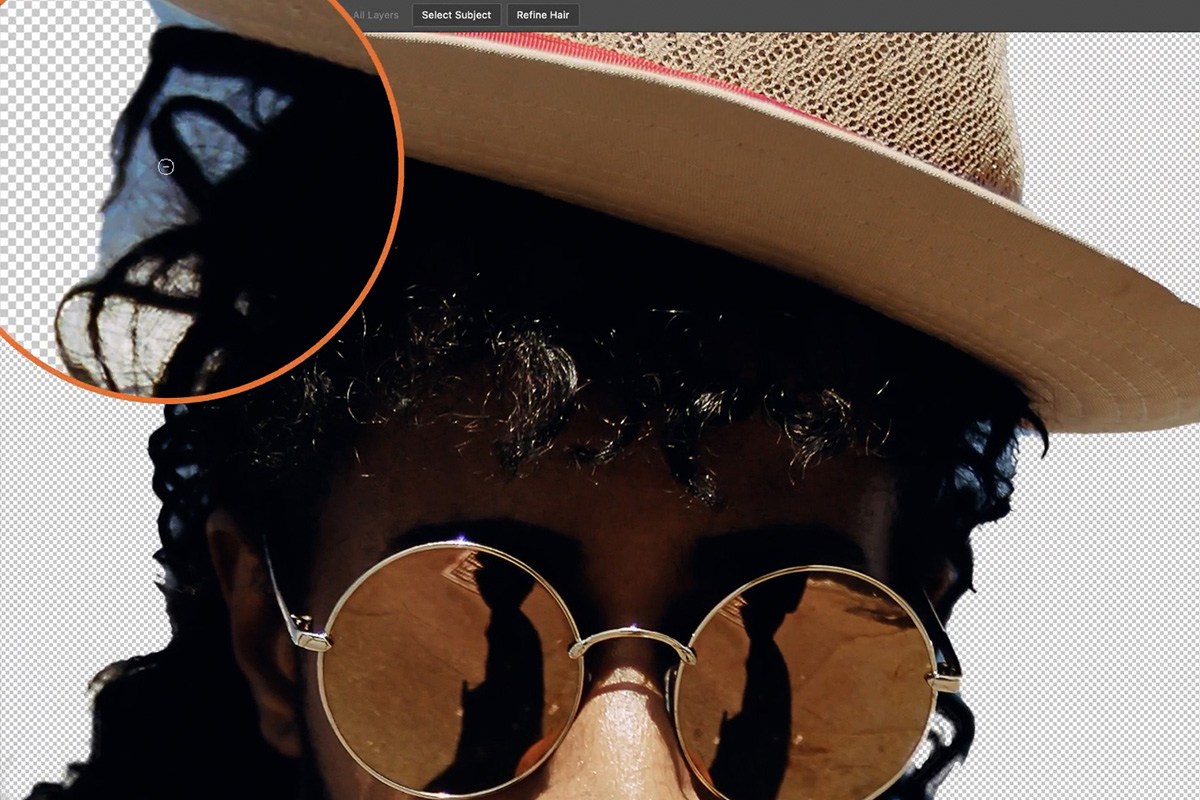
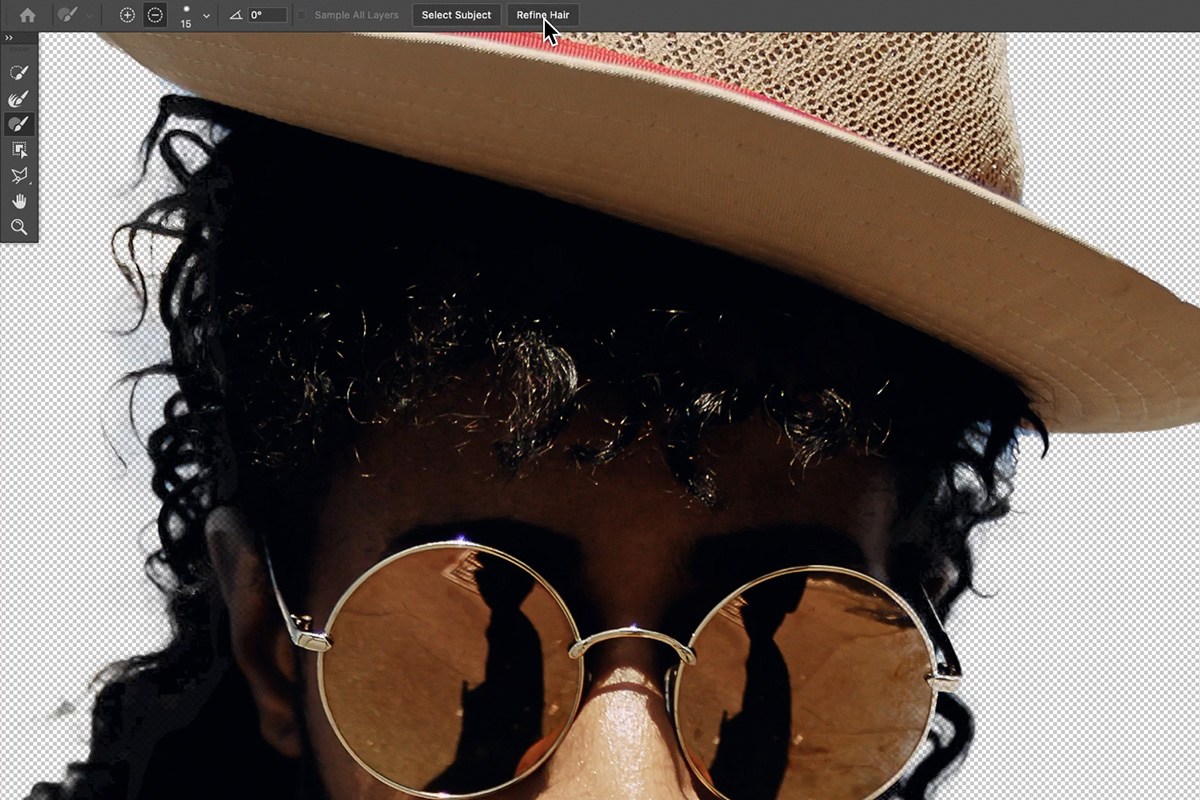
Fine, complex edges — especially hair — benefit from the Refine Edge Brush, while the Refine Hair button at the top of the dialog does most of the work on hair in one click.
-
Select the Refine Edge Tool
Choose the Refine Edge Brush, the second tool from the top of the toolbar.
-
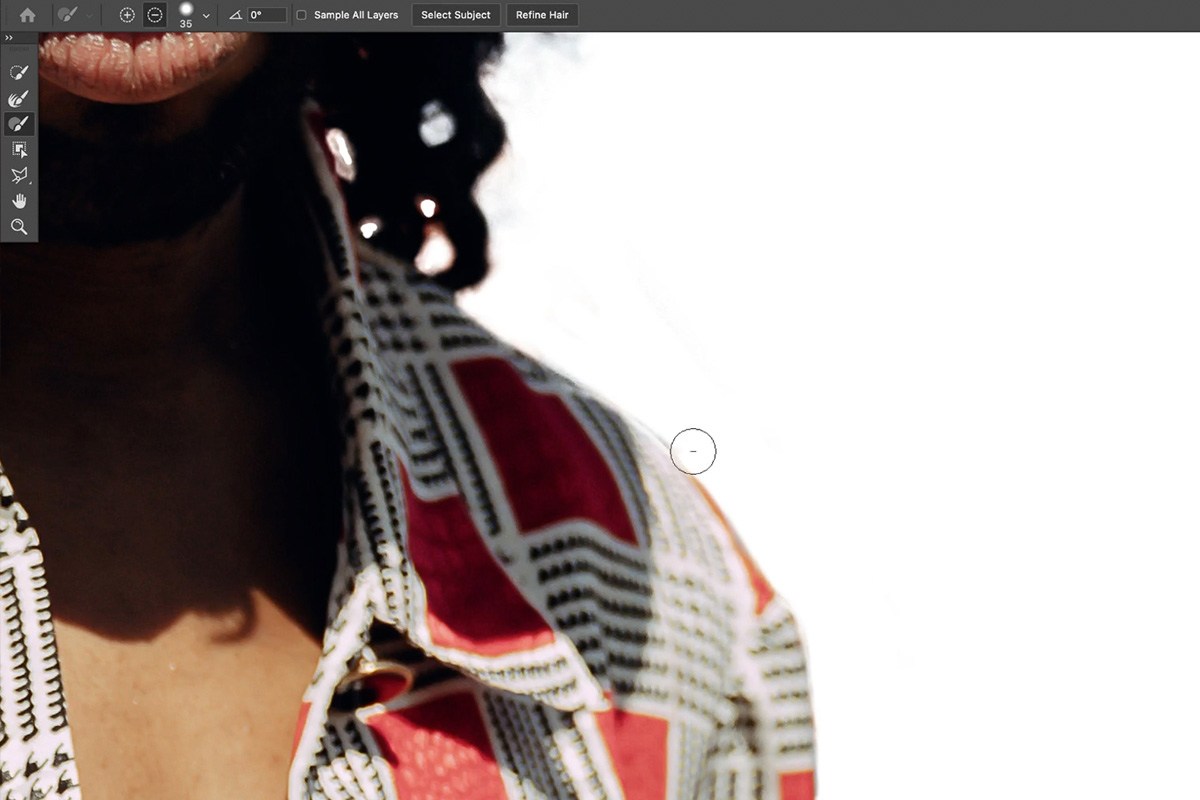
Paint Along Complex Edges
Paint directly along an edge that needs softening or detail recovery, such as the edge around hair, and Photoshop reprocesses that specific area for a more natural transition.
-
Revisit as Many Times as Needed
Come back and reapply the Refine Edge Brush to the same area multiple times if the first pass doesn’t fully clean it up — the whole workspace is designed to be revisited rather than perfected in one attempt.
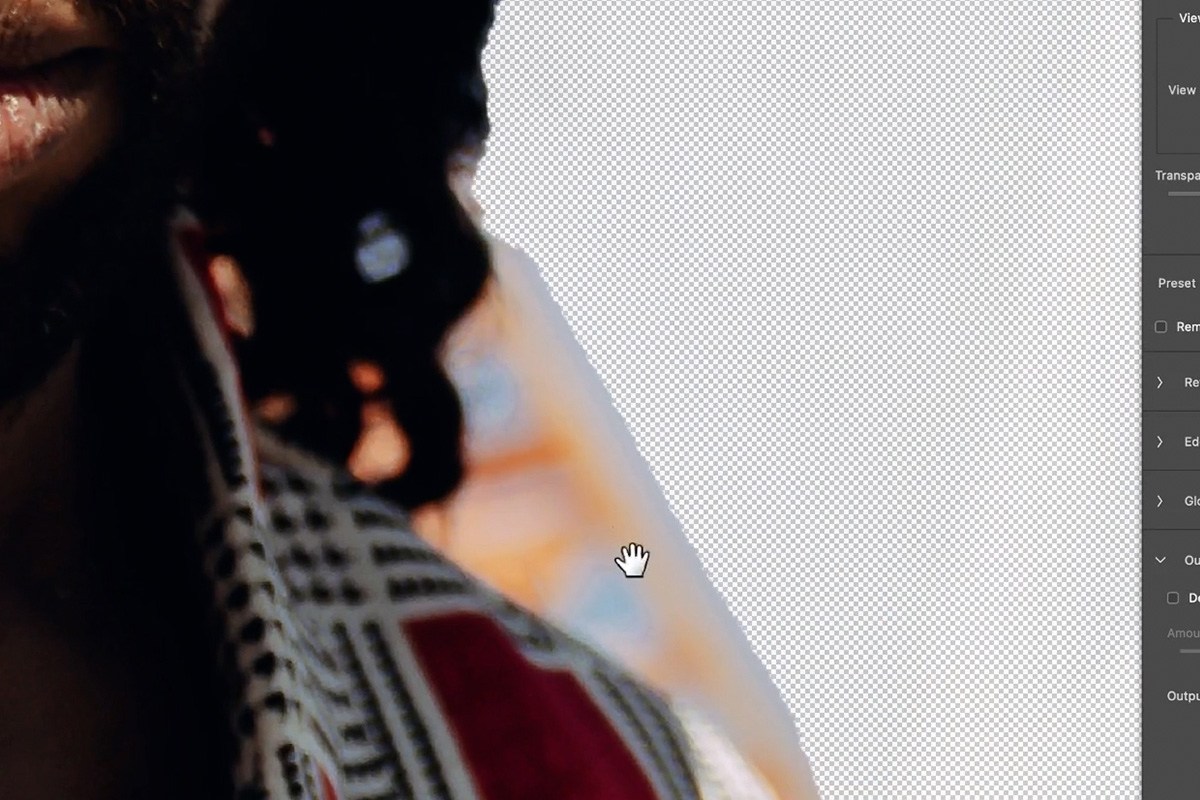
Then refine the hair. Once the body looks good all the way up to the hat, click Refine Hair at the top of the dialog, next to Select Subject. One click does most of the work of cutting out the hair. If it mistakes part of the clothing for hair, lower Transparency to spot it and paint that area back in with the third tool.
Refine Edge Brush vs. Add/Subtract
The Quick Selection tool’s add and subtract icons are about deciding what is or isn’t part of the subject at all, while the Refine Edge Brush is specifically for softening and improving the transition along an edge that’s already roughly correct — particularly effective on fine detail like hair strands that a hard-edged selection tool can’t capture well. Think of add and subtract as answering “is this part of my subject,” and the Refine Edge Brush as answering “how should the boundary of my subject actually transition into the background,” since those are genuinely different problems that call for different tools.
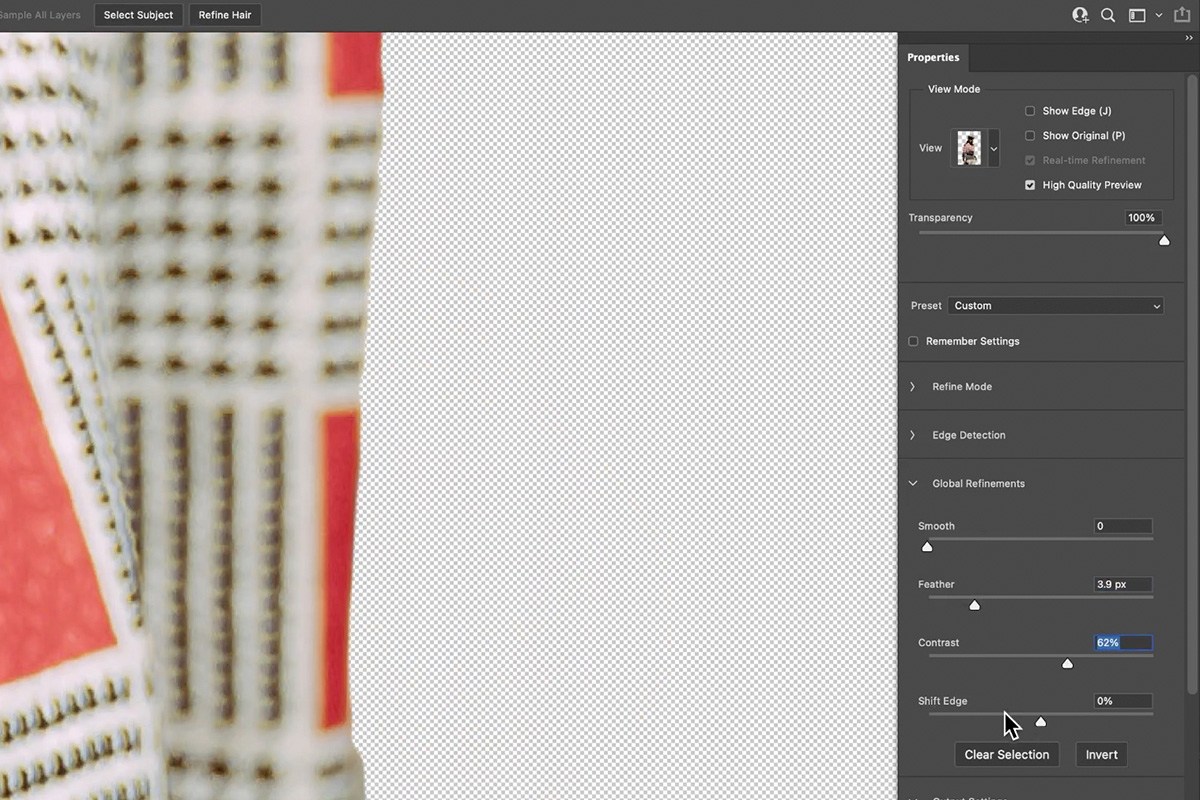
Two panel settings help with edges too. Under Edge Detection, Radius changes how far Photoshop looks for the edge; if the hair isn’t cutting out well, try increasing it and compare (on this image it looked better lower). Under Global Refinements, Smooth smooths the edge, Feather softens it, Contrast firms it back up and Shift Edge moves it in or out, which helps with a thin, light border left by a light background. Shifting the edge also affects the hair, so in the video these go back to zero. To get both, work in two stages: one Select and Mask pass for the body with the edge brought in a little, and another just for the hair, clicking Refine Hair again.


Removing Color Fringing with Decontaminate Colors
Fine edges like hair often carry a visible fringe of the old background color, and one checkbox handles that automatically.
-
Check Decontaminate Colors
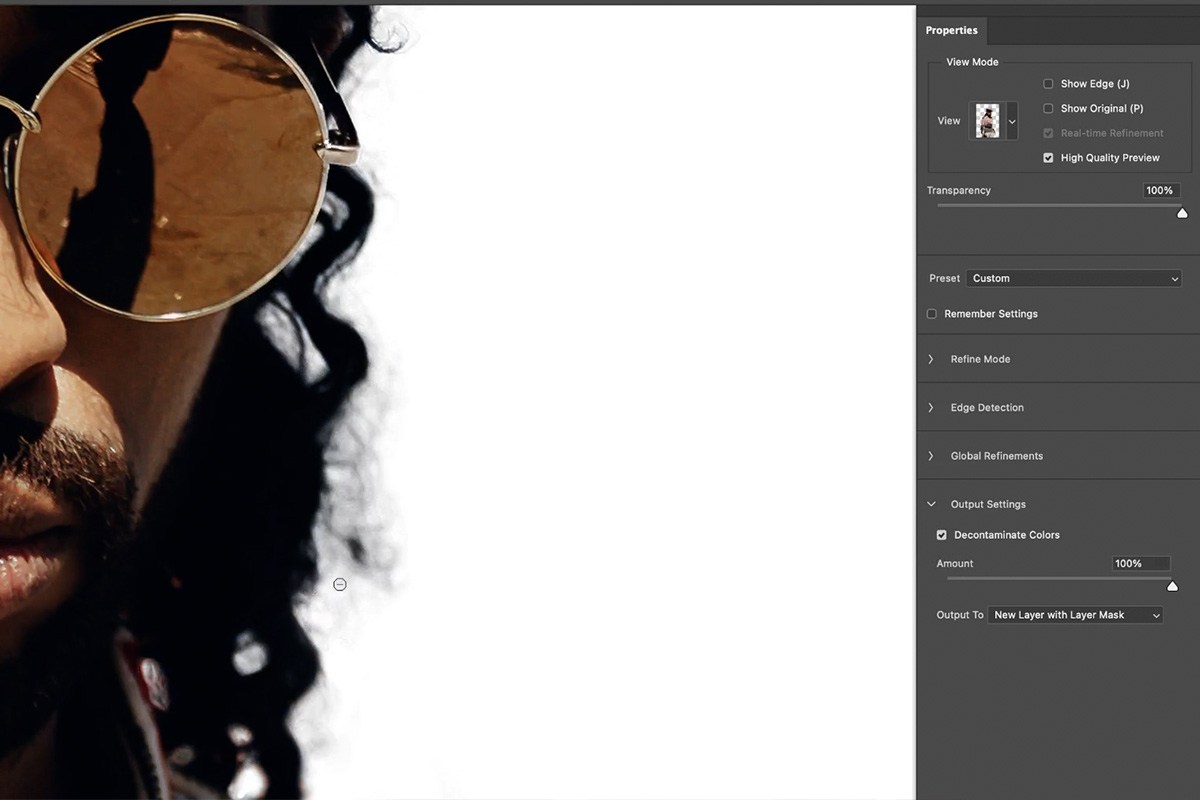
Check the Decontaminate Colors box in Output Settings near the bottom of the dialog and compare the result to having it unchecked. If you are not seeing fringing, keep it unchecked.
What Decontaminate Colors Actually Does
Decontaminate Colors extends the actual colors of your selected subject outward into the fringe area along the edge, effectively replacing any lingering background-color tint (blue or orange fringing around hair, for example) with colors that belong to the subject. It’s not a perfect fix for every edge, but on fine detail like hair it noticeably improves how convincingly the cutout separates from its original background. Because this process slightly alters the pixel colors along the very edge of your subject, it’s worth toggling the checkbox on and off to compare before committing, since an edge that was already clean to begin with doesn’t always need or benefit from the adjustment.


Cleaning Up the Layer Mask Afterward
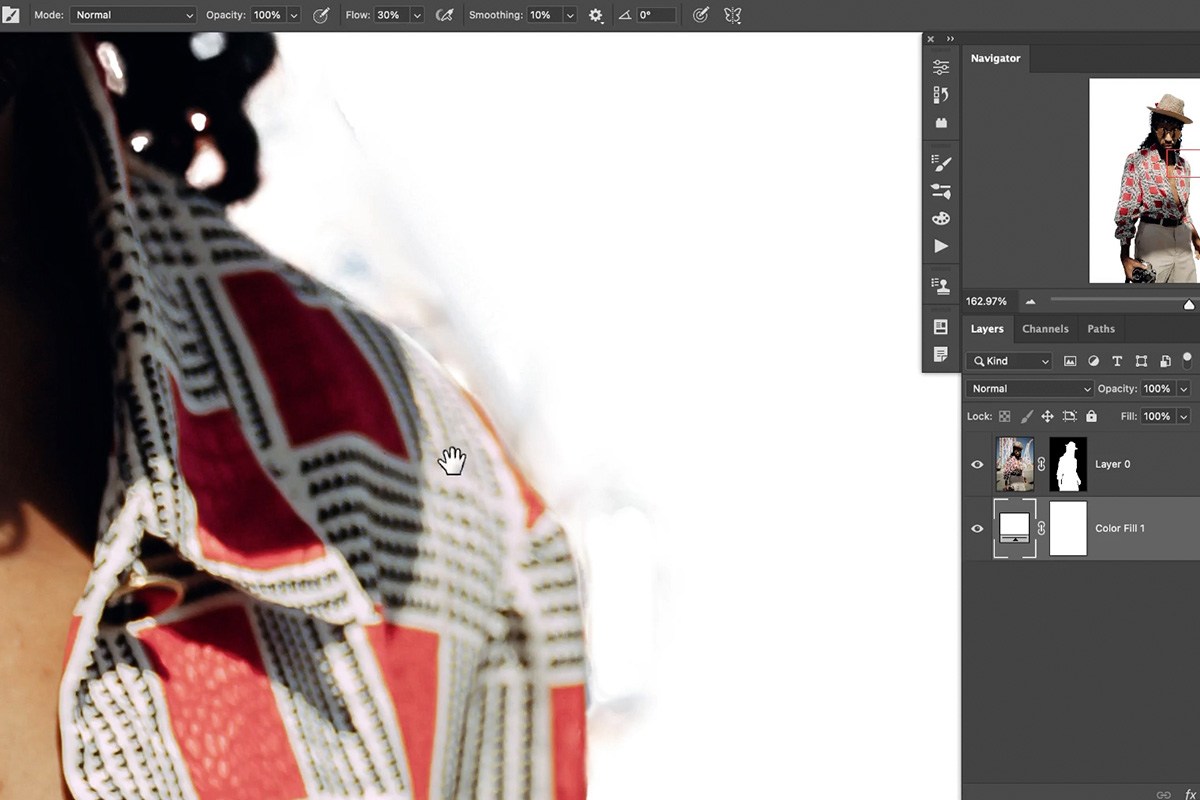
This comes last: output your selection first (see Outputting Your Selection below), then a final pass directly on the resulting layer mask can tidy up anything Select and Mask didn’t fully resolve.
-
View Your Layer Mask
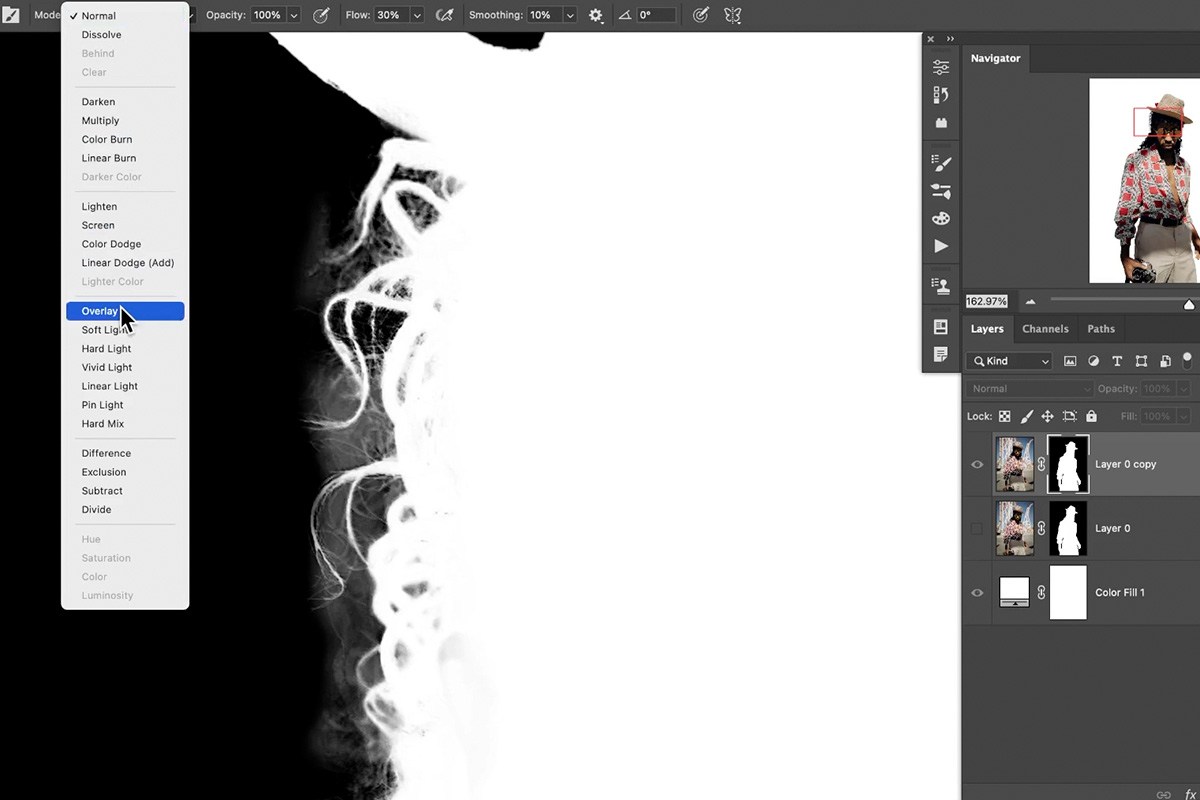
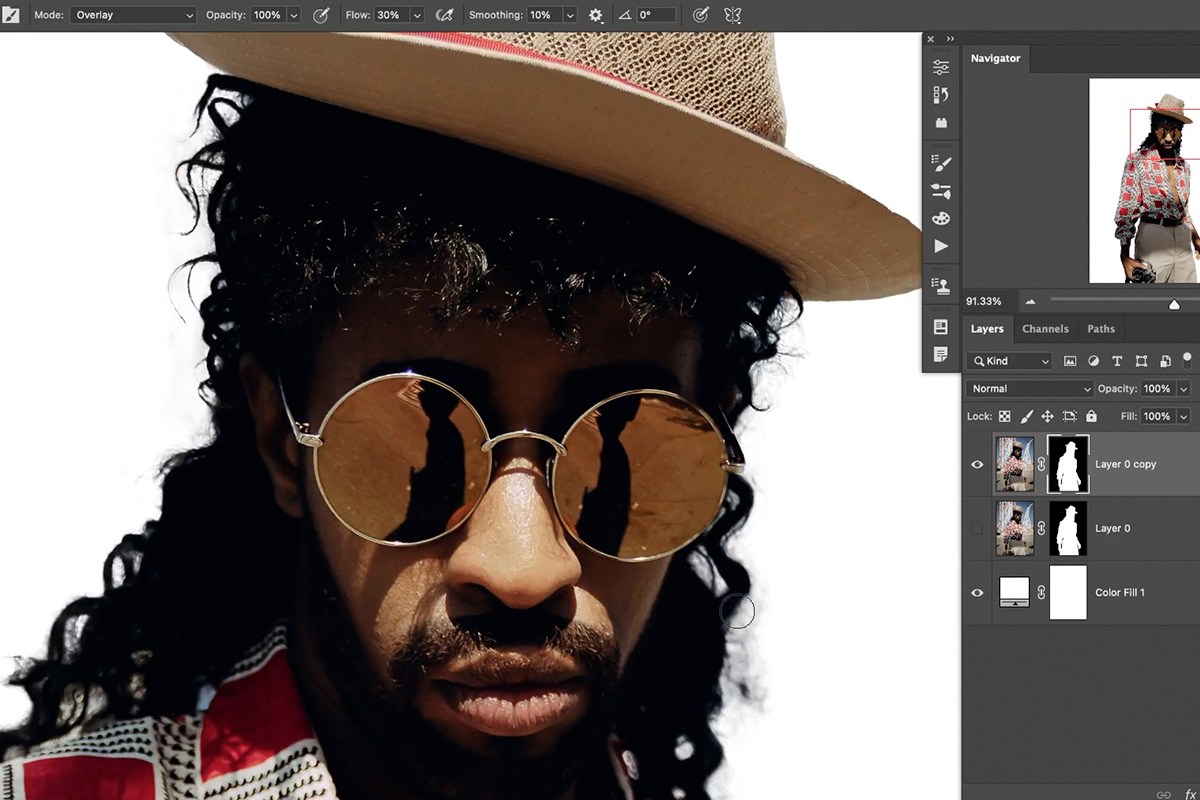
Hold Alt on PC (Option on Mac) and click your layer mask thumbnail to see it directly in black and white.
-
Paint with Overlay Mode to Remove Faint Backgrounds
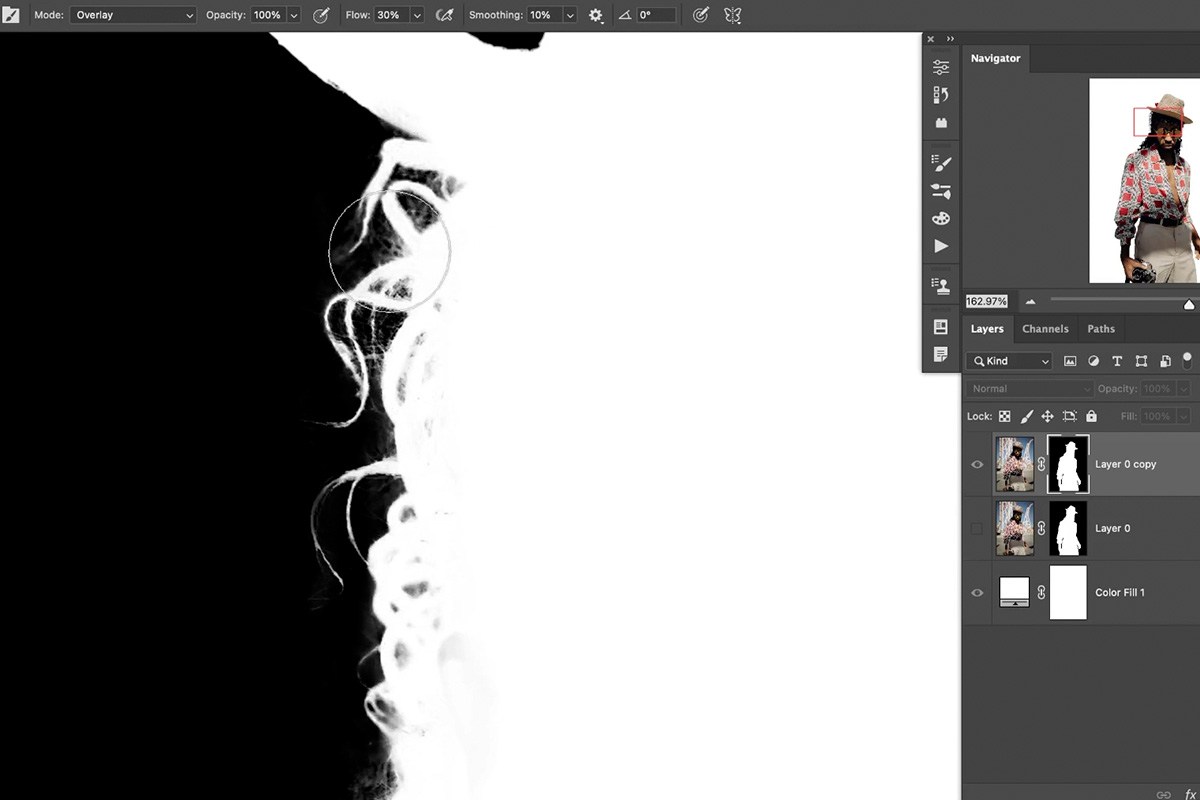
Press B for the Brush tool, set its blend mode to Overlay, and paint black over any faint remaining background elements in fine detail areas like hair — Overlay mode removes lighter areas without flattening out the fine strand-level detail underneath.
-
Paint White to Restore Any Missing Detail
Switch your brush back to Normal mode and paint white over anything that got removed but shouldn’t have, such as glasses that need to stay fully visible.


Outputting Your Selection
This step decides how the selection leaves the dialog. In the video it comes before the mask cleanup above, and it happens twice: once after the first pass and again after a second pass.
-
Choose an Output Setting
At the bottom of the dialog, set Output To. The first pass in the video goes to Layer Mask, which puts the mask on the current layer; the second pass goes to New Layer with Layer Mask and keeps your original background layer untouched. Other options include outputting directly to a new document or a new document with a layer mask, which can be useful if you want the cutout completely separated from the rest of your working file rather than layered within it.
After the first output, create a Solid Color fill layer, take the color all the way to white and drag it below the subject, so the areas that still need work are easy to see. Then click the layer mask and go back into Select and Mask from the Select menu. Paint away leftovers with the third tool, run the Refine Edge Brush along the edges and the hair again, check Decontaminate Colors if there is fringing, and output to New Layer with Layer Mask.
-
Compare Before and After
Toggle your new masked layer’s visibility to compare the finished cutout against the original image.


Why This Workspace Works
Every one of the tools inside this single dialog is solving a slightly different piece of the same overall problem, and that is precisely what makes the workspace worth learning as a unit rather than picking just one favorite tool and ignoring the rest. Select and Mask succeeds because it layers several different tools — a smart edge-detecting brush, a fully manual brush, a lasso for precise geometric edges, and a dedicated refine tool for fine detail — all pointed at the same selection, so you can switch to whichever tool fits the specific problem in front of you rather than forcing one tool to do everything. Decontaminate Colors and the Overlay-mode mask cleanup both address the same underlying issue — leftover trace of the old background — from two different angles, one automatic and one manual, which is why running both often produces a cleaner result than either alone. And because the whole workflow outputs to a layer mask rather than permanently deleting pixels, nothing here is ever final: revisiting Select and Mask, or painting directly on the resulting mask, stays available indefinitely. Hair in particular tends to need the most iteration, which is exactly why more advanced, hair-specific cutout techniques exist as their own PRO courses for anyone who wants to go further than this workspace alone can take you.
Final Thoughts
Select and Mask earns its place as a default starting point for cutting out subjects because it doesn’t force you to get everything right in one pass — Select Subject gets you most of the way, the various brushes and the Lasso handle the rest, and the whole thing stays revisitable through a layer mask afterward. The specific combination of tools used here — smart add/subtract, manual painting, precise lasso edges, refine edge, Refine Hair and decontaminate colors — covers the overwhelming majority of everyday cutout situations, with hair remaining the one area worth extra dedicated study when a cutout needs to be truly flawless.
Quick Reference: Keys, Menus and Settings
- Open the workspaceSelect > Select and Mask, then Select Subject
- See the cutoutProperties > View: Onion Skin, then drag Transparency
- Add or subtractPlus and minus icons, or hold Alt/Option to flip; Enter/Return closes a Polygonal Lasso
- Edges and hairRefine Edge Brush (second tool) along edges; Refine Hair once the body looks good
- Panel settingsEdge Detection: Radius; Global Refinements: Smooth, Feather, Contrast, Shift Edge
- OutputDecontaminate Colors only for fringing; Output To: Layer Mask, or New Layer with Layer Mask
- Clean the maskAlt/Option-click the mask; B, Mode Overlay, paint black; back to Normal, paint white

Free Downloads
Follow Along on the Same Photo
Get the portrait of the man in the straw hat, the sample PSD and the 4-page PDF guide that walks through both passes. Free with a PHLEARN account.
Select and Mask: Common Questions
Where is Select and Mask in Photoshop?
Click your Background layer, then go to Select > Select and Mask. The preview shows almost nothing at first; click Select Subject at the top for an automatic starting selection.
Do the View modes change my selection?
No. Onion Skin, Marching Ants, Overlay, On Black and On White only change how you see the selection. Onion Skin with the Transparency slider is the easiest way to compare the cutout against the original background.
How do I switch between adding and subtracting?
Use the plus and minus icons at the top, or hold Alt/Option to flip to the opposite while you work. It works with every tool on the left.
The first tool removed too much. How do I get it back?
The Quick Selection tool takes similar colors nearby with it, so it can jump too far, like removing a whole hand. Click the plus icon and paint over the area, or paint it back by hand with the third tool.
How do I cut out hair in Select and Mask?
Get the body looking good first, then click Refine Hair at the top, next to Select Subject. If it grabs part of the clothing, paint that back in with the third tool, and use the Refine Edge Brush on any edge that still looks off.
Why did Shift Edge make the hair worse?
Shift Edge moves the whole edge in or out, including the hair. In the video it goes back to zero; for a pulled-in body edge, do one Select and Mask pass for the body and another just for the hair with Refine Hair.
Should I check Decontaminate Colors?
Only if you see fringing, like white edges or the blue and orange around this hair. It extends the subject’s colors outward and changes the image itself, so Aaron keeps it unchecked otherwise.
Which output option should I choose?
The video outputs the first pass to Layer Mask and the second to New Layer with Layer Mask. Both are nondestructive, and you can click the mask and go back to Select > Select and Mask any time.
How do I clean up leftover background in the hair after output?
Alt/Option-click the mask thumbnail to view it, press B and set the brush Mode to Overlay, then paint black around the hair. Switch back to Normal and paint white over anything that must stay, like the glasses.
Are the sample files free?
Yes, with a free PHLEARN account. You get 1 sample image, 1 sample PSD and 1 PDF guide: the portrait in the straw hat, the PSD and a 4-page guide to both passes.
Master Photoshop, Lightroom and Photography
Join PHLEARN PRO for $12.99 a month or $99.99 a year. Cancel anytime, with a 100% money-back guarantee.





