

THIS COURSE INCLUDES
- 4 Lessonsfollow-along
- 3h 11mof 4K video
- Advancedfor experienced editors
- 13 Sample Images+ 2 exclusive brushes
- 4 Layered PSDsone per project
- Captionsand chapters on every lesson
Part of a Learning Path
Join PHLEARN PRO for instant access to this course and every tutorial on PHLEARN.
- Stream in up to 4K on any device
- Closed captions and chapters on every course
- Download all sample images and PSDs
- New PRO tutorials every month
- Cancel anytime
Description
Manual compositing in Photoshop is the skill that lets you build any concept you can imagine from stock photos, and this course teaches it through four complete projects: a glowing fairy princess in a forest, a woman lit by a dove of light, a levitation over a frozen lake with a hand-built reflection, and a studio portrait transported into a winter wonderland. Every project runs from raw assets to a finished, color-graded image.
New AI features like Generative Expand, Harmonize, and Nano Banana Pro get a fair look, but the focus stays on techniques that cost no credits and give you full control: matching light and color with Levels channels, hand-painting rim light and reflected color on clipped layers, stacking blurred copies into glows and light rays, building custom fairy and snow brushes from scratch, and finishing in Camera Raw. Thirteen sample images and two Photoshop brushes are included.
What You’ll Learn
- Build any concept you can imagine from stock photos alone
- Match light and color by hand for full creative control
- Hand-paint rim light, reflections, and glows onto clipped layers
Course Downloads
Craft Perfect Composites

Manual Compositing in Photoshop, Project by Project
Custom photoshoots are ideal, but not always practical, so every project here starts with free stock images and shows you how to turn them into a single believable scene. You will learn to place every asset as a smart object, keep the file organized in Background, Subject, and Effects groups, and work non-destructively so a mask, a light, or a color can be revisited at any stage.
Fairy Princess: Light & Glow by Hand
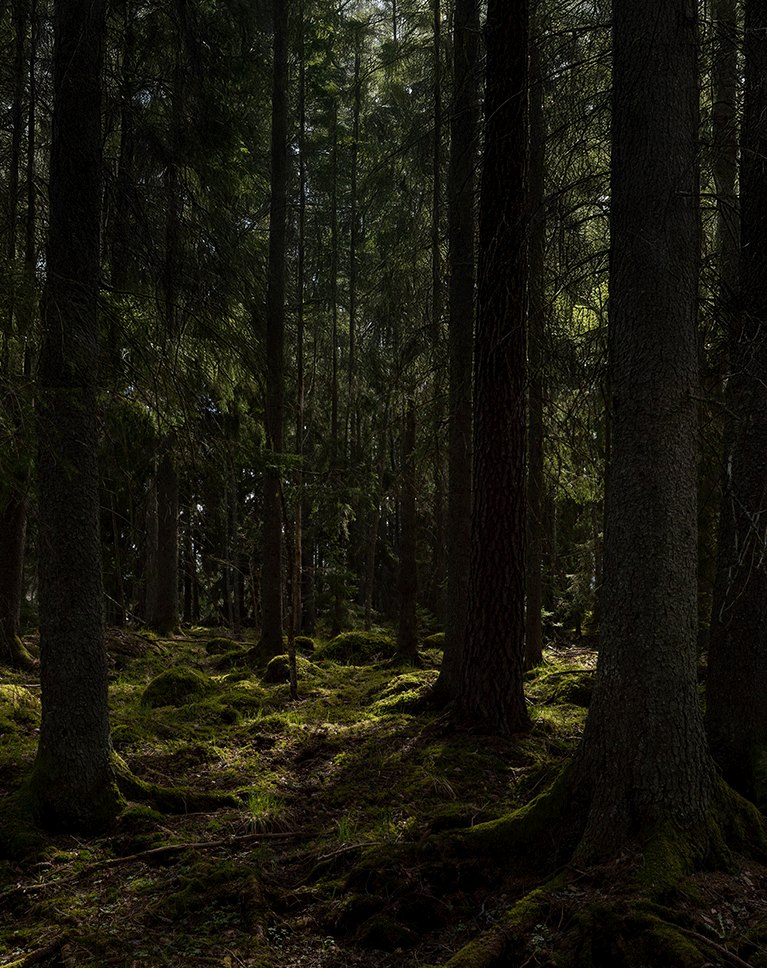
The first project extends a forest background, drops in a woodland princess, and lights her with Camera Raw radial gradients on the background and a hand-painted rim light on a clipped Overlay layer at 10% flow. You will build a custom Fairies brush in Brush Settings (size jitter, scattering, opacity jitter), paint the fairies, and stack Outer Glow, Gaussian Blur, and Color Dodge copies until the glow sells.
Harmonize, and the Manual Alternative
Photoshop’s Harmonize gets a test on the same subject, and the results are only okay, so you will learn how to tame it with opacity, Blend If, and a reversed radial mask, then how to skip it entirely: a clipped Levels adjustment layer, channel by channel, matches the subject to the environment with no credits spent and full control over shadows and highlights.
Light Dove: Match Light & Color with Levels
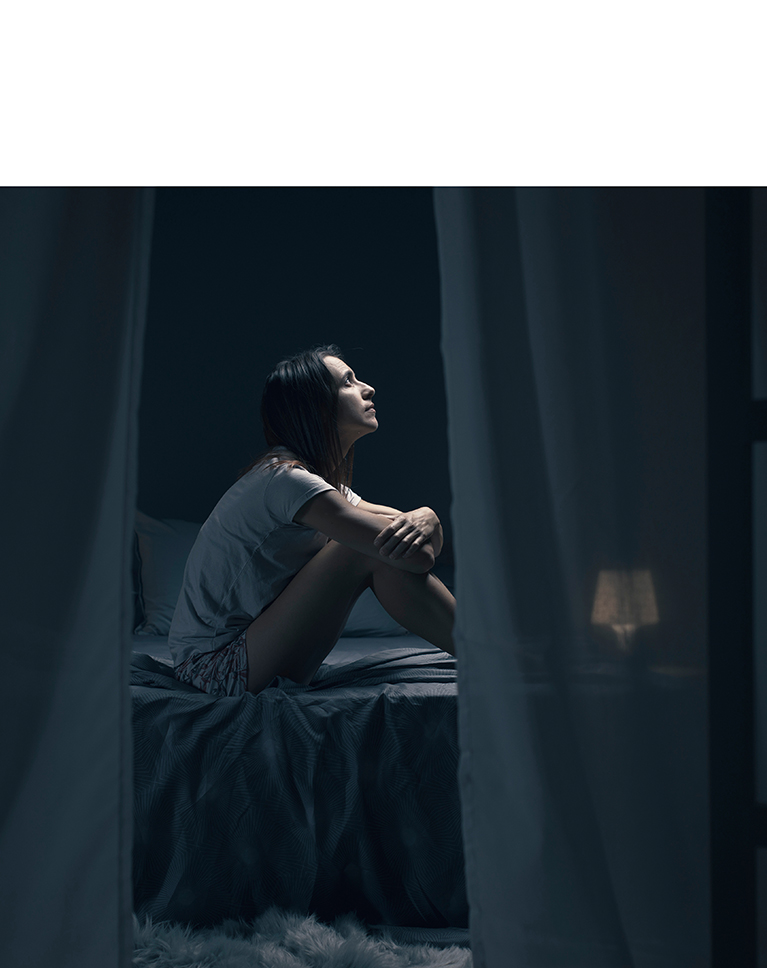
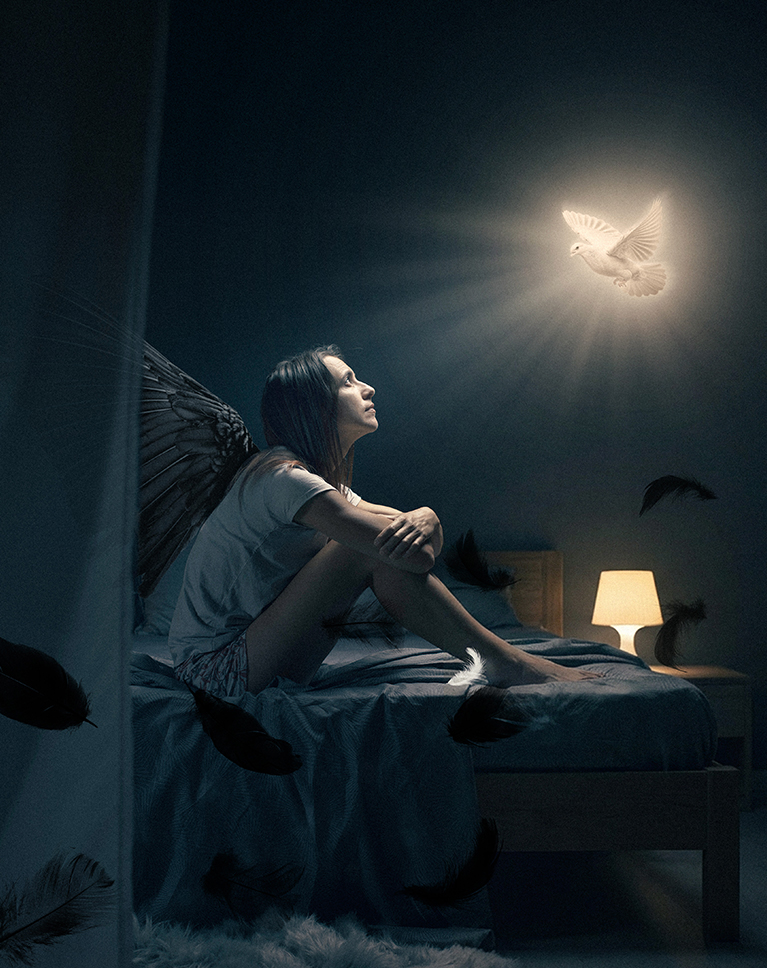
A woman sitting in a dark bedroom becomes the canvas for a lesson in manual compositing in Photoshop: a wing, a dove, and drifting feathers. You will cut and refine the wing with Select and Mask, move the transform pivot to the wing root so it rotates naturally, and match its light with Levels applied to the smart object: output white point down, then Red, Green, and Blue channels to push cyan and blue into the highlights. Painting rule from the course: never use pure black, use a very dark brown.
Group Masks, Clipping & Blend If
To tuck the wing behind a curtain without touching its own mask, a classic manual compositing in Photoshop problem, you will group a layer with itself and mask the group, soften that mask with Density and blur, and clip painted highlights to the wing tops. Blend If sliders, split with the Alt key, keep painted light and Harmonize results only where they belong.
Glows & Light Rays Without Plugins
The dove becomes a light source: a filled selection in the dove’s own color, duplicated and Gaussian-blurred again and again, merged and blurred once more; hard white dots run through Radial Blur (Zoom) repeatedly for rays; and a clipped Levels layer warms the whole Dove group. Feathers drop in with Multiply for dark ones and Screen for light ones. It is manual compositing in Photoshop at its most satisfying.

Select. Blend. Create.
Every composite in this course begins with choosing the right stock images: assets photographed on plain black or white backgrounds cut out cleanly, and a background that is close to perfect only needs a crop, a Generative Expand, or a quick fill to remove a dock or a curtain. From there manual compositing in Photoshop takes over: masks refined in Select and Mask, light and color matched with Levels, reflected color painted on a clipped Color layer, and a final Camera Raw pass with vignette, grain, and color grading so the pieces read as one photograph.
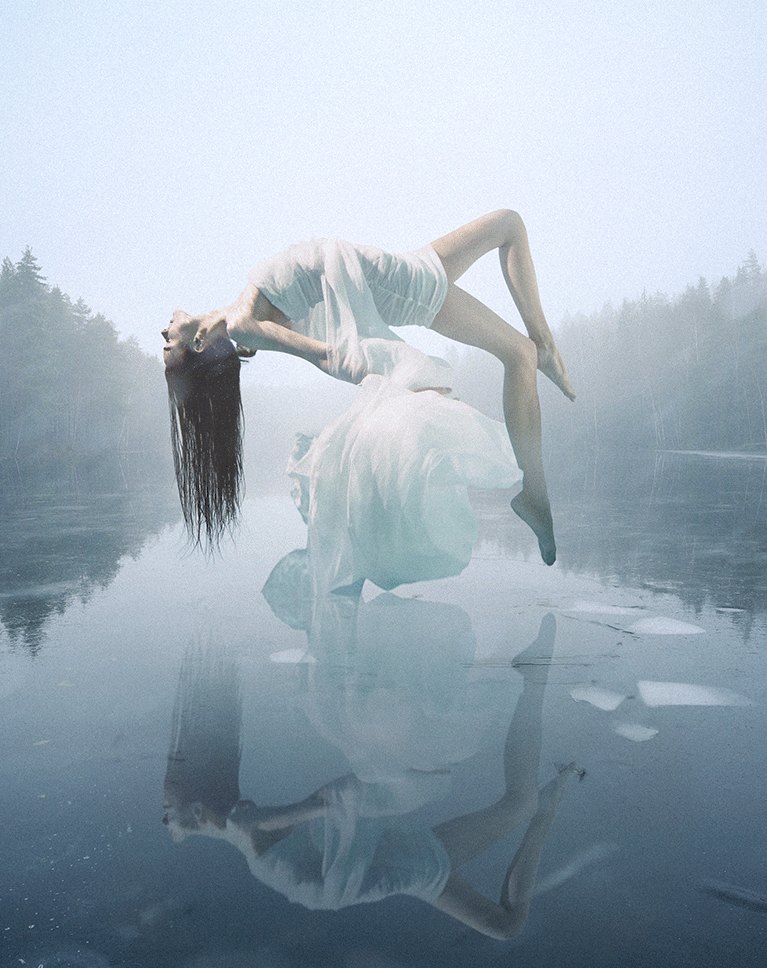
Frozen Levitation: Reflections Two Ways
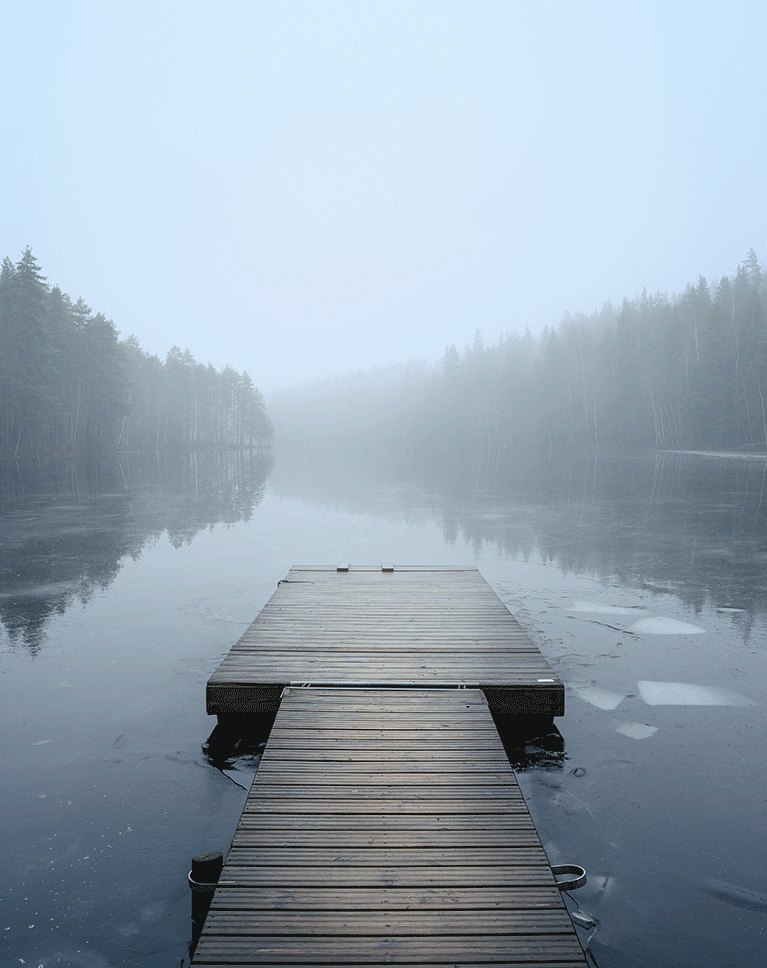
A woman photographed underwater floats above a frozen lake, and the reflection is built twice so you can compare AI with manual compositing in Photoshop. The AI route asks Nano Banana Pro to create it, then protects resolution by masking only the reflection; the manual route flips a Select Subject copy, masks it, and uses Blend If on the underlying layer so she dissolves into the darker and lighter patches of ice. A Smudge Tool pass and a masked copy of the lake finish the illusion.
Custom Snow Brush & Fog
You will build the included Snow brush from scratch, because manual compositing in Photoshop often means making your own tools: an oval tip with spacing and hardness up, size jitter, scattering on both axes, opacity jitter, and brightness jitter, painted in a sampled background color on Lighten. Motion Blur, low opacity, and several layers at different scales give the flakes depth, while a fog image on Screen and painted fog color on a clipped layer push the subject into the atmosphere.
Winter Wonderland: Blend the Ground
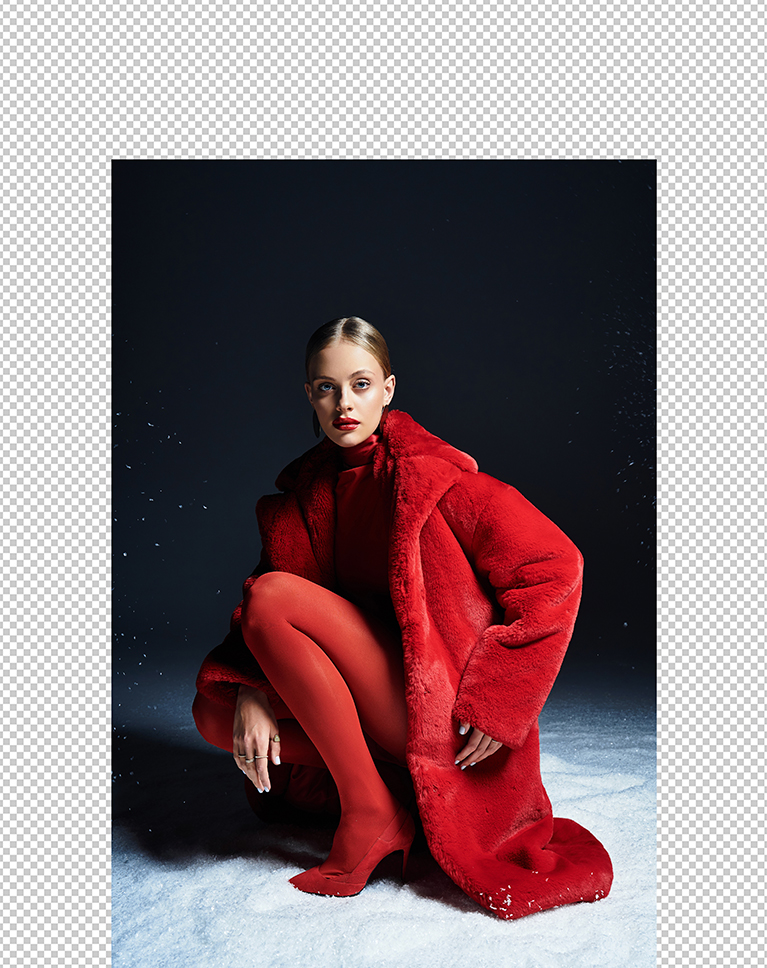
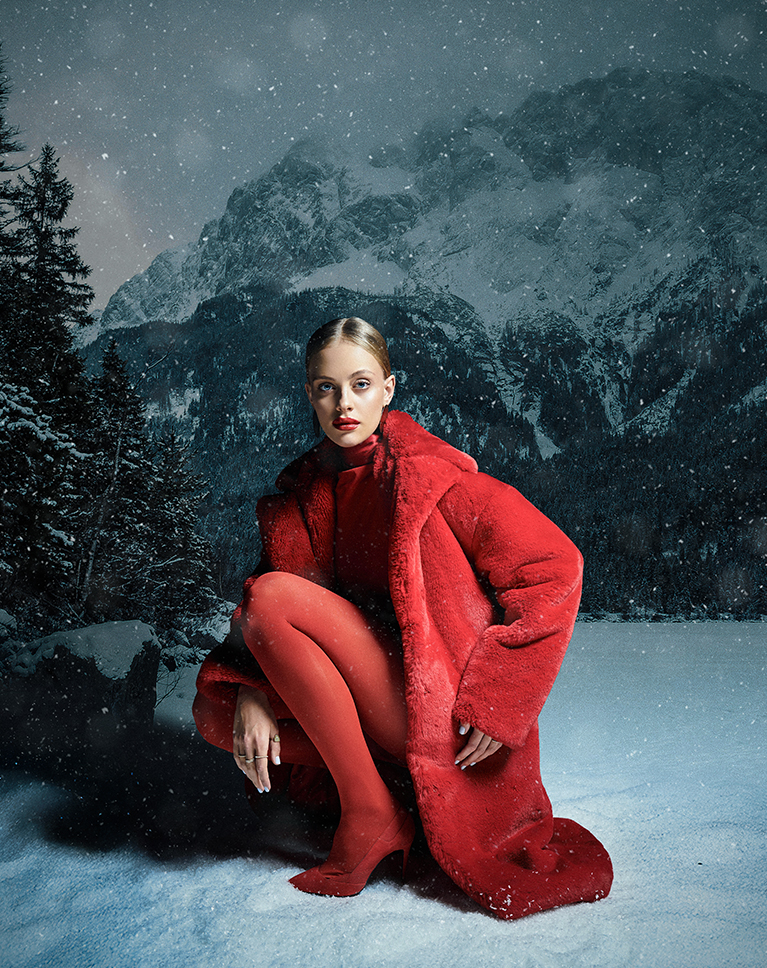
A studio portrait on snow moves into a mountain landscape in the final manual compositing in Photoshop project. After expanding the frame and cutting out the subject you will duplicate her layer, fill its mask with black, and paint the original snow back in at 10% flow so the two grounds merge, then darken the distance with a Camera Raw linear gradient on the background, paint a soft shadow beneath her, and layer a snow texture on Screen.
Camera Raw Finishing
Every manual compositing in Photoshop project here ends the same way: Apply Image to a new layer, Convert for Smart Filters, and the Camera Raw Filter. You will add a vignette, grain that makes a composite look like one photograph, radial and linear gradient masks for light, Point Color on a red coat or a green forest, and Color Grading with saturation pushed up to find the hue and then pulled back down.
Where AI Helps, and Where It Doesn’t
This course is honest about the tools. Generative Expand and Remove Background save real time, Nano Banana Pro removes a curtain better than Firefly but at lower resolution, Harmonize needs cleanup, and Generative Fill takes several tries on hair. In each case you see the manual version beside it, so you know when to spend credits and when to reach for a brush.
Included Files & Learning Paths
This manual compositing in Photoshop course includes 13 sample images and two Photoshop brushes, the Fairies brush and the Snow brush, both built on camera in the videos. If you are new to compositing, start with our Everyday Compositing and Magical Compositing Learning Paths and come back to build these four worlds.

Class Instructor
Aaron Nace
PHLEARN Founder & Lead Instructor
Aaron Nace is a photographer, digital artist, and the founder of PHLEARN. Since 2011 he has taught millions of people to edit with confidence in Photoshop and Lightroom, on YouTube and in PHLEARN PRO, and he has been a featured speaker at Adobe MAX for more than eight years.
Every PRO course comes with the sample images and PSDs to follow along step by step, and Aaron adds new courses and free tutorials all year.
- 2M+YouTube subscribers
- 160M+video views
- 1,000+tutorials published
- 15years teaching Photoshop
The photographs in this course are free stock images (the dove is AI-generated); all 13 sample images and both custom brushes are included in your download.
Reviews
Master Photoshop, Lightroom and Photography
Join PHLEARN PRO for $12.99 a month or $99.99 a year. Cancel anytime, with a 100% money-back guarantee.






I had to throw in the towel on this one. My generative fill options (tried Firefly as well as Gemini) simply would not give a decent result. For example the curtain would sort of disappear but the window frame remained. Other attempts resulted in the poor girl having a hand for a foot or another leg. I was using Photoshop 2026 and the same exact prompt and techniques that you used. I felt like I was getting results from what would have been expected in a year ago. Unfortunately I was burning through my credits for the month and decided not to proceed any further. I would like to keep some of them for other projects.
Generative Fill can be surprisingly picky about how much context it has to work with, so if you’re masking too tight or too loose around the curtain or the leg, it’ll often grab onto the wrong pixels and get confused. Try giving it a bit more room around the area you’re replacing and keep prompts short and literal rather than descriptive. If it’s still fighting you after that, send a couple of your source files to support@phlearn.com and we’ll take a closer look at what might be going on.
3.5 stars. Rating is not based on production quality or examples, Aaron is great as always. It is that for me personally this was a lot less useful than the “master compositing” series, although perhaps this course is a better starting point for many as the sand people and flying islands examples are a lot of work to get through. However I found the skills in those courses more useful in general and use them more regularly, probably most sessions. I think my major issue with this one is that the AI tools in Photoshop are still insufficiently reliable to create consistent results, and I don’t enjoy how obviously Adobe is trying to onramp me into paying for generative credits. So, I am not interested in using NanoBanana etc. nor am I interested in using AI-generated stock like the dove in one of the examples in this course. Although I find some of the AI tools (such as selections) very useful I think there’s a risk that I’m going to end up needing to revert to the pre-AI compositing methods as I don’t think Adobe’s current offering and business model is sustainable unless they can force or trick me into spending more money. I appreciate this could come across as “old man yells at cloud” as it is not like I plan to return to a darkroom and dodging and burning with a sponge.
Really appreciate the thoughtful breakdown, Will, and I don’t think you’re yelling at any clouds. You’re right that the AI tools are still a mixed bag, which is exactly why I keep teaching the manual, non-AI methods too, so you’ve always got a reliable fallback when the generative stuff doesn’t cooperate or you just don’t want to go there. Glad the Master Compositing skills are still earning their keep in your regular workflow, that’s the best kind of review.
my goto tutorials, I like the manual aspect and the clear concise delivery makes it easy to take in the methods…. top rate Who needs boring Ai ?
Great tutorial. Filled with lots of good tips that will help improve my PS skills.
How do you get images to open as smart objects on a Windows PC?
Hey there! You can navigate to the File menu at the top left of your workspace and select Open as Smart Object… instead of the standard “Open” command. Once you select your file from the explorer window, Photoshop will automatically wrap the image in a protective container, appearing in your Layers panel with a distinct Smart Object icon in the bottom-right corner of the thumbnail.
Now completed 3 projects, ready for the last one. They just get better and better. Great explanation of all the tools used and also explaining the different ways to complete the process. Using AI and without AI to save credits. Fantastic tutorial.
This compositing tutorial is excellent. It’s excellent to learn the manual way of doing things. I feel I accomplish so much more doing steps manually instead of relying on Ai all the time.
Just finished Lady of the Lake. I am so excited to finally be able to use levels to change colours and brightness- I found it better than Harmonize in some cases and also because I am maxed out of credits with all the home bound snow days 😉 Aaron has taught me so much that I felt comfortable in taking the hair off an Adobe Stock Image to replace the hair on the Lady. His Tutorials are the best. Great explanations of the tools and why he uses one over another. He is a true artist and you really want to learn from the best.
I have just finished Project 1 The Fairy Princess. What a great tutorial. An introduction the new ways of working on a composite image. A great explanation of how to use Apply Image and how it works. Also how to finalize the image in Camera Raw. I am looking forward to the next project. Fantastic.
Incredible course with a lot of technical explanation – really helpful.l
Brilliant tutorials .. always!
These a great tutorials, they combine the precision of ‘old school’ compositing with the time saving newer AI techniques that, combined, give amazing results.
Really cool tutorial. I learned several new things. Aaron goes at a good pace. Then the caffeine kicked in at the very end and I had to just sit back and watch. It was a lot of fun seeing him get caught up in his artistry. Can’t wait to work on the next projects, then I will be prepared to work on my own. Great job!
Thank you
Could not import the clipboard because Photoshop does not recognize this type of file.
Hey there! Our team has reaached out directly via email to helpy you get things sorted out!
Phew! just watched 02-light dove. What a great idea and super conclusion. So much information and now going to attempt to put this composite together myself. Thank you for a great tutorial.
Wonderful information! thank you!
Just a great course. Aaron is a GREAT teacher!