
Download Assets
This tutorial includes 1 sample image and 1 PDF guide. Downloads are free with a PHLEARN account.
- Download the sample images and PSDs from every free tutorial on PHLEARN
- New free tutorials published every week
- One free account — sign up once, then download anything
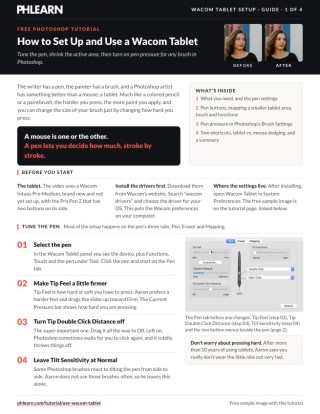
Free PDF Guide · 4 Pages
This Tutorial as a Step-by-Step PDF
The 4-page guide sets up a Wacom Intuos Pro: a firmer Tip Feel, Tip Double Click Distance off, Undo on the back pen button, a small Portion for Tablet Area, Touch and Functions disabled, then Window > Brush Settings with Shape Dynamics and Transfer on Pen Pressure, Minimum Diameter up and Flow about 10%. Keep it next to your keyboard.
description
A mouse can only ever be fully on or fully off. A pressure-sensitive tablet gives a Photoshop brush the same physical control a pencil has, where pressing harder lays down more. This tutorial sets up a Wacom Intuos Pro from scratch: drivers, tip feel, remapped pen buttons, a smaller mapped tablet area, and the Shape Dynamics, Scattering and Transfer settings that tie a brush to pen pressure, then puts it to work on a real dodge and burn.
Enjoying This Free Tutorial?
We publish a new free tutorial every week, each one with sample images and PSDs you can download and follow along with. Sign up and they land straight in your inbox, along with early word on sales, events and subscriber-only offers.
Wacom Tablet Tutorial: How to Use the Wacom Intuos Pro in Photoshop
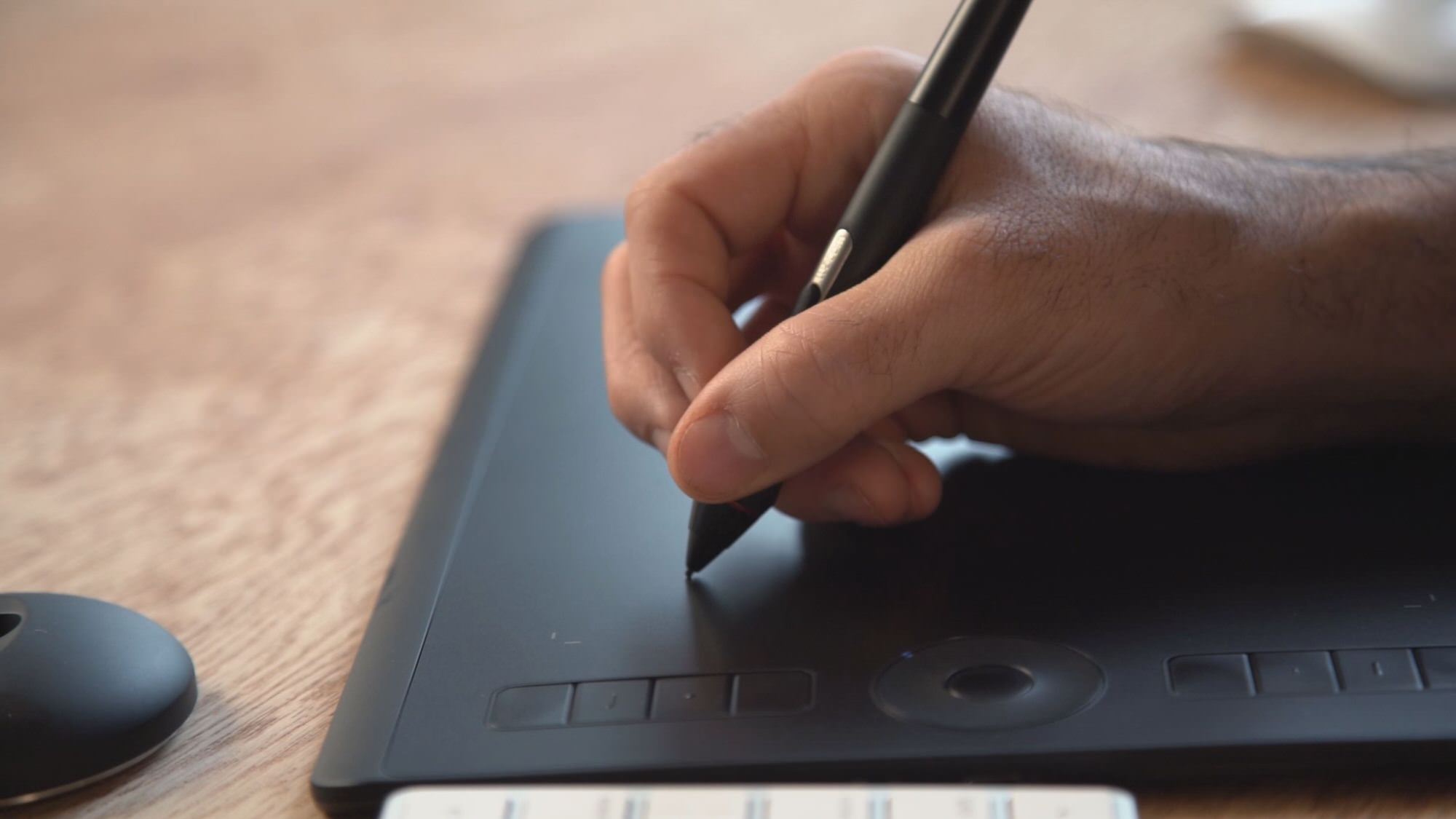
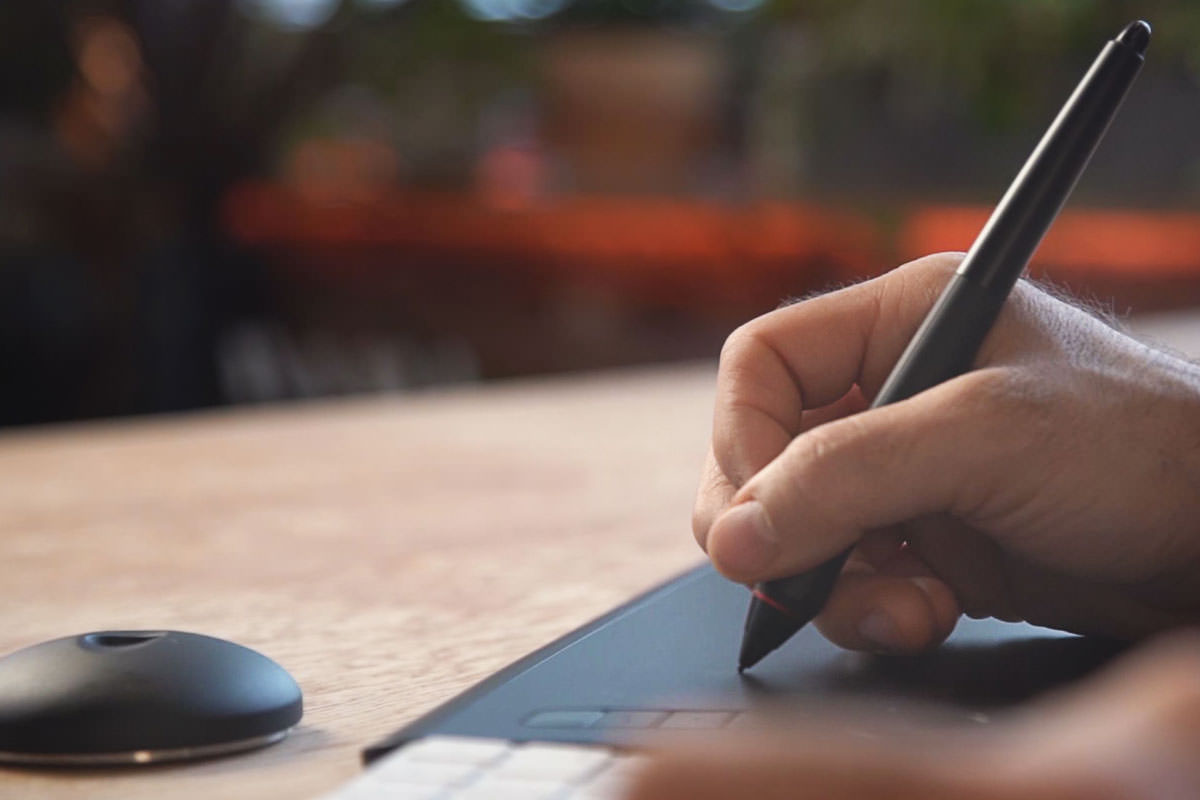
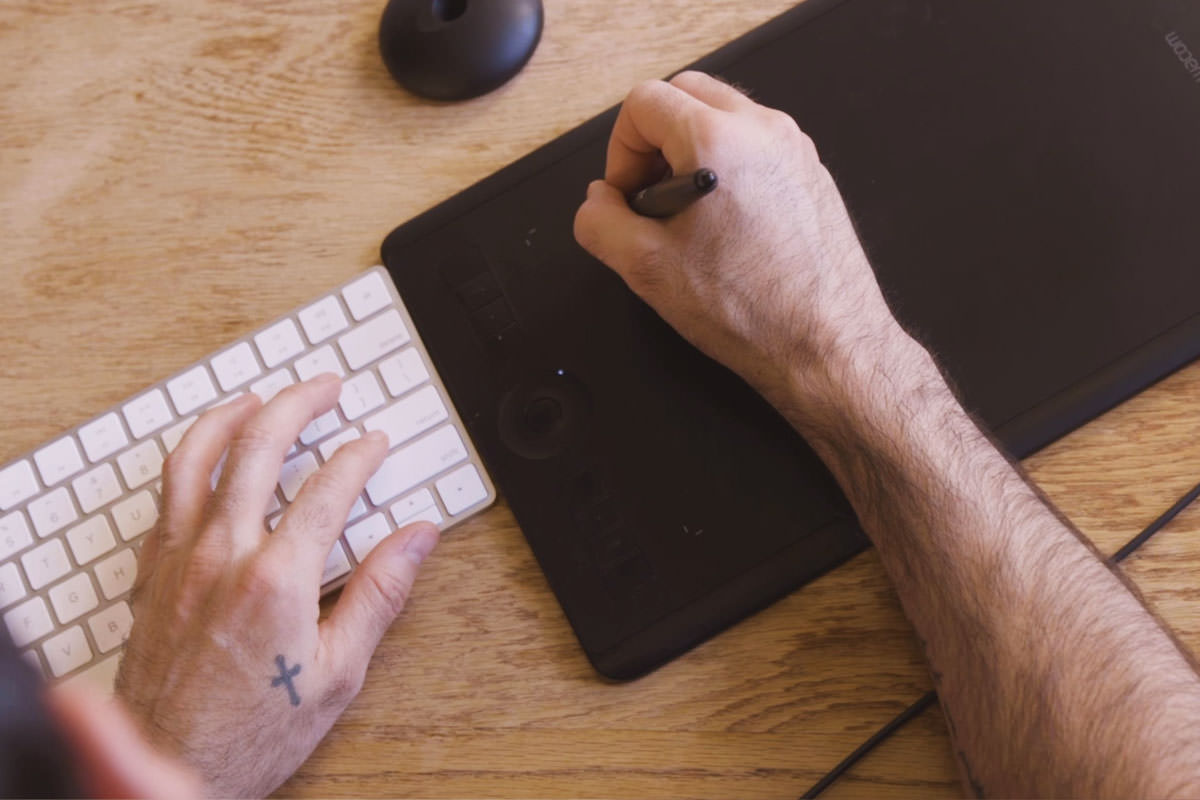
Every craft has its dedicated tool: a writer has a pen, a painter has a brush. A mouse was never really built for detailed digital painting and retouching work. A pressure-sensitive graphics tablet like the Wacom Intuos Pro changes that, giving a Photoshop brush the same kind of natural, physical control a real pencil or paintbrush already has — press harder, and more paint goes down, exactly the way it would on paper, and even the brush’s size can shift in real time based purely on how firmly the pen is pressed. This walkthrough covers how to set up a Wacom Intuos Pro Medium from scratch, tune it to work faster inside Photoshop, and put pressure sensitivity to real use on an actual retouch.
Install the Wacom Drivers First
Before a brand-new, freshly unboxed tablet does anything useful at all, download and install the correct drivers from Wacom’s driver page, which installs the preference panel used for every setting covered in this guide. Search “wacom drivers” and choose the driver for your operating system. If anything about the installation or setup process runs into trouble, Wacom’s Support Page is the right first stop for troubleshooting.
Dial In Your Pen’s Feel
Inside the Wacom preference panel, the Pen tab holds the settings that shape how the pen actually feels to draw with.
Setting Tip Feel
Tip Feel controls how hard or soft a press registers. A firmer Tip Feel setting, pushed further toward the harder end of that particular slider, suits anyone comfortable pressing down firmly — and despite that firmer pressure, the pen’s nib holds up fine over years of regular use, so there’s no need to baby it.
Turning Off Double-Click Distance
Double-Click Distance is one particular setting genuinely worth turning off entirely from the very start. Much like a mouse, the tablet needs to recognize two quick clicks in roughly the same spot as a double-click, but a pen naturally lands in a slightly different spot each time it touches down. Left on, this setting causes Photoshop to occasionally wait for a second click that never registers properly, throwing off the whole workflow — turning it off completely avoids that problem altogether.
Remap Your Pen’s Buttons for Undo and Right-Click
Most Wacom pens, including the Intuos Pro, have two programmable side buttons built directly into the barrel of the pen itself. Setting the back button to a custom keyboard shortcut for Undo (Option+Command+Z on a Mac, Ctrl+Alt+Z on a PC) means every mistake can be undone instantly without reaching for the keyboard at all. The forward button works well left at its default of Right-Click, since Photoshop relies heavily on right-click context menus for brush and tool options. Tilt Sensitivity, which lets certain specialty brushes react to the pen physically tilting from side to side, can generally be left at its normal default setting unless those specific tilt-aware brushes are already a regular part of an existing workflow.
The Eraser tab can be left alone too. Flipping the pen around can activate the Eraser tool, but Aaron has never used it: he presses E for the Eraser or B for the Brush, and usually just uses layer masks.
Shrink Your Active Tablet Area to Match Your Screen
By default, the entire tablet surface maps directly to the entire screen, which means reaching the far corners of a large monitor requires moving the pen a genuinely long physical distance across the full tablet surface — far more hand travel overall than the same on-screen movement would ever take with a mouse.
Why a Smaller Mapped Area Feels Like a More Sensitive Mouse
In the Mapping section of the preferences, set Screen Area to the full screen, but shrink the Tablet Area down to only a portion of the physical tablet, using the corner markers to define a smaller active zone, the top-left corner of the tablet, for example. Once that smaller area is mapped to the entire screen, reaching every corner of the display takes a much smaller pen movement, similar in feel to increasing a mouse’s sensitivity: the more sensitive the feel wanted, the smaller the active tablet area should be relative to the full pad.
Disable Touch and Extra Functions
Wacom tablets also include touch sensitivity and a set of programmable buttons for things like brush size control or custom keyboard shortcuts. For anyone who prefers using an actual keyboard with the opposite hand for shortcuts, both touch input and the extra function buttons can simply be disabled entirely in their respective preference panels, keeping the tablet focused purely on precise pen input rather than adding gestures and buttons that end up getting in the way.
Turn On Pressure Sensitivity in Photoshop’s Brush Settings
With the tablet configured, open the Brush Settings panel (Window > Brush Settings) inside Photoshop to unlock pressure-sensitive control over virtually any painting tool, including the Brush, Clone Stamp, Healing Brush, and Spot Healing Brush tools. With every dynamic option turned off, a tablet behaves exactly like a mouse, which is a useful baseline to compare against before turning features on one at a time.
Shape Dynamics, Scattering, and Transfer
Shape Dynamics, with its Size Jitter control set to Pen Pressure, makes the brush grow larger under a harder press and shrink under a lighter one, with a live preview showing the effect in real time. Scattering, also set to Pen Pressure with Scatter raised a little, spreads brush marks out further the harder the pen presses; it is only an example of another setting that can follow pen pressure, and it gets turned back off. Transfer, one of the most useful settings for retouching work, ties Flow Jitter to pen pressure so a light touch lays down very little paint while a firmer press builds up opacity quickly, effectively turning brush pressure into direct control over how much “ink” gets applied in a given stroke.
Why Shape Dynamics and Transfer Work Together
The working brush keeps Shape Dynamics and Transfer on together, both set to Pen Pressure: Shape Dynamics controls the size of the stroke and Transfer controls how much ink goes down. A light press paints a small, light mark and a harder press paints a larger, darker one, much closer to a pencil or paintbrush than a flat, uniform digital brush.
Set a Minimum Diameter for More Natural Control
Back in Shape Dynamics, raising the Minimum Diameter means even the lightest possible press still produces a visible, if small and light, brush mark rather than nothing at all. Combined with a low Flow setting, around 10 percent, and a larger overall brush size, this makes it possible to paint something close to a smooth gradient purely by varying pressure — barely-there marks from a light touch building up to fuller, more opaque strokes as the pressure increases, all without changing a single slider mid-stroke. This particular combination, a large brush, a low Flow, and a nonzero Minimum Diameter, is especially useful for gradually building up soft, cumulative effects like dodging and burning, where the goal is a subtle buildup of tone rather than a single decisive stroke.
Two Keyboard Shortcuts That Speed Up Everything
Two keyboard-and-pen combinations make a huge difference in day-to-day retouching speed.
Resize and Soften Your Brush On the Fly
Holding Ctrl+Option (Mac) or Alt+Right-Click (PC) and dragging changes brush size and hardness in real time without ever opening a panel: dragging left and right changes the brush diameter, while dragging up takes hardness toward 0 for a softer brush, and dragging down takes it toward 100 for a harder one. This single shortcut makes it fast to switch between a small, hard-edged brush for precise cleanup and a large, soft brush for broader work, all in one continuous motion.
Zoom In and Out Without Leaving Your Brush
Holding Spacebar+Command (Mac) or Spacebar+Ctrl (PC) brings up a zoom toggle: dragging right zooms in, dragging left zooms out, and clicking anywhere on the image zooms directly into that specific spot. Holding just the spacebar afterward pans around the now-zoomed image. Used together, these two shortcuts, one for brush size and hardness, one for zoom, make it possible to move fluidly between careful, zoomed-in detail work and a quick zoomed-out check of the whole image without ever reaching for a toolbar.
Tablet vs. Mouse: A Real Dodge and Burn Comparison
A direct side-by-side test makes the difference concrete. On one new layer set to Soft Light blend mode, using the exact same brush for a fair comparison, painting subtle dodge-and-burn highlights around a subject’s nose, cheek, and chin with the tablet, controlling both brush size and how much light gets applied purely through pressure, produces smooth, natural, believable results that read as genuine enhancement rather than an obviously painted-on effect. Repeating the exact same task on a second identical layer with a mouse instead, even with the same brush size adjustable via keyboard shortcut, removes any way to control how much effect lands with each stroke: it’s either fully on or fully off, with no middle ground available no matter how the brush settings themselves are adjusted beforehand. Lowering Flow to about 30 percent, then lower still, helps a little, but the result still comes out looking like blotchy, disconnected patches of light rather than a smooth, gradually built-up enhancement, since a mouse simply offers no mechanical way to vary intensity moment to moment the way pen pressure naturally does throughout a single stroke.
Why a Tablet Makes Such a Difference
Every setting covered here, from disabling Double-Click Distance to mapping a smaller tablet area to tying Flow Jitter to pen pressure, is really solving the same underlying problem: making the physical act of drawing on a tablet feel as close as possible to drawing on paper, rather than fighting against digital-tool defaults built with a mouse in mind. The dodge-and-burn comparison makes the payoff obvious in a way that simply listing settings never quite can: a mouse can only ever be fully on or fully off with a given tool, while a pressure-sensitive pen adds an entire additional dimension of real-time control, exactly how much effect to apply, moment to moment, within a single continuous stroke, without ever needing to stop and adjust a slider.
Final Thoughts
None of these individual settings are especially complicated on their own, but taken together, a correctly configured tablet turns Photoshop from a program operated at arm’s length through a mouse into something that responds directly to touch and pressure, the same way a pencil or paintbrush always has and always will. Anyone doing regular retouching, dodging and burning, or detailed brush work in Photoshop will feel the difference almost immediately once pressure sensitivity is genuinely dialed in this way, rather than left at the tablet’s out-of-the-box defaults.
Quick Reference: Keys, Menus and Settings
- Pen tabTip Feel a little firmer, Tip Double Click Distance: Off, Tilt Sensitivity: Normal
- Undo on the penBack button > Keystroke: Option + Cmd + Z (Mac) or Alt + Ctrl + Z (Windows); forward button stays on Right Click
- Map a smaller areaMapping: Screen Area Full, Tablet Area Portion, handles dragged in
- Pen pressureWindow > Brush Settings: Shape Dynamics and Transfer, each Control on Pen Pressure
- Pressure gradientMinimum Diameter up, a large brush, Flow about 10%
- Size and hardnessControl + Option-drag (Mac) or Alt + right-click drag (Windows)
- Scrub zoomSpace + Cmd/Ctrl, drag right or left; hold Space to move around
No AI, no generative credits.
Free Downloads
Follow Along on the Same Photo
Get the sample portrait used for the brush and dodge tests, plus the 4-page PDF guide to every tablet and Brush Settings change. Free with a PHLEARN account.
Wacom Tablet Setup: Common Questions
What should I install before using a new Wacom tablet?
The Wacom drivers. Search “wacom drivers” and choose the driver for your operating system. Installing them puts the Wacom Tablet preferences on your computer.
Why does Photoshop sometimes wait for a second click from my pen?
Tip Double Click Distance is on. In the Pen tab, drag it all the way to Off.
How do I make a pen button undo?
Open the back button’s menu, choose Keystroke, press Option + Cmd + Z (Mac) or Alt + Ctrl + Z (Windows), name it undo and click OK. Leave the forward button on Right Click.
Should I use the eraser end of the pen?
You can flip the pen around to activate the Eraser tool, but Aaron leaves the Eraser tab alone. He presses E for the Eraser or B for the Brush, and usually just uses layer masks.
How do I reach the whole screen without moving my hand so far?
In the Mapping tab, keep Screen Area on Full and set Tablet Area to Portion, then drag the handles to a smaller area. It works like mouse sensitivity: the smaller the area, the more sensitive the pen feels.
Why doesn’t my brush respond to pen pressure?
Open Window > Brush Settings, turn on Shape Dynamics and set the Control under Size Jitter to Pen Pressure. For how much ink goes down, turn on Transfer and set the Control under Flow Jitter to Pen Pressure.
How do I paint a soft buildup with pressure alone?
Raise Minimum Diameter in Shape Dynamics, choose a larger brush and bring Flow down to about 10%. A light pass barely puts anything down, and pressing harder puts down more ink.
How do I change brush size and hardness without a panel?
On a Mac, hold Control + Option and drag; on Windows, hold Alt and right-click drag. Left and right change the diameter. Dragging up takes hardness toward 0 and dragging down toward 100.
Can I dodge and burn as well with a mouse?
Not as easily. A mouse puts down the same amount of ink everywhere. In the video, even with Flow lowered to about 30 percent and then lower, the mouse test looks like blotches of light.
Are the sample files free?
Yes, with a free PHLEARN account. You get 1 sample image and 1 PDF guide: the portrait used for the brush and dodge tests and a 4-page setup guide.
Master Photoshop, Lightroom and Photography
Join PHLEARN PRO for $12.99 a month or $99.99 a year. Cancel anytime, with a 100% money-back guarantee.





