
THIS COURSE INCLUDES
- 23 Lessonsin 2 sections
- 9h 35mof captioned HD video
- Intermediatesome Photoshop basics
- 46 Sample Imagesto follow along
Part of a Learning Path
Join PHLEARN PRO for instant access to this course and every tutorial on PHLEARN.
- Stream in up to 4K on any device
- Closed captions and chapters on every course
- Download all sample images and PSDs
- New PRO tutorials every month
- Cancel anytime
Description
After building a solid foundation in Photo Editing 101, it’s time to learn essential tools and techniques that will guide you through your passion.
* This tutorial is part of Photo Editing 101-301
What You’ll Learn
- Tackle intermediate photo edits across six real shoots
- Solve unique editing challenges in Lightroom and Photoshop
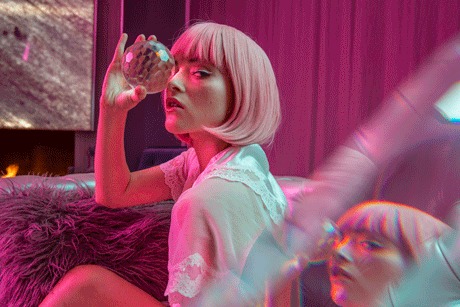
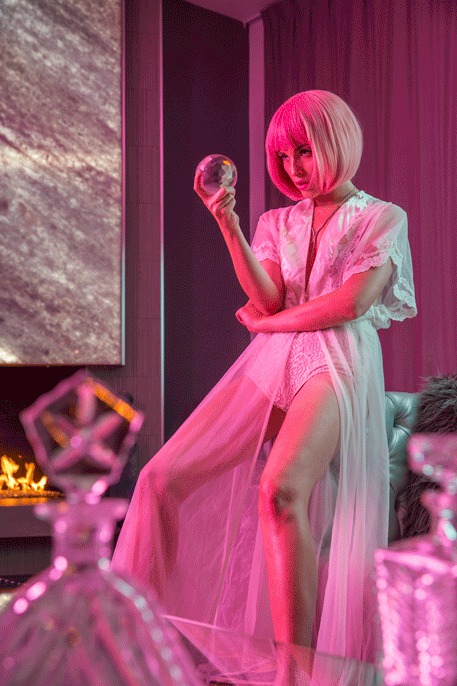
- Shoot with gels for creative color effects
-
01 - Introduction2:15m
-
02 - Importing & Organizing Photos20:56m
-
03 - Photographing Nicole & Shooting with Gels3:18m
-
04 - Local Adjustments in Lightroom26:06m
-
05 - Retouching & Coloring in Photoshop1:14h
-
06 - Retouching and Dodging & Burning in Photoshop1:41h
-
07 - Photographing Taylor at Night5:34m
-
08 - Removing Noise & Fixing Color in Lightroom17:38m
-
09 - Coloring, Moving Objects, & Exposure in Photoshop55:58m
-
10 - Photographing Miki at Sunset4:24m
-
11 - Culling & Color Grading in Lightroom7:13m
-
12 - Retouching, Object Removal & Color Correction in Photoshop49:24m
-
13 - Photographing Alyse in the Pool3:17m
-
14 - Culling & Color Grading in Lightroom7:30m
-
15 - Compositing & Color in Photoshop57:03m
-
16 - Photographing Miki Twin2:24m
-
17 - Exposure Correction in Lightroom4:54m
-
18 - Removing Objects & Retouching in Photoshop37:35m
Elevate Your Images


Subtle Compositing in Photo Editing 201
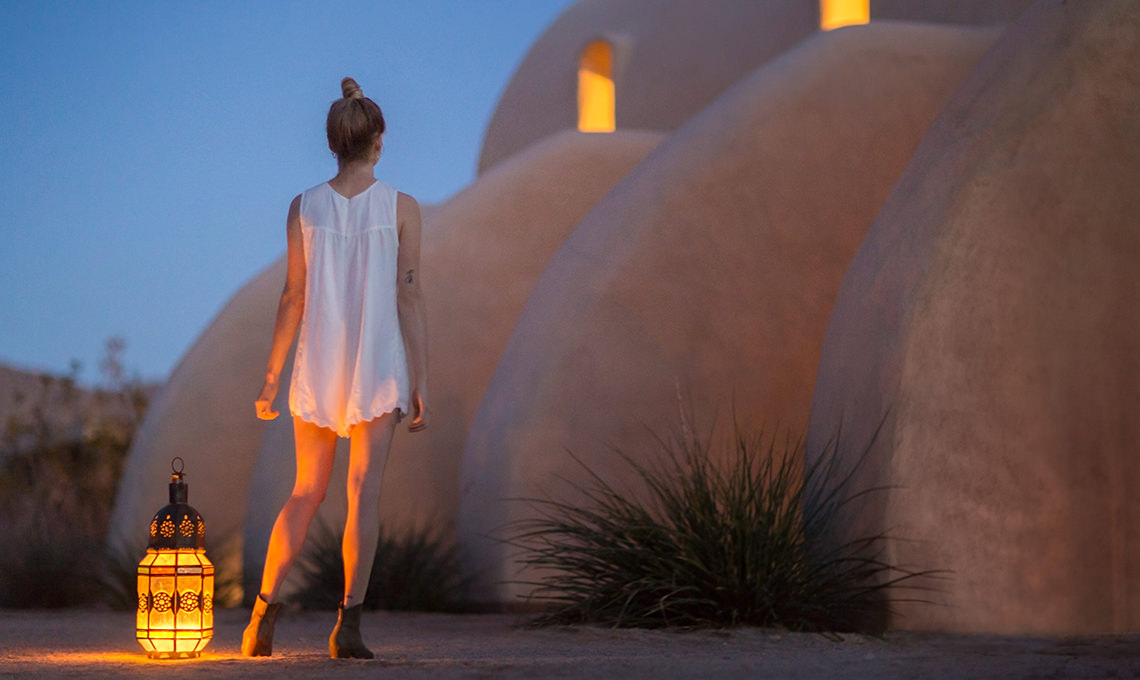
Compositing can be done in many different ways, and often times the best composite images are also the most subtle. In the example to the left, we balance an image that was a bit “left-heavy” by adding trees to the right side.
Edit Nondestructively
In Photo Editing 201, you learn that cutting objects out of their backgrounds does not have to take a long time or require tedious selection work with tools like the Pen Tool. There are other ways to cut objects out of their backgrounds that are more simple – the trick has to do with blending photos. Learn how to quickly bring multiple photos together.
Add Interesting Colors
As an artist, you are allowed to take certain “artistic liberties” with your photos, and Photo Editing 201 shows you how, provided they achieve a positive result. Learn to play with color and push your images to the edge by adding gradients & coloring highlights and shadows.
Export and Deliver
After editing images to perfection, it is time to export them and deliver to a client or upload them to the web. Learn exporting workflow to make sure your images display properly no matter where they end up.



In-depth Editing
In Photo Editing 101, you learned the basics of photo editing, focusing mostly on workflow & Lightroom. In Photo Editing 201, learn in-depth retouching, color correction, & compositing in Photoshop.
Follow Along
Photo Editing 201 includes 45 RAW Photos (16-bit) so you can follow along with the instruction and learn at your own pace. RAW images provide the greatest amount of flexibility when editing in Lightroom and Photoshop.
Photoshop and Lightroom Workflow
Most images will require editing in both Photoshop & Lightroom. Learn how to import, organize and catalog images through Lightroom. Then move into Photoshop for more advanced editing.
What Makes a Great Photo?
Photo Editing has one purpose – to elevate your images to their highest potential. That is why we focus on teaching you what to look for, and how to fix common problems that any photographer faces.
Complete Editing Workflow
Photo editing can be overwhelming. Learn the entire process from capture to export as we walk you through a professional workflow that will help you organize, edit, and get creative!

Move Objects
If something isn’t in the right place, it can add visual tension to a photograph, so Photo Editing 201 teaches you to move it. In the example to the left, we move part of the wall up to clear more space and give the photo more room to breathe.
Change Composition
In Photo Editing 201, learn how to stack multiple photos together to add more space to a photograph and change the composition at any time.
Dodge and Burn
Learn how to add beautiful highlights to skin and tone shape and contour through dodging and burning. Also learn the subtleties of color dodging to give the skin a “glow” effect.
Fix Exposure and Color
In a perfect world, every photo you take will be perfectly exposed and colored correctly. For most of us, we need a little help in post production getting things right. Learn to adjust exposure and color to give your images the impact they deserve.
Learn Multiple Lighting Setups
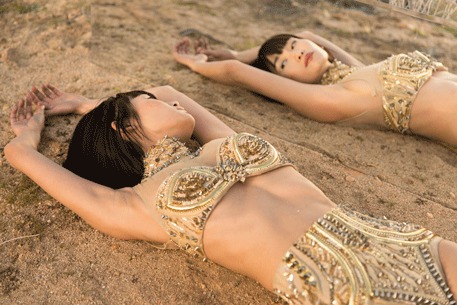
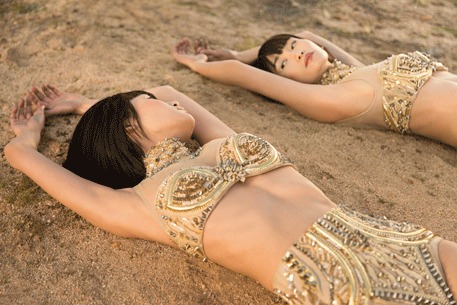
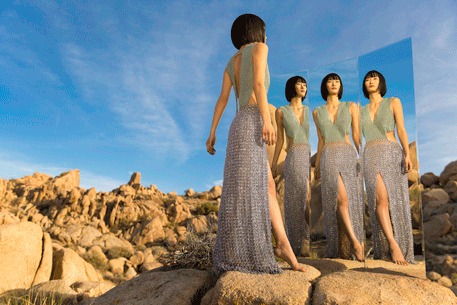
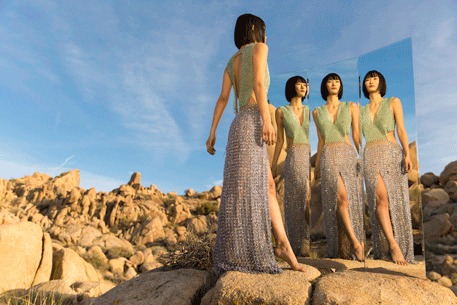
Photo Editing 201 includes 45 RAW photos from 6 photo shoots, each with its own distinctive lighting setup. At the beginning of each chapter we discuss the lighting that made each one of these images possible.
Strobe and Natural Light
Learn the differences between continuous and natural light and how to combine them in multiple ways to create different effects in your images. Bonus: Learn special techniques like dragging the shutter.
Camera Settings Explained
Enjoy the little details? Photo Editing 201 has them. Learn what cameras, lenses, and settings were used on each shoot via the on-screen pop-ups. No information left behind. If it has to do with photography or editing, it is covered here.
Multiple Color Variations
Quickly create many variations on your photos, give your clients more than what they expect. Use Virtual Copies to view and edit your variations at once.

Class Instructor
Aaron Nace
PHLEARN Founder & Lead Instructor
Aaron Nace is a photographer, digital artist, and the founder of PHLEARN. He has been teaching Photoshop, Lightroom, and photography since 2011, and has taught at Adobe MAX for more than eight years.
Aaron publishes a free tutorial every week and a new in-depth PRO course every month.
- 2M+YouTube subscribers
- 160M+video views
- 1,000+tutorials published
- 15years teaching Photoshop
Reviews
Master Photoshop, Lightroom and Photography
Join PHLEARN PRO for $12.99 a month, or $99.99 a year (save 36%). Cancel anytime, with a 100% money-back guarantee.






I just finished watching and note taking 201. Aaron’s teaching is style suits me perfectly and the use of the various tools used has made Photoshop editing more beneficial for me. I’m a sucker for downloading every new add on and photo editing program that comes along but sill my images looked blah! (though some programs and features are pretty good) all the same I decided that PS has got the goods I need. I have gone over some of my old photos, applying the methodology i have just learnt and presto! an instant differences of a more pleasing result. Highly recommend this Pro Course. Thank you Aaron and the PHLEARN Team!
Adobe listened to you. As of the February 2020 release of Lightroom, PSB files are compatible with Lightroom. To reduce file size without affecting quality, save the file with zip compression of the file and the layers. This is an option in the Save As dialog in Photoshop. Doing this will increase the time it takes to save, so you might want to wait until your final save.
Brilliant tutorial plenty of techniques to digest and practice.
Very nice tutorial and method of teaching.Very happy.
Too darn redundant, and the instructor seemed ill prepared. Doesn’t teach much just like watching someone edit most of the time.
Thank you Aaron for making me better at Photoshop, great job!
Congratulations to the whole team, This is absolutely fabulous in every way. Have watch the entire tutorial. Loved it. Thanks in every way.