
Download Assets
This tutorial includes 1 sample image and 1 PDF guide. Downloads are free with a PHLEARN account.
- Download the sample images and PSDs from every free tutorial on PHLEARN
- New free tutorials published every week
- One free account — sign up once, then download anything
Free PDF Guide · 4 Pages
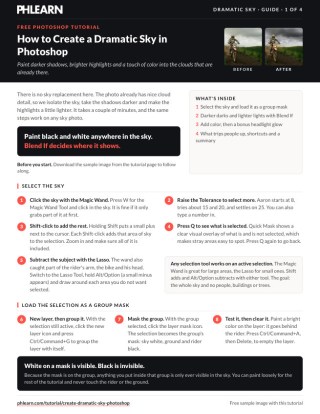
This Tutorial as a Step-by-Step PDF
The 4-page guide walks through selecting the sky with the Magic Wand at a Tolerance of 25, loading it as a group mask, painting black and white with split Blend If sliders, adding a deep purplish blue in Overlay, Soft Light or Multiply, and a bonus headlight glow toned down with Hue/Saturation. Keep it next to your keyboard.
description
No sky replacement here — the drama gets painted into the clouds that are already there. Load the sky selection as a group mask so everything after it stays contained, then paint black over the dark areas and white over the bright ones and let Blend If hide each pass wherever it does not belong. A desaturated color layer on top sets the mood.
Enjoying This Free Tutorial?
We publish a new free tutorial every week, each one with sample images and PSDs you can download and follow along with. Sign up and they land straight in your inbox, along with early word on sales, events and subscriber-only offers.
How to Create a Dramatic Sky in Photoshop
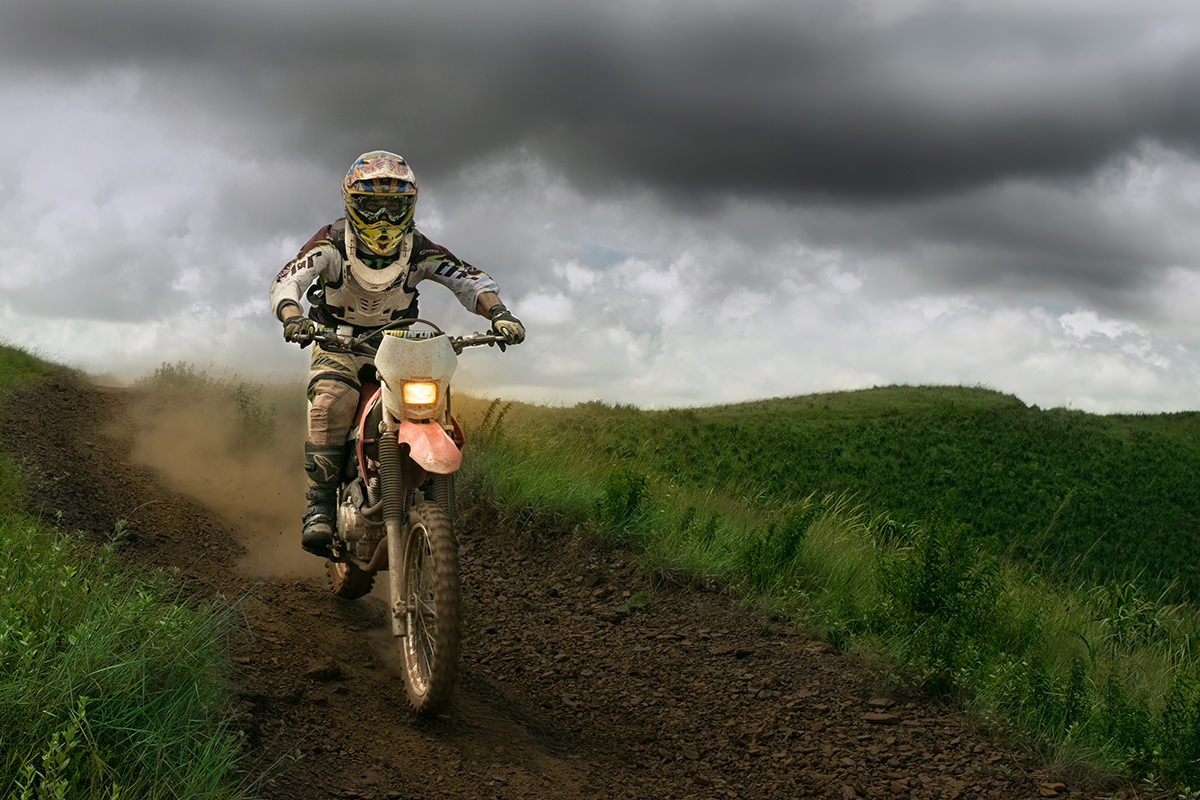
A flat, evenly-lit sky can hold a photo back even when everything else about the shot works. This technique isolates the sky, then uses black and white paint combined with the Blend If sliders to sculpt shadows and highlights directly into the clouds, followed by a touch of color to finish the mood. The same steps apply to any sky photo, not just the overcast scene used here.
Selecting the Sky with the Magic Wand Tool
Press W for the Magic Wand tool and click on the sky. If it only grabs part of the sky at first, raise the tolerance setting — going from around 8 up to 20 or 25 usually captures much more of an evenly-toned sky in one click. Hold Shift and click on any remaining sections of sky that weren’t picked up the first time; each Shift-click adds that area to the growing selection. Pressing Q at any point toggles Quick Mask, which shows a clear visual overlay of exactly what’s selected and what isn’t, making it much easier to spot gaps.
Refining the Selection with the Lasso Tool
A selection made purely with the Magic Wand often catches small bits of the subject or foreground along the edges, like an arm, a bike, or a rooftop. Switch to the Lasso tool and hold Alt or Option to subtract from the active selection — simply draw around any area that shouldn’t be included, such as a person’s head or shoulders, and it’s removed from the selection. Zoom in and check the edges carefully with Quick Mask until only the sky itself, and nothing from the subject or the landscape, remains selected.
Loading the Selection as a Group Layer Mask
With the sky selection active, create a new layer and group it with itself using Ctrl or Cmd+G. Then click the layer mask icon on that group — this takes the active selection and loads it directly as the group’s layer mask. White areas of a mask are visible, black areas are hidden, so the sky will show as white on the mask and everything else as black. From this point forward, anything placed inside that group will only ever be visible within the sky, no matter what you paint or how far you paint outside the lines, because the mask handles the containment automatically.
Painting in Darker Clouds
Inside the group, select the Brush tool, set the foreground color to black, and choose a large, soft-edged brush. Paint directly over the darker cloud areas to add extra weight and contrast to those regions. At this stage the painted black will look like a flat, unrealistic patch — that’s expected, since the next step is what actually blends it into the existing clouds convincingly.
Using Blend If to Target the Dark Areas
Double-click the layer (or go to FX, then Blending Options) to open the layer’s blending options, and find the Blend If sliders near the bottom of the panel. These sliders control where a layer is visible or hidden based on the underlying layer’s brightness. Hold Alt or Option and click one of the small triangle sliders to split it into two halves — this adds feathering so the transition looks smooth instead of harsh and blotchy. Drag the underlying-layer slider from the right toward the left: this makes the black paint disappear wherever the sky underneath is lighter, leaving it visible only where the sky is already dark. The net effect is that the darkest clouds get pushed even darker, adding real contrast and drama without ever looking painted on. Once the placement looks right, experimenting with the layer’s blend mode — Normal, Overlay, Soft Light, or Multiply all produce noticeably different levels of intensity — lets you dial in exactly how strong the effect should read.
Adding Light with the Same Blend If Technique
The same approach works in reverse to add highlights. Create another new layer inside the group, switch the foreground color to white, and paint with a large soft brush over areas where you want extra brightness — behind a subject is often an effective spot, since it draws the eye toward them. Open Blending Options again, hold Alt or Option, and this time drag the slider from the left side toward the right, which makes the white paint disappear in the dark areas and stay visible only in the lighter parts of the sky. Used with restraint, this adds a subtle pop of highlight to the clouds; pushed too far, it stops looking like natural light and starts looking obviously painted in.
Adding Color to the Sky
A final layer of color can tie the whole effect together. Create another new layer in the group and paint with a deep, moderately desaturated color — a dark purplish blue works well for an overcast sky — concentrating the color toward the top of the frame. Open Blending Options and try a few different blend modes on this layer, since the right choice varies by image: Overlay, Soft Light, and Multiply each shift the intensity and character of the color differently. Lowering the layer’s opacity afterward helps keep the added color subtle enough to still look like natural atmospheric color rather than an obvious tint. Blend mode, opacity and Blend If can all be used at the same time: set Blend If the same way as on the black layer and the color shows up only in the dark areas of the sky, so you can limit it to the shadows or the highlights if you want. On this image the color stays across the whole sky, just made a lot less opaque.
Creating a Headlight Glow with a Radial Gradient
As a finishing touch outside the sky group, a small glow around a light source in the frame — in this case a motorcycle headlight — can add extra atmosphere. Select the Gradient tool, choose the Foreground to Transparent gradient style, and sample a bright color directly from the headlight itself using the eyedropper. With a radial gradient selected, click and drag out from the headlight for a small, round pop of color, then set that layer to Overlay or Soft Light.
Shaping and Blending the Gradient
For a beam, create a second new layer and drag out a bigger radial gradient. A perfectly round gradient rarely looks natural as a headlight beam, so press Ctrl or Cmd+T to transform the gradient shape, then hold Ctrl or Cmd and drag the left-hand corner handles out to stretch it into a beam shape rather than a plain circle. Move the center point onto the headlight, rotate the beam until it looks right and press Enter. Once it’s positioned and shaped, a small amount of Gaussian Blur softens any hard edges, and switching the blend mode to Soft Light or Overlay (or simply lowering the layer’s opacity in Normal mode) helps the glow sit naturally in the scene instead of looking like a sticker pasted on top. Soft Light looks the most realistic here, with the opacity lowered a little. Then Shift-click the two glow layers and press Ctrl or Cmd+G to group them.
Toning Down the Glow with Hue/Saturation
At the very end, the two glow layers look a little too yellow to be real. Click one glow layer, go to Image, then Adjustments, then Hue/Saturation, and lower the Saturation slider a little, then do the same on the other glow layer. This works on any painted layer at any time: raise Saturation for more color, lower it for less, or move Hue to change the color entirely. This one adjustment can be the difference between a color effect that looks obviously artificial and one that reads as a natural part of the light in the scene. To finish, double-click each group’s name and call them Headlights and Sky, then turn the groups off and on to compare the before and after.
Why This Technique Works
Grouping the sky selection as a layer mask means every subsequent edit — the dark paint, the light paint, the color — is automatically contained to the sky no matter how loosely you paint, which keeps the whole process fast and forgiving. Blend If is what makes each pass look intentional rather than painted on: instead of manually erasing edges by hand, it reads the brightness of the layer underneath and hides your paint exactly where it doesn’t belong, feathering that transition smoothly once the sliders are split apart. Layering multiple effects — dark contrast, light highlights, and a touch of color, each on its own layer with its own blend mode and opacity — gives far more control than trying to achieve the same look in a single adjustment, and it means any one part of the effect can be dialed back or removed without starting over.
Final Thoughts
Turning a flat sky into a dramatic one comes down to isolating it cleanly, then sculpting contrast and color into it with paint and Blend If rather than a single global adjustment. Because each element — the darks, the lights, and the color — lives on its own layer, you can push the effect as far or as subtly as the image calls for, and the same steps translate directly to skies in your own photos, whether the goal is heavy drama or just a small boost of realism.
Quick Reference: Keys, Menus and Settings
- Select the skyW, Tolerance 25, Shift-click to add; Q to check in Quick Mask
- Remove the subjectLasso Tool, Alt/Option-drag around each area
- Mask a groupNew layer, Cmd/Ctrl + G, then the layer mask icon
- Darker darksB, black, fx > Blending Options: Alt/Option-click the right Underlying Layer slider, drag left
- Lighter lightsWhite on a new layer; left Underlying Layer slider, drag right
- ColorDeep purplish blue; Overlay, Soft Light or Multiply, then lower the opacity
- Headlight glowRadial Foreground to Transparent gradient, Cmd/Ctrl + T into a beam, Soft Light; Image > Adjustments > Hue/Saturation
No AI, no generative credits.
Free Downloads
Follow Along on the Same Photo
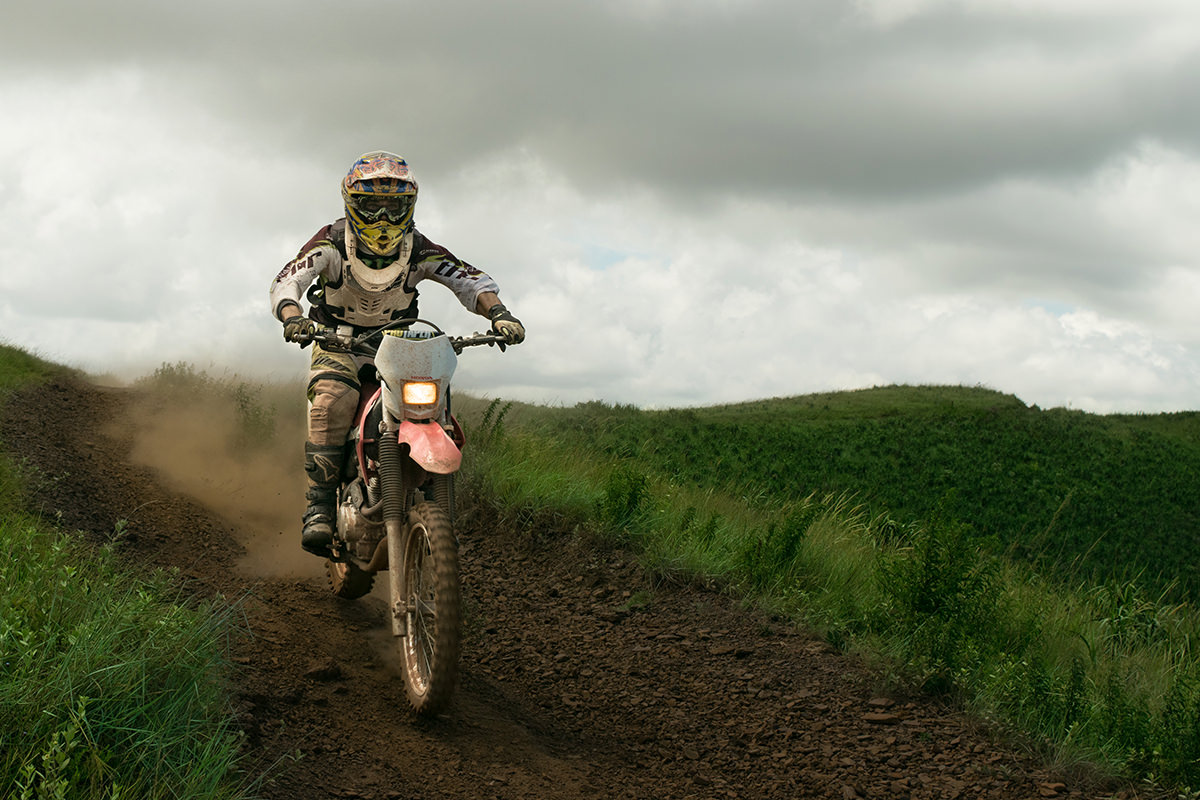
Get the motocross photo with its flat overcast sky and the 4-page PDF guide with every step, Blend If setting and shortcut. Free with a PHLEARN account.
Dramatic Skies in Photoshop: Common Questions
How do I select the whole sky?
Press W for the Magic Wand and click the sky. Raise the Tolerance to grab more (Aaron goes from 8 up to 25), then Shift-click any areas it missed. Press Q to check the selection in Quick Mask, and Q again to go back.
The Magic Wand grabbed part of my subject. How do I take it out?
Switch to the Lasso Tool, hold Alt/Option until a small minus appears, and draw around each area you don’t want. The selection should hold the whole sky and no people, buildings or trees.
Why put the sky mask on a group instead of a layer?
Anything inside the group shows only in the sky, so every layer you add later is masked for you. With the selection active, make a new layer, press Cmd/Ctrl + G to group it, then click the layer mask icon.
Why does Blend If look blotchy and hard-edged?
The slider was dragged as one piece. Hold Alt/Option and click it to split it into two halves, which adds feathering so the paint fades out smoothly.
Which Blend If slider do I drag for darks and for lights?
Both are on the Underlying Layer bar. For black paint, drag the right-hand slider toward the left so it shows only over dark sky. For white paint, drag the left-hand slider toward the right so it shows only over light sky.
Which blend mode should I use for the dark and color layers?
Click through them. Overlay brings in some of the existing color, Soft Light is more subtle and Multiply is stronger. Aaron still clicks through blend modes to see what looks best.
What color works for an overcast sky?
A deep dark blue leaning toward purple, kept away from full saturation, painted into the top of the sky. Then lower the layer opacity until it looks real. Blend If can also limit the color to the shadows or highlights.
How do I add a glow to the headlight?
Outside the sky group, sample the headlight color and drag a radial Foreground to Transparent gradient on a new layer, set to Overlay or Soft Light. On a second layer, stretch a bigger one into a beam with Cmd/Ctrl + T, add a little Gaussian Blur and set it to Soft Light at a lower opacity.
My glow looks too yellow. How do I fix it?
Click each glow layer and go to Image > Adjustments > Hue/Saturation, then lower Saturation a little. You can also move Hue to change the color of the glow entirely.
Are the sample files free?
Yes, with a free PHLEARN account. You get 1 sample image and 1 PDF guide: the motocross photo with its overcast sky, and four pages of steps, settings and shortcuts.
Master Photoshop, Lightroom and Photography
Join PHLEARN PRO for $12.99 a month or $99.99 a year. Cancel anytime, with a 100% money-back guarantee.





