What Is a LUT? LUTs vs Presets, Explained for Photographers
What is a LUT? A color grade saved as a file: every color in the photo is swapped for a new one from a table, in one step, in most photo and video apps. A preset is a saved set of Lightroom slider positions. They overlap, but they aren’t the same thing, and the difference decides which one you want.
You find a look you love on one photo. Now you want it on the other two hundred from the shoot, and on the video clip, and maybe on next month’s shoot too. That is really what LUTs and presets are for, and it’s why photographers keep asking which one they should be using.
The short answer is that they solve one problem in two different ways. A LUT carries color between programs; a preset carries a complete edit inside Lightroom. This guide explains what a LUT actually is, what it can and can’t do, how a preset differs, and how to load or make either one.
What Is a LUT?
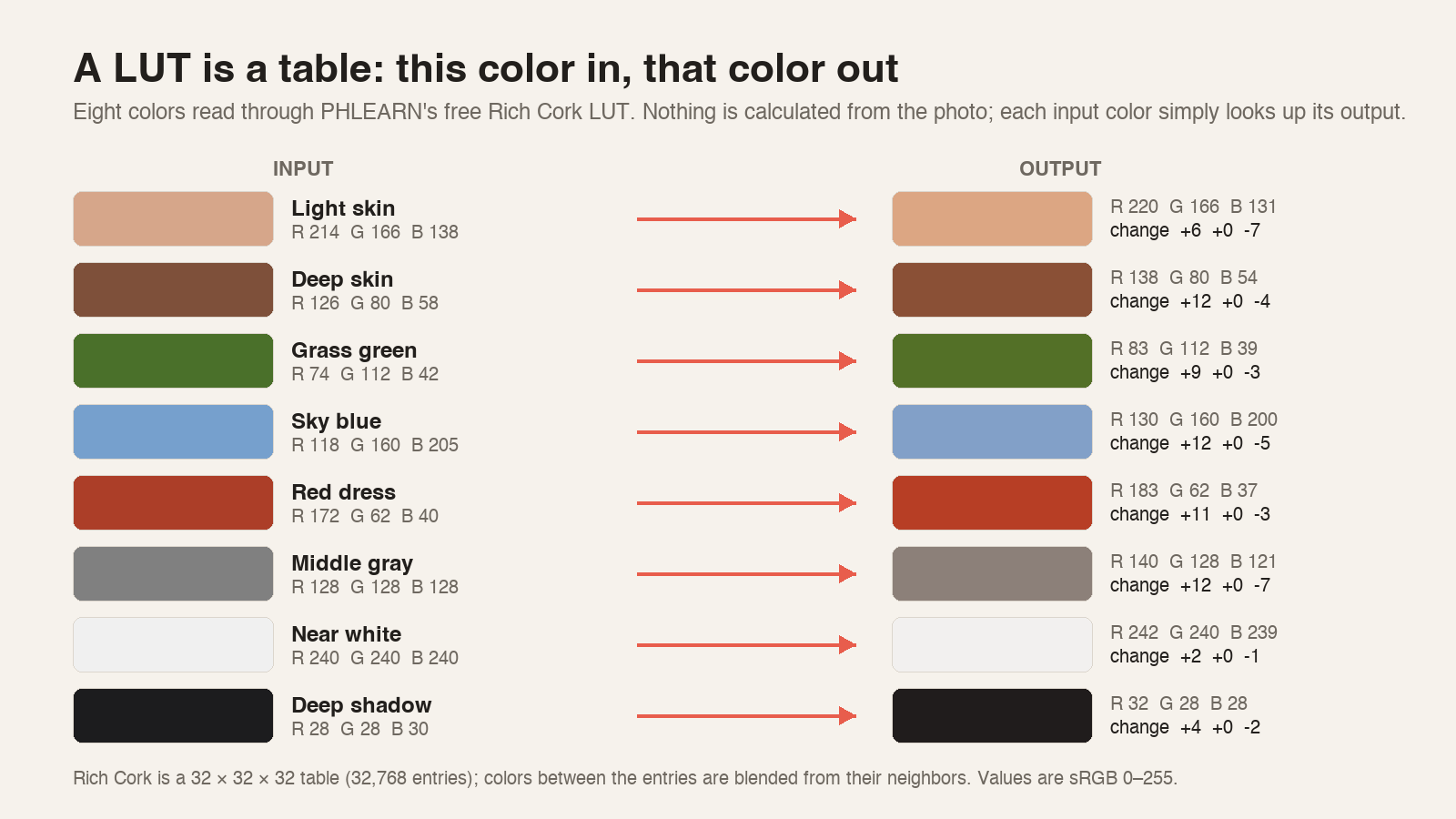
LUT stands for look-up table, and the name pretty much explains it. A LUT is a list that pairs every input color with an output color. When you apply one, the program takes each pixel, finds its color in the table and paints the pixel with the color listed next to it. There’s no analysis of the image, no sliders and no decisions. The table was decided when the LUT was made.
It’s like a color preset that you can use through a bunch of different programs.
Aaron Nace
The LUTs photographers use are 3D LUTs. A 1D LUT treats red, green and blue separately, so it can change brightness and contrast but can’t turn a blue into a teal. A 3D LUT works on the color as a whole, which is what a color grade needs. The common file is .cube, a plain text file you can open in any text editor: a few header lines, then rows of numbers.
PHLEARN’s free sample LUTs, made in Photoshop, are 32 × 32 × 32 tables with 32,768 entries each, and the program blends between neighboring entries for the colors in between. The same look usually ships in a few other formats too, such as .3dl, .csp and .icc, for programs that don’t read .cube.
Video people also use technical LUTs, which convert flat, gray-looking log footage from a camera into normal-looking color. Those are made for one camera profile and look wrong on a photo. Everything on this page is about the other kind, creative LUTs, which give a normal photo or clip a look.
32,768
color entries in each of the free sample LUTs (a 32 × 32 × 32 table)
4
file formats in every pack: .cube, .3dl, .csp and .icc
5
free LUTs in the sample pack, one from each of five packs
34
LUT packs on PHLEARN, all included with PRO
What a LUT Can and Can’t Do
A LUT changes color and tone, and that’s the end of its job description. It can warm the highlights, cool the shadows, mute the greens, lift the blacks or turn the photo black and white. It can’t change exposure the way the Exposure slider does, correct white balance, sharpen, remove noise, crop, or know where the face is. It also has no settings of its own: a LUT is a fixed recipe, and the only control you get is how strongly it’s applied.
In Photoshop that is the adjustment layer’s Opacity, and most LUTs sit best somewhere between 40 and 80 percent. You can also mask it, so the look lands on the background and not the skin.
That is why the order matters. A LUT assumes a normally exposed photo with neutral white balance, because that is what it was built on. Apply it to a dark frame and it just makes a dark frame with different colors.


The upside of that blindness is portability. Because a LUT is only a table of numbers, every program that reads the format applies it the same way. The file that grades a portrait in Photoshop grades the behind-the-scenes video in Premiere Pro, and the two match. That portability is most of why Aaron likes them.
It’s such an awesome way to color multiple images and have them all look cohesive.
Aaron Nace
What Is a Preset, and How Is It Different?
A preset is a saved set of slider positions. In Lightroom, Lightroom Classic and Camera Raw, you edit one photo, choose Create Preset, tick the settings you want to keep, and the result is a small .xmp text file. Apply it to another photo and the sliders jump to those positions. Presets live in those three apps (and Lightroom on your phone); Photoshop has its own version in the form of actions, which record steps rather than settings.
A preset can carry a whole edit, not just the color. It can set exposure, white balance, the tone curve, the Color Grading wheels, grain, a vignette, a profile and even masks, and once it’s applied every one of those sliders is still yours to move. Since 2022 Lightroom presets have had an Amount slider too, so you can dial a look back the way you would lower a LUT’s opacity. The trade is that none of it leaves Lightroom. A preset means nothing to Premiere Pro or DaVinci Resolve.
In his notes for our new color grading course, Aaron put it plainly.
In my opinion, if you’re going to be doing color grading, Lightroom is kind of one of the best ways to do it, because you can make your own preset and save it.
Aaron Nace
Save it once, and from then on it’s one click on every future photo, or one sync across a whole batch.
There’s a third thing worth knowing about, because it sits between the two: a profile. (Aaron covers when he saves a grade as an action, a LUT or a preset in his color grading article.) Profiles are the Adobe Color, Adobe Portrait and camera-matching options at the top of the Basic panel in Lightroom Classic, and at the top of the Edit panel in Lightroom and Camera Raw, and a creative profile can carry a LUT inside it. That is how a .cube file gets into Lightroom at all, which we’ll come back to.

How to Use a LUT in Photoshop, Lightroom and Video Apps
In Photoshop, a LUT is an adjustment layer. Go to Layer > New Adjustment Layer > Color Lookup, then in the Properties panel open the 3DLUT File menu and choose Load 3D LUT to pick a .cube file. Photoshop ships with a set of its own, including film-stock emulations with names like Fuji ETERNA 250D and Kodak 5218, plus looks like Candlelight and NightFromDay, so you can try the idea before downloading anything.
Because it’s an adjustment layer, you can lower its opacity, mask it, change its blending mode or swap the file later. To make a LUT appear in that menu every time, copy the .cube file into Photoshop’s Presets > 3DLUTs folder and restart; the exact paths for Mac and Windows are in our install guide.
Lightroom and Lightroom Classic don’t open .cube files directly, as of October 2026. The way in is a profile: in Camera Raw, hold Alt (Windows) or Option (Mac) and click the Create Preset icon to get the Create Profile dialog, tick Color Lookup Table, choose the .cube file and save.
The profile then shows up in Lightroom Classic’s Profile Browser with its own Amount slider, and the .xmp file it writes can be brought into Lightroom on the desktop with File > Import Profiles & Presets, from where it syncs to your phone. Two things to know: Camera Raw opens from Photoshop or Bridge, and a profile built from a RAW file may not show up for JPEGs, so build it from the kind of file you edit. It’s a few more steps than Photoshop, and if you only ever edit in Lightroom, a preset is the simpler tool.
For video, the same .cube file loads in Premiere Pro and After Effects through Lumetri Color, in DaVinci Resolve’s LUT browser and in Final Cut Pro’s Custom LUT effect. Our install guide covers each of those program by program, including what to do when a LUT doesn’t show up.


How to Make Your Own LUT
If you build looks in Photoshop, you already have everything you need. Open a photo with a Background layer, add the adjustment layers that make the look (Color Balance, Curves, Gradient Map, Selective Color, whatever you reach for), and keep everything on adjustment layers: the export needs a Background layer with the color-changing layers above it, so anything painted straight onto the pixels isn’t part of the LUT. Then go to File > Export > Color Lookup Tables, give it a description, set the Grid Points (higher means a bigger, more accurate file) and tick the formats you want; Adobe’s own page on the export lists the four.
Photoshop writes the files, and from then on the whole stack is one Color Lookup layer, in Photoshop or anywhere else. Aaron walks through it, Gradient Map included, in How to Create and Import LUTs in Photoshop, and the LUT he makes there is a free download.
One thing to keep in mind as you build: the LUT will only ever be as good as the photo you built it on. Make the look on a well-exposed, neutral frame, test it on two or three others before you export, and keep the color changes modest. Aaron’s rule of thumb from the color grading course notes is to save the cooler colors for the shadows and the warmer colors for the highlights, because greens and blues in the highlights rarely do skin any favors.
If you edit in Camera Raw or Lightroom, don’t go looking for an export button. Save the look as a preset, which Aaron thinks probably makes the most sense in Camera Raw, and it will follow you into every photo you edit next.
Five Mistakes People Make With LUTs
Applying a LUT at 100 percent. Most LUTs are built strong so they read on a thumbnail. Lower the opacity until the look stops being the first thing you notice.
Grading before correcting. Set exposure and white balance first, then add the LUT. The order is the difference between a look and a cast.
Stacking three LUTs. Each one remaps the output of the last, and the colors go somewhere nobody designed. Pick one, mask it if you need to, and build the rest with adjustment layers.
Using a log LUT on a photo. A LUT made to convert a camera’s log footage expects flat, gray input. On a normal photo it crushes the shadows and oversaturates everything.
Expecting one LUT to fit every photo. A LUT built on a warm, golden-hour portrait will look odd on a cool overcast one. That isn’t a bad LUT; it’s a different input. This is where a preset’s editability, or a quick mask on the Color Lookup layer, earns its place.
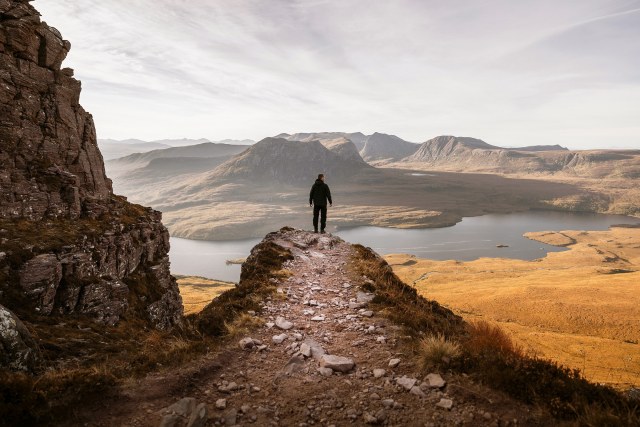
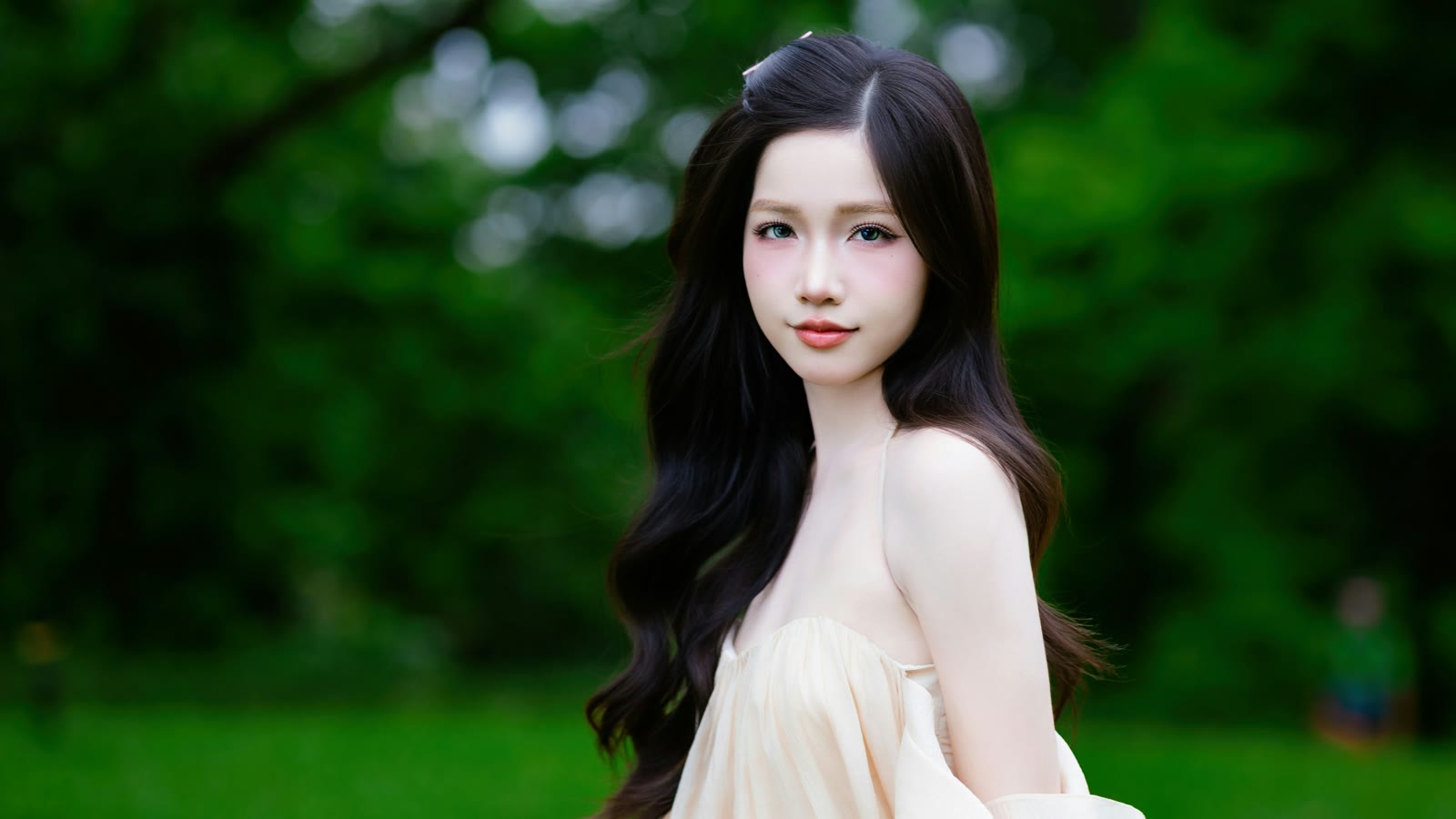
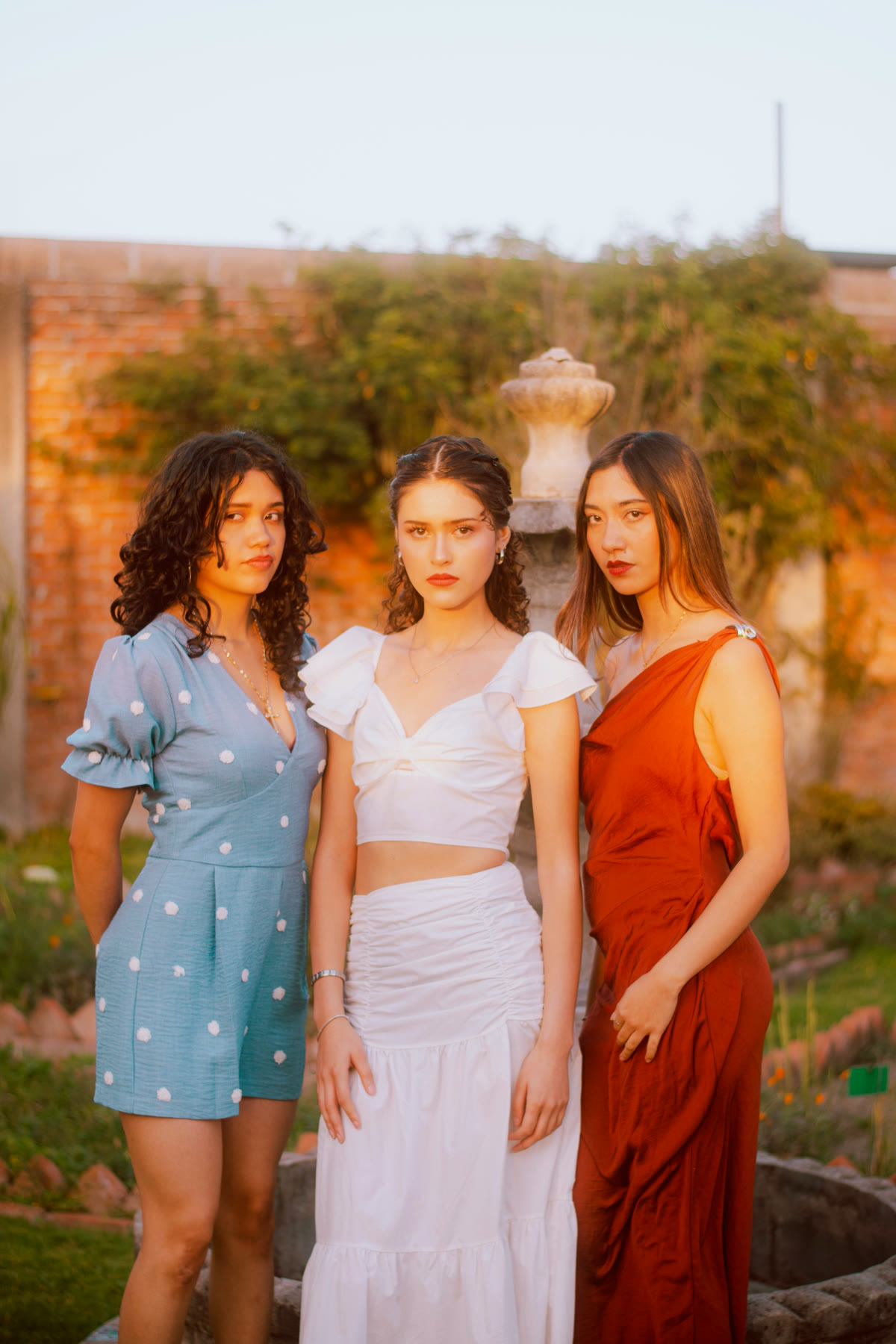
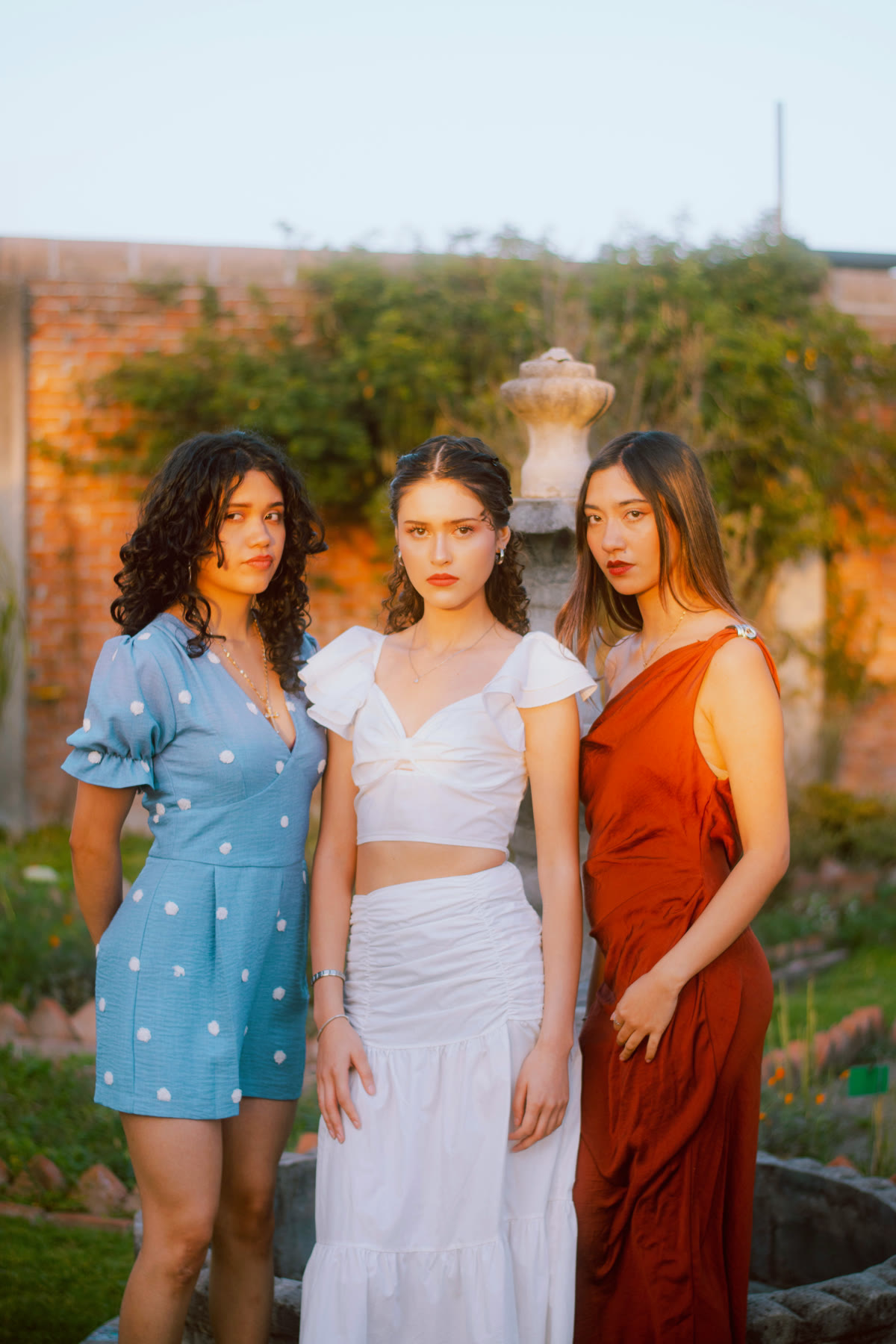
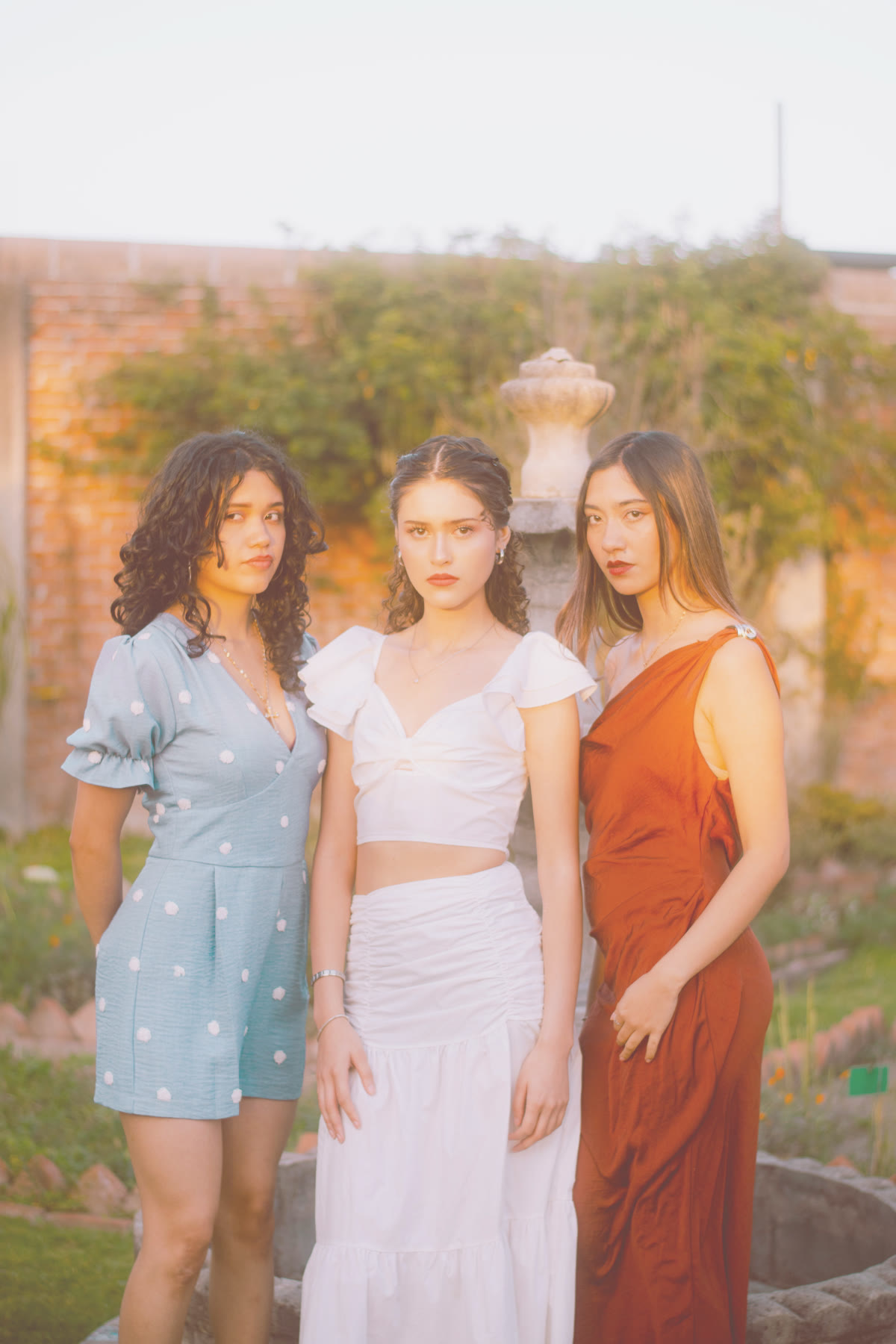
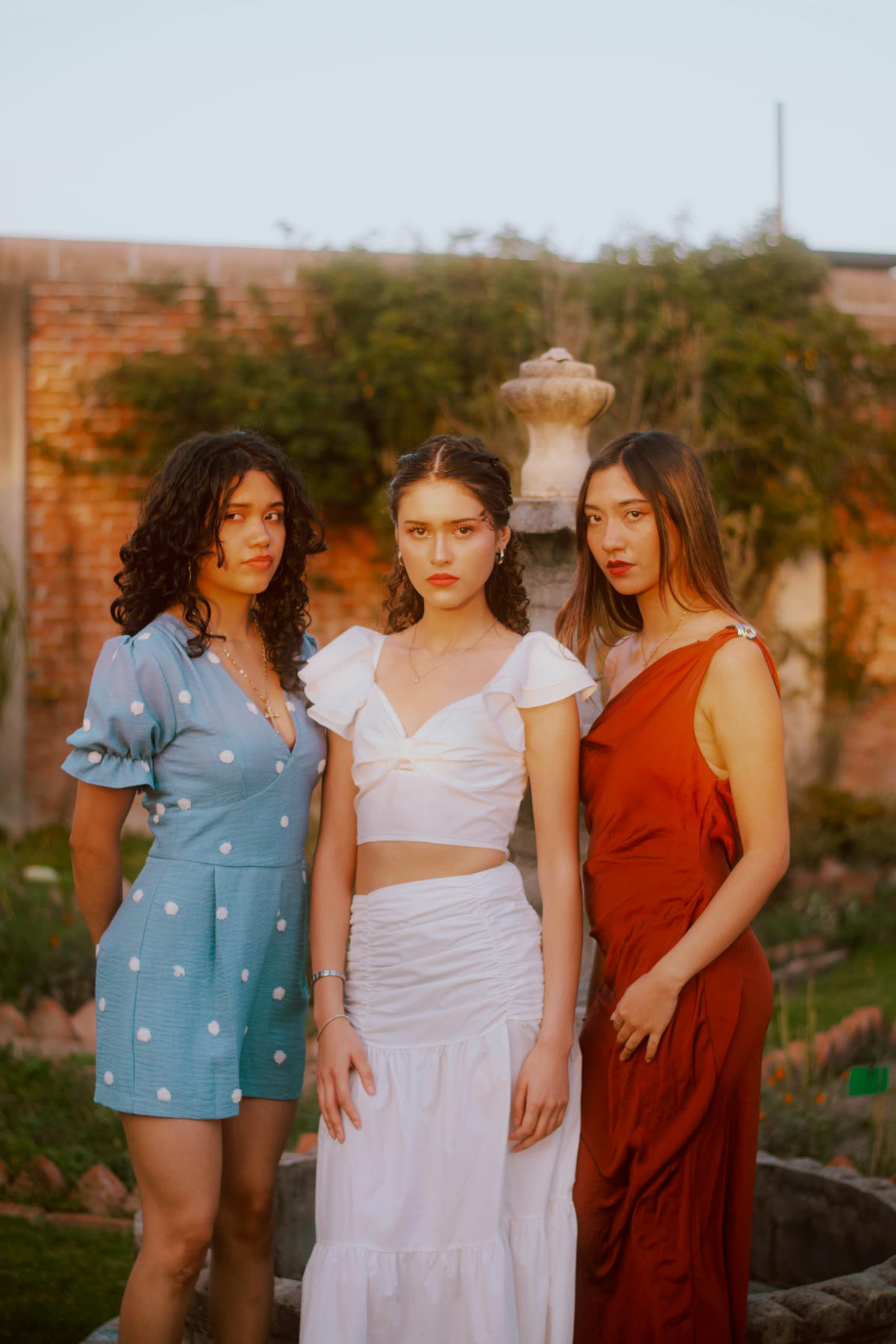
Photos by Elist Nguyen, César O’neill and Ben Scott on Unsplash. Every LUT on this page is from PHLEARN’s free sample pack, applied at full strength from the .cube file with no other edits, so what you see is the table and nothing else.

Related articles