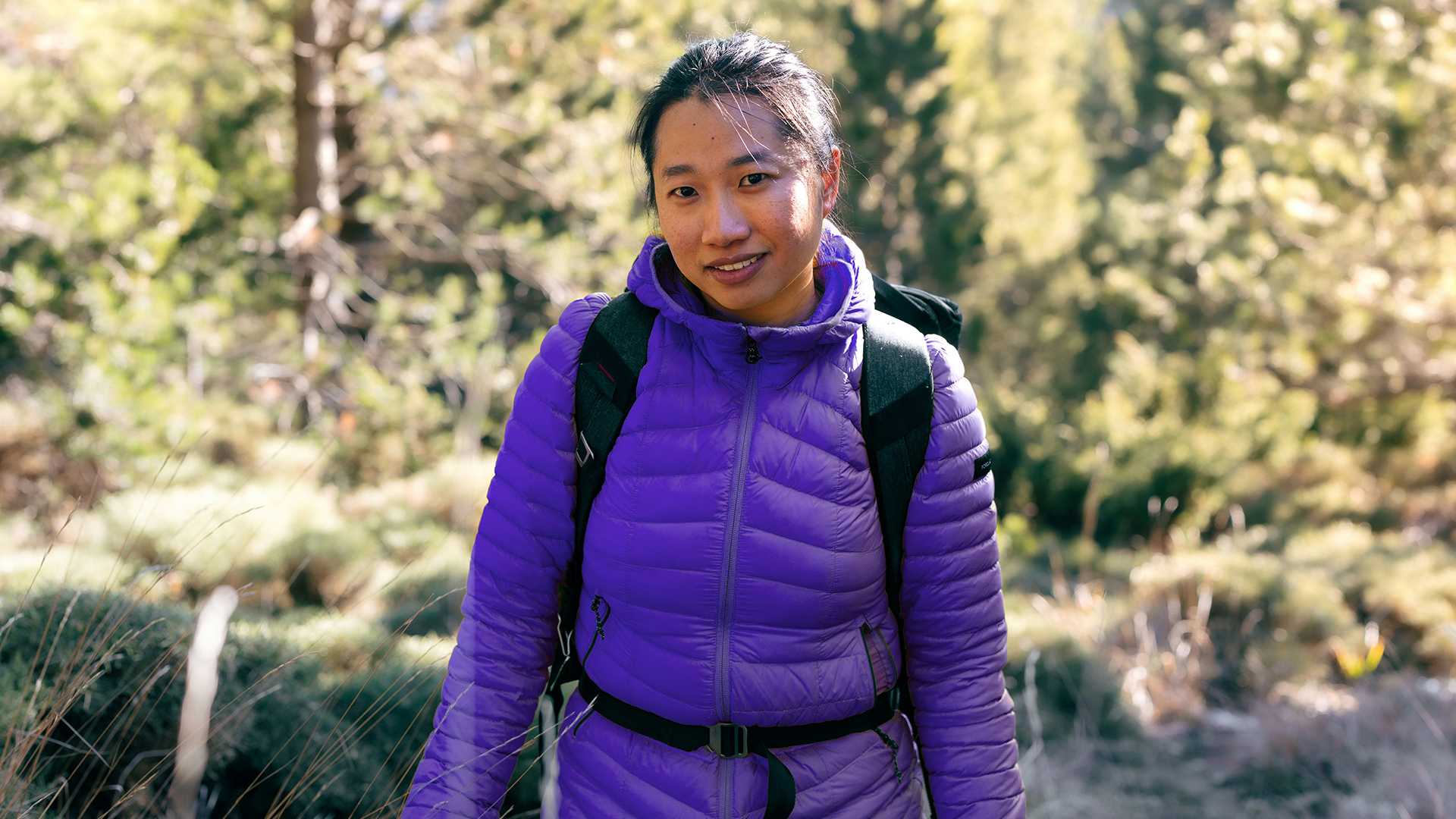

DOWNLOAD SAMPLE IMAGES
description
Learn Photoshop’s AI Select Subject feature to instantly isolate subjects. Refine edges for seamless blending with new backgrounds (solid or gradient!). We’ll even show you how to brighten subjects, add a background glow, and change clothing color using Hue/Saturation adjustments.
Coming Up
JOIN 10 DAYS OF AI (FOR FREE!)
Ready to jump in? Sign up and we’ll email you a printable calendar and daily class schedule so you can get started right away!
Image Source
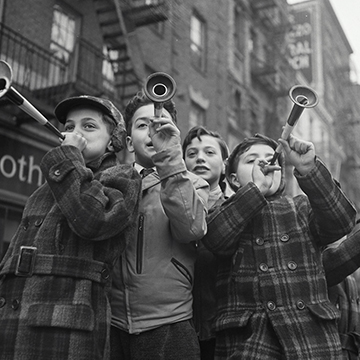
- Marek Piwnicki
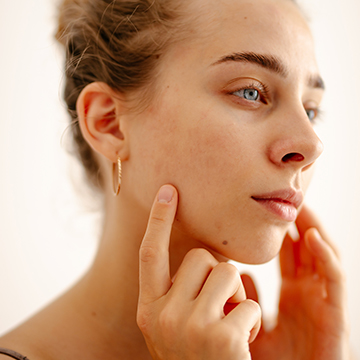
- Jay Soundo
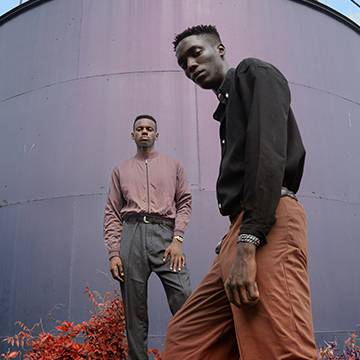
- Bruno van der Kraan
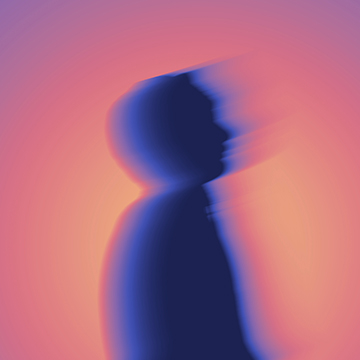
- Moses Malik Roldan
Images sourced from Unsplash.
Share
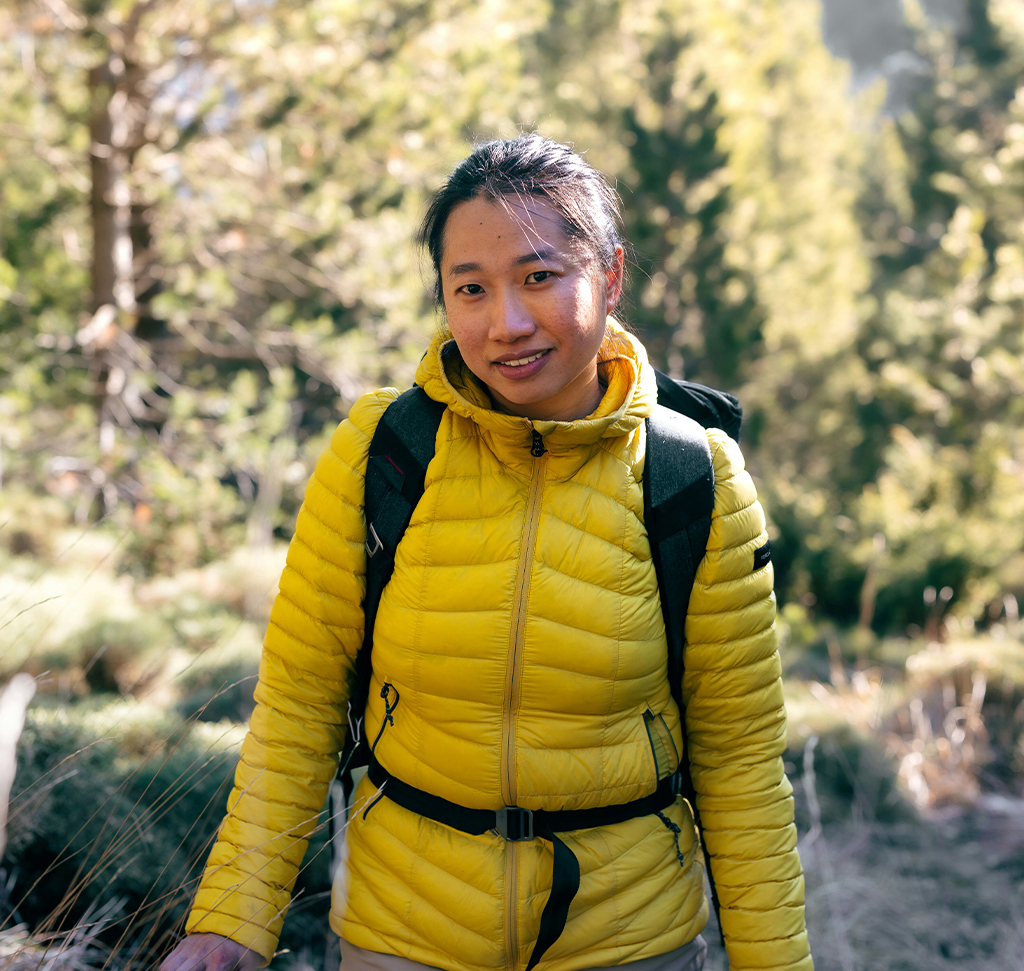
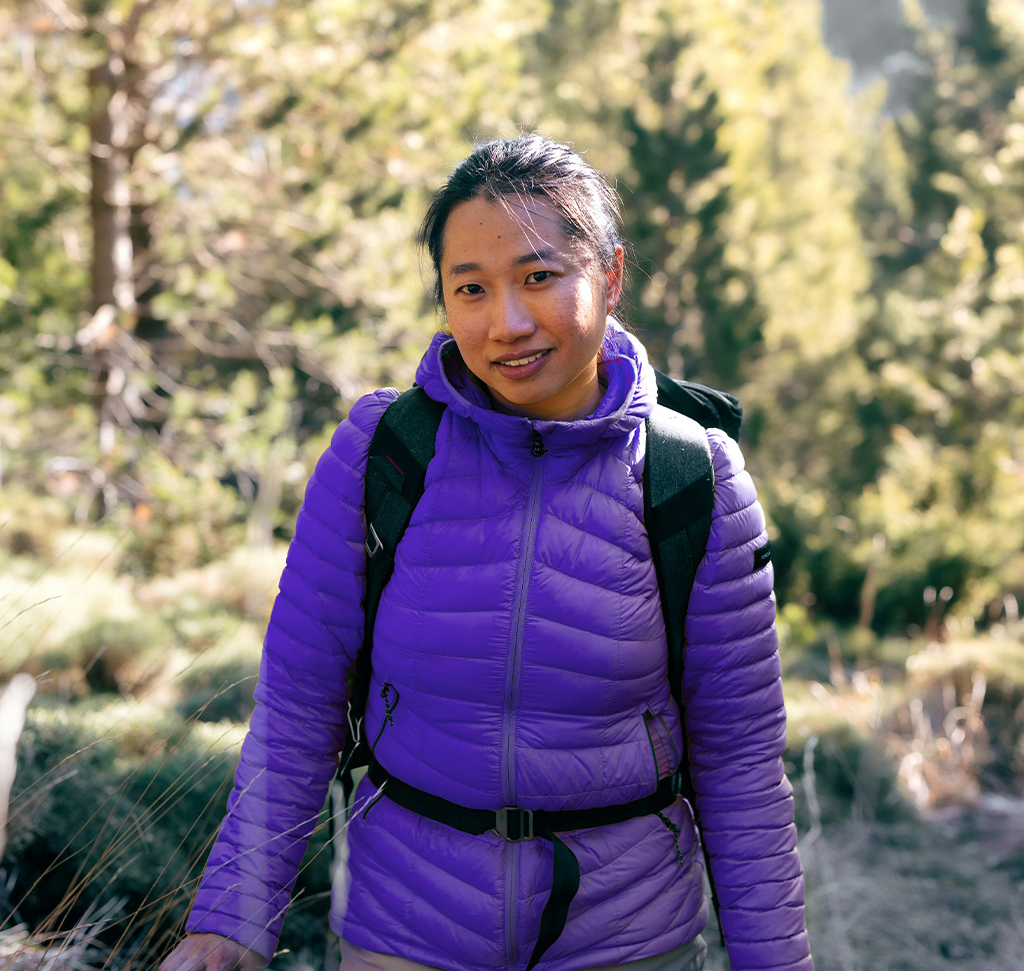
AFTER
BEFORE
Instant Subject Isolation
Selecting a subject with precision has historically been a time-consuming challenge for photo editors, often requiring meticulous manual work around complex edges like hair. However, Photoshop’s AI-powered “Select Subject” feature has revolutionized this process, allowing you to instantly isolate people, objects, or products with a single click, providing a transparent background ready for advanced manipulation.
Isolate and Refine
1. Start by clicking “Remove Background” in the Contextual Task Bar to automatically select your subject and create a layer mask.
2. To fix light halos from the original background, double-click the layer mask and enter “Select and Mask.”
3. Under Global Refinements, use the “Shift Edge” slider to slightly contract the selection, bringing the edge inward.
4. For fine details, like hair, grab the Refine Edge Brush tool and paint over the complex edges to automatically remove unwanted background fringing.
New Background
After isolating your subject, you can quickly add new backgrounds.
To create a solid color background, go to Layer > New Fill Layer > Solid Color. Choose your color, then drag this new fill layer below your subject layer in the Layers Panel. To add a gradient, select the Gradient Tool (Keyboard shortcut “G”), choose a style (like Radial Gradient), and select your desired colors. Click and drag on the canvas to apply the gradient, which can be further customized by changing the blend mode or adjusting the gradient’s size and position on the layer.
Enhance Your Subject
To make your subject stand out, use the Select Subject tool, and then immediately click on the Brightness/Contrast adjustment in the Adjustments Panel. The selection will automatically be loaded as a mask, allowing you to increase brightness and contrast only on the subject. For creative effects, select the subject again, grab the Gradient Tool, and apply a Radial Gradient to the subject. Then, select the gradient layer mask and hit Ctrl/Command + I to Invert it, placing a glowing effect behind your subject.
Change Clothing Color
For a targeted color change, use “Select Subject” and then grab the Selection Brush Tool. Use the Subtract mode to paint away areas you don’t want to select (like skin/hands). Once only the clothing is selected, click the Hue/Saturation adjustment in the Adjustments Panel. This loads the clothing selection into the layer mask. In the Properties Panel, select the color you want to change (e.g., Yellows), and then drag the Hue slider to instantly change the color of the clothing.
We’re now officially halfway through our AI photo editing series! We hope you enjoyed mastering the powerful Select Subject tool today. Join us again tomorrow for Day Six, where we’ll introduce two incredibly useful AI features: Harmonize, which perfectly matches the colors and tones of your subject to a new background, and Upscale, which lets you intelligently enlarge your images without losing quality.