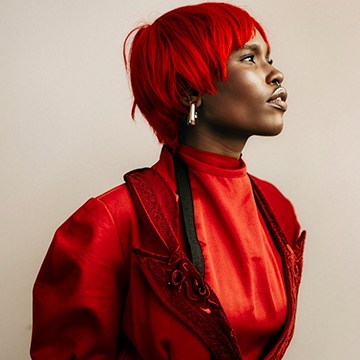
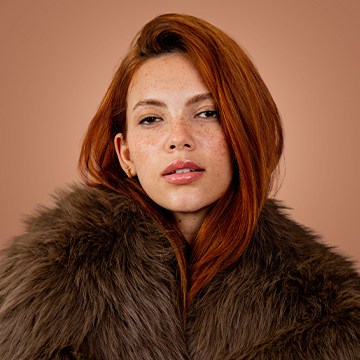
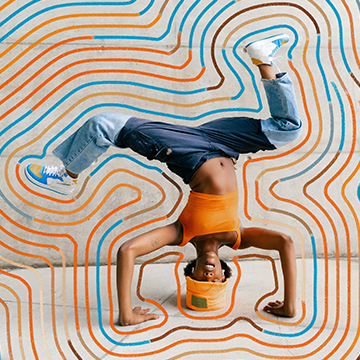
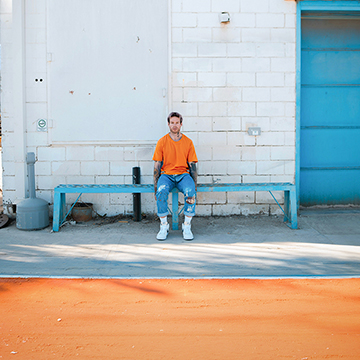
DOWNLOAD SAMPLE IMAGES
description
It’s day 6 of our AI series! On today’s episode we’ll show you how to instantly blend subjects into new backgrounds using the powerful Harmonize tool in Photoshop, matching color and lighting realistically. Plus, discover Generative Upscale to enlarge your smaller photos with AI, filling in missing detail for stunning, high-resolution results.
Coming Up
JOIN 10 DAYS OF AI (FOR FREE!)
Ready to jump in? Sign up and we’ll email you a printable calendar and daily class schedule so you can get started right away!
Image Source
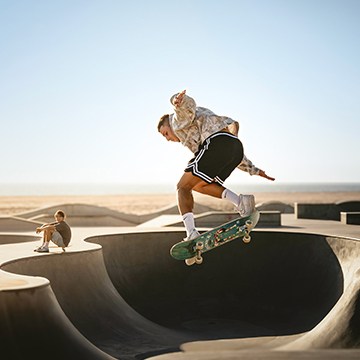
- Alef Morais
- Ali Pazani
- Hannah Reding
- Peter Thomas
Images sourced from Unsplash.
Share
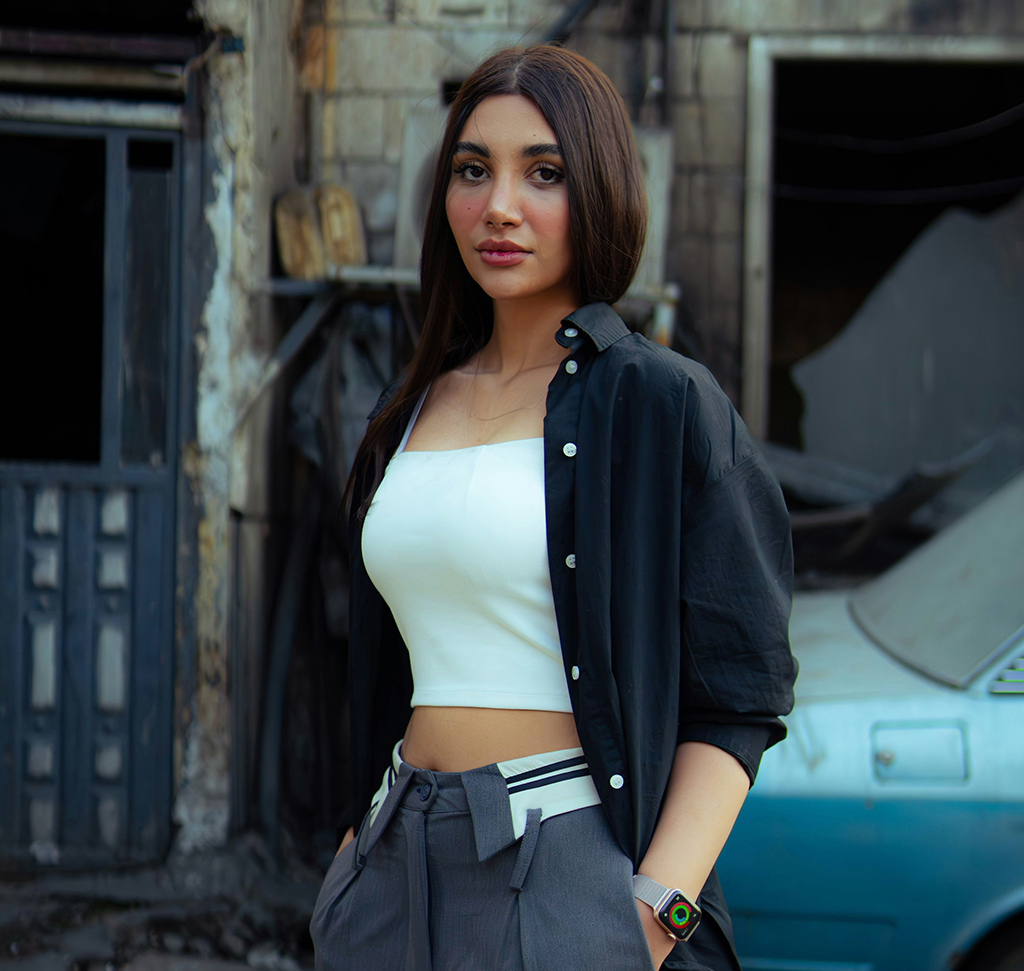

AFTER
BEFORE
Harmonize & Upscale Explained
Matching color and light for photo composites is complex, and enlarging small images typically sacrifices quality. This tutorial teaches two AI solutions: Harmonize instantly solves blending by matching lighting and color realistically. Generative Upscale enlarges low-resolution photos dramatically, using AI to recover and fill in stunning detail, simplifying previously challenging tasks.
Compositing with Harmonize
1. Start by placing your subject image onto your background image. Use the Remove Background feature in the Layers panel (or the Contextual Task Bar) to instantly cut out the subject, which creates a layer mask.
2. Next, position and resize the subject using the Transform tool (Keyboard Shortcut “Ctrl/Cmd + T”) to ensure realistic scale within the scene.
3. With the subject layer selected, click the Harmonize button, which is available in the Contextual Task Bar or found under the Layer > Harmonize menu. This tool uses AI (Firefly Model 3) to match the subject’s lighting and color to the background, creating a unified and realistic composite. It offers three variations per generation, and generating more is recommended for the best result.
Enhanced Subject Integration
4. To take your composite further, especially when subject elements like clothing don’t fit the background environment, you can integrate other generative AI tools. After applying Harmonize, select the entire image (Keyboard Shortcut “Ctrl/Cmd + A”).
5. Access Generative Fill and choose a partner model, such as Gemini 2.5 Nano Banana, if available, and use a text prompt to modify parts of the subject, like changing their clothing to match the season or environment. The key benefit here is that the new generative changes will respect the realistic lighting and color adjustments already applied by the Harmonize tool.
Scaling Up Detail
The final part of the tutorial introduces Generative Upscale, a tool that enlarges small images while using AI to intelligently fill in missing detail, perfect for old or low-resolution scans. Note the size limitations: the final long edge cannot exceed 6144 pixels. For an image to be eligible for 4x upscaling, the long edge should ideally be around 1500 pixels (since $1500 \times 4 = 6000$).
6. Navigate to Image > Generative Upscale. You can choose to scale the image by 2x or 4x. The process uses generative credit and saves the upscaled version as a new layer for easy comparison with the original, demonstrating a significant improvement in detail and resolution.
We’ve covered two essential AI tools today. Tomorrow, we will dive deeper into the capabilities of the Gemini 2.5 Nano Banana partner model and explore how it integrates with these and other Adobe features for even more creative photo editing possibilities.