

description
Learn how to create a magazine cover in Photoshop, from a hand-traced logo to finished cover lines. Trace a bold V-shaped logo with the Pen tool, reuse those paths as selections to tuck the logo behind the subject and her ear, and stack duplicate layers with sampled colors, an Exclusion blend mode, an offset shadow, and a clipped gradient for depth. Then build the cover type, style it with a stroke layer effect, and align and group each line the way a real cover is laid out.
Enjoying This Free Tutorial?
We publish a new free tutorial every week, each one with sample images and PSDs you can download and follow along with. Sign up and they land straight in your inbox, along with early word on sales, events and subscriber-only offers.
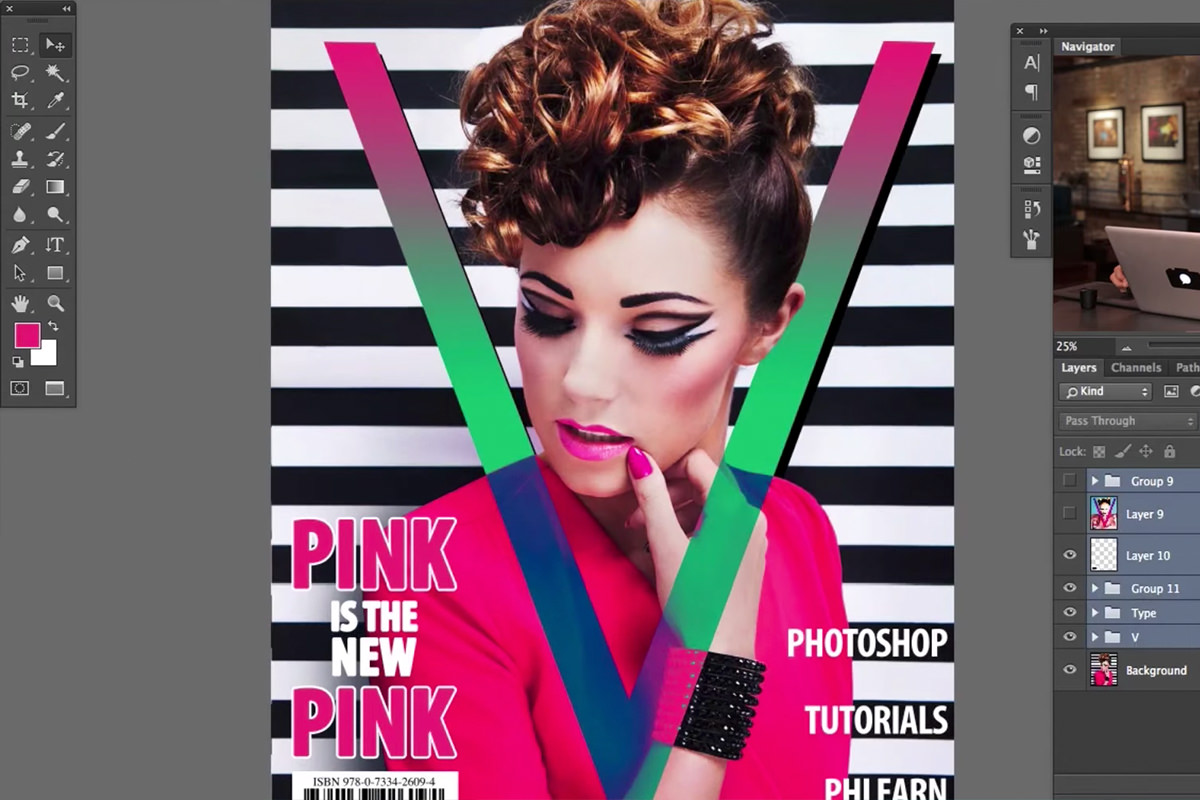
How to Create a Stunning Magazine Cover in Photoshop
Building a convincing magazine cover comes down to a handful of familiar tools working together: the Pen tool for a precise logo shape, layer masks and pen-tool selections to weave that logo behind the subject, and the Type tool for cover lines styled with layer effects. This tutorial traces a simple V-shaped logo, builds it up with color, blend modes, and depth so it interacts naturally with the subject, then finishes with type treated the way a real magazine cover would be.
Tracing a Logo Shape With the Pen Tool
A simple logo shape, like a large letter V, traces cleanly with the Pen tool’s straight-line clicks, giving crisp edges that would be hard to match with a freehand selection.
-
Bring In a Reference Image and Scale It to Match
Bring a reference magazine cover into the document, lower its opacity, and scale it with Cmd/Ctrl+T to match the working image’s dimensions.
-
Trace the Logo With the Pen Tool
Press P for the Pen tool and click on each corner of the logo shape in sequence, closing the path back at the starting point.
-
Name the Path
Double-click the new path in the Paths panel and give it a descriptive name, such as V.
Why Paths Stay Separate From Layers and Selections
A path created with the Pen tool exists independently of any specific layer, which means it stays available in the Paths panel even after the layer used to create it is turned off or deleted. That separation makes it possible to reuse the exact same precise shape as a selection over and over across many different layers throughout the rest of the project.
Filling the Logo With a Sampled Color and Building Duplicate Layers
Turning the path into a selection and filling it with a color sampled from the image ties the logo visually to the photo before any blend modes come into play.
-
Load the Path as a Selection
Hold Cmd/Ctrl and click the path’s thumbnail to load it as a selection.
-
Fill With a Sampled Color
Create a new layer, press B for the Brush tool, hold Option/Alt to sample a color from the image, then hold Option/Alt and press Delete to fill the selection.
-
Duplicate the Layer for Additional Depth
Press Cmd/Ctrl+J twice to create two more copies of the filled logo layer, then hide two of them temporarily.
-
Try an Exclusion Blend Mode
Change the first logo layer’s blend mode to Exclusion for a striking, unusual color interaction with the image beneath it.
Why Use Exclusion Blend Mode Here When It Rarely Fits a Portrait
A blend mode like Exclusion produces harsh, high-contrast color shifts that would ruin a standard portrait retouch, which is why it rarely comes up in typical Photoshop work. A bold graphic element like a magazine cover logo is exactly the kind of design element where that same harshness becomes a stylistic asset instead of a problem.
Cutting the Logo Behind the Subject With Pen Tool Selections
Tracing separate pen paths around the subject’s body and ear creates the selections needed to make the logo look like it’s tucked behind her, the way a real magazine logo interacts with its cover model.
-
Trace a Path Around the Body
Create a new path named Body and trace around the subject’s body with the Pen tool.
-
Trace a Path Around the Ear
Create a second new path named Ear and trace around the ear and surrounding hair.
-
Recolor One Logo Layer
Sample a different color, lock the layer’s transparent pixels, and fill it with the new color using Option/Alt+Delete.
-
Load Both Paths as a Layer Mask
Hold Cmd/Ctrl and click the Body path, then Shift+Cmd/Ctrl-click the Ear path to combine them, and use the combined selection as a layer mask.
-
Invert the Mask
Press Cmd/Ctrl+I on the layer mask so the logo becomes visible only in the background, hidden behind the body and ear.
Refining the Mask Around the Ear
A small additional adjustment on just the ear path keeps that specific area from getting cluttered by the effect.
-
Load Just the Ear Path
Hold Cmd/Ctrl and click only the Ear path to load it as a selection.
-
Subtract It From the Layer Mask
Select the Exclusion logo layer, then hold Option/Alt and click the Add Layer Mask icon to make a mask that hides the logo over the ear, keeping the ear itself clean.
Adding a Shadow Layer Behind the Composition
A black-filled version of the same shape, positioned behind the other logo layers, adds a sense of depth and offset shadow to the whole design.
-
Lock Transparency and Fill With Black
Lock the transparent pixels on the third logo layer and press Shift+Delete to fill it with black.
-
Offset the Shadow Layer
Use the Move tool to shift the black layer slightly to create a shadow-like offset.
-
Move the Layer Beneath the Others and Mask It
Drag the shadow layer below the other logo layers, then load the combined Body and Ear paths again and use them as its layer mask.
-
Unlink the Layer and Mask for Independent Movement
Click the chain icon to unlink the layer from its mask, allowing the shadow layer to be repositioned without disturbing the mask.
Clipping a Gradient to the Logo Shape
A clipping mask restricts a painted gradient to appear only within the boundaries of the logo shape beneath it, adding one more layer of color depth.
-
Sample a Color and Create a New Layer
Sample a color from the image and create a new layer above the logo layers.
-
Paint a Foreground-to-Transparent Gradient
Select the Gradient tool, choose a linear foreground-to-transparent gradient, and click and drag to paint it across the canvas.
-
Clip the Gradient to the Layer Below
Hold Option/Alt+Cmd/Ctrl and press G, or right-click and choose Create Clipping Mask, so the gradient only shows within the logo shape.
Adding and Duplicating Type
Building a multi-line cover line works well as several duplicated type layers rather than a single block of text with line breaks, since each line can then be positioned and sized independently.
-
Add the First Line of Type
Create a new group named Type, press T for the Type tool, and type the first word large and bold.
-
Duplicate for Additional Lines
Press Cmd/Ctrl+J to duplicate the type layer, then double-click to edit its text for each additional line.
-
Scale Each Line Independently
Use Cmd/Ctrl+T to scale each line of type to a size that fits the overall design.
Styling Type With a Stroke Layer Effect
A layer style stroke gives a line of type an outline that helps it stand out against a busy background.
-
Open Blending Options
Double-click a type layer to open its layer style options.
-
Add and Adjust a Stroke
Add a Stroke effect, increase its size, and set its color to match the rest of the design.
-
Copy the Effect to Other Layers
Hold Option/Alt and drag the FX icon from one layer to another to copy the same stroke effect instantly.
Why Lock Transparency Before Refilling a Shape With a New Color
Filling a layer with a new color without locking transparency first would paint over the entire layer, including areas that should stay empty outside the logo shape. Locking transparent pixels first restricts the fill to only the pixels that already exist, which is what keeps the logo’s exact shape intact through every recoloring pass.
Aligning and Grouping Type Layers
Photoshop’s alignment tools, combined with grouping related lines of type together, keep a multi-line cover line lined up cleanly as pieces get moved and resized.
-
Select Multiple Type Layers to Align
Hold Shift and click to select several type layers that should line up together.
-
Align Them With the Move Tool
Press V for the Move tool and use the alignment options to align the selected layers vertically or to center them.
-
Group Related Lines Together
Group smaller related lines of type together with Cmd/Ctrl+G so they move and align as a single unit relative to other elements.
Why This Approach Works
Tracing the logo with the Pen tool and reusing those same paths as selections again and again is what makes it possible to weave the logo behind the body, behind the ear, and into a shadow layer, all without redrawing a single shape more than once. Building the logo across several duplicated layers, each with its own color, blend mode, and mask, is what creates a sense of depth that a single flat shape never could. Locking transparency before every recolor and using clipping masks for the gradient keeps every pass confined to the exact same precise shape established at the very beginning.
Final Thoughts
None of the individual techniques here, the Pen tool, layer masks, blend modes, or type styling, are unique to magazine covers, but combining them this way is what makes a composite start to read like a real published design. The same approach works with any simple logo shape and any portrait, so it’s worth trying with a completely different letter, word, or graphic to see how differently it interacts with a new image.
Quick Reference: Keys, Menus and Settings
- Trace the logoP for the Pen tool, click each corner; name the path in the Paths panel
- Path to selectionCmd/Ctrl-click the path thumbnail; add Shift to combine paths
- FillAlt/Option + Delete foreground; Shift + Delete to pick a fill color
- Copies of the logoCmd/Ctrl + J; first copy set to Exclusion
- Clip a gradientAlt/Option + Cmd/Ctrl + G
- Style the typeDouble-click the layer > Stroke; Alt/Option-drag the fx icon to copy it
- Align and groupV, alignment buttons in the options bar; Cmd/Ctrl + G to group lines
Magazine Cover Design: Common Questions
How do I trace a logo in Photoshop?
Bring a reference cover in, lower its opacity and scale it with Cmd/Ctrl + T to match. Then press P for the Pen tool and click each corner of the shape, closing the path on the first point.
Why use paths instead of just making a selection?
Paths live in the Paths panel, separate from layers and selections, so they stay available even when a layer is hidden. Cmd/Ctrl-click a path thumbnail to load it as a selection as many times as you need.
How do I fill a selection with a color from the photo?
With the Brush tool active, hold Alt/Option to sample a color, then press Alt/Option + Delete to fill the selection with it.
Which blending mode works for a magazine logo?
Try a few, like Lighten or Soft Light. Exclusion rarely suits a portrait, but on a bold cover logo it gives a striking color effect.
How do I put the logo behind the model?
Trace pen paths for the body and the ear. Cmd/Ctrl-click one, Shift + Cmd/Ctrl-click the other, add a layer mask, then press Cmd/Ctrl + I so the logo shows only in the background.
How do I recolor the logo without painting outside it?
Lock the layer’s transparent pixels, then fill with Alt/Option + Delete for the foreground color or Shift + Delete for black. Only the logo’s own pixels change.
How was the drop shadow made?
A black copy of the logo was moved slightly to the right, dragged beneath the other logo layers, and masked with the same body and ear paths. Unlinking the mask lets the layer move without the mask.
How do I keep a gradient inside the logo?
Paint a foreground-to-transparent linear gradient on a new layer above the logo, then press Alt/Option + Cmd/Ctrl + G or right-click and choose Create Clipping Mask.
Should I type cover lines in one text box?
Aaron prefers one type layer per line: press Cmd/Ctrl + J to duplicate the type, edit the words, and scale each line on its own. A Stroke layer effect helps a line stand out, and Alt/Option-dragging the fx icon copies it.
Master Photoshop, Lightroom and Photography
Join PHLEARN PRO for $12.99 a month or $99.99 a year. Cancel anytime, with a 100% money-back guarantee.





