

THIS COURSE INCLUDES
- 8 Lessonsin 2 sections
- 2h 12mof captioned HD video
- Beginnerno experience needed
- 8 Sample Imagesto follow along
Part of a Learning Path
Join PHLEARN PRO for instant access to this course and every tutorial on PHLEARN.
- Stream in up to 4K on any device
- Closed captions and chapters on every course
- Download all sample images and PSDs
- New PRO tutorials every month
- Cancel anytime
Description
Dark shadows. Cool tones. Cinematic style. Learn dark and moody coloring in Photoshop and add drama and mystery to any photo. Coloring is a big part of what makes a portfolio look like your own, and this look works best when it is controlled: most of the image dark, with the light kept where you want the eye to go. This course takes you from the essential tools to four complete edits, in 8 lessons with sample images included so you can follow along.
We show you how to turn day into night, create subtle vignettes, add steely color tones to the shadows, and dial up the contrast with light effects. You’ll start by processing a raw photo in Adobe Camera Raw, then learn to add color to just the shadows, midtones or highlights with Color Balance, Levels, Hue/Saturation and the Photo Filter, and to control exactly where it shows with blending modes and Blend If. Then you’ll put it all together on a foggy coastline, a forest scene and two portraits, where the challenge is cooling the background while keeping skin tones natural. Everything is done non-destructively, so you can change any part of the edit at any time.
What You’ll Learn
- Turn day into night with cinematic dark tones
- Add steely color tones and vignettes to build drama
- Dial up contrast with light effects for a moody look
Table of Contents
-
01 - Adobe Camera RAW19:22m
-
02 - Coloring22:43m
-
03 - Exposure29:17m
-
04 - Blending15:01m
Course Downloads
Dark Shadows. Cool Tones.
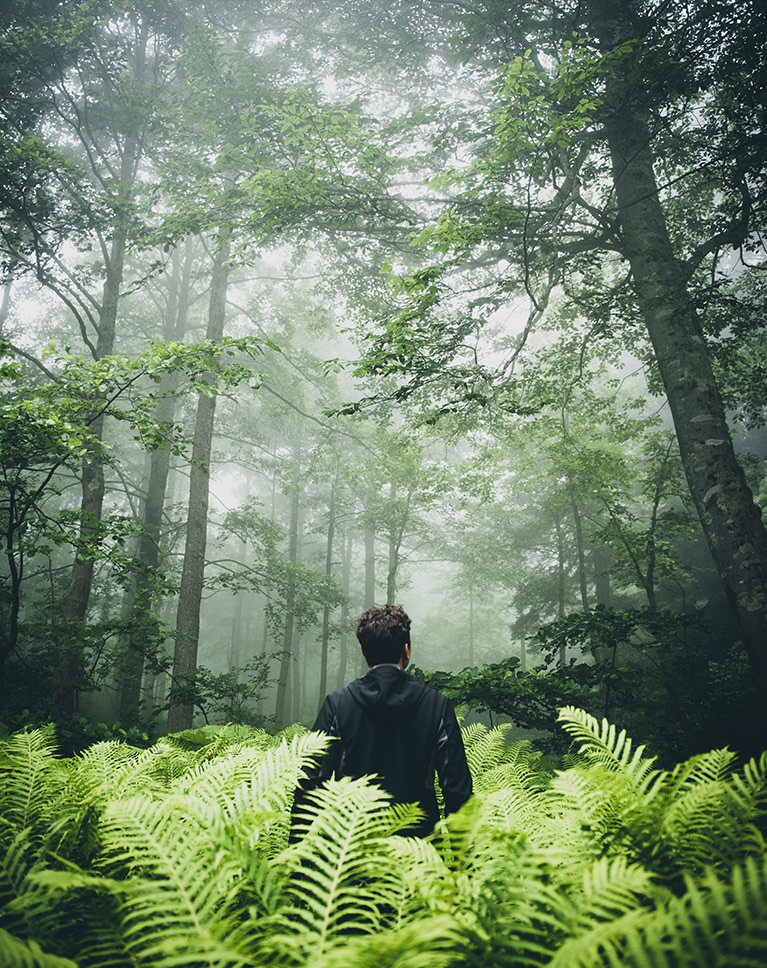
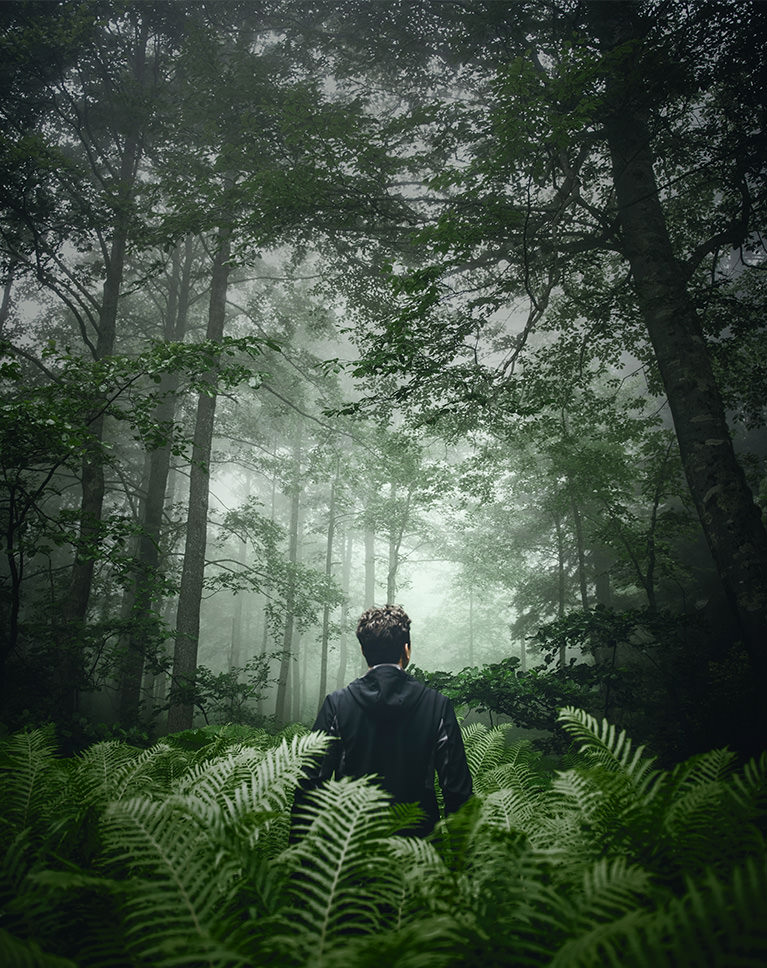
How to Add Dark and Moody Coloring in Photoshop
Color grading is the most expressive part of editing photos in Photoshop. And, when you have the right photo for it, dark and moody coloring in Photoshop can make an image more lasting and powerful. We show you helpful tools and techniques that you can use to transform an image into one that people will remember.
Professional Coloring Techniques
Learn how to sculpt light and color with dark and moody coloring in Photoshop. We show you how to precisely control areas of highlight and shadow, and add beautiful color toning into the shadows, midtones, and highlights of an image.
Darken a Photo in Photoshop
We all know what it’s like to brighten up a photo, but making one darker can be even more of a challenge! We show you how to carefully lower the exposure of an image by blending multiple adjustments together. Create the mood you want without losing the important details.
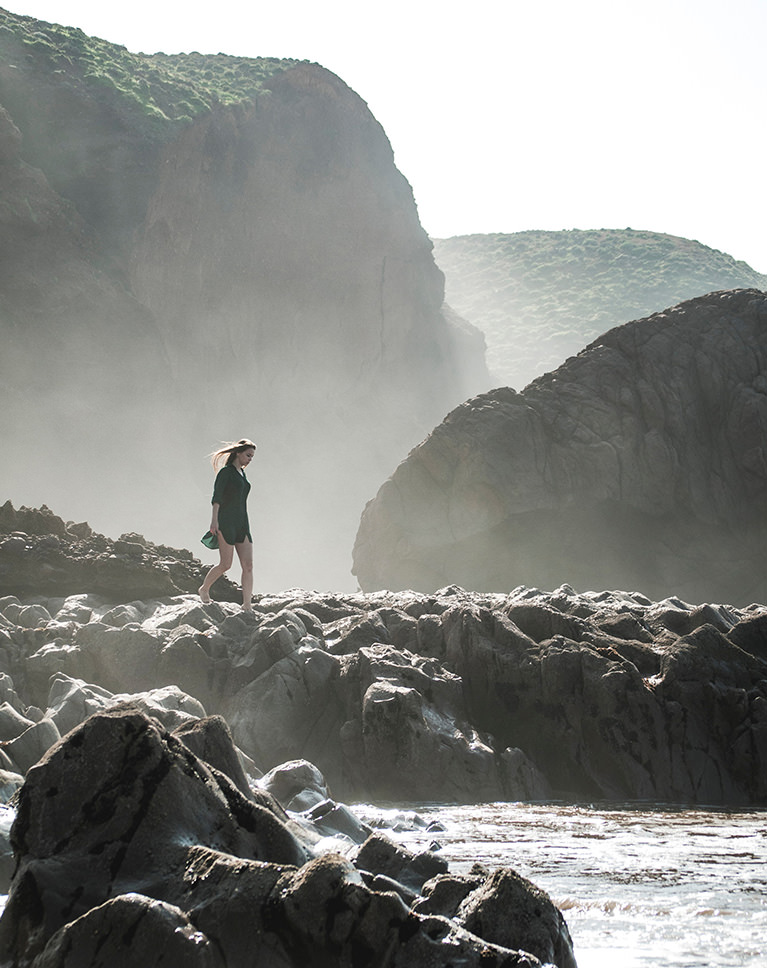
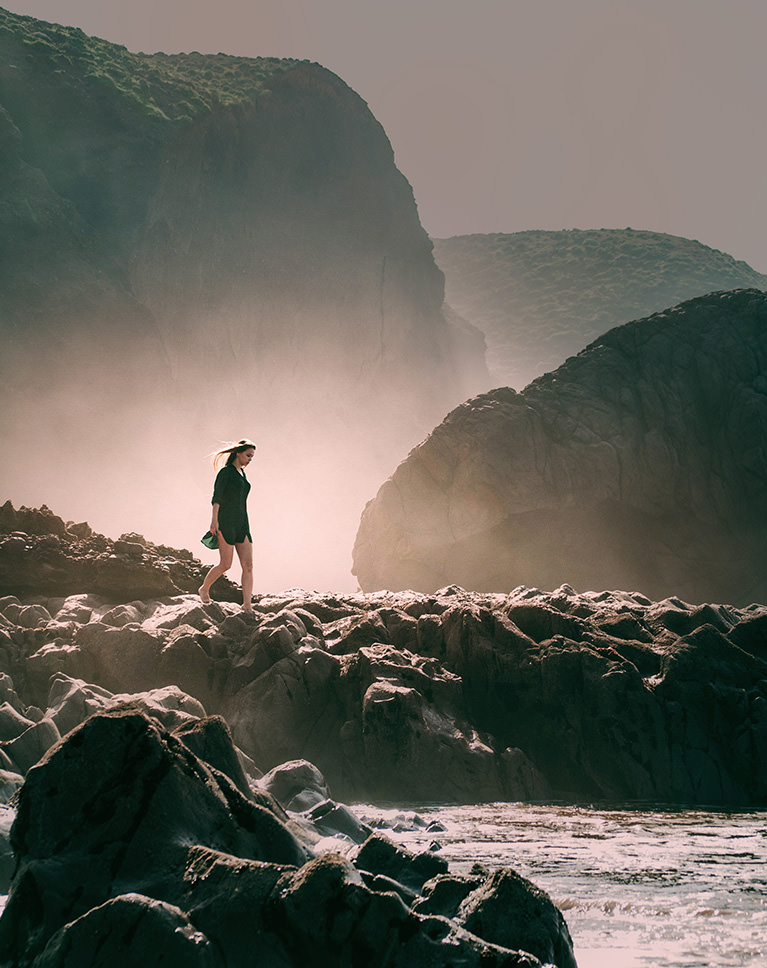
Communicate with Light and Color
Color says a lot. For dark and moody coloring in Photoshop, we show you how to put icy cool tones into the shadows of a photo, while protecting the natural tones in a subject’s skin.
Add and Change Colors
When the colors in a photo aren’t working with the mood you want to set, change them! We show you how to change the color of anything in Photoshop in just a few simple steps.
Natural Vignettes
Not only do vignettes help to draw more attention to a subject, they can also create a sense of isolation and mystery by covering the world around them in shadow. Learn how to add dark and subtle vignettes that set the mood, and guide the eyes of the viewer.
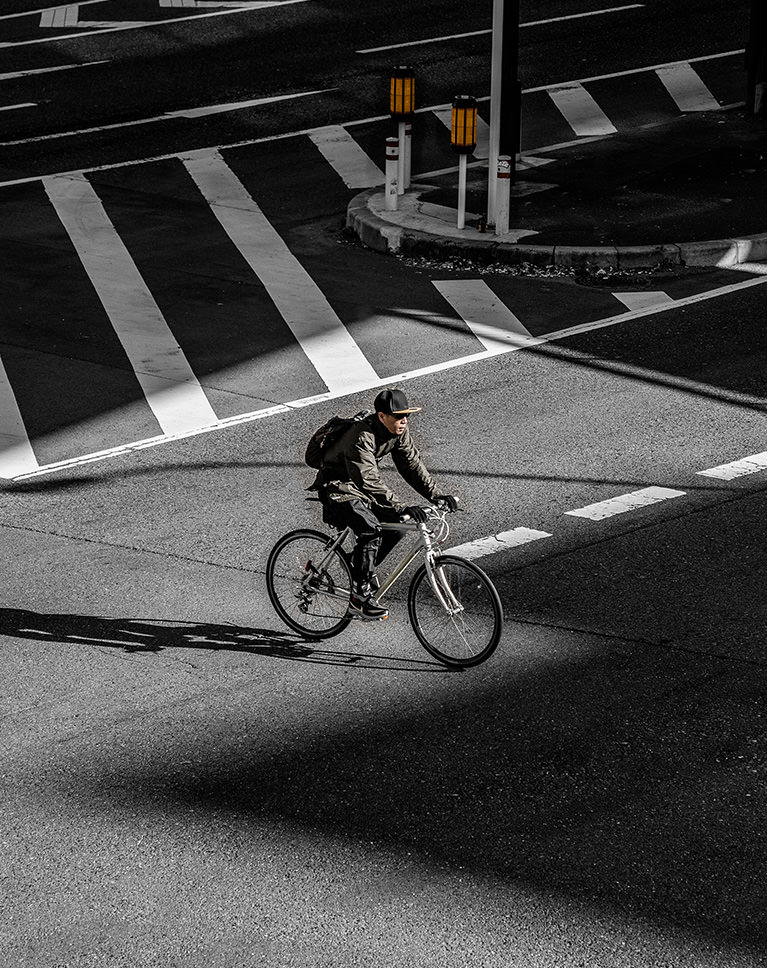
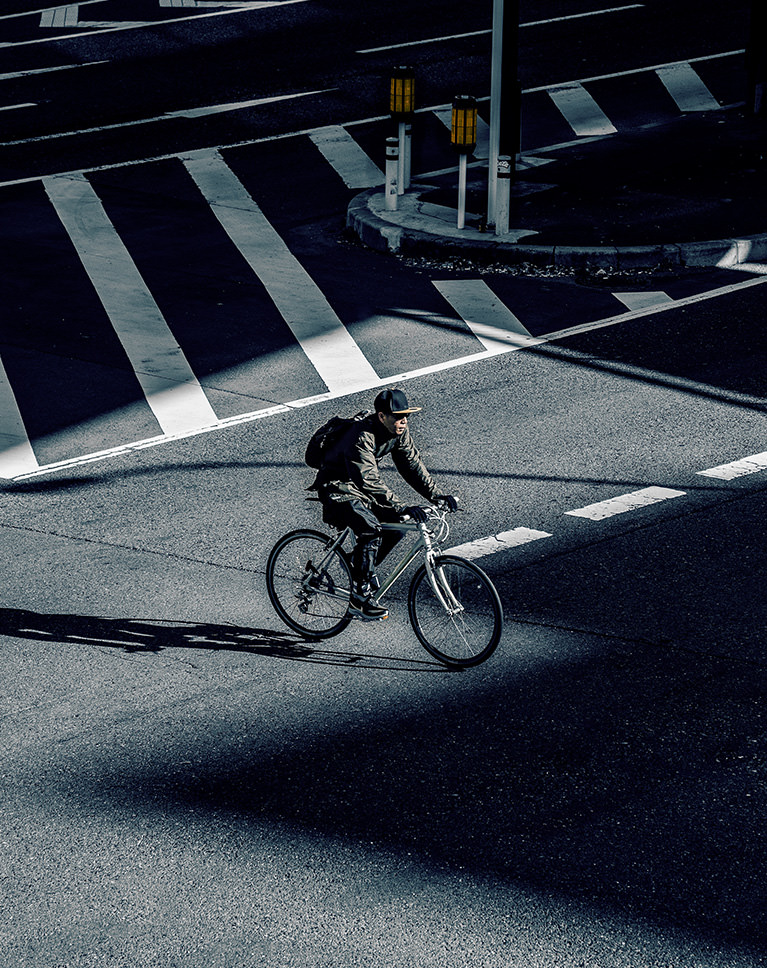
The Power of Blend If
The key to great dark and moody coloring in Photoshop is working with the highlights, midtones, and shadows all independently of one another. Add cool tones in the shadows of an image, warm tones into the highlights, and dial-in the perfect look.
Create Mystery and Drama
Fill a forest image full of shadows and mystery. Transform a bright portrait into one that’s quieter and more dramatic with dark and moody coloring in Photoshop. If you have a message you want to send or an emotion you want to convey, we’ll show you how to get it there with Photoshop.
Enhance Contrast
Contrast is a powerful tool that can draw attention to areas of an image, as well as create powerful graphic scenes. Learn how to darken an image while adding powerful flourishes of light and color.
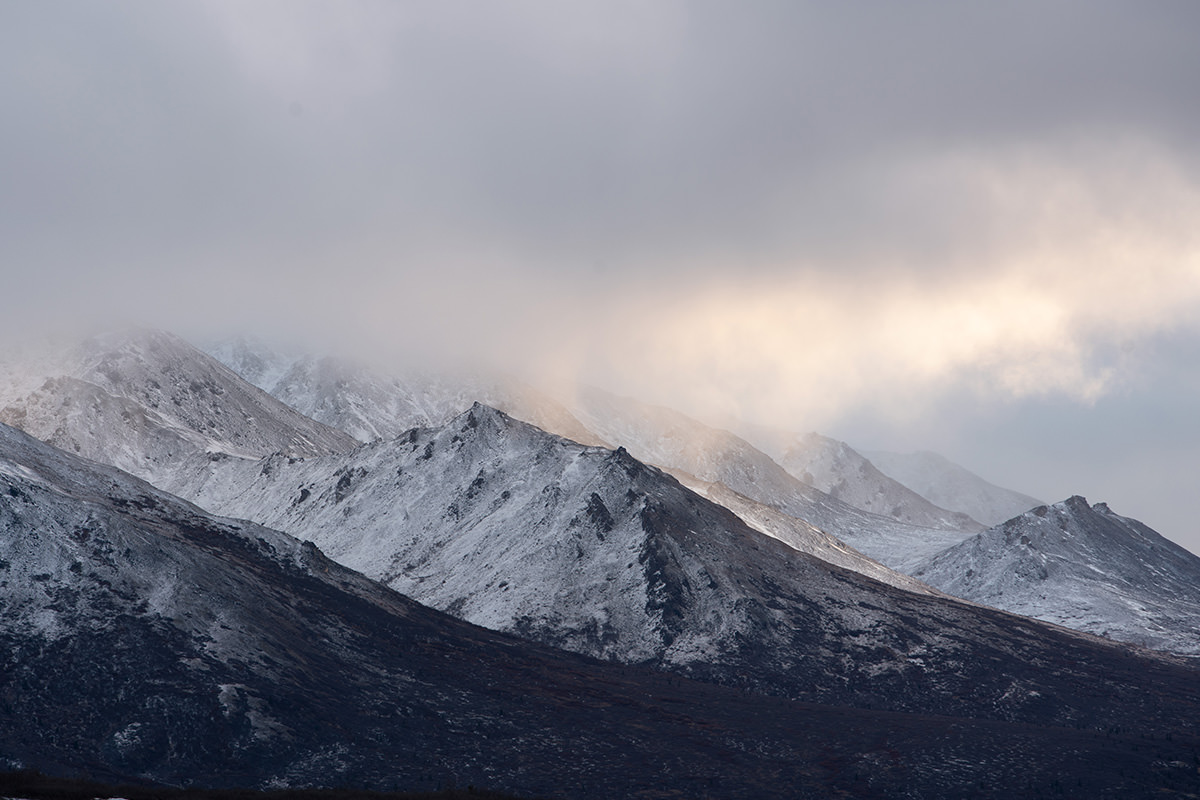
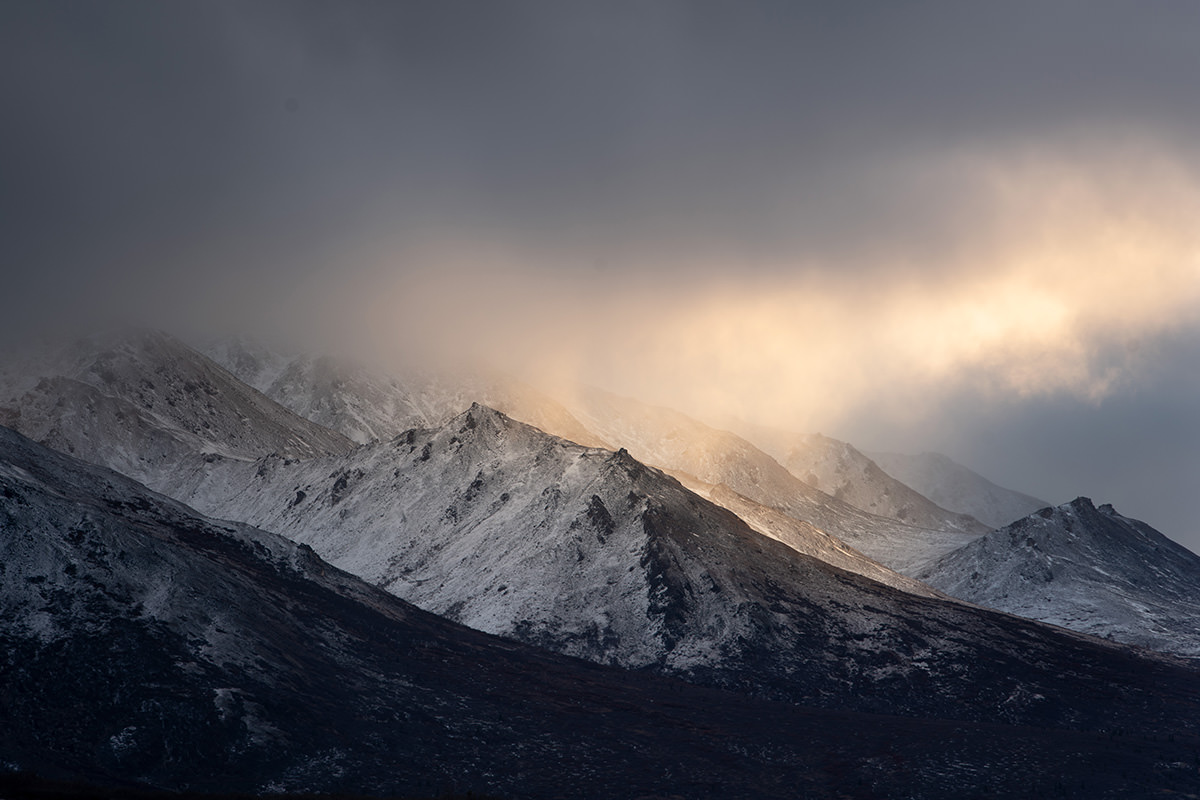
Dark & Moody Images
Learn how to take almost any photograph and transform it into a scene that’s dark and cinematic.
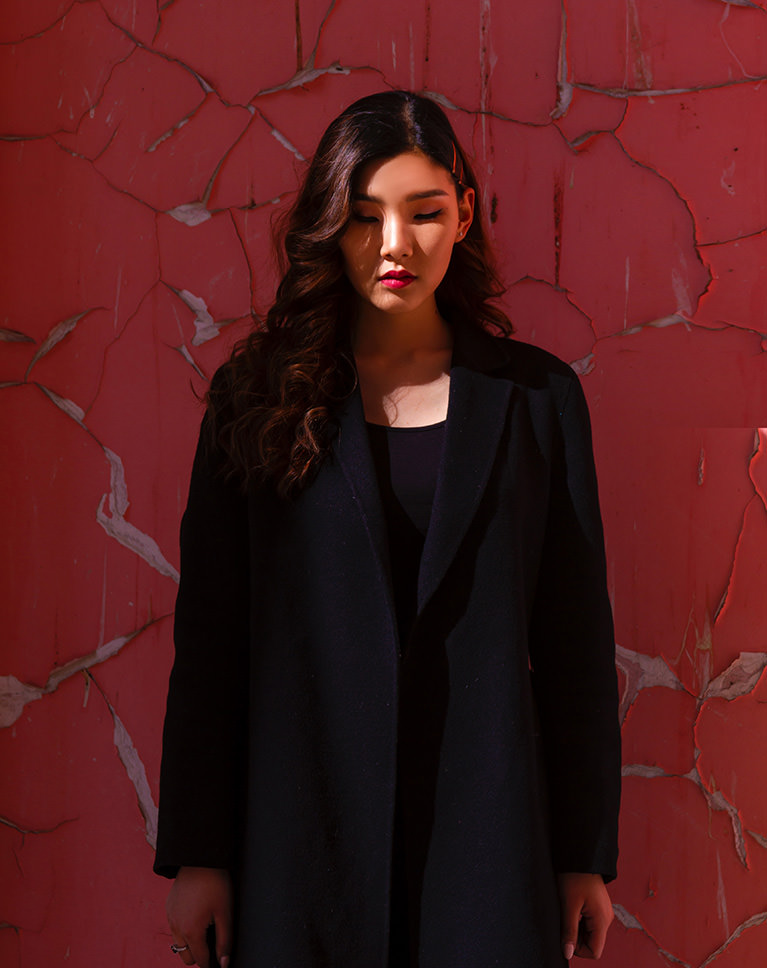
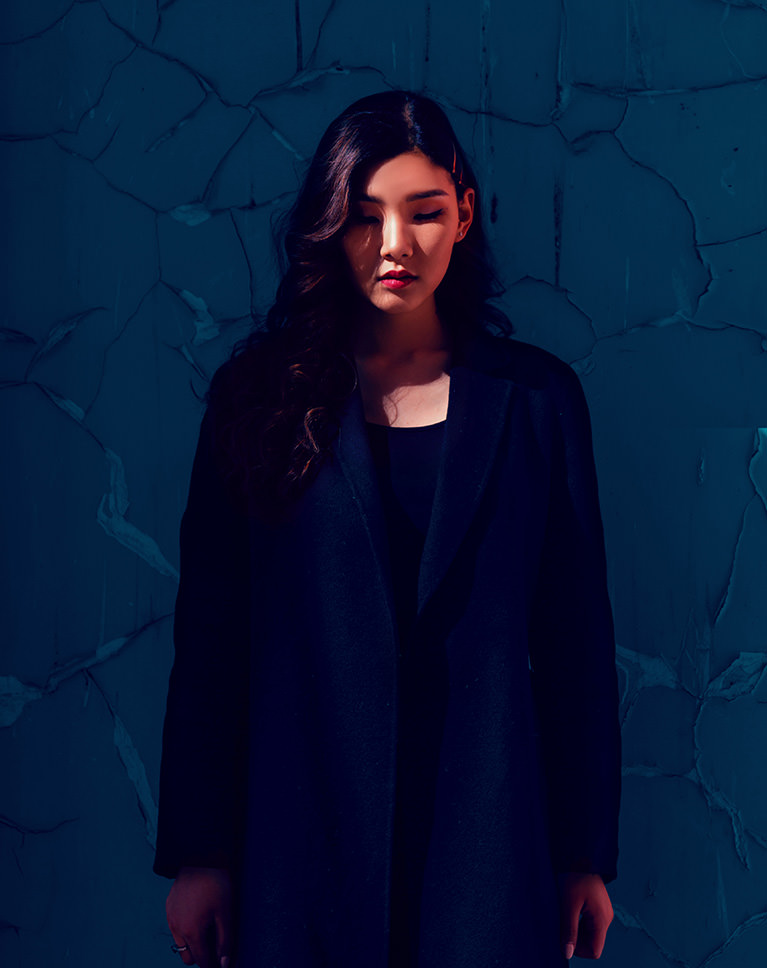
Hue/Saturation
Whether you want to add color, change colors, or completely remove color, the Hue/Saturation Adjustment Layer can do it all. Learn how to use this essential dark and moody coloring in Photoshop tool to target and transform any color in photograph.
Handcrafted Color
We all love presets. They’re great when you want to get a job done fast. But nothing compares to creating your own unique looks. Master the tools and techniques that will allow you to develop your own color styles from scratch.
Blending Modes
Learn about the powerful blending options in Adobe Photoshop and how they can help you seamlessly add color to the highlights, midtones, and shadows of any photograph.

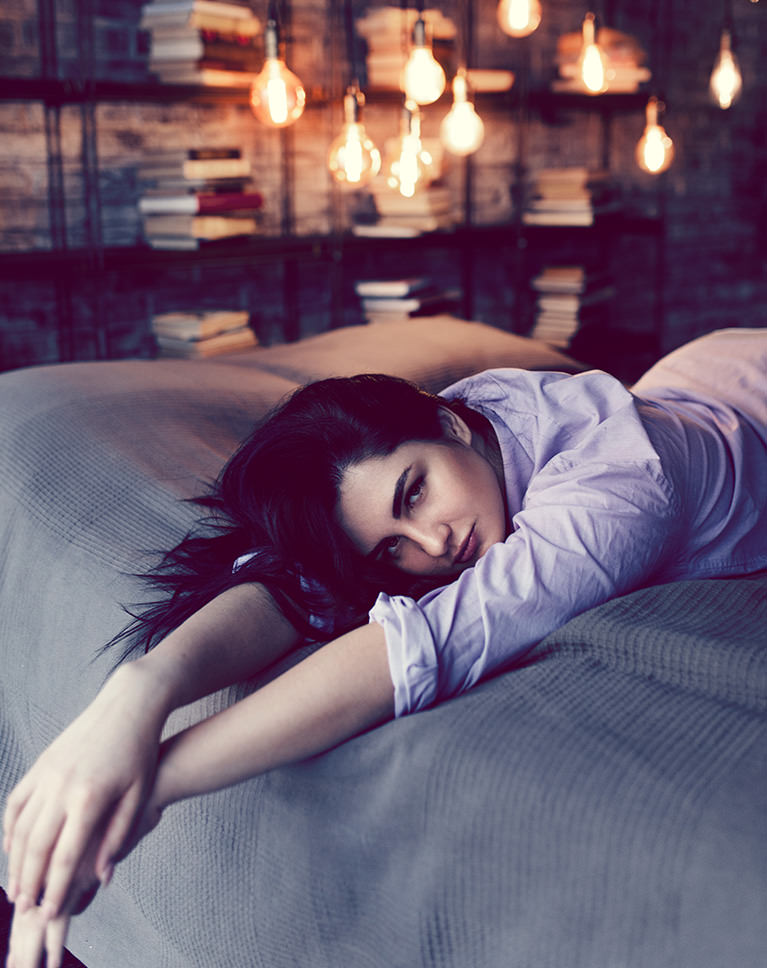
Choosing the Right Photos
When choosing how to color an image, it’s important to consider the content of the scene. Aaron explains what he looks for when choosing images for a dark and moody look.
Protect the Details
It can be easy to lose details in a photo when you’re adding contrast or crushing the shadows. We show you how to fine tune these adjustments with care and precision, creating the perfect effect without sacrificing texture and detail.
Color Balance & Color Fill
We break down some specialized tools in Photoshop that can help you nail the perfect color and tone in your photos.
Adobe Camera RAW
Working with RAW is the absolute best way to get perfect color and exposure. And when it comes to color grading, RAW lets you take your images anywhere you can imagine.
Portraits & Landscapes
Our techniques work no matter what kind of photos you take. Transform a forest or mountain landscape into places of mystery and fantasy. Turn any portrait into one that’s quiet and introspective.
Create Lighting Effects
Enhance a dark and moody image with subtle splashes of light and color. We show you how to use and enhance the natural light sources in an image to create contrast and to guide the eyes of the viewer.

Class Instructor
Aaron Nace
PHLEARN Founder & Lead Instructor
Aaron Nace is a photographer, digital artist, and the founder of PHLEARN. He has been teaching Photoshop, Lightroom, and photography since 2011, and has taught at Adobe MAX for more than eight years.
Aaron publishes a free tutorial every week and a new in-depth PRO course every month.
- 2M+YouTube subscribers
- 160M+video views
- 1,000+tutorials published
- 15years teaching Photoshop
Reviews
Master Photoshop, Lightroom and Photography
Join PHLEARN PRO for $12.99 a month or $99.99 a year. Cancel anytime, with a 100% money-back guarantee.






A really useful tutorial, a lot of the techniques were deceptively simple – but when applied produce amazing results.
Great tutorial. this was very helpful. thank you Aaron, Love from India.
Loving the tutorial! Just wish I could photoshop Aaron’s moustache. A bit of the brush tool would come in handy hah
Really helpful, and I learnt a lot. Aaron is a great teacher too 🙂
Great tutorial, great teacher! Love it!
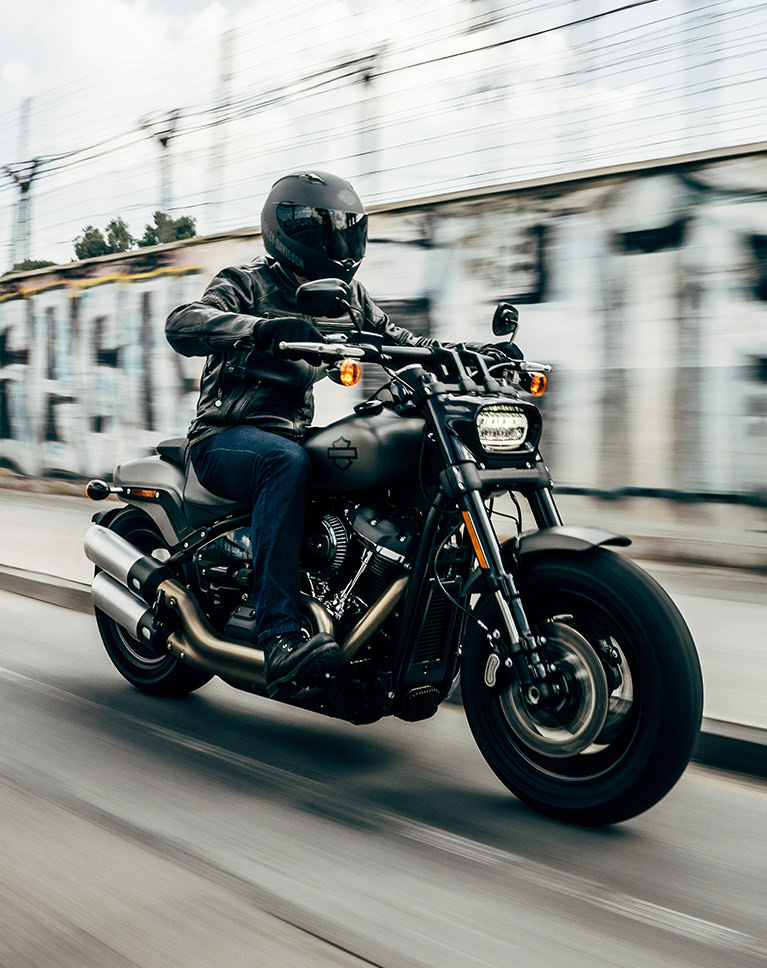
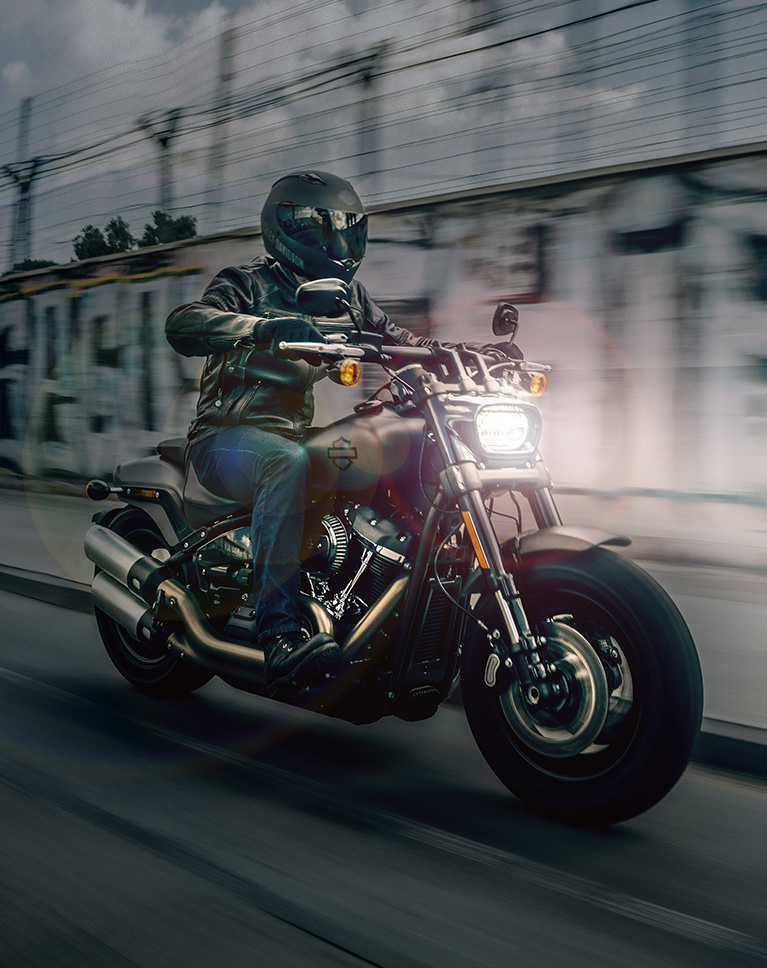
Awesome tutorial, Aaron is simply a gifted teacher. The motorcycle edit was cool, using levels to illuminate the headlight was easy and added so much impact. Learned a ton.
I’m a dark and moody person as it is, so this class was awesome. The techniques you used were well explained and easy to follow,. Learned many new things which i will play with. I love the power of that little slider blend if Once again Aaron another great tutorial
Instead of telling us what you ‘will teach’ you might actually display some skills and knowledge here.
GREAT tutorial
LOVE IT!
I’m pretty new to using Photoshop, and this has been incredibly helpful. This is probably the best resource I’ve come across, and I’ve spent hours upon hours looking through tutorials online.
Great tutorial, I’ve ran into a bit of trouble though. I just got myself photoshop 2021 and unable to find flow and feather and other sliders in adobe raw under the adjustment brush tab. Can you please help me out on that? thanks!
I was Searching for Technique behind “Dark and Moody” Coloring . Phlearn gave me complete Core Depth. Thank you for teaching and made my day 😛
Awesome tutorial!
Great tutorials, really a good crash course in using common adjustment layers to create amazing effects, easily!
I’m very happy with the teaching quality of you guys, definitely made the right decision to learn from you. There’s not much to say just that I’m learning a lot. Thank you and God bless you
Great training. Love the fun personality delivered in small chunks very clearly. Easily repeatable when tried on my own. Awesome!
Loved this more advanced and stylized tutorial. Loved the colorizing and non-destructive techniques. Also: channels! I’m sure I’m under-using these, so please a tut on channel power!
Great tutorial Aaron. I love color grading and this has given me some new tricks to try out.
As my style seems leans more to the dark and moody side most of the time, this tutorial was right up my alley! I learned a lot – some I knew, but learned way better ways to do it, and some new things as well. I love how the tutorials are laid out so they are clear and easy to follow. Thanks again for yet another great tutorial!
Thanks, Aaron for your lovely tutorials. Can you please do one tutorial on using color gels in Photography and how to do similar effects using photoshop.
Amazing tutorial with tons of useful information regarding color grading. So good I watched it twice and took notes. Aaron always nails it with clear and concise information. No frills in the way he teaches and maintains my interest at all times. Although, I’m glad to hear that I’m not the only one that has to take a “break” from editing color in an image. I honestly thought it was just me.
Enjoyed this super fun educational tutorial. My pic’s will now be colored. Thank you
Thank you Aaron. Great tutorial. I have used some of the tools you introduced here in other tutorials. However, this series seemed to bring all together for me. Not sure if it was the images and tool sequences or not, but I really gained a better overall understanding of the various colouring tools from this tutorial. Really enjoyed it!
Thank you PHLEARN
The key lessons for me were the importance of subtlety and personal judgement.
Amazing as always! I love how these coloring tutorials help me to develop my eye for color grading and especially compositing!
Once again a great tutorial. Very powerful concepts and tools explained in a simple and easy to learn manner. PRO subscription to PHLEARN is really worth because of such tutorials full of learning!
Like the new Layout
I’m kinda new here, but this tutorial was so great! Not only did I pick up some really cool techniques, I also find it very relaxing to follow and work along with Aaron. This tutorial pushed me from trial to Pro membership!
Again, so many tools are shown! We love coloring tuts, send us more!!!!
Again a great tutorial.
Really great stuff! I had a project today that needed that subtle touch of”levels” and “blend if” to make it work.
Thanks, another great tutorial.
Great fast tutorials for fundamental techniques.
This was very helpful, and fun. Great tutorial 🙂
This is a must watch to learn how to adjust color and set a dark and dramatic effect on your photos. This is one of my favorites. But, the all are great. As always, Aaron’s presentation style is easy to listen to and very good at explaining what each tool does and how it works.
It’s a good addition to the other color grading tutorials and brings it on the point!
I’ve been really enjoying these tutorials and learning more about colouring in photoshop. Aaron takes out the “fear” of learning something new and explains things so well that it’s easily understood. Well worth my time and money. Thanks.
I always appreciated your tutorials. Even that I know some things in editing in photoshop, you always make my view wider. And to be very honest, because I learned most of my own, with your assistance things are starting getting into an order every time I watch your videos. I’m following you for quite a few years and for me to have a membership in your channel is totally worth it. Thank you very much!