

Download Assets
This tutorial includes 1 sample image and 1 PDF guide. Downloads are free with a PHLEARN account.
- Download the sample images and PSDs from every free tutorial on PHLEARN
- New free tutorials published every week
- One free account — sign up once, then download anything
Free PDF Guide · 3 Pages
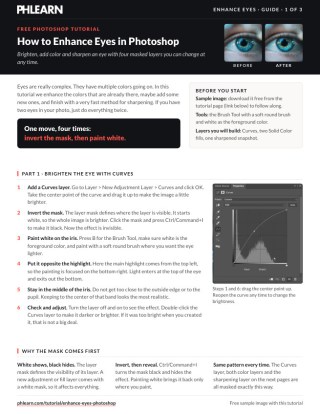
This Tutorial as a Step-by-Step PDF
The guide walks through four masked layers: Curves painted opposite the highlight, a Solid Color fill on Overlay (pink, then a subtle orange), a teal green fill on Soft Light, and an Image > Apply Image snapshot sharpened with Unsharp Mask. Every mask is inverted with Ctrl/Command+I and painted white. Keep it next to your keyboard.
description
Eyes carry more detail than they first appear to: several subtle colors, natural highlights, and fine texture. This tutorial builds all of it back with masked adjustment layers, so nothing is baked in. Brighten the eye with a masked Curves layer and place the highlight where it reads as real, add a first color with a Solid Color fill set to Overlay and a second on Soft Light for depth, then sharpen with Apply Image and Unsharp Mask, masked to the eyes alone.
Enjoying This Free Tutorial?
We publish a new free tutorial every week, each one with sample images and PSDs you can download and follow along with. Sign up and they land straight in your inbox, along with early word on sales, events and subscriber-only offers.
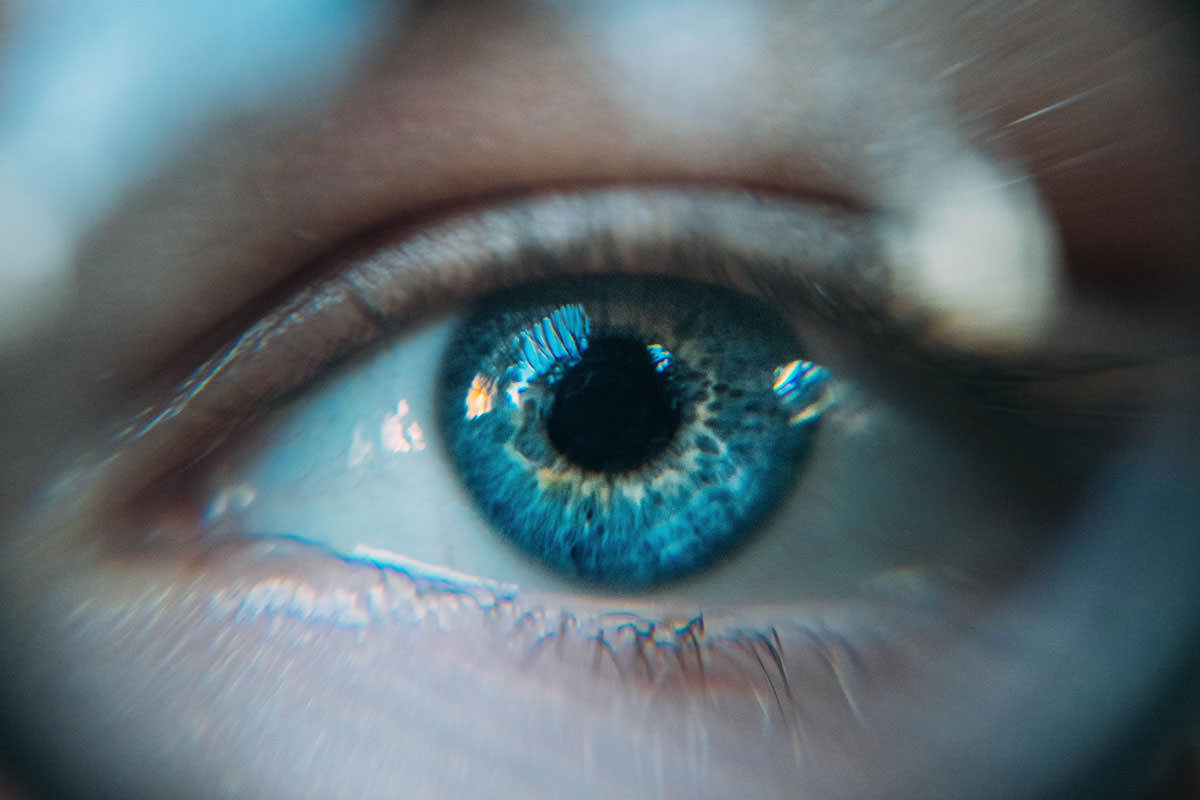
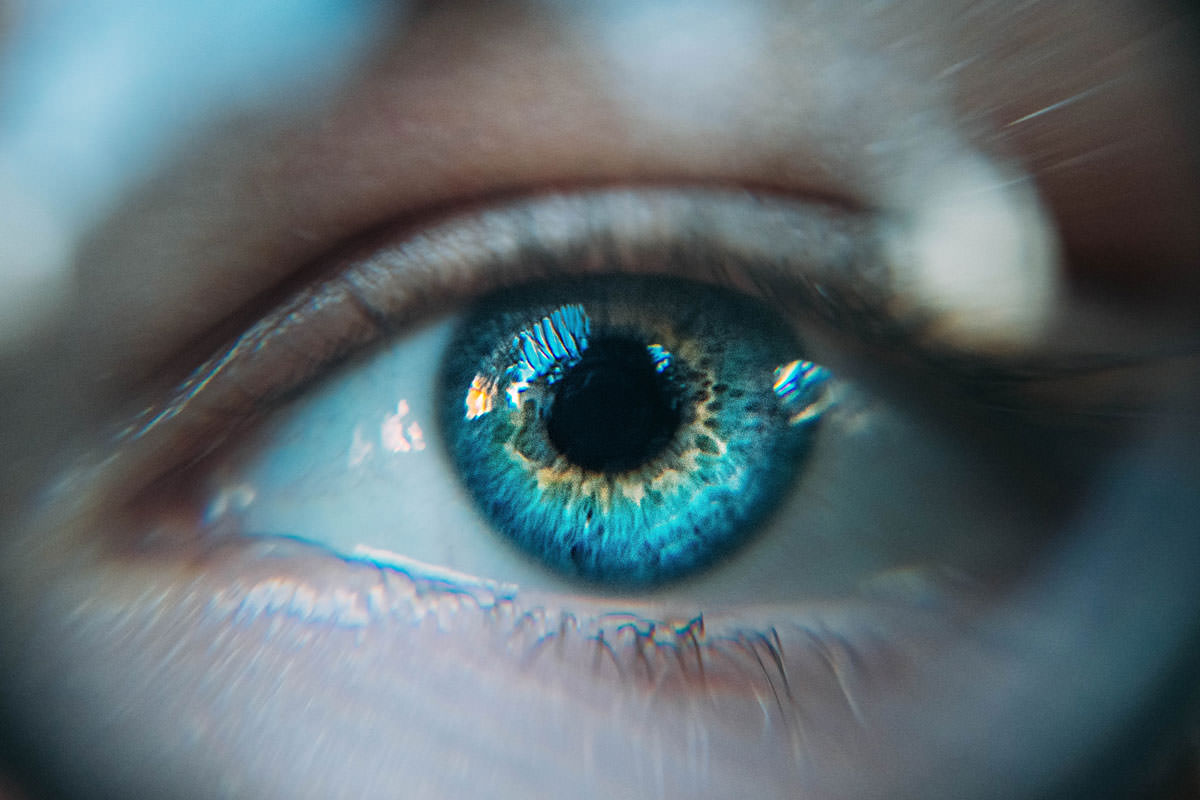
How to Enhance Eyes in Photoshop
Eyes have a surprising amount of complexity in them, multiple subtle colors, natural highlights, and fine texture, and a few simple, masked adjustment layers can bring all of that out convincingly. This tutorial covers brightening, adding color, and finishing with a fast, targeted sharpening technique, all fully non-destructive and endlessly adjustable afterward.
Brighten the Eye with a Masked Curves Layer
Layer > New Adjustment Layer > Curves, with the center point pulled up slightly, brightens the whole image by default, since a brand-new adjustment layer’s mask starts out completely white and therefore fully visible everywhere. Clicking the layer mask and pressing Command/Ctrl+I inverts it to black, hiding the brightening effect entirely, and then painting white with a soft round brush directly over the eye reveals the brightening only exactly where it’s wanted.
Inverting the Mask and Painting the Effect In
This invert-then-paint-white pattern, start with a black mask and reveal the effect by painting white, is the same basic approach used for every enhancement in this tutorial, so getting comfortable with it here pays off through the rest of the process.
Focus the Highlight in the Right Spot for Realism
Light naturally enters an eye from one direction and exits from roughly the opposite side, so if the main existing highlight sits toward the top left, the brightening effect reads as most realistic when it’s focused toward the bottom right instead, rather than painted directly on top of the existing highlight. Staying centered within the iris, away from both the outer edge and the pupil itself, keeps the added brightness looking like a natural part of the eye. Double-clicking the Curves layer afterward makes it easy to dial the brightness up or down at any time if the first pass came out too strong or too subtle.
Add a First Color with a Solid Color Fill Layer on Overlay
Layer > New Fill Layer > Solid Color, with any starting color chosen (Aaron picks pink) since it can be changed freely afterward, and its blend mode switched from Normal to Overlay, lets that color interact naturally with the tones already present in the photo rather than sitting flat on top of them.
Fine-Tuning That Color at Any Time
The same invert-and-paint approach applies here: inverting the mask to black and painting white with the brush tool reveals the color specifically over an area of the eye that already has a related color present, like a yellow region, so the new color reads as an enhancement of what’s already there rather than an artificial addition. Double-clicking the fill layer’s color swatch afterward reopens the color picker, making it simple to switch to a nice orange, a little less saturated and a little lighter, or anything else until it looks convincingly like part of the eye rather than a painted-on effect.
Add a Second Color on Soft Light for More Depth
A second Solid Color fill layer, this time set to Soft Light for an even gentler blend than Overlay, adds a further layer of color depth, for instance a teal or green tone painted in just outside the orange added previously, building up a richer, more layered look to the iris overall.
Choose Colors That Suit the Eyes
Every color choice here depends entirely on what’s already present in a given pair of eyes; the colors here were picked to work with blue eyes, so choose colors that work with the eyes in your own image. The specific colors used matter less than the underlying technique of masking each fill layer to just the right spot and blending it gently with Overlay or Soft Light.
Sharpen with Apply Image and Unsharp Mask
With the color and brightness enhancements finished, creating a new layer and going to Image > Apply Image (with Layer set to Merged, the default, and Blending set to Normal) stamps a flattened snapshot of everything visible in the document onto that fresh layer, ready to sharpen independently.
Finding the Right Amount and Radius
Filter > Sharpen > Unsharp Mask offers an Amount slider and a Radius slider; a larger radius picks up bigger details in the image while a smaller radius targets finer detail, and pushing either one too far starts to look obviously artificial and oversharpened. Dialing both sliders back down until the eye’s actual texture and detail come through clearly, without any halo-like artifacts, is the goal.
Mask the Sharpening to Just the Eyes
Since the whole point is enhancing the eyes specifically, not sharpening the entire image, clicking the layer mask icon (which creates a white mask by default), pressing Command/Ctrl+I to invert it to black, and then painting white with the brush tool directly over each eye restricts that sharpening effect to exactly where it belongs.
Why Every Step Gets Its Own Mask
The consistent invert-mask-and-paint-white approach used across every step here, brightness, two separate color layers, and targeted sharpening, is what keeps each enhancement fully separate, fully adjustable, and fully reversible at any point. Because each one sits on its own masked layer, you can go back at any time: double-click the Curves layer to change the brightness, double-click a swatch to change a color, or repaint any mask.
Final Thoughts
Enhancing eyes convincingly in Photoshop comes down to a handful of simple, masked adjustment and fill layers, brightness placed where light naturally exits the eye, color built up gradually from tones already present, and sharpening restricted to just the eyes themselves through Apply Image and Unsharp Mask. None of these individual techniques are complicated on their own, but combined and carefully masked, they add up to eyes that genuinely pop without ever looking artificially edited.
Quick Reference: Keys, Menus and Settings
- BrightenLayer > New Adjustment Layer > Curves, center point up
- Hide, then revealClick the mask, Cmd/Ctrl + I; B and paint white with a soft round brush
- First colorLayer > New Fill Layer > Solid Color, blend mode Overlay
- Second colorAnother Solid Color fill, teal green, blend mode Soft Light
- Change it laterDouble-click the Curves layer or a fill layer’s color swatch
- Snapshot layerNew layer, Image > Apply Image: Layer Merged, Blending Normal
- Sharpen the eyeFilter > Sharpen > Unsharp Mask, Radius down until it stops looking fake, then Amount
No AI, no generative credits.
Free Downloads
Follow Along on the Same Photo
Get the sample photo from the video and the 3-page PDF guide to brightening, coloring and sharpening the eye with masked layers. Free with a PHLEARN account.
Enhancing Eyes: Common Questions
How do I brighten just the eye in Photoshop?
Add a Curves layer with Layer > New Adjustment Layer > Curves and drag the center point up. Click the mask, press Cmd/Ctrl + I to turn it black, then press B and paint white with a soft round brush on the iris.
Where on the eye should I paint the brightening?
Opposite the main highlight. Here the highlight comes from the top left, so the painting goes on the bottom right, where light exits the eye. Stay in the middle of the iris, away from the outside edge and the pupil.
I made the eye too bright. Do I have to start over?
No. Double-click the Curves layer and make it darker or brighter at any time.
How do I add color to the eyes?
Go to Layer > New Fill Layer > Solid Color and change the blend mode from Normal to Overlay. Invert the mask with Cmd/Ctrl + I and paint white where a similar color is already in the eye, like the yellow area around the pupil.
Which color should I pick?
Any color to start; double-click the swatch to change it later. Aaron starts with pink and settles on an orange that’s a little less saturated and a little lighter. These colors suit blue eyes, so choose ones that work with the eyes in your photo.
Why is the second color on Soft Light instead of Overlay?
Soft Light creates a softer effect. The second fill, a teal green, gets painted just outside the orange to enhance what’s already in the eye.
What settings should Apply Image use?
Create a new layer, then go to Image > Apply Image. Layer reads Merged by default. Aaron says Multiply in the video, but the dialog on his screen is set to Blending: Normal when he clicks OK, so use Normal.
How do I set Unsharp Mask for eyes?
In Filter > Sharpen > Unsharp Mask, raise Amount so you can see what you’re doing. A larger Radius picks up larger details; when it starts to look weird and fake, bring it down until the eye’s own detail sharpens, then set Amount by eye.
How do I sharpen only the eyes and not the whole photo?
Click the layer mask icon at the bottom of the Layers panel, press Cmd/Ctrl + I to turn the white mask black, then paint white right over the eye.
Are the sample files free?
Yes, with a free PHLEARN account. You get 1 sample image and 1 PDF guide: the photo from the video and a 3-page guide to all four layers.
Master Photoshop, Lightroom and Photography
Join PHLEARN PRO for $12.99 a month, or $99.99 a year (save 36%). Cancel anytime, with a 100% money-back guarantee.





