


Download Assets
This tutorial includes 1 sample image and 1 PDF guide. Downloads are free with a PHLEARN account.
- Download the sample images and PSDs from every free tutorial on PHLEARN
- New free tutorials published every week
- One free account — sign up once, then download anything
Free PDF Guide · 3 Pages
This Tutorial as a Step-by-Step PDF
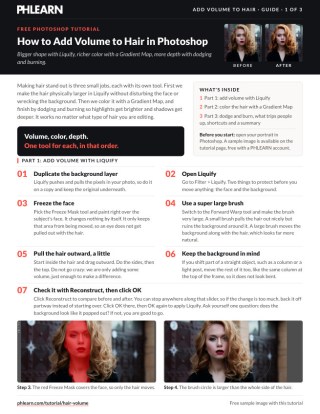
The guide walks through all three jobs: Filter > Liquify with a Freeze Mask on the face and a very large Forward Warp brush, a Gradient Map on Overlay with reds in the darks and yellow in the lights, and two Curves layers for dodging and burning at low Flow. Keep it next to your keyboard.
description
Adding hair volume in Photoshop is really three jobs, each with its own tool. Liquify’s Forward Warp pushes the silhouette outward — with a Freeze Mask over the face and a very large brush so the background moves with the hair instead of warping around it. A Gradient Map colors shadows, midtones and highlights as separate zones. Then two Curves layers dodge and burn along individual strands for depth and shine.
Enjoying This Free Tutorial?
We publish a new free tutorial every week, each one with sample images and PSDs you can download and follow along with. Sign up and they land straight in your inbox, along with early word on sales, events and subscriber-only offers.
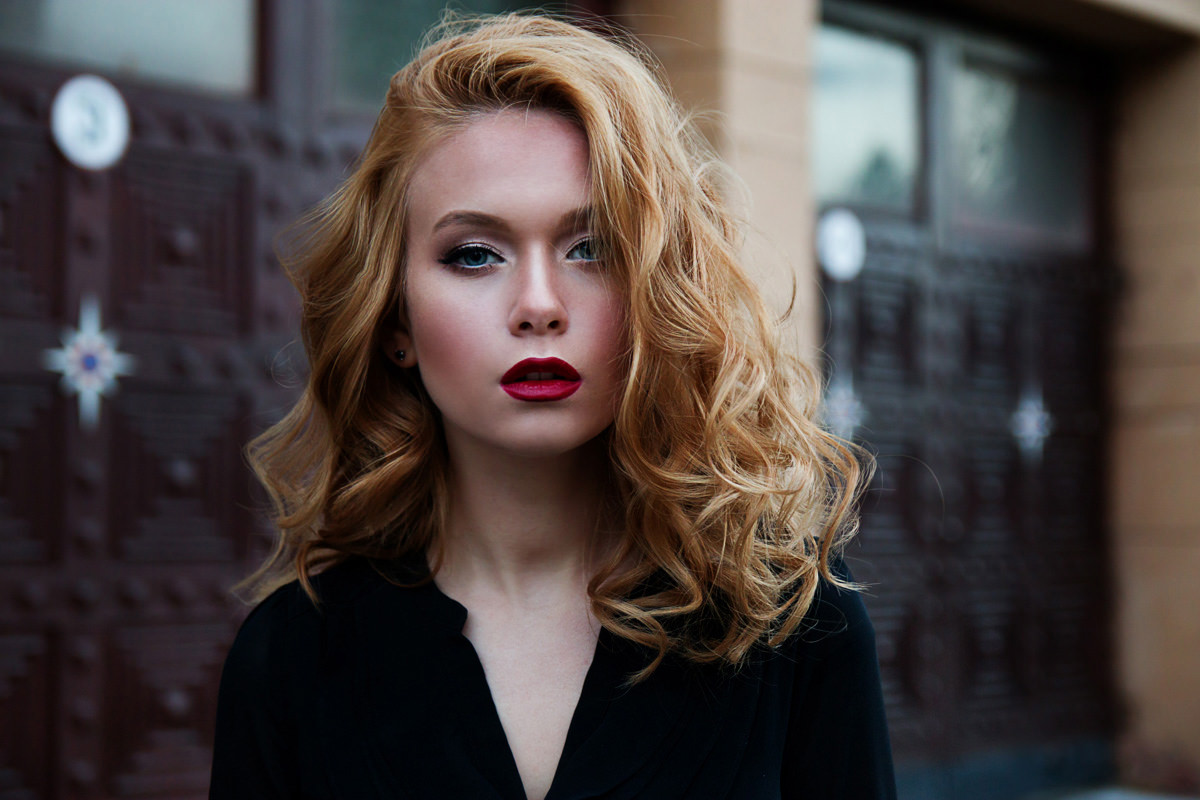
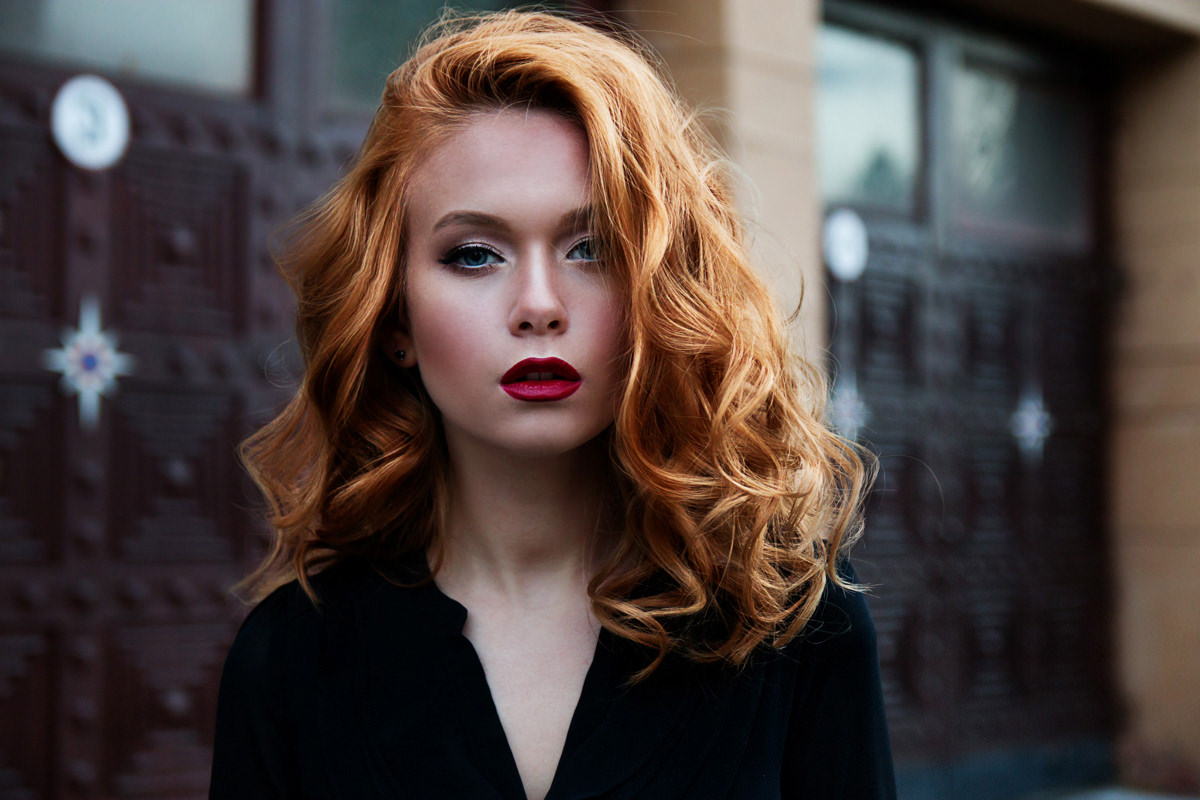
How to Add Volume to Hair in Photoshop
Making hair look bigger, more colorful, and more dimensional in Photoshop comes down to three separate techniques working together: pushing the hair outward with the Liquify tool, adding color with a Gradient Map that treats shadows, midtones, and highlights individually, and finishing with dodge-and-burn to add depth and sheen. Any hairstyle can benefit from this same three-part approach.
Protecting the Face with a Freeze Mask
Duplicate the background layer and open Filter > Liquify. Before pushing any pixels, select the Freeze Mask tool and paint directly over the subject’s face, which locks that area in place so nothing about the face gets distorted while the hair around it is reshaped.
Pushing Out Volume with the Liquify Tool’s Forward Warp
Switch to the Forward Warp tool and set the brush size very large before pushing the hair outward. A large brush drags the surrounding background along with the hair as it moves, which keeps straight background elements like poles or architectural lines looking natural; a small brush pulls the hair out cleanly but leaves the background warped and obviously distorted around it. Work in small increments, pushing gently along the top and sides of the hair rather than making one dramatic pull, and keep an eye on any straight background lines to make sure they shift consistently with the hair around them.
Using Reconstruct to Dial Back Changes
Clicking the Reconstruct button opens an amount slider that scrubs the liquify distortion back and forth between the original and fully warped states, so if a change looks too aggressive once applied, it can be dialed back to a middle point instead of undoing the whole edit and starting over. Click OK there, then OK again to apply Liquify.
Coloring Hair with a Gradient Map
With the volume added, color is introduced using a Gradient Map adjustment layer, which colors shadows, midtones, and highlights as separate zones rather than tinting the whole area with one flat color. Make a rough Marquee selection around the hair first so the new Gradient Map only shows its effect in that area while it’s being dialed in, then add the adjustment layer (Layer > New Adjustment Layer > Gradient Map) and set its blend mode to Overlay (Soft Light also works).
Assigning Colors to Shadows, Midtones, and Highlights
Click into the gradient itself in the Properties panel — by default the darkest values map to black and the lightest to white, which looks wrong on hair, so each stop needs a real color. Set the highlight end to a bright yellow, add color stops below it for reds, with deep reds toward the shadows, and keep everything just short of full saturation so the result still reads as natural rather than obviously colored. Because the gradient is fully editable at any time, individual stops can be nudged, recolored, or repositioned as needed to fine-tune the balance between shadow, midtone, and highlight color.
Painting the Gradient Map onto the Hair
Fill the adjustment layer’s mask with black (Shift+Delete on a Mac or Shift+Backspace on Windows, or Edit > Fill) to hide the effect everywhere, then paint white with a soft-edged brush directly over the hair to reveal the coloring only where it’s wanted. Around the edges near the face, lowering the brush’s flow to around 10 percent lets the color blend in more subtly rather than creating a hard edge. Because this is a non-destructive adjustment layer, the opacity, blend mode, and gradient colors can all be revisited and adjusted at any point without repainting the mask.
Adding Depth with Dodging and Burning
To give the hair more dimension and sheen, add a Curves adjustment layer, drag the curve upward to brighten it significantly, then invert the layer mask (Ctrl/Cmd+I) so it starts fully black. Paint white with a low-flow brush directly along individual strands and hair groupings, building up brightness gradually in the areas that should catch the most light. Repeat the same process with a second Curves adjustment layer, this time dragging the curve down to darken it, and paint white over areas that should recede into shadow instead.
Why Contrast Matters More Than Brightness Alone
Dodging and burning works by increasing the contrast between light and dark areas, not by simply brightening or darkening the hair overall — lightening everything, or darkening everything, doesn’t create the sense of depth on its own. Having both a highlight pass and a shadow pass, each targeted at different strands, is what makes the hair read as three-dimensional rather than flat.
Fine-Tuning the Final Result
Once the highlights and shadows are both in place, step back and adjust opacity across the adjustment layers to keep the overall effect from looking overdone — the Gradient Map’s saturation and opacity, along with the dodge and burn layers’ opacity, are all easy to lower slightly for a more natural finish. In the video, the yellow in the highlights looks like too much once the dodging is added, so the gradient gets reopened and that color’s saturation lowered, and the Gradient Map opacity comes down a little at the end. Because every step here lives on its own adjustment layer, nothing is permanent, and each element can be revisited independently until the color and depth feel balanced together.
Working with Different Hair Types
This same three-step approach — Liquify for shape, a Gradient Map for color, and dodge and burn for depth — applies regardless of hair texture, length, or style, since none of the three steps depends on a specific hairstyle to work. The one Liquify rule stays the same for any hair: keep the Forward Warp brush very large. The Gradient Map and dodge-and-burn passes stay conceptually identical either way: color the shadow-to-highlight range, then reinforce that same range with actual brightness contrast along the strands.
Why This Technique Works
Volume, color, and depth are three separate visual qualities, and this workflow addresses each one with a tool suited specifically to it. Liquify’s Forward Warp physically reshapes the hair’s silhouette, and using a large brush keeps the background moving consistently with it instead of leaving a telltale warped patch behind. The Gradient Map’s ability to color shadows, midtones, and highlights independently is what makes painted-in hair color look dimensional rather than like a flat tint, and dodging and burning along individual strands afterward reinforces that same shadow-to-highlight structure with actual brightness contrast, which is what the eye reads as texture and shine.
Final Thoughts
None of these three techniques, on its own, would fully sell the effect — Liquify alone changes shape but not color or depth, a Gradient Map alone adds color but not dimension, and dodge and burn alone adds contrast but not new volume or hue. Layered together, with each adjustment kept non-destructive on its own layer, they combine into hair that looks genuinely bigger, richer in color, and more three-dimensional than the original photo.
Quick Reference: Keys, Menus and Settings
- Open LiquifyDuplicate the Background layer, then Filter > Liquify
- Protect the faceFreeze Mask tool, paint over the face
- Add volumeForward Warp with a very large brush, push the sides then the top; Reconstruct to back it off
- Color the hairLayer > New Adjustment Layer > Gradient Map on Overlay: reds toward the shadows, yellow in the highlights
- Paint the color inShift + Delete (Mac) or Shift + Backspace (Windows) to fill the mask black; B, paint white, Flow about 10% near the face
- Dodge and burnLayer > New Adjustment Layer > Curves, up for one and down for one; Cmd/Ctrl + I to invert each mask, paint white at low Flow
No AI, no generative credits.
Free Downloads
Follow Along on the Same Photo
Get the portrait used in the video to practice volume, color and depth on, plus the 3-page PDF guide. Free with a PHLEARN account.
Adding Volume to Hair: Common Questions
How do I keep the face from moving in Liquify?
Pick the Freeze Mask tool and paint over the face before you push anything. It changes nothing by itself; it only keeps that area from being moved.
What brush size should I use to push the hair out?
A very large one. A small Forward Warp brush pulls the hair out nicely but ruins the background around it. A large brush moves the background along with the hair, which looks far more natural.
Liquify bent a pole in the background. How do I avoid that?
If you shift part of a straight object, like a column or light post, move the rest of it too so it doesn’t look bent. Then check: does the background look like it popped out?
How do I back off a Liquify change that went too far?
Click Reconstruct and use its slider to compare before and after. You can stop anywhere along it instead of starting over, then click OK twice to apply.
Why use a Gradient Map to color hair?
It colors darks, midtones and lights separately at the same time. One color on hair doesn’t look realistic; reds in the shadows and yellow in the highlights change the whole presence of the hair.
Which blend mode should the Gradient Map use?
Overlay. Soft Light also works, so use whichever you prefer.
How do I apply the color only to the hair?
Fill the Gradient Map’s mask with black using Shift + Delete on a Mac or Shift + Backspace on Windows, then press B and paint white over the hair. Lower the Flow to about 10% near the face.
How do I add shine and depth to hair?
Add a Curves layer dragged up and another dragged down, invert each mask with Cmd/Ctrl + I, and paint white at low Flow along the strands. The contrast between the lights and darks is what gives hair definition.
The hair color looks too strong. What do I change?
Double-click the Gradient Map thumbnail and lower the saturation of the color that is too much, like the yellow in the highlights here. Lowering each layer’s opacity at the end is part of the process.
Is the sample file free?
Yes, with a free PHLEARN account. You get 1 sample image and 1 PDF guide: the portrait used in the video and a 3-page step-by-step guide.
Master Photoshop, Lightroom and Photography
Join PHLEARN PRO for $12.99 a month, or $99.99 a year (save 36%). Cancel anytime, with a 100% money-back guarantee.





