
Download Assets
This tutorial includes sample images. Downloads are free with a PHLEARN account.
- Free sample files with every tutorial on PHLEARN
- New tutorials published every week
- Unlimited downloads with your free PHLEARN account
description
A clipping mask can only follow the shape of one layer, so on its own it fills every letter of a word with the same photo. This Quick Tip gets around that by marqueeing off one letter at a time, giving each its own layer mask, and unlinking those masks so the image inside each character can be repositioned without disturbing the rest.
Enjoying This Free Tutorial?
We publish a new free tutorial every week, each one with sample images and PSDs you can download and follow along with. Sign up and they land straight in your inbox, along with early word on sales, events and subscriber-only offers.

How to Place an Image Inside Text in Photoshop
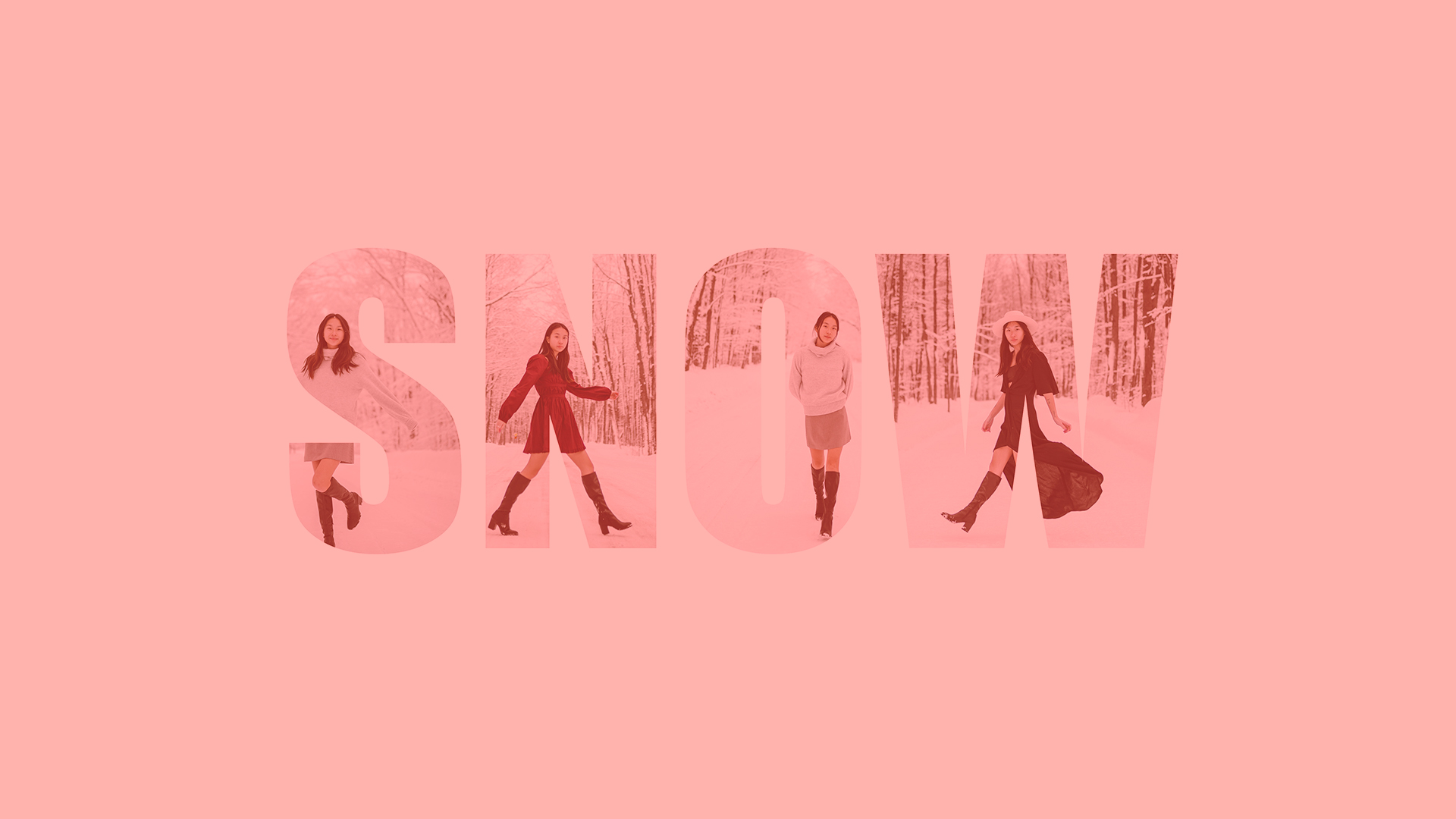
This Quick Tip fills each letter of a word with its own separate photo, using a clipping mask on the type layer plus a marqueed layer mask per letter so every image can be repositioned independently.
Ordering the Image Layers Above the Text
Each image that will fill a letter needs to sit in the layer stack directly above the text layer, since a clipping mask only clips whatever is above it into the shape of the layer directly below.
Positioning Each Image Over Its Letter
Every image is moved and roughly positioned over the letter it’s meant to fill, so the right part of each photo lines up with the letter it will eventually be clipped into.
Creating the Clipping Mask
Right-clicking an image layer and choosing Create Clipping Mask clips that image to the shape of the text layer beneath it, so only the parts of the image that overlap the text remain visible.
Isolating a Single Letter with the Marquee
Because a clipping mask follows the shape of the whole text layer at once, the Rectangular Marquee tool is used to draw a selection around just the first letter, isolating that one character from the rest of the word.
Why a Marquee Instead of Selecting the Whole Word
Selecting only one letter at a time is what makes it possible for each letter to end up with its own separate image, rather than every letter showing the same clipped photo.
Adding and Unlinking a Layer Mask
With that letter selected, adding a layer mask hides everything on the image layer outside the marqueed letter shape. That mask is then unlinked from its layer, breaking the connection that would otherwise move the mask along with the image.
What Unlinking the Mask Actually Allows
Once unlinked, the image underneath can be moved independently of its mask, so the visible letter-shaped window stays locked in place on the canvas while the photo inside it can still be repositioned.
Repeating the Process for Every Letter
The marquee-mask-unlink sequence is repeated for each remaining letter and its corresponding image, building up a word where every character reveals a different photo.
Each Letter Keeps Its Own Independent Mask
Because every letter gets its own separate mask rather than sharing one, adjusting or repositioning the image in one letter has no effect on any of the others.
Repositioning Images with the Move Tool
With the Move tool, selected with the V key, each image can now be repositioned within its own letter-shaped mask, framing exactly the right part of the photo inside each character without disturbing any of the other letters.
Adjusting Lighting with an Optional Curves Layer
As an optional finishing step, a Curves adjustment layer can be added to fine-tune the overall lighting and contrast across all the letters together, unifying images that may have started out with slightly different exposures.
More Free Photoshop Tutorials
- How to Place Text Behind Anything in Photoshop
- Match Fonts from Images in Photoshop
- Create a 3D Text Effect in Photoshop
Why This Technique Works
A single clipping mask can only follow the shape of one layer, which would normally mean one image showing through the entire word. Marqueeing off one letter at a time and giving it its own unlinked layer mask sidesteps that limitation, letting every character carry a completely different photo while the whole word still reads as one clean, unified piece of type.
Final Thoughts
Placing separate images inside individual letters comes down to combining a standard clipping mask with a per-letter layer mask, unlinked so each photo can be nudged into place independently, then optionally tying the whole word together with a single Curves adjustment for consistent lighting.
Related Tutorials
Master Photoshop, Lightroom and Photography
Join PHLEARN PRO for $12.99 a month, or $99.99 a year (save 36%). Cancel anytime, with a 100% money-back guarantee.





