

Download Assets
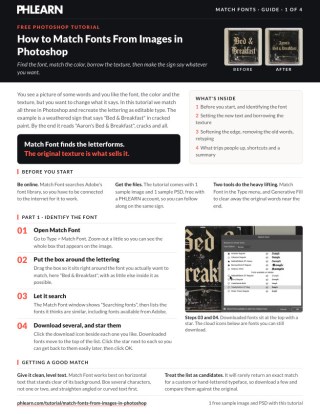
This tutorial includes 1 sample image, 1 sample PSD and 1 PDF guide. Downloads are free with a PHLEARN account.
- Download the sample images and PSDs from every free tutorial on PHLEARN
- New free tutorials published every week
- One free account — sign up once, then download anything
Free PDF Guide · 4 Pages
This Tutorial as a Step-by-Step PDF
The 4-page guide walks through Type > Match Font, starring your fonts, sampling the original color, lifting the cracked texture with the Magic Wand at about 80 and Contract Selection 5 pixels, clipping it to the new type, a tiny Gaussian Blur on a Smart Object and Generative Fill to clear the old words. Keep it next to your keyboard.
description
To match fonts from images in Photoshop, Match Font identifies the typeface for you; the part that sells the replacement is borrowing the original texture.
Learn how to match and recreate any font in Photoshop. Discover how to use the Match Font tool to find similar fonts, apply textures, and create custom text styles that perfectly blend with your image.
Enjoying This Free Tutorial?
We publish a new free tutorial every week, each one with sample images and PSDs you can download and follow along with. Sign up and they land straight in your inbox, along with early word on sales, events and subscriber-only offers.
Artist Credit
- Ellie Burgin
Images sourced from Pexels.
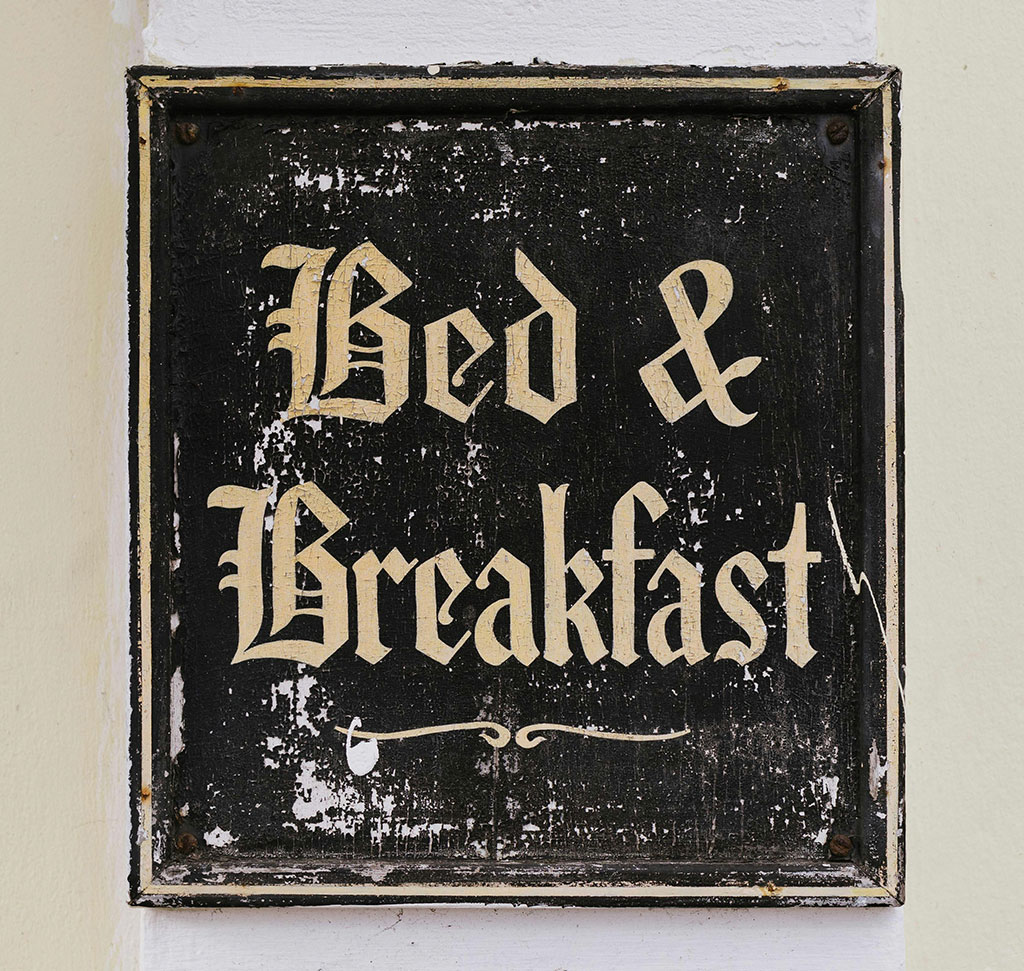
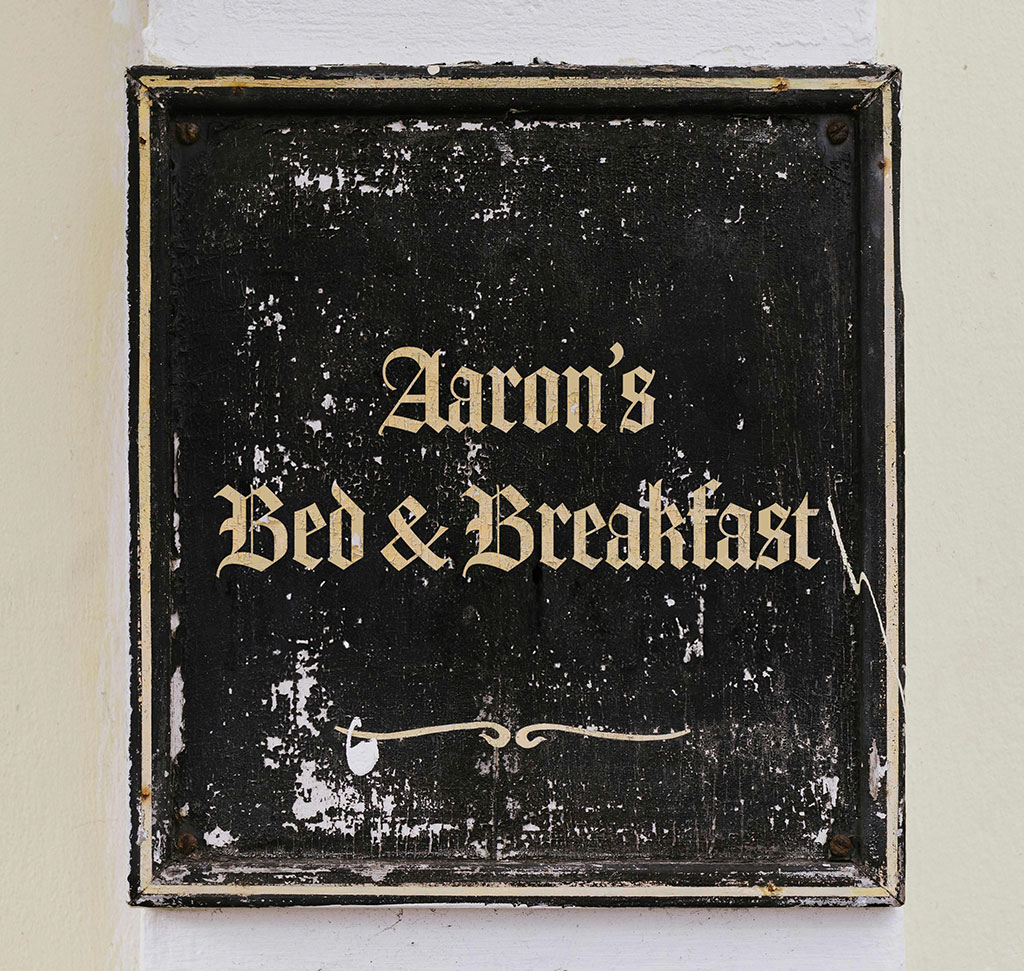
How to Match Fonts From Images in Photoshop
You need to add a line of text to an existing design and match the typeface already there. Or a client sends a photograph of signage and wants the same lettering used elsewhere. Identifying a font by eye is a specialist skill and a slow one, and getting it slightly wrong is obvious to anyone who looks.
Photoshop has a tool that does the identification for you. And once you have the font, there is a second technique — reusing the original lettering’s texture on your new text — that is what actually makes replacement text sit convincingly into a photograph.
Identifying the Font
-
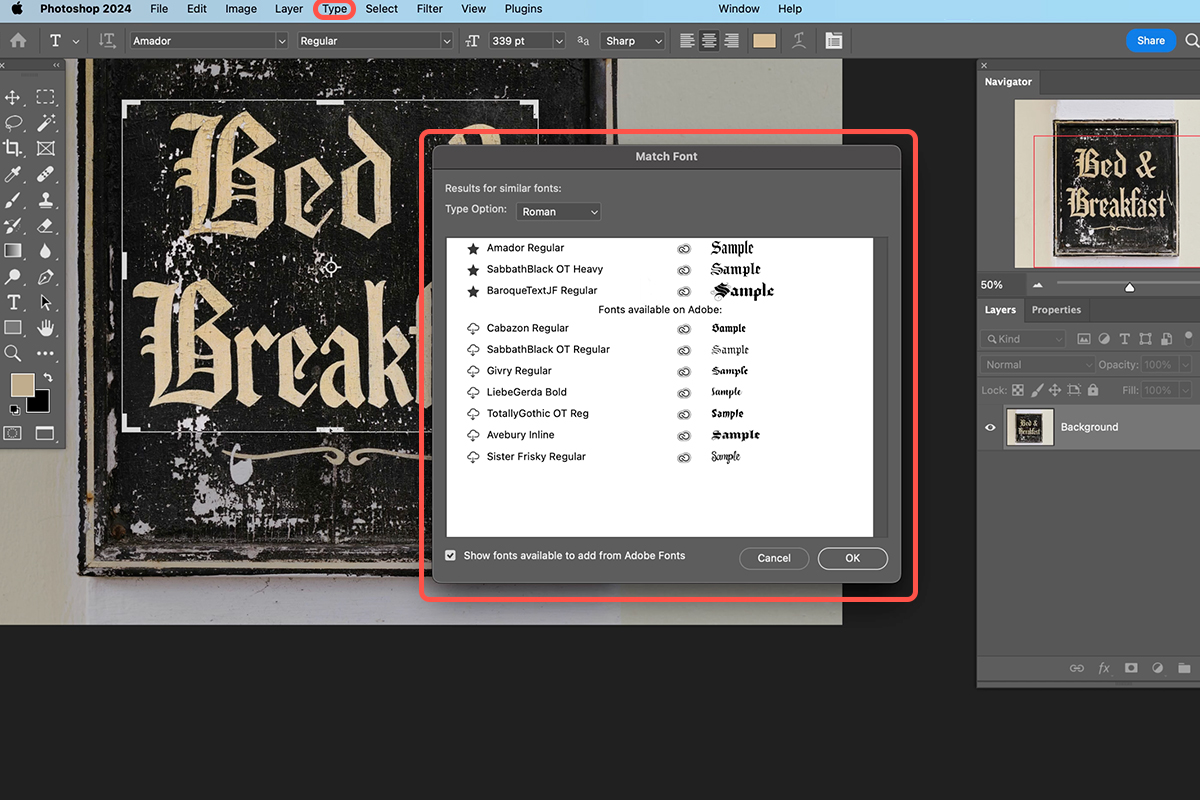
Go to Type, then Match Font
It sits in the Type menu at the top of the screen.
-
Drag a box around the text you want to identify
A selection box appears over the image. Adjust it so it contains the lettering and as little else as possible.
-
Review the suggested matches
Photoshop compares the letterforms against fonts on your machine and in the Adobe font library, and lists what it thinks is closest.
-
Filter the results
The dropdown lets you show only fonts already installed, only Creative Cloud fonts, or only ones you have starred as favorites.
-
Activate the one you want
Creative Cloud fonts can be enabled directly from here.
Getting a good match
The tool works best on horizontal text with clear separation from its background. A few things improve the result noticeably:
Select a good sample of characters rather than one or two — more letterforms give it more to compare. Avoid including background detail, other graphic elements or heavy texture inside the box. And if the text is angled or on a curve, straighten it first; Match Font expects roughly horizontal type.
It needs an internet connection to search the online font library, and it will rarely return an exact match for a custom or hand-lettered typeface. Treat the list as strong candidates rather than a definitive answer, and compare the top few against the original before committing.
Setting the New Text
Press T for the Type Tool and type your replacement text, then set it in the font you identified.
For the color, open the color picker and — with it still open — move your cursor out onto the image and click on the original lettering. Sampling the actual color is always better than choosing something that looks close, because text color in a photograph is affected by the lighting on the surface it sits on.
Size and position it to match the original as closely as you can. Getting this right now saves work later.
Borrowing the Original Texture
Here is the part that makes the difference. Clean vector-sharp text pasted onto a photograph never looks like it belongs — the original lettering has wear, grain, uneven ink, and the texture of whatever surface it sits on. Your new text has none of that.
Rather than trying to recreate it, take it from the original letters.
-
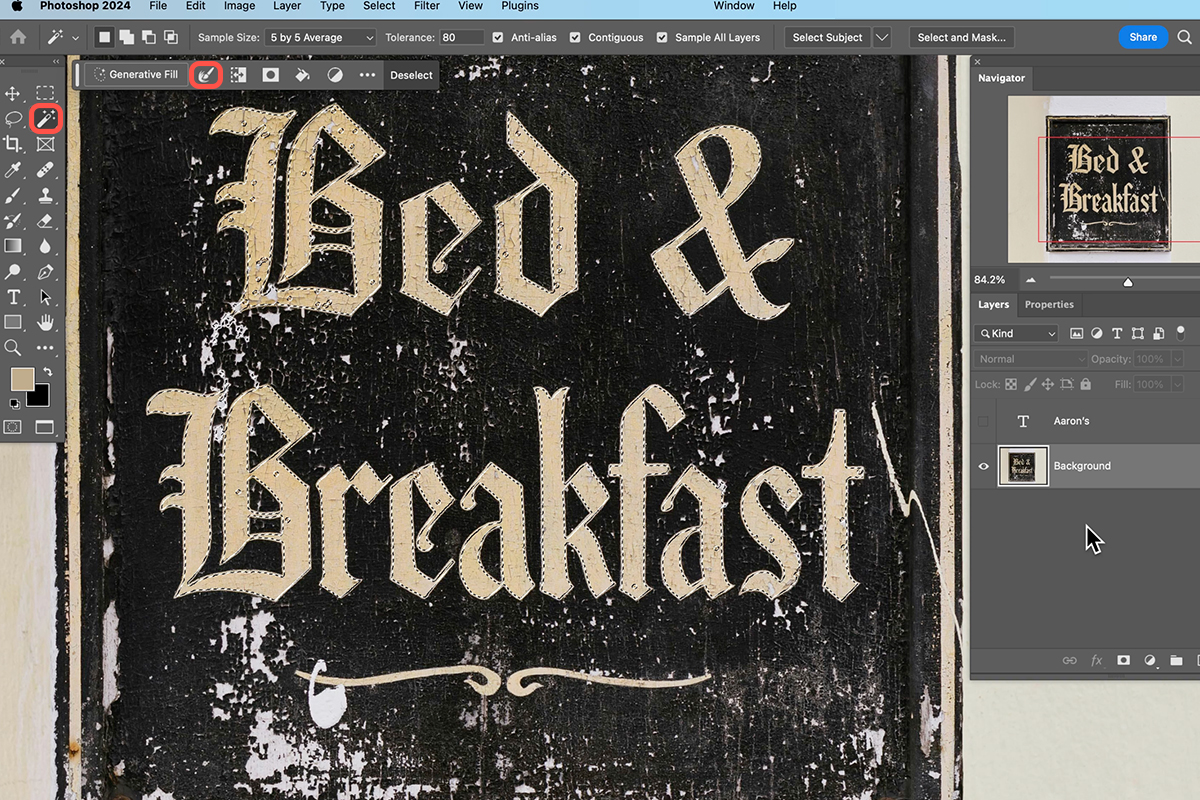
Press W for the Magic Wand and set tolerance to around 80
A high tolerance catches the whole letterform including its variations, rather than just the flattest part.
-
Click the original lettering to select it
Shift-click to add more letters until you have a good area of the original text selected.
-
Contract the selection by about 5 pixels
Select, then Modify, then Contract. This pulls the selection in from the letter edges, so you take the texture from the middle of the strokes and not the anti-aliased boundary.
-
Copy it to a new layer with Ctrl or Cmd + J
You now have a patch of the original lettering’s texture on its own layer.
-
Position it above your new text layer
Move it over the area your new text occupies.
-
Clip it to the text with Alt + Ctrl + G, or Option + Cmd + G on Mac
The texture now only shows inside the shapes of your new letters.
Softening the edges
The extracted texture will have harder edges than the original, because you cut it out of a photograph rather than it being part of one. Convert the texture layer to a Smart Object, then apply a Gaussian Blur of roughly 4 to 7 pixels.
That sounds like a lot, and it is deliberate. You are not blurring the text — the text edges come from your type layer, which stays sharp. You are only softening the texture sitting inside it, so it reads as surface variation rather than as a cut-out piece of another image.
Using a Smart Object means you can adjust the blur amount afterward by double-clicking the filter, which you almost certainly will.
Covering longer text
Your texture patch only covers as much area as the original letters did. If your new text is longer, duplicate the texture layer and position the copies to fill the gaps.
Offset each duplicate rather than tiling them evenly. Repeating an identical patch produces a visible rhythm that gives the whole thing away — shifting and occasionally flipping each copy breaks that up.
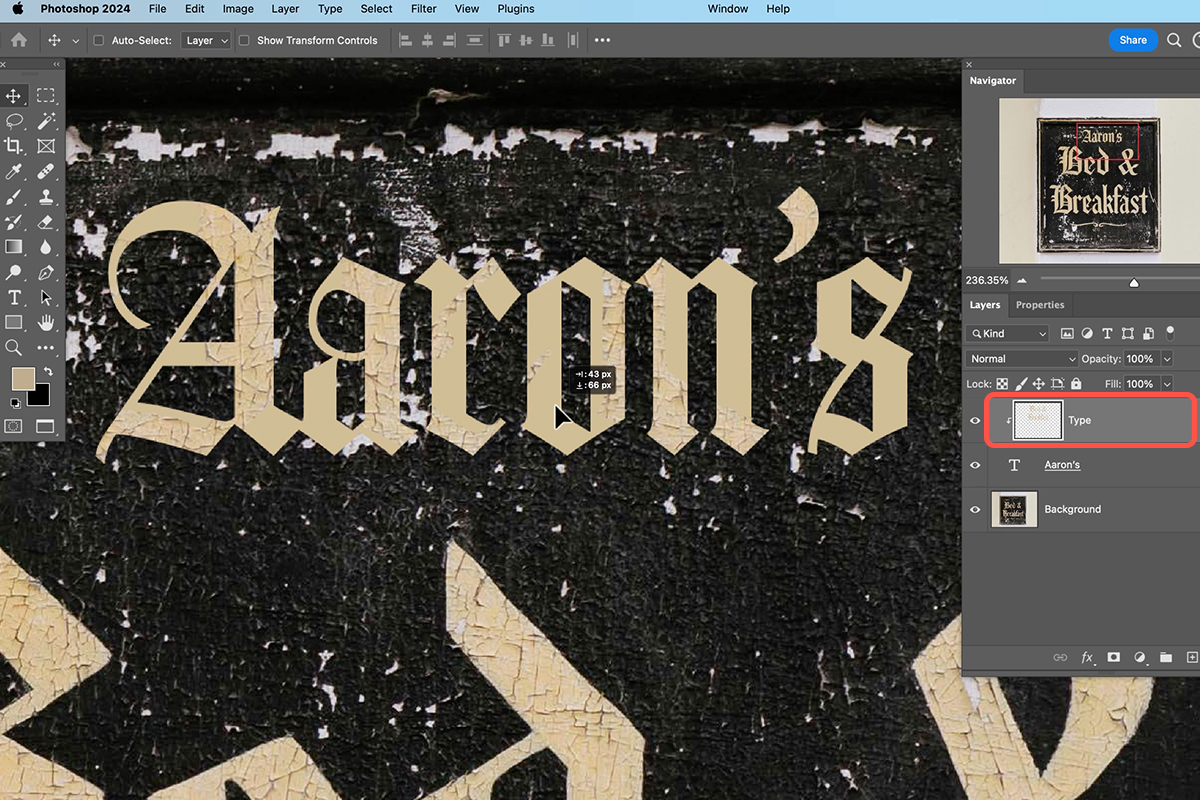
Why the Texture Step Matters
Font matching on its own gets you the right letterforms, and people often stop there and wonder why the result still looks pasted on.
The reason is that text in a photograph is not just a typeface. It is a typeface printed or painted on a real surface, photographed under particular light, with all the imperfection that implies. Matching the font addresses the shapes; borrowing the texture addresses everything else.
The same principle applies well beyond type. Whenever you add something to a photograph, the question is not only whether the object is right but whether it carries the same surface qualities as everything around it — and the fastest way to get those right is nearly always to take them from the image itself rather than trying to build them.
A Practical Note
Keep the type layer as live text for as long as possible rather than rasterizing it. With the texture clipped above it, you can retype the wording, change the size, or swap the font entirely, and the texture treatment follows automatically. That makes revisions a few seconds of work instead of a rebuild.
Quick Reference: Keys, Menus and Settings
- Find the fontType > Match Font, box the lettering, download and star a few
- Set the textT, then the color swatch in the Contextual Task Bar; click the original letters to sample
- Show starred fontsFont menu in the Contextual Task Bar, star in the filter row
- Lift the textureW, Tolerance 80, Sample All Layers, Shift-click letters, Contract Selection 5 px, Cmd/Ctrl + J
- Clip it to the typeLayer > Create Clipping Mask or Alt/Option + Cmd/Ctrl + G
- Soften the edgeLayer > Smart Objects > Convert to Smart Object, then Filter > Blur > Gaussian Blur, about 0.4 to 0.7 px
- Clear the old wordsExpand Selection 10 px, Background layer, Generative Fill > Generate
Free Downloads
Follow Along on the Same Photo
Get the weathered Bed and Breakfast sign to match, the finished layered PSD with the clipped texture and the 4-page PDF guide. Free with a PHLEARN account.
Matching Fonts: Common Questions
How do I find out what font is in a photo?
Go to Type > Match Font and drag the box right around the lettering. Photoshop searches and lists the fonts it thinks are similar, including ones you can download from Adobe.
Why isn’t Match Font finding any fonts?
You have to be connected to the internet for it to search. Keep the box tight around the text, with as little background inside it as possible.
Will Match Font find the exact font?
Not always. It gives you similar fonts, so download a few, star them, and compare each against the original. In the video Amador Regular was the closest.
How do I find the fonts I starred?
Open the font menu in the Contextual Task Bar and click the star in the filter row. Only your starred fonts show, and hovering over each one previews it on your text.
How do I match the color of the original text?
Click the color swatch in the Contextual Task Bar. With the color picker open, click right on the original lettering to sample it, then click OK.
How do I copy the texture of the old letters onto new text?
Select the original letters with the Magic Wand at a Tolerance of about 80, Shift-clicking each one. Contract the selection by 5 pixels, press Cmd/Ctrl + J, then move that layer above your type and clip it.
What does the clipping mask do here?
It makes the texture layer visible only where the type layer under it is visible. Use Layer > Create Clipping Mask or Alt/Option + Cmd/Ctrl + G, and repeat on duplicates until the word is filled.
Why does my new text still look pasted on?
Its edge is sharper than the original lettering. Convert the type to a Smart Object and add Filter > Blur > Gaussian Blur, just under a pixel; the video settles on 0.4.
How do I remove the original words and type my own?
Select the old letters again, expand the selection by 10 pixels, and use Generative Fill on the Background layer. Then double-click the Smart Object, retype, and save; the blur and texture stay on.
Are the sample files free?
Yes, with a free PHLEARN account. You get 1 sample image, 1 sample PSD and 1 PDF guide: the weathered sign, the finished layered file and a 4-page step-by-step guide.
Master Photoshop, Lightroom and Photography
Join PHLEARN PRO for $12.99 a month, or $99.99 a year (save 36%). Cancel anytime, with a 100% money-back guarantee.





