
Download Assets
This tutorial includes 1 sample image and 1 PDF guide. Downloads are free with a PHLEARN account.
- Download the sample images and PSDs from every free tutorial on PHLEARN
- New free tutorials published every week
- One free account — sign up once, then download anything
Free PDF Guide · 4 Pages
This Tutorial as a Step-by-Step PDF
Every step from the video in order: a text box with the Type tool, Convert to Dynamic Text in the contextual taskbar, dragging the box to redesign, Cmd/Ctrl-drag to move while editing, Select Subject and Alt/Option-click for a mask, color and drop shadow, Enter before and after a word, and Cmd/Ctrl+T with Alt/Option to scale from the center. Keep it next to your keyboard.
description
Ready to revolutionize your text design? This quick Photoshop Beta tutorial dives into the incredible new Dynamic Text feature! Learn how to automatically style your text, watch it adapt in real-time as you resize and reshape, and seamlessly integrate it with your images.
Enjoying This Free Tutorial?
We publish a new free tutorial every week, each one with sample images and PSDs you can download and follow along with. Sign up and they land straight in your inbox, along with early word on sales, events and subscriber-only offers.
Image Source


How to Use Dynamic Text in Photoshop Beta
A normal Photoshop text box has one behavior: the type stays the size you set it, and if it does not fit, it gets cut off. Making a block of text fill a shape nicely means adjusting sizes, line breaks, and leading by hand, then doing it all again when you change the box.
Dynamic Text works the other way around. You draw the shape you want the text to occupy, and Photoshop sizes each line to fill it — live, as you drag. Nothing is ever cut off. Change the shape and the whole design re-lays itself instantly.
It is in Photoshop Beta, and it is genuinely useful if type design is not your strong suit.
Create and Convert
-
Press T and drag a text box
Exactly as you always have. Type or paste your text into it.
-
Commit with the checkmark
In the Contextual Task Bar.
-
Click Convert to Dynamic Text
Available in the Contextual Task Bar or the options bar at the top.
The moment you convert, Photoshop redesigns the block — sizing each line independently so the text fills the box completely. A short line becomes large, a long one becomes smaller, and the whole thing reads as a considered layout rather than a paragraph.

Reshape It and Watch It Redesign
Click back into the box and drag any handle. Every line resizes in real time to fill the new shape.
Two differences from a normal text box matter here. Nothing is ever clipped — all your text always fits, because the type scales rather than overflowing. And the lines are sized independently, so the design changes character as you reshape: a tall narrow box gives you a stacked look, a wide short one gives you something closer to a banner.
This is what makes it worth using. You can try a dozen layouts in under a minute, because you are dragging a shape instead of setting type.
Hold Ctrl or Cmd to Move While Reshaping
While you are dragging handles, hold Ctrl or Cmd and drag to move the whole box instead of resizing it — without leaving the editor. Position and shape become one continuous adjustment.
Press Ctrl+Enter or Cmd+Enter to commit, or click the checkmark.
Put the Text Behind Your Subject
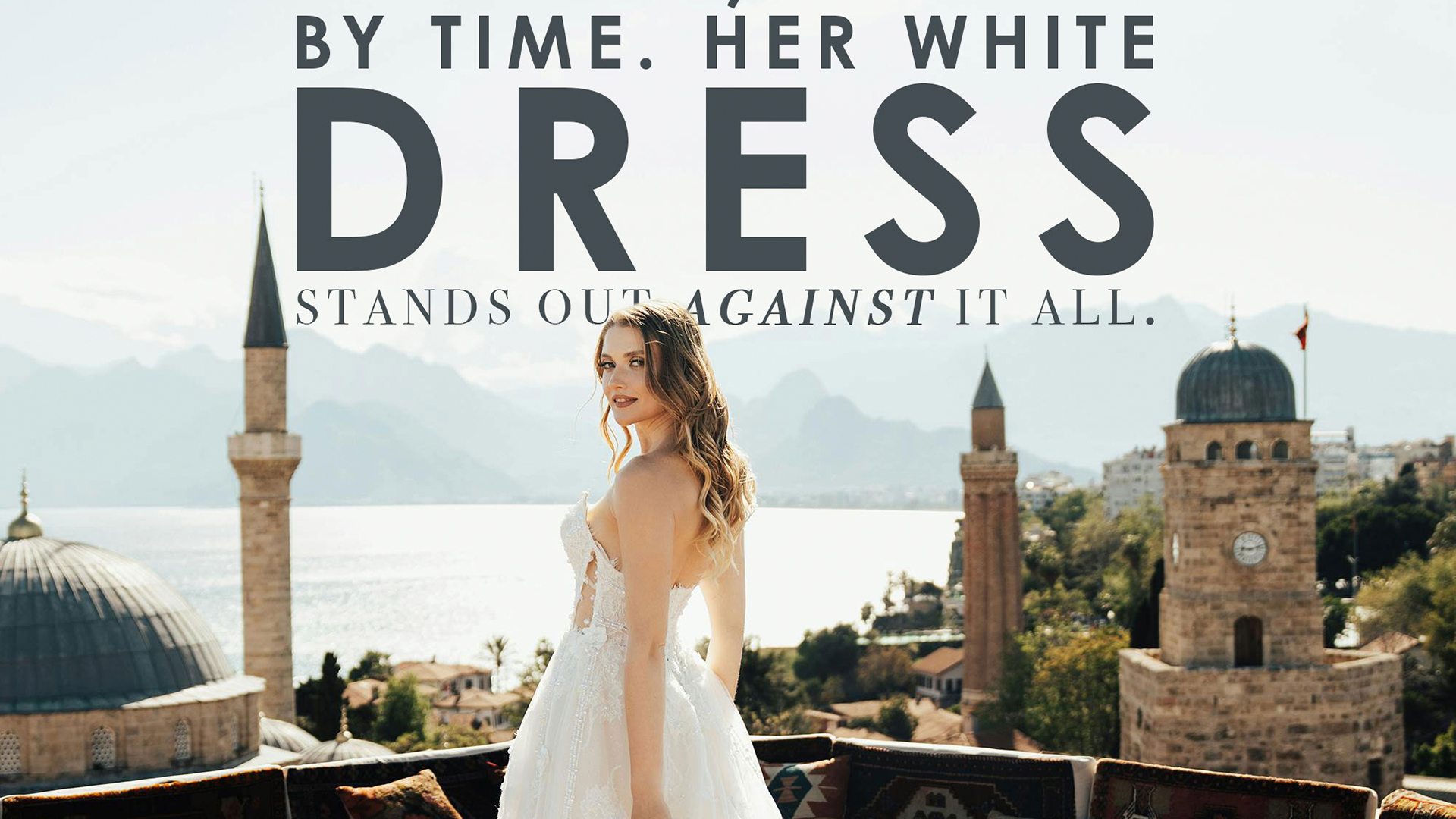
The effect that makes this look designed rather than typed: text that passes behind the person in the photograph.
-
Select the background layer and run Select Subject
Photoshop isolates the subject automatically.
-
Select the text layer
With the selection still active.
-
Hold Alt or Option and click the layer mask icon
The modifier creates an inverted mask, hiding the text where the subject is. Now the type runs behind them.
It Stays Editable
This is the part that would normally break. Press T, click back into the text, and keep reshaping — the mask holds, so the type stays behind your subject through every layout change you try.
Unlink the Mask
By default a layer and its mask are chained together, so moving the text moves the mask with it and the subject cutout drifts out of register.
Click the chain icon between the two thumbnails to unlink them. Now you can move the text freely while the mask stays locked to where your subject actually is. Do this before you start repositioning — it saves re-running Select Subject later.

Styling Still Works Normally
Dynamic Text is still text. Everything you already know applies.
Color comes from the Contextual Task Bar — and sampling a color directly from the photograph usually beats picking one, since it ties the type to the image.
Drop shadow is worth adding when the text crosses both light and dark areas. Double-click the layer to open Layer Style and choose Drop Shadow. Rather than black, sample a color from the image for the shadow — it separates the type from the background without the heavy, pasted-on look that black gives.
Mixed fonts and weights work too. Highlight part of the text and change the font, size, or weight, and the dynamic layout accommodates it immediately. Open Window > Character for bold, italic, and the rest. Setting one word in a different face is a quick way to add emphasis, and the layout absorbs it without any manual reflowing.
Force a Word Onto Its Own Line
Dynamic Text decides the line breaks — unless you tell it otherwise.
Place the cursor before a word and press Enter, then after it and press Enter again. That word is now on its own line permanently, and it stays there through every subsequent reshape.
Because each line is sized to the width available, a single word on its own line becomes large and prominent. It is the most direct way to emphasize one word in a headline, and it survives all further layout experimentation.
Scale the Whole Design Without Redesigning It
Important distinction: dragging the handles inside the text editor redesigns the layout. Sometimes you want the design you already have, just bigger.
Commit the text first, then press Ctrl+T or Cmd+T for Free Transform. This scales the finished design proportionally, leaving every relationship intact.
Hold Alt or Option while dragging a corner to scale from the center point rather than the opposite corner — which keeps the block centered while it grows or shrinks.
Centering
Press Ctrl+A or Cmd+A to select the whole canvas, take the Move Tool, and use the alignment buttons in the options bar. With the full document selected, aligning centers against the canvas rather than against another layer.
Why It Is Worth Learning
Not everyone is a type designer, and the work of getting a block of text to sit well in a frame is fiddly and slow. Dynamic Text moves that work to a shape you drag, which means you can evaluate ten layouts in the time one used to take — and choosing between options you can see is a great deal easier than imagining them.
Combined with a subject mask and a sampled drop shadow, it produces the kind of layered type treatment that normally takes real design effort.
It is a beta feature, so expect the controls to move around before it reaches the full release.
Quick Reference: Keys, Menus and Settings
- Make a text boxT, drag a box, paste or type, click the check
- ConvertConvert to Dynamic Text in the contextual taskbar (or the options bar)
- RedesignClick inside the text, drag any handle; words resize to fill the box
- Move while editingHold Cmd/Ctrl and drag
- CommitThe check, or Cmd/Ctrl + Enter; Esc cancels
- Behind the subjectBackground > Select Subject, click the text layer, Alt/Option-click Add Layer Mask; unlink the mask to move the text freely
- StyleColor swatch in the taskbar (eyedrop from the photo); double-click the layer > Drop Shadow with a color from the image; Window > Character for bold or italic on selected words
- A word on its own lineClick before it, Enter; click after it, Enter
- Scale without redesigningCommit, Cmd/Ctrl + T, Alt/Option-drag a corner (from the center), Shift-drag to move straight
- Center itCmd/Ctrl + A, V, the align-center buttons
Recorded in Photoshop Beta.

Free Downloads
Follow Along on the Same Photo
Get the rooftop portrait from the video and the PDF guide, and build the same dynamic text layout. Free with a PHLEARN account.
Dynamic Text: Common Questions
What is Dynamic Text?
A text box that designs itself. Convert a normal text layer and every word is sized to fill the box; drag the box into a new shape and the layout redesigns live, with nothing cut off.
How is it different from a normal text box?
A normal box keeps one size and hides whatever doesn’t fit. Dynamic Text changes the size of each word so all of it fits, whatever the box shape.
How do I turn it on?
Make a text box with the Type tool, then click Convert to Dynamic Text in the contextual taskbar. Click inside the text to reshape it, Cmd/Ctrl-drag to move it, and click the check to commit.
Can I put it behind my subject?
Yes. Select Subject on the background, select the text layer and Alt/Option-click Add Layer Mask. The mask stays put while you keep redesigning the text; unlink the mask to move the text on its own.
Does normal styling still work?
Yes. Color, fonts, drop shadows and the Character panel all work. Highlight a few words to give them a different font or make them bold; they stay that way as you resize.
How do I keep one word on its own line?
Press Enter before and after it. The word stays alone on its line no matter how the box changes.
How do I make the whole design bigger without changing it?
Commit the text, then Cmd/Ctrl+T. Dragging the box in the dynamic editor redesigns; Transform scales the design as is. Alt/Option-drag a corner to scale from the center.
Do I need Photoshop Beta?
At recording, yes. The feature later shipped in the full release; the newer Dynamic Text tutorial under Keep Learning covers it there.
Is the sample file free?
Yes, with a free PHLEARN account. You get the rooftop portrait and the PDF guide.
Master Photoshop, Lightroom and Photography
Join PHLEARN PRO for $12.99 a month or $99.99 a year. Cancel anytime, with a 100% money-back guarantee.





