


Download Assets
This tutorial includes 2 sample images, 2 sample PSDs, 1 sample pattern and 1 PDF guide. Downloads are free with a PHLEARN account.
- Download the sample images and PSDs from every free tutorial on PHLEARN
- New free tutorials published every week
- One free account — sign up once, then download anything
Free PDF Guide · 4 Pages
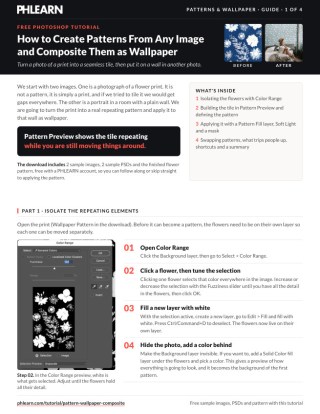
This Tutorial as a Step-by-Step PDF
The guide walks through isolating the flowers with Select > Color Range, filling the gaps in View > Pattern Preview with the Lasso and Move tools, Edit > Define Pattern with and without a background, a Pattern Fill layer set to Soft Light, masking the subject and copying the mask to a second pattern. Keep it next to your keyboard.
description
Learn how to create a seamless pattern from any image in Photoshop and apply it as wallpaper in another photo. Use Color Range to isolate the repeating elements, then turn on Pattern Preview to see the tile live while you move elements around to fill the gaps. Define the pattern, apply it with a Pattern Fill layer, and blend it into the wall with Soft Light, a layer mask that keeps it off the subject, and adjustable scale and angle.
Enjoying This Free Tutorial?
We publish a new free tutorial every week, each one with sample images and PSDs you can download and follow along with. Sign up and they land straight in your inbox, along with early word on sales, events and subscriber-only offers.
Image Source
Photos by Vlada Karpovich and Lisa Fotios via Pexels
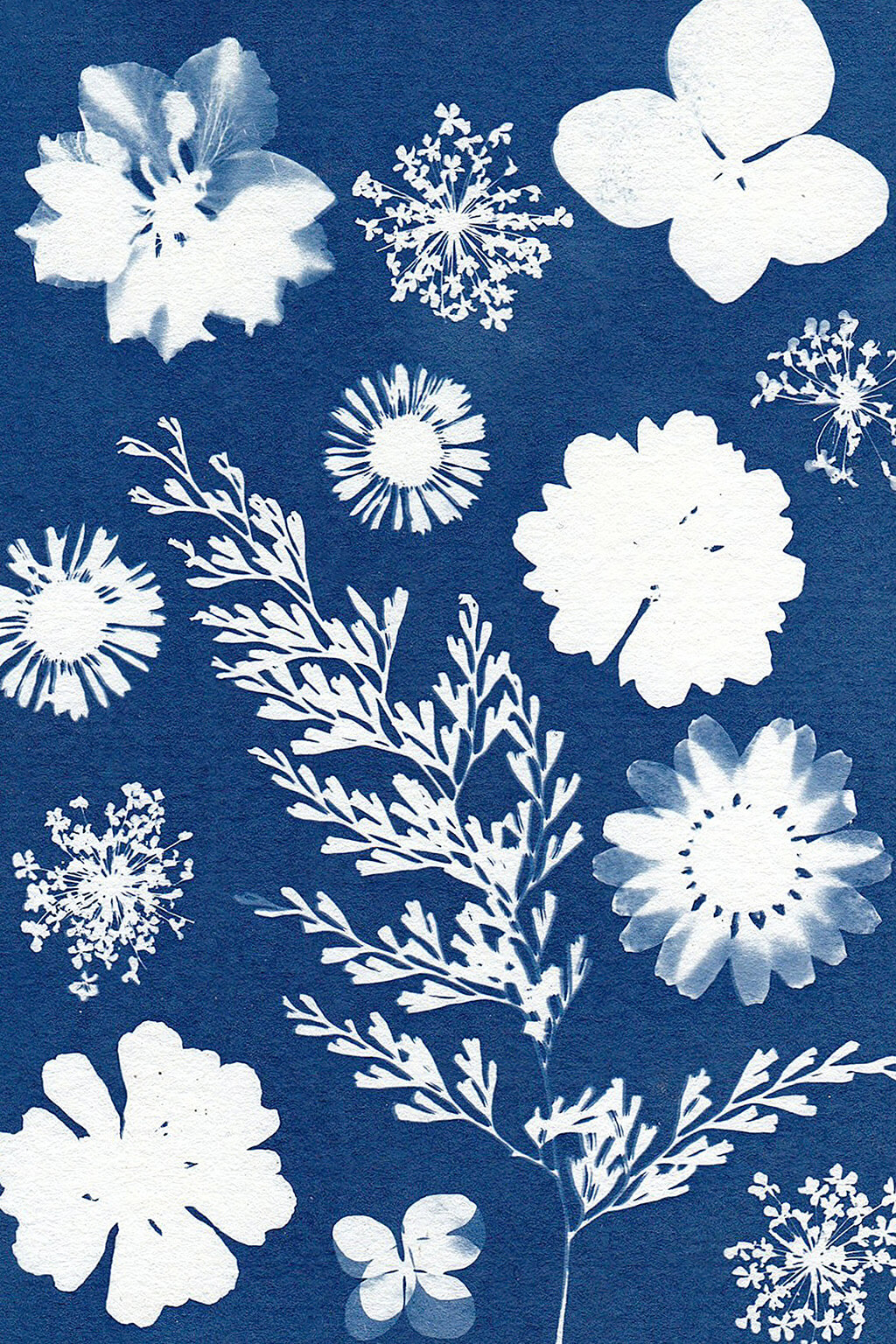
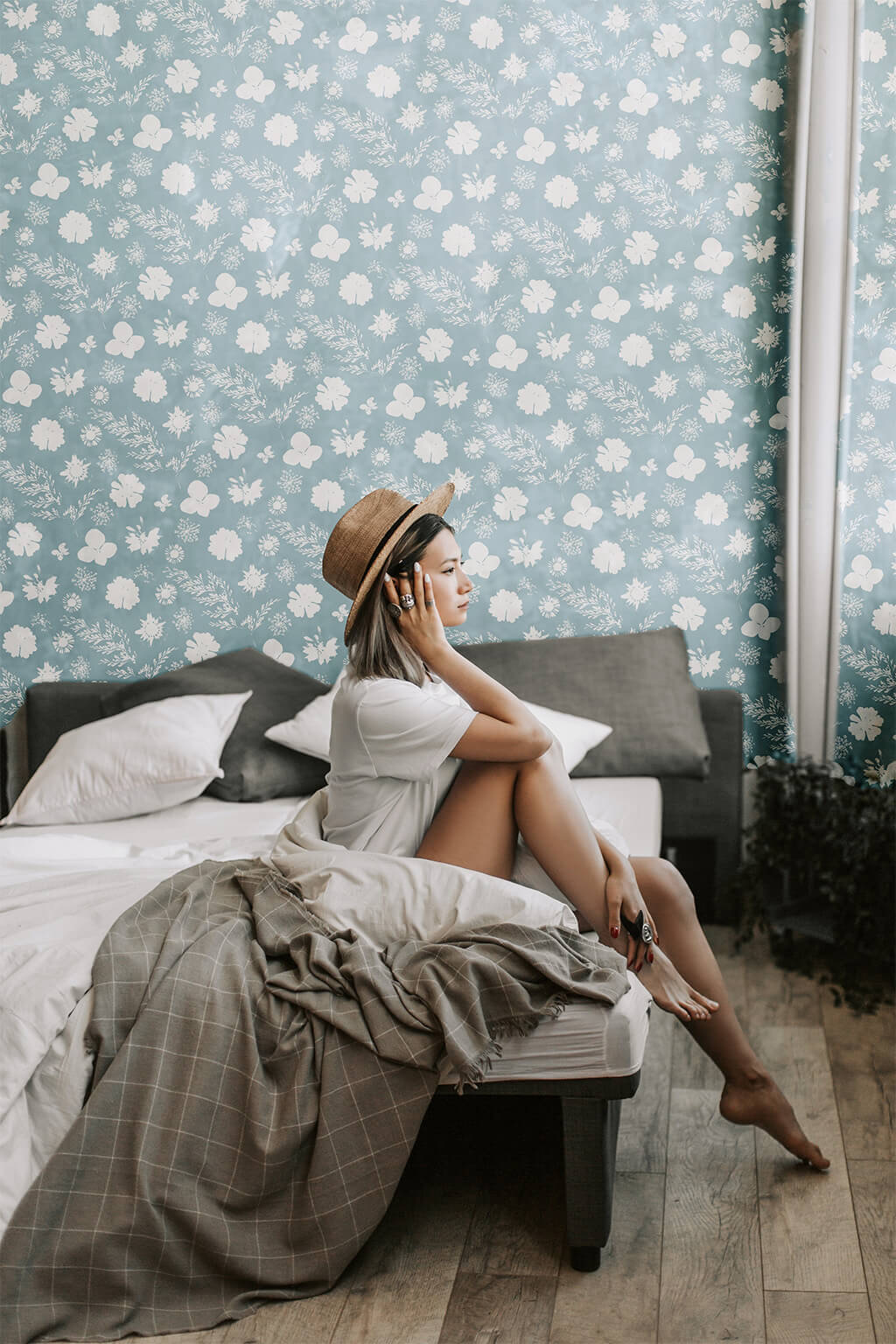
How to Create a Seamless Pattern and Apply It as Wallpaper in Photoshop
Turning a simple photograph into a tileable, repeating pattern — and then applying that pattern as a realistic wallpaper on a wall in another photo — is easier than it sounds once Photoshop’s Pattern Preview mode is doing the heavy lifting. This tutorial builds a seamless flower pattern from a flat print and applies it convincingly to a room photo.
Isolating the Repeating Elements with Color Range
On the source image, go to Select > Color Range and click directly on one of the repeating elements — a flower, in this case — to select every instance of that color throughout the image. The Fuzziness slider expands or tightens the selection to capture the full detail of each element. Once confirmed, filling a new layer with white (Edit > Fill) creates a clean, isolated version of just those elements to work with.
Using Pattern Preview to See the Tile Live While Editing
Photoshop’s View > Pattern Preview mode tiles the current document live across the entire canvas, instantly showing what a repeating pattern would actually look like — including all the awkward gaps a single, non-tileable photograph naturally has.
Filling Gaps by Moving Elements Around the Canvas
With Pattern Preview active, selecting an individual element with the Lasso tool (L) and repositioning it with the Move tool (V) shows its effect on the tiled preview in real time. Dragging an element toward one edge wraps the other half of it around to the opposite side automatically, filling in what was previously an empty gap in the tile.
Why Elements Wrap Around the Edges Automatically
Pattern Preview treats the canvas as one repeating tile, so anything pushed past an edge reappears on the opposite edge — this is exactly the behavior needed to fill gaps convincingly, since it guarantees the pattern will still line up seamlessly once it’s actually repeated.
Turning the Arranged Design into a Reusable Pattern
Once the elements are arranged to fill the canvas evenly, Edit > Define Pattern saves the current canvas as a reusable, tileable pattern with its own name.
Making a Version With and Without a Background
Defining the pattern once with the background layer visible and again with it hidden produces two versions — one solid, one transparent — giving more flexibility for how the pattern gets blended into different photos later.
Applying the Pattern with a Pattern Fill Layer
On the target photo, go to Layer > New Fill Layer > Pattern to open the pattern picker, which now includes any custom pattern just created alongside Photoshop’s built-in options. Selecting the new pattern applies it instantly as its own editable fill layer.
Adjusting Scale and Angle After the Fact
Double-clicking the pattern fill layer’s thumbnail reopens its settings at any time, where scale and angle can both be adjusted with a live preview — useful for scaling a pattern down if it reads too large relative to the room in the photo.
Blending the Pattern into the Photo with Soft Light
Changing the pattern fill layer’s blend mode from Normal to Soft Light lets the existing lighting and shadow detail of the wall show through the new pattern, rather than the pattern sitting on top as a flat, disconnected layer of color.
Masking the Subject Out of the New Wallpaper
With the pattern applied across the whole photo, a mask needs to keep it confined to the wall itself. The Quick Selection tool can rough out the background first; if the resulting mask hides the wrong area, Cmd/Ctrl+I inverts it. Selecting the subject directly with Select > Subject and filling that selection with black on the mask removes the pattern from the subject entirely, and the Brush tool cleans up anything left over.
Fixing an Inverted Layer Mask
A freshly created mask sometimes ends up showing the opposite of what’s intended — hiding the wall and revealing the background instead. Pressing Cmd/Ctrl+I on the mask flips it instantly, which is often faster than rebuilding the selection from scratch.
Swapping Between Multiple Pattern Options Using the Same Mask
To try out a second pattern in the exact same spot, holding Alt (Option on Mac) and dragging the finished layer mask from one pattern fill layer onto another instantly copies that mask over — the new pattern is immediately confined to the same wall area, making it easy to compare several pattern options side by side.
Why Pattern Preview Makes This Possible
Building a seamless pattern by eye, without seeing how it actually tiles, means guessing at gaps and repeats that only become obvious after the pattern is applied. Pattern Preview removes that guesswork entirely by rendering the live tile while elements are still being moved around, so every gap gets filled and confirmed before the pattern is ever defined — turning what used to be trial and error into a straightforward, visual process.
Final Thoughts
A single photograph can become a fully custom, tileable wallpaper with nothing more than Color Range, Pattern Preview, and a Pattern Fill layer — and because the whole thing lives on editable layers with a mask, scale, angle, blend mode, and even the pattern itself can all be swapped or adjusted after the fact.
Quick Reference: Keys, Menus and Settings
- Isolate the flowersSelect > Color Range, click a flower, adjust Fuzziness; Edit > Fill with white on a new layer; Cmd/Ctrl + D to deselect
- See the repeatView > Pattern Preview; F for full screen, then zoom out
- Fill the gapsL to lasso an element, V to move it; past an edge it wraps to the other side
- Save the tileEdit > Define Pattern, once with and once without the background
- Apply as wallpaperLayer > New Fill Layer > Pattern, lower Scale, blend mode Soft Light
- Keep it on the wallQuick Selection on the wall (Shift to add); Cmd/Ctrl + I inverts the mask; Select > Subject, Edit > Fill with black
- Try another patternAlt/Option-drag the mask to the other fill layer; double-click its thumbnail for Angle and Scale
Everything stays editable: scale, angle, blend mode and the pattern itself can change later.
Free Downloads
Follow Along on the Same Photos
Get the flower print and the portrait in the room, 2 layered PSDs, the finished flower pattern and the 4-page PDF guide. Free with a PHLEARN account.
Photoshop Patterns: Common Questions
How do I turn a photo into a pattern in Photoshop?
Put the repeating elements on their own layer with Select > Color Range and Edit > Fill, arrange them in View > Pattern Preview until there are no gaps, then go to Edit > Define Pattern and give it a name.
How do I select every flower in the print at once?
Click the Background layer, go to Select > Color Range and click one flower. Adjust Fuzziness until the flowers hold all their detail, then fill a new layer with white and press Cmd/Ctrl + D to deselect.
What does Pattern Preview do, and why can’t I see the repeat?
View > Pattern Preview tiles the document live across the canvas while you edit. Click OK on the Smart Objects message, then press F for full screen and zoom out to see the whole repeat.
How do I fill the blank areas between tiles?
Select one element with the Lasso Tool (L) and drag it with the Move Tool (V). Anything pushed past an edge comes back on the opposite side, so the tile still lines up when it repeats.
Why define the pattern twice?
Defining it once with the background color and once with that layer hidden gives you two patterns. The version without a background is a little easier to use, because only the flowers land on your photo.
How do I put my pattern on a wall in another photo?
Go to Layer > New Fill Layer > Pattern, click the pattern thumbnail and pick yours from the list. Lower Scale until the flowers suit the room. Double-click the layer thumbnail later to change Scale or Angle.
Why does my wallpaper look pasted on?
In Normal mode the pattern sits on top as a flat layer. Change the fill layer’s blend mode to Soft Light so the wall’s own light and shadow show through.
How do I keep the pattern off my subject?
Select the wall with the Quick Selection Tool (hold Shift to add) and use it on the fill layer’s mask; press Cmd/Ctrl + I if it comes out backwards. Then Select > Subject on the Background layer, fill the mask with black and paint the rest away with the Brush.
Can I try a different pattern without masking again?
Yes. Hold Alt/Option and drag the finished mask from one pattern fill layer onto another. The new pattern shows only on the wall, and you can still change its Angle and Scale.
Are the sample files free?
Yes, with a free PHLEARN account. You get 2 sample images, 2 sample PSDs, 1 sample pattern and 1 PDF guide: the flower print, the portrait, the finished flower pattern and a 4-page step-by-step guide.
Master Photoshop, Lightroom and Photography
Join PHLEARN PRO for $12.99 a month, or $99.99 a year (save 36%). Cancel anytime, with a 100% money-back guarantee.





