

Download Assets
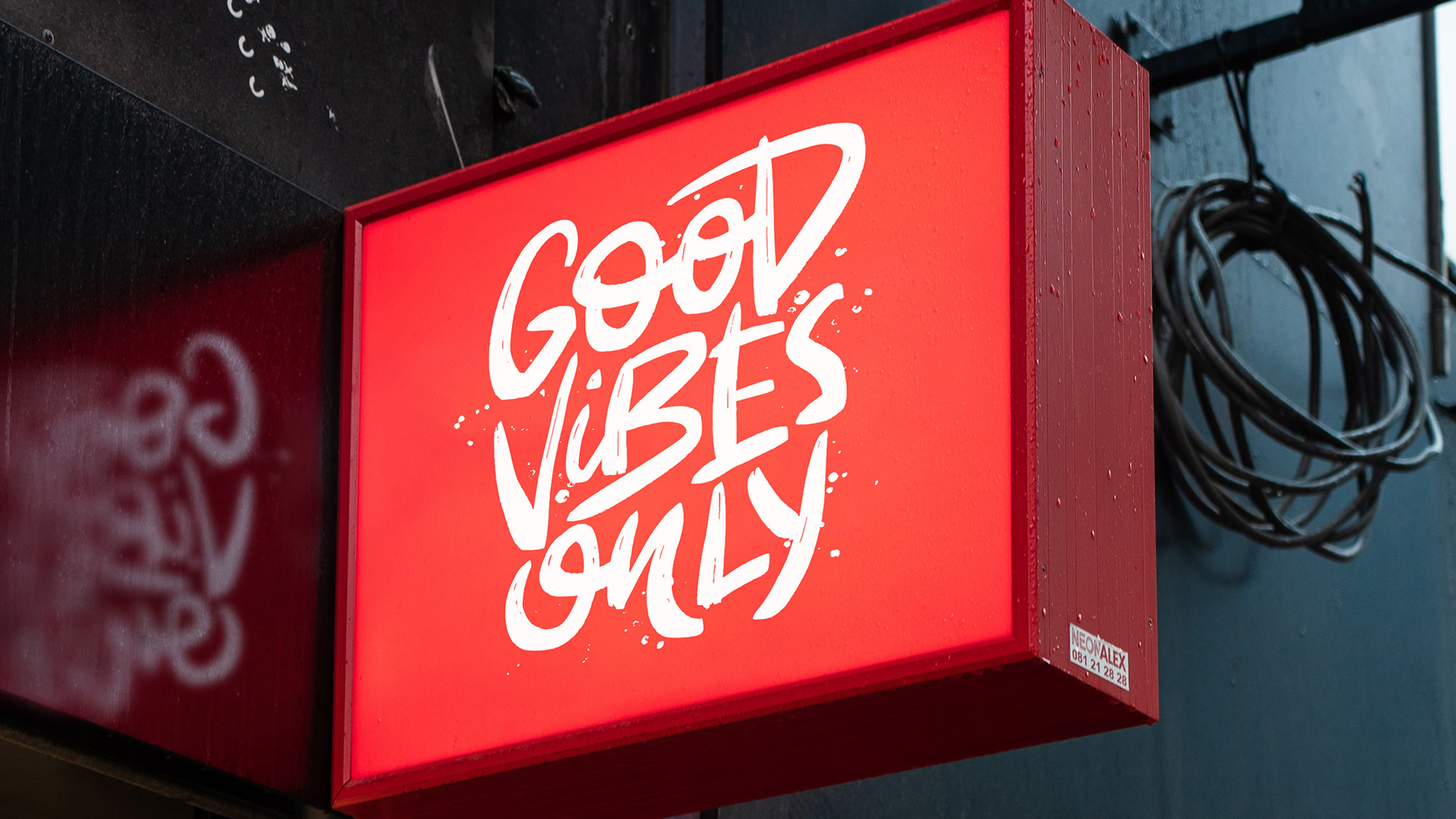
This tutorial includes 1 sample image, 1 alternate logo, 1 sample PSD and 1 PDF guide. Downloads are free with a PHLEARN account.
- Download the sample images and PSDs from every free tutorial on PHLEARN
- New free tutorials published every week
- One free account — sign up once, then download anything
Free PDF Guide · 4 Pages
This Tutorial as a Step-by-Step PDF
The 4-page guide walks through all 30 steps: Lasso and Edit > Content-Aware Fill on the sign and its reflection, the Polygonal Lasso and Ctrl/Command+T to flatten the shape, building Sign.psd, File > Place Linked into perspective, then the flipped reflection with Gaussian Blur, Tilt-Shift, Levels and Blend If. Keep it next to your keyboard.
description
Learn how to replace a sign in perspective in Photoshop, a perfect workflow for brand and product mockups. This tutorial removes the original lettering and its reflection with Content-Aware Fill, traces the sign’s corners and flattens the shape with Free Transform, builds the new design in a separate document saved as a PSD, then places it with Place Linked and pushes it back into perspective. The same file, flipped and blurred, becomes the reflection.
The sample graphic used in this tutorial was purchased from Adobe Stock. If you’d like to follow along with the same graphic, it can be found here.
The sample download includes an alternate logo that you can follow along with, or you can create your own!
Enjoying This Free Tutorial?
We publish a new free tutorial every week, each one with sample images and PSDs you can download and follow along with. Sign up and they land straight in your inbox, along with early word on sales, events and subscriber-only offers.
Image Source
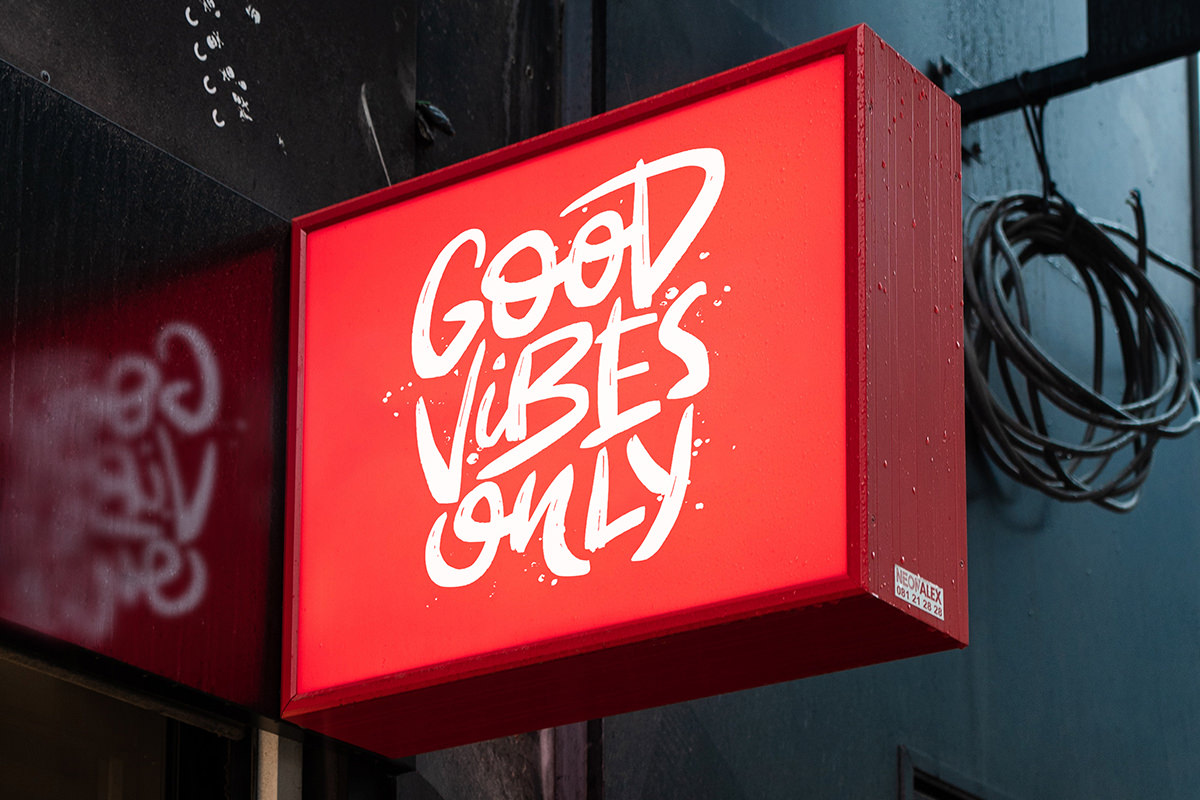
Photo by Guillaume Meurice via Pexels

How to Replace a Sign in Perspective in Photoshop
Swapping out the text on a sign is one thing, but making a replacement sign sit convincingly in a photo’s real-world perspective — including a matching reflection — takes a few extra steps. This technique traces the sign’s actual flat shape, builds the new design separately, then uses a linked Smart Object to drop it back into perspective so that any future edit updates automatically, in both the sign and its reflection, at once.
Removing the Original Sign with Content-Aware Fill
Before anything new can go in, the original lettering needs to come out cleanly.
-
Select the Original Letters
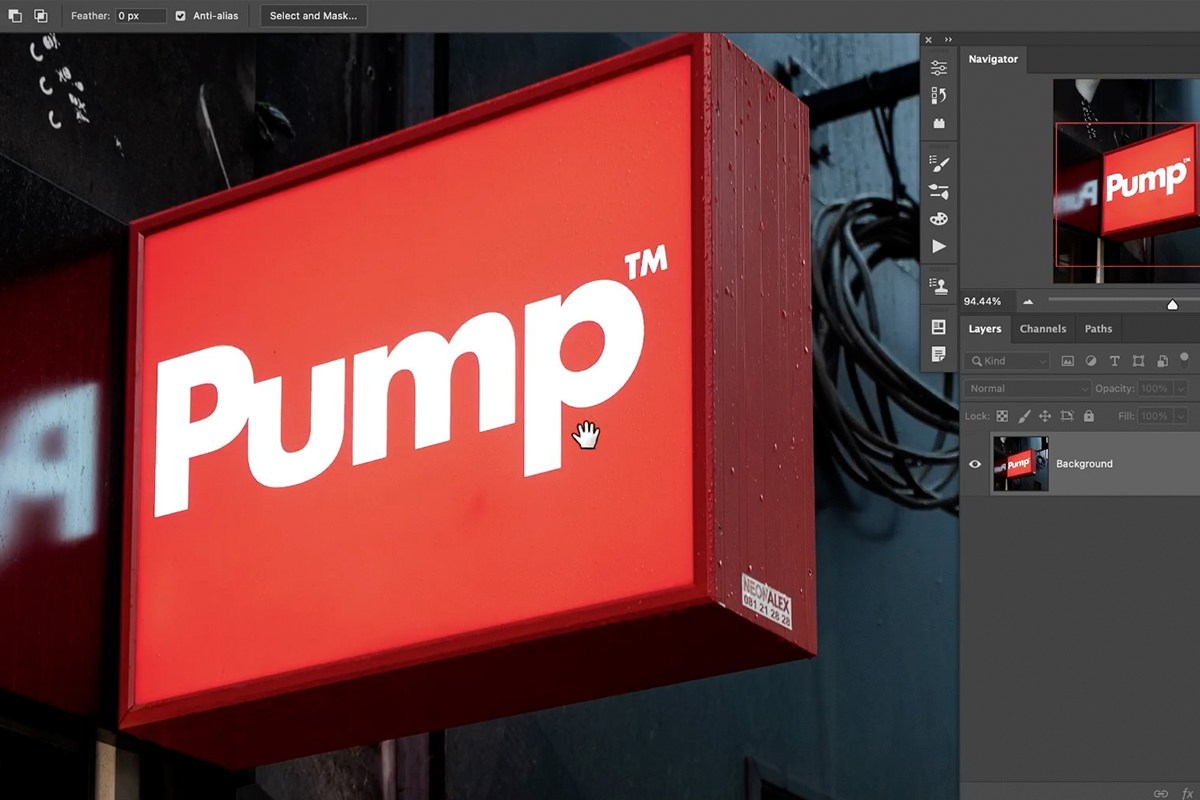
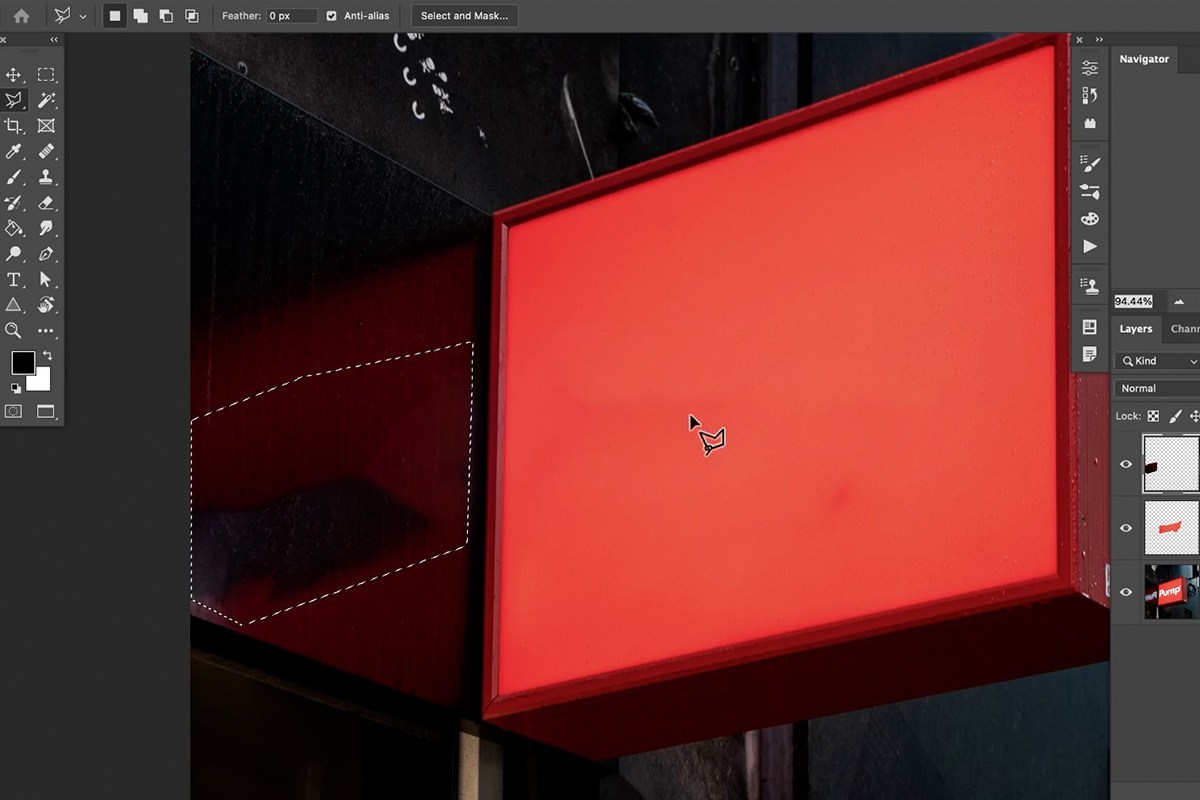
Grab the Lasso tool and draw a selection around the original sign’s lettering, then create a new layer.
-
Apply Content-Aware Fill
Go to Edit > Content-Aware Fill, set the output to Current Layer, and click OK. Photoshop rebuilds the selected area using surrounding pixels from the rest of the image.

Cleaning Up the Reflection Area
If the sign has a reflection — in water, glass, or a polished surface — that needs the same treatment on its own layer.
-
Select and Fill the Reflection
On a new layer, use the Lasso tool to select the reflected lettering, then run Edit > Content-Aware Fill again.
-
Clean Up Any Remaining Artifacts
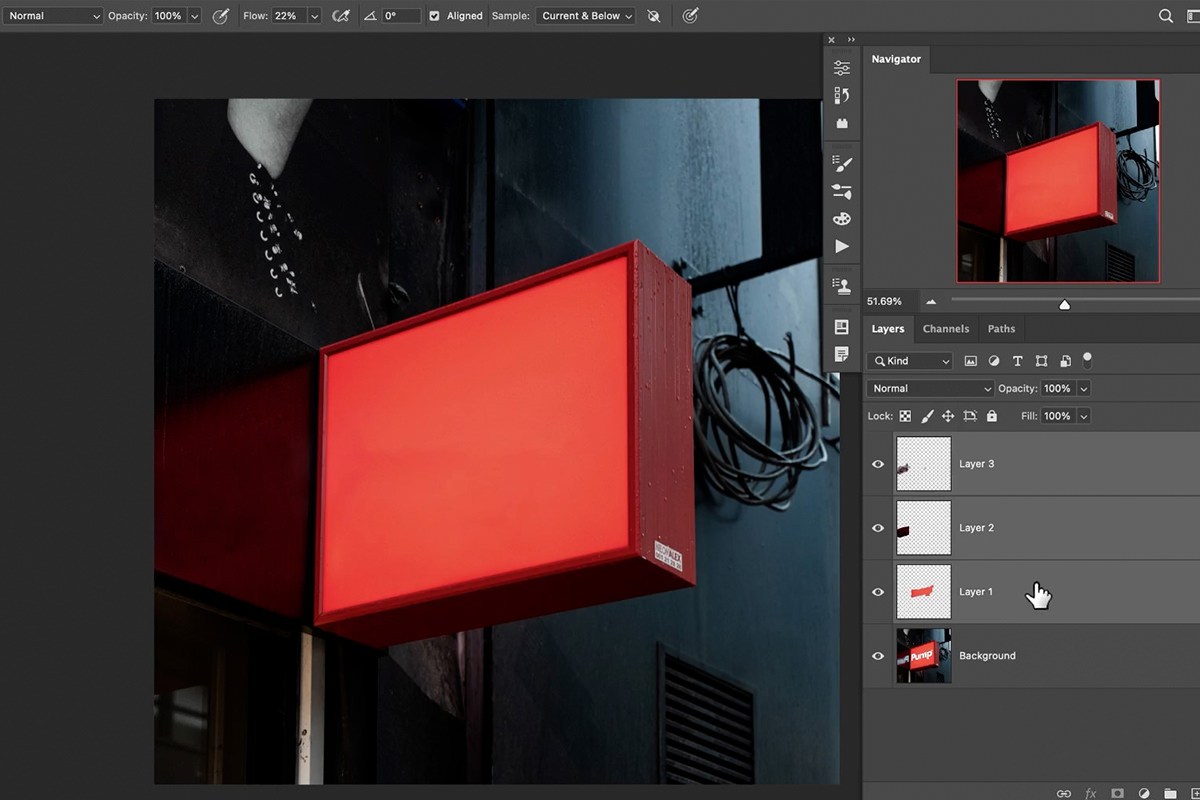
If Content-Aware Fill doesn’t fully clean up the reflection, switch to the Clone Stamp tool, sample a clean nearby area, and paint over whatever’s left.
When to Reach for the Clone Stamp
Content-Aware Fill handles most of the work automatically, but it occasionally misreads a pattern or leaves a faint artifact, especially in a reflection where the surface is less predictable than a flat sign. The Clone Stamp is the reliable fallback for those specific spots — there’s no need to redo the whole fill, just manually paint over the small area that didn’t come out clean.


Tracing and Flattening the Sign’s Shape
Because the photo is shot in perspective, the sign’s true flat shape needs to be figured out before a new design can be built to match it.
-
Group Your Cleanup Layers
Select the layers used to remove the original sign and reflection, and group them together with Ctrl + G on PC (Cmd + G on Mac).
-
Trace the Sign’s Corners
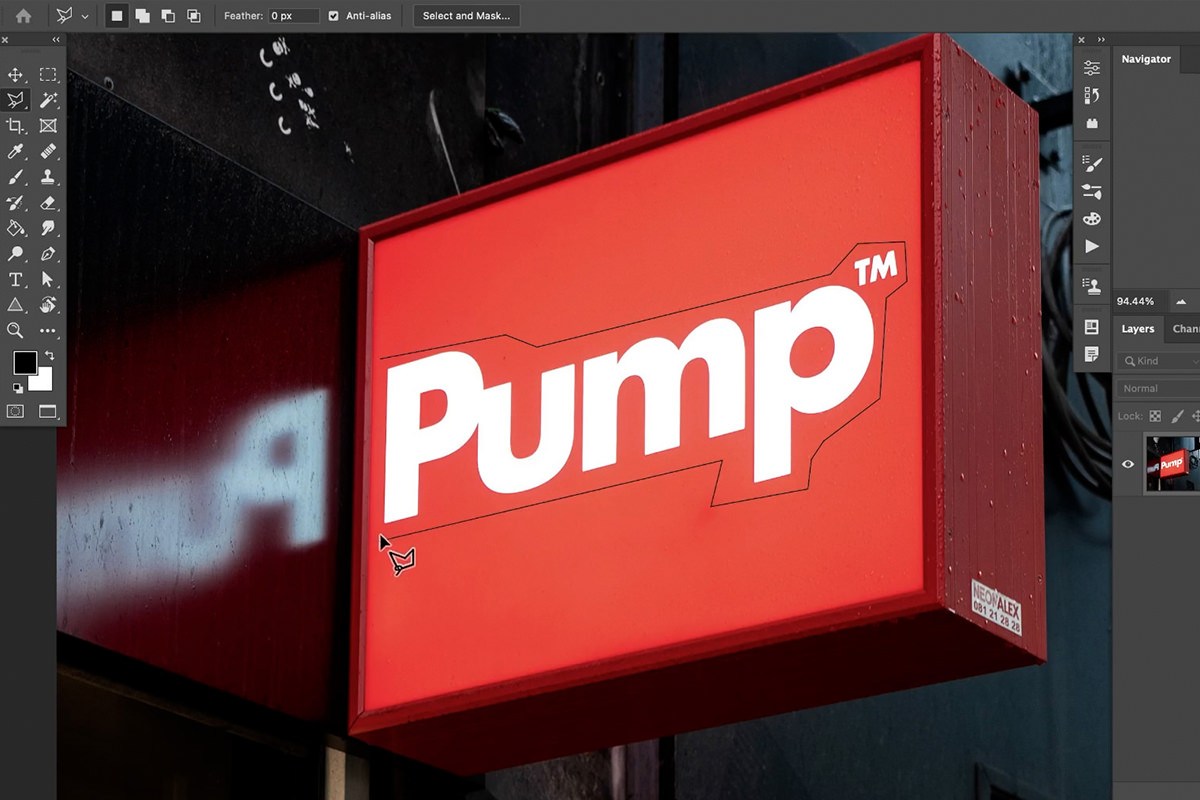
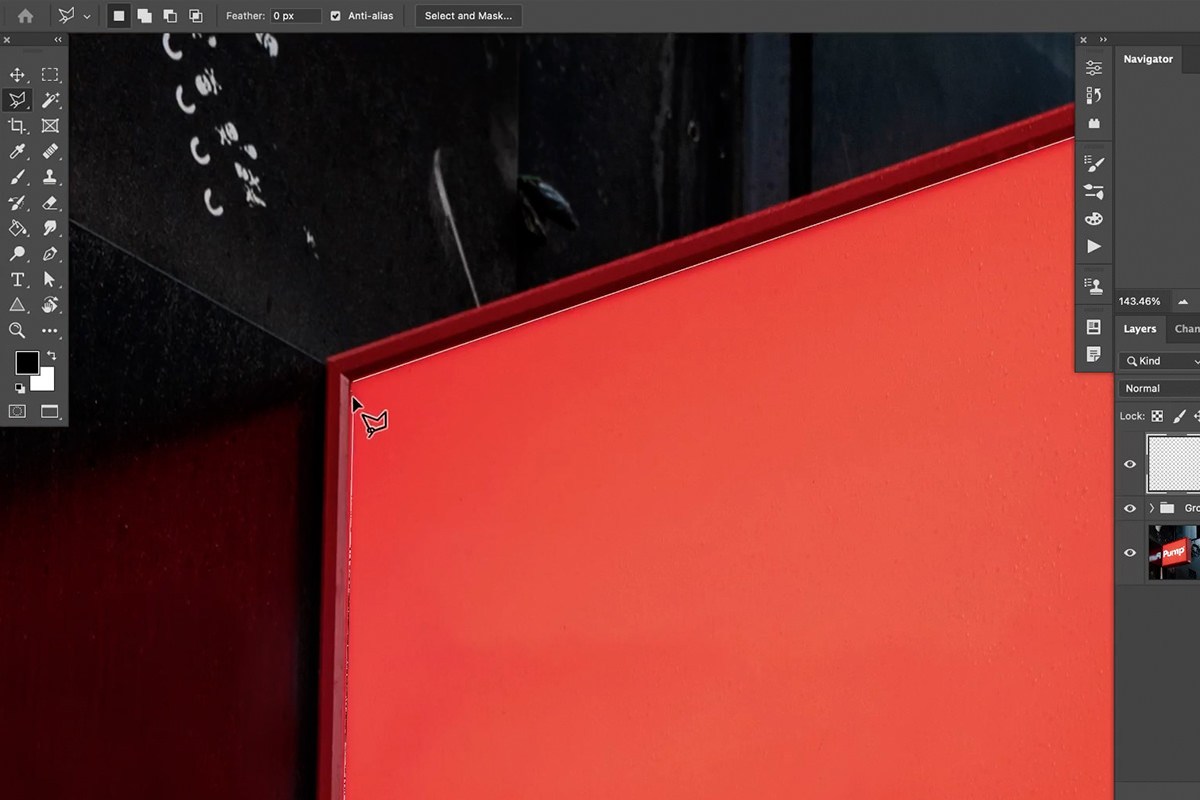
On a new layer, use the Polygonal Lasso tool to click once on each corner of the sign, tracing its exact outline in the photo’s perspective.
-
Fill the Traced Shape
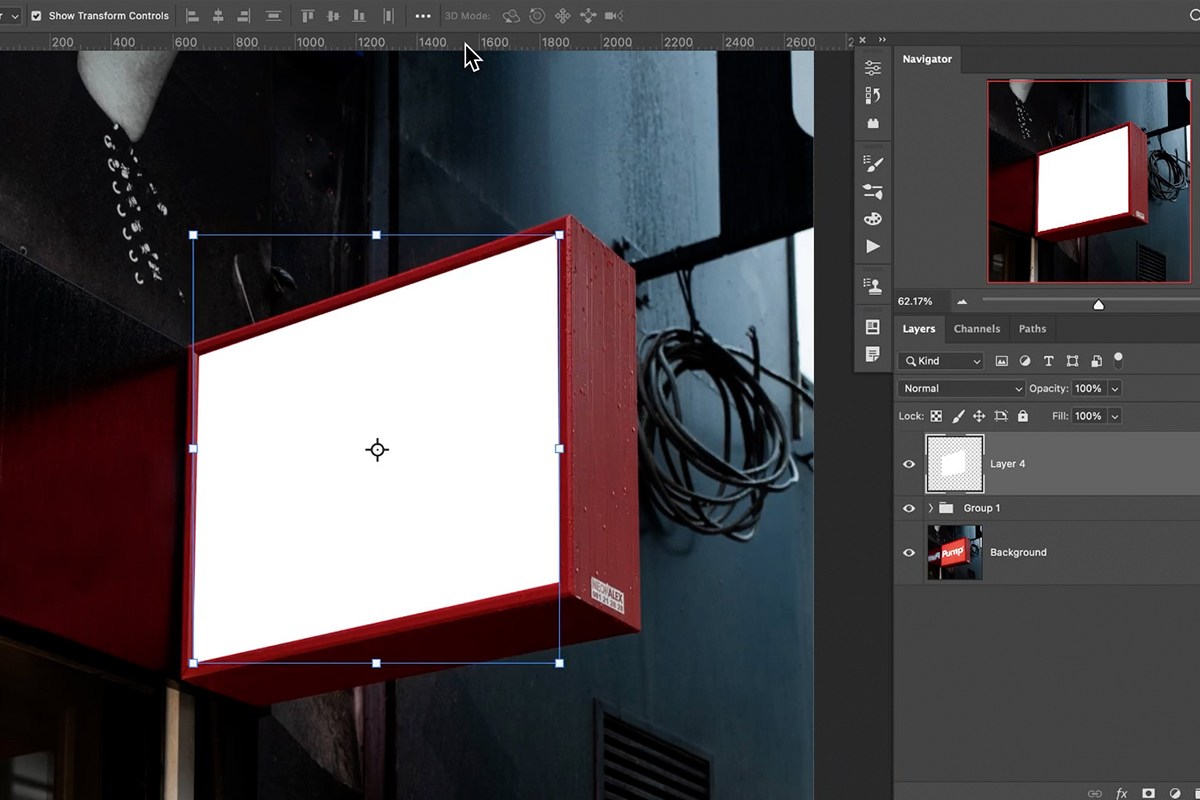
Go to Edit > Fill and fill the selection with white, then deselect.
-
Add Guides and Flatten with Transform
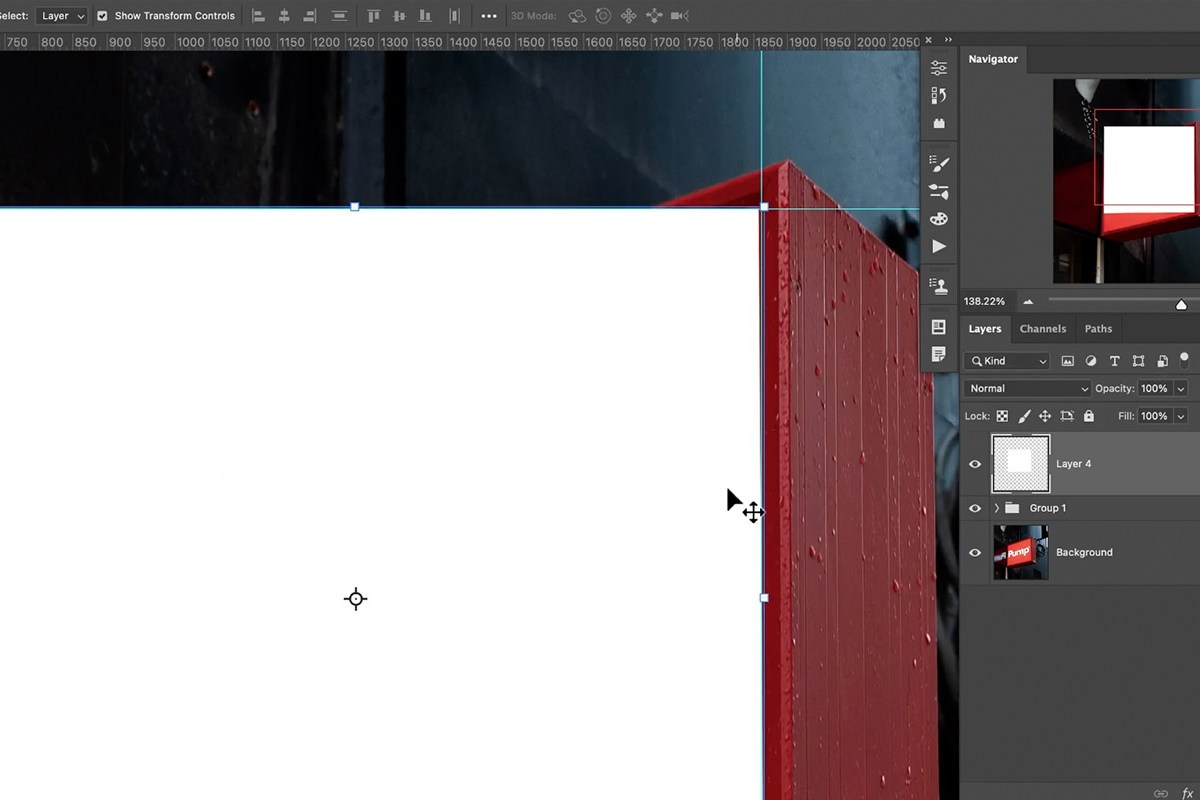
Press Ctrl + R on PC (Cmd + R on Mac) to show rulers, drag out guides along the shape’s edges for reference, then press Ctrl + T on PC (Cmd + T on Mac) and hold Ctrl on PC (Cmd on Mac) to drag individual corners, stretching the perspective shape back out until it is flat and about the size the sign really is (here it ends up basically a square). Then go to View > Clear Guides; you don’t need them anymore.
Building Your New Sign Design
With the flat shape established, the new sign artwork gets built in a completely separate document.
-
Duplicate the Flat Shape to a New Document
Right-click the flattened shape layer, choose Duplicate Layer, and select New Document as the destination.
-
Add Your New Sign Artwork
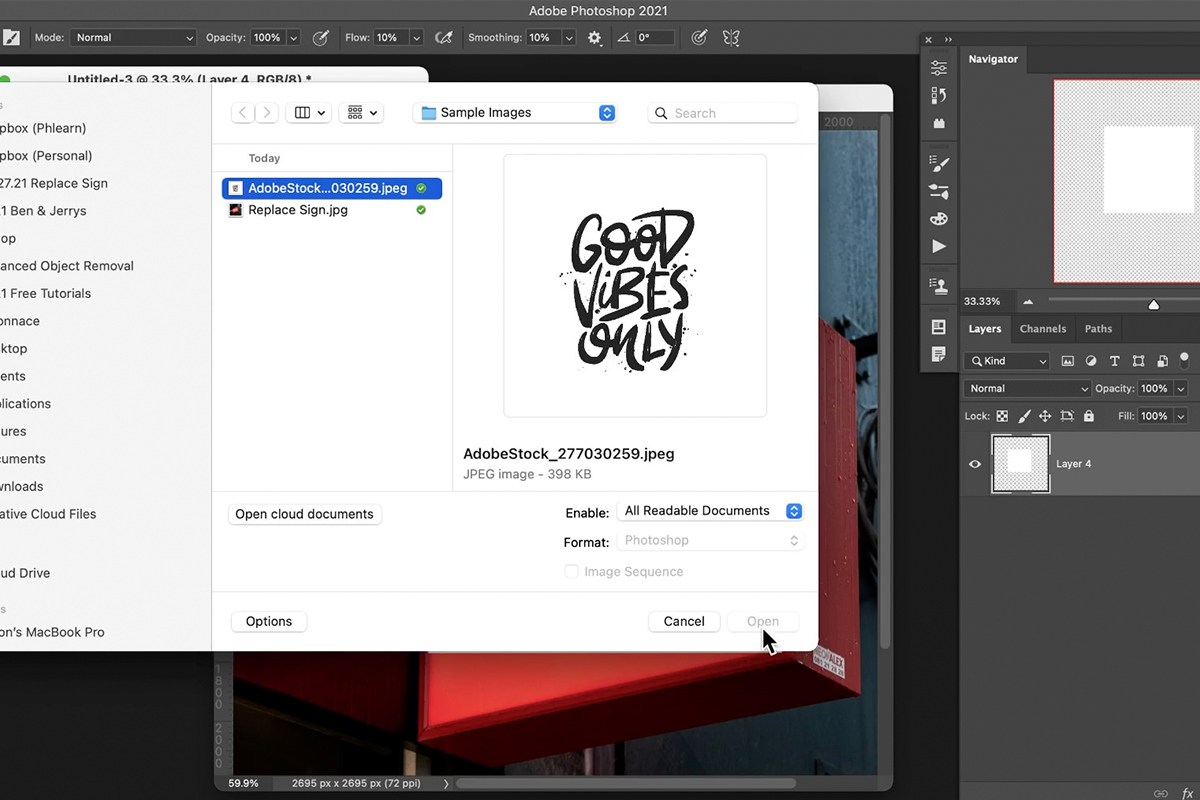
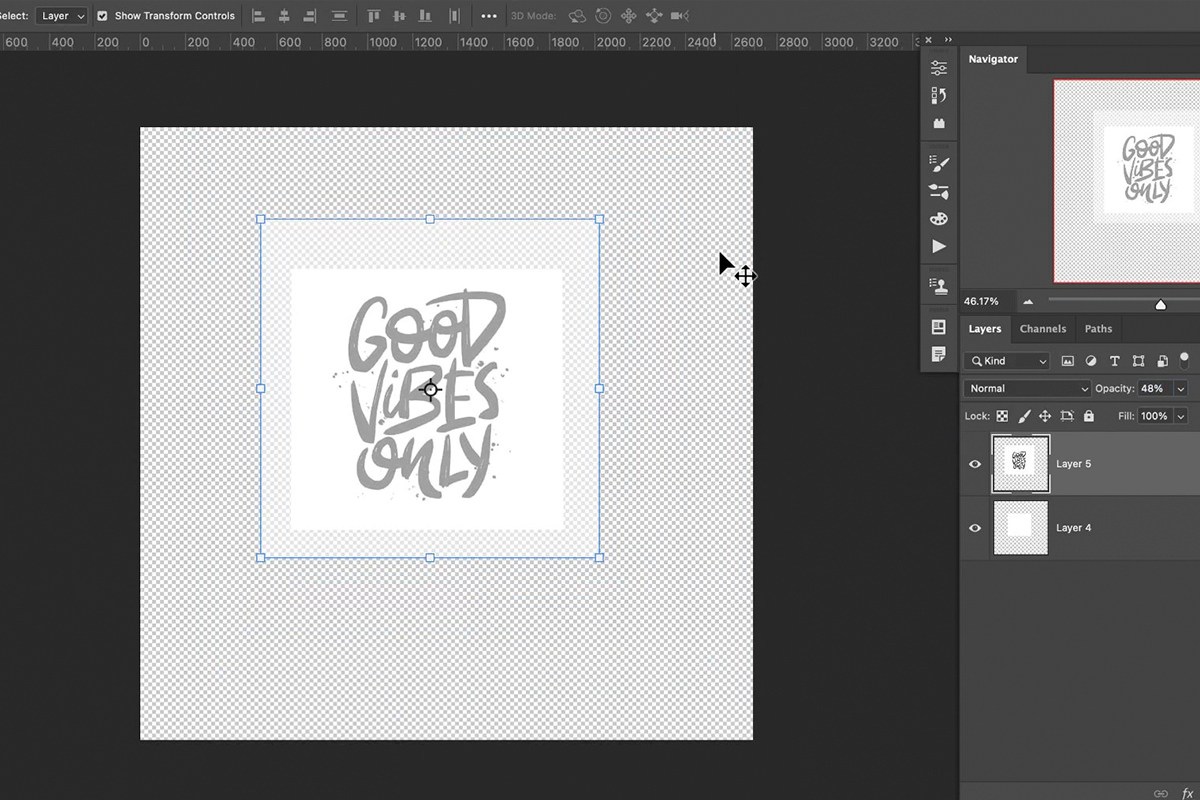
Bring in whatever image or text you want as the new sign design — a stock graphic, your own artwork, or type — and scale and position it within the flat shape’s frame.
-
Turn the Design into a Selection and Fill
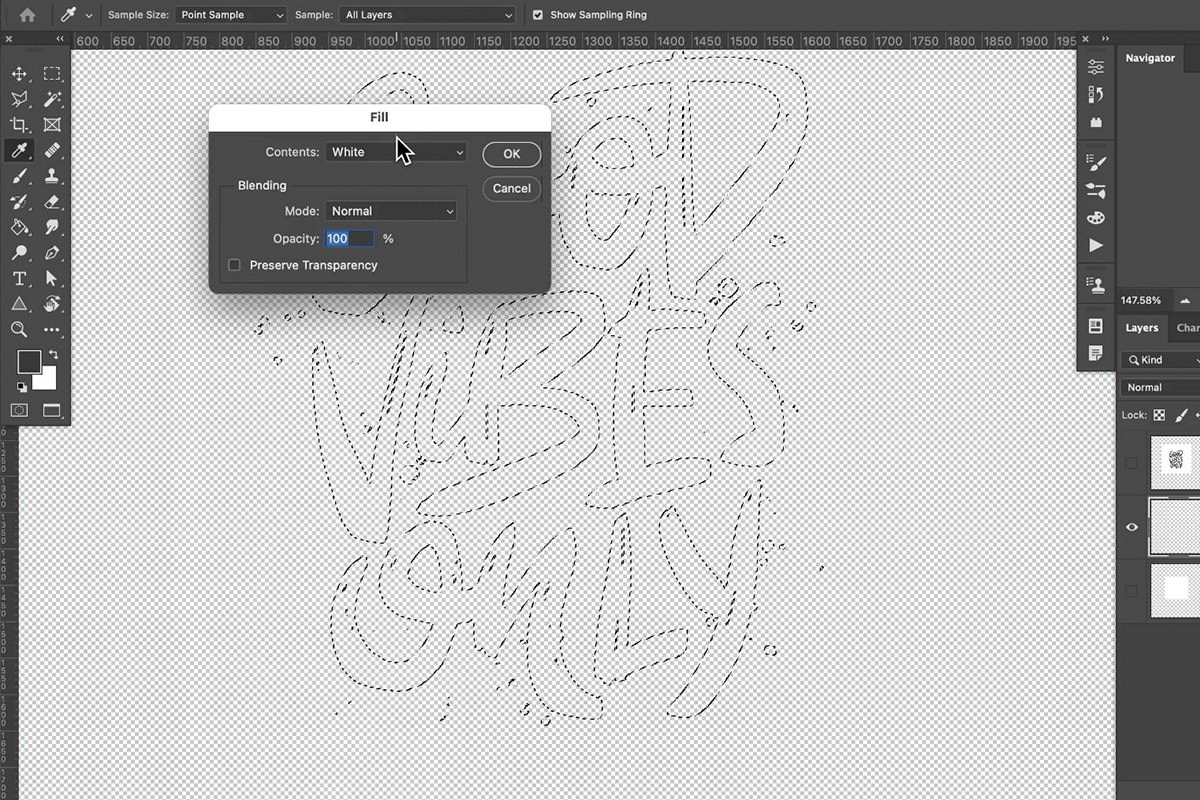
If you want the design in a solid color, go to Select > Color Range, click the design to select it, and fill that selection with white (or your chosen color) on a new layer.

Cropping and Saving Your Sign as a PSD
The new design needs to be cropped down to exactly the sign’s shape and saved as its own file before it can be placed back into the original photo.
-
Load the Flat Shape as a Selection
Hold Ctrl on PC (Cmd on Mac) and click your flattened shape layer’s thumbnail to turn it into a selection.
-
Crop to the Shape
Go to Image > Crop to crop the document precisely to the sign’s shape. Then darken the shape a little with Levels so you can see the white lettering against it while you work.
-
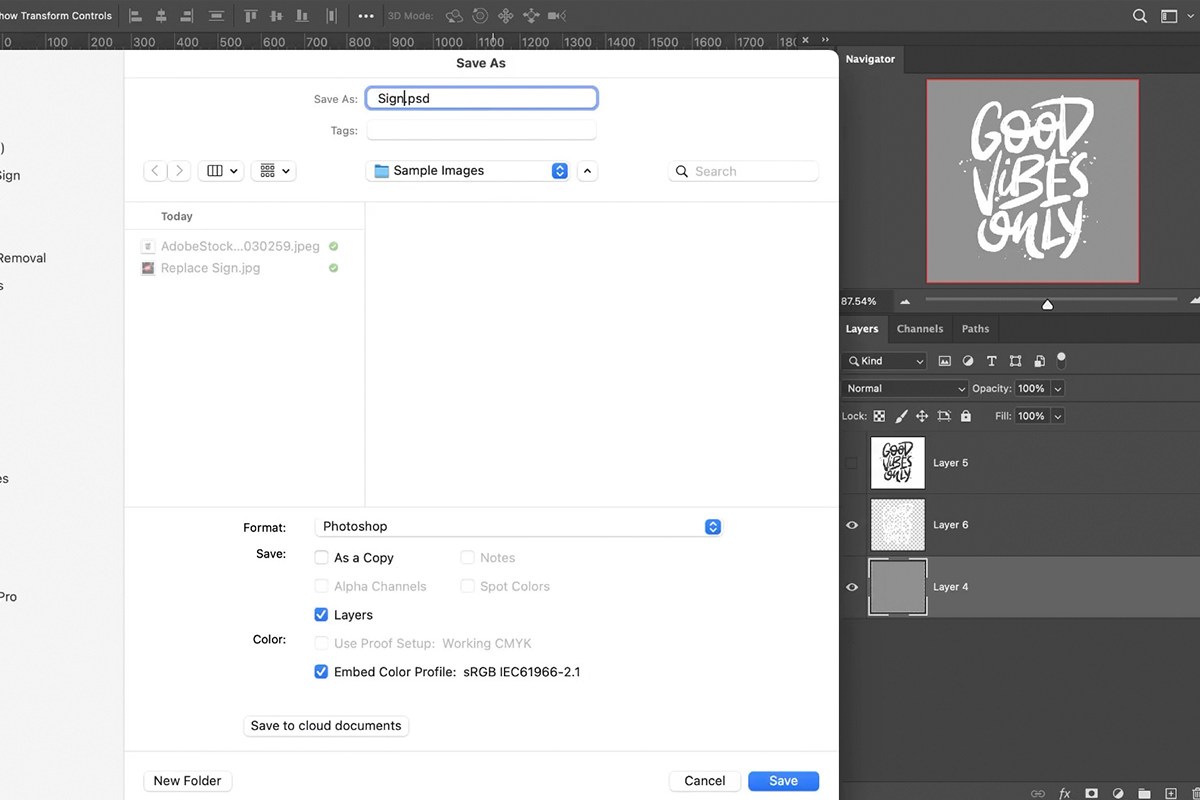
Save as a PSD
Press Shift + Ctrl + S on PC (Shift + Cmd + S on Mac) and save the file as its own PSD named Sign.psd. This file is what gets linked back into your original photo next.

Placing the Sign with a Linked Smart Object
This is the step that makes the whole workflow worth the setup: placing the saved PSD back into the original photo as a linked Smart Object.
-
Place the PSD as a Linked Smart Object
In your original photo, go to File > Place Linked and choose the sign PSD you just saved.
-
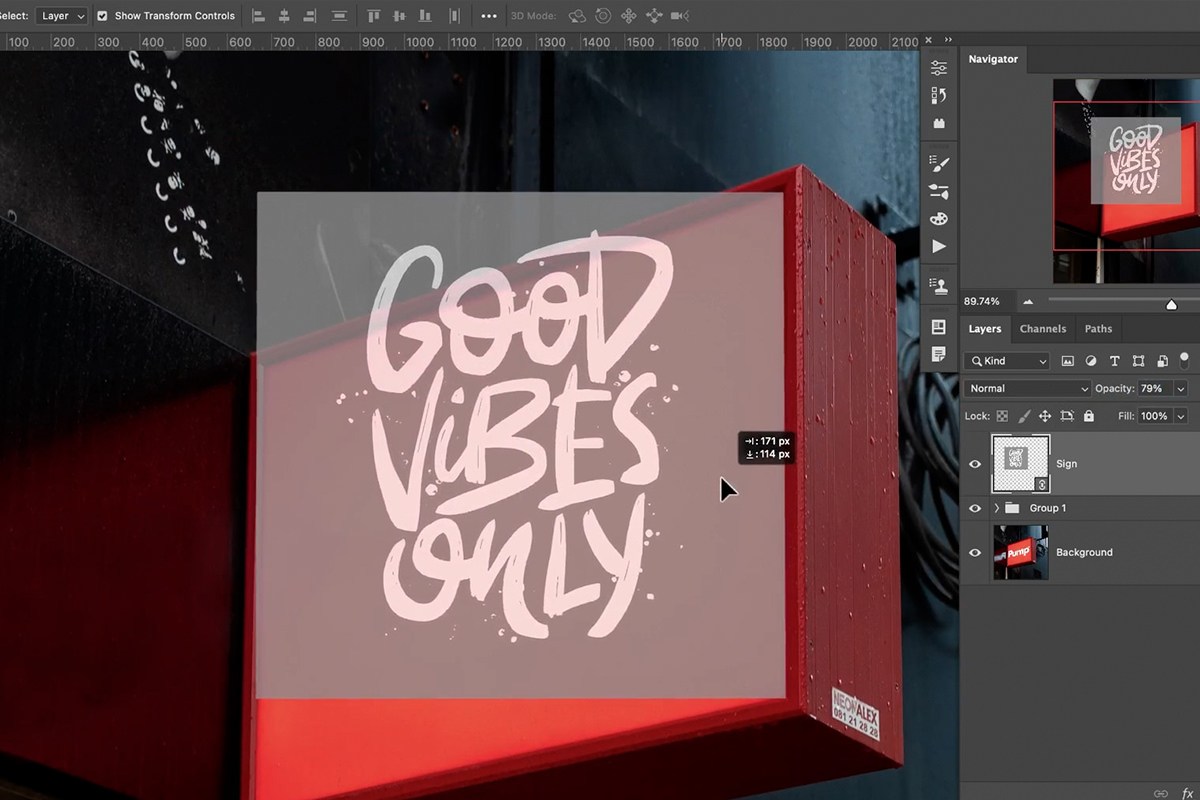
Push the Placed Sign into Perspective
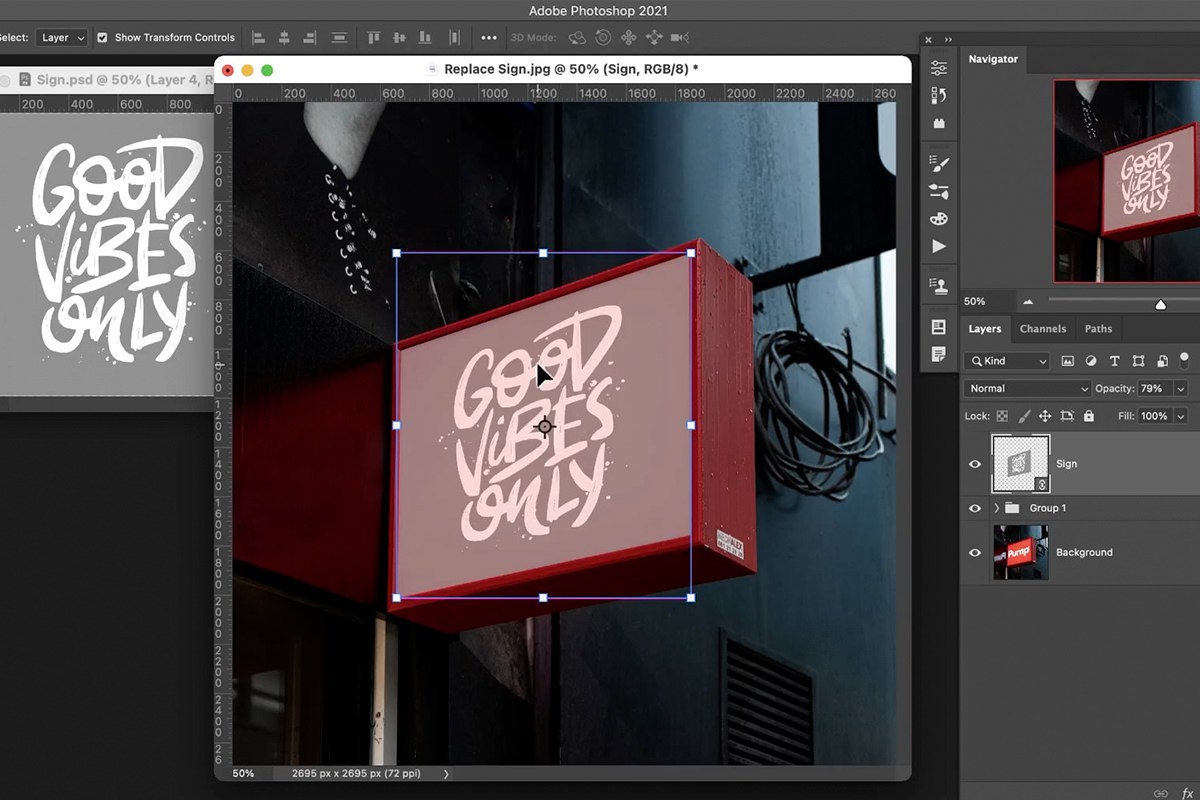
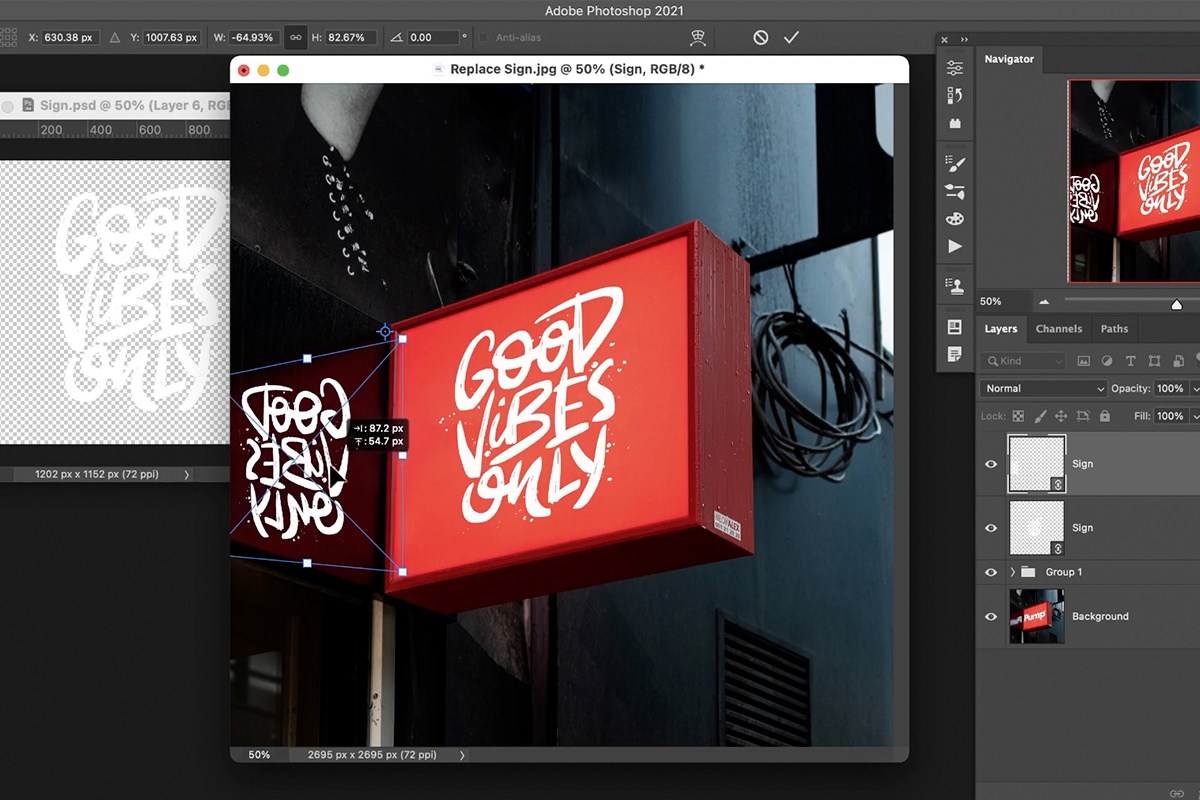
Hold Ctrl on PC (Cmd on Mac) and drag each corner of the placed Smart Object to match the perspective of the original sign area — the same corner points you traced earlier make this straightforward. Lower the layer’s opacity a little first so you can see the sign through it.
Why Place Linked Instead of Place Embedded
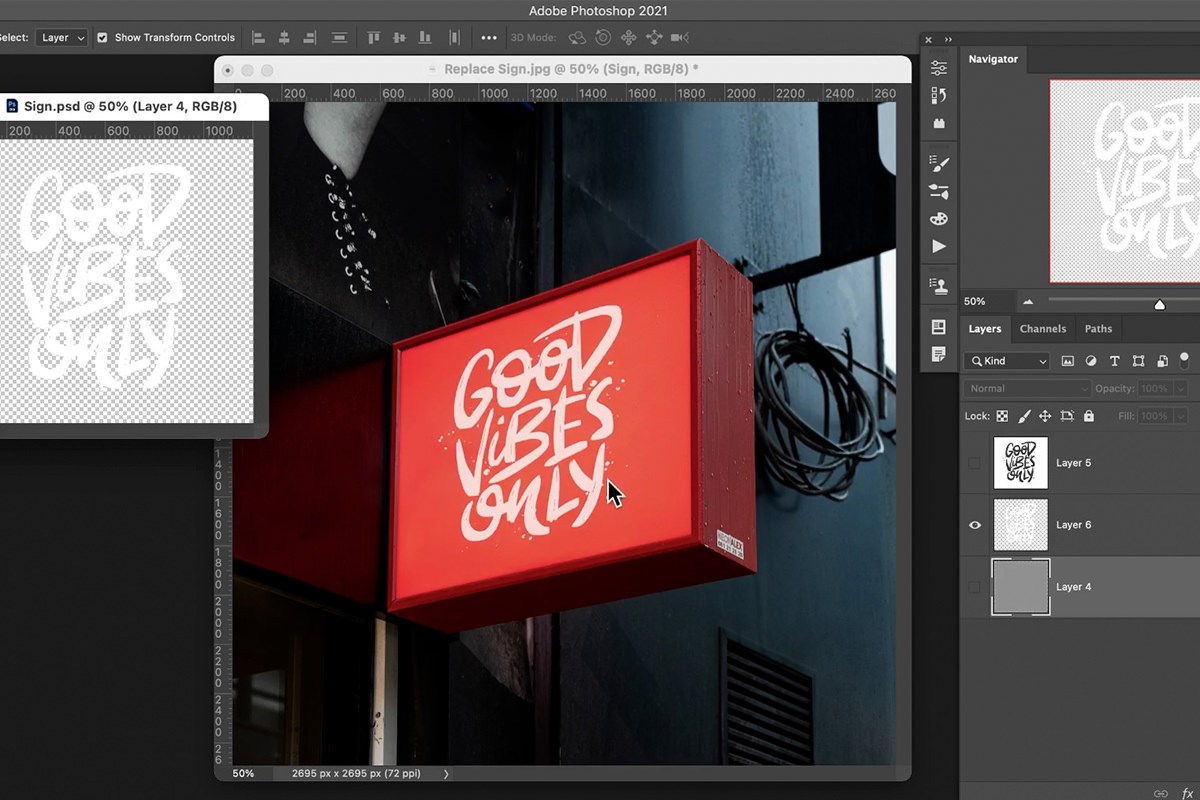
A linked Smart Object stays connected to its source PSD file rather than being baked into the document. That means any change made to the sign PSD — new text, a new color, moving an element — and then saved, automatically updates everywhere that file has been placed, already sitting correctly in perspective. Without the link, every change would mean re-transforming a flat, freshly embedded image into perspective all over again.
Test it right away: in Sign.psd, hide the background shape so only the lettering shows, and press Ctrl + S (Cmd + S on Mac). The sign in the photo updates on its own. Bring the placed layer’s opacity back up and the sign is done. Move the lettering to the right, or add a smaller copy in a corner, save again, and the photo follows each time, in perspective.

Adding a Matching Reflection
The same linked file can be placed a second time, flipped, to build a perspective-correct reflection.
-
Place the Sign PSD a Second Time
Go to File > Place Linked again and choose the same sign PSD.
-
Flip and Position It as the Reflection
Press Ctrl + T on PC (Cmd + T on Mac), right-click, and choose Flip Horizontal , make it a little smaller, then push its corners onto the reflecting surface the same way, using the same cues you used for the sign itself. Name this layer Reflection.
Matching the Reflection’s Blur and Color
A raw, sharp copy of the sign won’t read as a reflection — it needs blur, a color shift, and reduced visibility to match how the original reflection actually looked.
-
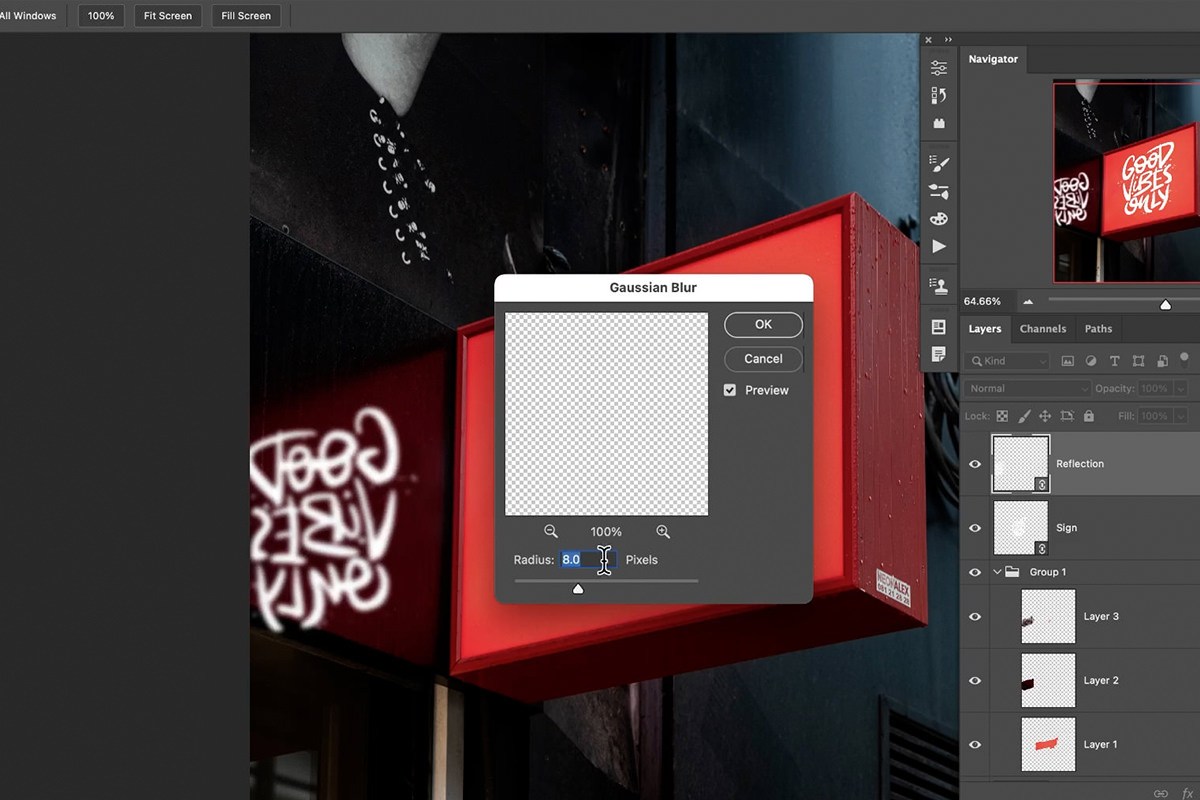
Apply a Base Gaussian Blur
Go to Filter > Blur > Gaussian Blur and apply a base amount of softness to the reflection layer.
-
Add a Graduated Blur with Tilt-Shift
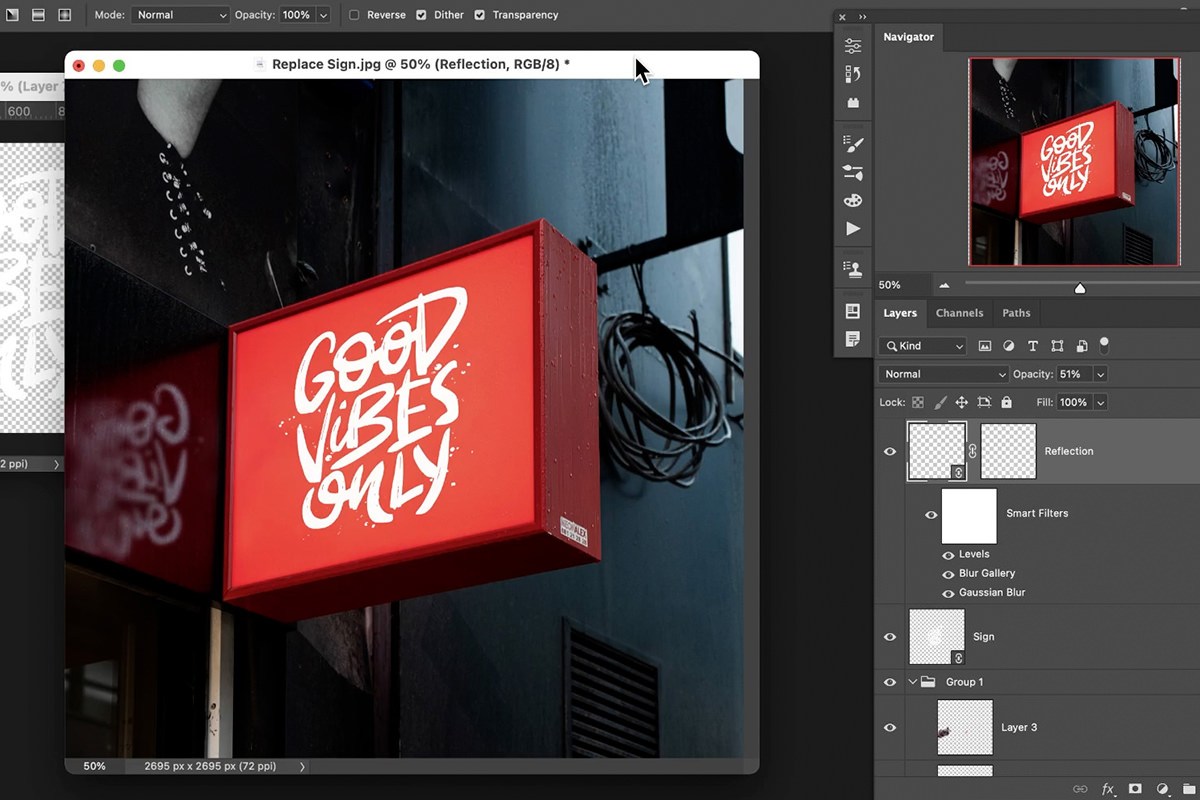
Go to Filter > Blur Gallery > Tilt-Shift, rotate the blur line to roughly 90 degrees, and position it so the blur increases the farther the reflection gets from the sign, matching how a real reflection blurs with distance. Because the layer is a Smart Object, both blurs sit under it as Smart Filters you can switch off and on to compare. Then lower the reflection layer’s opacity a lot; the original reflection had nowhere near the visibility of the sign.
-
Shift the Color with Levels
Press Ctrl + L on PC (Cmd + L on Mac) for Levels. Click where it says RGB to change the channel, pull the Red channel down a little, then pull the Green channel down just a little. That throws the same bluish color into the reflection that the original had.
-
Restrict the Reflection with Blend If
Double-click the reflection layer, and under Blend If, hold Alt on PC (Option on Mac) and split the Underlying Layer slider’s dark end so the reflection is hidden where the underlying layer is darker. The marks and bits of the surface show through, so the reflection looks like part of that surface rather than sitting flatly on top of it. Finish by lowering the opacity a little more, and if part of the reflection still needs hiding, add a layer mask and paint on it.
What Blend If Is Doing for the Reflection
A real reflection isn’t uniformly visible — it picks up texture, ripples, and variations in the surface it’s reflecting off of. Splitting the dark end of the Underlying Layer slider hides the reflection wherever that surface is darker, so its marks and texture show through, which reads as the reflection actually interacting with the material rather than floating in front of it.
Because both copies are linked to Sign.psd, every later edit happens in that file and lands on the sign and its reflection together when you press Ctrl + S (Cmd + S on Mac). In the video that means resizing the lettering with Free Transform, painting black through it on a new layer clipped to the lettering, and adding a blue gradient top to bottom with the Gradient tool, each with one save.


Why This Approach Works
The real trick in this technique isn’t the perspective transform itself — it’s building the new sign design as a completely separate, linked file rather than editing directly inside the perspective-warped photo. Tracing the sign’s true flat shape first means the new design gets built at the correct proportions from the start, instead of trying to eyeball a design directly onto a skewed surface. And because the sign is placed with Place Linked rather than embedded directly, any future edit to that one source PSD — new text, new color, a different graphic entirely — propagates automatically to both the sign and its separately placed, flipped reflection, already sitting correctly in perspective. That’s what turns a one-time composite into a reusable template you can update indefinitely without repeating any of the perspective work.
Final Thoughts
Replacing a sign convincingly comes down to respecting the photo’s actual perspective rather than fighting it — tracing the real shape, building the new design flat, and using a linked Smart Object to push it back into place. The reflection is really just a second application of the exact same linked file, with blur, color, and blend adjustments layered on top to match how reflective surfaces actually behave. Once this linked Smart Object workflow feels familiar, it’s directly reusable any time you need to swap something into a photo more than once — a poster, a screen, a billboard — and want every instance to update together automatically.
Quick Reference: Keys, Menus and Settings
- Remove the old signL for the Lasso, new layer, Edit > Content-Aware Fill, Output To: Current Layer
- Flatten the shapeCmd/Ctrl + R for rulers and guides, Cmd/Ctrl + T, hold Cmd/Ctrl and drag the corners; View > Clear Guides
- Build Sign.psdDuplicate Layer to New; Select > Color Range; Cmd/Ctrl-click the shape, Image > Crop; Shift + Cmd/Ctrl + S
- Place in perspectiveFile > Place Linked, hold Cmd/Ctrl and drag each corner; save Sign.psd with Cmd/Ctrl + S to update
- Make the reflectionPlace Linked again, Cmd/Ctrl + T, right-click > Flip Horizontal
- Blur and tint itFilter > Blur > Gaussian Blur; Filter > Blur Gallery > Tilt-Shift at about 90 degrees; lower opacity; Cmd/Ctrl + L, Red and Green down a little
- Blend it inDouble-click the layer, Blend If: Alt/Option-drag to split the dark Underlying Layer slider
No AI, no generative credits.

Free Downloads
Follow Along on the Same Photo
Get the sign photo, an alternate logo to try in place of the stock design, the sample PSD and the 4-page PDF guide. Free with a PHLEARN account.
Replacing a Sign: Common Questions
How do I remove the old lettering from a sign?
Draw a loose Lasso selection around the letters, make a new layer, then go to Edit > Content-Aware Fill. Set Output To: Current Layer and click OK. Do the same again for the lettering in the reflection.
What if Content-Aware Fill leaves marks behind?
Switch to the Clone Stamp tool, sample a clean area nearby and paint over what’s left. There’s no need to redo the whole fill.
Why trace and flatten the sign before designing?
The photo is shot in perspective, so you need to know what the sign looks like flat on. A design built inside that flat shape has the right proportions, so it lands correctly when you push it back into perspective.
How do I take the perspective out of the traced shape?
Turn on the rulers with Cmd/Ctrl + R and drag out guides. Press Cmd/Ctrl + T, then hold Cmd/Ctrl and drag the corners until the shape is flat and about the size the sign really is. Go to View > Clear Guides when you’re done.
Why use Place Linked instead of pasting the design in?
File > Place Linked keeps the Smart Object connected to Sign.psd. Edit that file and save, and the sign in the photo updates already in perspective, with no transforming to redo.
Why isn’t the sign in my photo updating?
The link only refreshes when Sign.psd is saved. Make your change in that file, then press Cmd/Ctrl + S.
How do I fit the new sign into perspective?
Lower the placed layer’s opacity a little so you can see the sign through it. Then hold Cmd/Ctrl and drag each corner of the Smart Object onto the matching corner of the sign.
How do I make the reflection?
Place Sign.psd a second time with File > Place Linked. Press Cmd/Ctrl + T, right-click and choose Flip Horizontal, then push the corners onto the reflecting surface the same way.
Why does my reflection look fake?
A sharp copy doesn’t read as a reflection. Add a Gaussian Blur, then a Tilt-Shift from Filter > Blur Gallery turned to about 90 degrees so it blurs more away from the sign. Lower the opacity a lot, pull the Red and Green channels down a little in Levels, and split the Underlying Layer slider in Blend If.
Are the sample files free?
Yes, with a free PHLEARN account. You get 1 sample image, 1 alternate logo, 1 sample PSD and 1 PDF guide: the photo of the sign, a second design to try in place of the stock graphic, the PSD and the 4-page step-by-step guide.
From the Magazine View all
Stories, interviews and guides for photographers, new every week.
 BusinessHow to Compete With AI: Give Your Clients MoreEveryone has the same tools now, and your clients know it. The way to compete is to give them more.
 EditingLightCraft vs Lightroom: Is the Free Clone Any Good?The free clone on the same RAW files: what matches, what breaks and who should switch.
 EditingHow to Tell If a Photo Is AI, and Prove Yours Is RealThe tells that still work in 2026, why detectors disagree, and how to prove your own photos.
Master Photoshop, Lightroom and Photography
Join PHLEARN PRO for $12.99 a month, or $99.99 a year (save 36%). Cancel anytime, with a 100% money-back guarantee.





