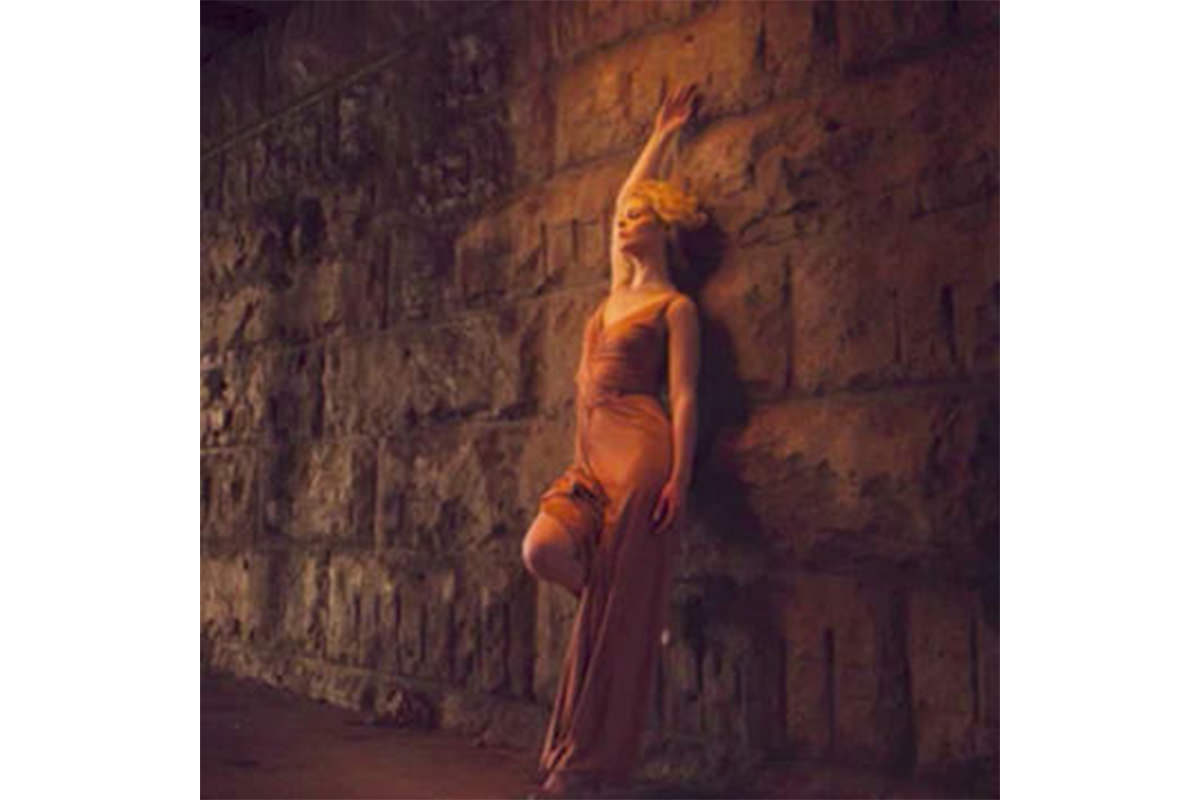

Three frames of the same locked-off shot, each one useful for a different reason: a base exposure, one with the strip box moved out of frame, and one two stops brighter. This free Photoshop tutorial stacks and auto-aligns them, then masks the light stand out with real photography rather than the Clone Stamp and recovers shadow detail from genuinely brighter data rather than a Curves push.
We publish a new free tutorial every week, each one with sample images and PSDs you can download and follow along with. Sign up and they land straight in your inbox, along with early word on sales, events and subscriber-only offers.
How to Take Multiple Exposures in Camera to Combine Later in Photoshop
Shooting several versions of the same frame — different exposures, or with a light moved out of shot — while the camera stays locked on a tripod gives you a lot more to work with in Photoshop than any single frame could. This tutorial picks up from a photo shoot covered in a separate behind-the-scenes breakdown and shows how to stack, align, and blend three different exposures together into one finished image, recovering shadow detail, removing a light stand from the frame, and finishing with a subtle spotlight effect and some color toning.
Loading Multiple Exposures Into a Single Stack
Photoshop has a script that opens every frame as its own layer in one document.
-
Load Files Into a Stack
Go to File > Scripts > Load Files Into Stack, click Browse, then Shift-click or hold Cmd/Ctrl and click each of the exposures you want to combine before hitting Open and OK. Photoshop loads each one as its own layer, stacked on top of each other.
Aligning Layers That Shifted Slightly Between Shots
Even with a camera locked down on a tripod, small bumps — refocusing, a slight nudge — can shift the frame just enough that the layers don’t line up perfectly when toggled on and off.
-
Select All Layers and Auto-Align
Shift-click all of the loaded layers, go to Edit > Auto-Align Layers, and choose Auto.
Why Auto-Align Instead of Manual Nudging
Auto-Align Layers analyzes the actual content of each layer and shifts them into alignment automatically, which is both faster and more accurate than trying to eyeball a manual nudge on each layer individually. Toggling layers on and off after running it confirms the alignment worked before moving on.
Understanding the Three Exposures You’re Working With
With the camera locked on a tripod, exposure and lighting setup could be changed between shots while keeping the same framing and angle. This shoot produced three usable layers: a base exposure with a strip box lighting the subject up close, a version without the strip box in frame at all, and a brighter exposure with roughly two stops more shutter speed that recovers extra shadow detail.
Removing a Visible Light From the Frame
Keeping a light stand or softbox close to a subject can produce great light, but it also risks showing up directly in the shot.
-
Mask in the Light-Free Version Over the Light Stand
Add a layer mask to the layer that has no light stand or softbox visible, hold Option/Alt to fill the mask with black, then paint white with a soft-edged brush directly over the area where the light equipment shows up in the layers beneath it.
-
Temporarily Brighten the View to Confirm Full Coverage
Add a temporary Curves adjustment layer and raise the brightness to clearly see whether any trace of the light stand remains, then delete the Curves layer once the mask is confirmed clean.
Why a Second Clean Photo Beats Clone Stamping
Rather than attempting to fake the area behind the light stand with the Clone Stamp tool, having an actual second photograph without the light equipment in it means the masked-in area is real, undoctored image information rather than a synthesized guess. No cloning or faking is needed at all — just two real photographs and a layer mask connecting them.
Recovering Shadow Detail With a Second Exposure Instead of Curves
The same logic applies to detail that the base exposure never captured in the first place.
-
Mask in the Brighter Exposure Where Detail Is Needed
Add a layer mask to the brighter exposure layer, hold Option/Alt to fill it with black, then paint white over the areas — such as shadow detail near the top of the frame — where more information is needed.
Why a Genuinely Brighter Photo Beats a Curves Adjustment
A Curves adjustment layer can only stretch and redistribute the pixel data that’s already there, which starts to look destructive or noisy in shadow areas pushed too far. An actual second exposure shot two stops brighter contains real additional data captured by the sensor, so blending it in recovers genuinely more detail rather than just amplifying what little was already there.
Cropping Out Rotated Edges From Auto-Align
Auto-Align sometimes rotates a layer slightly, which leaves ragged edges to trim.
-
Crop Away Any Rotated Edges
Use the Crop tool to trim away any edges left ragged by the slight rotation Auto-Align Layers sometimes introduces, making sure Delete Cropped Pixels is left unchecked so the original image data outside the crop isn’t permanently discarded.
Creating a Spotlight Effect With an Inverted, Masked Curves Layer
With the composite finished, one masked Curves layer builds a spotlight that draws the eye to the subject.
-
Darken the Whole Image With Curves and Invert the Mask
Add a new Curves adjustment layer, pull the brightness down significantly, then press Cmd/Ctrl + I to invert its mask to black.
-
Build a Spotlight-Shaped Selection
Draw an Elliptical Marquee selection roughly shaped like a spotlight beam, holding the spacebar while dragging to reposition it as needed. Right-click and choose Transform Selection to rotate it into a natural-looking angle, then hold Shift and use the Polygonal Lasso tool to extend the selection up toward the light source, completing a shape like a rounded spotlight cone.
-
Load the Selection Onto the Mask and Invert as Needed
With the selection active, press Cmd/Ctrl + I to invert just that area of the mask, then deselect with Cmd/Ctrl + D. That darkens the inside of the spotlight shape, the opposite of what you want, so press Cmd/Ctrl + I once more to invert the whole mask and darken everything outside the spotlight instead.
-
Soften the Edge With Gaussian Blur
Select the layer mask and apply Filter > Blur > Gaussian Blur with a moderately large radius, softening the spotlight’s edge into something that looks more like a naturally falling-off light than an obvious hard-edged selection.
Why Invert the Selection and Blur the Mask
Building the selection as a spotlight shape and then inverting the mask darkens everything outside that shape rather than inside it, which is what actually draws the eye toward the subject instead of away from it. A hard-edged selection alone would look obviously artificial, so blurring the mask afterward is what turns a geometric shape into something that reads as a soft, natural falloff of light.
Warming or Cooling the Image With Individual Color Channels
A final channel-by-channel pass sets the overall temperature.
-
Add a Levels or Curves Layer and Brighten Overall
Add a final Levels (or Curves) adjustment layer and raise the overall brightness slightly.
-
Adjust Individual Color Channels for Warmth
Switch to the Blue channel and pull some blue into the shadows, then pull some yellow into the highlights. Adjust the Red and Green channels as needed to balance out any unwanted color cast, using less blue for a warmer overall look or more blue for a cooler one.
Why This Approach Works
Every technique in this workflow leans on the same underlying idea: real captured photographic data beats a synthesized approximation of it. Removing the light stand works because there’s an actual second photograph without it, rather than a Clone Stamp guess at what should be there. Recovering shadow detail works because a genuinely brighter exposure carries real information the darker frame never captured, rather than a Curves adjustment stretching limited data further than it can comfortably go. Auto-Align Layers makes combining these different exposures practical in the first place, since a locked-down tripod still isn’t a perfect guarantee that every frame lines up pixel for pixel. And the spotlight effect, while entirely synthetic, still borrows this same philosophy of working non-destructively: a selection and an inverted, blurred mask control exactly where a global Curves adjustment applies, rather than baking the darkening permanently into the pixels themselves.
Final Thoughts
None of these individual steps are especially advanced, but stacking them together turns three separate, imperfect exposures into one finished image that looks like it was captured in a single, perfectly lit shot. The core habit worth taking away is planning for this kind of flexibility at the time of the shoot: if a light needs to sit close to the subject and risks showing up in frame, take a second photo with that light moved, and if shadow detail matters, take a second exposure with more information in it. Sorting all of that out in Photoshop afterward is far easier, and far less destructive, than trying to fix it after the fact from a single frame.
Quick Reference: Keys, Menus and Settings
- Stack the shotsFile > Scripts > Load Files Into Stack
- Line them upShift-click the layers, Edit > Auto-Align Layers > Auto
- Blend a frame inAlt/Option-click the layer mask button for a black mask, paint white with a soft brush
- Crop the edgesCrop tool with Delete Cropped Pixels unchecked
- Spotlight shapeElliptical Marquee (hold Space to move), right-click > Transform Selection, Shift + Polygonal Lasso to add
- Finish the maskCmd/Ctrl + I to invert, Cmd/Ctrl + D to deselect, Filter > Blur > Gaussian Blur
- Tone the colorLevels, Blue channel: blue into the shadows, yellow into the highlights
Combining Exposures in Photoshop: Common Questions
How do I open several photos as layers in one document?
Go to File > Scripts > Load Files Into Stack, click Browse, Shift-click or Cmd/Ctrl-click the photos, then click Open and OK. Each photo becomes its own layer.
Why don’t my tripod shots line up?
The camera can move a little between frames, for example when you refocus. Shift-click all the layers, choose Edit > Auto-Align Layers, pick Auto and click OK.
What extra frames should I take on set?
Keep the camera on a tripod and take one frame with the close light moved out of the shot, plus a brighter exposure with the shutter opened up about two stops for shadow detail.
How do I remove a light that shows up in my photo?
On the frame without the light, Alt/Option-click the layer mask button to add a black mask. Paint white with a soft brush over the spot where the light appears. No clone stamping needed.
How can I tell if I’ve painted over all of the light stand?
Add a temporary Curves adjustment layer on top and brighten it so the dark areas are easy to see. Delete it once the mask is clean.
Why not just brighten the shadows with Curves?
Curves can only brighten the pixels you already have. A real brighter photo holds more information, so masking it in is much less destructive.
Why do I need to crop after Auto-Align?
Auto-Align often rotates layers a little, which leaves uneven edges. Crop them off with Delete Cropped Pixels unchecked, so the pixels outside the crop are kept.
How do I add a spotlight around my subject?
Darken the photo with a Curves layer and invert its mask. Select a spotlight shape with the Elliptical Marquee and Shift + Polygonal Lasso, invert that area of the mask, deselect and invert the whole mask, then soften it with Filter > Blur > Gaussian Blur.
How do I warm or cool the finished image?
Add Levels to brighten it a little. In the Blue channel, pull blue into the shadows and yellow into the highlights, then balance with Red and Green. Less blue is warmer, more blue is cooler.
Master Photoshop, Lightroom and Photography
Join PHLEARN PRO for $12.99 a month or $99.99 a year. Cancel anytime, with a 100% money-back guarantee.





