


The Smudge tool and Clone Stamp are usually reserved for careful, subtle corrections, but pushed in the other direction they become powerful atmospheric tools. Learn how to soften edges on purpose, build faint ghostly duplicates by cloning onto a Screen-blended layer, bring color back into brightened shadows using individual channels, and finish the whole thing with layered photographic textures.
We publish a new free tutorial every week, each one with sample images and PSDs you can download and follow along with. Sign up and they land straight in your inbox, along with early word on sales, events and subscriber-only offers.
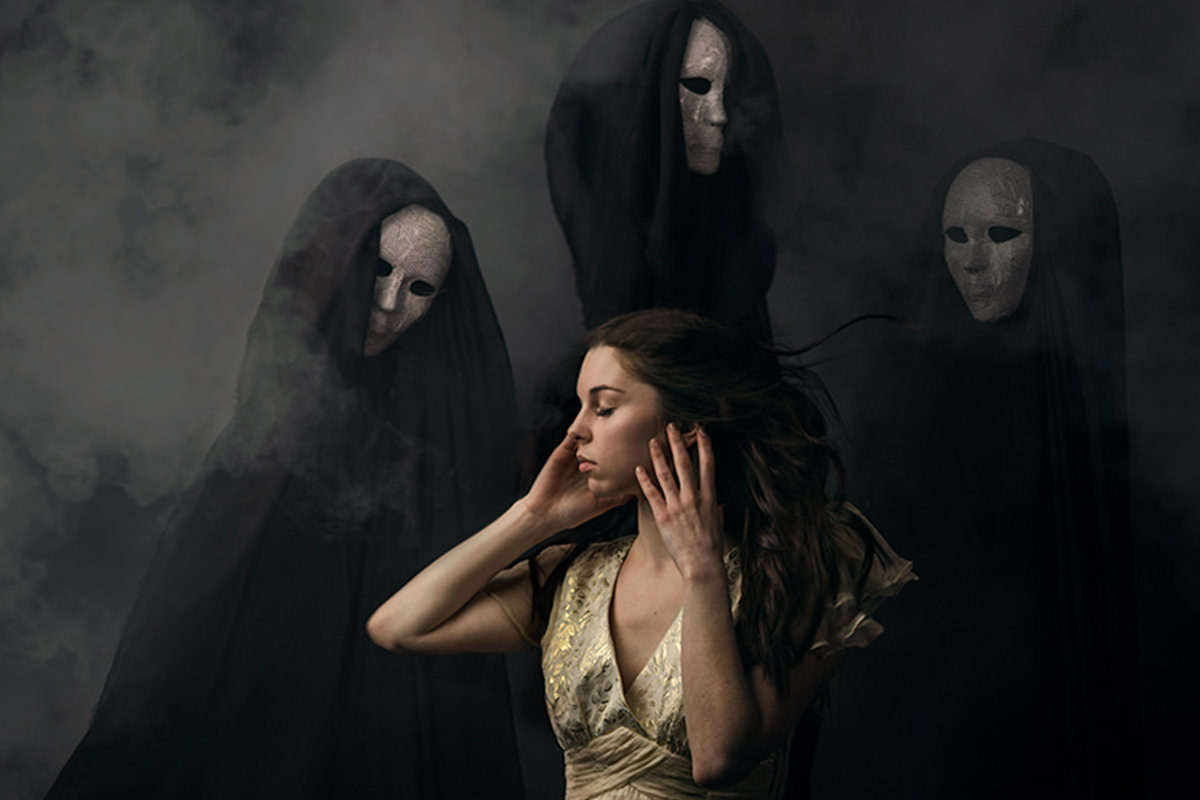
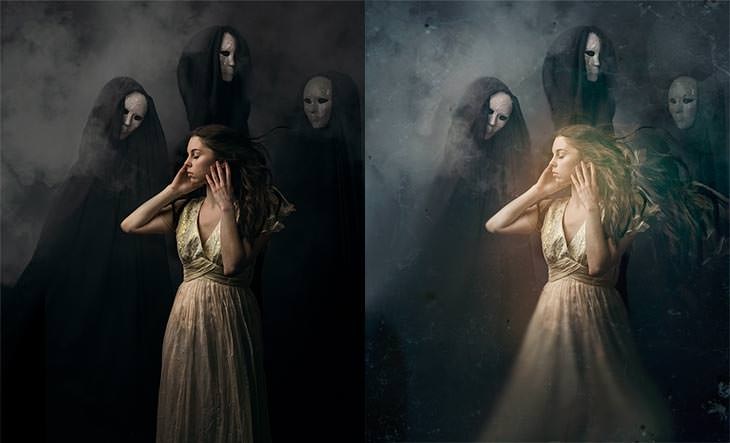
Transform an Image in Photoshop With the Clone Stamp, Smudge Tool, and Textures
Working on an already-strong self-portrait by photographer Amelia Fletcher, this edit pushes a sharp, in-focus image toward something more atmospheric and unsettling using tools that are normally reserved for careful, subtle corrections. The Smudge tool, a screen-blended Clone Stamp, and layered textures each add a different piece of the final mood.
Softening Hard Edges With the Smudge Tool
The Smudge tool destroys real pixel information, which is normally a reason to avoid it, but for softening a hard, distracting edge in an otherwise moody image, that destructive quality becomes exactly what is needed.
-
Duplicate Your Background Layer
Press Command + J to duplicate the background layer before making destructive changes.
-
Smudge Along Hard Transition Lines
Select the Smudge tool at a strength around 50%, choose a smaller brush, and click and drag back and forth along any hard edge you want to soften, such as the outline of a ghostly figure or the edge of a dress.
Why Softening Certain Edges Adds Mood
Traditional painters have long used a similar technique, keeping less important lines, such as a background limb or a secondary figure, softer and less defined than the main focal point. Applying that same idea to smoke, fog, or an eerie figure in a photograph makes those elements feel less concrete and more atmospheric, supporting a mysterious tone rather than a sharp, literal one.
Brightening Detail Lost in Shadow
Bringing a shadowed area like hair back into the light needs more than a simple brightness boost, or the result reads as flat and gray rather than genuinely lit.
-
Add an RGB Brightness Adjustment
Add a Curves adjustment layer and brighten the RGB composite curve, then invert the mask and paint white only over the shadowed detail you want to bring out, such as hair.
-
Add Color Back In With Individual Channels
Switch to the Red and Green channels within that same Curves layer and push each up slightly, since brightened shadow detail tends to look desaturated unless color is deliberately reintroduced.
Why Brightened Shadows Need Extra Color
Shadowed areas of a photograph naturally carry less saturation than well-lit ones. Simply raising brightness without also pushing color back into the individual channels leaves the brightened area looking washed out and gray rather than like a genuinely well-lit part of the image.
Building Ghostly Duplicates With a Screen-Blended Clone Stamp
Cloning a subject’s own features onto a new layer, then changing that layer’s blending mode, creates faint duplicate figures that add to an eerie atmosphere without requiring any painting from scratch.
-
Clone Stamp a Feature Onto a New Layer
Create a new layer, and with Sample set to Current & Below, use the Clone Stamp tool to sample and paint a feature, such as hair or a face, onto that new layer.
-
Change the Layer to Screen and Adjust Levels
Set the layer’s blending mode to Screen, then use Levels (Command + L) to push the dark input slider toward the light so most of the dark tones disappear, leaving only lighter detail visible.
-
Recolor With Curves
Add or use a Curves adjustment to shift color within the newly cloned element, pulling down the Green channel for instance, which adds magenta, so the ghostly duplicate feels intentionally toned rather than like an unedited copy.
-
Mask Away From the Subject’s Face
Add a layer mask and paint away any part of the effect that overlaps the subject’s actual face, keeping the ghostly duplication contained to the surrounding space.
Why Cloning From the Image Beats Painting From Scratch
Using pixels that already exist within the photo, rather than painting a new element freehand, keeps the added detail within the same color palette and lighting as the rest of the image. That consistency is part of what makes an obviously manipulated addition still feel like it belongs in the photograph.
Adding Very Faint Duplicate Faces for Atmosphere
A more subtle version of the same cloning technique adds ghostly detail so faint it is easy to miss on a casual glance, which is often the point.
-
Clone a Face Onto a New Screen Layer
Repeat the clone-and-screen technique with a face, adjusting Levels so only the lightest tones remain visible against a mostly transparent background.
-
Lower Opacity Substantially
Press 2 on the keyboard to quickly set that layer’s opacity to 20%, making the added element faint enough that it registers as atmosphere rather than an obvious additional figure.
Why Subtlety Matters for This Kind of Effect
An effect that is immediately obvious on first glance tends to read as an overt Photoshop trick rather than a mood. Keeping an added element faint enough that it might only be noticed on close inspection preserves the sense that something is subtly, unsettlingly present, without announcing itself as an obvious edit.
Color Toning the Shadows for Consistency
A final color pass unifies the added ghostly elements with the rest of the image’s existing warm-highlight color palette.
-
Push Blue and Green Into the Shadows
Add a Curves layer and push blue and a touch of green into the shadow region specifically, keeping the newly added ghostly figures from looking flat, plain white against the image’s warmer gold highlights.
-
Mask the Effect in an Irregular Pattern
Use a layer mask to apply this color shift unevenly across the frame, rather than as one uniform blanket adjustment, so the color feels like it is naturally fading in and out.
Adding a Soft, Warm Focal Point
A brightened, warmed, and blurred circular area draws the eye toward a specific focal point within the frame.
-
Brighten and Warm a Curves Layer
Add a Curves layer, brighten it, and warm it slightly by pulling down blue and pushing up red.
-
Select a Circular Area and Invert the Mask
Use the Marquee tool to select a circular area over your intended focal point, press Command + I to invert the mask inside it, deselect, and press Command + I again so the adjustment applies only within that circle.
-
Blur the Mask for a Soft Falloff
Apply a Gaussian Blur to the mask so the brightened, warmed area fades softly into the surrounding image rather than ending in a hard-edged circle.
Refining the Final Composition
A final adjustment to the crop, along with some hand-painted color to fill empty negative space, tightens up the overall composition.
-
Reconsider the Crop for Better Balance
Adjust the crop to shift the subject off-center or reframe the composition if the original framing feels static, using the new crop to introduce a stronger sense of movement or tension.
-
Paint Into Dead Space at Low Flow
Sample nearby colors and paint into any remaining flat, empty space at a low flow (around 10%), holding Option to resample colors as you go, to break up the dead space without introducing an obviously painted patch.
Layering Photographed Textures for a Finished Look
A final layer of photographed paper or surface textures adds grain, marbling, and unpredictable variation that is difficult to achieve with adjustment layers alone.
-
Add a Texture Image Above Everything
Bring in a photographed texture image, scaling it to fit your document.
-
Experiment With Blending Modes
Try Screen, Soft Light, and Multiply, inverting the texture with Command + I for a different result, and note how each blending mode creates a different quality. Screen and Soft Light tend to lighten, while Multiply introduces darker patches.
-
Adjust Levels and Hue/Saturation for Each Texture
Use Levels to control contrast and Hue/Saturation to shift a texture’s color, turning what might be a plain paper texture into something that reads more like marble, smoke, or an aged surface.
-
Erase or Mask Unwanted Areas
Erase or mask away any part of a texture layer that does not work well over the image, keeping only the areas that add to the effect.
Why Photographed Textures Add Something Adjustment Layers Cannot
A curves or levels adjustment can shift color and contrast, but it cannot introduce the organic, irregular grain and variation that a real photographed surface naturally has. Layering actual texture photography on top of an edit is often what pushes a piece from looking digitally manipulated toward looking genuinely aged or tactile.
Why This Approach Works
Every technique in this edit repurposes a tool normally used for careful correction into something more expressive: the Smudge tool destroys detail on purpose to add mood, the Clone Stamp with Screen blending manufactures ghostly duplicates from the image’s own pixels rather than painted additions, and photographed textures introduce organic variation no adjustment layer alone could create. Because special effects work like this does not have a single correct outcome, the real skill on display is knowing which destructive or unconventional tool serves a specific creative goal, then controlling it with the same careful masking and layer discipline used in any other edit. Understanding how blending modes like Screen and Multiply behave is what makes the ghostly-duplicate and texture-layering techniques possible in the first place.
Final Thoughts
Not every image calls for this kind of treatment. An already-atmospheric photo with existing fog, smoke, or eerie elements gives these techniques something to build on that a bright, clean commercial shot would not. When an image does lend itself to this kind of exploration, tools you would normally avoid for their destructive nature, like the Smudge tool, or techniques that would look wrong in most contexts, like screen-blended ghost duplicates, become genuinely useful creative options rather than mistakes to avoid.
Quick Reference: Keys, Menus and Settings
- Duplicate, then smudgeCmd/Ctrl + J; Smudge tool, Strength 50, drag back and forth on hard edges
- Lift the shadowsCurves: raise RGB, Cmd/Ctrl + I on the mask, paint white; raise Red and Green a little
- Ghostly clonesClone Stamp on a new layer, Sample: Current & Below; blend mode Screen
- Hide the darksCmd/Ctrl + L, drag the dark input slider right
- Faint at 20%Press 2 to set the layer’s opacity to 20%
- Warm focal pointCurves brighter, less blue, more red; Marquee circle on the mask; Filter > Blur > Gaussian Blur
- TexturesCmd/Ctrl + I to invert, Screen or Multiply; Cmd/Ctrl + L and Cmd/Ctrl + U to tune
No AI, no generative credits.
Atmospheric Photo Effects: Common Questions
When is it OK to use the Smudge tool?
It destroys pixels, so it is usually avoided. On a fine art image with smoke or fog, that loss of detail is the point: it softens hard edges on less important parts, like a ghostly figure or the dress.
What Smudge tool settings are used?
Strength 50 on a duplicate of the background (Cmd/Ctrl + J), with a smaller brush, clicking and dragging back and forth along the edge.
Why is the Smudge tool so slow on my photo?
On a full-size image it uses a lot of system resources. Aaron works on a downscaled copy of the image for that reason.
Why does brightened shadow detail look gray?
Areas in shadow have low saturation, so brightening them leaves them washed out. In the same Curves layer, push the Red and Green channels up a little to put color back.
How do you make the ghostly duplicate effect?
On a new layer, Clone Stamp a feature like the hair or a face with Sample set to Current & Below. Change the layer to Screen, then press Cmd/Ctrl + L and drag the dark input slider right until the darks disappear.
Why clone from the photo instead of painting with a brush?
Pixels already in the image keep the same color palette and give far more color variation than a painted stroke.
How do I quickly set a layer to 20% opacity?
Press 2 on the keyboard with the layer selected. It keeps the faint faces subtle enough to miss at first glance.
How do you add a soft, warm focal point?
Brighten a Curves layer and warm it by pulling down blue and pushing up red. Limit it to a circle with the Marquee tool and mask, then soften the mask with Filter > Blur > Gaussian Blur.
Which blend modes work for paper textures?
Screen lightens, especially after inverting the texture with Cmd/Ctrl + I, and Multiply adds dark patches. Use Levels and Hue/Saturation on each texture, then erase the areas that don’t work.
From the Magazine View all
Stories, interviews and guides for photographers, new every week.
 EditingLightCraft vs Lightroom: I Edited the Same RAW Files in BothThe free clone on the same RAW files: what matches, what breaks and who should switch.
 InspirationRare Historical Photos: 13 of the Rarest Pictures Ever TakenFrom the earliest surviving picture of a person to the last passenger pigeon: who took each one and why it survives.
 EditingArtCraft: Photoshop Cloned by AI in Two Weeks. Is It Legal?ArtCraft cloned Photoshop and Lightroom with AI and gave them away. Any good? Legal? Safe?
Master Photoshop, Lightroom and Photography
Join PHLEARN PRO for $12.99 a month, or $99.99 a year (save 36%). Cancel anytime, with a 100% money-back guarantee.





