


Download Assets
This tutorial includes sample images. Downloads are free with a PHLEARN account.
- Free sample files with every tutorial on PHLEARN
- New tutorials published every week
- Unlimited downloads with your free PHLEARN account
description
Scaling a regular layer up and down in Photoshop destroys a little quality every time, because the pixels are permanently recalculated at each new size. This Quick Tip converts the layer to a Smart Object first, which keeps a reference to the original image data, so Free Transform can resize it as often as you like without the pixelation a regular layer eventually shows.
Enjoying This Free Tutorial?
We publish a new free tutorial every week, each one with sample images and PSDs you can download and follow along with. Sign up and they land straight in your inbox, along with early word on sales, events and subscriber-only offers.
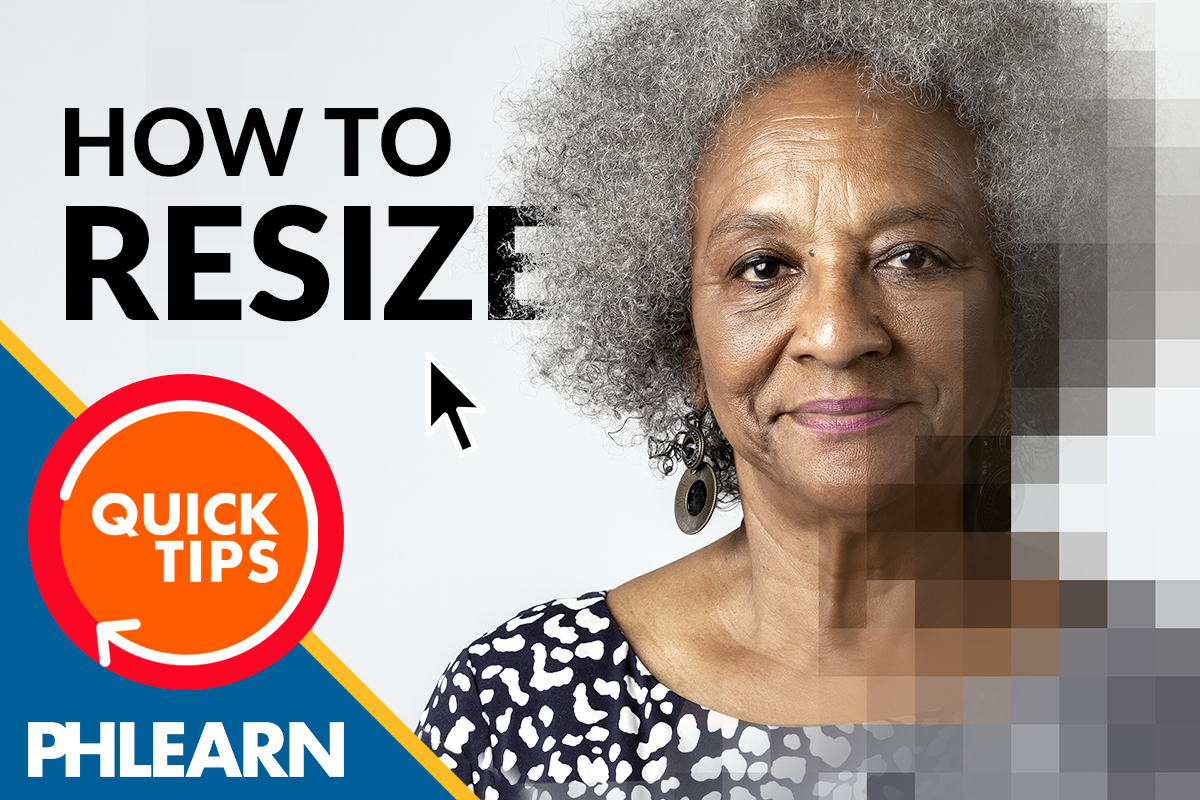
How to Resize an Image in Photoshop Without Losing Quality
This Quick Tip resizes a layer while keeping it sharp by converting it to a Smart Object first, avoiding the pixelation that comes from scaling a regular layer up and down repeatedly.
Regular Layer vs. Smart Object
A regular layer loses quality each time it’s scaled, especially when scaled up, because Photoshop has to invent new pixel data to fill in the larger size. A Smart Object avoids this by keeping a reference to the original image data instead of committing to pixels at any one size.
Spotting the Difference in the Layers Panel
A Smart Object shows a distinct icon in the corner of its layer thumbnail, making it easy to tell at a glance whether a given layer has already been converted or is still a regular layer.
Why Regular Layers Pixelate
Every time a regular layer is transformed and the change is applied, its pixels are permanently recalculated at the new size, so repeated resizing compounds quality loss a little more each time, which is what produces the pixelated result shown in the banner image.
Right-Clicking the Layer to Convert
Right-clicking the layer in the Layers panel brings up a menu that includes Convert to Smart Object, alongside other options like Rasterize Layer Style, Enable Layer Mask, and Create Clipping Mask.
One Command, One Click
Convert to Smart Object is a single command in that same right-click menu, so turning a regular layer into a Smart Object doesn’t require any separate dialog or export step.
Transforming the Smart Object
With the layer converted, Cmd+T (Mac) or Ctrl+T (PC) opens Free Transform, and the Smart Object can be scaled up or down as needed without permanently committing to that size the way a regular layer would.
Scaling Without Commitment
Because a Smart Object keeps its original data intact behind the scenes, it can be scaled down and later scaled back up again without losing any more quality than the very first resize, unlike a regular layer that degrades a little further with every pass.
Editable at Any Time
Double-clicking a Smart Object also reopens its original content for editing, which is another benefit of converting before resizing, since a regular layer offers no equivalent way back to an untouched version once it’s been scaled and applied.
One Extra Step Worth Taking
Converting to a Smart Object adds a single right-click before the transform, which is a small trade for avoiding pixelation on any layer that’s likely to be resized more than once.
More Free Photoshop Tutorials
- Select Subject and Refine Edges in Photoshop
- Three Ways to Use Blend If
- Curves vs Levels: Learn the Difference
Why This Technique Works
A Smart Object separates what’s shown on screen from the original image data sitting behind it, so scaling the Smart Object just changes how that data is displayed rather than throwing any of it away. That’s what makes it possible to resize a layer up and down repeatedly without the pixelation that a regular layer eventually shows.
Final Thoughts
Resizing without losing quality in Photoshop comes down to converting the layer to a Smart Object first, then using Free Transform to scale it as needed, since the Smart Object keeps the original image data intact no matter how many times it’s resized.
Related Tutorials
Master Photoshop, Lightroom and Photography
Join PHLEARN PRO for $12.99 a month, or $99.99 a year (save 36%). Cancel anytime, with a 100% money-back guarantee.





