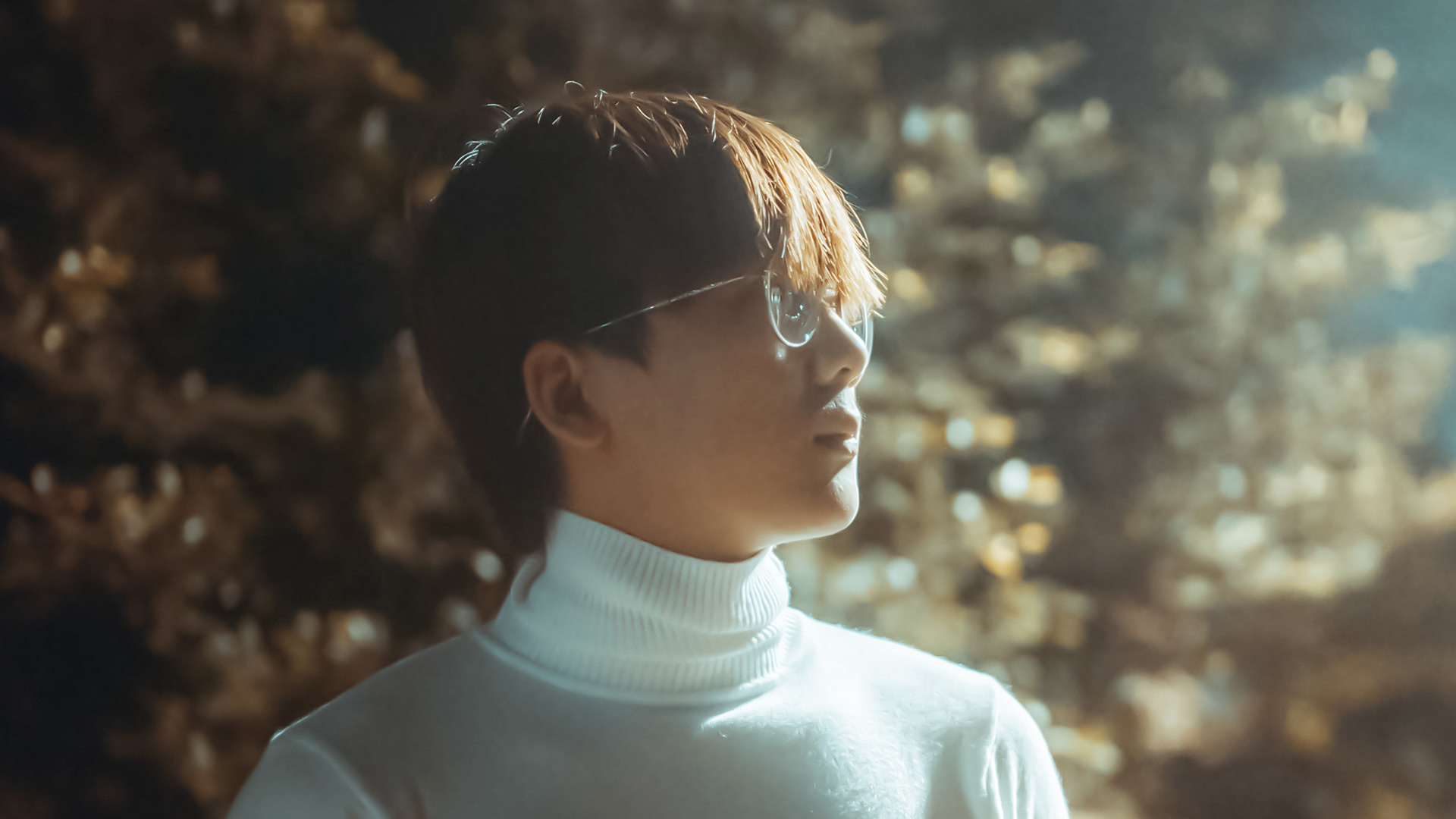

Download Assets
This tutorial includes 7 sample images, 1 sample PSD and 1 PDF guide. Downloads are free with a PHLEARN account.
- Download the sample images and PSDs from every free tutorial on PHLEARN
- New free tutorials published every week
- One free account — sign up once, then download anything
Free PDF Guide · 4 Pages
This Tutorial as a Step-by-Step PDF
The 4-page guide runs one noisy photo through six tools with the settings from the video: Filter > Noise > Reduce Noise in Photoshop, Luminance in Lightroom Classic, Luminar AI Denoise, Topaz DeNoise AI on Severe Noise with Auto, DxO PhotoLab in HQ and Vance AI, then compares them at full zoom. Keep it beside you.
description
Which noise reduction software actually works best? This comparison runs the same noisy sample photo through Photoshop’s Reduce Noise filter, Lightroom Classic’s Luminance slider, Luminar, Topaz Labs DeNoise, DxO PhotoLab, and the browser-based AI tool Vance AI, then lines every result up next to the original at full zoom to see which holds onto real detail instead of smoothing everything away. Topaz Labs came out ahead, with Vance AI close behind.
Enjoying This Free Tutorial?
We publish a new free tutorial every week, each one with sample images and PSDs you can download and follow along with. Sign up and they land straight in your inbox, along with early word on sales, events and subscriber-only offers.
Comparing the Best Noise Reduction Software
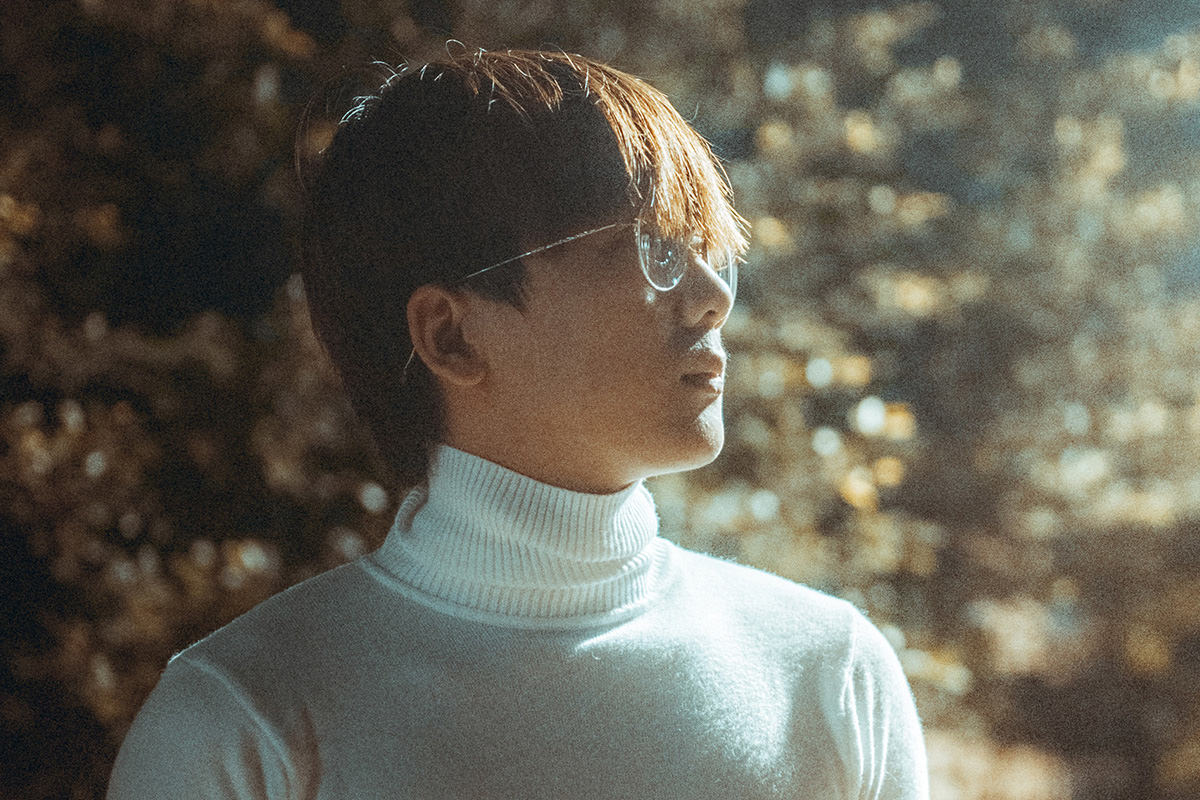
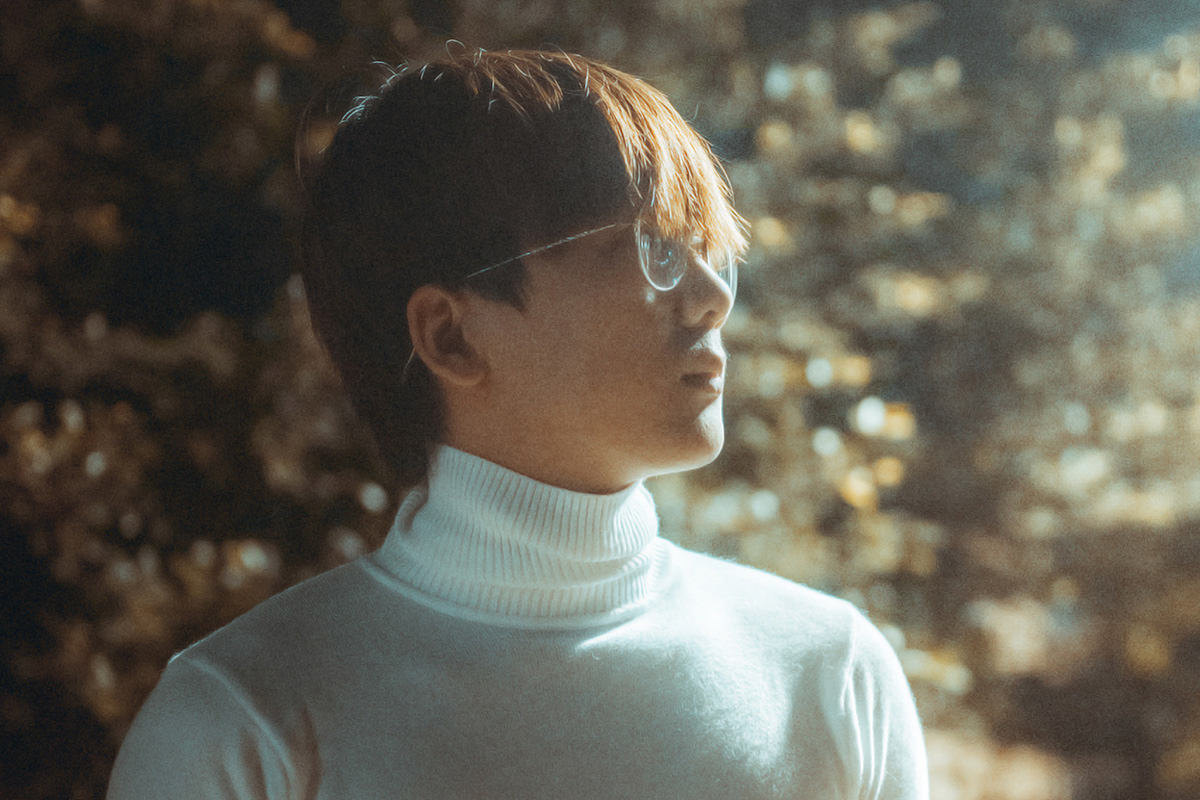
Noise reduction always trades detail for smoothness, and different programs make that trade very differently. This comparison runs the same noisy sample photo through Photoshop’s built-in filter, Lightroom Classic, Luminar, Topaz Labs, DxO, and the online AI tool Vance AI, to see which actually holds onto real detail instead of just smoothing everything into mush.
Preparing Your Image as a Smart Object
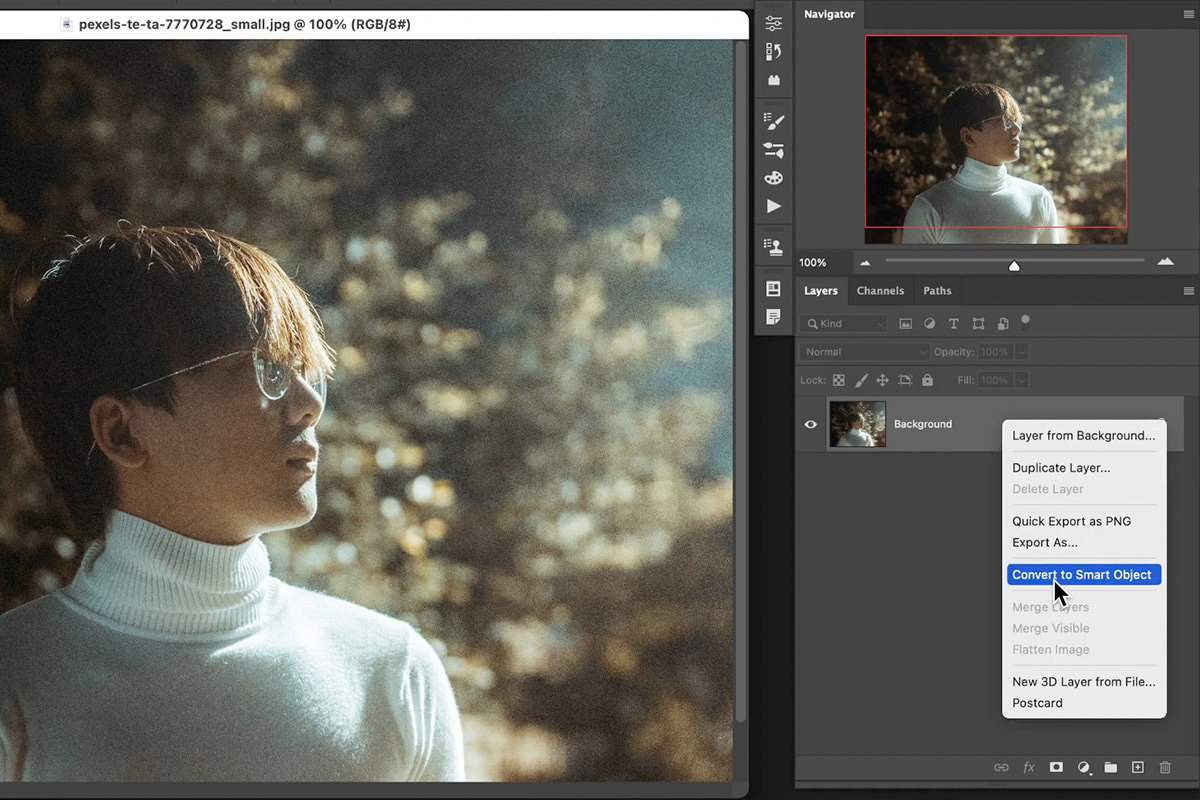
Before running any noise reduction filter in Photoshop, converting the layer first keeps the adjustment editable.
-
Convert Your Layer to a Smart Object
Right-click your image layer and choose Convert to Smart Object, so the noise reduction filter that follows can be readjusted later as a Smart Filter.
Reducing Noise in Photoshop
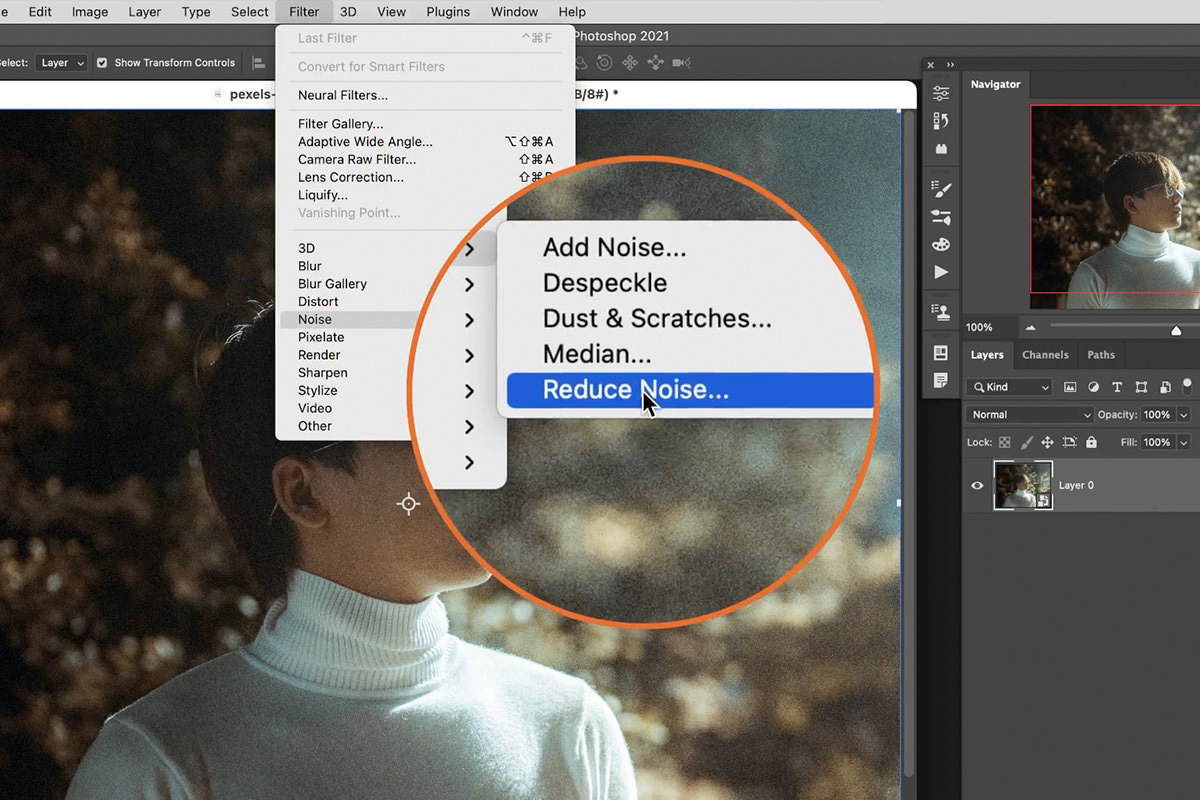
Photoshop’s built-in Reduce Noise filter has several sliders that all trade detail for smoothness in slightly different ways.
-
Open Reduce Noise
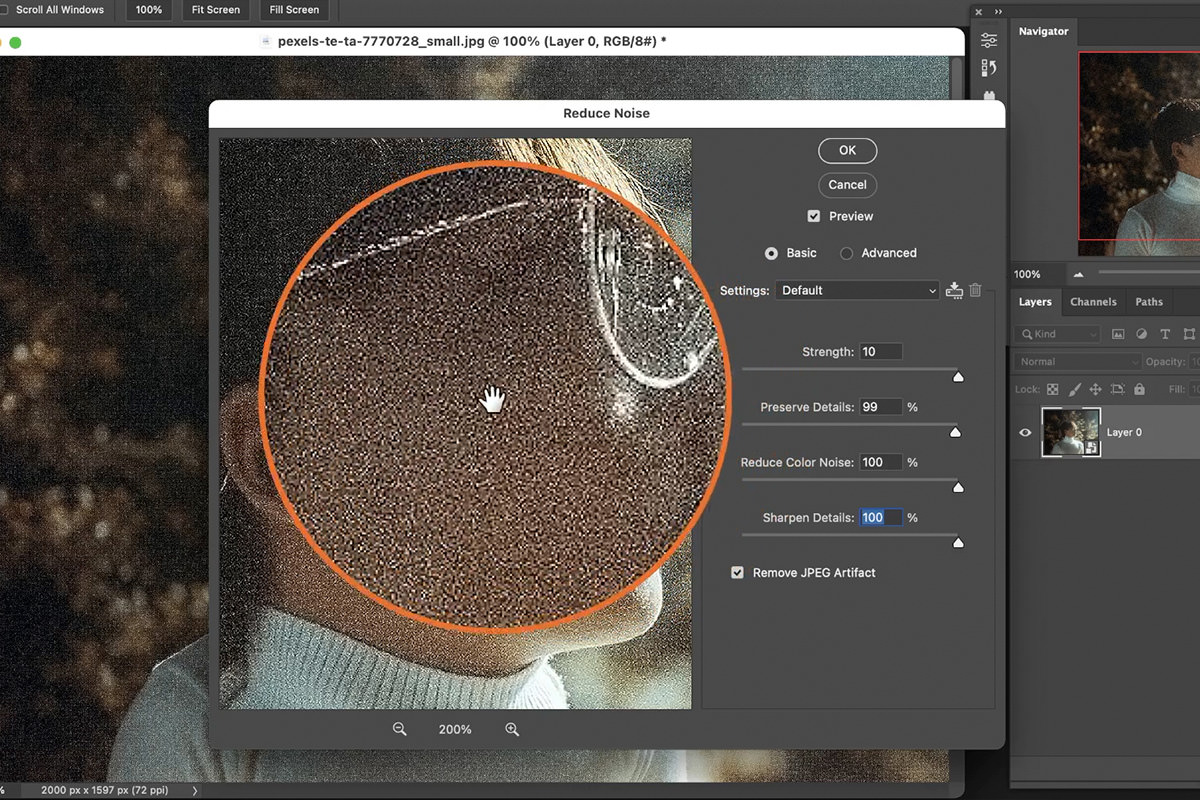
Go to Filter > Noise > Reduce Noise and zoom in to check the effect at 100%.
-
Keep Most Sliders Low
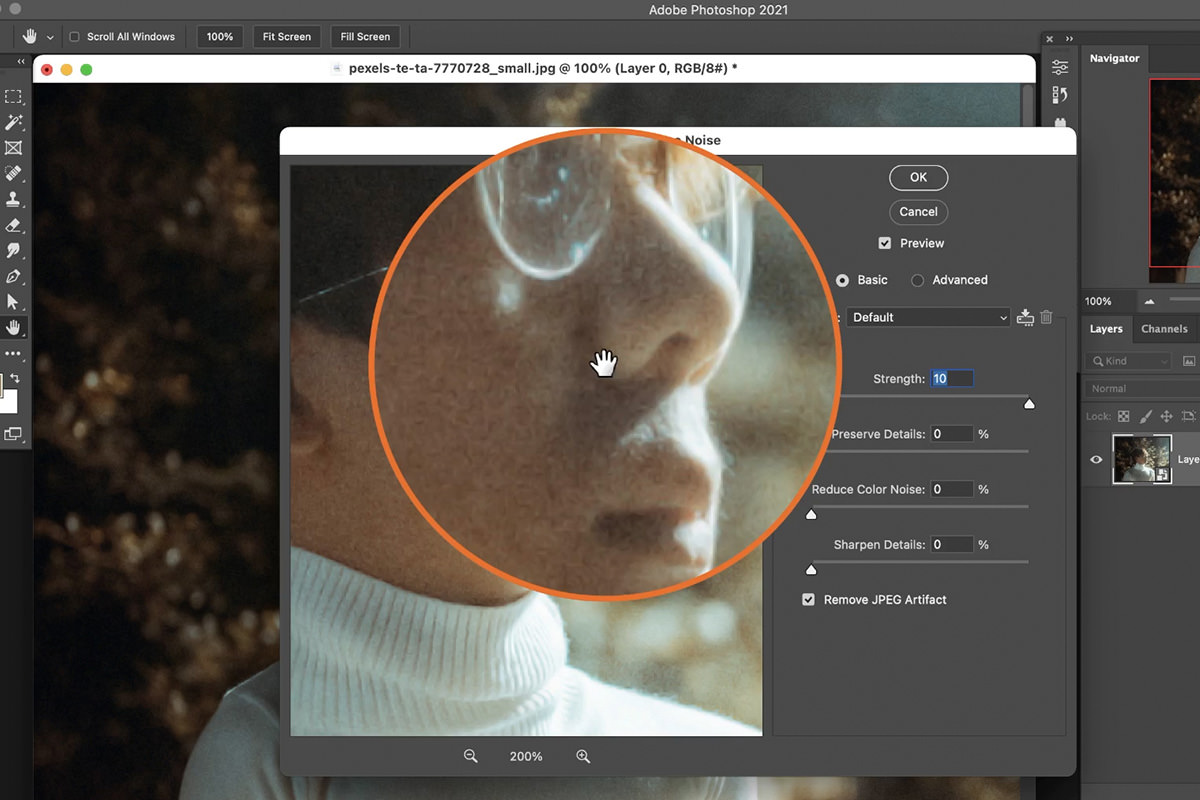
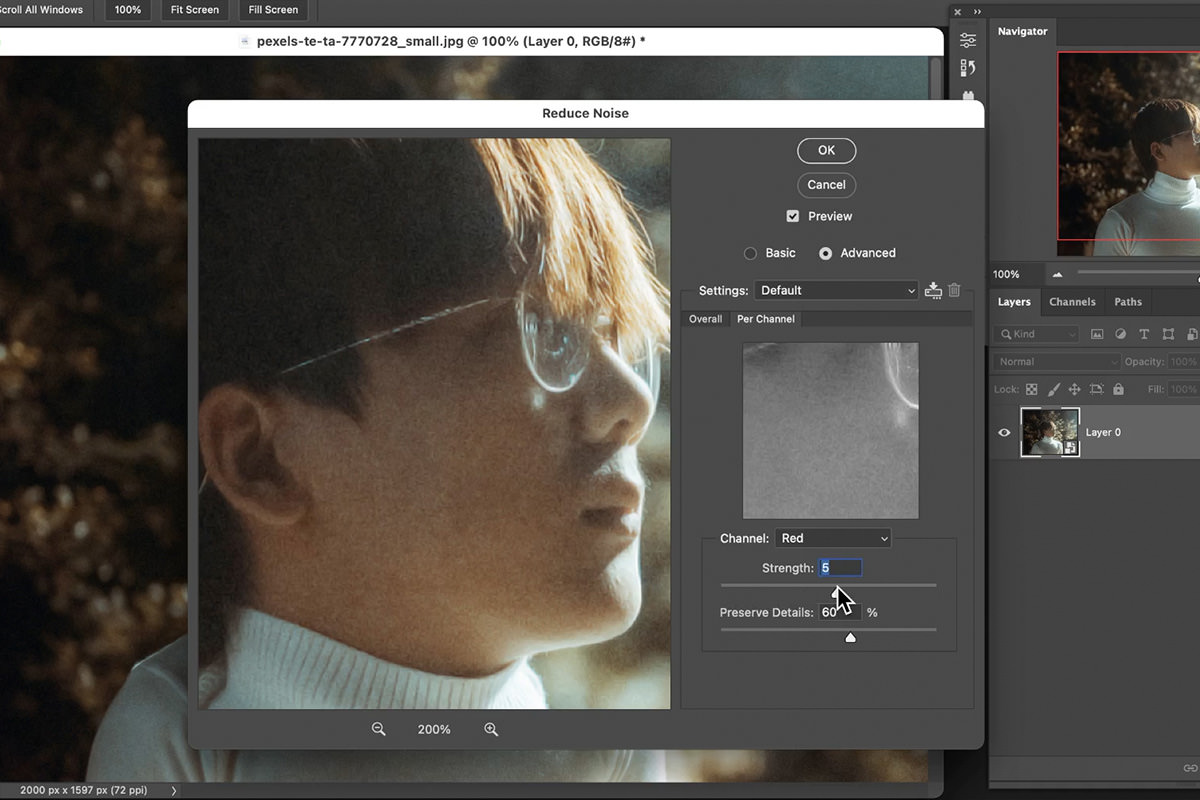
Raise Strength to do the work (in the video it ends at 10), and set Preserve Details, Reduce Color Noise, and Sharpen Details to 0. Raising Preserve Details and Reduce Color Noise takes the image right back toward the noisy original, and raising Sharpen Details can look worse than the original.
-
Uncheck Remove JPEG Artifact
Leave Remove JPEG Artifact unchecked, since it does little for actual noise reduction on a typical photo.
Why Pushing Every Slider Up Doesn’t Help
It’s tempting to max out every slider expecting a cleaner result, but Preserve Details and Sharpen Details actually work against Strength — raising them starts reintroducing the very noise the Strength slider just smoothed away. Keeping most sliders near zero and relying mainly on Strength, checked at 100% zoom, produces a more genuinely useful result than cranking every option at once.
Reducing Noise in Lightroom Classic
Lightroom’s noise reduction lives in the same panel most people are already using to edit their raw files.
-
Open the Detail Panel
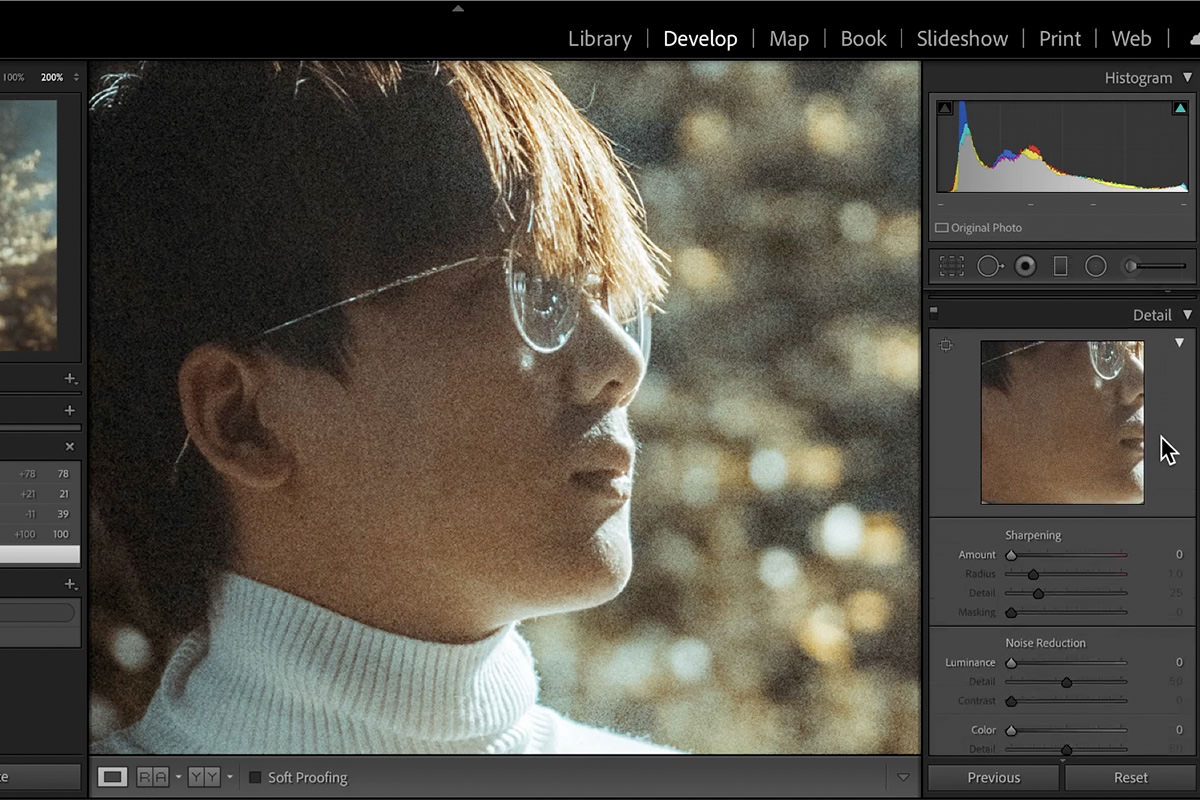
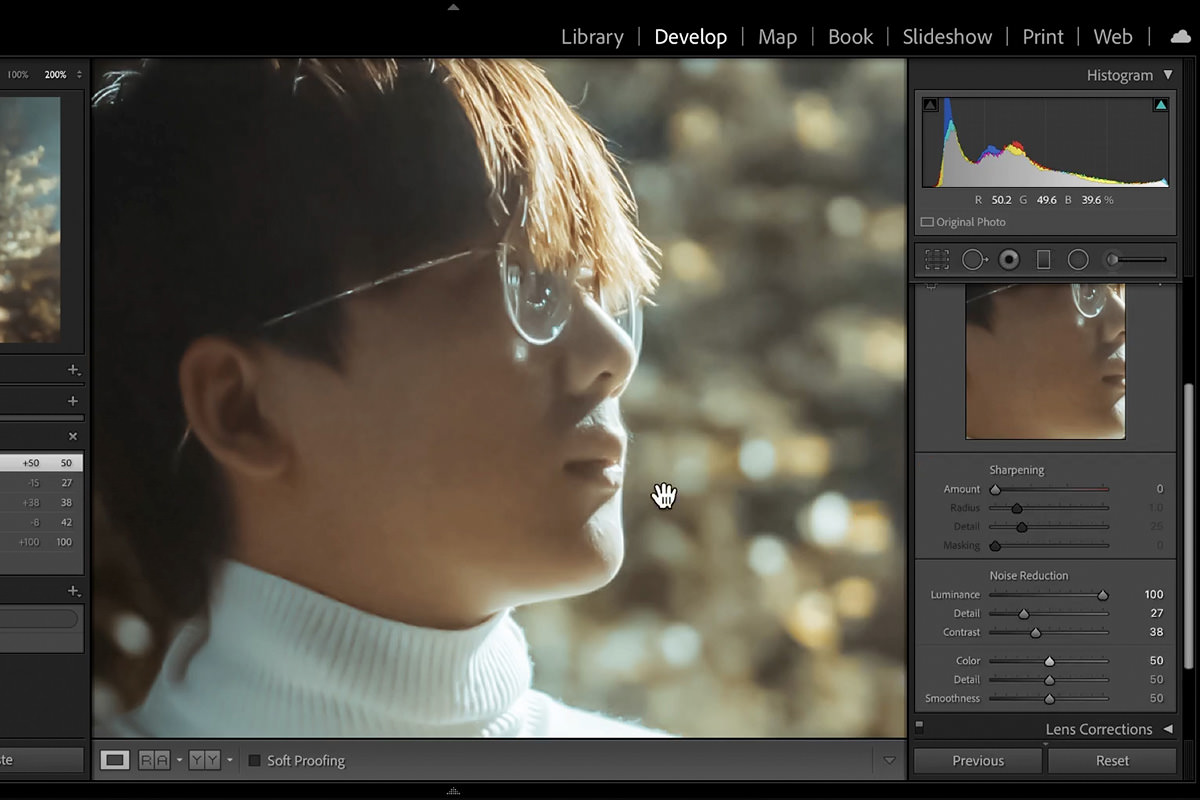
In the Develop module, open the Detail panel and find the Noise Reduction section.
-
Raise the Luminance Slider
Drag the Luminance slider all the way to the right, checking the result zoomed in. That leaves some odd artifacts, so bring the Detail slider down a little, then adjust Contrast; this gives you a bit more control than Photoshop. Press the \ key to compare before and after.
Reducing Noise with Luminar
Luminar’s noise reduction sits somewhere between Lightroom’s and Photoshop’s results in terms of how much detail it preserves.
-
Apply Luminar’s Noise Reduction
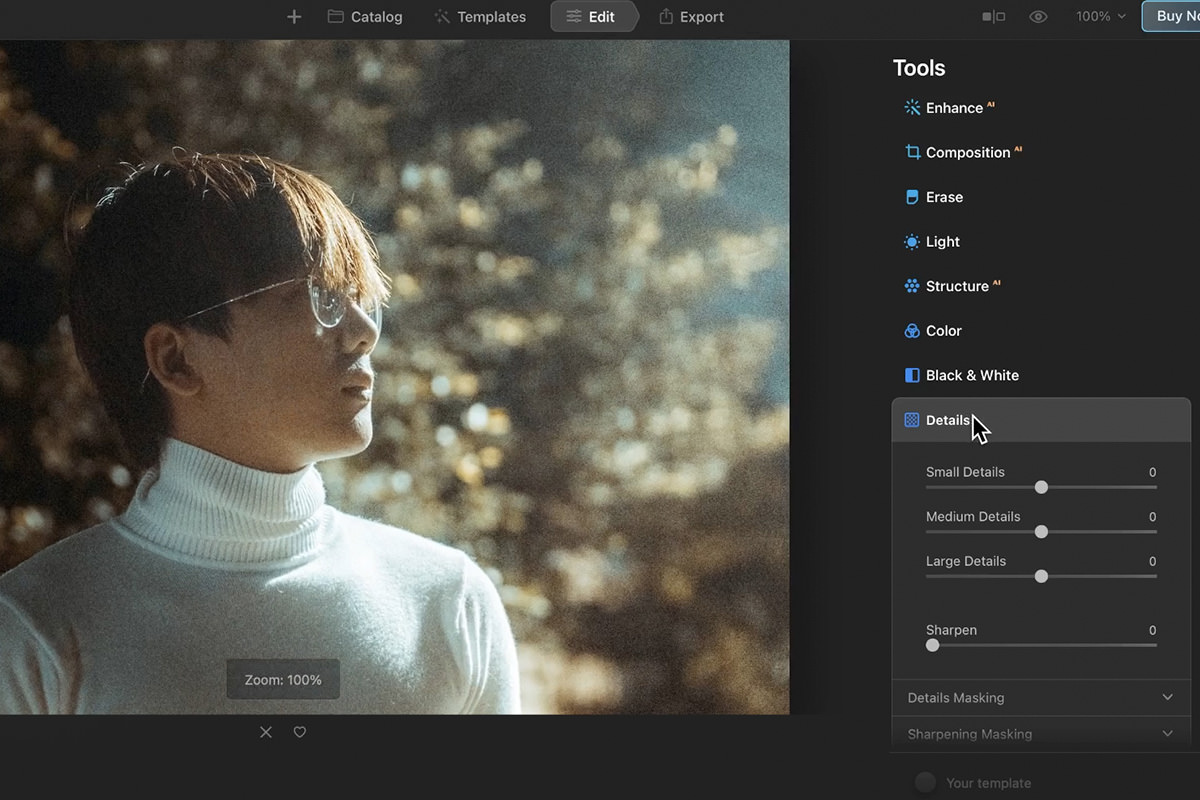
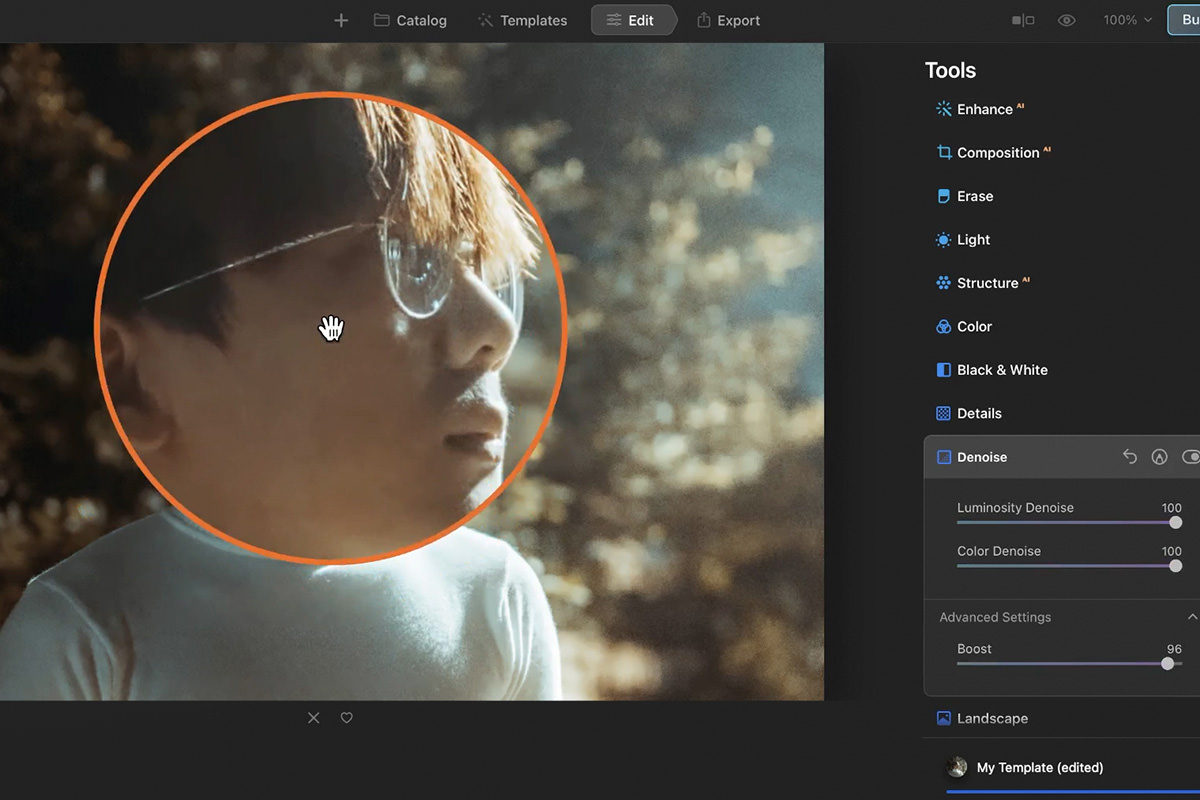
Open your image in the standalone Luminar AI program and go to the Denoise tool, which doesn’t have AI built into it. Bring Luminosity Denoise all the way up, set Color Denoise to 100 as well, and add Boost. It does a pretty good job, but some noise remains around the subject and in the hair.
Reducing Noise with Topaz Labs
Topaz Labs is a dedicated third-party noise reduction program, tested here as a trial (which adds a watermark to the exported result — a paid license removes it).
-
Run Your Photo Through Topaz Labs
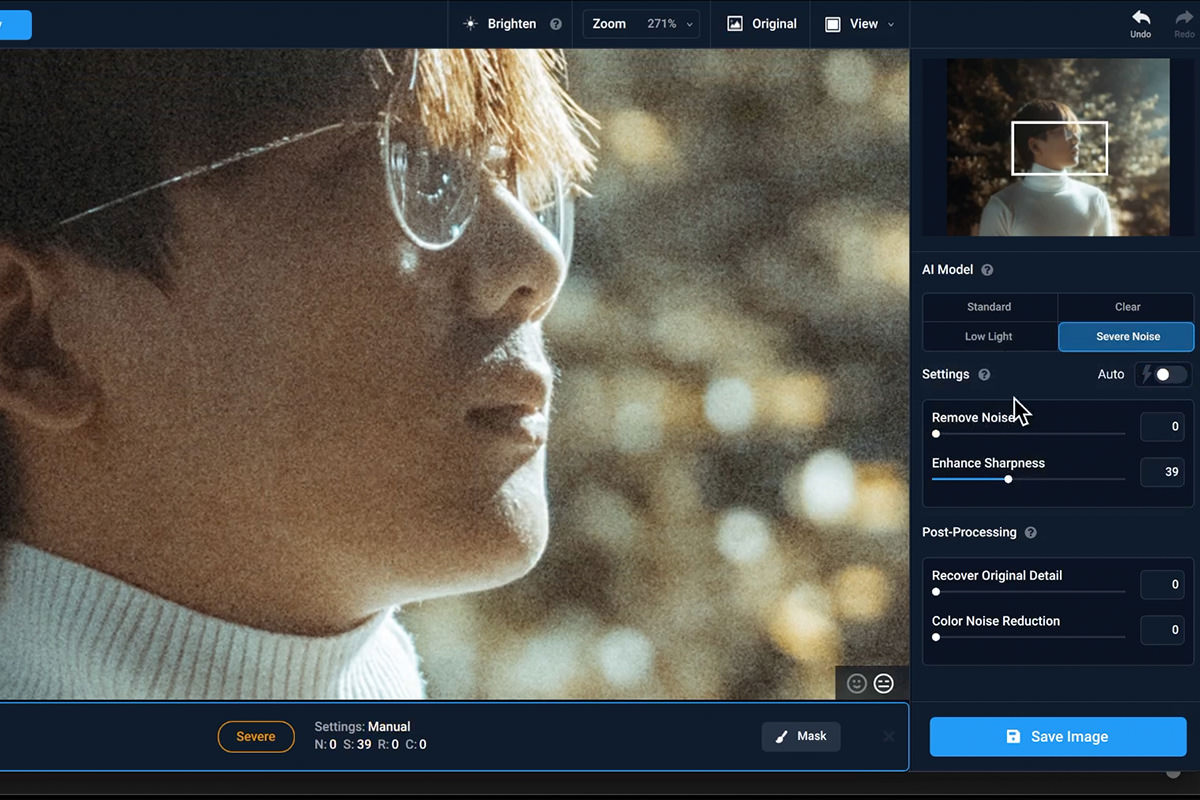
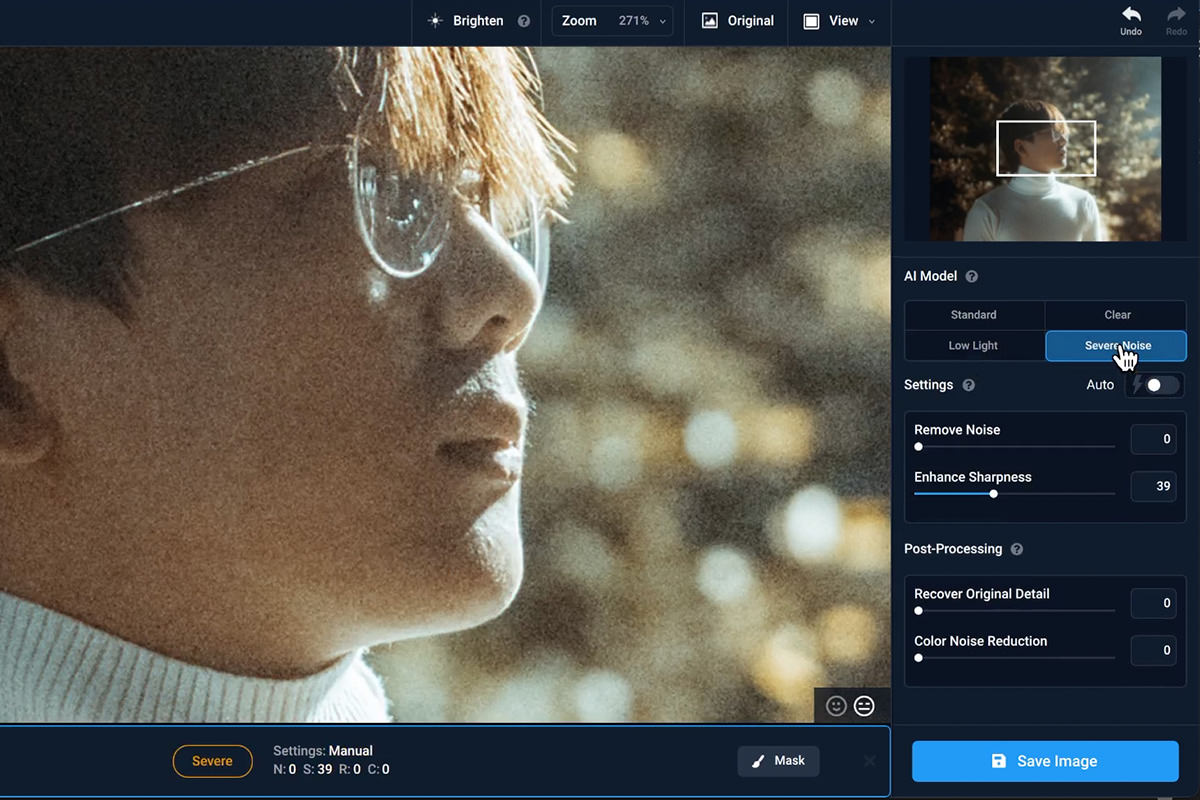
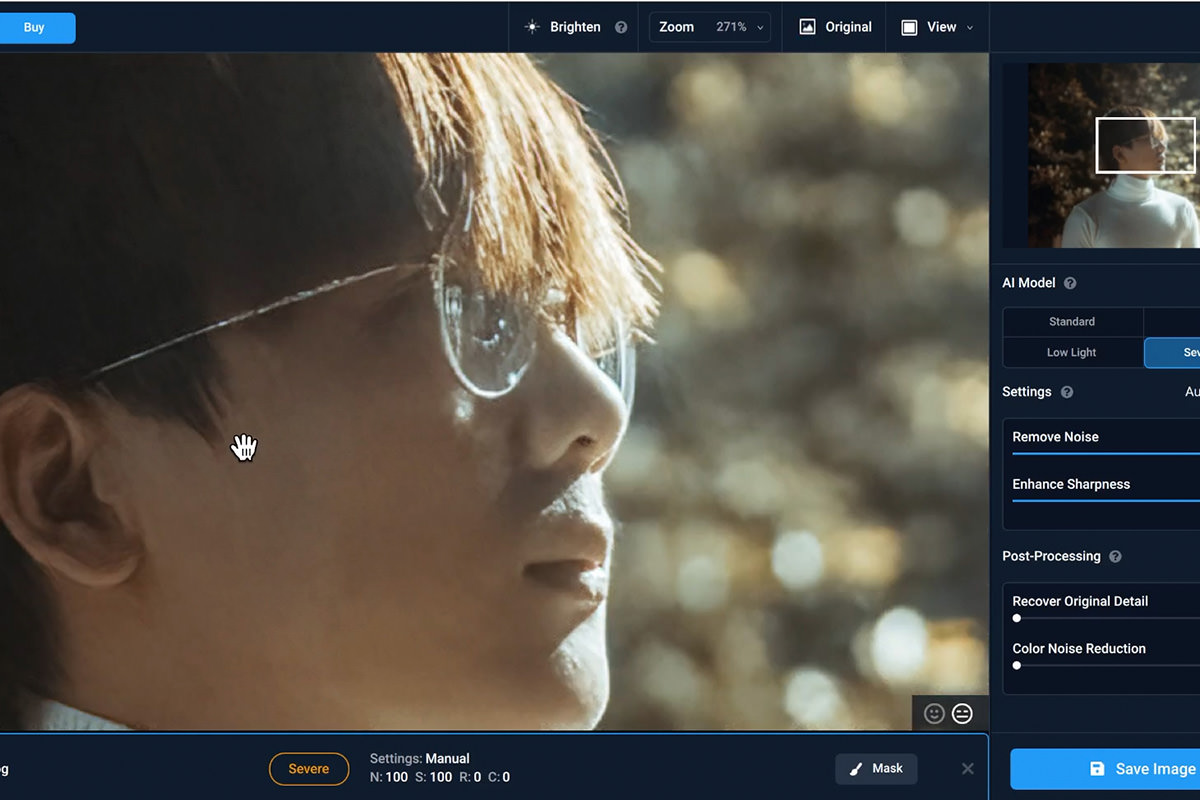
Open the sample photo in Topaz Labs DeNoise AI and look through the AI models on the right. Clear looks a little muddy here, so choose Severe Noise. With Remove Noise all the way up it rebuilds detail, but the ear starts to look like an oil painting, so switch on Auto and let the program find a middle ground.
Reducing Noise with DxO
DxO takes a heavier-handed approach that leans more on blurring than reconstructing detail.
-
Run Your Photo Through DxO
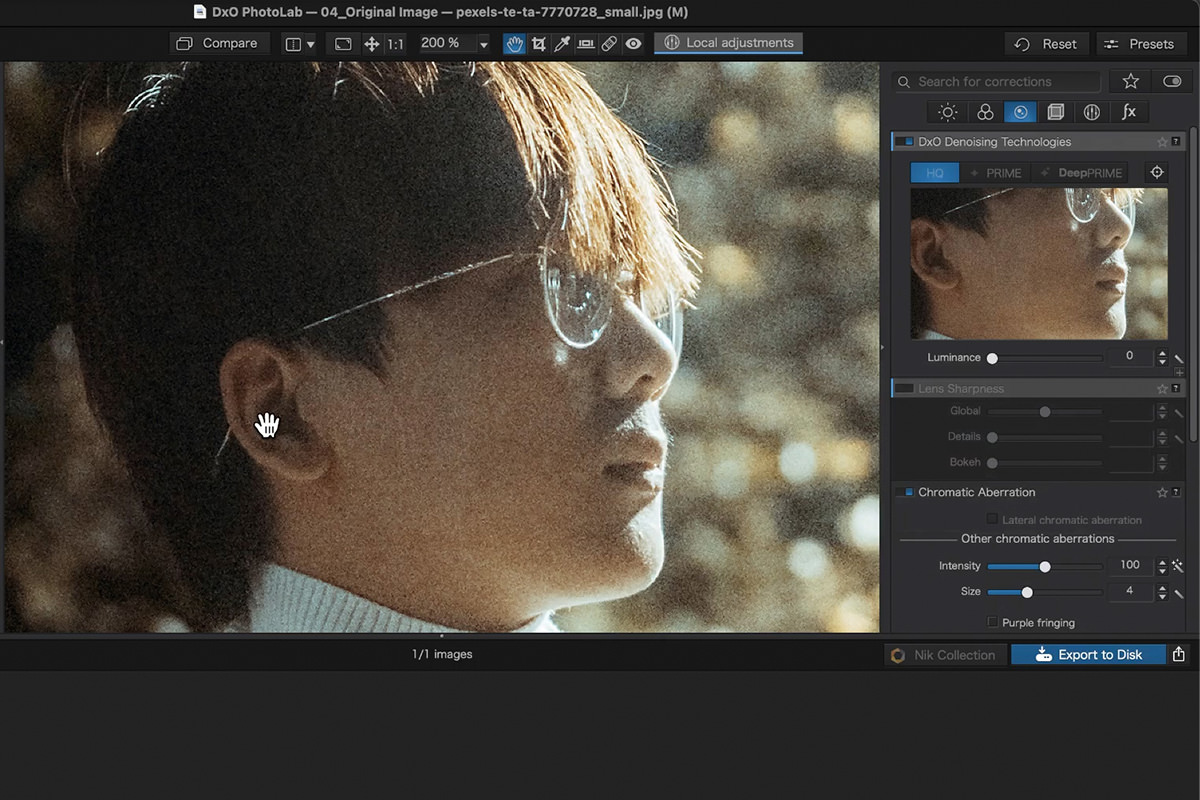
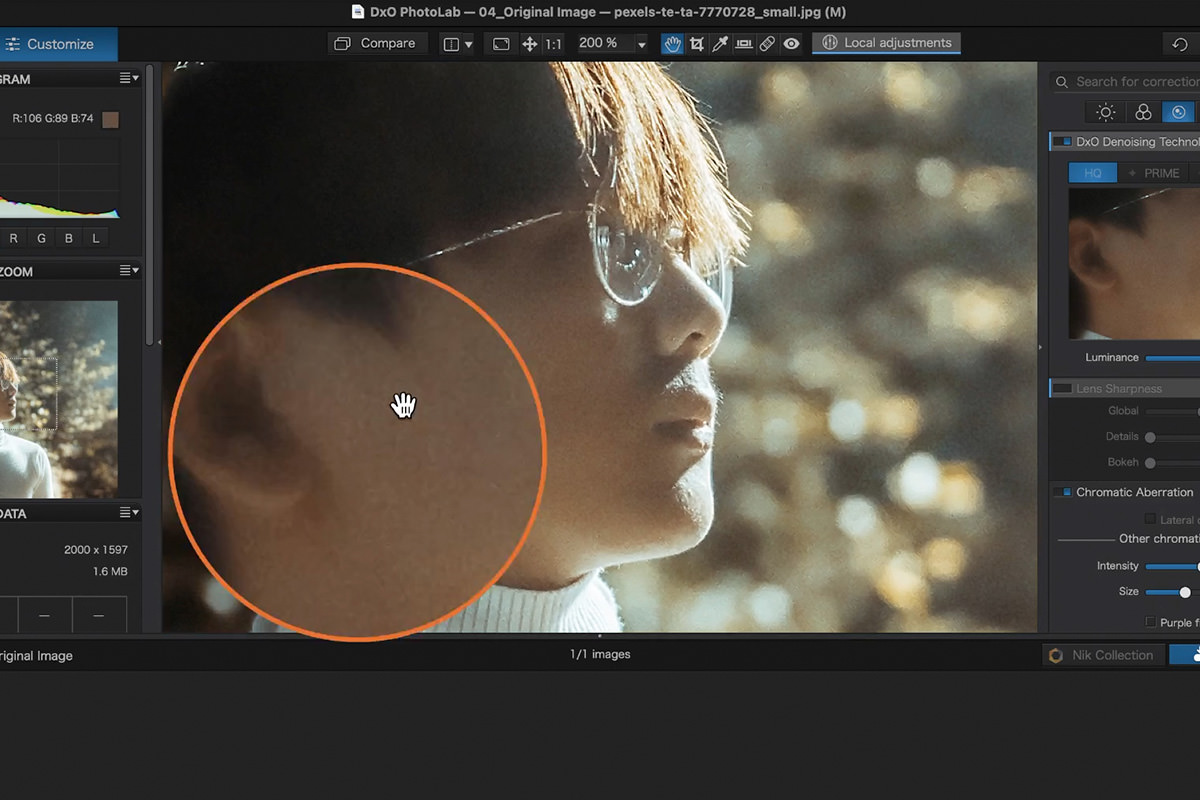
Open the sample photo in DxO PhotoLab, find DxO Denoising Technologies and bring the Luminance slider all the way up. With a JPEG only the HQ mode is available; PRIME and DeepPRIME need native raw files and might do a better job.
Reducing Noise with Vance AI
Vance AI is a browser-based tool rather than installed software, and it takes a fundamentally different approach to noise reduction.
-
Upload Your Photo to Vance AI
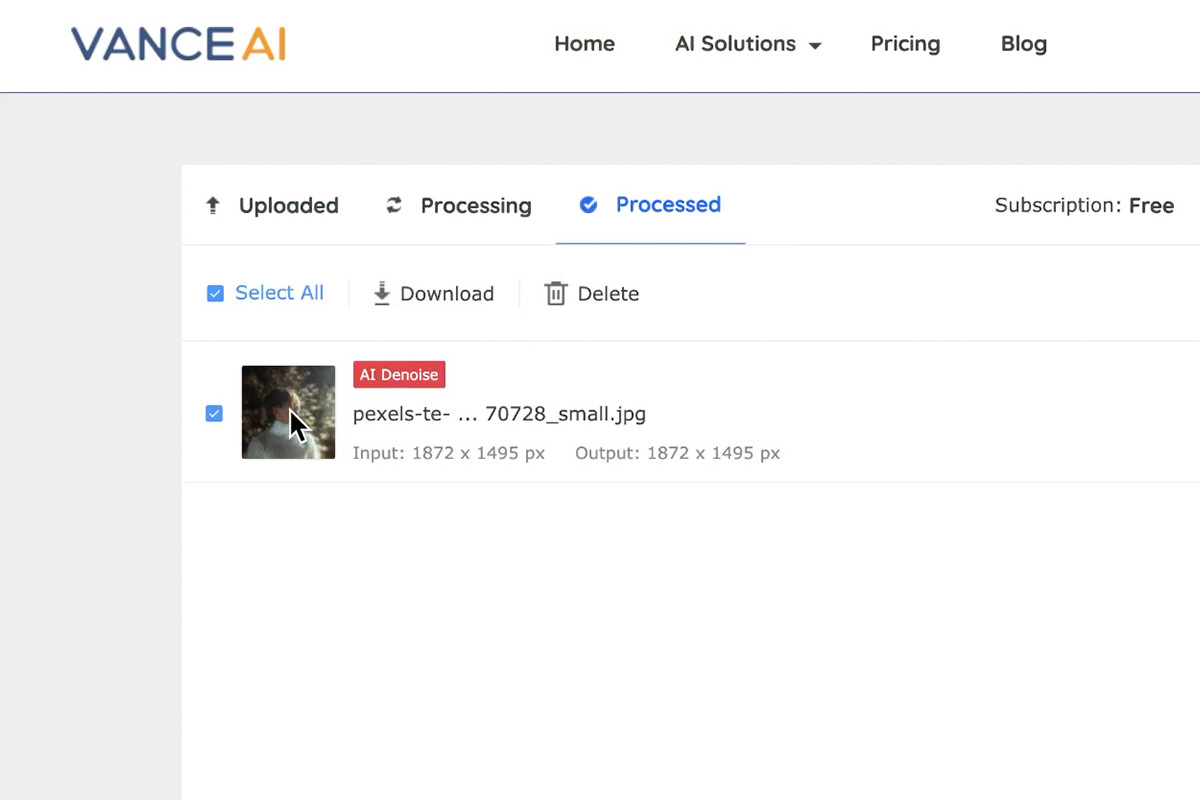
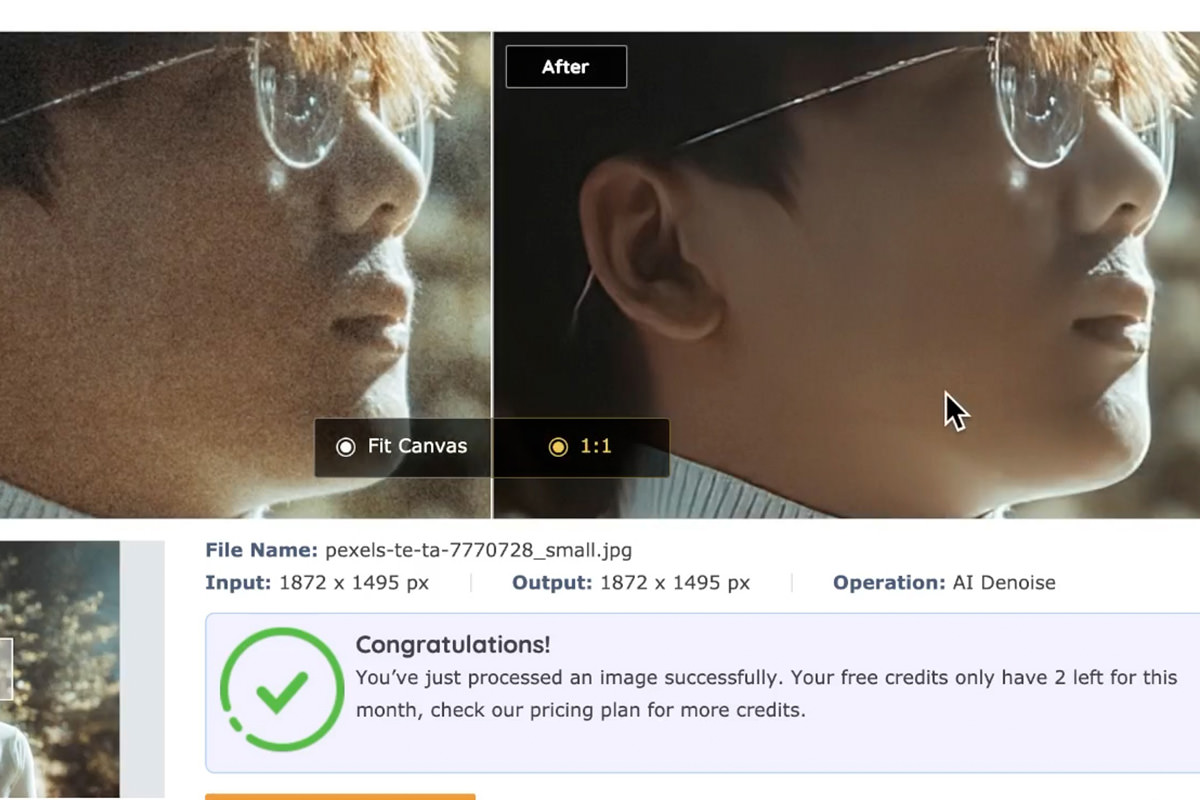
Visit Vance AI’s noise removal page and upload the sample photo; no software installation is required. Use the preview icon to compare before and after. It’s free for a couple of images (batch processing is paid), and downloading the result requires a free account.
How AI Reconstruction Differs from Ordinary Noise Reduction
Most of the tools here work by blurring or averaging noisy pixels together, which smooths the image but loses real detail in the process. Vance AI instead uses a model trained on a large number of reference photographs to actually reconstruct plausible texture and detail in noisy areas — rebuilding what a clean version of that texture would likely look like, rather than just smoothing the noise away. It’s a genuinely different technique, though it can still struggle on especially complex textures.
Comparing the Results Side by Side
With every tool applied to the same photo, viewing them together against the untouched original makes the differences clear.
-
Line Up the Original and Every Result
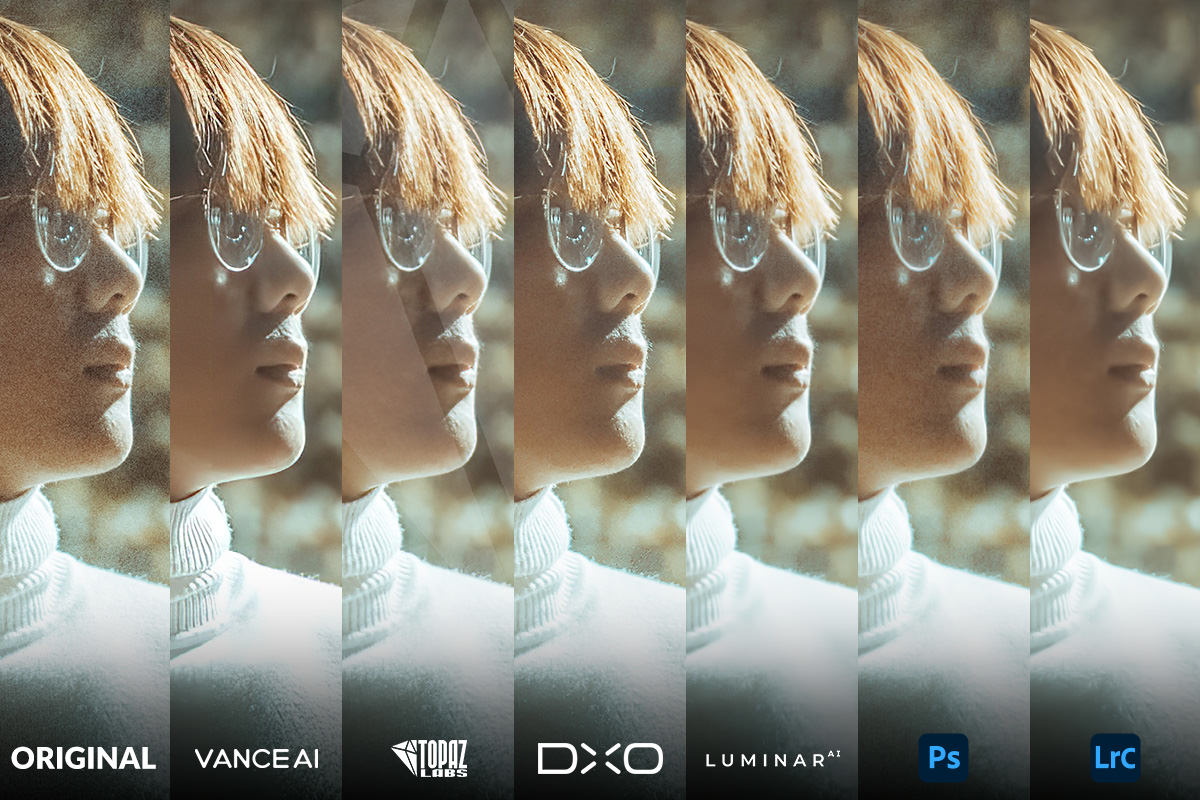
Place the original noisy photo alongside each processed version, and zoom into a consistently detailed area — an ear, an eye, or fine texture — on every image to compare fairly.
-
Weigh Detail Retention Against Noise Removal
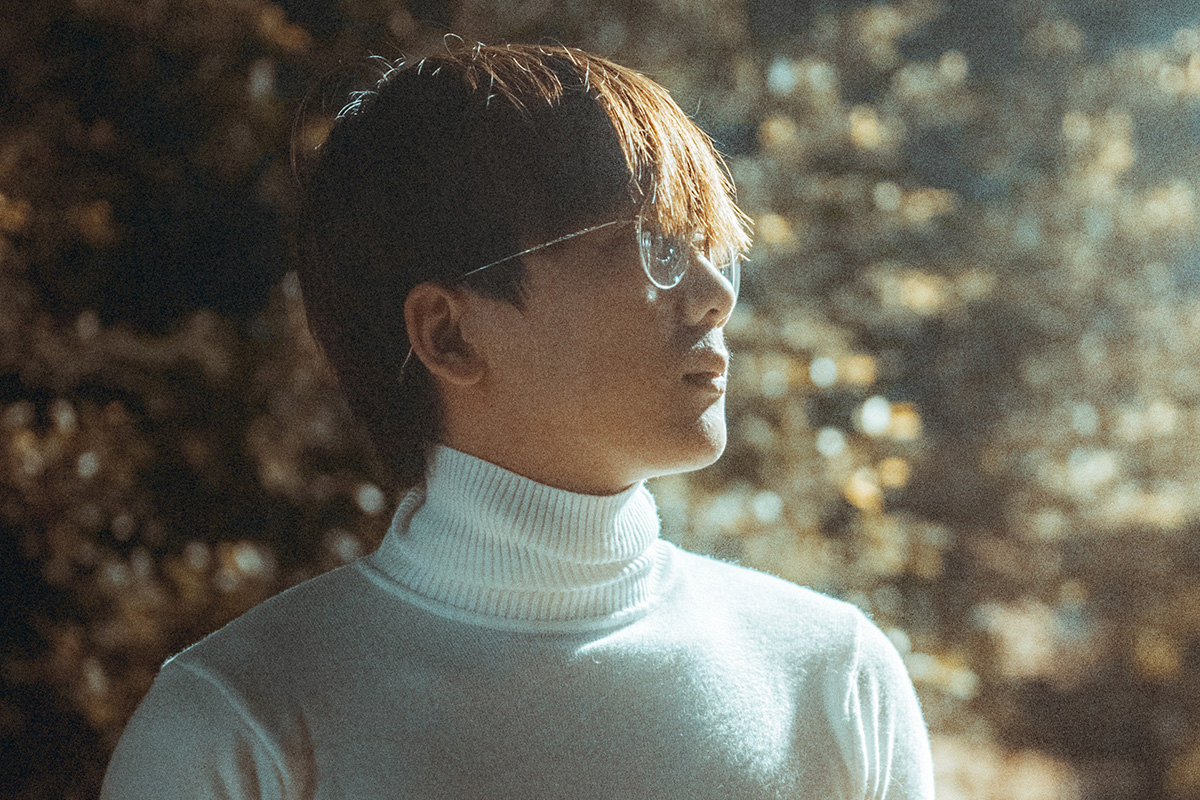
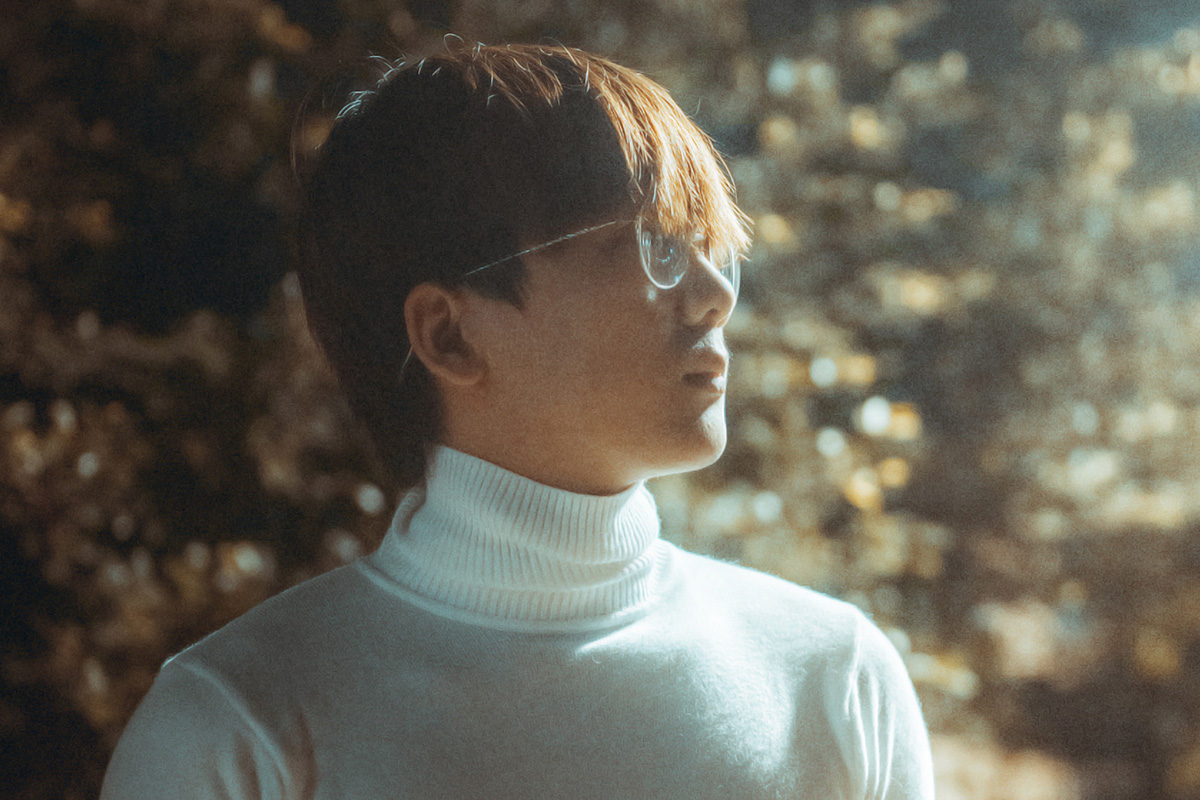
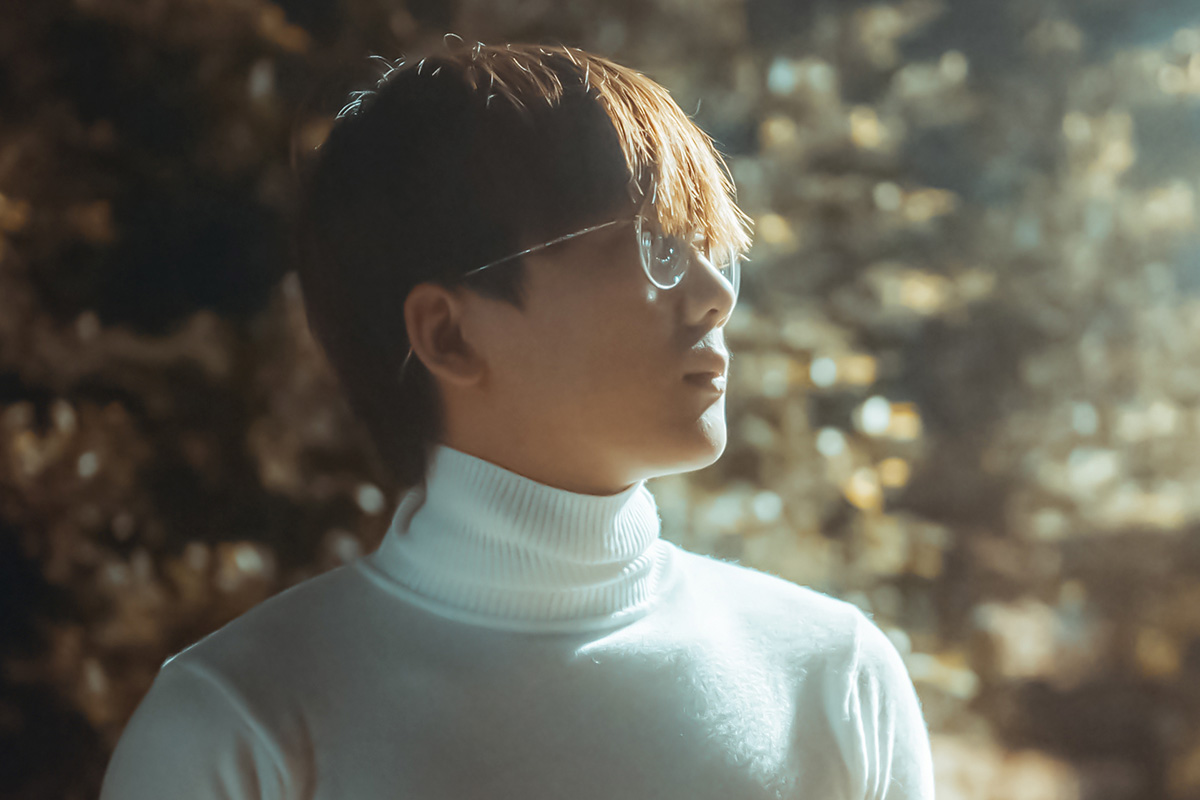
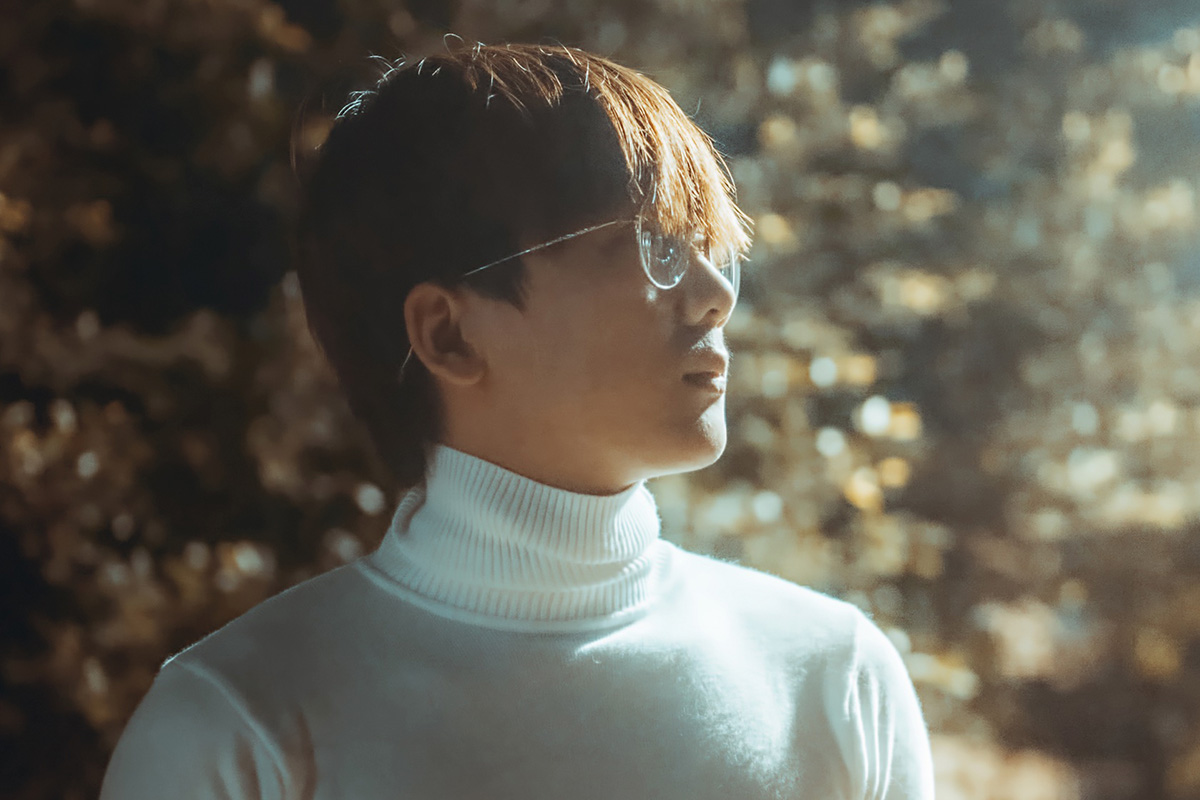
Photoshop kept more fine detail but left more visible noise; Lightroom Classic removed more noise but lost more detail; Luminar landed roughly in between; Topaz Labs reconstructed detail convincingly with a natural look; DxO leaned on blurring and lost sharp edges; Vance AI rebuilt texture using its trained model, with a noticeably different, sometimes over-smoothed character in complex areas.

Which Software Actually Wins
On pure AI reconstruction Vance AI is the winner: it rebuilt part of the ear and recreated lines in the sweater. But the Topaz Labs result is a little more natural, so Topaz Labs DeNoise AI wins overall. Lightroom Classic remains the quickest, most convenient option for anyone already editing raw files there and not chasing maximum detail. DxO did an okay job, but its blurring around fine edges kept it from being the winner in this test.
-
Match the Tool to Your Priority
Choose Topaz Labs or a similar dedicated tool when maximum detail retention matters most, Lightroom Classic when convenience and workflow speed matter more than squeezing out every bit of detail, and an AI reconstruction tool like Vance AI specifically for badly damaged or very noisy areas where some rebuilt texture is better than none.
Why the Winner Depends on What You Value
There’s no single objectively “best” noise reduction tool, because different tools make fundamentally different trade-offs between speed, detail retention, and how much they’re willing to invent new texture rather than preserve what’s actually there. The right choice depends on whether a photo needs quick cleanup, maximum fidelity to the original detail, or aggressive reconstruction of an especially damaged area.

Why This Comparison Matters
Every noise reduction tool is solving the same underlying problem — separating real detail from random noise — but each one draws that line differently, and that difference is exactly what a side-by-side comparison at full zoom reveals. Photoshop and Lightroom’s built-in tools work by blurring and averaging, which is fast and included with a Creative Cloud subscription but caps out at a certain level of detail retention. Dedicated tools like Topaz Labs invest more processing specifically in reconstructing detail rather than just smoothing it away, which is why they tend to outperform the built-in options on a genuinely noisy image. And AI reconstruction tools like Vance AI represent a different category entirely, rebuilding texture from a trained model rather than working only from the pixels already in the photo — a powerful approach for badly damaged detail, but one that can occasionally invent texture that wasn’t quite there.
Final Thoughts
No single piece of software wins at every kind of noise reduction, which is why it’s worth knowing what each one is actually good at rather than defaulting to whatever’s already installed. For most everyday raw editing, Lightroom Classic’s Luminance slider is fast and good enough. When a specific photo needs its detail preserved as faithfully as possible, a dedicated tool like Topaz Labs is worth the extra step. And for an especially noisy or damaged area where some reconstructed detail beats none at all, an AI-based tool is worth trying as a specialized fix rather than an everyday default.
Quick Reference: Keys, Menus and Settings
- PhotoshopRight-click > Convert to Smart Object; Filter > Noise > Reduce Noise: Strength 10, Preserve Details, Reduce Color Noise and Sharpen Details 0, Remove JPEG Artifact off
- Lightroom ClassicDevelop > Detail > Noise Reduction: Luminance all the way right, Detail down a little, then Contrast; \ for before and after
- Luminar AIDenoise: Luminosity Denoise and Color Denoise at 100, Boost on
- Topaz DeNoise AIAI Model: Severe Noise, then Auto on
- DxO PhotoLabDxO Denoising Technologies: HQ (PRIME needs raw), Luminance all the way up
- Vance AIUpload on the noise removal page, preview, download with a free account
- CompareStack every export as layers in one PSD and zoom in on the ear

Free Downloads
Follow Along on the Same Photos
Get the noisy original, the full-size result from each of the six tools, the PSD with every result stacked as layers and the 4-page PDF guide. Free with a PHLEARN account.
Noise Reduction Software: Common Questions
Which noise reduction software won the comparison?
Topaz Labs DeNoise AI wins overall because its result looks a little more natural. Vance AI wins on pure AI reconstruction, and Lightroom Classic is the quick and easy go-to.
How do I reduce noise in Photoshop?
Right-click the layer and choose Convert to Smart Object, then go to Filter > Noise > Reduce Noise and zoom in. Let Strength do the work (it ends at 10 in the video), set the other sliders to 0 and uncheck Remove JPEG Artifact.
Why does raising Preserve Details bring the noise back?
Strength blurs the pixels together to hide noise. Preserve Details and Reduce Color Noise take the image back toward the noisy original, and Sharpen Details can make it look worse than the original.
How do I reduce noise in Lightroom Classic?
In the Develop module, open Detail and find Noise Reduction. Drag Luminance all the way right, then bring Detail down a little and adjust Contrast to clean up the artifacts. Press the \ key to compare before and after.
Does Luminar AI’s Denoise use AI?
No. Luminar uses AI for many features, but its Denoise tool doesn’t. Even with Luminosity Denoise and Color Denoise at 100 and Boost on, noise remains in the hair and high-detail areas.
What settings work best in Topaz DeNoise AI?
The video uses the Severe Noise model with Auto switched on. With Remove Noise all the way up, the rebuilt ear looks almost like an oil painting; Auto looks more real.
Why weren’t DxO’s PRIME modes used?
PRIME and DeepPRIME only work on native raw files, and the test photo is a JPEG, so only HQ was available. Luminance was pushed all the way up there, and DxO might do better on a raw file.
Is Vance AI free?
It’s free for a couple of images; batch processing is paid. You upload the photo on its website, preview the result, and need a free account to download it.
How do I compare noise reduction results fairly?
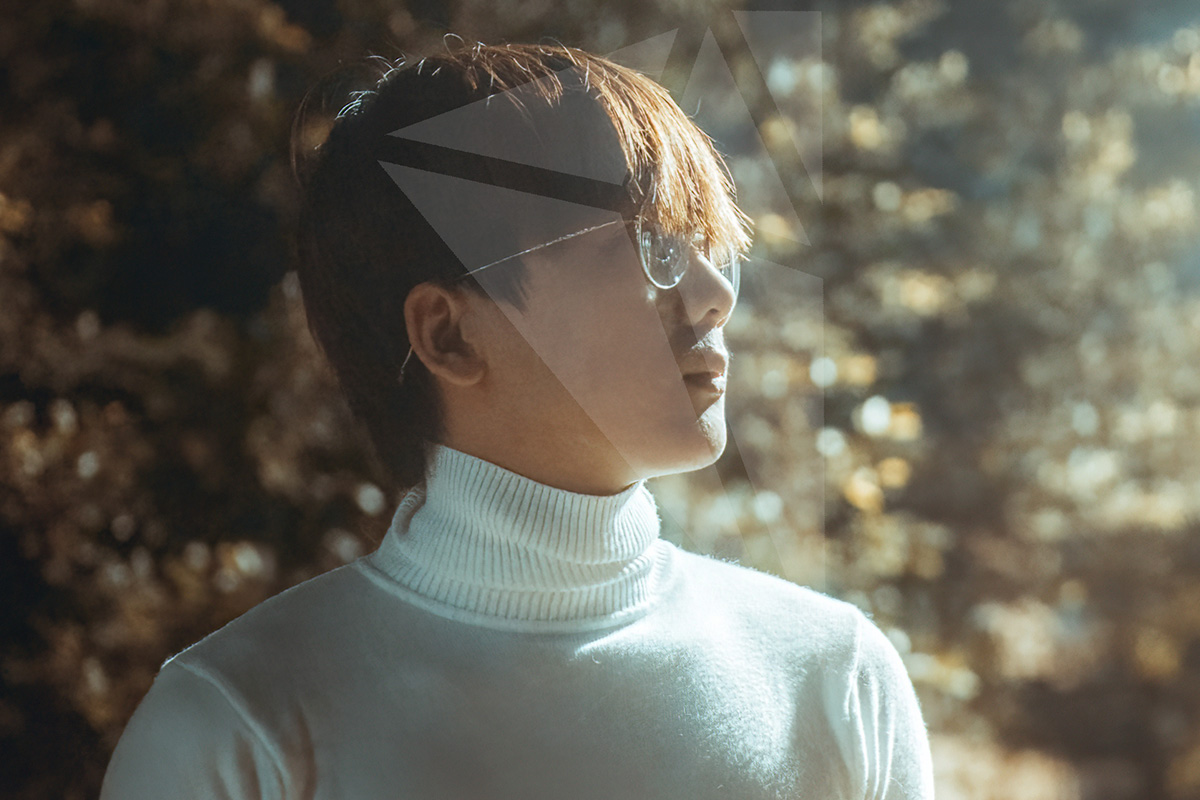
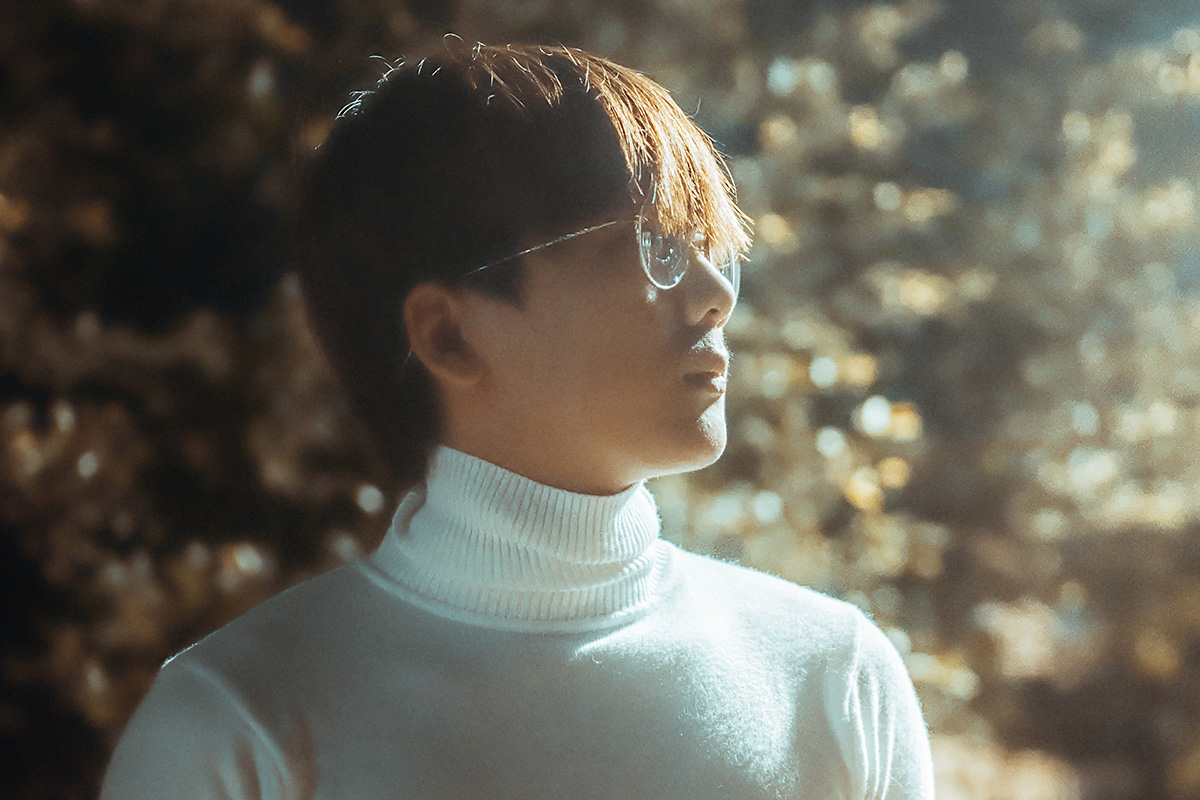
Export every result, stack them as layers in one Photoshop file and zoom in on the same detailed area. The video uses the ear, the eyeglasses and the sweater; the differences don’t show zoomed out.
Are the sample files free?
Yes, with a free PHLEARN account. You get 7 sample images, 1 sample PSD and 1 PDF guide: the noisy original and the full-size result from each of the six tools, the PSD with every result stacked as layers, and the 4-page guide.
Master Photoshop, Lightroom and Photography
Join PHLEARN PRO for $12.99 a month, or $99.99 a year (save 36%). Cancel anytime, with a 100% money-back guarantee.





