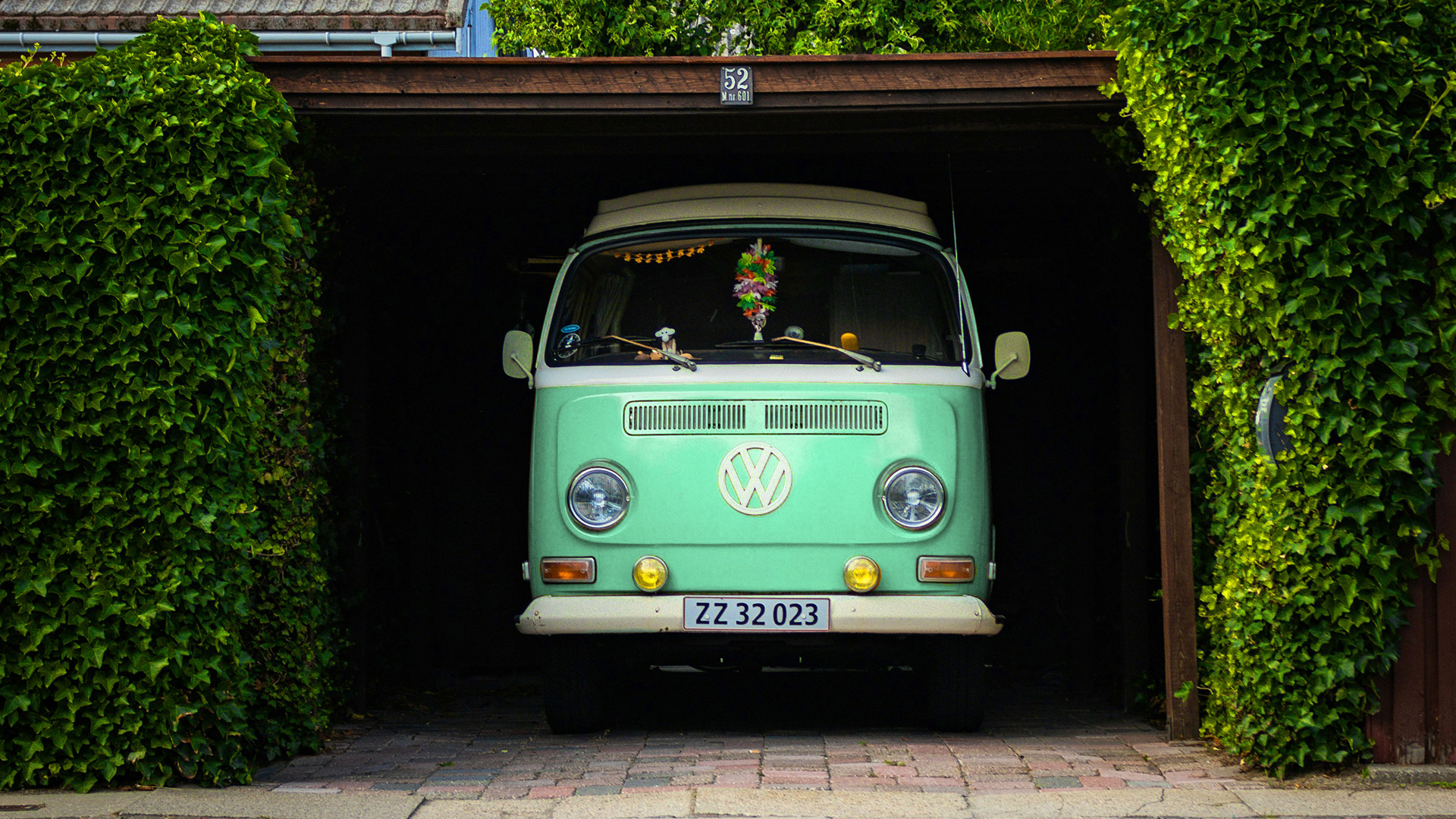

Download Assets
Download Assets
This tutorial includes 1 sample image and 1 sample PSD. Downloads are free with a PHLEARN account.
- Download the sample images and PSDs from every free tutorial on PHLEARN
- New free tutorials published every week
- One free account — sign up once, then download anything
Watch the Full Series
30 Days of Photoshop · 2025 EditionOur most-watched series, updated for 2025 — watch all 30 free
description
Change the color of anything in Photoshop and it is two jobs, not one: telling Photoshop where to work, and telling it which color to work on. Get either wrong and the change leaks into the rest of the frame.
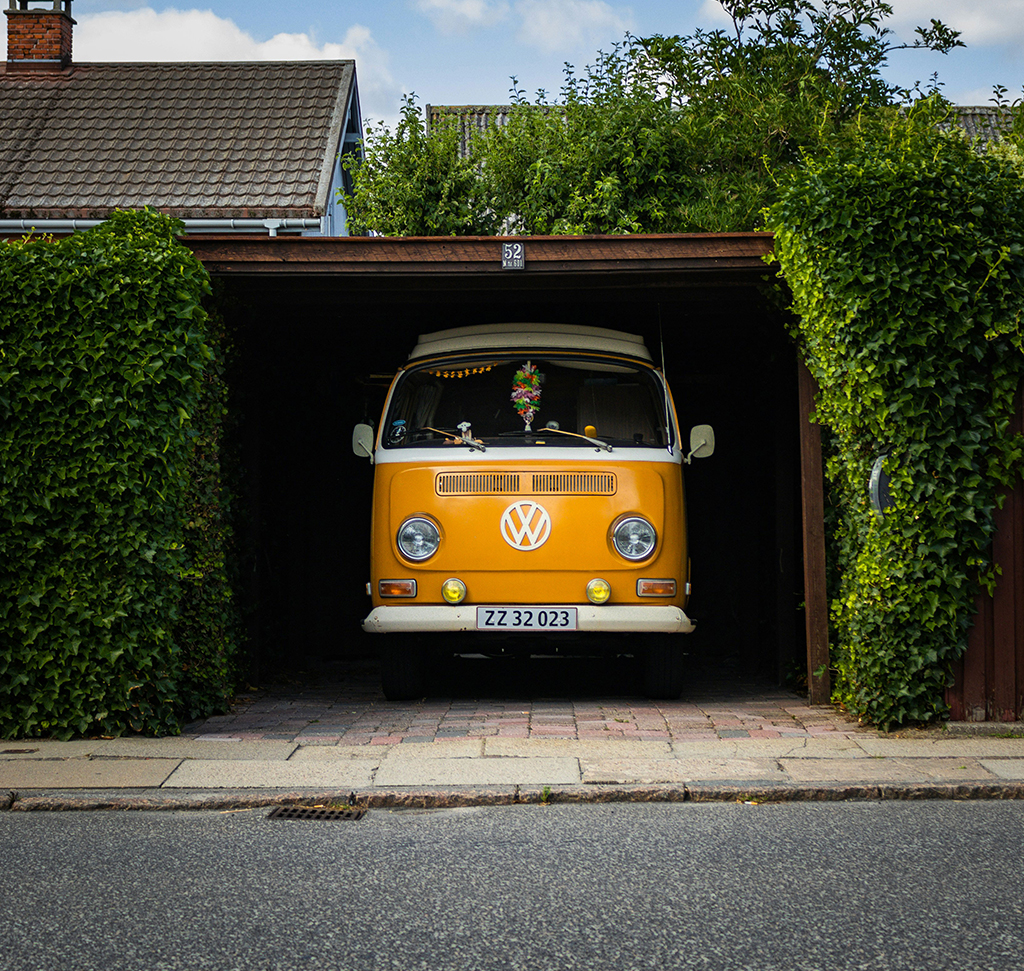
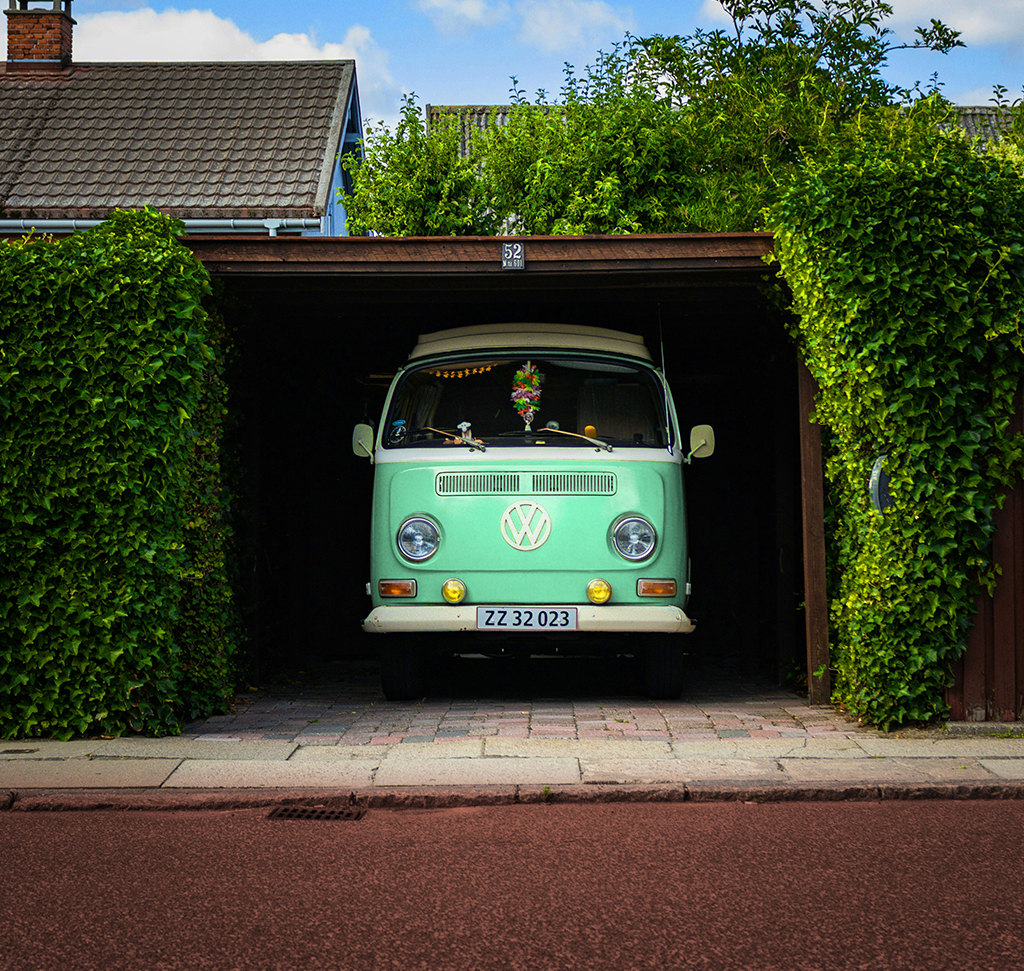
Day 8 changes a Volkswagen bus from orange to sea-foam green, then pushes the foliage into autumn and deepens the sky — all with hue/saturation adjustment layers, an accurate selection and a mask that gets cleaned up afterwards.
This is Day 8 of 30 Days of Photoshop, 2025 Edition — our most-watched series, rebuilt from the ground up for today’s tools.
Continue Watching 30 Days of Photoshop
JOIN 30 DAYS OF PHOTOSHOP (FOR FREE!)
Ready to jump in? Sign up and we’ll email you a printable calendar and daily class schedule so you can get started right away!
Image Source
Change the Color of Anything With Two Decisions
Changing the color of an object is one of the most requested things Photoshop does, and the tool for it has been in the Adjustments panel the whole time. Hue/Saturation does not paint over a color; it finds a range of color and rotates it, which is why the result keeps every shadow, highlight and reflection intact.
The catch is that it finds that color everywhere. Almost all of the work in a convincing recolor is telling Photoshop where it is allowed to look.
Select First, Then Adjust
Take the Object Selection tool and click the thing you want to change. It has had significant AI upgrades and on a well-defined subject it is now a single click.
With that selection live, add a Hue/Saturation layer from the Adjustments panel. The selection becomes the layer’s mask automatically, so the adjustment is confined to the object before you have touched a slider. This is the same pattern as Day 6: make the selection, then create the layer.
Dial In the Exact Color With the Eyedropper
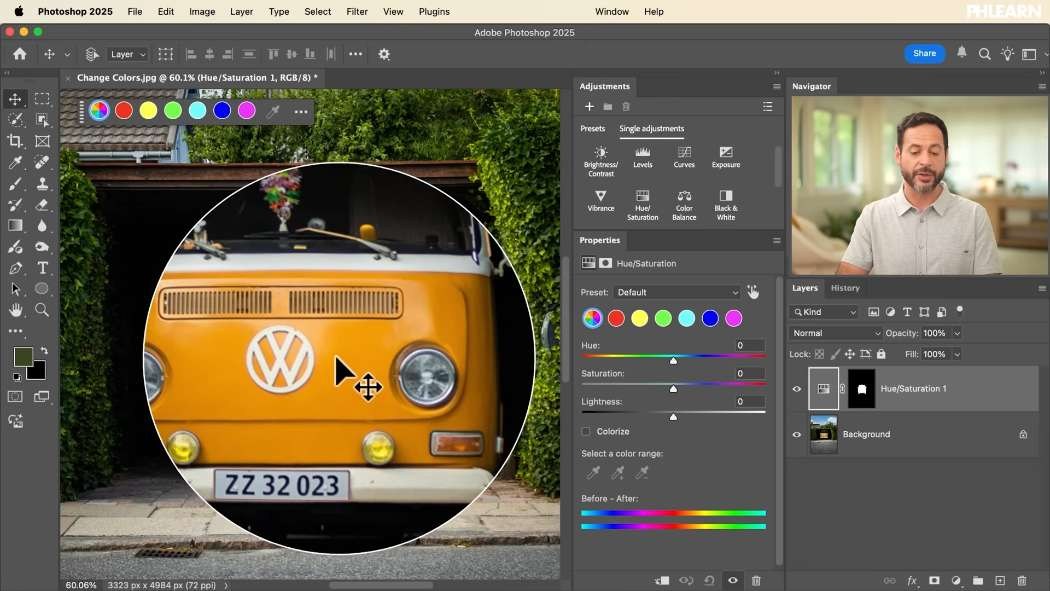
The dropdown at the top of the Properties panel defaults to Master, which affects every color at once. Switch it to whichever named range is closest — Yellows for an orange bus, say — and it narrows the target considerably.
Then do the step most people skip: take the eyedropper and click the actual pixels you want to change. Photoshop redefines the range around that precise color, and the sliders under the color bar at the bottom of the panel move to show it. A named range is an approximation; the eyedropper is the real thing.
Hue, Saturation and Lightness
Hue
Rotates the selected range around the color wheel. This is the actual recolor — orange to green, red to blue — and because it only shifts the hue, the tonal structure underneath survives untouched.
Saturation
How much of that color there is. Pulled all the way down, the object turns gray while everything else stays in color, which is a useful effect in its own right.
Lightness
Brightens or darkens the range. Handle it carefully: pushed far it flattens the object toward white or black and takes the material’s texture with it.
All three are live forever. Come back tomorrow, drag the hue slider, and the bus is a different color again.

Clean Up What the Color Range Caught by Mistake
Toggle the layer off and on and look at the whole frame, not just the object. Anything else sharing that hue — indicator lights, a wing mirror, trim — will have shifted too. That is not a mistake in the adjustment; it means the mask needs work.
-
Click the Layer Mask Thumbnail
Not the adjustment thumbnail. Check for the white outline before you paint anything.
-
Set Up a Black Brush
Press B, then D to reset the default colors and X until black is in the foreground. Right-click on the canvas to set size and hardness — high hardness for panel edges, softer where the change should fade out.
-
Paint Black Over Everything That Should Stay
Black on the mask hides the adjustment there, letting the original color show through. Headlights, mirrors, the interior seen through the windows: paint them all back.
-
Toggle and Check Again
Switch the layer on and off once more. This is the step that separates a recolor that reads as real from one that looks like a filter.
When You Do Not Need a Selection At All
Sometimes the color range is the selection. If the only green in a photograph is foliage, a Hue/Saturation layer targeting greens will only ever affect the foliage — no mask required.
Same with a clear sky and the blues. Add a layer, choose Blues, eyedropper the sky, and push saturation up for a brighter day. The rule of thumb: if the color you are targeting appears in exactly one place, skip the selection; if it appears in several, select first.
Colorize for a Blanket Color
The Colorize checkbox does something different from everything above. Instead of rotating existing colors, it discards them and paints one single hue across everything the mask allows, keeping only the underlying brightness.
-
Add a Hue/Saturation Layer and Tick Colorize
The image immediately becomes monochrome in whatever hue is currently set.
-
Choose the Hue, Saturation and Lightness You Want
With Colorize on, these three sliders define the color outright rather than shifting an existing one.
-
Mask It Where It Belongs
Click the mask, take the Gradient tool with the black-to-white linear preset, and drag across the boundary — along a road, say — so the color fades in rather than stopping at a hard line.
Colorize is the minority case. For converting one color to another, the ordinary hue slider is more convincing every time, because it keeps the original color variation inside the object.

Where Recolors Give Themselves Away
The Color Exists Somewhere Else
By far the most common problem, and the reason to always check the whole frame after a change rather than just the object.
The Lightness Slider Went Too Far
Painted metal has specular highlights and fabric has shadow detail. Push lightness hard and both disappear, and the object starts to look like a flat cut-out.
The Saturation Is Higher Than Anything Else in the Photograph
A recolored object that is noticeably more vivid than its surroundings reads as fake even when the hue is perfect. Match the saturation to the rest of the scene.
Group the Layers and Compare
By the end there may be four separate Hue/Saturation layers doing four separate jobs. Shift-click them all and press Ctrl/Cmd + G to group them, then toggle the group’s eye icon for a clean before and after — and use the group’s opacity slider if the whole thing has gone slightly too far.
Try It on Something of Your Own
Download the sample image and recolor the bus, then find a photograph of your own with one dominant colored object and do the same. The eyedropper step and the mask cleanup are the two habits worth building; everything else is dragging a slider.
Day 7 compared levels and curves, which handle color a different way. Tomorrow, Day 9 is about Select Subject and getting a clean selection in the first place.
Quick Reference: Keys, Menus and Settings
- Select the objectObject Selection tool, click the object
- Recolor itAdjustments > Hue/Saturation; the selection becomes the mask; move Hue
- Target the colorMaster dropdown > nearest range (Yellows, Greens, Blues), then the eyedropper on the color
- Protect other areasClick the mask, B, D, X for black; right-click to set hardness
- One blanket colorTick Colorize; mask with G, Black to White, Linear
- Before and afterShift-click the layers, Cmd/Ctrl + G, toggle the group’s eye icon
Free Downloads
Follow Along on the Same Photo
Get the photo of the Volkswagen bus and the layered PSD with each Hue/Saturation layer and its mask kept separate, so you can see where every change works. Free with a PHLEARN account.
Changing Colors in Photoshop: Common Questions
How do I change the color of an object in Photoshop?
Click the object with the Object Selection tool, then add a Hue/Saturation adjustment layer. The selection becomes its mask, so moving the Hue slider changes only that object.
How do I target the exact color I want to change?
In Properties, switch the Master dropdown to the closest named range, like Yellows for an orange bus. Then click the actual color in the photo with the eyedropper to dial it in.
Why did other things in the photo change color too?
Hue/Saturation changes every pixel with a similar color inside the mask, like headlights or mirrors. Click the mask and paint black over anything that should keep its original color.
How do I quickly set up a black brush for the mask?
Press B for the Brush, D for the default colors and X until black is in front. Right-click the canvas to set size and hardness.
Do I always need a selection first?
No. If the color only appears in one place, like green foliage or a blue sky, pick Greens or Blues in a new Hue/Saturation layer, use the eyedropper, and adjust without a selection.
What do Hue, Saturation and Lightness each do?
Hue changes the color itself, Saturation sets how much of it there is, and Lightness makes it brighter or darker. All three stay editable on the layer.
What does the Colorize checkbox do?
It replaces the colors with one hue that you set with the three sliders. Mask it with a black-to-white linear gradient so it only covers one area, like the road here.
Why does my color change look fake?
Check three things: the color shifted somewhere else in the frame, Lightness went far enough to flatten the texture, or the object is more saturated than the rest of the photo.
How do I see the before and after of all my color changes?
Shift-click every Hue/Saturation layer and press Cmd/Ctrl + G to group them, then click the group’s eye icon to toggle them all.
Are the sample files free?
Yes, with a free PHLEARN account. You get 1 sample image and 1 sample PSD: the Volkswagen bus photo and the layered file with each Hue/Saturation layer and its mask.
Master Photoshop, Lightroom and Photography
Join PHLEARN PRO for $12.99 a month or $99.99 a year. Cancel anytime, with a 100% money-back guarantee.





