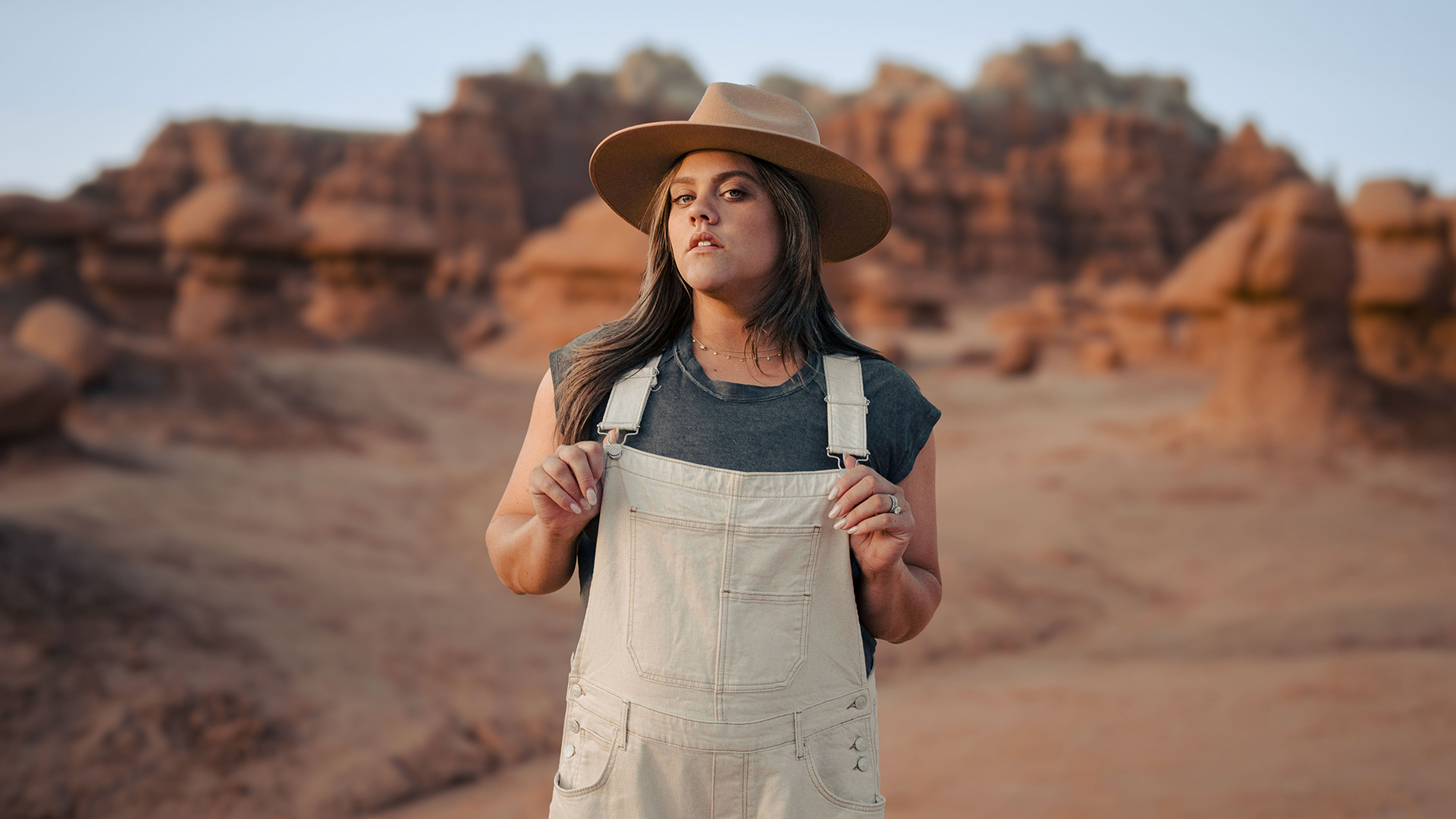

Download Assets
Download Assets
This tutorial includes 1 sample image and 1 sample PSD. Downloads are free with a PHLEARN account.
- Download the sample images and PSDs from every free tutorial on PHLEARN
- New free tutorials published every week
- One free account — sign up once, then download anything
Watch the Full Series
30 Days of Photoshop · 2025 EditionOur most-watched series, updated for 2025 — watch all 30 free
description
Adobe Camera Raw is a complete raw processor — effectively Lightroom’s develop module — and it has been sitting inside Photoshop as a filter the whole time. Anyone who finds Photoshop overwhelming and Lightroom comfortable should be starting here.
Day 10 runs a full edit through it: automatic Lens Blur to separate a subject from the background, an AI sky mask, a radial mask to lift the subject, and split color grading — all of it re-openable afterwards because of one setting applied before the filter is run.
This is Day 10 of 30 Days of Photoshop, 2025 Edition — our most-watched series, rebuilt from the ground up for today’s tools.
Continue Watching 30 Days of Photoshop
JOIN 30 DAYS OF PHOTOSHOP (FOR FREE!)
Ready to jump in? Sign up and we’ll email you a printable calendar and daily class schedule so you can get started right away!
Image Source
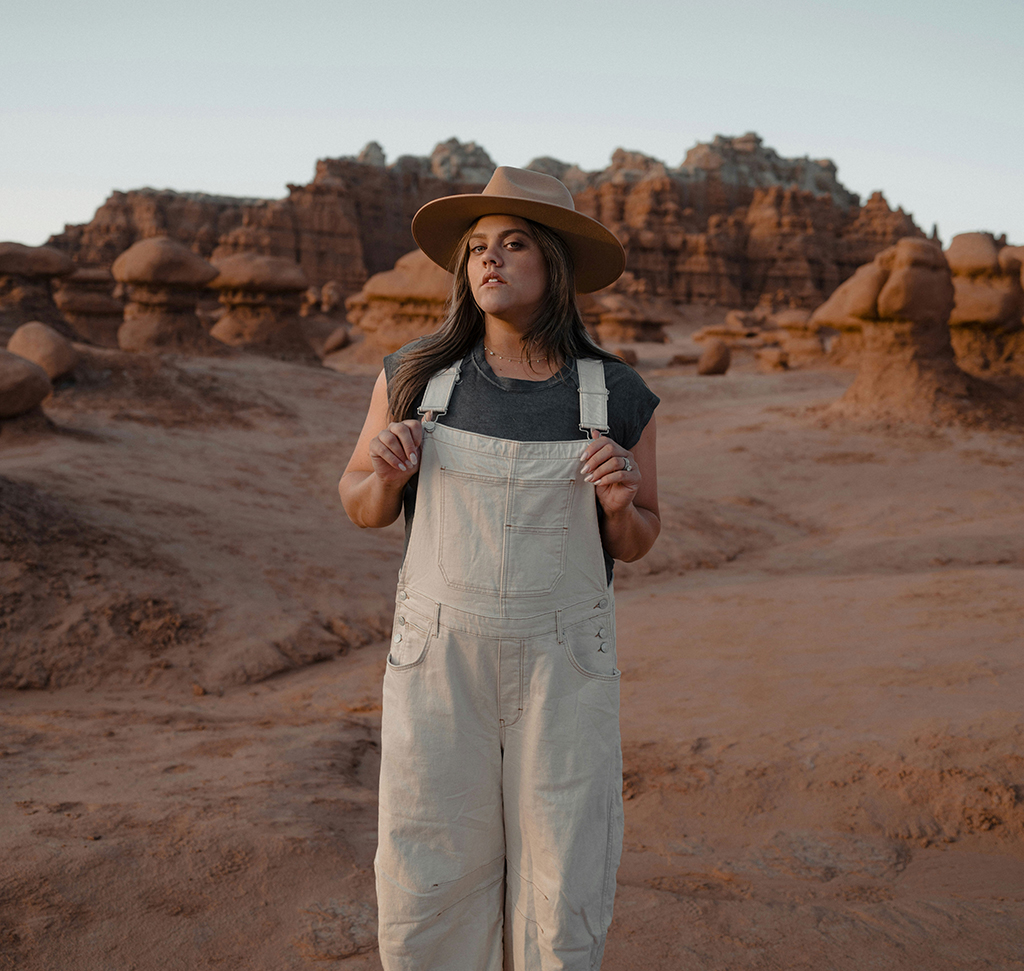
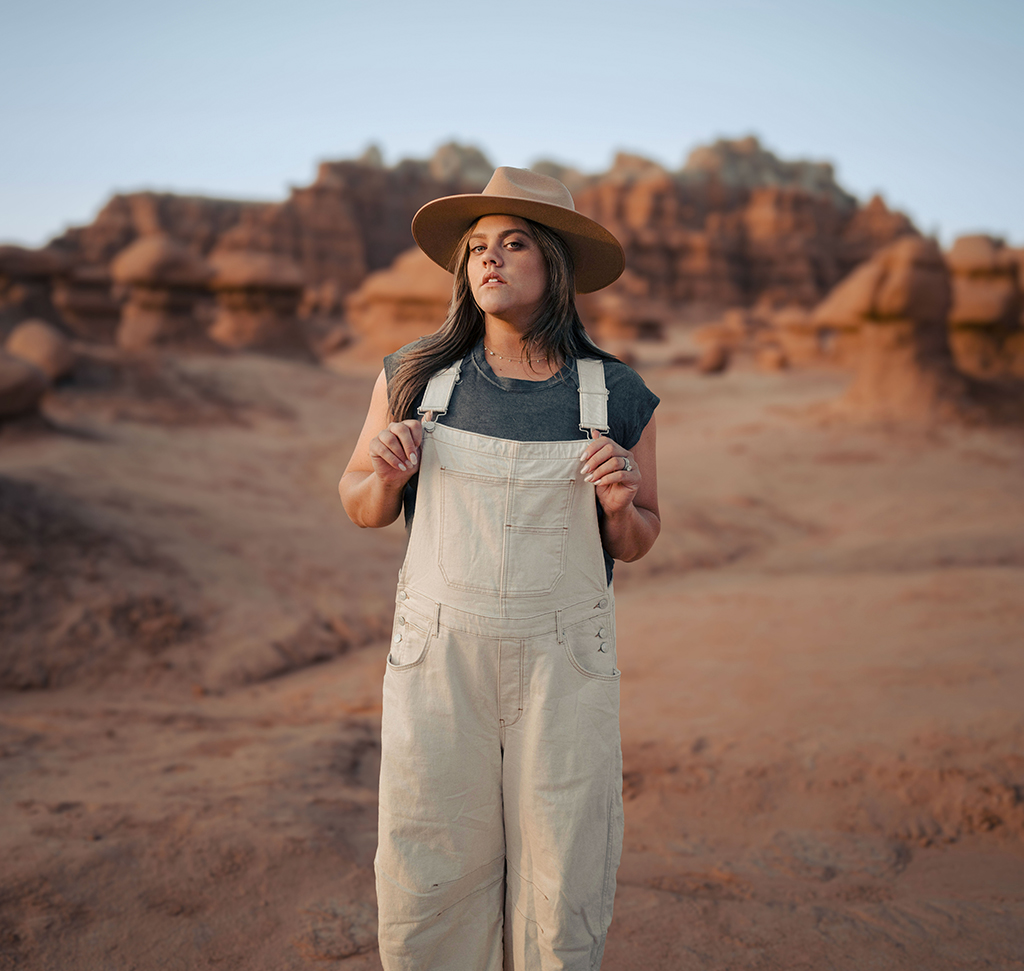
Adobe Camera Raw Is Lightroom’s Develop Module, Inside Photoshop
If you have ever used Lightroom, you already know how to use Adobe Camera Raw. It is the same engine, the same sliders, the same masking tools — and it opens from inside Photoshop as a filter, on any image, raw or not.
For a lot of photographs it is the right place to start, and for one specific job — separating a subject from a background — it is genuinely better than anything else in the application.
Convert to a Smart Object Before You Open It
Do this first, every time. Go to Filter > Convert for Smart Filters while the background layer is selected. It takes one click and converts the layer into a Smart Object.
Skip it and Camera Raw bakes its result into the pixels; you get one shot and no way back. Do it and the filter lands as a re-openable Smart Filter, with every slider, every mask and every setting exactly where you left them. This one habit is the difference between Camera Raw as a one-way trip and Camera Raw as a permanent part of your file.
Then open it: Filter > Camera Raw Filter.

Lens Blur Does the Hardest Thing Automatically
Faking shallow depth of field convincingly is difficult work by hand. Camera Raw does it with a button.
-
Open Lens Blur and Click Apply
It is in the right-hand panel. Photoshop analyzes the depth of the scene, works out what the subject is, and blurs everything behind them.
-
Refine the Subject With the Brush
Under the Lens Blur controls there is a small brush icon. Drag it across your subject’s face and Photoshop tightens the depth estimate around them, which fixes the soft-edge errors that show up around hair and shoulders.
-
Set the Amount, and Keep It Restrained
The Blur Amount slider controls the strength. It is tempting to go far; a moderate setting reads as a lens and a heavy one reads as a filter.
-
Try a Different Bokeh Shape
The bokeh options change the character of the out-of-focus highlights — the shape of the specular blobs behind your subject. Worth a look if the background has bright points in it.
Mask the Sky Without Making a Selection
Camera Raw’s masking is one of the strongest things in the panel, and it does not use Photoshop selections at all.
-
Open Masking and Choose Landscape
The landscape masks split the scene into Sky, Mountains and Ground automatically. Pick Sky and click Create.
-
Pull the Highlights Down
Skies are almost always the brightest thing in the frame. Bringing the highlights down inside the mask recovers the structure without darkening anything else.
-
Cool the Temperature
Push the Temp slider toward blue. Because the adjustment is confined to the sky mask, the subject’s skin tone is untouched — which is the whole reason this beats a global white balance change.

Add a Radial Mask Over Your Subject
-
Create a New Mask and Choose Radial Gradient
Drag out from your subject to draw an ellipse over them.
-
Raise the Exposure Inside It
A modest lift is enough. The eye goes to the brightest part of a photograph, so this is the cheapest way to direct attention.
-
Set the Feather Before You Judge It
The Feather slider at the top of the radial mask controls how gradually the edge falls off. A low feather leaves a visible oval on the image; a high one blends invisibly. This is the setting people skip and then wonder why the result looks obvious.
Every Mask Stays Live
Decided the sky went too blue? Click back onto the Sky mask in the list and move the temperature slider again. Masks in Camera Raw are not applied and gone — they remain as named, editable entries you can return to for as long as the file exists.
Color Grade the Shadows, Midtones and Highlights
Come out of masking and open Color Grading. Three wheels: shadows, midtones and highlights, each with its own hue and saturation.
The reliable move is cool shadows against warm midtones. Push the shadows toward blue and the midtones toward orange, both gently, and the image gains depth without anything looking colored. This is the same split-toning idea as the levels channels from Day 7, with a far better interface.
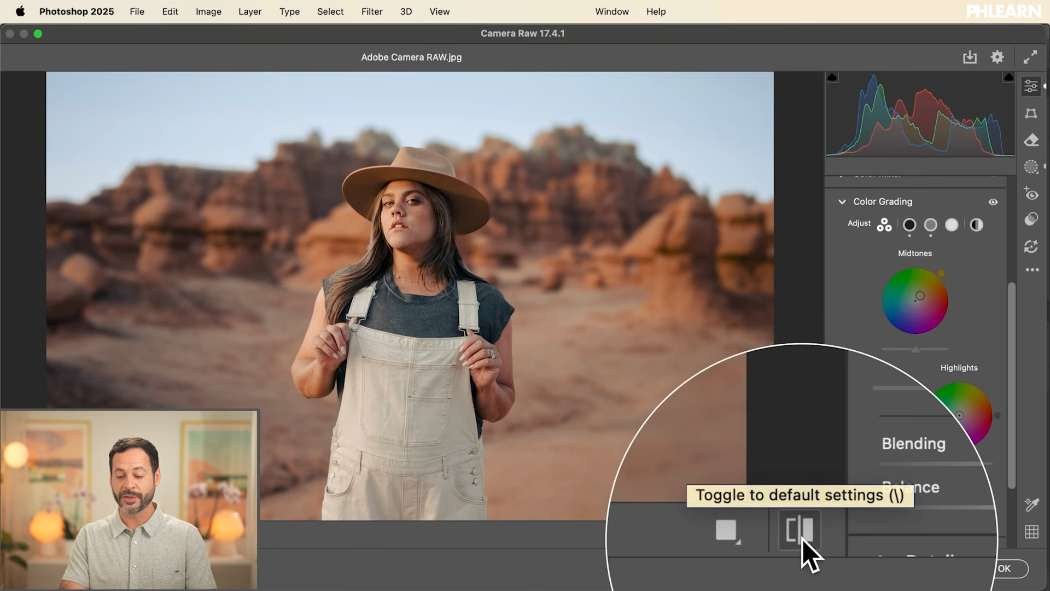
Check It With the Before and After Toggle
Bottom right of the Camera Raw window there is a before/after control, and the backslash key does the same thing. Use it constantly. Working slider by slider it is very easy to drift a long way from the original without noticing, and a full-screen before/after is the only honest check.
Back in Photoshop, Nothing Is Locked
Click OK and you return to Photoshop with the edit applied — and, because of that first step, a Camera Raw Filter entry sitting under the layer in the Layers panel.
Click its eye icon to toggle the entire edit off. Double-click the name and Camera Raw reopens with the Lens Blur amount, both masks and the color grading exactly as you left them. Then carry on in Photoshop with layers and adjustments on top.
When to Start in Camera Raw
If You Already Know Lightroom
Everything transfers directly. Do the exposure, white balance and grading here, then move into layers for the work Lightroom cannot do.
If the Photograph Needs Global Work First
Exposure, contrast, white balance and lens corrections are faster here than as a stack of adjustment layers, and they are all in one panel.
If You Need Background Separation
Lens Blur alone justifies opening it. There is no equivalent in Photoshop proper that gets close for the effort involved.
When Not To
Compositing, retouching, type and anything involving multiple images all belong in Photoshop. Camera Raw works on one layer at a time.
Download the sample image and run the whole sequence — Smart Object, Lens Blur, sky mask, radial mask, color grade — then reopen the filter afterwards and change one thing, to prove to yourself that it all survived.
Tomorrow, Day 11 removes distractions from a photograph in about as many clicks.
Quick Reference: Keys, Menus and Settings
- Open it non-destructivelyFilter > Convert for Smart Filters, then Filter > Camera Raw Filter
- Blur the backgroundLens Blur > Apply; brush over the face; Blur Amount; try the bokeh shapes
- Bluer skyMasking > Landscape > Sky > Create; Highlights down, Temp toward blue
- Light the subjectCreate New Mask > Radial Gradient; raise Exposure, set Feather
- Color gradeColor Grading: shadows cooler, midtones warmer
- Navigate and compareCmd/Ctrl + + or - to zoom, Space-drag to pan; \ for before and after
- Reopen laterDouble-click Camera Raw Filter under the layer in the Layers panel
Free Downloads
Follow Along on the Same Photo
Get the sample photo and the layered PSD with Camera Raw applied as a Smart Filter, so the blur, masks and color grade can still be reopened. Free with a PHLEARN account.
Camera Raw in Photoshop: Common Questions
What is Adobe Camera Raw in Photoshop?
The same editing tools as Lightroom, built into Photoshop as a filter. Open it with Filter > Camera Raw Filter, on any image, raw or not.
Why convert to a Smart Object before opening Camera Raw?
So you can change the edit later. Run Filter > Convert for Smart Filters first, and Camera Raw lands as a Smart Filter with every slider and mask saved. Without it, the result is baked into the pixels.
How do I blur the background behind my subject?
Open Lens Blur in the right-hand panel and click Apply. Drag the small brush over your subject’s face to refine it, then set Blur Amount; it looks best on the subtle side.
How do I make the sky bluer without changing my subject?
Go to Masking, choose the landscape masks, pick Sky and click Create. Pull Highlights down and move Temp toward blue; only the sky changes.
How do I brighten just the area around my subject?
Create a new mask, choose Radial Gradient and drag it out over your subject, then raise Exposure. Adjust Feather at the top of the mask so the edge blends instead of showing an oval.
Can I change a mask after I’ve made it?
Yes. Click the mask in the masking list, like Sky, and move its sliders again. Every mask stays editable.
How do I color grade in Camera Raw?
Open Color Grading and use the Shadows, Midtones and Highlights wheels. The video pushes the shadows a little cooler and the midtones a little warmer.
How do I see the before and after in Camera Raw?
Use the before and after control at the bottom right of the window, or press the backslash key.
How do I get back into Camera Raw after clicking OK?
Double-click Camera Raw Filter under the layer in the Layers panel and it reopens with every setting and mask in place. Click its eye icon to toggle the whole edit.
Are the sample files free?
Yes, with a free PHLEARN account. You get 1 sample image and 1 sample PSD: the photo and the layered file with Camera Raw applied as a Smart Filter.
Master Photoshop, Lightroom and Photography
Join PHLEARN PRO for $12.99 a month or $99.99 a year. Cancel anytime, with a 100% money-back guarantee.





