

Download Assets
This tutorial includes 1 PDF guide. Downloads are free with a PHLEARN account.
- Download the sample files from every free tutorial on PHLEARN
- New free tutorials published every week
- One free account: sign up once, then download anything
Free PDF Guide · 2 Pages
This Tutorial as a Step-by-Step PDF
The guide walks through finding a film border, dragging your photo into it with the Move Tool, double-clicking the Background layer to unlock it, moving the film to the top and setting it to Multiply, then scaling the photo with Ctrl/Command+T and painting black on a layer mask over the sprocket holes. Keep it next to your keyboard.
description
A vintage film border is a photograph of film, so the whole trick is finding one, or scanning your own, and then letting the dark parts of it sit on top of your picture. Place your photo over the border and size it to fill the frame in the middle, turn the border into a regular layer and move it to the top of the stack, then set it to Multiply so the black edges stay and the white centre drops away.
Enjoying This Free Tutorial?
We publish a new free tutorial every week, each one with sample images and PSDs you can download and follow along with. Sign up and they land straight in your inbox, along with early word on sales, events and subscriber-only offers.
Learn how to quickly add a vintage film border to any image in today’s episode!
Film Border Stock Images
The first step to adding a vintage film border to any digital photo is to find an image online or scan your own film.
There are many stock photo websites to choose from, in this case, we found the film border on Adobe Stock.
Click Here to See Stock Photo on Adobe Stock
Placing the Border Over Your Photo
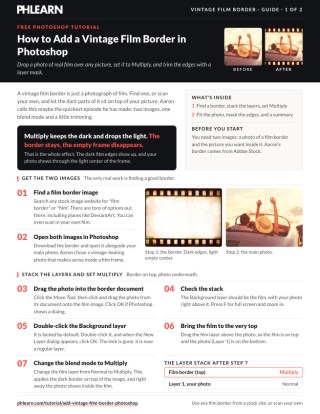
Once you have found a stock photo of a film border, open it in Photoshop along with the original image. Use the Move tool to drag the original image onto the film border document, so the film is the background layer and your photo sits right above it.
Next, double-click the film border’s locked Background layer and click OK in the New Layer dialog to convert it to a regular layer, then drag it to the top of the layer stack.
Setting the Blend Mode
Change the blending mode of the film border layer to ‘Multiply’ to set the effect. Multiply Blend Mode will make the dark areas of a layer visible and the light areas invisible, allowing the original photo to show through the center. Then select the photo layer and press Ctrl or Cmd+T to scale it down so it fits just inside the film border. If the photo still shows through the little sprocket holes along the edges, add a layer mask to the photo layer and paint black over those spots with the Brush tool (B).
Quick Reference: Keys, Menus and Settings
- Bring in the photoMove tool (V), drag the photo onto the film border document
- Unlock the borderDouble-click the Background layer > OK; drag the film to the top
- Apply the borderFilm layer blend mode: Multiply
- Fit the photoCmd/Ctrl + T, scale the photo to sit inside the frame
- Trim the edgesLayer mask on the photo, B, paint black over the sprocket holes
- Full screenF
No AI, no generative credits.
Free Downloads
Take the Guide With You
Get the PDF guide with the whole film border routine: the stock border, the photo on top, Multiply blend mode and the mask that trims the edges. Free with a PHLEARN account.
Vintage Film Borders in Photoshop: Common Questions
Where do I get a film border image?
Search any stock photo site for “film border” or “film”. The border in the video is from Adobe Stock, and you can also scan your own film.
Why can’t I move the film border layer?
It’s the locked Background layer. Double-click it and click OK in the New Layer dialog to turn it into a regular layer.
Which layer goes on top?
The film border. Drag it above your photo so the film is the top layer and the photo sits right below it.
Which blend mode makes the border work?
Multiply. It keeps the dark areas of the film visible and makes the white areas disappear, so your photo shows through the frame.
How do I fit my photo inside the frame?
Select the photo layer, press Cmd/Ctrl + T and scale it down until it sits just inside the film border.
My photo pokes out past the frame. How do I trim it?
Add a layer mask to the photo layer, press B for the Brush tool and paint black wherever the photo shows past the film edges.
Can I use my own film scans?
Yes. Scan your own film or download any border you like, open it in Photoshop and follow the same steps.
Is this hard to do?
No. Aaron calls it maybe the quickest episode he has made: a border, a blend mode, a quick resize and a mask.
Is there a free download?
Yes, with a free PHLEARN account. You get 1 PDF guide with the steps for adding the film border.
Master Photoshop, Lightroom and Photography
Join PHLEARN PRO for $12.99 a month or $99.99 a year. Cancel anytime, with a 100% money-back guarantee.





