LightCraft vs Lightroom: Is the Free Clone Any Good?
How does LightCraft vs Lightroom play out on real RAW files? LightCraft is a free, open-source copy of Lightroom, started by one developer and written largely by AI, with hundreds of volunteers now adding to it. We opened the same RAW files from a 2013 PHLEARN garden shoot in LightCraft and in Lightroom, ran Auto and Select Subject in both, and moved a Lightroom Classic catalog across. It looks like Lightroom, and the catalog import works. The smart tools are where it falls behind.
My first reaction to LightCraft was, wow, I can’t believe some guy literally cloned this. It looks pretty much like Lightroom: the same panels in the same order, the same tool strip down the right side, the same filmstrip. If you’re a Lightroom user, you’ll find your way around in seconds.
It doesn’t work the same, though. We put the two side by side on the same RAW files to see where the copy holds up and where it doesn’t, so you can decide whether it’s worth a place on your computer.
What Is LightCraft?
LightCraft is one of seven free apps that ArtCraft released in early October 2026, each one a copy of an Adobe program. We covered the whole project, and the legal questions around it, in our ArtCraft article. LightCraft is the Lightroom one. It looks like Lightroom, the newer desktop app, rather than Lightroom Classic, though under the hood it’s also chasing Classic’s features, and it keeps your library on your own drive.
The code is public on GitHub under an open-source licence, and it’s moving fast: version 0.9.1 came out on October 18, and by October 20 more than 14,000 people had starred the project. We tested 0.8.0 and then repeated the key tests on 0.9.1. The results were the same.
0
dollars, accounts or subscriptions needed to use LightCraft
10 sec
to import our six RAW files, and again to import a Lightroom Classic catalog
14,005
people who had starred LightCraft on GitHub by October 20, 2026
How Does LightCraft Compare to Lightroom on the Same RAW File?
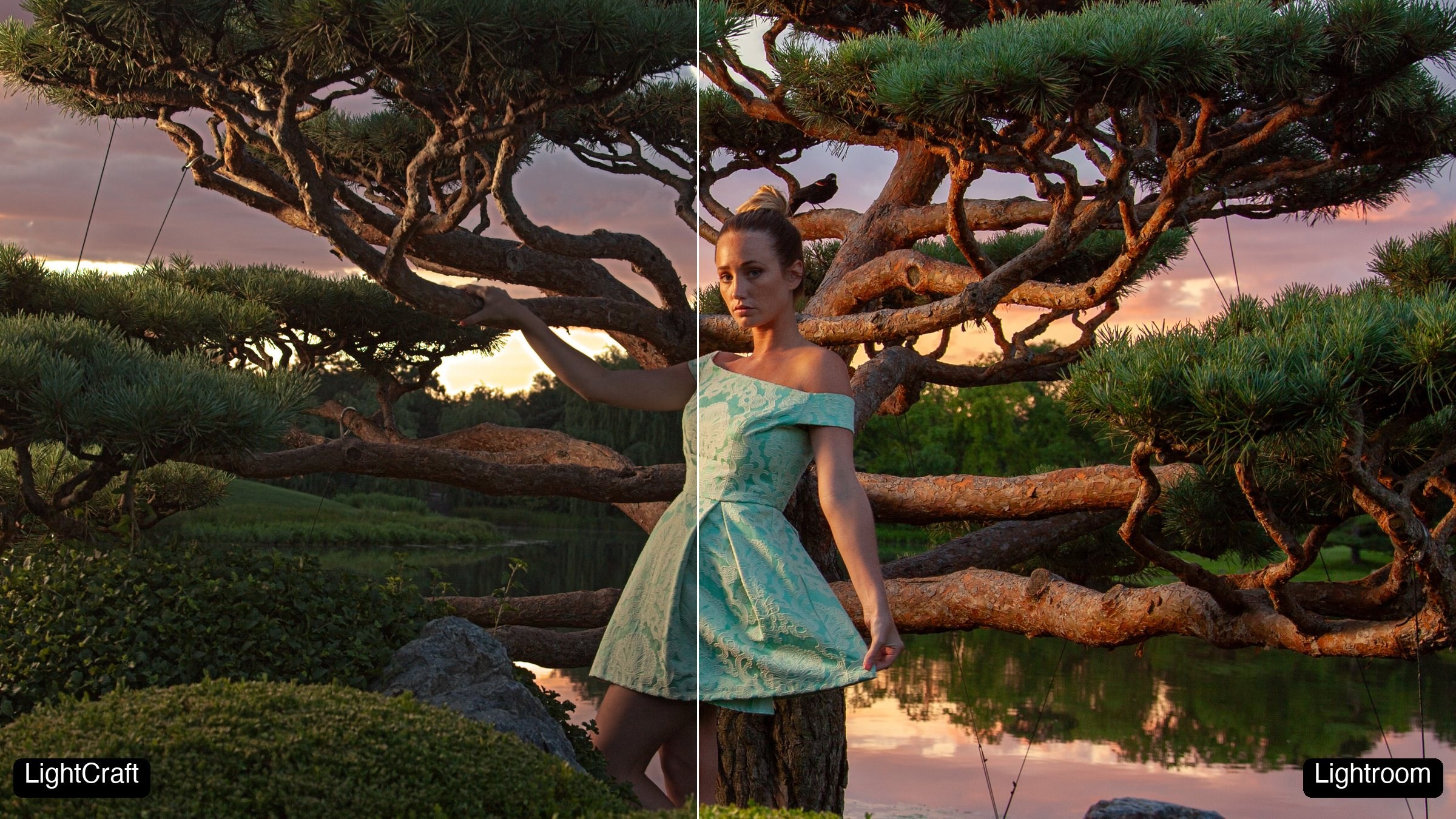
We used a Canon RAW file, saved as a DNG, from a garden shoot I photographed in 2013: Lauren in a mint dress at sunset, lit by a strobe in an umbrella, with a bright sky behind her. Bright sky, deep shadows and skin in the middle is a fair test for any RAW editor.
The first difference shows up before you touch a slider. LightCraft’s starting picture is flatter and duller than Lightroom’s, with a grey sky and muddy highlights. Lightroom opens the same file with more contrast, a brighter sky and warmer color in the sunset and on Lauren’s skin.

Then we pressed Auto in both. Three of the numbers were close: LightCraft set Exposure +0.31, Highlights −66 and Shadows +52, and Lightroom set +0.51, −75 and +61. The exception was Contrast: +68 in LightCraft, +6 in Lightroom (which also moved Whites and Blacks). The results weren’t close at all. Lightroom’s Auto gave us a finished sunset with open shadows. LightCraft’s looked almost exactly like where it started; measured across the whole frame, its picture got no brighter. Our best guess is that the big Contrast push cancels out most of what the Shadows slider adds.

To be fair to the sliders, we gave LightCraft Lightroom’s exact Auto settings, all six of them. That helped a lot, which tells you LightCraft’s sliders do work. Even with identical numbers, though, its version came out flatter and cooler than Lightroom’s.
Same settings, different engine.

Does Select Subject Work in LightCraft?
Not in our test, and Select Subject is incredibly important to me. Select Subject is a huge part of my workflow, and not having it means LightCraft isn’t a tool I can readily use, not yet anyway.
Lightroom outlined Lauren cleanly, from her hair down to where the hedge hides her legs, and it found the assistant holding the light too. LightCraft painted a soft red blob over the middle of the frame, across the tree and the bushes, and missed the assistant completely. We ran it again on 0.9.1 and got the same blob. That’s no surprise once you read the project’s notes: its Subject and Sky masks are rule-based guesses, not trained AI. Its AI masks, Object and Describe, need a separate model download, which we didn’t test.

The Sky mask did better. It caught the clouds in one click, and pulling its exposure down about two stops darkened the sky nicely, with small light halos between the pine branches. It also grabbed the white umbrella, which isn’t sky. The Remove tool has content-aware, heal and clone modes but no generative fill, and one stroke over a rock in the water only smudged it.
Can LightCraft Import Your Lightroom Catalog?
Yes, and this was the surprise of the test.
People are already searching for it, so we built a small Lightroom Classic catalog with the six photos and gave it everything a real one has: a five-star pick, a rejected frame, a two-star, a black and white conversion, an Auto edit and a collection called “Lauren Selects”.
LightCraft’s File > Import Lightroom Catalog brought it across in about ten seconds: the ratings, the pick and the reject, the black and white, the collection and the folder tree. Classic’s smart collections came across as ordinary albums, without their rules. The Auto edit arrived with Lightroom Classic’s exact slider values, though, as we saw above, the same numbers don’t give the same picture in LightCraft. Our catalog had six photos, so we can’t tell you how it handles 60,000, and the 0.9.1 release notes open with a fix to catalog import results, so it’s still being worked on.
Would I trust it with ten years of photos and edits? As long as it doesn’t delete your files, there’s little risk in trying it. A RAW editor never changes your photo’s pixels. Lightroom Classic keeps your edits in its catalog (and, if you ask, writes them to a small sidecar file, or into the file itself for DNGs). LightCraft keeps them in its own library and can import in place, so your originals stay where they are. Your Lightroom catalog isn’t changed either: LightCraft only reads it.
The whole point of a raw editor is that it keeps your raw photo intact.
Aaron Nace
Who Should Use LightCraft?
If you’ve been using the full version of Lightroom and switch to LightCraft, you’re going to be a little disappointed for everyday use. A lot of what you’d expect to work simply doesn’t, and Auto and Select Subject are the tools you notice first.
If you’re starting from nothing, it’s a good place to begin. It’s a free RAW editor, and because it copies Lightroom’s panels, what you learn in it carries over. Our Lightroom Classic lessons on the Basic panel and the mask types teach the same sliders and most of the same masks you’ll find in LightCraft, under slightly different panel names.
For any professional usage, I would suggest using Lightroom. It’s a real product, it’s supported, it’s backed, and it has a long history.
Aaron Nace
This feels like the beginning of an era, and we’re going to see more and more of it. Copying an existing program is one thing. What I find more interesting is how new programs will come about that help us do things we’ve never done before.